Flow Engine
To review your licenses on a schedule and get a list of changes worth making, set up a flow in Flow Engine. A flow reads data from OpenLM Platform services you already use, has OpenLM's AI analysis service judge it against fixed rules, and gives you a plan with one recommendation per item. Flow Engine suggests changes only. You make them yourself.
Flow Engine offers one ready-made flow today, the Claude Tier Optimizer. It suggests which Claude seats to keep, move to another plan, or take back.
Before you begin
Confirm these prerequisites:
- You're an account administrator. Flow Engine opens only for account administrators.
- OpenLM Platform holds the data your flow reads. For what the Claude Tier Optimizer needs, see its prerequisites.
Open Flow Engine
To open Flow Engine, select Navigation (the grid icon in the OpenLM Platform header), then Licenses and Features, then Flow Engine. The Flows page opens and lists the flows you have deployed. You check past runs on Flows History and read the plans on Suggestions.
The Flows page shows the following columns for each flow:
| Column | What it tells you |
|---|---|
| Flow Name | The name of the flow. |
| Status | Enabled when the flow runs on its schedule, Disabled when its schedule is turned off. |
| Trigger | How the flow starts, for example Schedule. |
| Schedule | When the flow runs. |
| Last Run | When the flow last ran. |
| Revision | The deployed version of the flow. It goes up each time you save the flow. |
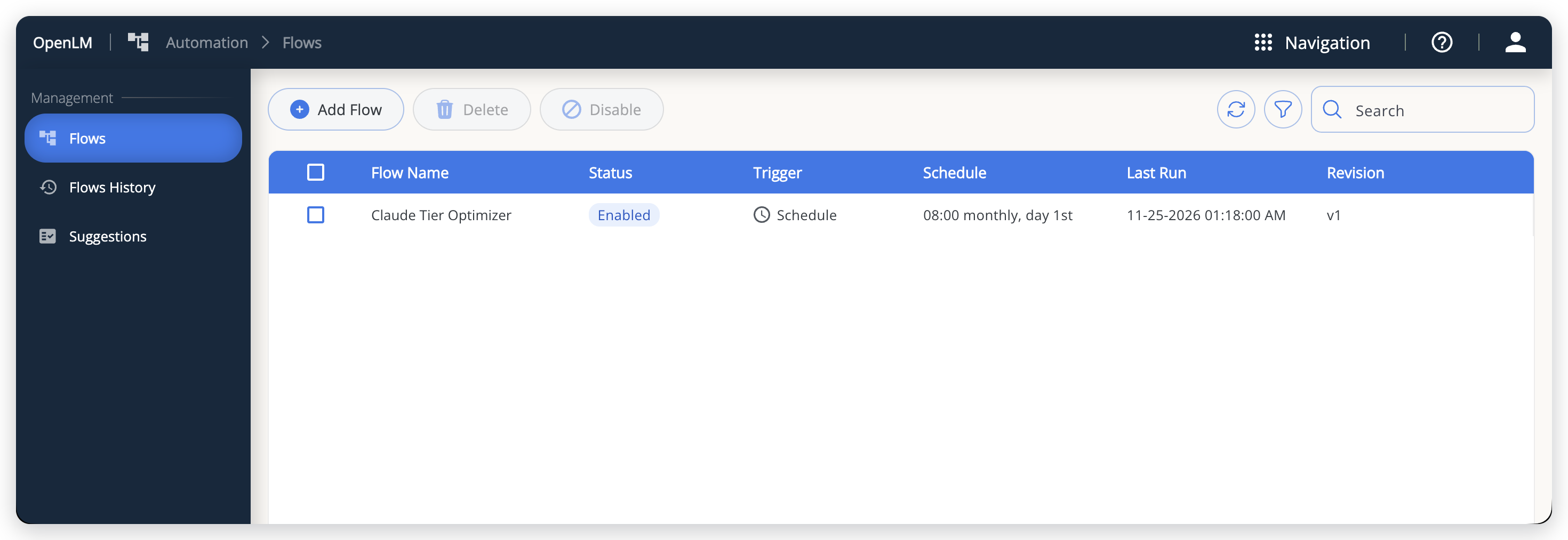 Flows lists each flow with its status, schedule, last run, and the version that runs
How a flow works
A flow has a trigger and steps that run in order:
- Trigger: when the flow runs. A flow runs on a schedule, daily, weekly, or monthly, at the time and in the time zone you choose. Event triggers are listed but not available yet.
- Get data: reads data sets from one data scope, with fresh data on every run. The data scope available today is AI subscriptions: Claude seats from License Access Control, Claude usage from Reporting, and plan prices from SAM.
- Suggest changes: hands what was read to OpenLM's AI analysis service, together with an instruction that holds the rules, and gets back one recommendation per item. The analysis proposes nothing outside the step's Action menu.
When a run ends, its plan appears on Suggestions. If the data can't be judged, the run stops with a reason instead of producing a plan that looks complete but is not.
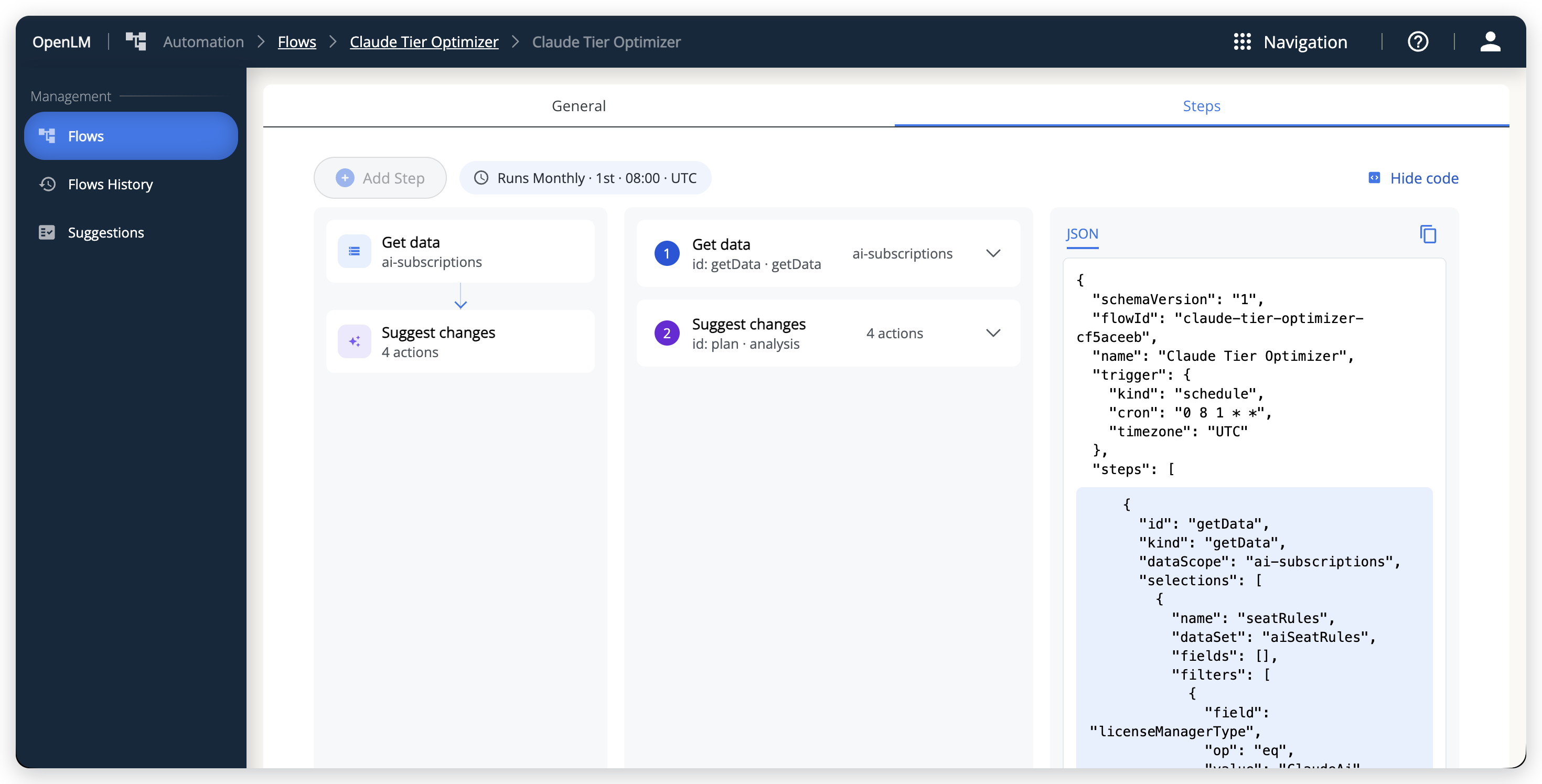 A flow reads its data in one Get data step, then proposes changes in one Suggest changes step
Add a flow
You can start a flow from a recipe, from a blank flow, or from a definition file. When you save, Flow Engine deploys the flow and turns its schedule on.
Start from a recipe
A recipe is a flow that OpenLM set up for one job. Its name, description, and steps are fixed. You set the schedule, plus anything the recipe's own page says you can change.
- On Flows, select Add Flow.
- Under Or start from a recipe, on the recipe's card, select Use recipe.
- On the General tab, under When it runs, set the Frequency, the day, the Time, and the Timezone.
- On the Steps tab, review the steps and change what the recipe allows. For the Claude Tier Optimizer, that is the number of days of usage each run reads. See Set up the flow.
- Select Save.
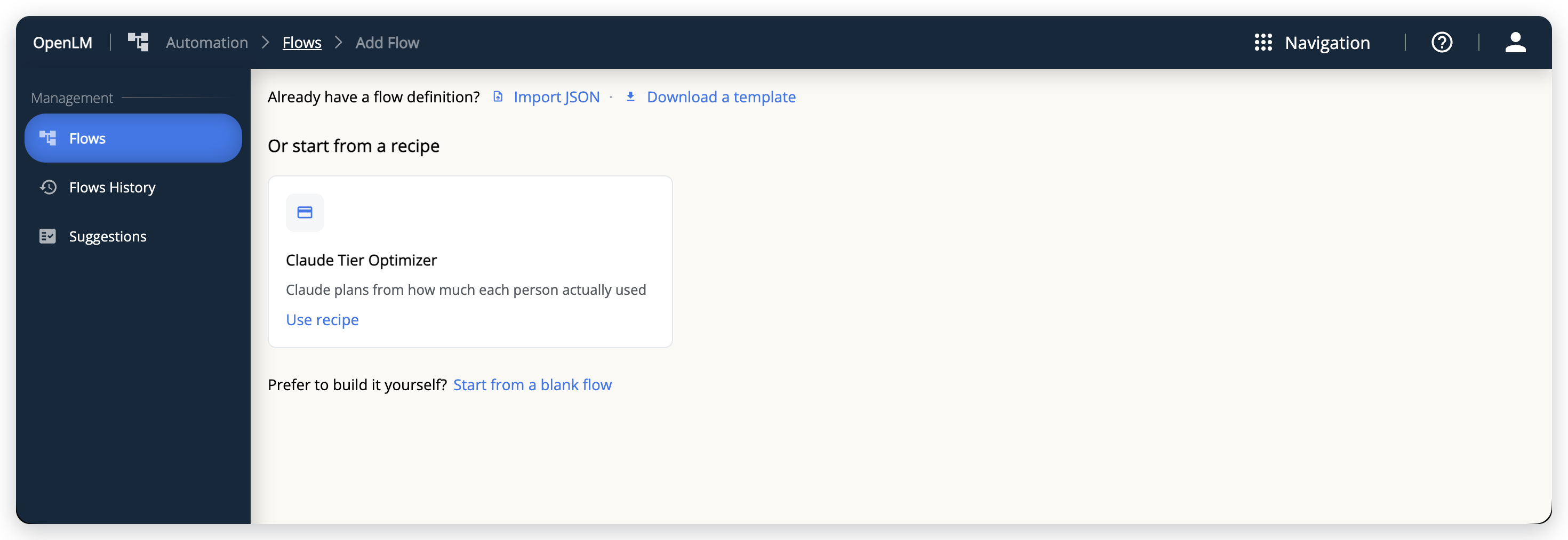 Pick a recipe, import a definition, or start from a blank flow
Start from a blank flow
A blank flow over the same data is analyzed the same way as a recipe. You write the instruction and choose the actions yourself.
- On Flows, select Add Flow, then Start from a blank flow.
- On the General tab, enter a Flow name and, if you want, a Description. Set the schedule under When it runs.
- On the Steps tab, expand Get data. Select a Data scope, then review the data sets it reads.
- Select Add Step, then Suggest changes. Write the Instruction, and select the actions the analysis can propose under Action menu.
- Select Save.
A flow takes one Get data step and one Suggest changes step.
Import a flow definition
To deploy a flow you already have as a JSON file, import it.
- On Flows, select Add Flow.
- Select Import JSON, then pick the file.
- Confirm the import. Flow Engine checks the definition and deploys it.
If the file's flow ID matches a flow you already have, the import replaces that flow with a new version. To get a starting file, select Download a template on the same page. It saves the definition of a recipe as a JSON file. To read or copy the definition of a flow you are editing, select Show code on the Steps tab.
Run a flow now
To get a plan without waiting for the schedule, on Flows, select the flow's name, then select Run Now. You can also select Run now (the run icon) on the flow's row. The run appears on Flows History, and its plan on Suggestions when it ends.
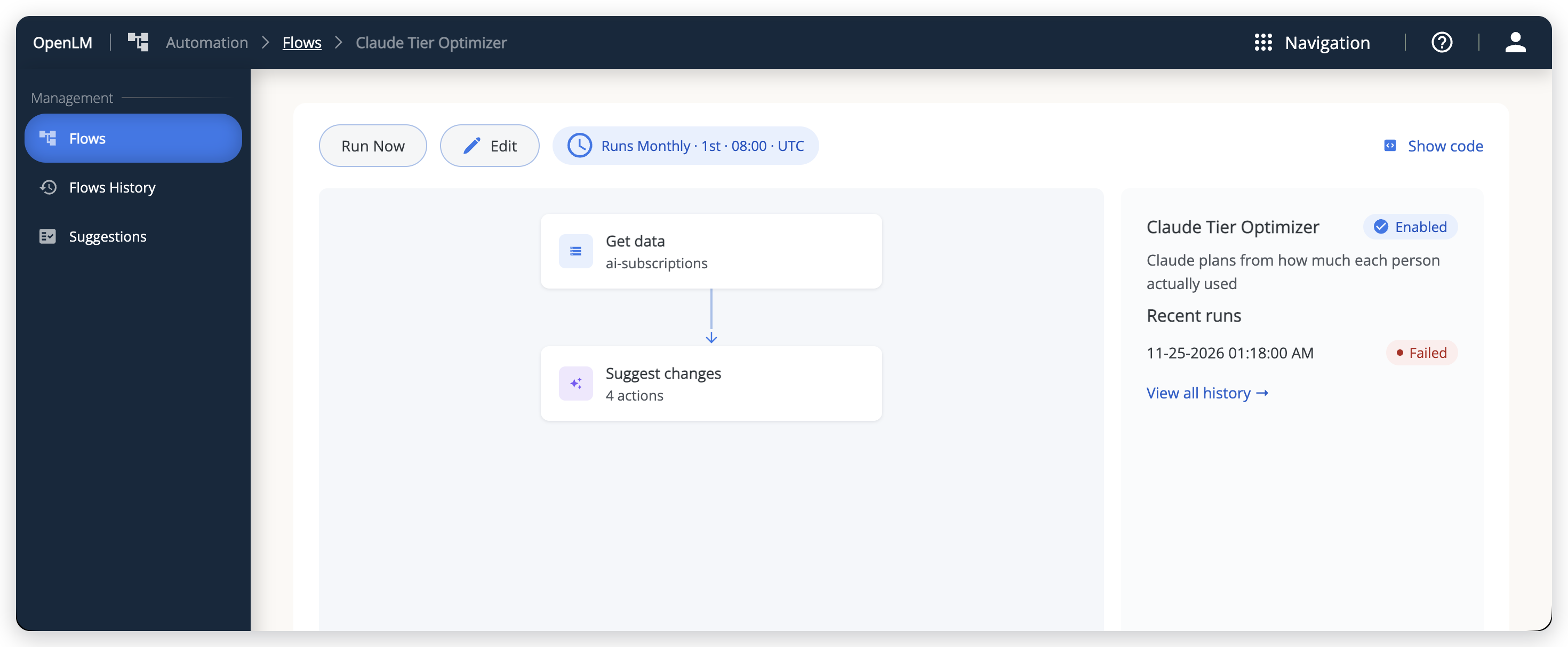 A flow's page shows its steps and schedule, and its recent runs beside them
Change a flow
- On Flows, select Edit flow (the edit icon) on the flow's row. You can also select the flow's name, then Edit.
- Make your changes on the General and Steps tabs.
- Select Save.
Every save stores a new version of the flow and deploys it. Earlier versions are kept. The Revision column on Flows shows the version that runs.
If a deployment can't be confirmed, the flow's Status on Flows turns red with a warning mark. Hover over the status to read what to do. Usually, the step is to save the flow again in a minute.
Turn a flow off or on
To stop a flow from running on its schedule, on Flows, select the check box on its row, then select Disable. Its Status changes to Disabled. A disabled flow stays deployed and keeps its versions and its past plans, and you can still run it by hand. To turn it back on, select it and select Enable.
Delete a flow
On Flows, select the check box on the flow's row, then select Delete. Deleting a flow can't be undone. It also removes the flow's runs from Flows History and its plans from Suggestions.
A flow can't be deleted while one of its runs is still going. Stop the run on Flows History, or wait for it to end, then delete the flow again.
Check past runs
To see when your flows ran and whether they succeeded, open Flows History. Each run lists its flow, trigger, start time, duration, and status, newest first. Narrow the list with Date range, the status filter, or Search.
A run can have one of the following statuses:
| Status | What it means |
|---|---|
| Queued | The run is accepted and waits to start. |
| Running | The run is in progress. To stop it, select Stop run on its row, then confirm. Work the run has done so far is discarded, and the run can take a moment to finish stopping. |
| Success | The run finished. |
| Failed | The run didn't finish. Hover over the status to see the reason. |
| Stopped | Someone stopped the run. |
| Skipped | The run didn't start. |
The following table lists the failure reasons that can come from any flow:
| Reason | What to do |
|---|---|
| "A service the flow depends on could not be reached. Run the flow again later." | A temporary outage. Run the flow again later. |
| "A service the flow depends on failed while the run was going. Run the flow again later." | Run the flow again later. |
| "A service the flow depends on did not answer in time. Run the flow again later." | Run the flow again later. |
| "A step of the flow could not be run. If it keeps failing, contact support." | Run the flow again. If it fails again, contact OpenLM Support. |
| "The run failed, and no reason was recorded for it. If it keeps failing, contact support." | Run the flow again. If it fails again, contact OpenLM Support. |
A flow can also stop because of its own data, for example when no usage was collected. Those reasons and their fixes are on the flow's own page. For the Claude Tier Optimizer, see Why a run stopped.
Read suggestions
To read what a flow proposes, open Suggestions. Each finished run that produced a plan has one card, with its flow, how long ago it ran, and how many changes it suggests. Select a card to open its plan.
A plan opens with a headline, the money it saves when prices are set in SAM, and its notes. Under Suggested changes, each recommendation names the action and the item it applies to, with an explanation of the numbers behind it. Select Show more to read every note.
The cost savings come from the prices set up in Software Asset Management and from AI analysis. Check each change before you act on it. For what a Claude Tier Optimizer plan holds, see Read the plan.
Limits
Flow Engine has the following limits today:
- Flow Engine changes nothing in your systems. A plan has no approval step and no step that applies changes.
- Flows run on a schedule only. Event triggers are not available yet.
- A flow reads one data scope, and AI subscriptions is the only one available.
- Flow definitions are imported and shown as JSON only.
The documentation team might draft this page using a large language model. A technical writer reviews every page and verifies it against the product before publishing it. A human makes the final decision.