Compliance
To check license use against country or region rules, use Compliance. You can define license usage policies tied to specific countries or regions. It reports usage that breaks a rule, based on the user's location.
Before you begin
Confirm these prerequisites:
- Software License Management is activated in OpenLM Products. Compliance has no card of its own on that page. OpenLM Platform activates it automatically after Software License Management is active and your OpenLM license covers Compliance, and deactivates it when Software License Management is deactivated.
- To view compliance reports, the license manager you create rules for sends data to OpenLM Platform through the following:
- OpenLM Broker (for licenses)
- Workstation Agent (for tracking compliance of processes, executables, or web services)
- Compliance reads the features for your rules from OpenLM License Inventory.
To open Compliance, select Navigation (the grid icon in the OpenLM Platform header), then Licenses and Features, then Compliance.
Manage compliance rules
To manage compliance rules, use the Compliance Rules panel:
- Add Rule: Create a new compliance rule.
- Delete: Remove existing compliance rules.
- Import Rules: Import previously exported compliance rules (CSV).
Use the filter bar to narrow the list of rules. Select a feature name to open its Live Statistics in OpenLM License, in a new tab.
The following image shows the Compliance Rules panel.
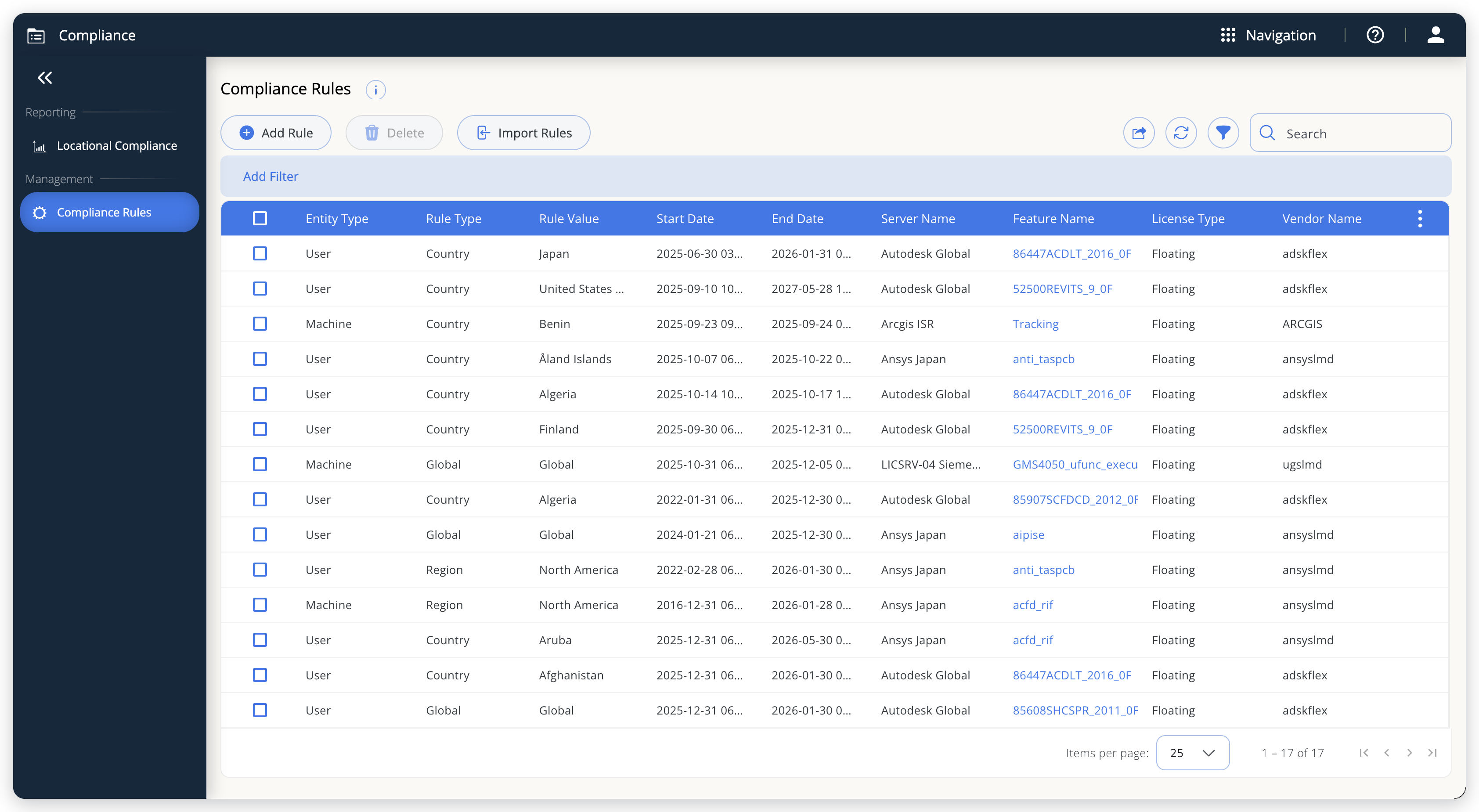 Compliance rules
Add a compliance rule
To add a compliance rule:
-
Select Add Rule in the Compliance Rules panel.
-
In the General panel, define these parameters:
- Entity Type: Select User or Machine to build reports based on user or host machine location.
- Rule Type: Select Country, Region, or Global:
- Global: The system considers all users or machines compliant at all times.
- Country/Region: Enter a country or region in Rule Value.
- Start Date/Time and End Date/Time: Set the period when this rule is valid.
The following image shows the General panel.
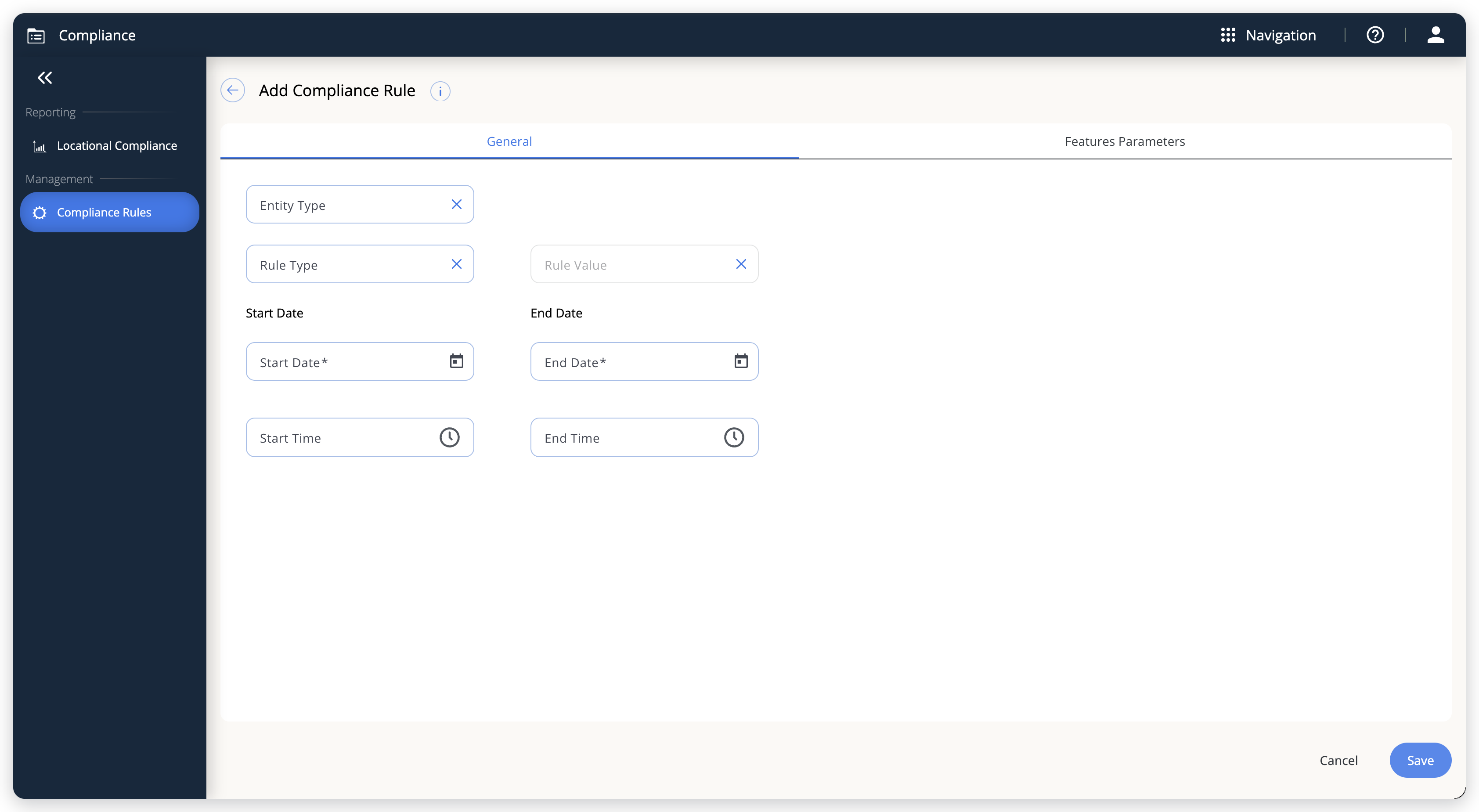 General compliance settings
-
Select the Features Parameters tab.
-
Select Select Features, then select the feature from OpenLM License Inventory.
Use the filter bar to narrow the list. You can select only one feature per rule. Create separate rules for multiple features.
The following image shows the feature selection.
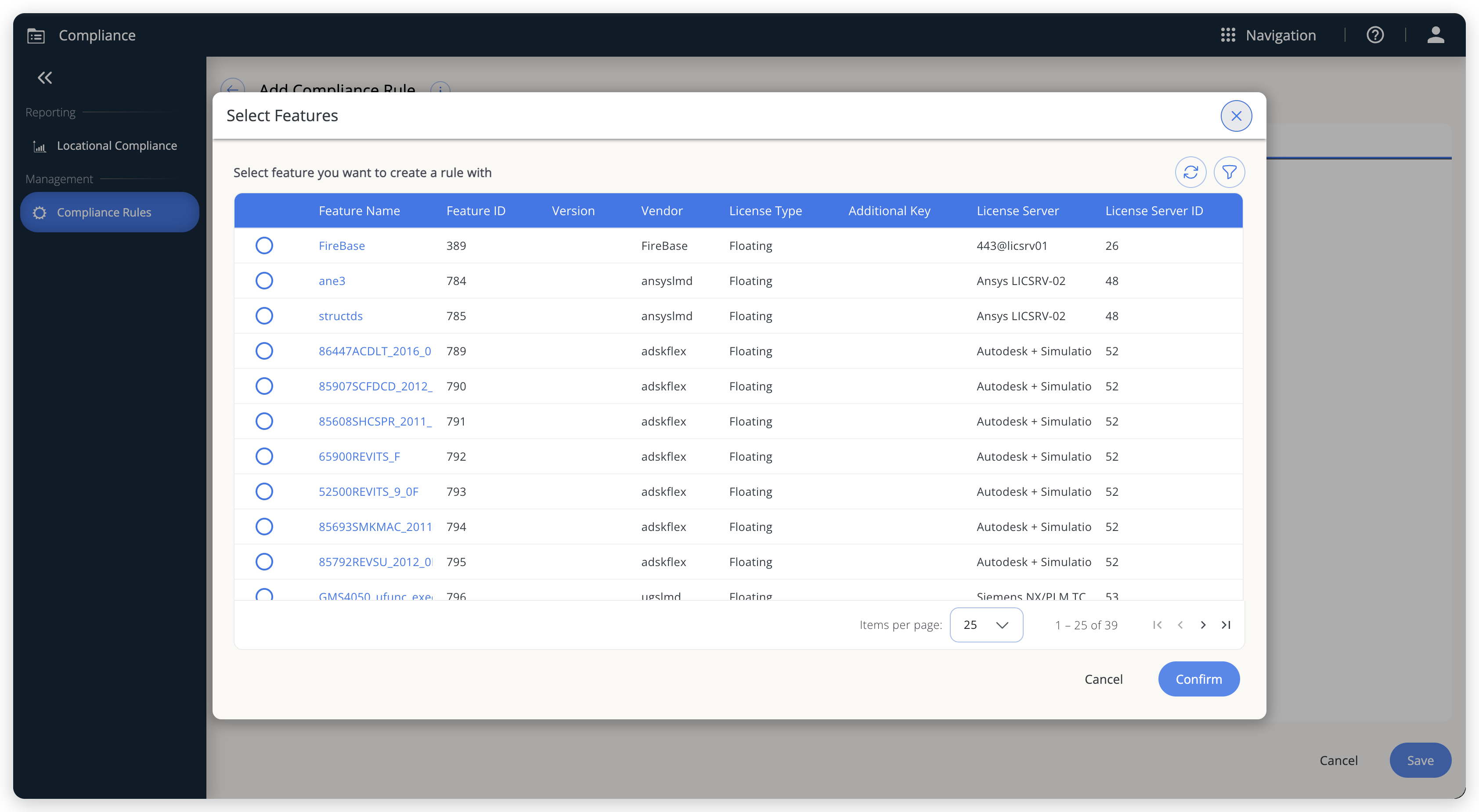 Select features for compliance rules
To see compliance results, select Locational Compliance in the Reporting section of the sidebar.
Related
For related tasks, see the following pages:
The documentation team might draft this page using a large language model. A technical writer reviews every page and verifies it against the product before publishing it. A human makes the final decision.