AbsInt
To monitor AbsInt license tokens, for example for Astrée and RuleChecker, in OpenLM Platform, configure OpenLM Broker and approve the license server. The AbsInt License Manager (ALM) publishes its full state as XML through its web interface: the installed license, the token usage of each program, and the clients that hold tokens. OpenLM Broker requests that XML on a schedule and reports each token type as a feature, together with the users who hold it.
Before you begin
Confirm these prerequisites:
- OpenLM Platform.
- OpenLM Broker v24.11.11.806 or higher, installed on a machine that reaches the ALM web interface over HTTP. Earlier Broker versions do not list AbsInt as a license manager type. In Broker versions earlier than v25.2.6.1326, the default data inquiry requests
http://localhost:8080/?xmlinstead of your ALM, and you correct it by hand in step 8. - The Broker approved in Broker Hub. OpenLM Platform accepts license manager data only from approved Brokers, so the AbsInt entry does not reach Pending Servers until the Broker itself is approved.
- The host name of the machine that runs the ALM, and the HTTP port of its web interface:
42425by default. Do not use the ports that AbsInt tools use to request tokens,42426(TLS) and42424(legacy tools). Broker reads only the web interface. - The ALM HTTP interface turned on. It is on by default. An ALM started with
--http-port 0serves no HTTP interface. - A firewall rule that lets the Broker machine reach the ALM host on the web interface port.
What you can monitor
OpenLM Broker monitors the following for AbsInt:
| LM Type in the Broker | Commands | Logs | Quantity | Expiration date | Denied | Borrowing | Allocations | Report resolution |
|---|---|---|---|---|---|---|---|---|
| AbsInt | Yes (web interface) | No | Yes | Yes | No | No | No | Seconds |
On every data inquiry, Broker reports these values:
- Feature name: the program name and the token name, joined with a dot, for example
a3c.astree,a3c.rulechecker, ora3c.rulechecker-connections. Broker reports one feature for each token type that the ALM Token usage tab lists. - Total and In use: the total and assigned token counts of each token type, which the Token usage tab shows as used/total.
- Expiration date: the expiration date of the license installed in the ALM. Broker reads the date from the license, not from each token, so the same date applies to every feature. Broker reports a license with expiration
0as permanent. - Username and workstation: for each client connection that holds tokens, the operating system user that runs the AbsInt tool and the computer it runs on, as the Connected clients tab shows them. Each connection consumes one license for each token of that type that it holds.
- License type: Broker reports every AbsInt feature as Floating.
- Vendor: Broker reports
AbsIntunless you add a different vendor on the Vendors tab.
Broker does not report a session start time for AbsInt. License denials, borrowed licenses, and license allocations are not available either, and OpenLM cannot deploy License Allocation Control rules to an ALM.
Default AbsInt settings in the Broker
These settings are set for you when you add an AbsInt port. The remaining license manager settings stay empty:
-
Commands:
data_inquiryonly, which the Broker UI shows as Data Inquiry. Its default command line is a web address, not a program:http://{$host}:{$port}/?xmlIn the Broker UI, the command line shows the Host from the License Managers page and the port of the license manager in place of
{$host}and{$port}. On every run, Broker sends an HTTPGETrequest to the address, without credentials, and reads the XML that the ALM returns. The link on the ALM Server information tab opens the same XML. AbsInt has no status command, so Broker reports the license server as active whenever the request succeeds. -
License file: None. Broker reads the license details from the ALM, not from
license.dat. -
Log file: None. The Log Files tab stays empty. Broker does not read the ALM JSON connection log.
-
Polling: The data inquiry runs every 55 seconds by default. Sessions that start and end between two runs do not reach OpenLM.
-
Dates: Broker reads the expiration date in the license text, in the form
day.month.year, for example31.12.2027.
Configure OpenLM Broker
To configure OpenLM Broker to read the ALM:
-
On the Broker machine, open
http://<alm-host>:42425/?xmlin a browser, with the ALM host name for<alm-host>and the web interface port for42425.Check that the XML starts with an
<alm>element and lists<token_usage>and<connected_clients>. If the page does not open, fix the connection first: Broker sends the same request. -
Open the Broker UI for the Broker that monitors the ALM.
On the Broker machine itself, open
http://localhost:5090/. Local access needs no credentials. From any other machine, open Broker Hub in OpenLM Platform and select the Broker UI icon of that Broker, which opens the interface with the remote access token handled for you. -
On the License Managers page, check that Host names the ALM machine.
OpenLM lists the license server under this host name, and the field holds the host for every license manager on the page, not for AbsInt alone.
- If the field is empty, enter the host name of the ALM machine and select the save icon next to the field.
- If it names a different machine, leave it as it is and enter the ALM address in the data inquiry in step 8 instead.
-
Select License Managers, then Add License Manager.
-
From LM Type, select AbsInt.
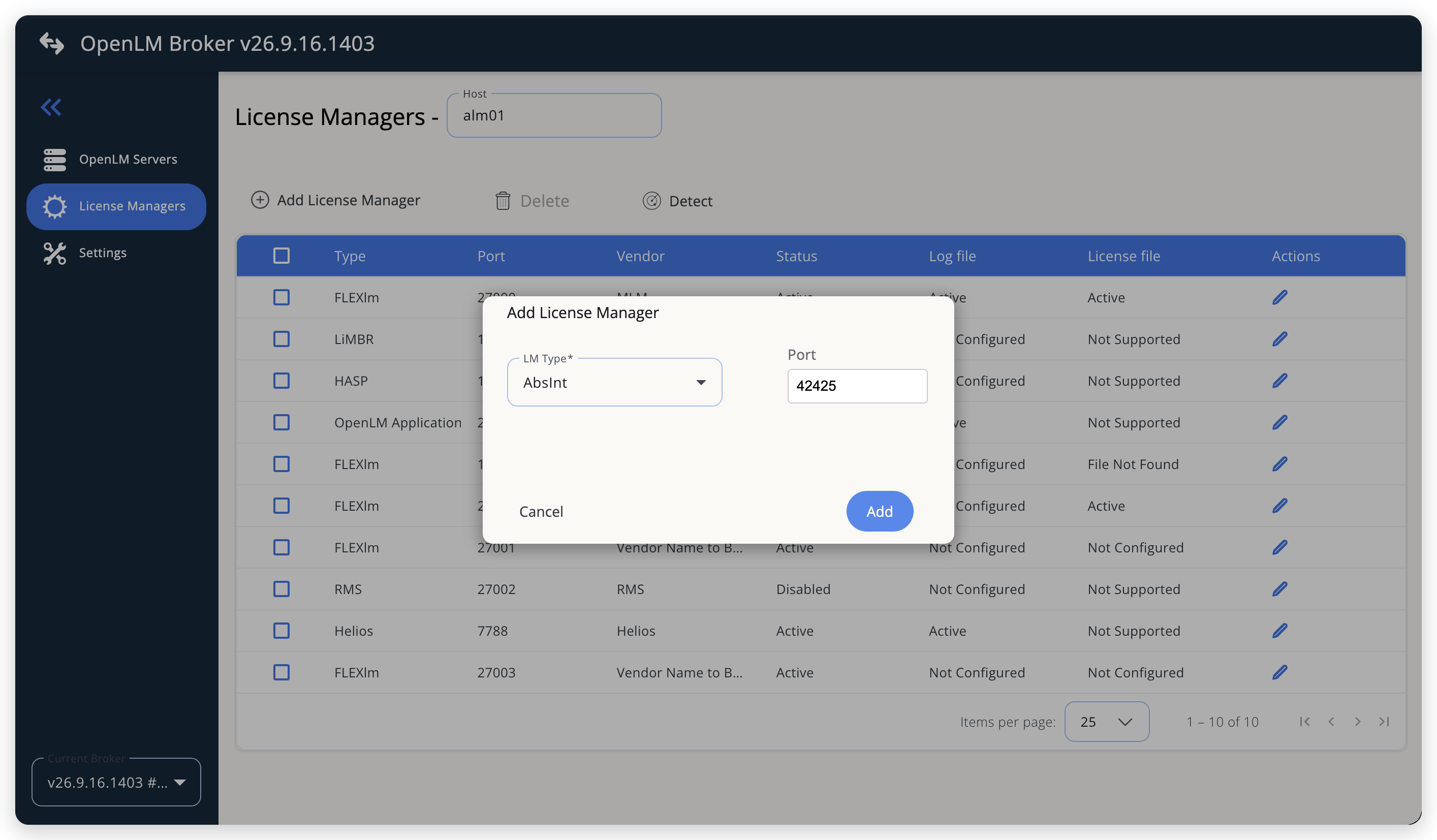 Add AbsInt as a license manager
-
In Port, enter the HTTP port of the ALM web interface,
42425by default, and select Add. -
On the Commands tab, select the Data Inquiry command.
-
Check its command line in the text box.
- If the ALM runs on the machine in Host, keep the default command line,
http://<alm-host>:42425/?xml. - If the ALM runs on another machine, replace
{$host}:{$port}, or the host and port that the command line shows, with the ALM host name and port, for examplehttp://alm01:42425/?xml. - If the Broker is earlier than v25.2.6.1326, the default command line is
http://localhost:8080/?xml. Replace it withhttp://{$host}:{$port}/?xml, or with the ALM host name and port. Restore Default brings back the wrong address in these versions.
Keep
/?xmlat the end of the address. Without it, the ALM returns its web page instead of XML, and Broker cannot read it.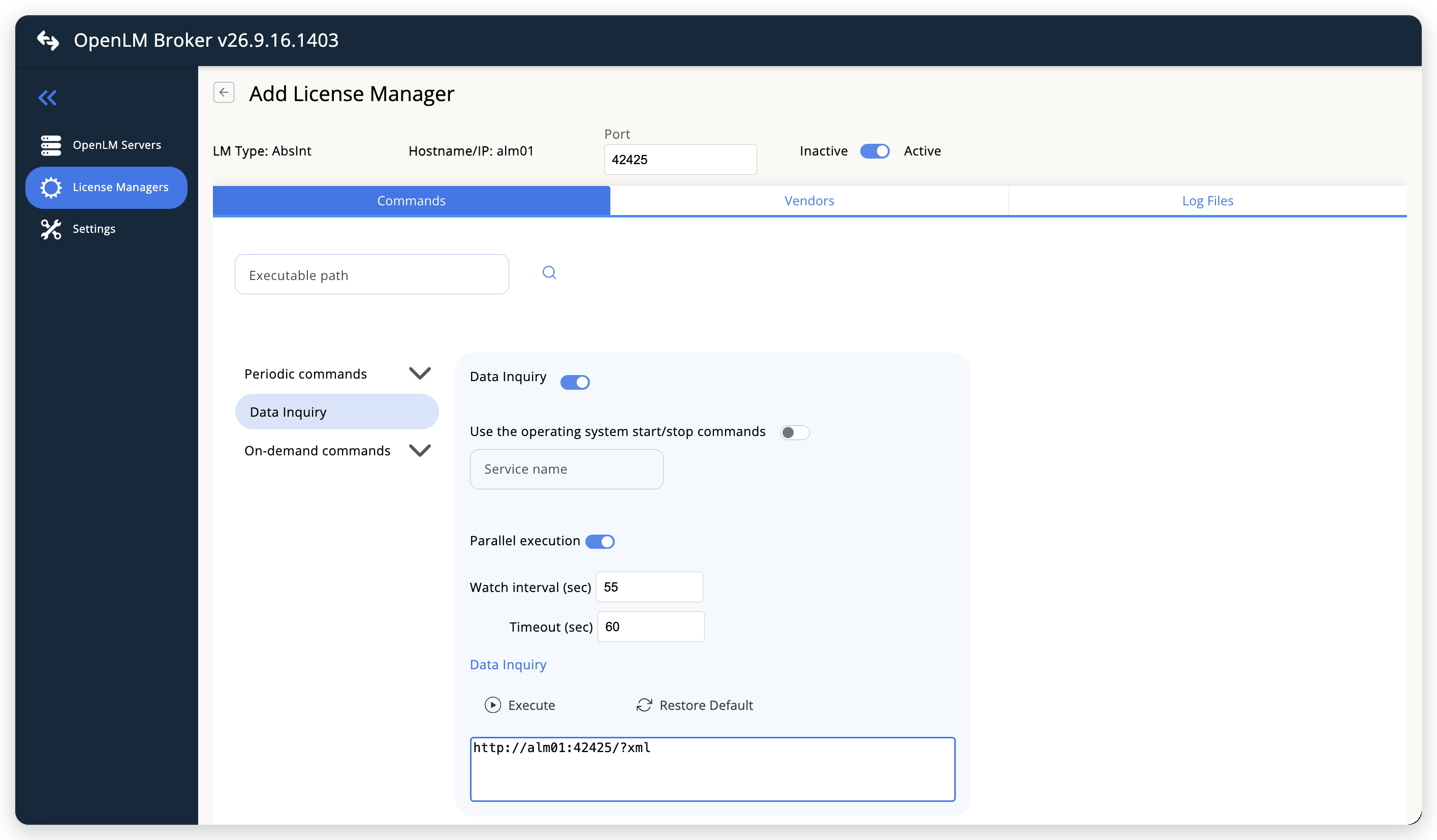 The default Data Inquiry, with Host and port filled in
- If the ALM runs on the machine in Host, keep the default command line,
-
(Optional) In Watch interval (sec), set the polling interval you want. The default is 55 seconds.
Timeout (sec), 60 seconds by default, limits how long Broker waits for the ALM to answer.
-
Leave the Log Files tab empty.
-
(Optional) Add a vendor on the Vendors tab to show a vendor name other than
AbsIntin OpenLM Platform. Otherwise, leave the tab empty. -
Select Save.
-
Reopen the AbsInt license manager from the License Managers list.
-
Go to the Commands tab.
-
Select Execute to test the data inquiry.
If the test succeeds, it returns the license server XML, with one feature for each token type, such as
a3c.astree, and the users who hold tokens. If you never saved the license manager, Broker refuses Execute and answers "Need to save first in order to execute command". -
Wait for the next periodic data inquiry.
Execute only tests the command inside the Broker UI and sends nothing to OpenLM Platform. Broker reports AbsInt to OpenLM Platform on the periodic data inquiry, so the license server reaches Pending Servers about a minute after you save.
For more information on the remote access token, see Open the Broker UI.
Approve AbsInt in OpenLM Platform
To approve AbsInt, find the pending entry named after the Host you set in the Broker UI. Broker reports AbsInt with the OpenLM Generic protocol and names the license server after the Host you set in the Broker UI, so the pending entry is listed by that host name and the port you entered, with License Manager Type shown as AbsInt.
-
Sign in to OpenLM Platform.
-
Select Navigation (the grid icon in the OpenLM Platform header), then Licenses and Features, then License Servers.
-
Under Management, select Pending Servers.
-
Find the row whose Host Name and Port match the license manager you configured in Broker.
Its License Manager Type is AbsInt, and Source names the Broker.
-
Select that row, then select Approve and merge.
Verify the integration
To verify the integration:
-
In OpenLM Platform, select License Servers, then, under Operational, select Live Servers Statistics.
-
Find the row for the host and port you configured.
-
Check that Status is Up.
Check that RSQT (Recent Successful Query Time), the last time OpenLM read licenses and usage from the server, is recent, and that Quantity and Used show numbers.
-
Select Licenses and Features, then Licenses, then Live Statistics.
Check that each AbsInt token type has its own row, for example
a3c.astree, with License Type Floating and the Total and Used counts. Compare them with the Token usage tab of the ALM web interface. -
Select a feature's Used count to confirm that sessions arrived.
The count opens the Usage service on Currently Consumed Licenses, where each connection that holds the token appears with its Username and Workstation. Compare them with the Connected clients tab of the ALM web interface.
It can take up to 3 minutes for the status to update for a new connection.
Troubleshooting
These entries cover problems with AbsInt monitoring.
Why doesn't AbsInt reach Pending Servers?
If AbsInt never reaches Pending Servers, open Broker Hub and confirm that this Broker appears under Brokers with status Up, and not under Pending Brokers. OpenLM Platform accepts license manager data only from approved Brokers.
Why does AbsInt appear with no features?
If the Broker is approved and up, or if AbsInt appears with no features, go back to the Commands tab in the Broker UI and select Execute. Compare the result with this list:
- A connection error or a timeout: Broker cannot reach the ALM web interface. From the Broker machine, open the data inquiry address in a browser. If the page does not open there either, check the host name, the port (
42425by default, not42424or42426), the firewall between Broker and the ALM host, and that the ALM was not started with--http-port 0. - An XML parsing error: the address answered, but not with the ALM XML. Confirm that the command line ends in
/?xml, and that the port belongs to the ALM web interface and not to another service on the same host. - Features, but no users: the clients connected to the ALM hold no tokens. Broker reports a connection only while it holds at least one token, so a connected but idle client does not appear in OpenLM.
- A command line that still shows
localhost:8080: the Broker is earlier than v25.2.6.1326. Correct the address as in step 8.
The Broker log holds the detail, in the logs folder of the Broker installation. A manual Execute writes to broker-service.log, and the periodic data inquiry writes to port-<port>-AbsInt.log.
Known limitations
These limits apply to AbsInt monitoring:
- Broker does not report license denials, borrowed licenses, or license allocations, and does not upload usage history. Usage in OpenLM starts when you configure the license manager. Broker doesn't import the cumulative token usage that the ALM web interface shows for the past.
- Broker reads the current state of the ALM, not a log, so it sees only the connections that hold tokens when the data inquiry runs. Broker can miss a session shorter than the watch interval.
- Broker reports no session start time, so a session in OpenLM starts at the first data inquiry that sees it.
- The username is the operating system user that runs the AbsInt tool. ALM user accounts, which the Manage users tab defines for password-protected access, are not reported.
- Broker requests the XML over plain HTTP by default. If your ALM serves its web interface only over HTTPS, port
42427by default, change the command line tohttps://<alm-host>:42427/?xml. The Java runtime that the Broker uses must then trust the certificate that the ALM presents. - Multiple server redundancy is not available for AbsInt.
The documentation team might draft this page using a large language model. A technical writer reviews every page and verifies it against the product before publishing it. A human makes the final decision.