Altium Primary Server
To monitor Altium Designer license usage from an Altium Designer Private License Server that runs as the Primary server, configure OpenLM Broker to read its usage log. The Private License Server has no command that OpenLM Broker can query, so Broker reads the usage log that the license server writes and builds license totals and sessions from its checkout and check-in entries.
This page covers the Private License Server and its weekly usage log. To monitor Altium Enterprise Server through its web API, with an Altium username and password, see Altium License Manager. The SaaS Agent, not Broker, monitors Altium 365 cloud licenses.
Before you begin
Confirm these prerequisites:
- OpenLM Platform.
- OpenLM Broker v25.7.7.711 or higher, installed on the machine that runs the Altium Designer Private License Server. Earlier Broker versions do not list Altium Primary Server as a license manager type.
- The Broker approved in Broker Hub. OpenLM Platform accepts license manager data only from approved Brokers, so the Altium entry does not reach Pending Servers until the Broker itself is approved.
- Logging turned on in the Private License Server. The license server writes no usage log until you turn logging on in its Log Settings dialog, which opens from the Logging button in the Licensing dialog. The same dialog sets the log folder and how many weeks of log files to keep (5 by default). Write down the log folder, which you enter in Broker later.
The Private License Server starts a new log file every Monday and names it after that date, for example SS_20251006.log. Broker follows the newest file when you turn on Watch files by pattern, as described in Configure OpenLM Broker.
What you can monitor
OpenLM Broker monitors the following for the Altium Primary Server:
| LM Type in the Broker | Commands | Logs | Quantity | Expiration date | Denied | Borrowing | Allocations | Report resolution |
|---|---|---|---|---|---|---|---|---|
| Altium Primary Server | No | Yes (Usage Log) | Yes | No | No | No | No | Seconds |
From the usage log, Broker reports these values:
- Feature name: the Product Name in the log, for example
Altium Designer Professional. Broker reports one feature for each License Activation Code, so if you hold two activation codes for the same product, that product appears twice. - Total: the Seats Available value on the first checkout that Broker reads for that activation code.
- In use: the number of open sessions. Broker calculates the session count from checkout and check-in entries.
- Username, workstation, and session start time: the User, Computer, and Date of each checkout.
- License type: Broker reports every Altium feature as Floating.
- Vendor: the vendor that you select for the log file.
Expiration dates, license denials, borrowed licenses, and license allocations are not available. The log records failed checkouts, for example check-out failed with answer "License for group "All Users", product "Altium Designer Professional" is depleted.", but Broker does not report them as denials.
Default Altium Primary Server settings in the Broker
An Altium Primary Server port uses only a log file. The other license manager settings stay empty:
-
Commands: None. Broker never connects to the Private License Server, so it reports the license server as active for as long as Broker itself runs, and the port you enter only identifies the license server in OpenLM Platform.
-
Log file: one log type, Usage Log. Broker reads the tab-separated entries that follow the
#Fields:header line and acts on three actions:check-out completedopens a session.check-in completedcloses it.check-in on logoff completedcloses it too, when Altium Designer releases the license as the user logs off.
Broker identifies a session by user, computer, product, and activation code, so a check-in closes the checkout that has the same four values. Broker ignores the other lines, including
trying to check-out,trying to check-in, andcheck-out failed. -
Date format: Broker reads the Date column in the format the Private License Server writes, day-month-year with a 12-hour clock, for example
16-06-2025 9:30:21 AM. -
Restarts: When the Broker service starts, it rereads the current log file up to where it stopped reading and restores the sessions that are open in that file. It does not restore sessions from earlier weekly files. Broker sends to OpenLM Platform only the entries written after you configured the license manager. It does not upload the history in the file.
Configure OpenLM Broker
To configure OpenLM Broker to read the usage log:
-
Open the Broker UI for the Broker on the Private License Server machine.
On the Broker machine itself, open
http://localhost:5090/. Local access needs no credentials. From any other machine, open Broker Hub in OpenLM Platform and select the Broker UI icon of that Broker, which opens the interface with the remote access token handled for you. -
On the License Managers page, confirm that Host names the Private License Server machine.
OpenLM Platform lists the license server under this host name. The field holds the host for every license manager on the page, not for Altium alone.
-
Select License Managers, then Add License Manager.
-
From LM Type, select Altium Primary Server.
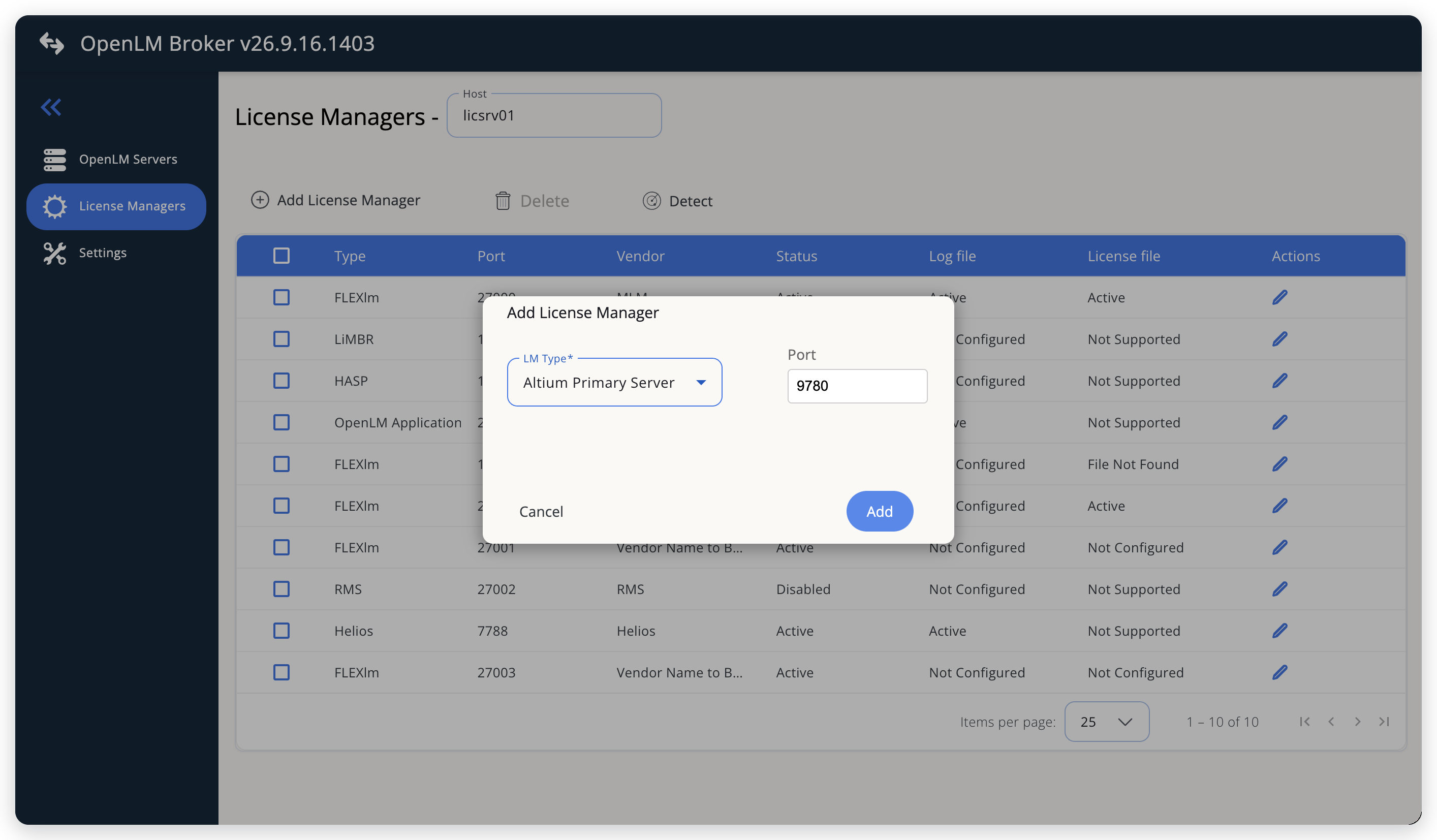 Add the Altium Primary Server as a license manager
-
Enter a port.
Broker does not connect to this port. It identifies the license server in OpenLM Platform, together with the host name, so use the port that your Private License Server listens on to make the entry recognizable.
-
Select Add.
-
On the Vendors tab, select Add Vendor.
-
Enter
Altium. -
Select Continue.
-
On the Log Files tab, select Add Log File.
-
Fill in the dialog:
- Log Type: Usage Log.
- Log Name: a name that you recognize, for example
Altium usage log. - Log Path: the full path to the newest log file in the folder set in Log Settings, for example
D:\AltiumLogs\SS_20251006.log. The account that the Broker service runs as must be able to read the folder. - Vendor: Altium.
-
Expand Advanced.
-
Turn on Watch files by pattern.
With this option on, Broker reads the file to its end and then moves to the newest file in the same folder whose name has the same pattern: the same length, with digits in the same positions. This is how Broker follows the new
SS_<date>.logfile each Monday. Without it, Broker keeps reading the file you entered, and usage stops after the first week.Leave Encoding, Sent data size limit (kb) (default 100), and Read File Every (Sec) (default 10) as they are.
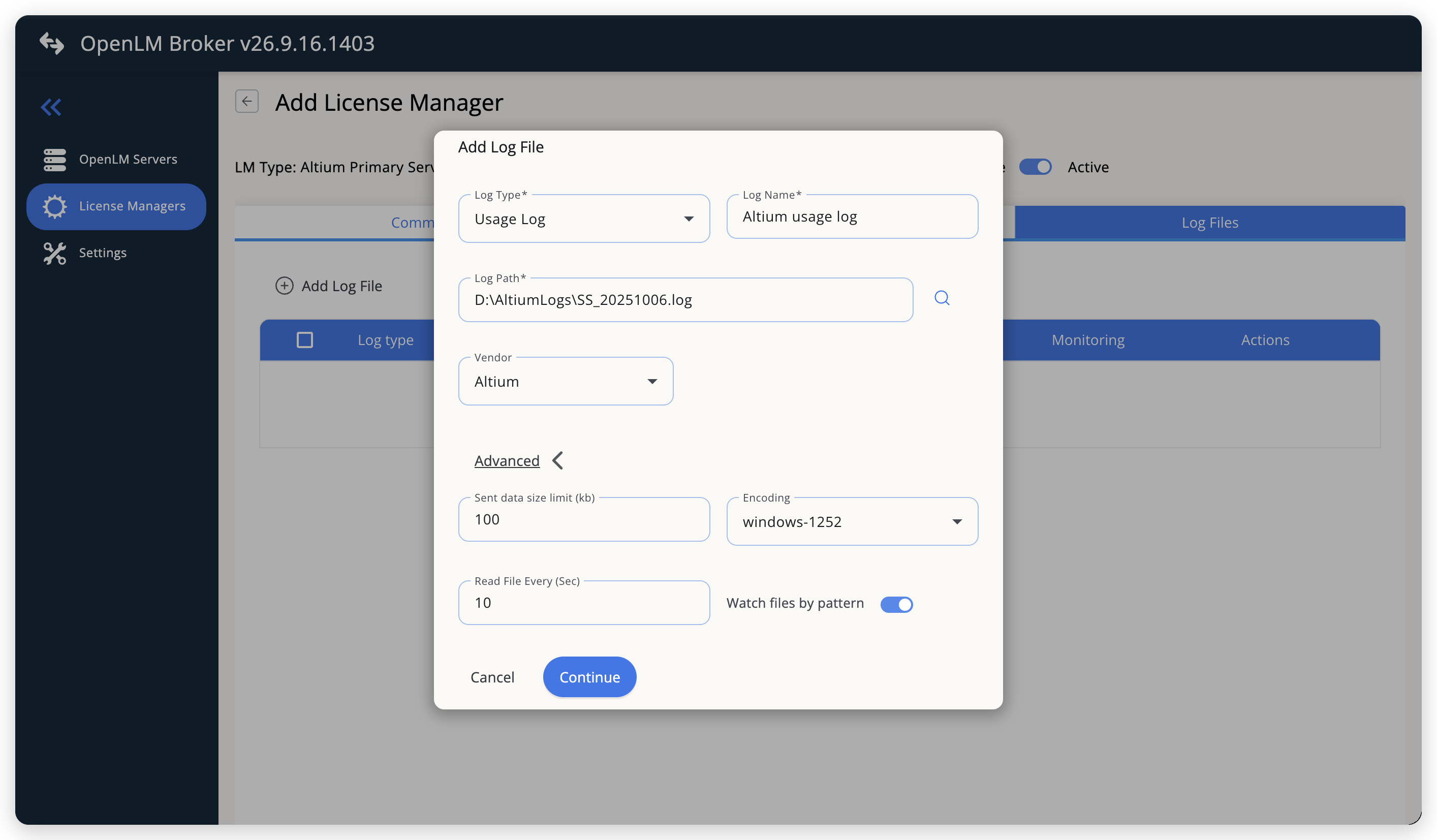 Point Broker at the newest weekly log and turn on Watch files by pattern
-
Select Continue.
-
Confirm that Monitoring is on for the new log file.
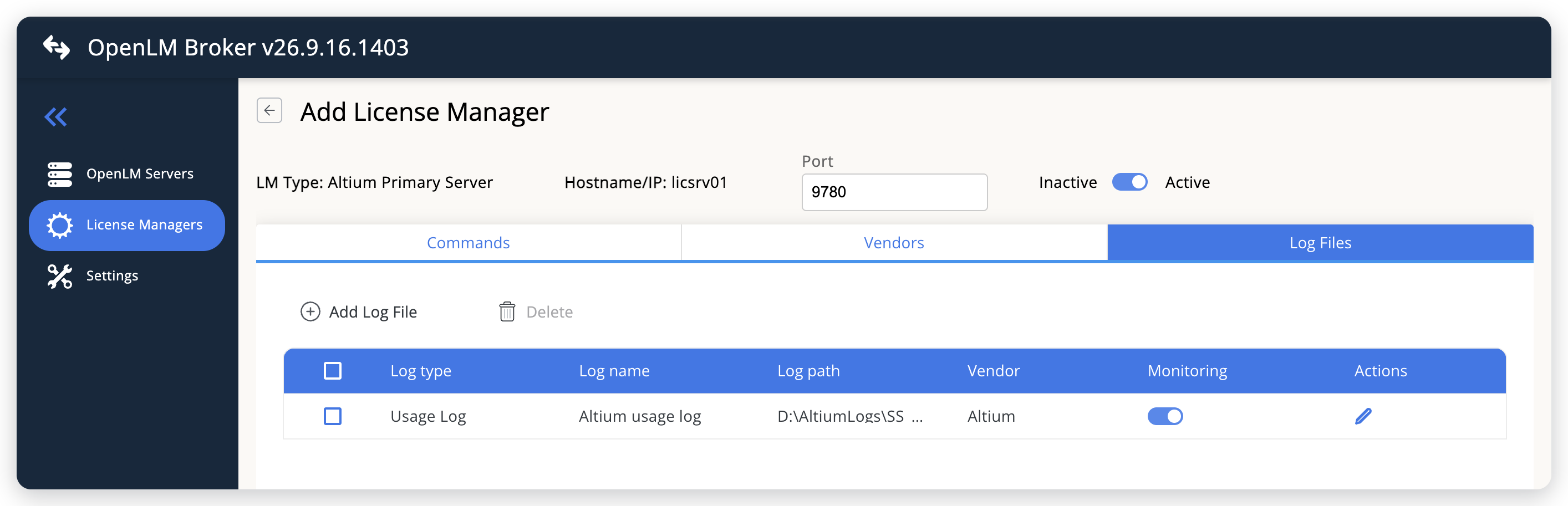 The usage log on the Log Files tab, ready to save
-
Select Save.
For more information on the remote access token, see Open the Broker UI.
Approve the Altium Primary Server in OpenLM Platform
To approve the Altium Primary Server, find its pending entry. Broker reports the Altium Primary Server with the OpenLM Generic protocol and names the license server after the Host you set in the Broker UI, so the pending entry is listed by that host name and the port you entered, with License Manager Type shown as Altium Primary Server.
-
Sign in to OpenLM Platform.
-
Select Navigation (the grid icon in the OpenLM Platform header), then Licenses and Features, then License Servers.
-
Under Management, select Pending Servers.
-
Find the row whose Host Name and Port match the license server you configured in Broker.
Source names the Broker.
-
Select that row.
-
Select Approve and merge.
Verify the integration
To verify the integration:
-
In OpenLM Platform, select License Servers, then, under Operational, select Live Servers Statistics.
-
Find the row for the Private License Server host and port.
-
Check that Status is Up.
Each Altium product appears after its first checkout since you configured the log file, so Quantity and Used can stay empty until someone starts Altium Designer.
-
Select Licenses and Features, then Licenses, then Live Statistics.
Check that each product has its own row, with License Type Floating, Total set to the Seats Available value from the log, and Used set to the number of open sessions.
-
Select a feature's Used count to confirm that sessions arrived.
The count opens the Usage service on Currently Consumed Licenses, where each Altium Designer user appears with their Username, Workstation, and Start Time.
It can take up to 3 minutes for the status to update for a new connection.
Troubleshooting
These entries cover problems with Altium Primary Server monitoring.
Why doesn't the license server reach Pending Servers?
If the license server never reaches Pending Servers, open Broker Hub and confirm that this Broker appears under Brokers with status Up, and not under Pending Brokers.
Why does the approved license server show no features or no usage?
If the license server is approved but shows no features or no usage, check the log file in this order:
Is logging turned off?
Open the Private License Server's Log Settings dialog and confirm that logging is turned on and writes to the folder in Log Path. Open the newest SS_<date>.log file and confirm that it gains check-out completed lines while people use Altium Designer.
Does Broker read an old file?
On the Log Files tab, compare Log Path with the newest file in the folder. If Broker still points at last week's file, turn on Watch files by pattern and select Save.
Has anyone checked out a license since you configured Broker?
Broker learns each product and its total from a checkout. Start Altium Designer on a client and wait for the next update.
Do the dates match the expected format?
Broker reads only lines whose Date is day-month-year with a 12-hour clock and AM or PM, for example 16-06-2025 9:30:21 AM, and skips other lines.
Why does the in-use count differ from the log?
Broker counts sessions itself. When its count differs from the Seats In Use value in the log, Broker writes In-use count mismatch to the Broker log, in the logs folder of the Broker installation, and reports its own count. Sessions that were open before you configured the log file, or that started in an earlier weekly file before the Broker service restarted, are unknown to Broker, which skips their check-ins.
Known limitations
These limits apply to the Altium Primary Server:
- Broker does not report license denials, expiration dates, borrowed licenses, or license allocations. License Allocation Control rules are not available, because Broker writes no options file for Altium.
- Broker keeps a product's total from the first checkout it reads for that activation code until the Broker service restarts. After a restart, it takes the total from the first checkout in the current weekly file. If you add seats to a license, restart the Broker service after the next weekly log file starts, so that Broker reads the new Seats Available value.
- Broker does not upload the log history. Usage in OpenLM Platform starts when you configure the log file.
- If the Broker service stops for more than a day, Broker does not send the entries that the license server wrote in the meantime. It still restores the sessions that are open in the current log file.
- Broker reads only the Primary server's log. Multiple server redundancy with a Secondary server is not available.
The documentation team might draft this page using a large language model. A technical writer reviews every page and verifies it against the product before publishing it. A human makes the final decision.