CADMATIC
To monitor CADMATIC licenses in OpenLM Platform, configure OpenLM Broker to read the web page of CADMATIC License Server. CADMATIC License Server is a Windows service that serves the licenses of CADMATIC products, such as CADMATIC Hull, to the computers on your network. It also publishes a web page that lists the licenses in use and the licenses still free. OpenLM Broker requests that page on a schedule and reports the licenses, their totals, and the users who hold them to OpenLM Platform.
Before you begin
Confirm these prerequisites:
- OpenLM Platform.
- OpenLM Broker v26.7.8.1247 or higher, installed on a Windows or Linux machine that reaches the license server over HTTP. Earlier Broker versions do not list CADMATIC as a license manager type. Use v26.9.16.1403 or higher, so that a user who holds several licenses arrives in OpenLM Platform as one user, each session carries its workstation, and no sessions are lost when the two tables on the page disagree.
- The Broker approved in Broker Hub. OpenLM Platform accepts license manager data only from approved Brokers, so the CADMATIC entry does not reach Pending Servers until the Broker itself is approved.
- CADMATIC License Server 2.0, which runs as the Windows service CADMATIC License Server 2.0. Broker reads the layout of the web page of CADMATIC License Server 2.0.
- The HTTP TCP/IP port of the license server, which serves its web interface. The default is
2998. The License TCP/IP port,2999by default, serves license requests, and Broker does not use it. - A web interface that opens without a username and password. Broker does not sign in to it.
What you can monitor
OpenLM Broker monitors the following for CADMATIC:
| LM Type in the Broker | Commands | Logs | Quantity | Expiration date | Denied | Borrowing | Allocations | Report resolution |
|---|---|---|---|---|---|---|---|---|
| CADMATIC | Yes | No | Yes | Yes | No | No | No | Seconds |
From the Available Licenses table of the web page, Broker reports each application as a feature:
- Feature name: the Application column, for example
Hull Structure. - Total: the Perpetual + Term column.
- In use: the total minus the Free column. When the Reserved Licenses table has rows for the application and their number differs, Broker reports the number of rows. See How OpenLM Broker collects CADMATIC data.
- Version: the Versions column without the part in parentheses, so
26(+1)becomes26. - Expiration date: the License expiration date at the top of the page. Broker reports the same date for every application.
- License type: Broker reports every application as Floating.
- Vendor:
CADMATIC, unless you add a vendor on the Vendors tab in Broker.
From the Reserved Licenses table, Broker reports each row as a session that holds one license:
- Username: the User column. When CADMATIC adds a counter to the name, such as
jsmith (+1), Broker removes it, so all the rows of one user arrive as that user. - Workstation: the Host column.
- Start time: the Login Time column, to the second.
Broker v26.9.16.1403 or higher removes the counter and reports the workstation. Older Broker builds keep the counter in the username and report no workstation. Broker ignores the Version column of this table. The page holds no denied requests, borrowed licenses, or license allocations, so they are not available for CADMATIC.
How OpenLM Broker collects CADMATIC data
The following diagram shows how OpenLM Broker collects CADMATIC usage. OpenLM Broker on a Windows or Linux machine requests the web page of CADMATIC License Server over HTTP, on port 2998 by default, and reads its Reserved Licenses and Available Licenses tables. Broker sends the license data to OpenLM Platform over HTTPS on port 443, and you see the data in the OpenLM Platform services in a web browser.
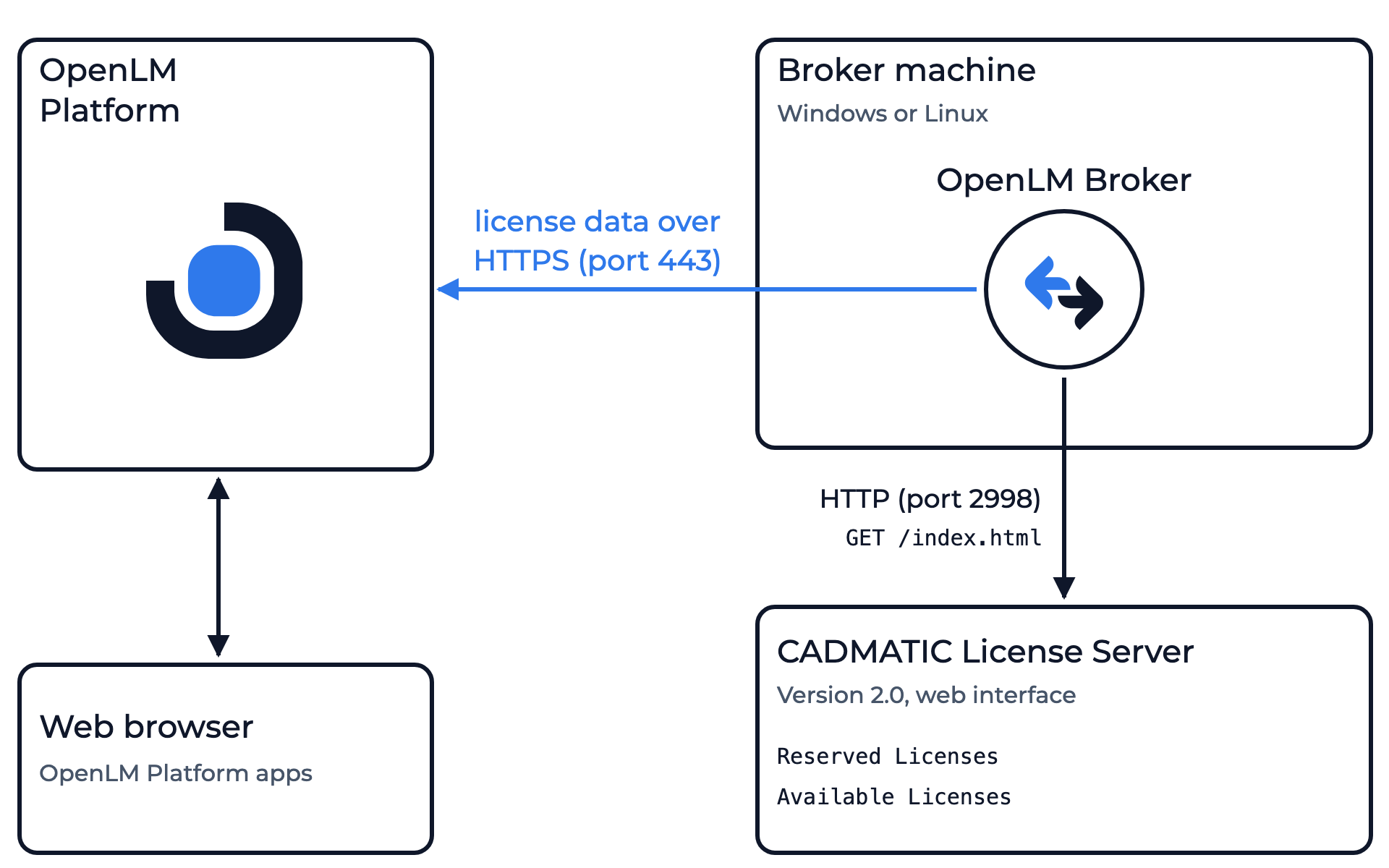 How OpenLM Platform collects CADMATIC usage through OpenLM Broker
Broker requests the web page of the license server over HTTP and sends the license data to OpenLM Platform over HTTPS, on outbound port 443. The following list describes how the integration works:
-
Commands: A new CADMATIC license manager gets two commands with the same web address:
http://{$host}:{$port}/index.htmlIn the Broker UI, each command line shows the Host from the License Managers page and the port of the license manager in place of
{$host}and{$port}. Data Inquiry, under Periodic commands, runs every 55 seconds by default. It sends an HTTPGETrequest to the address and reads the page that comes back. Status, under On-demand commands, holds the same address and does not run on a schedule. -
Page: Broker reads the license expiration date and two tables. In this example,
jsmithholds two Hull GUI licenses and one Hull Structure license:License expiration date : 31.12.2026Reserved Licenses (3)Host Application Version User Login TimeWS-1001 Hull GUI 2025T2R1 (26) jsmith Tue Oct 27 08:12:31 2026WS-1001 Hull Structure 2025T2R1 (26) jsmith Tue Oct 27 08:12:40 2026WS-1001 Hull GUI 2025T2R1 (26) jsmith (+1) Tue Oct 27 09:47:05 2026Available LicensesApplication Free Perpetual + Term VersionsHull GUI 8 10 26(+1)Hull Structure 4 5 26Broker reports Hull GUI with a total of 10 and 2 licenses in use, both held by
jsmithonWS-1001. -
Sessions: Broker reports the licenses that are reserved when the data inquiry runs, each with its Login Time as the start time. A license that is checked out and returned between two data inquiries does not reach OpenLM Platform.
-
In-use count: In Broker v26.9.16.1403 or higher, when the number of rows for an application in Reserved Licenses differs from its total minus Free, Broker reports the number of rows as the licenses in use. The two tables can differ briefly when a license is checked out or returned while the license server builds the page. An application with no rows in Reserved Licenses keeps the count from Available Licenses.
-
Time zone: Broker reads Login Time in the time zone of the Broker machine and converts it to UTC.
-
Log files: None. Broker reads no CADMATIC log file, so the Log Files tab stays empty.
Prepare the CADMATIC License Server
Broker reads the same page that a web browser shows at the data inquiry address. To check that Broker can read the page, open it from the machine where Broker runs before you configure Broker:
-
Find the HTTP TCP/IP port of the license server.
You set it on the TCP/IP Ports page when you installed CADMATIC License Server. The default is
2998. -
On the Broker machine, open a web browser and go to
http://<license-server>:<port>/index.html, for examplehttp://cadmatic01.example.com:2998/index.html. Replace<license-server>with the host name of the license server and<port>with its HTTP TCP/IP port.Check that the page lists the Reserved Licenses and Available Licenses tables.
-
If the page does not open, check that the firewalls on the license server and on the route between the two machines allow the Broker machine to reach the HTTP TCP/IP port.
CADMATIC License Server needs both of its ports free and unblocked:
2999for license requests and2998for the web interface, by default. -
If the browser asks for a username and password, Broker can't read the page. See Known limitations.
For more about the web interface, see License server's web interface in the CADMATIC documentation.
Configure OpenLM Broker
To configure OpenLM Broker to monitor CADMATIC, follow these steps. Broker can run on the license server machine or on another machine that reaches the web interface.
-
Open the Broker UI for the Broker that monitors CADMATIC.
On the Broker machine itself, open
http://localhost:5090/. Local access needs no credentials. From any other machine, open Broker Hub in OpenLM Platform and select the Broker UI icon of that Broker, which opens the interface with the remote access token handled for you. -
On the License Managers page, check Host.
OpenLM Platform lists the license server under this host name, and Broker builds the address of the web page from it when you add the license manager. The field holds the host for every license manager on the page, not for CADMATIC alone.
- If Broker runs on the license server machine and the field is empty, enter the host name of the machine and select the save icon next to the field.
- If Broker runs on another machine and the field is empty, enter the host name of the license server and select the save icon. If it names another machine, leave it as it is, and enter the license server's host name in the commands in step 6 instead.
-
Select License Managers, then Add License Manager.
-
From LM Type, select CADMATIC.
-
In Port, enter the HTTP TCP/IP port of the license server,
2998by default, and select Add.Broker requests the web page on this port, so don't enter the License TCP/IP port,
2999. If another license manager on this Broker already uses the port, Broker showsPort already exists.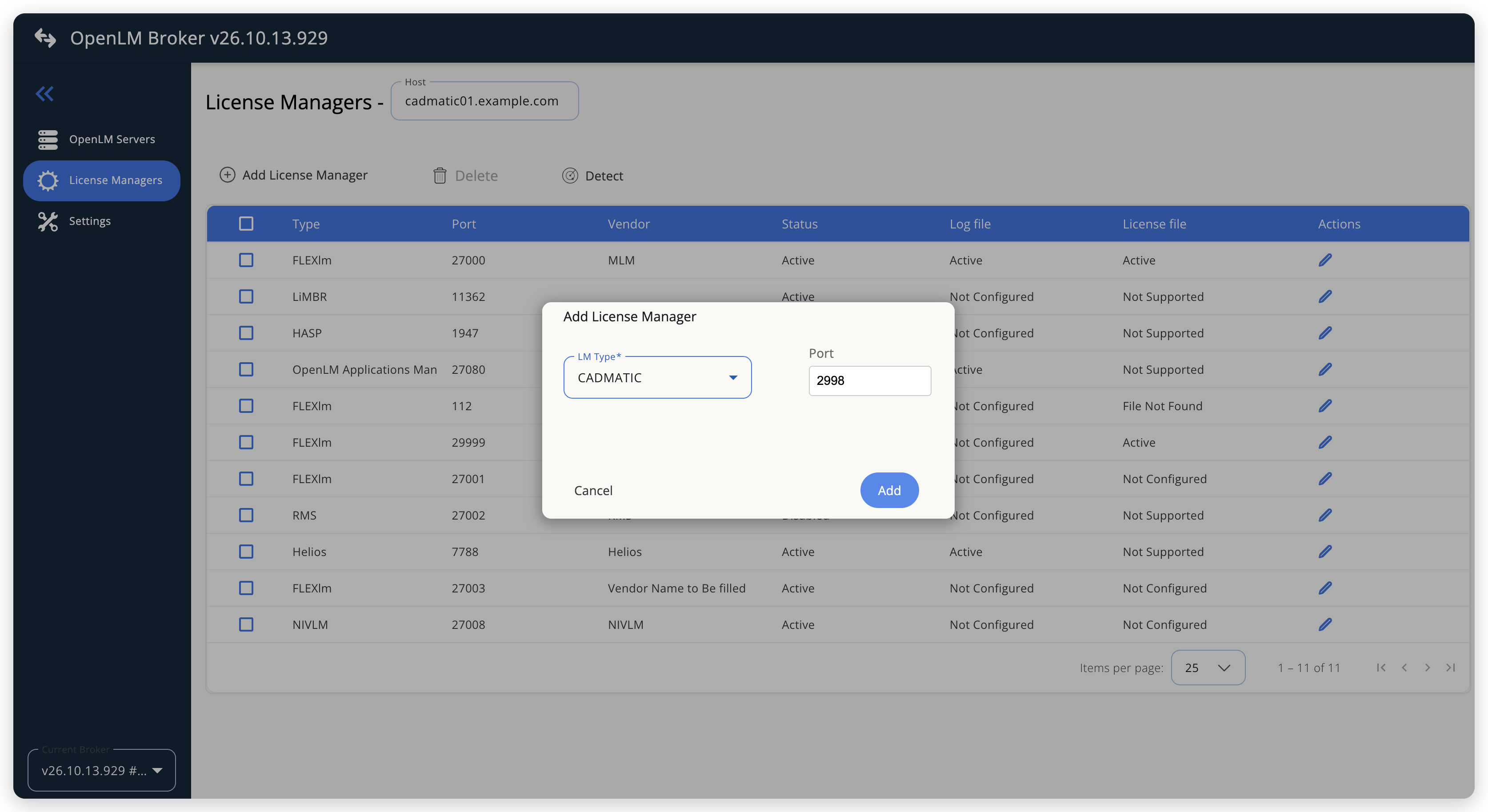 Add CADMATIC as a license manager
-
On the Commands tab, under Periodic commands, select Data Inquiry.
Check that the command line reads
http://<host>:<port>/index.html, with the Host from step 2 and the port from step 5. If Host names a machine other than the license server, replace the host name in the command line with the license server's host name, for examplehttp://cadmatic01.example.com:2998/index.html. Make the same change to Status, under On-demand commands.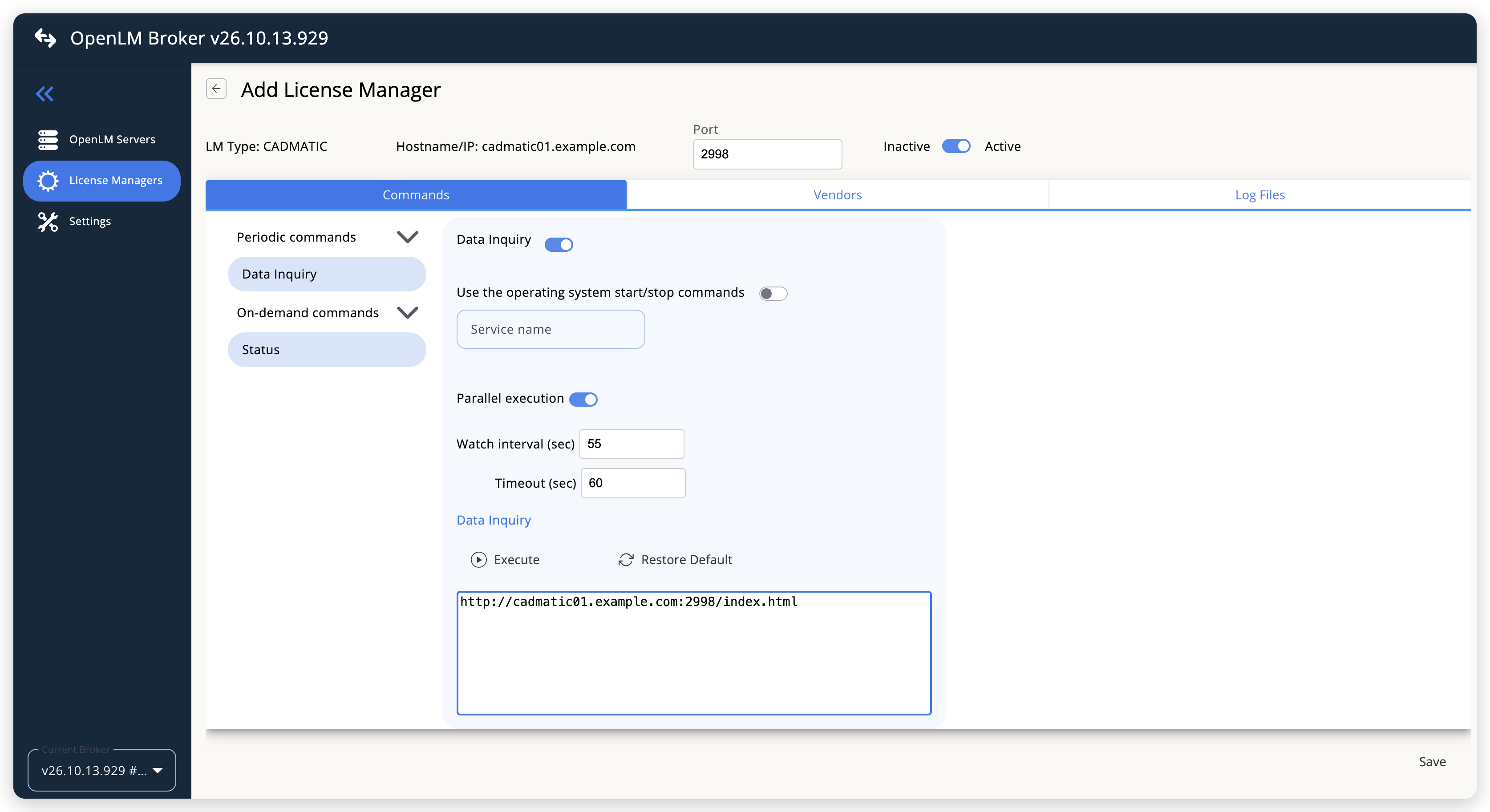 The Data Inquiry command requests the web page of the license server
-
(Optional) To change the polling interval, set Watch interval (sec). The default is 55 seconds. Timeout (sec), 60 seconds by default, limits how long Broker waits for the license server to answer.
-
Leave the Log Files tab empty. If you want OpenLM Platform to show a vendor name other than
CADMATIC, add a vendor on the Vendors tab. -
Select Save.
Broker runs the data inquiry every 55 seconds by default and reports CADMATIC to OpenLM Platform. The license server then reaches Pending Servers.
Approve CADMATIC in OpenLM Platform
To approve CADMATIC, find its pending entry. Broker reports CADMATIC with the OpenLM Generic protocol and names the license server after the Host that you set in the Broker UI. The pending entry is listed by that host name and the port that you entered, with License Manager Type shown as CADMATIC.
-
Sign in to OpenLM Platform with the URL your administrator gave you.
-
Select Navigation (the grid icon in the OpenLM Platform header), then Licenses and Features, then License Servers.
-
Select Pending Servers.
-
Find the row whose Host Name and Port match the license manager that you configured in Broker.
Its License Manager Type is CADMATIC, and Source is Broker.
-
Select that row, then select Approve And Merge.
-
On the Approve License Server page, check the settings, then select Approve.
Verify the integration
To verify the integration:
-
In OpenLM Platform, open License Servers and, under Operational, select Live Servers Statistics.
-
Find the row for the host and port that you configured, and confirm that Status is Up.
Confirm that RSQT (Recent Successful Query Time), the last time OpenLM Platform received data from the license server, is recent.
-
Open Licenses (Navigation, then Licenses and Features, then Licenses) and select Live Statistics.
Check that each application from the Available Licenses table has its own row, with License Type Floating, its total, and the number of licenses in use. Compare the counts with the web page of the license server.
-
Select an application's Used count to confirm that sessions arrived.
The count opens the Usage service on Currently Consumed Licenses, where each row of Reserved Licenses appears with its username, workstation, and start time.
Troubleshooting
These entries cover problems with CADMATIC monitoring.
Why doesn't CADMATIC reach Pending Servers?
If CADMATIC never reaches Pending Servers, open Broker Hub and confirm that this Broker appears under Brokers with status Up, and not under Pending Brokers. OpenLM Platform accepts license manager data only from approved Brokers.
Why does the approved license server show no applications or no usage?
To find the cause, test the data inquiry in the Broker UI. Open the CADMATIC license manager, go to the Commands tab, select Data Inquiry, and select Execute. A successful test returns the license server XML, with a FEATURE element for each application and a USER element for each session. Broker refuses Execute on a license manager that you have never saved, and answers Need to save first in order to execute command.
If the test fails or returns no FEATURE elements, open the address from the command line, for example http://cadmatic01.example.com:2998/index.html, in a web browser on the Broker machine:
- The page does not open: Broker can't reach the license server either. Check the host name and the port in the command line, check that the port is the HTTP TCP/IP port and not
2999, and check the firewalls between the two machines. - The browser asks for a username and password: Broker can't sign in to the web interface. See Known limitations.
Why does an application show no usage when the page lists its users?
Check that the application appears in Available Licenses with the same name. Broker skips a row of Reserved Licenses whose application is missing from Available Licenses.
Why does OpenLM Platform show one person as several users?
If OpenLM Platform shows one person as several users, such as jsmith, jsmith (+1), and jsmith (+2), update Broker to v26.9.16.1403 or higher.
Why are session start times off by whole hours?
Compare the time zone of the Broker machine with the time zone of the license server. Broker reads Login Time in the time zone of the Broker machine.
Which Broker log messages show the cause?
The Broker log holds the detail, in the logs folder of the Broker installation. The periodic data inquiry writes to port-<port>-CADMATIC.log, for example port-2998-CADMATIC.log. These messages identify the cause:
HTTP request failed, in Broker v26.9.16.1403 or higher: Broker can't reach the address in the command line. The message names the address.No available licenses parsed from CADMATIC response: the page that Broker received has no Available Licenses rows in the layout that Broker reads.Reserved session references unknown feature: a row of Reserved Licenses names an application that Available Licenses does not list.
Broker logs at ERROR level by default, so the last two messages, which Broker logs at WARN level, appear only after you go to Settings, then Broker Log Level, set Broker service to WARN, and select Save.
Known limitations
These limits apply to CADMATIC monitoring:
- Broker does not report denied requests, borrowed licenses, or license allocations.
- Broker sees only the licenses that are reserved when the data inquiry runs, so it can miss a license that is checked out and returned within the watch interval.
- Broker does not sign in to the web interface. If the page asks for a username and password, Broker can't read the license data.
- The page shows one expiration date for the whole license server, so Broker reports that date for every application.
- Broker removes only a counter with a plus sign, such as
(+1), from a username. A name that ends in a number in parentheses without a plus sign, such asjsmith (1), stays as it is. - Broker expects the table layout of the CADMATIC License Server 2.0 web page. Rows in another layout don't reach OpenLM Platform.
The documentation team might draft this page using a large language model. A technical writer reviews every page and verifies it against the product before publishing it. A human makes the final decision.