DUG Insight
To monitor DUG Insight floating licenses in OpenLM Platform, configure OpenLM Broker. The DUG license server runs no command that OpenLM Broker can call and writes no usage log that Broker can read. Instead, it publishes an active-licenses web page for each license token, listing every module with its seat count and the users who hold it. Broker reads the token from your DUG license file, requests that page on a schedule, and reports the modules and sessions to OpenLM Platform.
Before you begin
Confirm these prerequisites:
- OpenLM Platform.
- OpenLM Broker v26.4.9.1134 or higher, installed on a machine that reaches the DUG license server over HTTP. Earlier Broker versions do not list DUG Insight as a license manager type.
- The Broker approved in Broker Hub. OpenLM Platform accepts license manager data only from approved Brokers, so the DUG Insight entry does not reach Pending Servers until the Broker itself is approved.
- A copy of your DUG Insight license file (
.lic) on the Broker machine, in a folder that the Broker service can read. Broker reads only the line that starts withUNIQUETOKEN:, which holds your DUG license token in the formXXXX-XXXX-XXXX-XXXX-XXXX-XX. - The address of the license server that serves your floating licenses. To check which server Insight uses, open Insight's Licence Manager and select the Floating Server tab:
- Use DUG's main server, the default: Insight uses DUG's hosted license server,
license.dug.com. - A local license server: a site can run its own license server by arrangement with DUG. Note its host name and the port that its web page answers on.
- Use DUG's main server, the default: Insight uses DUG's hosted license server,
What you can monitor
OpenLM Broker monitors the following for DUG Insight:
- LM Type in the Broker: DUG Insight
- Commands: Yes (web page)
- Logs: No
- Quantity: Yes
- Expiration date: Yes
- Denied: No
- Borrowing: No
- Allocations: No
- Report resolution: Seconds
On every data inquiry, Broker reports:
- Feature name: the module name as the license server prints it, for example
Insight base,Insight depth_imaging, orCluster base. - Total: the number of seats that the license server reports for the module. Broker reports a module with no seats with a total of 0.
- In use: the number of sessions listed under the module. When the seat count in the module heading differs from the sessions listed, Broker reports the sessions it counted.
- Expiration date: the expiry date that the license server prints for the module.
- Username, workstation, and session start time: each line in the form
user@computer: since <date> (session ID <number>). Each session counts as 1 license, so a user who runs 2 instances of Insight holds 2 seats. - License type: Broker reports every DUG Insight module as Floating.
- Vendor: Broker reports
DUG Insightunless you add a different vendor on the Vendors tab.
License denials, borrowed licenses, and license allocations are not available for DUG Insight. OpenLM Platform cannot deploy License Allocation Control rules to a DUG license server either, because DUG has no options file for Broker to write.
How OpenLM Broker interfaces with DUG Insight
When you configure a DUG Insight port, Broker fills in only the settings in this list. The remaining license manager settings stay empty:
-
Commands:
data_inquiryonly, which the Broker UI shows as Data Inquiry. Its default command line is a web address, not a program:http://{$host}:{$port}/license/active?{$license_token}In the Broker UI, the command line already shows the Host from the License Managers page and the port of the license manager in place of
{$host}and{$port}. On every run, it reads the token from the license file and puts it in place of{$license_token}, then sends an HTTPGETrequest to the address. DUG Insight has no status command, so Broker reports the license server as active whenever the request succeeds. -
License file: Required. Broker reads the license file again on every data inquiry, so a new license file at the same path takes effect on the next run without a restart. As it does for other license managers that use a license file, Broker also sends the file to OpenLM Platform.
-
Log file: None. The Log Files tab stays empty.
-
Polling: The data inquiry runs every 55 seconds by default. Sessions that start and end between 2 runs do not reach OpenLM Platform.
-
Dates: Broker reads the dates that the license server prints, for example
Tue Mar 10 09:27:16 MYT 2026, including the time zone abbreviation, and converts them to UTC.
Configure OpenLM Broker
To configure OpenLM Broker for DUG Insight:
-
Copy your DUG Insight license file to a folder on the Broker machine, for example
C:\OpenLM\dug\insight.lic. -
Open the Broker UI for the Broker that monitors DUG Insight.
On the Broker machine itself, go to
http://localhost:5090/. Local access needs no credentials. From any other machine, open Broker Hub in OpenLM Platform and select the Broker UI icon for that Broker, which opens the interface with the remote access token handled for you. -
On the License Managers page, check Host.
OpenLM Platform lists the license server under this host name, and the field holds the host for every license manager on the page, not for DUG Insight alone.
- Local license server: if the field is empty, enter the license server's host name and select the save icon next to the field. If it names a different machine, leave it as it is, and enter the license server's address in the data inquiry in step 8 instead.
- DUG's main server: leave Host as it is. You enter
license.dug.comin the data inquiry in step 8.
-
Select License Managers, then Add License Manager.
-
From LM Type, select DUG Insight.
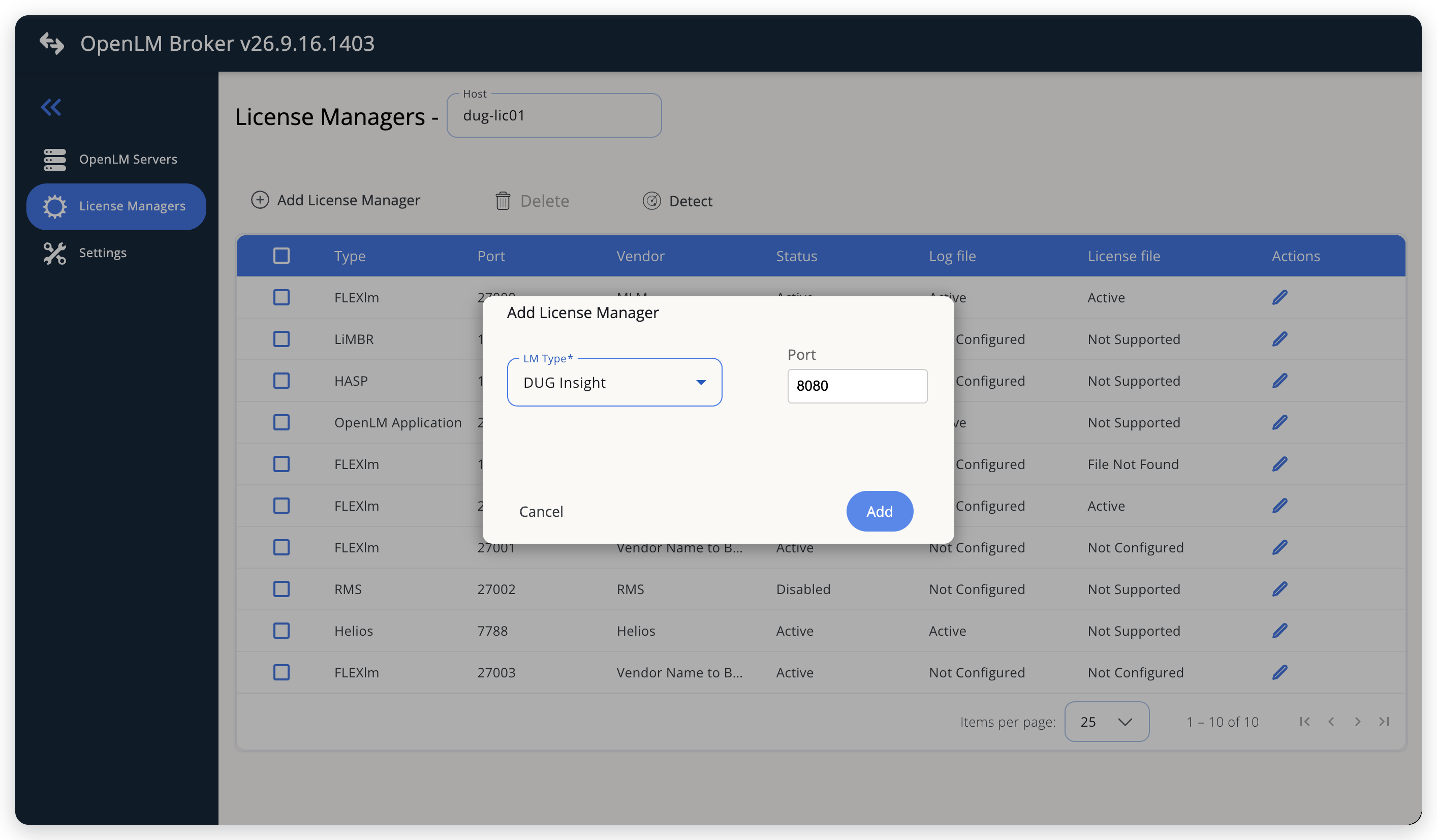 Add DUG Insight as a license manager
-
Enter the port and select Add.
- Local license server: enter the port that its active-licenses page answers on, for example
8080. Broker sends its request to this port. - DUG's main server: enter
443. Broker does not use this port to connect. It identifies the license server in OpenLM, together with the host name.
- Local license server: enter the port that its active-licenses page answers on, for example
-
On the Settings tab, add the license file:
- Select Set license file path manually.
- Select Add license file path.
- In License file path, enter the full path to the license file, for example
C:\OpenLM\dug\insight.lic, or select the browse button to find it. - Select Continue.
Add 1 license file path only. Broker reads the token from a single file, and the data inquiry fails if the list holds more than 1 path.
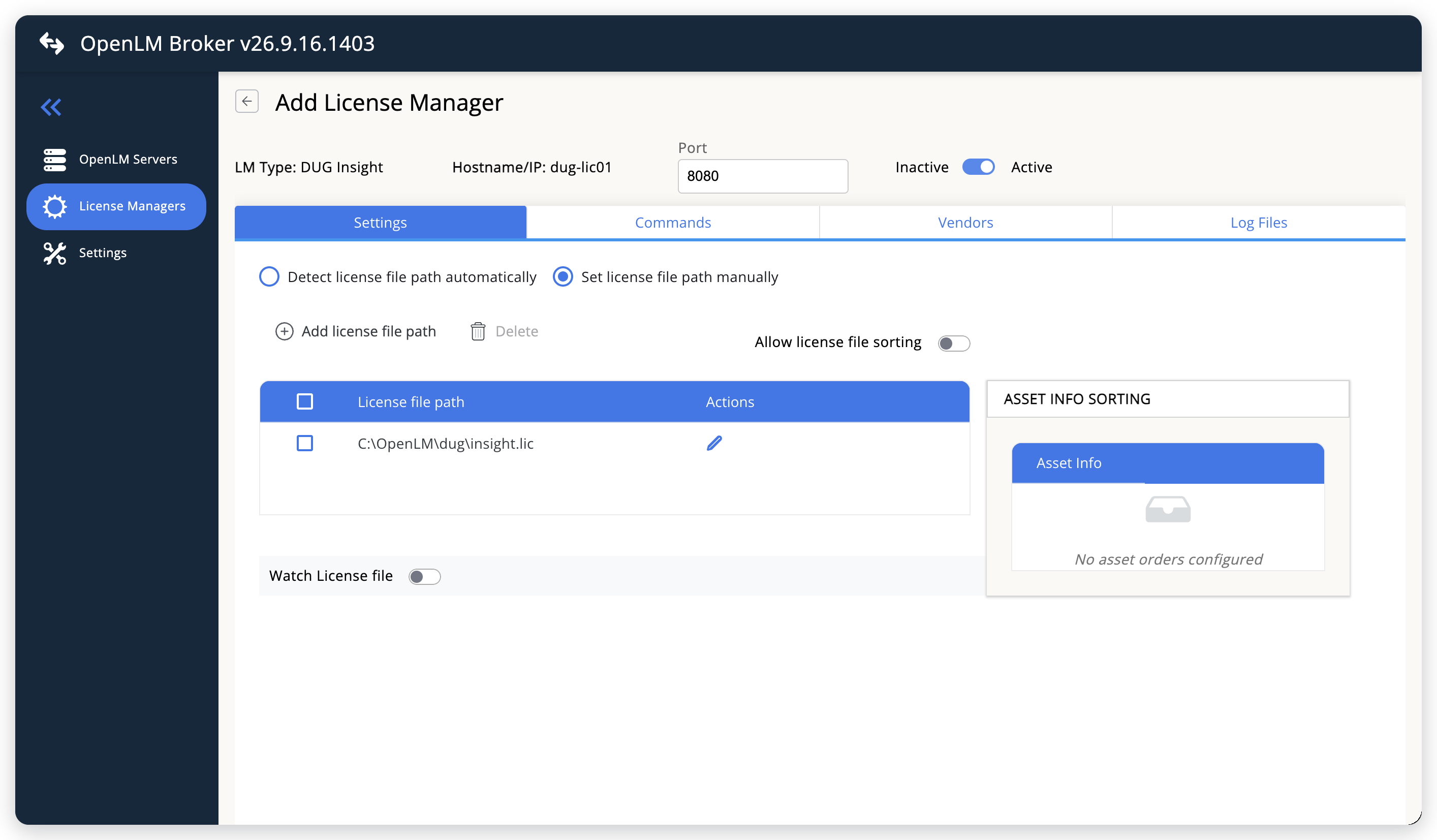 Point Broker at the DUG license file
-
On the Commands tab, select the Data Inquiry command, and check its command line in the large text box.
-
Local license server, with Host set to it in step 3: keep the default command line.
-
Local license server on another host: replace
{$host}:{$port}with the license server's host name and port, for examplehttp://dug-lic01:8080/license/active?{$license_token}. -
DUG's main server: replace the command line with:
https://license.dug.com/license/active?{$license_token}
Keep
{$license_token}exactly as it is. Broker puts the token from the license file in its place on every run, so the token never appears in the Broker configuration.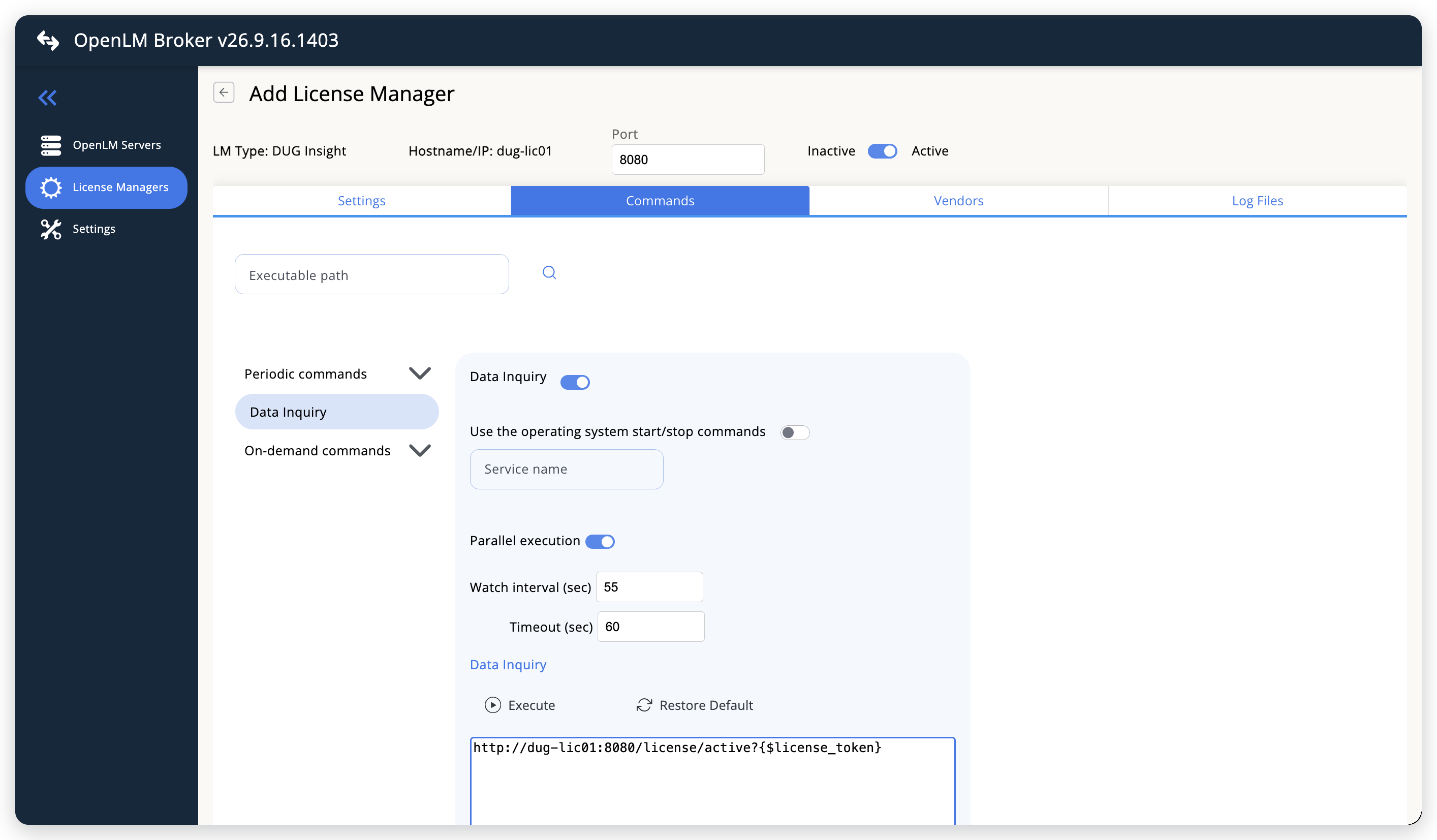 The default Data Inquiry for a local license server, with Host and port filled in
-
-
Leave Watch interval (sec) at 55 seconds, or set the polling interval you want. Timeout (sec), 60 seconds by default, limits how long Broker waits for the license server to answer.
-
Leave the Vendors and Log Files tabs empty. Add a vendor only if you want OpenLM to show a vendor name other than
DUG Insight. -
Select Save.
-
Reopen the DUG Insight license manager from the License Managers list, go to the Commands tab, and select Execute to test the data inquiry.
A successful test returns the license server XML, with 1 feature for each DUG module and the users who hold it. Broker refuses Execute on a license manager that you have never saved, and answers
Need to save first in order to execute command. -
Wait for the next periodic data inquiry.
Execute only tests the command inside the Broker UI and sends nothing to OpenLM Platform. Broker reports DUG Insight to OpenLM Platform on the periodic data inquiry, so the license server reaches Pending Servers about a minute after you save.
Approve DUG Insight in OpenLM Platform
Broker reports DUG Insight with the OpenLM Generic protocol and names the license server after the Host you set in the Broker UI, so the pending entry is listed by that host name and the port you entered, with License Manager Type shown as DUG Insight.
To approve DUG Insight in OpenLM Platform:
-
Sign in to OpenLM Platform with the URL your administrator gave you.
-
In the Navigation menu (the grid icon in the OpenLM Platform header), select Licenses and Features, then License Servers.
-
Under Management, select Pending Servers.
-
Find the row whose Host Name and Port match the license manager you configured in Broker.
Its License Manager Type is DUG Insight, and Source names the Broker.
-
Select that row, then select Approve and Merge.
Verify the integration
To verify the integration:
-
In OpenLM Platform, select License Servers, then select Live Servers Statistics under Operational.
-
Find the row for the host and port you configured, and confirm that Status is Up.
Confirm that RSQT (Recent Successful Query Time), the last time OpenLM read licenses and usage from the server, is recent, and that Quantity and Used carry numbers.
-
In the Navigation menu, select Licenses and Features, then Licenses, then Live Statistics.
Each DUG module appears as its own row, with License Type Floating and the Total and Used counts from the license server's page. Compare them with the page that DUG publishes for your token, at the same address as the data inquiry with your token in place of
{$license_token}. -
Select a feature's Used count to confirm that sessions arrived.
The count opens the Usage app on Currently Consumed Licenses, where each DUG Insight session appears with its Username, Workstation, and Start Time.
It can take up to 3 minutes for the status to update for a new connection.
Troubleshooting
If DUG Insight never reaches Pending Servers, open Broker Hub and confirm that this Broker appears under Brokers with status Up, and not under Pending Brokers. OpenLM Platform accepts license manager data only from approved Brokers.
If the Broker is approved and up, or if DUG Insight appears with no features, go back to the Commands tab in the Broker UI and select Execute. Compare the result with this list:
License file path is not configured for DUG Insight: the Settings tab has no license file path, or still uses Detect license file path automatically. Set the path manually, as in step 7.UNIQUETOKEN not found in license file: <path>: Broker read the file but found no line that starts withUNIQUETOKEN:. Confirm that the path points at the DUG license file and not at another file in the same folder.Failed to read DUG Insight license file: <path>: Broker cannot open the file. Confirm that the file exists, that the path is complete, that the list holds only 1 path, and that the account the Broker service runs as can read it.- A connection error or a timeout: Broker cannot reach the license server. From the Broker machine, open the data inquiry address in a browser with your token in place of
{$license_token}. If the page does not open there either, check the host name, the port, and the firewall or proxy on the route between Broker and the license server. - XML with no features: the license server answered, but its page lists no modules. Open the same address in a browser with your token. DUG's server answers
Token not found.for a token it does not know, and a request without a token returns a message that asks for one. If the page opens with your token in the browser but Broker still reports no features, confirm that the command line ends in?{$license_token}and that the license file holds the same token.
The Broker log holds the detail, in the logs folder of the Broker installation. A manual Execute writes to broker-service.log, and the periodic data inquiry writes to port-<port>-DUG Insight.log. Broker logs at ERROR level by default, so the WARN messages in Known limitations appear only after you select Settings, then Broker Log Level, set Broker service to WARN, and select Save.
Known limitations
These limits apply to DUG Insight monitoring:
- Broker does not report license denials, borrowed licenses, or license allocations, and does not upload usage history. Usage in OpenLM Platform starts when you configure the license manager.
- Broker reads the license server's web page, not a log, so it sees only the sessions that are open when the data inquiry runs. Broker can miss a session shorter than the watch interval.
- Broker expects the page layout that DUG's license server uses, with each module in a heading of the form
<module>: expires <date>: <used> of <total> seat(s). If DUG changes this layout, Broker skips the modules it cannot read and logsCould not parse feature headeratWARNlevel. - When Broker cannot read a date, it reports the session without a start time, or the module without an expiration date, and logs a warning at
WARNlevel. - If the page lists the same session ID twice under a module, Broker counts the session once.
- Multiple server redundancy is not available for DUG Insight.
The documentation team might draft this page using a large language model. A technical writer reviews every page and verifies it against the product before publishing it. A human makes the final decision.