Peloton RigView
To monitor Peloton RigView licenses in OpenLM Platform, configure OpenLM Broker. Broker reads the usage log of the RigView License Server on the license server machine and reports each session and denial to OpenLM Platform.
RigView is the rig scheduling application of Peloton, and its network licenses come from the RigView License Server on a server in your organization. The license server writes a usage log with a line for each logon, logoff, and denied request.
Before you begin
Confirm these prerequisites:
- OpenLM Platform.
- OpenLM Broker v23.8.20.840 or higher, installed on the RigView License Server machine. To show the number of RigView licenses that you own in OpenLM Platform, use v24.4.5.1002 or higher, because that version added the settings file that holds the license total.
- The Broker approved in Broker Hub. OpenLM Platform accepts license manager data only from approved Brokers, so the Peloton RigView entry does not reach Pending Servers until you approve the Broker.
- RigView network licenses served by the RigView License Server.
- Access to the RigView License Server machine, and the location of its usage log.
What you can monitor
OpenLM Broker monitors the following for Peloton RigView:
| LM Type in the Broker | Commands | Logs | Quantity | Expiration date | Denied | Borrowing | Allocations | Report resolution |
|---|---|---|---|---|---|---|---|---|
| Peloton RigView | No | Yes | Yes | No | Yes | No | No | Seconds |
For each session, Broker reports:
- Feature name: always
RigView. The usage log does not name a feature, so Broker reports every session against this one feature. - Username: the user in the second column of the log line.
- Workstation: the host in the third column of the log line. When users run RigView through Citrix, this is the Citrix server, not the user's computer.
- Start and end time: the time of the logon and logoff lines, to the second.
- License type: Broker reports RigView as Floating.
- Vendor: the vendor that you select for the log file.
Broker also reports a denial for each line in which the license server refuses a logon because all network licenses are in use.
The license total comes from a settings file that Broker keeps for the license manager, because the usage log does not state how many licenses you own. Until you set the total, OpenLM Platform shows RigView as unlimited. See Set the license total. Broker does not report expiration dates, borrowed licenses, or license allocations.
How OpenLM Broker collects Peloton RigView data
The following diagram shows how OpenLM Broker collects Peloton RigView usage and sends it to OpenLM Platform.
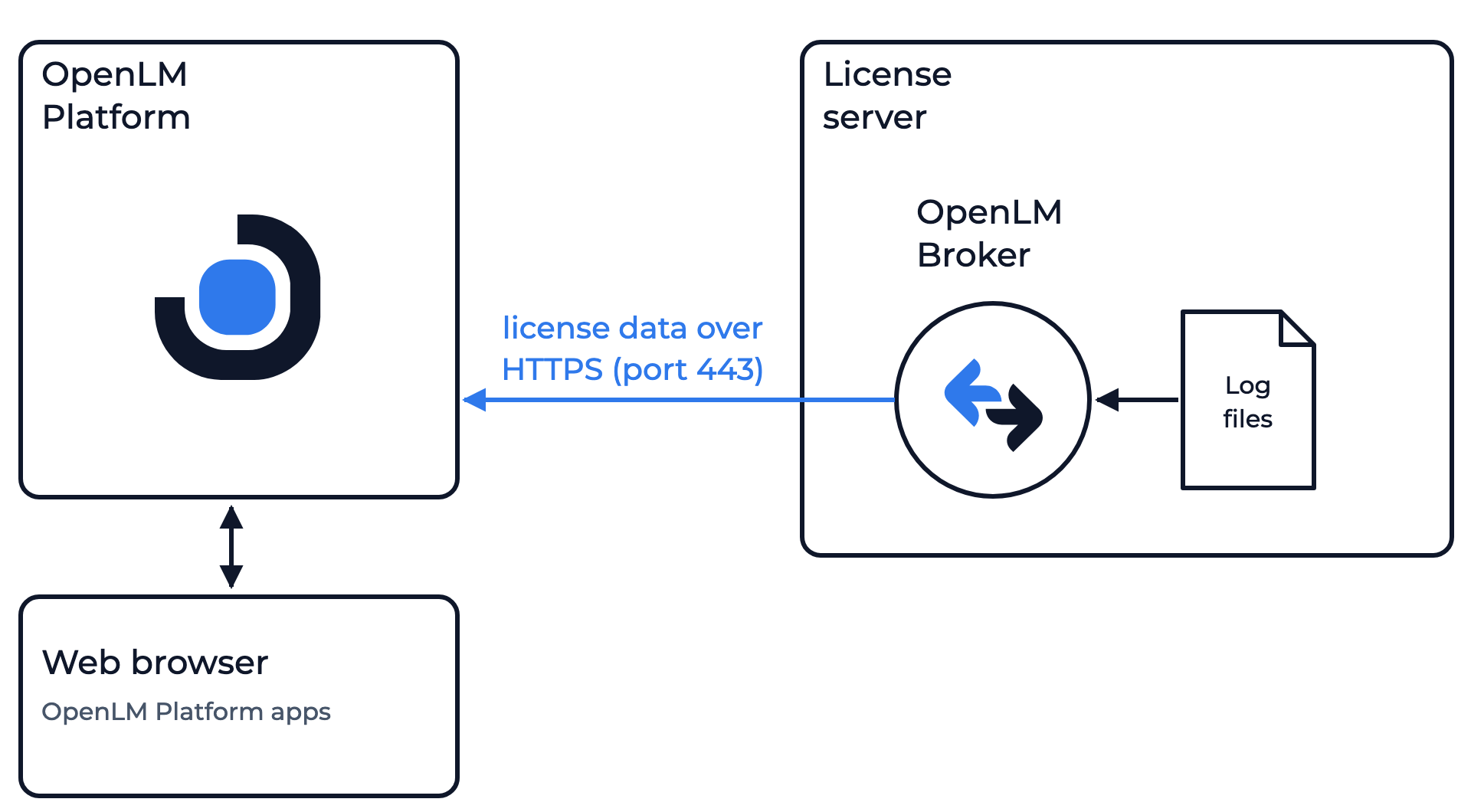 How OpenLM Broker collects Peloton RigView usage
Broker runs on the RigView License Server machine and reads the usage log there. It sends the license data to OpenLM Platform over HTTPS, on outbound port 443. Broker collects data in the following ways:
-
Log file: Broker reads the usage log of the RigView License Server. Each line holds tab-separated columns: the time, the user, the host, the event, the number of licenses in use, the RigView version, a session ID, the session duration, and an optional message. Broker reads three kinds of event:
2026-10-19 08:12:51 jdoe CTX-01 logon 3 3.1.5051.26110 25A40322098847A1BED64F223D034DA0 00:00:002026-10-19 09:47:05 jdoe CTX-01 logoff 2 3.1.5051.26110 25A40322098847A1BED64F223D034DA0 01:34:142026-10-19 09:50:12 asmith CTX-02 note 5 3.1.5051.26110 E97BE0328A2941DC99CA41D43F93AD6F 00:00:00 User denied license because all network licenses in use.A
logonline is a checkout, alogoffline is a check-in, and anoteline is a denial. Broker counts the licenses in use from the sessions that it tracks, not from the fifth column, and ignores the version and the duration. It takes the usernames and workstations from the log as they are. -
Sessions: Broker matches each logoff to its logon by the session ID in the seventh column. A logoff whose session ID Broker has not seen is ignored. The license server also writes a logoff line when it removes a timed-out or orphaned session, and Broker ends the session in OpenLM Platform at that point.
-
First read: when you add the log file, Broker reads the whole file once to find the sessions that are still open, and reports them as in use. From then on it reports each new logon, logoff, and denial. Broker does not upload earlier usage history. After a Broker restart, Broker rebuilds the open sessions the same way and continues from the line where it stopped. If Broker was down for more than a day, it skips the lines written while it was down.
-
License total: Broker reads
total.RigViewfrompeloton@<port>.propertiesin the Broker installation folder when it starts reading the log.-99, the default, means unlimited. -
Commands: None run on a schedule. Broker does not connect to the RigView License Server, so the port that you enter in Broker only identifies the license server in OpenLM Platform.
Configure OpenLM Broker
To configure OpenLM Broker for Peloton RigView:
-
Open the Broker UI for the Broker on the RigView License Server machine.
On that machine, open
http://localhost:5090/. Local access needs no credentials. From any other machine, open Broker Hub in OpenLM Platform and select the Broker UI icon of that Broker. This opens the interface with the remote access token handled for you. -
On the License Managers page, check that Host shows the host name of the RigView License Server machine.
OpenLM Platform lists the license server under this host name, and the field holds the host for every license manager on the page, not for Peloton RigView alone. If the field is empty, enter the host name of the RigView License Server machine and select the save icon next to the field.
-
Select License Managers, then Add License Manager.
-
From LM Type, select Peloton RigView.
-
In Port, enter a port number, and select Add.
Broker does not connect to this port, so any port that no other license manager on this Broker uses works, for example
5055. Broker refuses a port that another license manager already uses. The port also names the settings file that holds the license total,peloton@<port>.properties.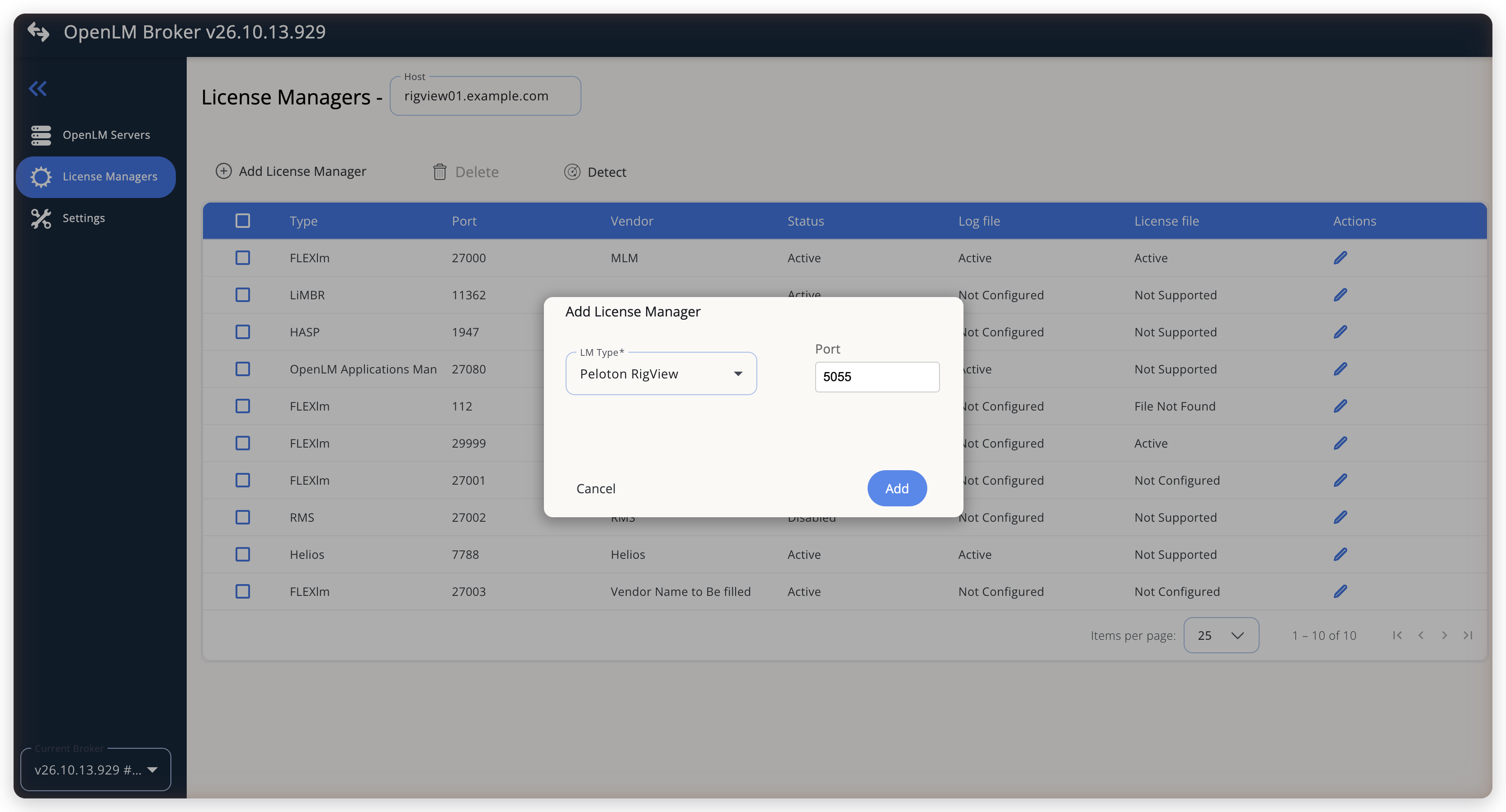 Add Peloton RigView as a license manager
-
On the Vendors tab, select Add Vendor, enter the vendor name that you want OpenLM to show, for example
Peloton, and select Continue.The vendor appears in the list after you switch to another tab and back.
-
On the Log Files tab, select Add Log File, then enter the following settings:
- Log Type: Usage Log, the only type for Peloton RigView.
- Log Name: a name for the log, for example
RigView usage log. - Log Path: the full path of the usage log of the RigView License Server, for example
C:\Program Files\Peloton\RigView License Server\rigview.log. Select the search icon next to the field to browse to it. - Vendor: the vendor that you added on the Vendors tab.
- Under Advanced, leave the defaults. Broker reads the file every 10 seconds, with Watch files by pattern off.
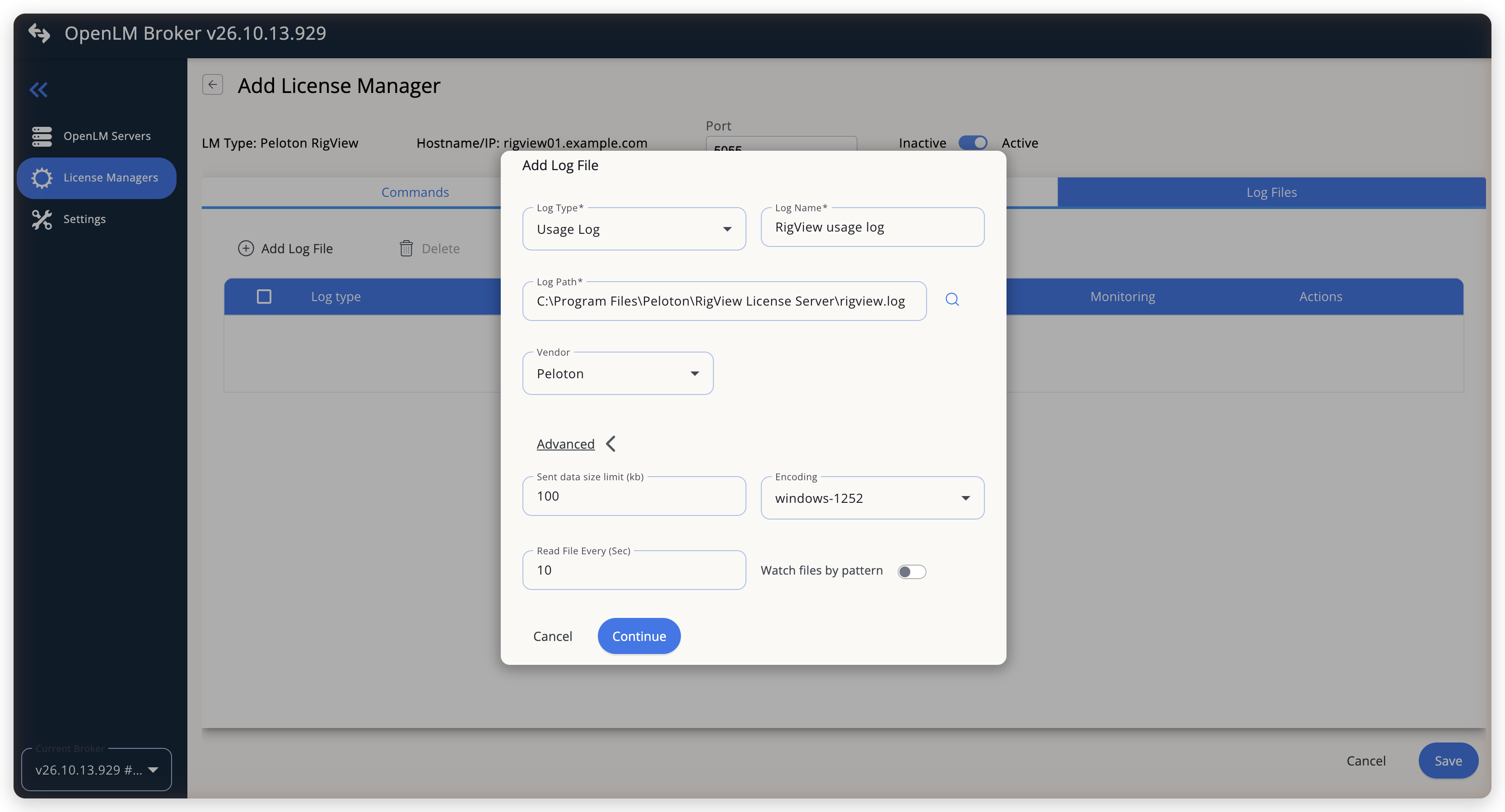 Point Broker at the RigView usage log
-
Leave the Commands tab empty.
Broker runs no commands for Peloton RigView, and Use the operating system start/stop commands is off.
-
Select Continue, then select Save.
-
Wait for Broker to read the log, every 10 seconds by default.
Broker then reports Peloton RigView to OpenLM Platform, and the license server reaches Pending Servers.
Set the license total
The usage log does not say how many RigView licenses you own, so OpenLM Platform shows the feature as unlimited until you set the total in the settings file of the license manager. The file needs Broker v24.4.5.1002 or higher.
-
On the RigView License Server machine, open
peloton@<port>.propertiesin a text editor that you run as administrator.The file is in the Broker installation folder,
C:\Program Files\OpenLM\OpenLM Brokerby default, and<port>is the port that you entered in Broker, for examplepeloton@5055.properties. Broker creates the file the first time it reads the usage log for that port. If the file is missing, wait for Broker to read the log once after you save the configuration. -
Set
total.RigViewto the number of RigView network licenses that you own, for example:total.RigView=22-99means unlimited. -
Save the file, and restart the OpenLM Broker service in Windows Services.
Broker reads the file when it starts reading the log, so the new total reaches OpenLM Platform after the restart.
Approve Peloton RigView in OpenLM Platform
Broker reports Peloton RigView with the OpenLM Generic protocol and names the license server after the Host that you set in the Broker UI. The pending entry is listed by that host name and the port that you entered, with License Manager Type shown as Peloton RigView.
-
Sign in to OpenLM Platform with the URL your administrator gave you.
-
Open Navigation (the grid icon in the OpenLM Platform header) and select Licenses and Features, then License Servers.
-
Select Pending Servers.
-
Find the row whose Host Name and Port match the license manager that you configured in Broker.
Its License Manager Type is Peloton RigView, and Source names the Broker.
-
Select that row, then select Approve And Merge.
-
On the Approve License Server page, check the settings, then select Approve.
Verify the integration
To verify that OpenLM Platform receives data from Peloton RigView:
-
In OpenLM Platform, open License Servers and, under Operational, select Live Servers Statistics.
-
Find the row for the host and port that you configured, and confirm that Status is Up.
Confirm that RSQT (Recent Successful Query Time), the last time OpenLM Platform received data from the license server, is recent.
-
Open Licenses (Navigation, then Licenses and Features, then Licenses) and select Live Statistics.
RigViewappears as a row after its first logon, with License Type Floating, the number of licenses in use, and the total from the settings file. -
Select the Used count to confirm that sessions arrived.
The count opens the Usage page on Currently Consumed Licenses, where each logon appears with its username, workstation, and start time.
It can take up to 3 minutes for the status to update for a connection.
Troubleshooting
This section covers common problems when you monitor Peloton RigView in OpenLM Platform.
Why does Peloton RigView not reach Pending Servers?
Open Broker Hub and confirm that this Broker appears under Brokers with status Up, and not under Pending Brokers. OpenLM Platform accepts license manager data only from approved Brokers.
Why does the approved license server show no usage?
Confirm the following:
- Log Path points at the file that the RigView License Server writes to, and the file holds
logonlines. - The log lines have the eight tab-separated columns shown in How OpenLM Broker collects Peloton RigView data.
Why does OpenLM Platform show RigView as unlimited?
Set total.RigView in the settings file and restart the Broker service, as described in Set the license total. If the total does not change after the restart, check that the port in the file name matches the port of the license manager in Broker.
Why does OpenLM Platform show a session that ended long ago?
The license server has not written a logoff line for the session. The RigView License Server writes a logoff line when it removes a timed-out or orphaned session, and Broker ends the session at that point.
The Broker log holds the detail, in the logs folder of the Broker installation.
Known limitations
These limits apply to Peloton RigView monitoring:
- Broker reports every session against the single feature
RigView, because the usage log names no feature. - Broker counts one license for each logon line that has no logoff line yet, even when the license server does not charge a second license for a second session of the same user on the same host.
- The license total comes from the settings file, not from the license server. Until you set it, OpenLM Platform shows RigView as unlimited.
- Broker does not report expiration dates, borrowed licenses, or license allocations, and does not upload usage history. Usage in OpenLM Platform starts when you configure the license manager.
- When users run RigView through Citrix, the workstation in OpenLM Platform is the Citrix server, because that is the host in the usage log.
- Broker does not check whether the RigView License Server is running. OpenLM Platform shows the license server as up while Broker reports it.
- Broker reads the log on the machine where it runs. Install a Broker on each RigView License Server machine that you want to monitor. Two RigView License Server installations on the same machine need two license managers in Broker, each with its own port and usage log.
The documentation team might draft this page using a large language model. A technical writer reviews every page and verifies it against the product before publishing it. A human makes the final decision.