RE:Vision Effects
To monitor RE:Vision Effects floating licenses in OpenLM Platform, configure OpenLM Broker. Broker runs rvlstatus, the status tool that the server installer puts on the license server machine, and reports each license with its number of seats and the clients that hold one.
RE:Vision Effects plugins, such as ReelSmart Motion Blur, take their floating licenses from the RE:Vision Effects floating license server, rvlserver, which runs on a machine of your choice and listens on port 9412.
Before you begin
Confirm these prerequisites:
- An OpenLM Platform account.
- OpenLM Broker v22.2.7.1557 or higher, installed on the machine that runs the RE:Vision Effects floating license server, on Windows or Linux. Broker v22.2.7.1557 is the first release that lists REVision Effects as a license manager type. The server installer puts
rvlstatuson the license server machine, so the Broker must run there. - The Broker approved in Broker Hub. OpenLM Platform accepts license manager data only from approved Brokers, so the RE:Vision Effects entry does not reach Pending Servers until you approve the Broker.
- The RE:Vision Effects floating license server installed, running, and holding its license file. The vendor's Setting up your site for floating licenses page covers the installation, and the server manual that the installer puts on the machine covers the command-line tools.
- The folder of
rvlstatus. The Windows installer puts it inC:\Program Files (x86)\REVisionEffects\bin\, or inC:\Program Files\REVisionEffects\bin\on 32-bit Windows, and the Linux installer puts it in/sbin/. If you installed the server in another folder on Windows, use thebinsubfolder of that folder.
What you can monitor
OpenLM Broker monitors the following for RE:Vision Effects:
| LM Type in the Broker | Commands | Logs | Quantity | Expiration date | Denied | Borrowing | Allocations | Report resolution |
|---|---|---|---|---|---|---|---|---|
| REVision Effects | Yes | No | Yes | No | No | No | No | 55 seconds |
For each License # block in the rvlstatus output, Broker reports:
- Feature name: the
Product(s)value, followed by theProduct typevalue in parentheses, for examplereelsmartmotionblur(FULL)andreelsmartmotionblur(RENDER). A FULL license and a RENDER license of the same product arrive as two features. - Version: the
Versionvalue without its leadingV, for example6.0. - Total: the number of users in the
Typeline, for example 24 forNETWORK: 24 user(s). - In use: the number of client lines under
Current clients, one license per client. - Username: the name in the third column of the client line, after the system ID and the IP address of the client.
- Workstation: the IP address in the client line.
- Start time: the date and time at the end of the client line, read in the time zone of the Broker machine.
- License type: Broker reports every license as Floating.
- Expiration: Broker reports every license as permanent.
- Vendor:
RE:Vision Effects, unless you add a vendor on the Vendors tab. Broker then reports the first vendor on that tab.
The rvlstatus output holds no denied requests, the Broker reads no expiration dates from it, and the Broker does not upload usage history. The Broker does not report expiration dates, denials, borrowed licenses, or license allocations.
How OpenLM Broker collects RE:Vision Effects data
The following diagram shows how OpenLM Broker collects RE:Vision Effects usage and sends it to OpenLM Platform.
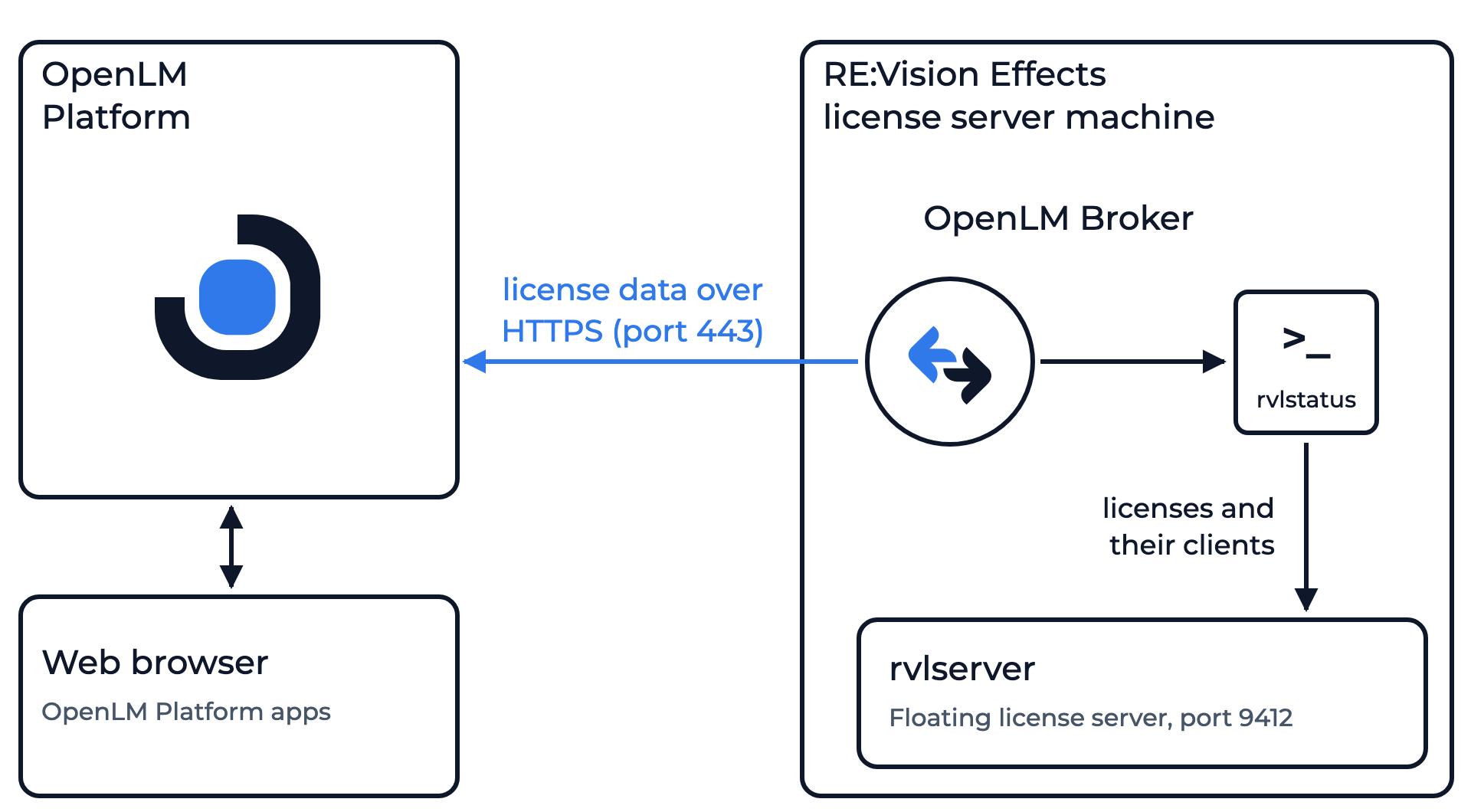 How OpenLM Broker collects RE:Vision Effects usage
Broker runs on the license server machine and sends the license data to OpenLM Platform over HTTPS, on outbound port 443. Broker does not connect to rvlserver itself. Its Data Inquiry command runs rvlstatus, which asks the license server for its licenses and their clients. Broker collects data in the following ways:
-
Commands: the license manager has one command, Data Inquiry, which runs
rvlstatusevery 55 seconds by default. Broker builds the call from the Executable path of the license manager:"<Executable path>rvlstatus"The Host and the port of the license manager are not part of the call. OpenLM Platform lists the license server under them. The output of
rvlstatusis one block per license, for example:RE:Vision Effects Floating License Status 2.3Network license server for this machine is: localhostLicense #1Type: NETWORK: 20 user(s) Server: localhostProduct(s): reelsmartmotionblurVersion: V6.0Host system: multihostSystem id: 0050569a1b2cExpiry date: CURRENT: Expires: neverProduct type: FULLLicense key: <REDACTED>Is it valid?: VALIDCurrent clients: 2: 0050569d3e4f 10.0.12.34 render01 1: Wed May 26 15:12:31 2021: 0050569e5f60 10.0.12.35 render02 1: Wed May 26 15:22:54 2021Broker reads the
Type,Product(s),Version,Expiry date,Product type, andCurrent clientslines of each block, and then as many client lines asCurrent clientsannounces. It ignores the other lines. -
Sessions: each data inquiry reports every client that holds a license, with the start time from its client line, and OpenLM Platform turns the consecutive reports into sessions.
-
Server status: the Broker reports the server status as
okwhenever thervlstatuscall succeeds, even when the output lists no license. -
Log files: none. REVision Effects has no log file types in Broker.
Check the license server
Broker reads only the output that rvlstatus prints, so run it manually on the license server machine first.
-
Open a command prompt on the license server machine and run
rvlstatus.On Windows, run
"C:\Program Files (x86)\REVisionEffects\bin\rvlstatus", orRVLShowStatus.batfromC:\Program Files (x86)\REVisionEffects\FloatingLicenseServer. On Linux, run/sbin/rvlstatus. -
Confirm that the output starts with
RE:Vision Effects Floating License Status, names the server in theNetwork license server for this machine isline, and lists each license as aLicense #block withType: NETWORK:andExpiry date: CURRENT: Expires: never.If the output lists no license, check that the license file is in place and that the server is running. The vendor's How do I install my floating license file? page names the license folder for each operating system and the scripts that stop and start the server:
RVLKillServer.batandRVLStartServer.baton Windows, run as administrator, and/sbin/rvlserver &on Linux, run as root. -
Note the
Product(s)andProduct typevalues of each license. Together they form the feature names that you see in OpenLM Platform.
Configure OpenLM Broker
To configure OpenLM Broker for RE:Vision Effects:
-
Open the Broker UI for the Broker on the license server machine.
On the machine itself, open
http://localhost:5090/, where local access needs no credentials. From any other machine, open Broker Hub in OpenLM Platform and select the Broker UI icon of that Broker. This opens the interface with the remote access token handled for you. -
On the License Managers page, set Host to the host name of the license server machine, and select the save icon next to the field.
OpenLM Platform lists the license server under this name. Broker does not pass it to
rvlstatus. -
Select License Managers, then Add License Manager.
-
From LM Type, select REVision Effects.
-
In Port, enter
9412, and select Add.Broker does not pass the port to
rvlstatuseither. Together with Host, the port identifies the license server in OpenLM Platform, so enter9412, the port ofrvlserver. Broker refuses a port that another license manager on this Broker already uses.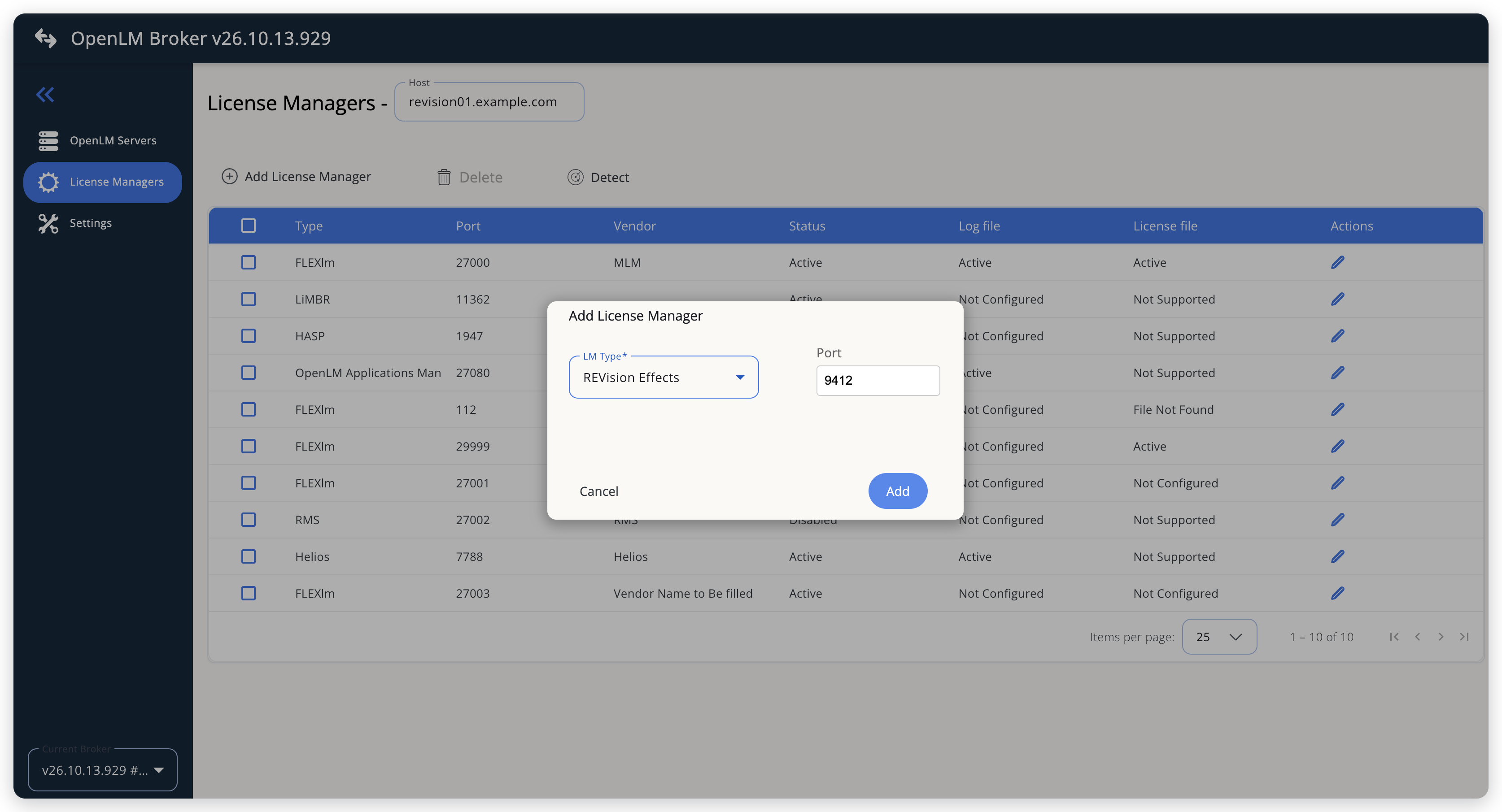 Add RE:Vision Effects as a license manager
-
On the Commands tab, in Executable path, enter the folder of
rvlstatus, for exampleC:\Program Files (x86)\REVisionEffects\bin\on Windows or/sbin/on Linux.Broker puts this path in front of
rvlstatus, and adds the path separator when the path does not end with one. -
Select Data Inquiry, and confirm that the command is
"rvlstatus".Broker fills it in as
"rvlstatus", runs it every 55 seconds (Watch interval (sec)), and stops a run that takes longer than 60 seconds (Timeout (sec)). Leave the command as it is. -
Keep Use the operating system start/stop commands turned off.
Broker has no service name for REVision Effects, so it cannot start or stop
rvlserver.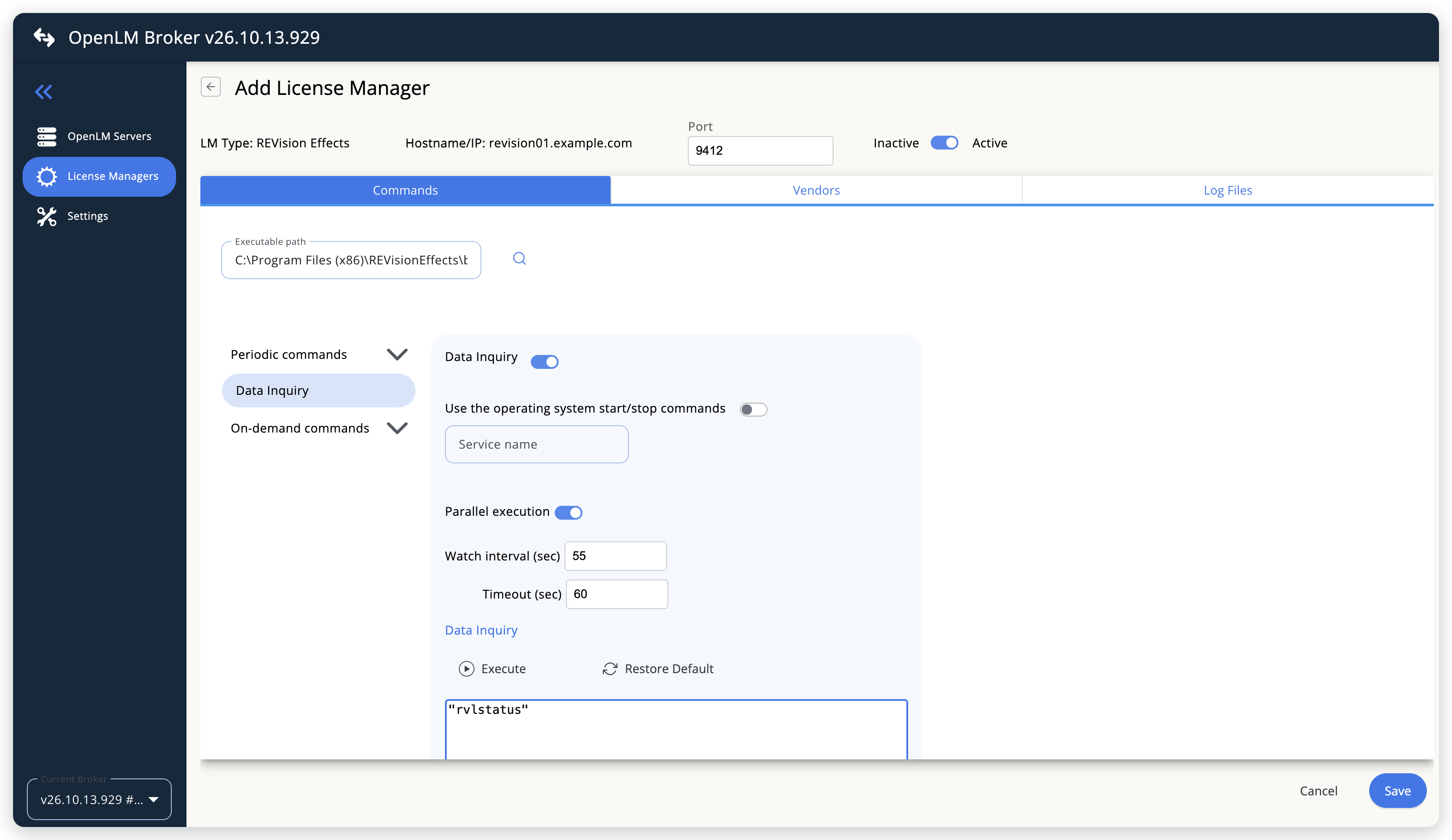 Point Broker at rvlstatus
-
Leave the Vendors and Log Files tabs as they are, and select Save.
With no vendor on the Vendors tab, Broker reports the vendor as
RE:Vision Effects. Add a vendor only to report another name. REVision Effects reads no log file. -
Wait for the next run of the Data Inquiry command, every 55 seconds by default.
Broker then reports RE:Vision Effects to OpenLM Platform, and the license server reaches Pending Servers.
Approve RE:Vision Effects in OpenLM Platform
Broker reports RE:Vision Effects with the OpenLM Generic protocol and names the license server after the Host that you set in the Broker UI. The pending entry is listed by that host name and port 9412, with License Manager Type shown as REVision Effects.
-
Sign in to OpenLM Platform with the URL your administrator gave you.
-
Open Navigation (the grid icon in the OpenLM Platform header) and select Licenses and Features, then License Servers.
-
Select Pending Servers.
-
Find the row whose Host Name and Port match the host name and the port that you configured in Broker.
Its License Manager Type is REVision Effects, and Source names the Broker.
-
Select that row, then select Approve And Merge.
-
On the Approve License Server page, check the settings, then select Approve.
Verify the integration
To verify that OpenLM Platform receives data from RE:Vision Effects:
-
In OpenLM Platform, open License Servers and, under Operational, select Live Servers Statistics.
-
Find the row for the license server and port
9412, and confirm that Status is Up.Confirm that RSQT (Recent Successful Query Time), the last time OpenLM Platform received data from the license server, is recent.
-
Open Licenses (Navigation, then Licenses and Features, then Licenses) and select Live Statistics.
Each product and product type appears as its own row, such as
reelsmartmotionblur(FULL)andreelsmartmotionblur(RENDER), with License Type Floating, the user count of the license as the total, and its clients as the licenses in use. -
Select a feature's Used count to confirm that sessions arrived.
The count opens the Usage page on Currently Consumed Licenses, where each client appears with the name and the IP address from its client line.
It can take up to 3 minutes for the status to update for a connection.
Troubleshooting
This section covers common problems when you monitor RE:Vision Effects in OpenLM Platform.
Why does RE:Vision Effects not reach Pending Servers?
Open Broker Hub and confirm that this Broker appears under Brokers with status Up, and not under Pending Brokers. OpenLM Platform accepts license manager data only from approved Brokers.
Why does the approved license server show no features, or the wrong ones?
Run rvlstatus manually on the license server machine, as described in Check the license server, and compare the result and the Broker log with these cases:
- The Broker log shows that the Data Inquiry command failed. Broker cannot run
"<Executable path>rvlstatus". Check Executable path on the Commands tab: the folder must holdrvlstatus. Unknown license type. Please contact OpenLM development to integrate, followed by theTypevalue. The license is not aNETWORKlicense. Broker reports the feature without a license type and without a total, and the log also showsLicense type is required. Send thervlstatusoutput to OpenLM Support to extend the integration.Multiple product names. Please contact OpenLM development to integrate, followed by theProduct(s)value. The line lists several products, separated by commas or spaces, and Broker names the feature after the whole line. When the products are listed on separate lines instead, Broker takes the first line only, without a message in the log.License has expiration. Please contact OpenLM development to handle, followed by theExpiry datevalue. The license expires. Broker still reports it as permanent, so OpenLM Platform shows no expiration date for it.Failed to parse user session, followed by a client line. The line has another layout than: <system ID> <IP address> <name> <number>: <date>, and Broker does not report that client.
The Broker log holds the output of every rvlstatus call, in the logs folder of the Broker installation.
Known limitations
These limits apply to RE:Vision Effects monitoring:
- Broker supports
NETWORKlicenses only. A license of another type arrives without a license type and without a total. - A license that covers several products arrives as one feature, named after the whole
Product(s)line, or after its first line when the products are listed on separate lines. - Broker reports every license as permanent, including a license with an expiry date, so OpenLM Platform shows no expiration date for RE:Vision Effects licenses.
- Broker reports the IP address of a client line of
rvlstatusas the workstation and the name next to it as the username. - Start times come from the client lines and are read in the time zone of the Broker machine. Sessions shorter than the watch interval of 55 seconds can be missed.
- Broker does not report expiration dates, denied requests, borrowed licenses, or license allocations, and does not upload usage history. Usage in OpenLM Platform starts when you configure the license manager.
- Broker runs
rvlstatuson its own machine, so it reports the license server configured for that machine. Install a Broker on each license server machine. - Detect on the License Managers page does not find RE:Vision Effects. Add the license manager manually.
- Multiple server redundancy is not available for RE:Vision Effects.
The documentation team might draft this page using a large language model. A technical writer reviews every page and verifies it against the product before publishing it. A human makes the final decision.