Seisware
To monitor Seisware licenses in OpenLM Platform, configure OpenLM Broker. The Seisware license server writes every license checkout and check-in to a CSV log. OpenLM Broker reads that log on the license server machine and reports each session to OpenLM Platform.
Before you begin
Confirm these prerequisites:
- An OpenLM Platform account.
- OpenLM Broker v22.4.15.656 or higher, installed on the Seisware license server machine.
- The Broker approved in Broker Hub. OpenLM Platform accepts license manager data only from approved Brokers, so the Seisware entry does not reach Pending Servers until you approve the Broker.
- The path of the Seisware license log on that machine. See How OpenLM Broker collects Seisware data for how to recognize the file.
What you can monitor
OpenLM Broker monitors the following for Seisware:
| LM Type in the Broker | Commands | Logs | Quantity | Expiration date | Denied | Borrowing | Allocations | Report resolution |
|---|---|---|---|---|---|---|---|---|
| Seisware | No | Yes | No | No | No | No | No | Start time to the second, end time to the minute |
For each checkout and check-in, Broker reports:
- Feature name: always
SeisWare. Broker reports all Seisware usage as one feature, whichever module the log names. - Username: the
Usercolumn. - Workstation: the
Machinecolumn. - Start and end time: the
Timecolumn of theOUTrow and of theINrow. - License type: Broker reports the feature as Floating.
- Vendor: always
SeisWare.
The Seisware license log holds no license totals or expiration dates. OpenLM Platform therefore reports Seisware usage without a license total. The log can hold DENIED rows, but Broker does not read them, so it does not report denials. Broker also does not report borrowed licenses or license allocations.
How OpenLM Broker collects Seisware data
The following diagram shows how OpenLM Broker collects Seisware usage and sends it to OpenLM Platform.
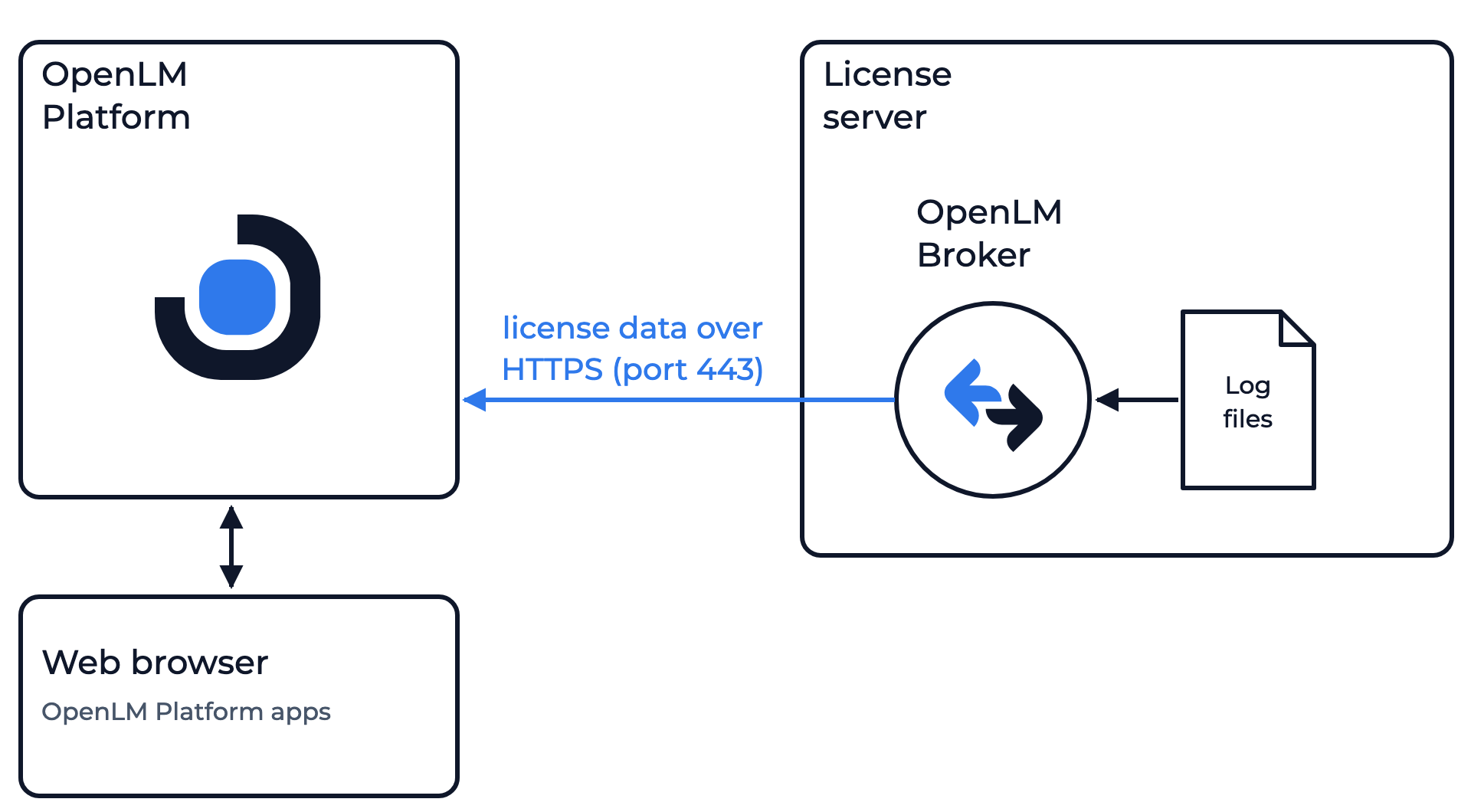 How OpenLM Broker collects Seisware usage
Broker runs on the Seisware license server machine and reads the license log there. It sends the license data to OpenLM Platform over HTTPS, on outbound port 443. Broker collects data in the following ways:
-
Log file: the Seisware license log is a CSV file, for example
LicenseLog.csv, whose first row names the columns. Seisware writes one of two layouts. The later layout adds aComponentcolumn with the module name, for exampleCoreorGeophysics:Status,User,Machine,MacID,Time,Elapsed,ID,InUse,Version,Description,Note1,Note2,Note3,ComponentOUT,jdoe,WS-1001,00-11-22-33-44-55,2026-10-19 08:12:40,0:00:00,10452,1,9.02,,,,,CoreIN,jdoe,WS-1001,00-11-22-33-44-55,2026-10-19 11:47:05,3:34:25,10452,0,9.02,,,,,CoreBroker reads the
OUTandINrows, and from them only theUser,Machine,Time, andIDcolumns. It ignores every other row, includingSTARTUPandDENIED, and every other column, includingComponent,InUse, andVersion. -
Sessions: Broker matches each
INrow to itsOUTrow by theIDcolumn. In the later layout, a user who opens several modules gets oneOUTrow per module, all with the same ID. Broker reports them as one license in use, and ends the session at the firstINrow with that ID. -
First read: when Broker starts, it reads the whole log file to find the licenses that are checked out at that moment. From then on it reports each new
OUTandINrow. Broker does not upload earlier usage history. -
Commands: None run on a schedule. Broker does not connect to the Seisware license server, so the port that you enter in Broker only identifies the license server in OpenLM Platform.
Configure OpenLM Broker
To configure OpenLM Broker for Seisware:
-
Open the Broker UI for the Broker on the license server machine.
On that machine itself, open
http://localhost:5090/, where local access needs no credentials. From any other machine, open Broker Hub in OpenLM Platform and select the Broker UI icon of that Broker. This opens the interface with the remote access token handled for you. -
On the License Managers page, check that Host shows the host name of the license server machine.
OpenLM Platform lists the license server under this host name, and the field holds the host for every license manager on the page, not for Seisware alone.
-
If the field is empty, enter the host name of the license server machine and select the save icon next to the field.
-
Select License Managers, then Add License Manager.
-
From LM Type, select Seisware.
-
In Port, enter a port that no other license manager on this Broker uses, for example
30433, and select Add.Broker does not connect to this port. It only identifies the license server in OpenLM Platform. Broker refuses a port that another license manager already uses.
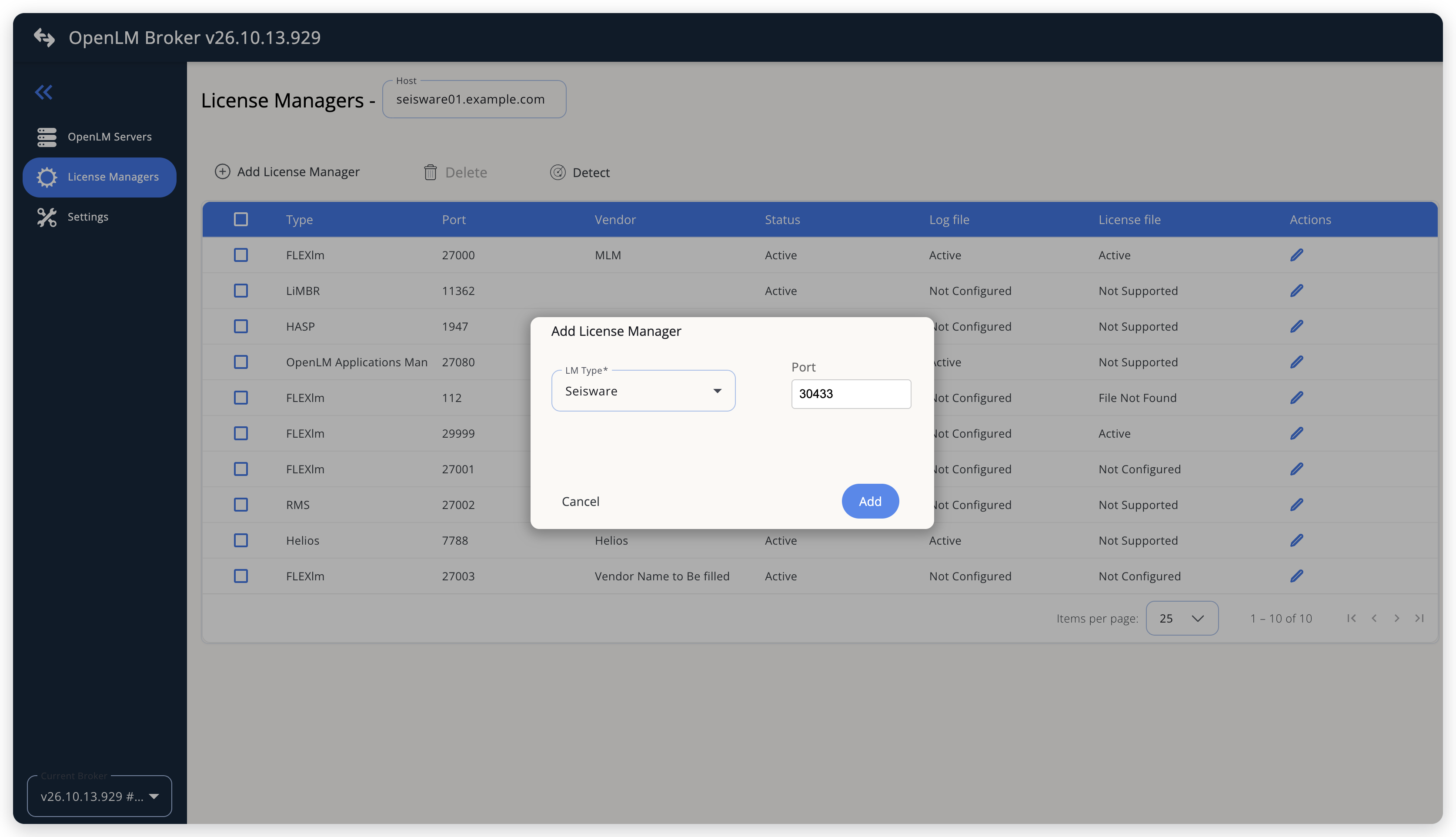 Add Seisware as a license manager
-
On the Vendors tab, select Add Vendor, enter
SeisWare, and select Continue.Broker reports every Seisware session with the vendor
SeisWare, so use that name. The vendor appears in the list after you switch to another tab and back. -
On the Log Files tab, select Add Log File, then enter the following settings:
- Log Type: Seisware Log, the only type for Seisware, which Broker selects for you.
- Log Name: a name for the log, for example
Seisware license log, in place of the suggestedlog. - Log Path: the full path of the Seisware license log. Select the search icon next to the field to browse to it.
- Vendor:
SeisWare, the vendor that you added on the Vendors tab. Broker selects it when it is the only vendor.
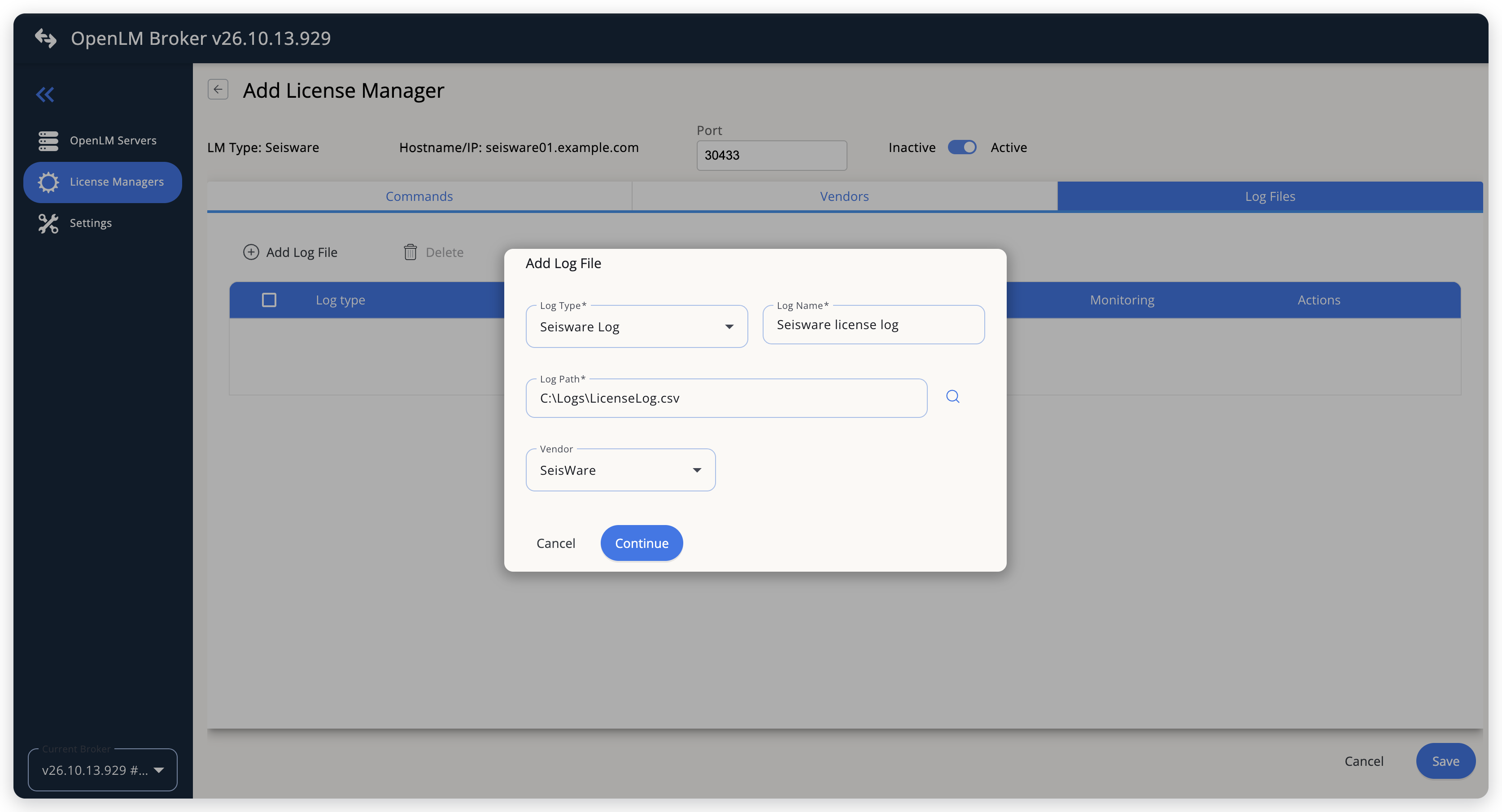 Point Broker at the Seisware license log
-
Select Continue, then select Save.
-
Wait for Broker to read the log, every 10 seconds by default.
Broker then reports Seisware to OpenLM Platform, and the license server reaches Pending Servers.
Approve Seisware in OpenLM Platform
Broker reports Seisware with the OpenLM Generic protocol and names the license server after the Host that you set in the Broker UI. The pending entry is listed by that host name and the port that you entered, with License Manager Type shown as Seisware.
-
Sign in to OpenLM Platform with the URL your administrator gave you.
-
Open Navigation (the grid icon in the OpenLM Platform header) and select Licenses and Features, then License Servers.
-
Select Pending Servers.
-
Find the row whose Host Name and Port match the license manager that you configured in Broker.
Its License Manager Type is Seisware, and Source names the Broker.
-
Select that row, then select Approve And Merge.
-
On the Approve License Server page, check the settings, then select Approve.
Verify the integration
To verify that OpenLM Platform receives data from Seisware:
-
In OpenLM Platform, open License Servers and, under Operational, select Live Servers Statistics.
-
Find the row for the host and port that you configured, and confirm that Status is Up.
Confirm that RSQT (Recent Successful Query Time), the last time OpenLM Platform received data from the license server, is recent.
-
Open Licenses (Navigation, then Licenses and Features, then Licenses) and select Live Statistics.
The feature
SeisWareappears with License Type Floating and the number of licenses in use. -
Select the Used count to confirm that sessions arrived.
The count opens the Usage page on Currently Consumed Licenses, where each checkout appears with its username, workstation, and start time.
It can take up to 3 minutes for the status to update for a connection.
Troubleshooting
This section covers common problems when you monitor Seisware in OpenLM Platform.
Why does Seisware not reach Pending Servers?
Open Broker Hub and confirm that this Broker appears under Brokers with status Up, and not under Pending Brokers. OpenLM Platform accepts license manager data only from approved Brokers.
Why does the approved license server show no usage?
Confirm the following:
- Log Path points at the Seisware license log, the CSV file whose rows start with
OUTandIN. - The license manager type in the Broker is Seisware, and the log file type is Seisware Log.
What does "No session found for" mean in the Broker log?
If the Broker log shows No session found for followed by a number, an IN row arrived for an ID whose session had already ended. That is expected for the later layout, where each module on the same ID writes its own IN row. The Broker log is in the logs folder of the Broker installation.
Known limitations
These limits apply to Seisware monitoring:
- Broker does not report license totals, expiration dates, denied requests, borrowed licenses, or license allocations, and does not upload usage history. Usage in OpenLM Platform starts when you configure the license manager.
- All Seisware modules arrive as one feature,
SeisWare. OpenLM Platform does not show which module a user opened. - Broker reports rows that share an ID as one license in use, and ends the session at the first
INrow with that ID, even while other modules on that ID are still checked out. - An
OUTrow that never gets a matchingINrow keeps its session in use in OpenLM Platform, also after Broker or the license server restarts. Broker ignores theSTARTUProws and rebuilds the open sessions from the whole log file each time it starts. - Broker does not check whether the Seisware license server is running. OpenLM Platform shows the license server as up while Broker reports it.
The documentation team might draft this page using a large language model. A technical writer reviews every page and verifies it against the product before publishing it. A human makes the final decision.