Sparx Pro
To monitor Sparx Pro licenses in OpenLM Platform, configure OpenLM Broker. Broker reads the Pro Cloud Server log on its server and reports each checkout and check-in to OpenLM Platform.
Sparx Pro is the OpenLM name for the Floating License Server built into Sparx Systems Pro Cloud Server, which serves Enterprise Architect floating licenses from a server on your network. Despite its name, Pro Cloud Server runs on your own server, not in a cloud.
If your Enterprise Architect licenses come from the Sparx Systems Keystore service, which writes ssksLog.log, follow Sparx instead.
Before you begin
Confirm these prerequisites:
- An OpenLM Platform account.
- OpenLM Broker v22.2.7.1557 or higher, installed on the Pro Cloud Server machine. Use v23.2.6.1138 or higher, so that Broker finishes reading a log file when Pro Cloud Server starts a new one.
- The Broker approved in Broker Hub. OpenLM Platform accepts license manager data only from approved Brokers, so the Sparx Pro entry does not reach Pending Servers until you approve the Broker.
- Enterprise Architect floating licenses served by the Floating License Server of Pro Cloud Server.
- Access to the Pro Cloud Server machine, to check its logging settings and find its log folder.
What you can monitor
OpenLM Broker monitors the following for Sparx Pro:
| LM Type in the Broker | Commands | Logs | Quantity | Expiration date | Denied | Borrowing | Allocations | Report resolution |
|---|---|---|---|---|---|---|---|---|
| Sparx Pro | No | Yes | No | No | No | No | No | Seconds |
For each checkout and check-in, Broker reports:
- Feature name: the Enterprise Architect edition in the
productfield, for exampleEA Corporate Edition. - Username: the username after the backslash in the
userfield. - Workstation: the computer name before the backslash in the
userfield. - Start and end time: the time of the checkout and check-in lines, to the second.
- License type: Broker reports every product as Floating.
- Vendor: the vendor that you select for the log file.
The Pro Cloud Server log holds no license totals, expiration dates, or denied requests. OpenLM Platform therefore reports Sparx Pro usage without a license total. Broker does not report denials, borrowed licenses, or license allocations.
How OpenLM Broker collects Sparx Pro data
The following diagram shows how OpenLM Broker collects Sparx Pro usage and sends it to OpenLM Platform.
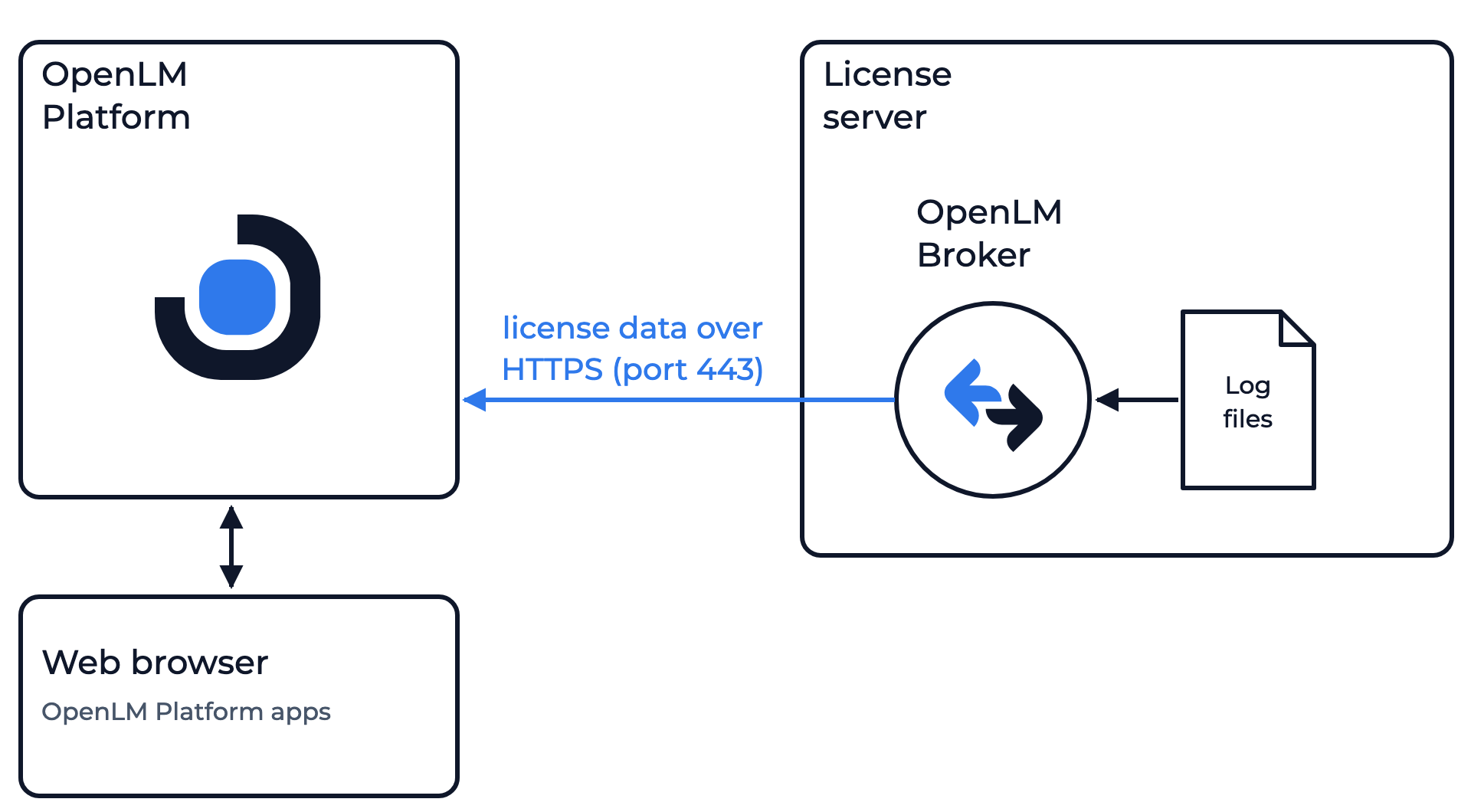 How OpenLM Broker collects Sparx Pro usage
Broker runs on the Pro Cloud Server machine and reads the Pro Cloud Server log there. It sends the license data to OpenLM Platform over HTTPS, on outbound port 443. Broker collects data in the following ways:
-
Log file: Broker reads
SSProCloudServerLog-1.log, the current Pro Cloud Server log, in theLogsfolder of the Pro Cloud Server service. It reads two kinds of line:2026-10-19 08:12:40 [INFO]: FLS - CHECKOUT SUCCESS, group=EA-Corporate key=XXXX-XXXX-XXXX-XXXX product=EA Corporate Edition user=WS-1001\jdoe, 2026-10-20 08:12:402026-10-19 11:47:05 [INFO]: FLS - CHECKIN SUCCESS, group=EA-Corporate key=XXXX-XXXX-XXXX-XXXX product=EA Corporate EditionBroker ignores every other line, including
FLS - REASSERT EXTEND, which records a client renewing its license, and the hourly[AUDIT]report. -
Sessions: Broker matches each check-in to its checkout by the license key. A key serves one user at a time, so a new checkout of the same key replaces the previous session.
-
First read: when you add the log file, Broker reads the current log once to find the licenses that are checked out at that moment. From then on it reports each new checkout and check-in. Broker does not upload earlier usage history.
-
Rolled files: when Pro Cloud Server starts a new log file, Broker finishes reading the previous file before it continues with the new one, as long as Watch files by pattern is off.
-
Commands: none run on a schedule. Broker does not connect to Pro Cloud Server, so the port that you enter in Broker only identifies the license server in OpenLM Platform.
Prepare the Pro Cloud Server log
Broker reads only the Pro Cloud Server log, so check the logging settings first. Pro Cloud Server writes the checkout and check-in lines at the INFO level and starts a new log file when the current one reaches its maximum size.
-
On the Pro Cloud Server machine, open the
SSProCloud.configfile in a text editor that you run as administrator.The file is in the
Servicefolder of the Pro Cloud Server installation, for exampleC:\Program Files\Sparx Systems\Pro Cloud Server\Service\SSProCloud.config. Older 32-bit installations useC:\Program Files (x86)\Sparx Systems\Pro Cloud Server\Service. -
Check
LOGGING_LEVEL.INFOorSYSTEM, the default, writes the lines that Broker reads.DEBUGandTRACEalso write them, but they add so many other lines that the log fills up and rolls over far more often.OFF,FATAL, andWARNINGdo not write them at all. -
Raise
LOGGING_FILESIZEso that one log file covers several days of checkouts, for example10485760for 10 MB.The value is in bytes, and the default is
1048576, which is 1 MB. Broker reads only the current file when it starts, so a larger file keeps more open sessions in view. See Known limitations. -
Save the file, and restart the Sparx Systems Professional Cloud service in Windows Services.
Pro Cloud Server reads the file only when it starts. A log level that you change in the Pro Cloud Server Configuration Client applies without a restart.
-
Note the log folder in Logging under Folders.
The first lines of every log file list it under Folders, as Logging. The default is
C:\Program Files\Sparx Systems\Pro Cloud Server\Service\Logs. -
Open
SSProCloudServerLog-1.login that folder, and search forFLS - CHECKOUT SUCCESS.If no line matches, no floating license has been checked out since the log started, or the log level is lower than
INFO.
For the full list of Pro Cloud Server settings, see Pro Cloud Server Configuration in the Sparx Systems user guide.
Configure OpenLM Broker
To configure OpenLM Broker for Sparx Pro:
-
Open the Broker UI for the Broker on the Pro Cloud Server machine.
On that machine, open
http://localhost:5090/. Local access needs no credentials. From any other machine, open Broker Hub in OpenLM Platform and select the Broker UI icon of that Broker. This opens the interface with the remote access token handled for you. -
On the License Managers page, check that Host shows the host name of the Pro Cloud Server machine.
OpenLM Platform lists the license server under this host name, and the field holds the host for every license manager on the page, not for Sparx Pro alone. If the field is empty, enter the host name of the Pro Cloud Server machine and select the save icon next to the field.
-
Select License Managers, then Add License Manager.
-
From LM Type, select Sparx Pro, not Sparx.
-
In Port, enter the port that Enterprise Architect uses to reach Pro Cloud Server, and select Add.
The defaults are
1804for HTTP and1805for HTTPS in Pro Cloud Server 5.0 or higher, and804and805in versions before 5.0. Broker does not connect to this port, so any port that no other license manager on this Broker uses works. Broker refuses a port that another license manager already uses.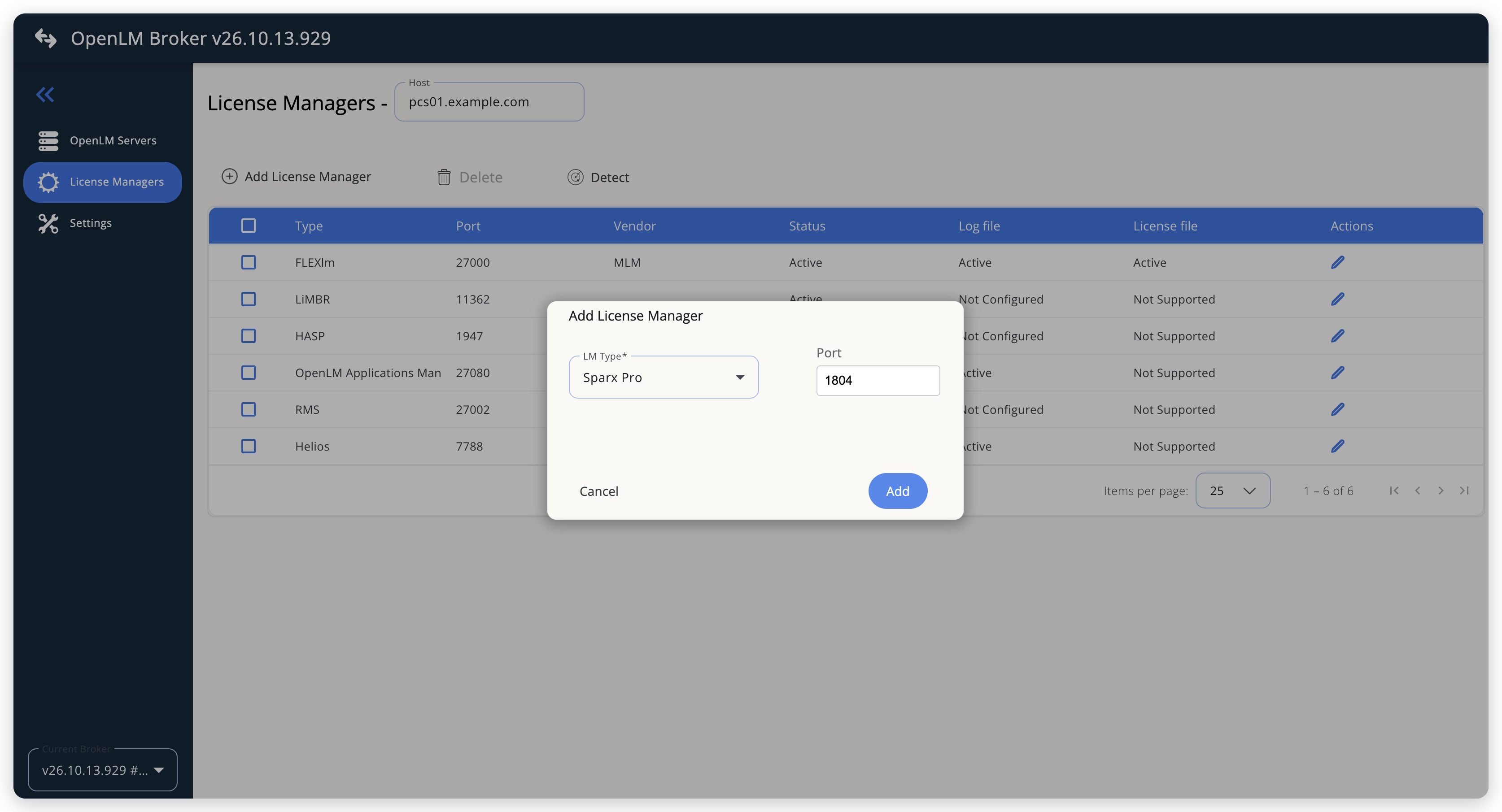 Add Sparx Pro as a license manager
-
On the Commands tab, check Service name.
Broker fills it with
Sparx System Keystore Service, the service of the older Keystore, and turns on Use the operating system start/stop commands. Set Service name toSparx Systems Professional Cloud, so that a start or stop command from OpenLM Platform acts on Pro Cloud Server, or turn the option off. -
On the Vendors tab, select Add Vendor, enter the vendor name that you want OpenLM Platform to show, for example
Sparx Systems, and select Continue.The vendor appears in the list after you switch to another tab and back.
-
On the Log Files tab, select Add Log File, then enter the following settings:
- Log Type: SSKS Log, the only type for Sparx Pro.
- Log Name: a name for the log, for example
Pro Cloud Server log. - Log Path: the full path of
SSProCloudServerLog-1.log, for exampleC:\Program Files\Sparx Systems\Pro Cloud Server\Service\Logs\SSProCloudServerLog-1.log. Select the search icon next to the field to browse to it. - Vendor: the vendor that you added on the Vendors tab.
- Under Advanced, set Encoding to UTF-8. Pro Cloud Server writes its log in UTF-8, and Broker suggests the default encoding of the Windows machine instead.
- Under Advanced, leave Watch files by pattern off. Broker finishes reading a rolled log file only while this option is off.
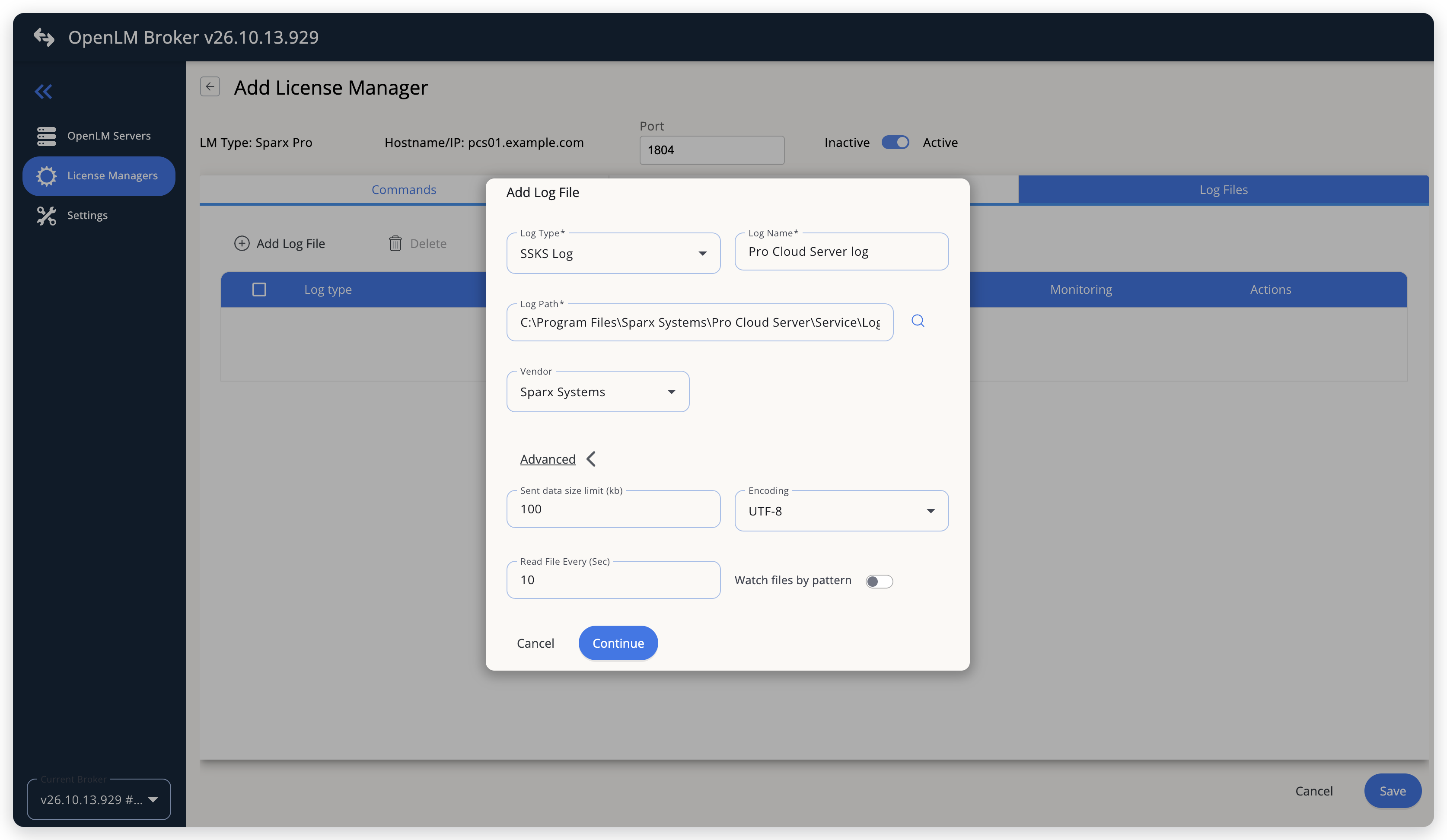 Point Broker at the current Pro Cloud Server log
-
Select Continue, then select Save.
-
Wait for Broker to read the log, every 10 seconds by default.
Broker then reports Sparx Pro to OpenLM Platform, and the license server reaches Pending Servers.
Approve Sparx Pro in OpenLM Platform
Broker reports Sparx Pro with the OpenLM Generic protocol and names the license server after the Host that you set in the Broker UI. The pending entry is listed by that host name and the port that you entered, with License Manager Type shown as Sparx Pro.
-
Sign in to OpenLM Platform with the URL your administrator gave you.
-
Open Navigation (the grid icon in the OpenLM Platform header) and select Licenses and Features, then License Servers.
-
Select Pending Servers.
-
Find the row whose Host Name and Port match the license manager that you configured in Broker.
Its License Manager Type is Sparx Pro, and Source names the Broker.
-
Select that row, then select Approve And Merge.
-
On the Approve License Server page, check the settings, then select Approve.
Verify the integration
To verify that OpenLM Platform receives data from Sparx Pro:
-
In OpenLM Platform, open License Servers and, under Operational, select Live Servers Statistics.
-
Find the row for the host and port that you configured, and confirm that Status is Up.
Confirm that RSQT (Recent Successful Query Time), the last time OpenLM Platform received data from the license server, is recent.
-
Open Licenses (Navigation, then Licenses and Features, then Licenses) and select Live Statistics.
Each Enterprise Architect edition appears as its own row after its first checkout, with License Type Floating and the number of licenses in use.
-
Select a product's Used count to confirm that sessions arrived.
The count opens the Usage page on Currently Consumed Licenses, where each checkout appears with its username, workstation, and start time.
It can take up to 3 minutes for the status to update for a connection.
Troubleshooting
This section covers common problems when you monitor Sparx Pro in OpenLM Platform.
Why does Sparx Pro not reach Pending Servers?
Open Broker Hub and confirm that this Broker appears under Brokers with status Up, and not under Pending Brokers. OpenLM Platform accepts license manager data only from approved Brokers.
Why does the approved license server show no usage?
Confirm the following:
- Log Path points at
SSProCloudServerLog-1.log, the current file, and not at a rolled file such asSSProCloudServerLog-2.log. - The log holds
FLS - CHECKOUT SUCCESSlines. If it does not, setLOGGING_LEVELas described in Prepare the Pro Cloud Server log. - Enterprise Architect takes its license from Pro Cloud Server. Licenses from the Keystore service appear in
ssksLog.logand need the Sparx type.
Why do usernames show garbled characters?
Set Encoding to UTF-8 for the log file, under Advanced.
Why does OpenLM Platform show fewer licenses in use than Pro Cloud Server?
Shortly after Broker restarts, Broker has not seen the checkouts that happened before the current log file started. See Known limitations.
The Broker log holds the detail, in the logs folder of the Broker installation.
Known limitations
These limits apply to Sparx Pro monitoring:
- Broker does not report license totals, expiration dates, denied requests, borrowed licenses, or license allocations, and does not upload usage history. Usage in OpenLM Platform starts when you configure the license manager.
- When Broker starts, it rebuilds the open sessions from the current log file only. Licenses checked out before that file started are missing from OpenLM Platform until they are checked in and out again. A larger
LOGGING_FILESIZEand theINFOorSYSTEMlog level keep more history in the current file. - Broker reads only the checkout and check-in lines. A license that Pro Cloud Server frees without a check-in line stays in use in OpenLM Platform until the same license key is checked out or checked in again.
- Broker finishes reading a rolled log file only while Watch files by pattern is off.
- Broker does not check whether Pro Cloud Server is running. OpenLM Platform shows the license server as up while Broker reports it.
- Broker reads the log on the machine where it runs. Install a Broker on each Pro Cloud Server machine that you want to monitor.
- Multiple server redundancy is not available for Sparx Pro.
- Long sessions, for example when users leave Enterprise Architect open overnight, keep licenses in use. To free those licenses, see License Harvesting.
The documentation team might draft this page using a large language model. A technical writer reviews every page and verifies it against the product before publishing it. A human makes the final decision.