Transoft Solutions
Follow these steps to monitor Transoft Solutions licenses in OpenLM Platform. The Transoft Solutions network license server offers no interface that Broker can query for live usage. OpenLM Broker therefore has the vendor's License Server Administration Utility, LicenseServerAdminTool.exe, write its Active Users and License reports, and reads the license totals and the users who hold them from those reports.
Before you begin
Confirm these prerequisites:
- OpenLM Platform.
- OpenLM Broker v26.4.30.958 or higher, installed on the Windows machine that runs the Transoft Solutions network license server. Earlier Broker versions do not list Transoft Solutions as a license manager type, and Broker runs the Transoft command only on Windows.
- The Broker approved in Broker Hub. OpenLM Platform accepts license manager data only from approved Brokers, so the Transoft Solutions entry does not reach Pending Servers until the Broker itself is approved.
- The License Server Administration Utility, which the Transoft Solutions server installation puts in
C:\Program Files (x86)\Transoft Solutions\License Server\LicenseServerAdminTool.exe. - AutoIt v3 installed on the same machine, with its folder in the system
Path. See Install AutoIt.
What you can monitor
OpenLM Broker monitors the following for Transoft Solutions:
| LM Type in the Broker | Commands | Logs | Quantity | Expiration date | Denied | Borrowing | Allocations | Report resolution |
|---|---|---|---|---|---|---|---|---|
| Transoft Solutions | Yes | No | Yes | Yes | No | No | No | Seconds |
From the License report, the Broker reports the following for each license:
- Feature name: the product in Product 1, for example
KeyLINES 10.5. - Total: the value of Max. Num Users.
- Expiration date: the value of Rental Expiry, for licenses that have one.
- License type: Broker reports every license as Floating.
- Vendor: the first vendor on the Vendors tab in Broker, or
Transoft Solutionswhen the tab is empty.
Broker keeps each License Number apart, so two licenses for the same product arrive as two features with the same name.
From the Active Users report, the Broker reports the users who hold each license:
- Username: the User ID column.
- Workstation: the Computer Name column.
The reports hold no check-out times. Broker reports who holds each license at each data inquiry, not when the license was checked out. Denied requests, borrowed licenses, and license allocations are not available.
How OpenLM Broker interfaces with Transoft Solutions
The following diagram shows how OpenLM Broker collects Transoft Solutions usage.
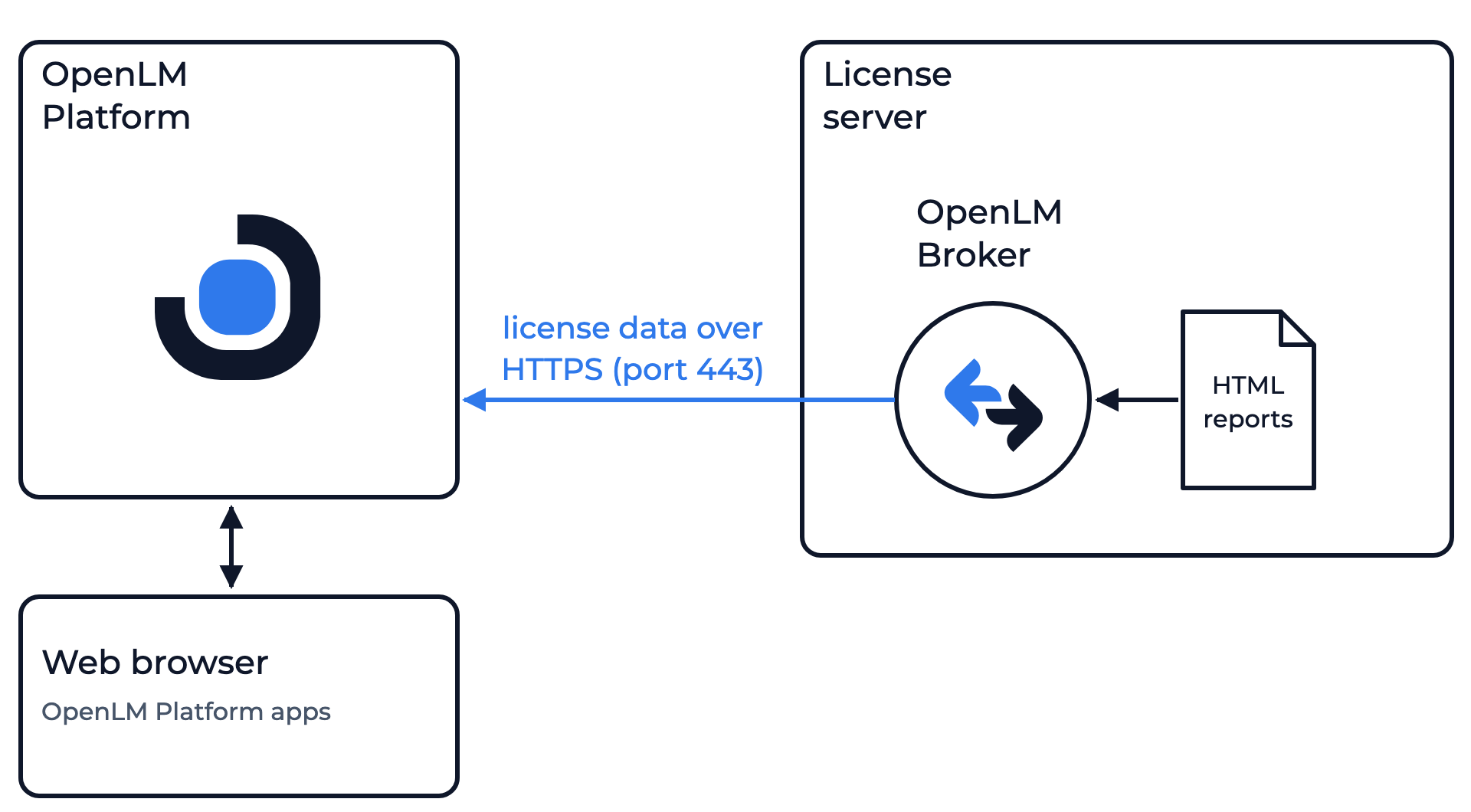 How OpenLM Broker collects Transoft Solutions usage
Broker runs on the license server machine and sends the license data to OpenLM Platform over HTTPS, on outbound port 443. Every 55 seconds by default, its Data Inquiry command does the following:
- Broker runs the AutoIt script
transoft_trigger.au3, which ships with Broker in itslmsettingsfolder, withAutoIt3.exe. - The script closes any open License Server Administration Utility, starts it again with its windows hidden, and enters the Host and the port of the license manager in the Specify License Server dialog.
- In the Select Product window, the script generates the Active Users report and the License report. The utility writes them as
ActiveUsers.htmandLicenseReport.htmto theReportsfolder next toLicenseServerAdminTool.exe. - Broker checks that both files changed, reads them, and sends the licenses and their users to OpenLM Platform.
Install AutoIt
Broker starts the script with the command AutoIt3.exe, so Windows must find AutoIt3.exe through the system Path. Broker does not install AutoIt.
-
On the license server machine, open the AutoIt downloads page, select Installer under AutoIt Full Installation, and run the installer.
-
Add the AutoIt folder, for example
C:\Program Files (x86)\AutoIt3, to the systemPath:- Open Edit the system environment variables and select Environment Variables.
- Under System variables, select Path, then select Edit.
- Select New, enter the AutoIt folder, and select OK in each dialog.
-
In a new command prompt, run
where AutoIt3.exe.The command prints the full path of
AutoIt3.exe. If it prints an error, the folder is not in thePath.
Configure OpenLM Broker
To add Transoft Solutions to the Broker:
-
Open the Broker UI for the Broker on the license server machine.
On that machine itself, open
http://localhost:5090/. Local access needs no credentials. From any other machine, open Broker Hub in OpenLM Platform and select the Broker UI icon of that Broker, which opens the interface with the remote access token handled for you. -
On the License Managers page, check Host.
OpenLM Platform lists the license server under this host name, and the script enters it in the Specify License Server dialog of the License Server Administration Utility. Use the name or IP address that you would enter in that dialog yourself. The field holds the host for every license manager on the page, not for Transoft Solutions alone. If the field is empty, enter the host and select the save icon next to the field.
-
Select License Managers, then Add License Manager.
-
From LM Type, select Transoft Solutions.
-
In Port, enter the port of the license server, and select Add.
The Transoft Solutions default is
27099. Broker refuses a port that another license manager on this Broker already uses.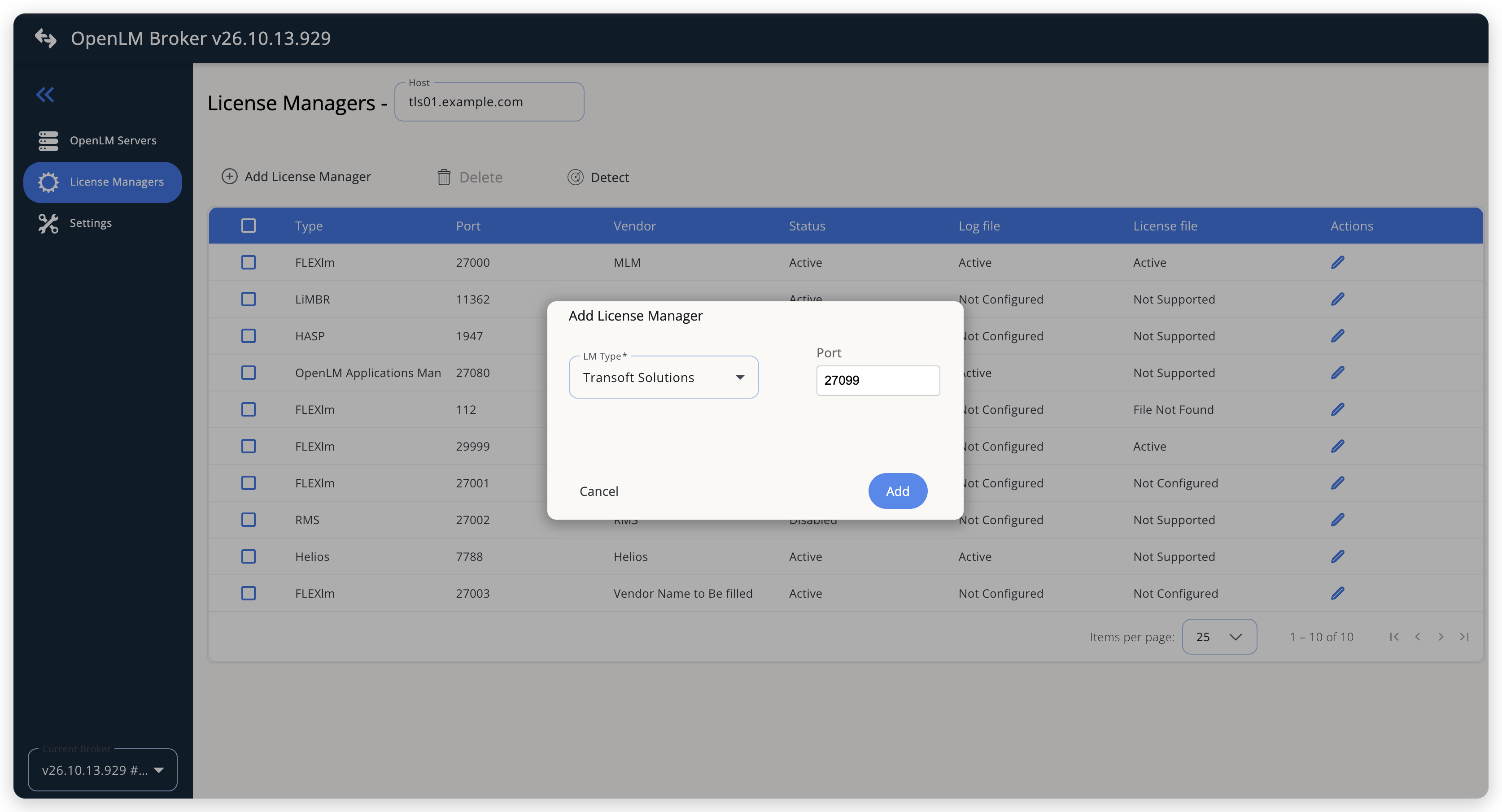 Add Transoft Solutions as a license manager
-
On the Commands tab, select Data Inquiry, and enter the full path of
LicenseServerAdminTool.exeas the command, for example:C:\Program Files (x86)\Transoft Solutions\License Server\LicenseServerAdminTool.exeThe command box is empty for a new Transoft Solutions license manager. Broker reads the reports from the
Reportsfolder next to this file.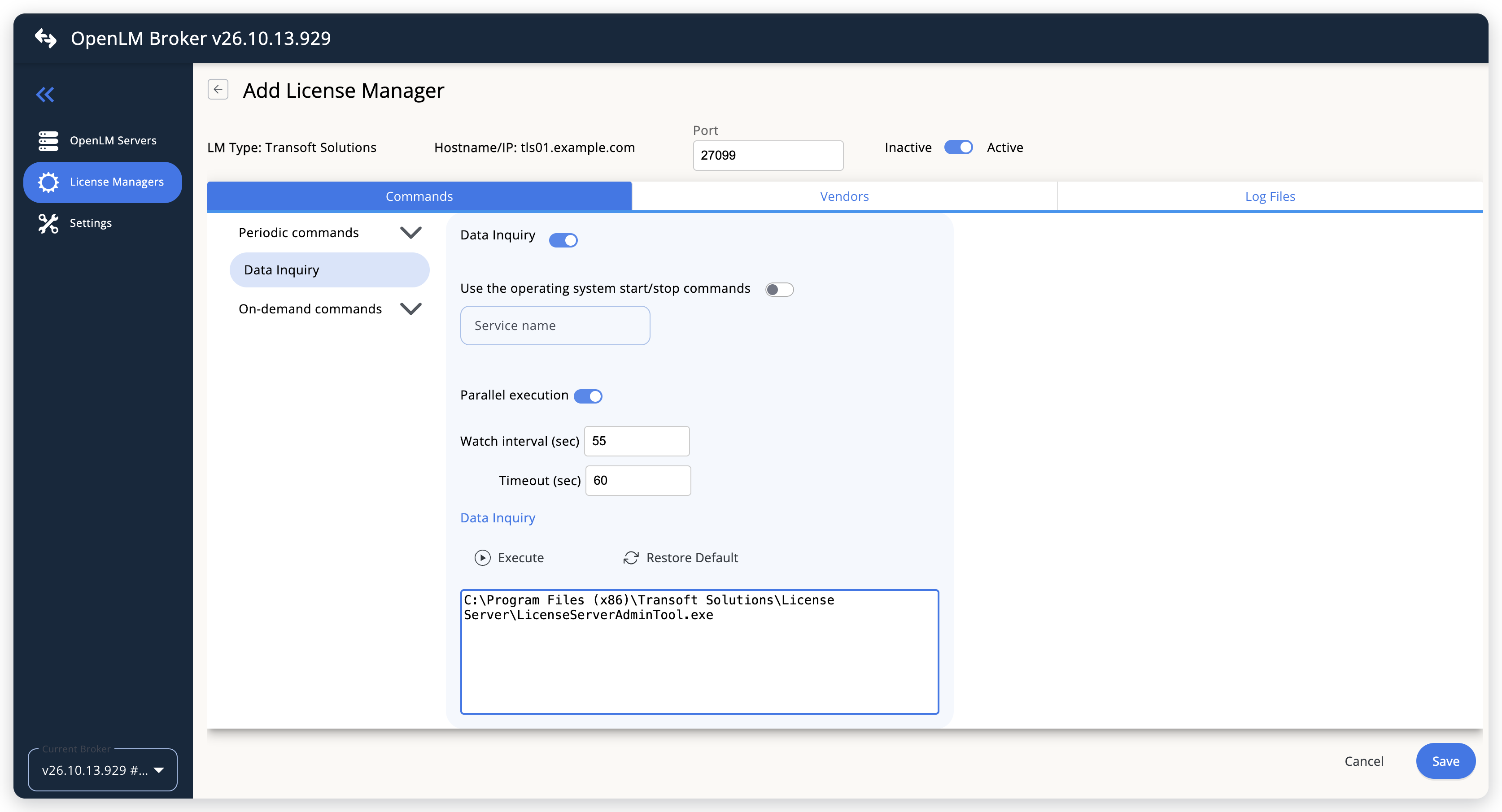 Point the Data Inquiry command at the License Server Administration Utility
-
Select Save.
-
Wait a few minutes.
Broker runs the Data Inquiry command and reports Transoft Solutions to OpenLM Platform. The license server then reaches Pending Servers.
Approve Transoft Solutions in OpenLM Platform
To approve the Transoft Solutions license server, find its row in Pending Servers. Broker reports Transoft Solutions with the OpenLM Generic protocol and names the license server after the Host that you set in the Broker UI. The pending entry is listed by that host name and the port that you entered, with License Manager Type set to Transoft Solutions.
-
Sign in to OpenLM Platform.
-
Open Navigation (the grid icon in the OpenLM Platform header) and select Licenses and Features, then License Servers.
-
Select Pending Servers.
-
Find the row whose Host Name and Port match the license manager that you configured in Broker.
Its License Manager Type is Transoft Solutions, and Source names the Broker.
-
Select that row, then select Approve And Merge.
-
On the Approve License Server page, check the settings, then select Approve.
Verify the integration
To confirm that OpenLM Platform receives Transoft Solutions data:
-
In OpenLM Platform, open License Servers and, under Operational, select Live Servers Statistics.
-
Find the row for the host and port that you configured, and confirm that Status is Up.
Confirm that RSQT (Recent Successful Query Time), the last time OpenLM Platform received data from the license server, is recent.
-
Open Licenses (Navigation, then Licenses and Features, then Licenses) and select Live Statistics.
Each license appears with the product name, License Type Floating, its total, and the number of users who hold it.
It can take up to 3 minutes for the status to update for a new connection.
Troubleshooting
If Transoft Solutions never reaches Pending Servers, open Broker Hub and confirm that this Broker appears under Brokers with status Up, and not under Pending Brokers. OpenLM Platform accepts license manager data only from approved Brokers.
If the license server shows no licenses, the Broker log, in the logs folder of the Broker installation, names the reason:
Report file was not updated by the scriptorCannot read report file timestamp: the script did not produce new reports. Check thatwhere AutoIt3.exefinds AutoIt, as described in Install AutoIt, and that the Host and Port in Broker let the License Server Administration Utility connect to the license server.commandLine must be a full path to the exe: the Data Inquiry command is not the full path ofLicenseServerAdminTool.exe.AutoIT script not found:transoft_trigger.au3is missing from thelmsettingsfolder of the Broker installation.
Known limitations
These limits apply to Transoft Solutions monitoring:
- At each data inquiry, the script closes any open License Server Administration Utility on the machine, including a window that an administrator is using.
- Broker runs the Transoft Solutions command only on Windows.
- The reports hold no check-out times. OpenLM Platform sees who holds each license at each data inquiry, so sessions shorter than the watch interval can be missed.
- Broker reports an expiration date only for licenses that have a Rental Expiry value.
- Broker does not report denied requests, borrowed licenses, or license allocations, and does not upload usage history. Usage in OpenLM Platform starts when you configure the license manager.
The documentation team might draft this page using a large language model. A technical writer reviews every page and verifies it against the product before publishing it. A human makes the final decision.