Tweak
To monitor Tweak licenses in OpenLM Platform, configure OpenLM Broker. Tweak is the OpenLM name for the Tweak License Server, tlm_server, which serves floating licenses for RV and RVIO from Tweak Software. OpenLM Broker runs on the license server machine. It asks tlm_server for its status about once a minute and reads the tlm_server log for each checkout and check-in.
Autodesk, which publishes the RV documentation, states that RV licenses from a GTO standalone or floating license file remain supported but are no longer distributed.
Before you begin
Confirm these prerequisites:
- OpenLM Platform.
- OpenLM Broker v22.2.7.1557 or higher, installed on the machine that runs
tlm_server. - The Broker approved in Broker Hub. OpenLM Platform accepts license manager data only from approved Brokers, so the Tweak entry does not reach Pending Servers until the Broker itself is approved.
tlm_serverrunning with a log file, which means started with the-logoption. See Prepare the Tweak License Server.- Access to the license server machine, to find the
tlm_serverexecutable and its log file.
What you can monitor
OpenLM Broker monitors the following for Tweak:
| LM Type in the Broker | Commands | Logs | Quantity | Expiration date | Denied | Borrowing | Allocations | Report resolution |
|---|---|---|---|---|---|---|---|---|
| Tweak | Yes | Yes | Yes | Yes | No | No | No | Seconds |
From the status command, Broker reports the following for each license in the license file:
- Feature name: the licensed package, for example
rvsoloorrvio. - Total and in use: the seat count of the license and the number of seats in use.
- Expiration date: the maintenance expiration date, the
maint expiresvalue, not the date the license itself expires. - License type: Broker reports every license as Floating.
- Current users: each user who holds a seat, with the checkout time.
From the log, Broker reports each checkout and check-in with the following:
- Feature name: the package in the request, for example
rvsolo. - Username: the part before
@in the client address. - Workstation: the part after
@, which is the IP address of the client in thetlm_serverlog. - Start and end time: the time of the
APPROVEDandRELEASEDlines, to the second. - Vendor: the vendor that you select for the log file.
Broker does not report denied requests, borrowed licenses, or license allocations for Tweak.
How OpenLM Broker collects Tweak data
The following diagram shows how OpenLM Broker collects Tweak usage and sends it to OpenLM Platform.
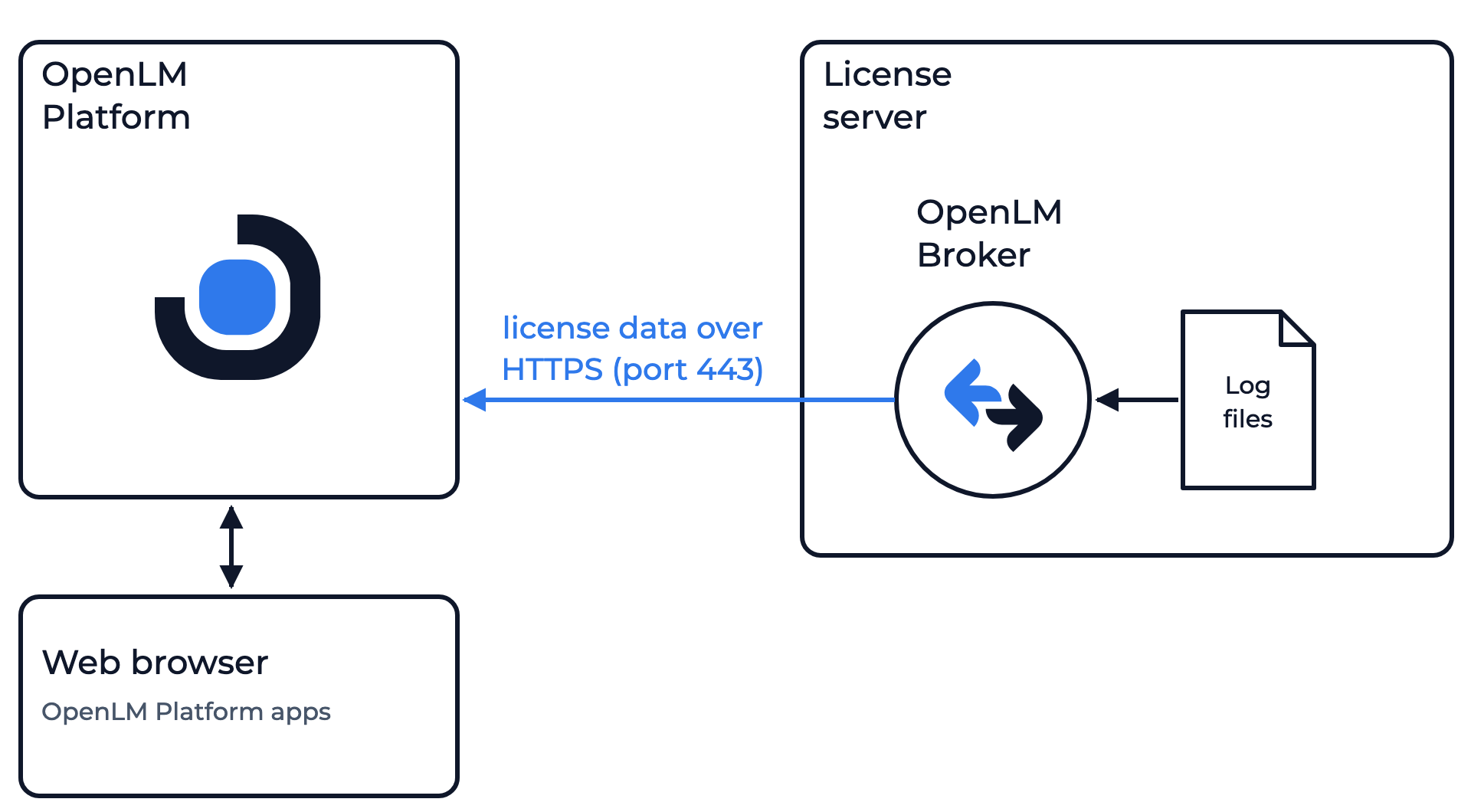 How OpenLM Broker collects Tweak usage
Broker runs on the license server machine. It collects data in two ways and sends it to OpenLM Platform over HTTPS, on outbound port 443:
-
Status command: Every 55 seconds, Broker runs
tlm_server -s -h <host> -p <port>and reads its output:tlm_server running on host 'tlm01' port 5436Version: 2.6.0License 1: rvsolo *.*.* :: 2 in use, 3 available, 5 total, maint expires Sat Jun 16 12:13:00 2027-> jdoe@10.0.12.41 checked out at Mon Oct 19 08:12:40 2026-> asmith@10.0.12.57 checked out at Mon Oct 19 09:30:05 2026Each
Licenseline becomes a feature with its totals and maintenance expiration date, and each->line under it becomes a user who holds a seat. -
Log file: Broker reads the log that
tlm_serverwrites with the-logoption, every 10 seconds by default. It reads two kinds of line:APPROVED (lic #1, 2/5 remaining) request for rvsolo 6.2.6 from jdoe@10.0.12.41 at Mon Oct 19 08:12:40 2026RELEASED rvsolo *.*.* from jdoe@10.0.12.41 at Mon Oct 19 11:47:05 2026APPROVEDis a checkout andRELEASEDis a check-in. Broker ignores every other line, includingREJECTEDrequests. -
First read: When you add the log file, Broker starts at the end of the file and reports each new checkout and check-in from then on. It does not upload earlier usage history. The status command shows the users who already hold a seat.
Prepare the Tweak License Server
Broker needs two things from the license server: the full path of the tlm_server executable, for the status command, and a log file that tlm_server writes to. tlm_server writes a log file only when it starts with the -log option. Without that option, it prints its activity to the console, where Broker cannot read it.
-
On the license server machine, find how
tlm_serverstarts.- Windows: the vendor installs
tlm_server.exeas a service with the Non-Sucking Service Manager (NSSM), for exampleC:\Program Files (x86)\tlm_server-win32-x86-2.6.0\bin\tlm_server.exe. The service arguments hold-logand-f. - Linux: the
start_tlmserver_init.shscript holds the command line. The vendor package installs to/usr/local/tweakunless you changed it.
- Windows: the vendor installs
-
Check that the command line has
-logfollowed by a file name, for example-log "C:\Program Files (x86)\tlm_server-win32-x86-2.6.0\tlm_server.log".If it does not, add the option and restart
tlm_server. The argument is a file, not a folder, andtlm_servercreates it if it does not exist. -
Note the port of
tlm_server.The default is
5436, and on Windowstlm_servercan only use5436. The-poption sets another port on Linux. -
In a command prompt on the license server machine, run the status command with the full path of
tlm_server, for example:"C:\Program Files (x86)\tlm_server-win32-x86-2.6.0\bin\tlm_server.exe" -s -h localhost -p 5436The output lists each license as in How OpenLM Broker collects Tweak data. Check that each
Licenseline ends withmaint expiresand a date in the formSat Jun 16 12:13:00 2027. Broker cannot read the status output otherwise. -
Open the log file and search for
APPROVED.If no line matches, no RV client has checked out a license since the log started.
For the date format that Broker needs, see Known limitations. For the command-line options and service setup, see Tweak License Server (tlm_server) Version 2.6 in the Autodesk ShotGrid documentation.
Configure OpenLM Broker
To add Tweak to the Broker:
-
Open the Broker UI for the Broker on the license server machine.
On that machine itself, open
http://localhost:5090/. Local access needs no credentials. From any other machine, open Broker Hub in OpenLM Platform and select the Broker UI icon of that Broker. This opens the interface with the remote access token handled for you. -
On the License Managers page, check that Host shows the host name of the license server machine.
OpenLM Platform lists the license server under this host name, and the field holds the host for every license manager on the page, not for Tweak alone. If the field is empty, enter the host name of the license server machine and select the save icon next to the field.
-
Select License Managers, then Add License Manager.
-
From LM Type, select Tweak.
-
In Port, enter the port of
tlm_server, usually5436, and select Add.Broker refuses a port that another license manager on this Broker already uses.
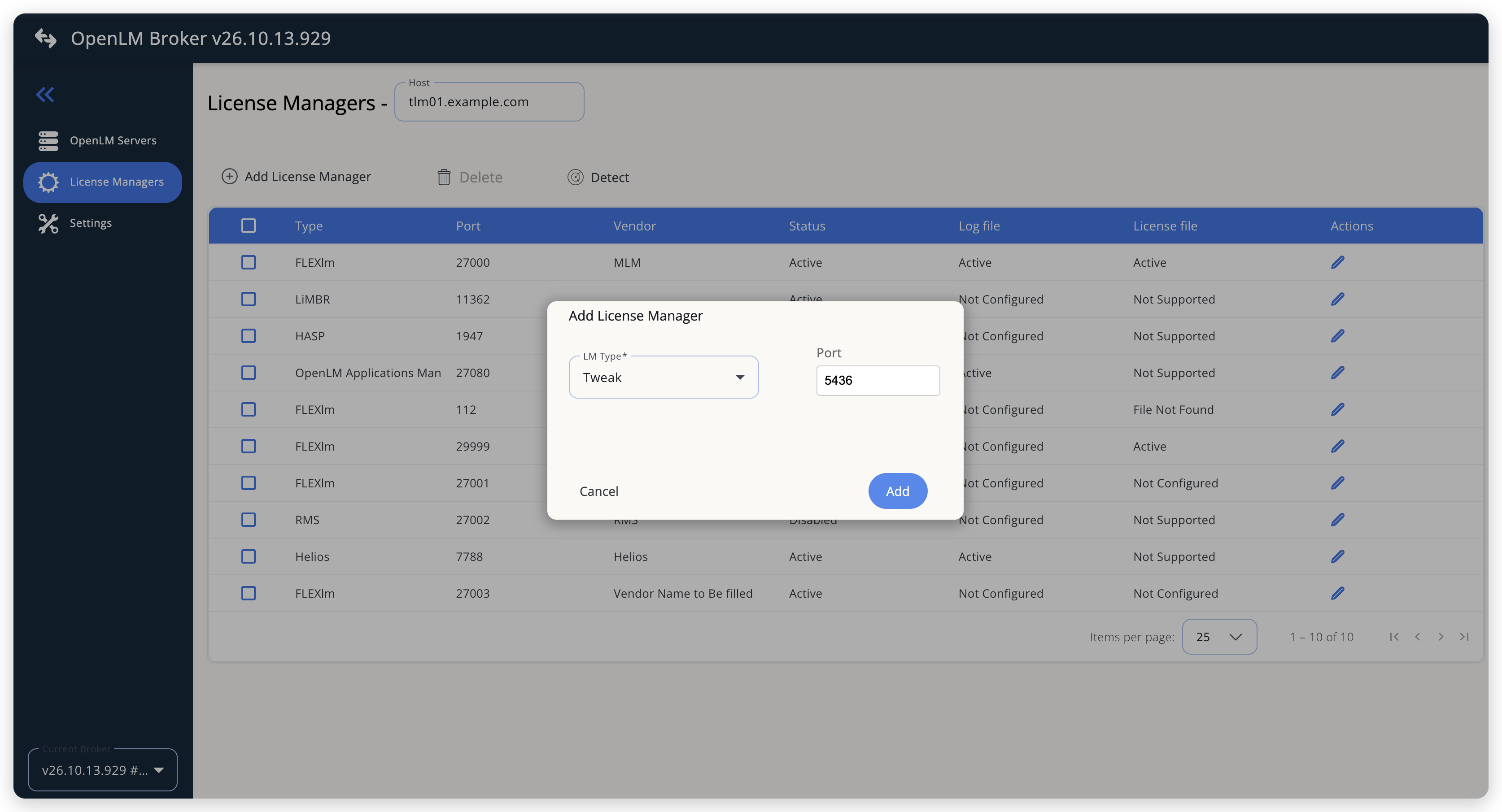 Add Tweak as a license manager
-
On the Commands tab, leave Executable path empty.
If Executable path changes, Broker replaces both commands with its default when you save, and the default does not run. The full path goes into the commands instead.
-
Replace the Status command, under On-demand commands, with the full path of
tlm_serverand the status options, for example:"C:\Program Files (x86)\tlm_server-win32-x86-2.6.0\bin\tlm_server.exe" -s -h tlm01.example.com -p 5436Broker pre-fills
"tlm_server" -s -h <host> -p <port>" -m, which fails: it has an extra quotation mark after the port, andtlm_serverhas no-moption. Keep the quotation marks around a path that contains spaces. -
Select Data Inquiry, under Periodic commands, and replace its command with the same text.
Data Inquiry is the command that runs every 55 seconds and sends usage to OpenLM Platform. The pre-filled text has the same fault as the Status command.
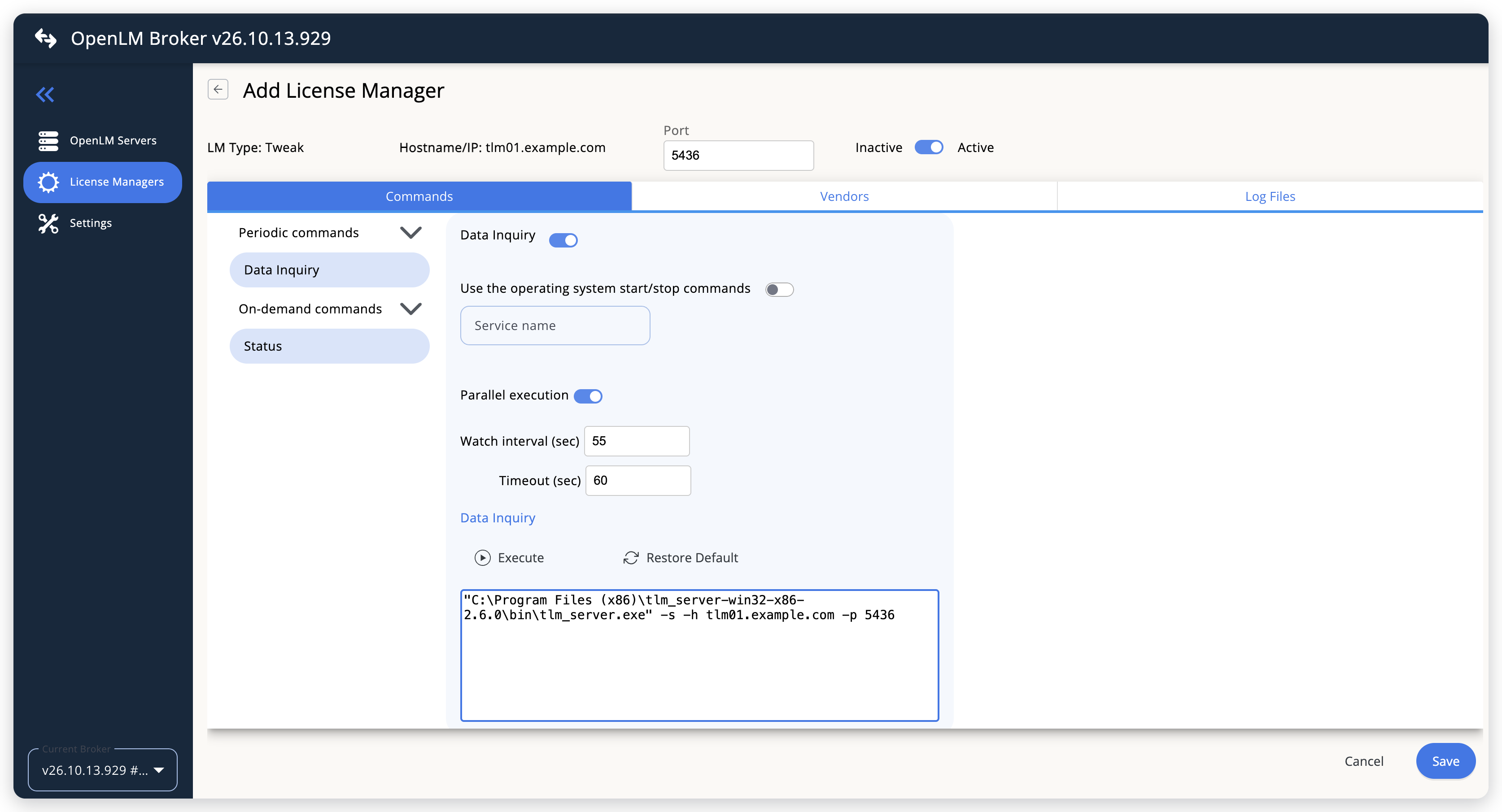 Correct the Data Inquiry and Status commands
-
On the Vendors tab, select Add Vendor, enter
ShotGrid, and select Continue.The new vendor appears in the list after you switch to another tab and back. Broker labels the status data with the first vendor on this tab, and with
ShotGridwhen the tab is empty, so the same vendor on the log file keeps both sources together. -
On the Log Files tab, select Add Log File, then enter the following settings:
- Log Type: Tweak LM log, the only type for Tweak.
- Log Name: a name for the log, for example
tlm_server log. - Log Path: the full path of the file after
-log, for exampleC:\Program Files (x86)\tlm_server-win32-x86-2.6.0\tlm_server.log. Select the search icon next to the field to browse to it. - Vendor: ShotGrid, the vendor that you added on the Vendors tab.
- Under Advanced, keep the defaults.
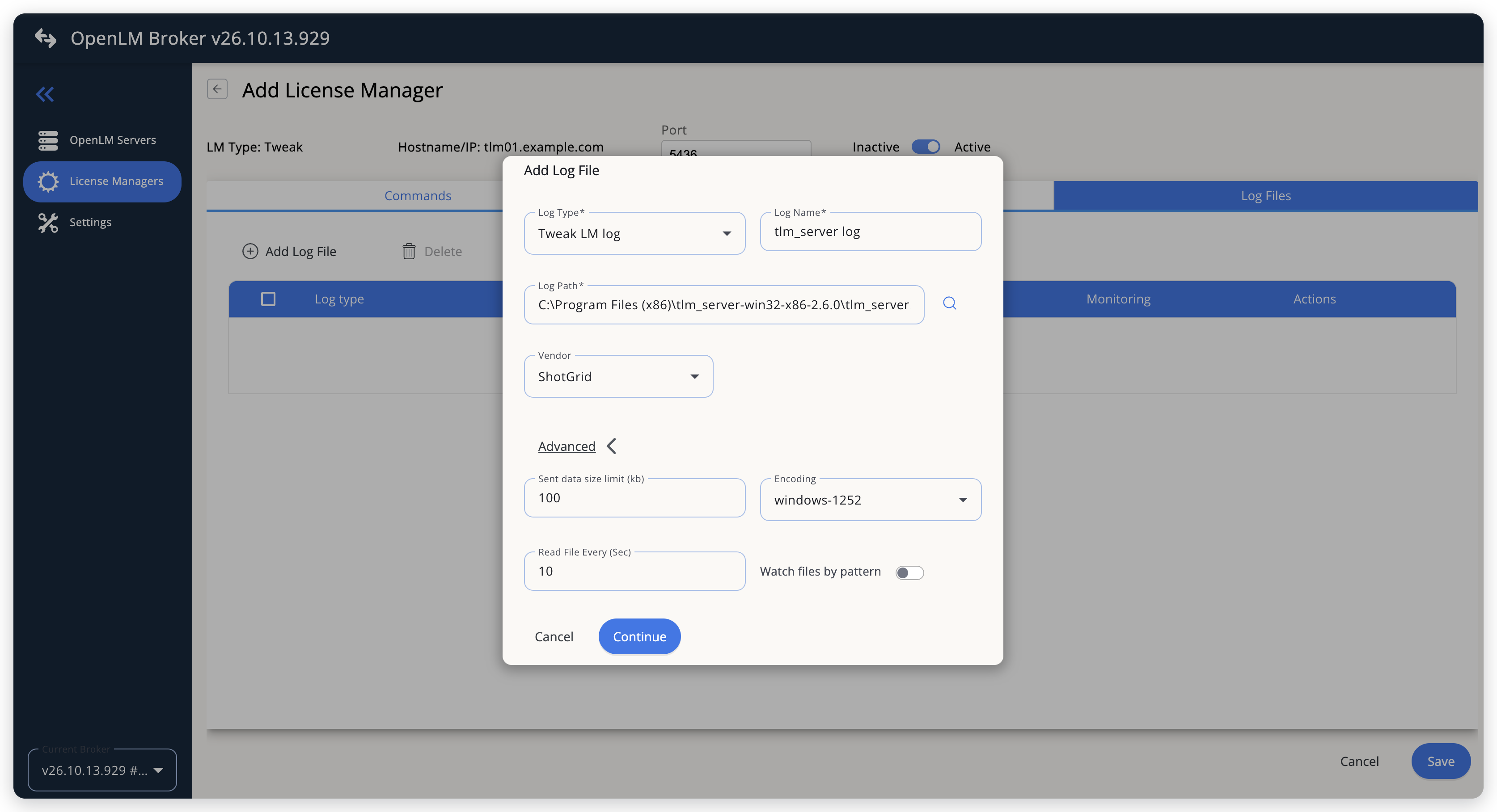 Point Broker at the tlm_server log
-
Select Continue, then select Save.
-
Wait for Broker to run the status command, every 55 seconds by default.
Broker then reads the log and reports Tweak to OpenLM Platform, and the license server reaches Pending Servers.
Approve Tweak in OpenLM Platform
To approve the Tweak license server, find its row in Pending Servers. Broker reports Tweak with the OpenLM Generic protocol and names the license server after the Host that you set in the Broker UI. The pending entry is listed by that host name and the port that you entered, with License Manager Type set to Tweak.
-
Sign in to OpenLM Platform with the URL your administrator gave you.
-
Open Navigation (the grid icon in the OpenLM Platform header) and select Licenses and Features, then License Servers.
-
Select Pending Servers.
-
Find the row whose Host Name and Port match the license manager that you configured in Broker.
Its License Manager Type is Tweak, and Source names the Broker.
-
Select that row, then select Approve And Merge.
-
On the Approve License Server page, check the settings, then select Approve.
Verify the integration
To confirm that OpenLM Platform receives Tweak data:
-
In OpenLM Platform, open License Servers and, under Operational, select Live Servers Statistics.
-
Find the row for the host and port that you configured, and confirm that Status is Up.
Confirm that RSQT (Recent Successful Query Time), the last time OpenLM Platform received data from the license server, is recent.
-
Open Licenses (Navigation, then Licenses and Features, then Licenses) and select Live Statistics.
Each package, such as
rvsolo, appears with License Type Floating, its total seats, and the number in use. -
Select a package's Used count to confirm that sessions arrived.
The count opens the Usage page on Currently Consumed Licenses, where each checkout appears with its username, the client IP address as the workstation, and the start time.
It can take up to 3 minutes for the status to update for a new connection.
Troubleshooting
This section covers common problems when you monitor Tweak in OpenLM Platform.
Why does Tweak not reach Pending Servers?
Open Broker Hub and confirm that this Broker appears under Brokers with status Up, and not under Pending Brokers. OpenLM Platform accepts license manager data only from approved Brokers.
Why does the license server show no totals or expiration dates?
The status command fails. The Broker log, in the logs folder of the Broker installation, names the reason:
Unbalanced quotes: the command still has the pre-filled extra quotation mark. Correct both commands as described in Configure OpenLM Broker.Command result transformation failed:tlm_serverran, but Broker cannot read its output. Check theLicenselines as described in Prepare the Tweak License Server.- The commands changed back to the default after a save: Executable path is not empty. Clear it, then correct both commands again.
Why does the license server show totals but no checkouts or check-ins?
Confirm the following:
- Log Path points at the file after
-login thetlm_servercommand line. - The log holds
APPROVEDlines. If it does not, no client has checked out a license sincetlm_serverstarted writing the log.
Known limitations
These limits apply to Tweak monitoring:
- Broker reads the status output only when every
Licenseline ends withmaint expiresand a date in the formSat Jun 16 12:13:00 2027. A license without a maintenance date, or with a date in another form such as15-Oct-2027, makes the whole status command fail. OpenLM Platform then gets no totals or expiration dates, and checkouts and check-ins come from the log alone. - The expiration date in OpenLM Platform is the maintenance expiration date. Broker does not report the date the license itself expires.
- Broker does not report denied requests. It ignores the
REJECTEDlines in the log.tlm_serveralso writes them during normal operation, because RV asks for the least expensive license type first. - Broker does not report borrowed licenses or license allocations, and does not upload usage history. Usage in OpenLM Platform starts when you configure the license manager.
- The workstation in OpenLM Platform is the part of the client address after
@, which is an IP address in thetlm_serverlog. - Broker reads the log on the machine where it runs. Install a Broker on each
tlm_servermachine that you want to monitor, including the fallback servers that your RV client license lists. - Each
tlm_serveris a separate license server in OpenLM Platform, including the fallback servers that an RV client license lists.
The documentation team might draft this page using a large language model. A technical writer reviews every page and verifies it against the product before publishing it. A human makes the final decision.