BambooHR
To collect BambooHR data in OpenLM Platform, configure OpenLM Cloud Broker.
Before you begin
Confirm these prerequisites:
- A BambooHR application that you create to obtain the required credentials. BambooHR uses OAuth 2.0 for authentication.
Configure data collection
To configure BambooHR data collection in OpenLM Cloud Broker, gather the BambooHR information, authorize the application, generate an access token, and add the credentials.
Gather the required BambooHR information
From your BambooHR account, collect the following:
-
Company subdomain: If you access BambooHR at
https://mycompany.bamboohr.com, the subdomain ismycompany. -
OAuth application credentials: the client ID, the client secret, and the redirect URI.
For detailed setup instructions, see the official BambooHR authentication documentation.
Authorize the application
Start the authorization request in a browser or with curl:
https://<company-domain>.bamboohr.com/authorize.php?request=authorize&state=new&response_type=code&scope=<scopes separated by +>&client_id=<your client ID>&redirect_uri=<your redirect URI>
After authorization, BambooHR redirects to the specified redirect_uri with a temporary authorization code:
?code=<temporary authorization code>
Store the authorization code securely. You need it only once to generate the initial access token.
Generate an access token
Exchange the authorization code for an access token. Send the request to this endpoint:
https://<company-domain>.bamboohr.com/token.php?request=token
Use this request body:
{
  "client_secret": "<your client secret>",
  "client_id": "<your client ID>",
  "code": "<temporary authorization code>",
  "grant_type": "authorization_code",
  "redirect_uri": "<redirect URI>"
}
The response looks like this:
{
  "access_token": "<temporary access token>",
  "expires_in": 3600,
  "token_type": "Bearer",
  "scope": "<scopes separated by space>",
  "refresh_token": "<temporary refresh token>",
  "id_token": "<unique ID>",
  "companyDomain": "<your company domain>"
}
Use the access_token for subsequent API calls. In tools such as Postman, select Bearer Token and paste the access token into the Token field.
The refresh_token is returned only if you included the offline_access scope in the authorization request.
Refresh the access token
If the access token expires, use the refresh token to obtain a new one. Send the request to this endpoint:
https://<company-domain>.bamboohr.com/token.php?request=token
Use this request body:
{
  "client_secret": "<your client secret>",
  "client_id": "<your client ID>",
  "refresh_token": "<temporary refresh token>",
  "grant_type": "refresh_token",
  "redirect_uri": "<redirect URI>"
}
Add the credentials in OpenLM Cloud Broker
To add the BambooHR credentials:
-
Open the OpenLM Cloud Broker dashboard.
-
Locate the BambooHR integration.
-
Enter the BambooHR company domain.
-
Enter the API access token.
The following image shows the BambooHR credentials configuration.
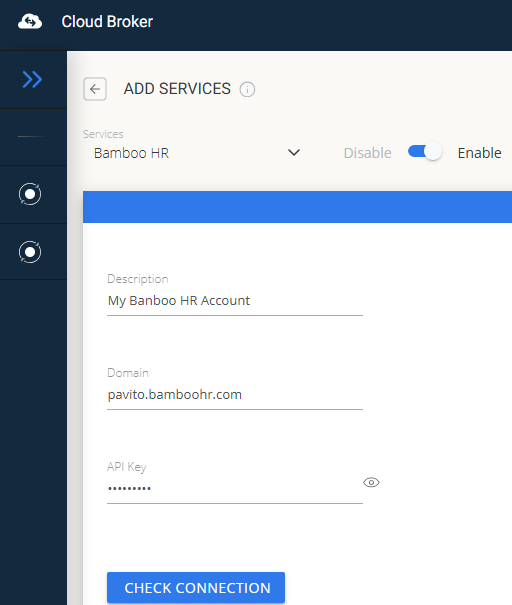 BambooHR credentials configuration
Verify and approve the connection
To verify and approve the connection:
- Test the connection to confirm that OpenLM Cloud Broker can retrieve data.
- Approve the data source in the License Servers section.
After approval, BambooHR usage data is available in the Allocation service in OpenLM Platform.
Approve BambooHR in OpenLM Platform
To approve BambooHR in OpenLM Platform:
- Sign in to OpenLM Platform with the URL your administrator gave you.
- From the menu, select License Servers, then Pending Server.
- Select the BambooHR data source, then select Approve and Merge.
Verify the integration
To verify the integration:
- In OpenLM Platform, select Allocation.
- Confirm that BambooHR usage data appears.
It can take up to 3 minutes for data to appear after approval.
View reports
In OpenLM Platform, you can review the following reports:
- User activity trends: see which users are most active in the platform, and reallocate seats accordingly.
- Expired or unused licenses: identify inactive users and reclaim their seats.
Reference
For more information, see Broker Hub.
The documentation team might draft this page using a large language model. A technical writer reviews every page and verifies it against the product before publishing it. A human makes the final decision.