Control placement with admission rules
To control which license server each job gets, write admission rules. Without rules, LicOps admits a request whenever its pool has a free seat and places the seat on the least-loaded healthy server. Admission rules change that. Use them to fill pre-paid servers before a pay-per-use one, spread jobs evenly, take a server out of rotation for maintenance, refuse requests you don't want admitted, or slow down a burst of checkouts that would overload a license server.
You write rules in OpenLM Platform. LicOps collects them and applies them to every admit request. Whatever the rules say, LicOps still checks capacity and health last, so no rule can place a seat on a full or unhealthy server.
LicOps counts each seat against one server and names that server at dispatch. For the application's checkout to follow it, your integration has to use that answer. See Decide whether LicOps also chooses the server.
Create a rule
To create an admission rule:
-
In OpenLM Platform, select Navigation, then LicOps Configuration under Licenses and Features.
-
Select Rules, then New Rule.
-
Enter a Rule Id that you recognize, such as
matlab-cheaper-first. -
Set the Priority.
Rules run in priority order, lowest number first, so
10runs before100. The default is100. -
Under When — conditions, set the request the rule applies to.
Each condition is a Fact, an Operator, and a Value, for example feature is
MATLAB. Select + Condition to add another, and select All Of, Any Of, or Not to decide how they combine. Select + Group to nest a set of conditions. -
Under Then — action, select + Add action.
-
Select an Action, and then enter the values for the action.
-
Select Save rule.
The following screenshot shows the Admission Rules list after you save rules:
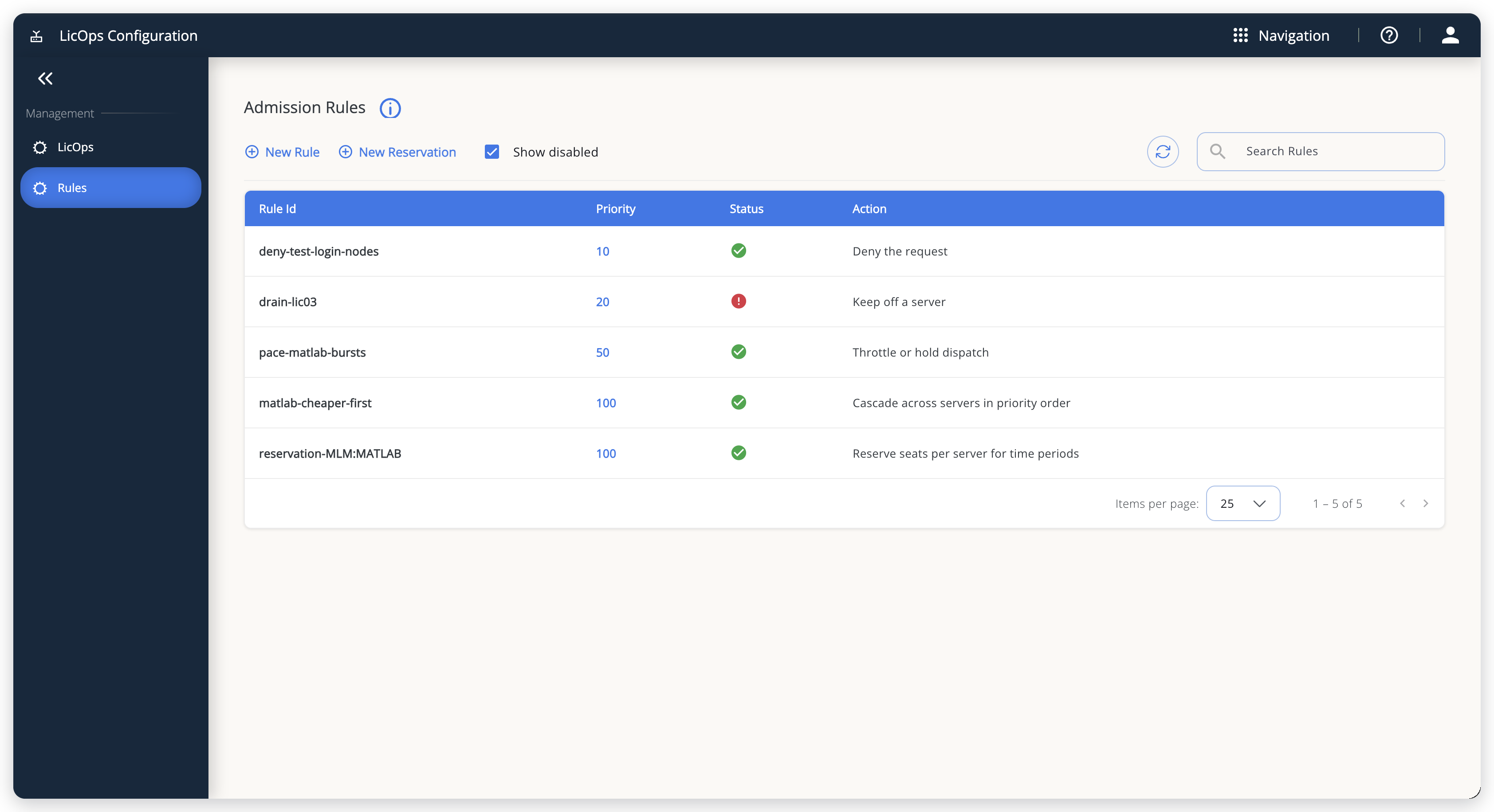 Admission Rules lists your rules and reservations in one place. A rule that is turned off shows a disabled status.
To check the rule, read the summary bar at the top of the editor, which gives the rule in words, such as Keep off a server when All Of(feature is …). → Keep off a server. Saved JSON shows exactly what is stored. A rule needs at least one action before you can save it.
To limit a rule to a period, such as a migration weekend, set Effective from and Effective to. Leave both empty for a rule that always applies. To pause a rule without deleting it, turn off Enabled. The Rules page lists paused rules too, because Show disabled is selected by default. Clear it to hide them.
A saved rule takes effect within about 40 seconds: LicOps collects it within about 10 seconds and reloads its rules every 30 seconds. Nothing on the LicOps host needs a restart.
Choose an action
The following table lists the actions and when to use each one:
| Action | What it does | When to use it |
|---|---|---|
| Cascade across servers in priority order | Fills the servers you list in order and moves to the next only when one reaches its threshold. | Pre-paid servers before pay-per-use, or a primary site before a remote one. |
| Round-robin across servers | Places each new seat on the next server in turn. | An even spread, regardless of load. |
| Weighted round-robin by capacity | Places each seat on the server with the lowest usage relative to its weight. | A spread in proportion to each server's size. |
| Prefer a server | Tries the named server first, and falls back to the others if it cannot serve. | A preferred server that should not become a hard dependency. |
| Send to a specific server | Places the seat on the named server only. | Licenses that must come from one server. |
| Keep off a server | Removes the named server from consideration. | Maintenance, draining a server, or license terms that exclude it. |
| Deny the request | Refuses the request. The caller receives PolicyDenied. | Requests you do not want admitted at all. |
| Throttle or hold dispatch | Limits how many jobs per second can start checking out. | Bursts that would overload a license server. |
Prefer a server, Send to a specific server, and Keep off a server take a Target server. Select the search icon to pick it from the servers LicOps lists. The picker writes it as host:port, which stays unambiguous when several license servers share one host. A target that matches no server is ignored without an error, so a typo leaves the rule with no effect.
Common rules
The examples use the pool MLM:MATLAB served by three servers: lic01 and lic02 hold pre-paid seats, and lic03 is pay-per-use.
Use pre-paid servers first
To use the pre-paid servers first, create a rule that fills lic01, then lic02, and uses lic03 only when both are full:
| Setting | Value |
|---|---|
| Condition | feature is MATLAB |
| Action | Cascade across servers in priority order |
| Servers | lic01.example.com:27000, lic02.example.com:27000, lic03.example.com:27000, in that order |
Select + Add server for each server, and use the arrows to set the order. The order of servers here is separate from the rule's Priority.
Each server has a Spill setting that decides when placement moves on to the next:
| Spill | Placement moves to the next server when |
|---|---|
| until full | This server has no free seat, or is unhealthy. |
| ≤ % of total | Seats in use and admitted reach this percentage of this server's own total. |
| ≤ abs seats | Seats in use and admitted reach this number. |
For example, ≤ % of total 80 on lic01 keeps a fifth of its seats for users who check out directly. Thresholds steer placement while any listed server is below its threshold. When none is, LicOps places the seat on the least-loaded server that can still serve it rather than refusing the request.
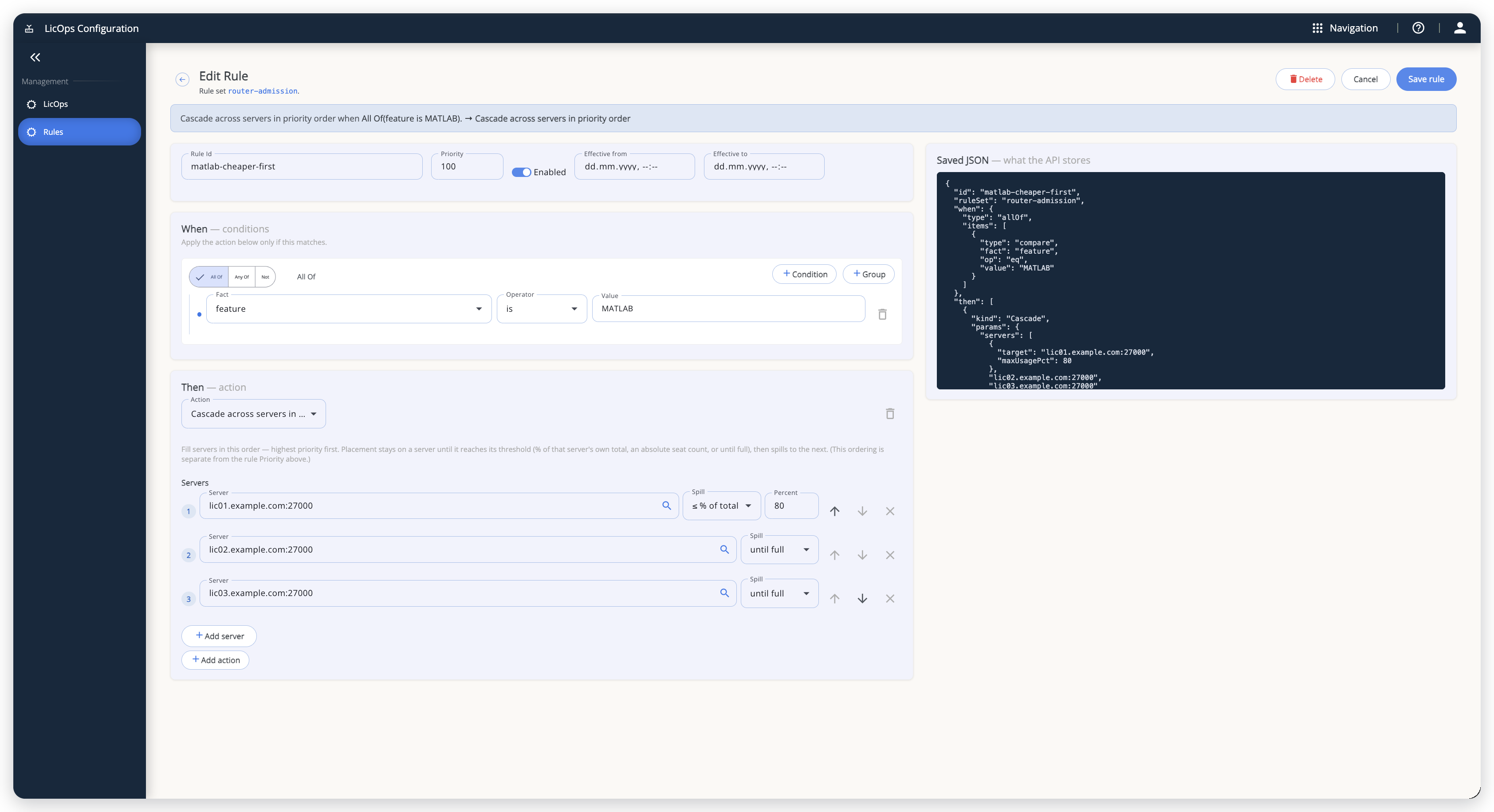 The rule editor with the cascade rule open. The summary bar under the title gives the rule in words.
The Saved JSON for this rule, with lic01 capped at 80%:
{
  "id": "matlab-cheaper-first",
  "ruleSet": "router-admission",
  "when": { "type": "allOf", "items": [ { "type": "compare", "fact": "feature", "op": "eq", "value": "MATLAB" } ] },
  "then": [ { "kind": "Cascade", "params": { "servers": [
    { "target": "lic01.example.com:27000", "maxUsagePct": 80 },
    "lic02.example.com:27000",
    "lic03.example.com:27000"
  ] } } ],
  "priority": 100,
  "enabled": true
}
Spread jobs evenly
Use Round-robin across servers with the condition feature is MATLAB. Successive seats go to each server in turn, in a fixed order, then back to the first. A full or unhealthy server drops out of the rotation and rejoins when it recovers.
To spread in proportion to server size instead, use Weighted round-robin by capacity. Select + Add server and give at least one server a weight greater than 0, such as 3 for lic01. Servers you leave out get a weight of 1. Despite its name, this action is weighted least-loaded, not a strict rotation: with equal weights it behaves like the default.
Take a server out of placement
Before maintenance on lic02, create a rule with Keep off a server, Target server lic02.example.com:27000, and a condition that matches every request for the server's features, such as vendor is MLM. New seats go to the other servers. Jobs already running keep their checkouts. Delete or disable the rule when the work is done.
Move work off a busy server
To keep lic01 below 95% and send the overflow elsewhere, create a rule with two conditions under All Of, server name is lic01.example.com and server saturation % is at least 95, and the action Keep off a server, Target server lic01.example.com:27000. While lic01 is that busy it drops out, and the other servers take the new seats. It rejoins as soon as it falls below 95%.
LicOps evaluates server conditions once for each candidate server, with that server's own figures, so give each server you want to protect its own rule.
Refuse requests
To keep jobs submitted from a test login node off MATLAB, create a rule with client host matches login-test* and feature is MATLAB under All Of, and the action Deny the request. Matching requests are refused with PolicyDenied before any seat is counted. Give Deny the request rules a lower Priority number than your other rules, so that no other rule ends the evaluation before they run.
The adapters for Slurm and IBM Spectrum LSF send the name of the host the job was submitted from as client host, not its IP address. is in network matches only callers that send an IP address.
Slow down a burst of checkouts
When hundreds of jobs start together, the checkouts can overload a vendor daemon. Throttle or hold dispatch paces them. The following table lists its fields:
| Field | What it sets |
|---|---|
| Max checkouts / second | How many jobs in the pool can start checking out each second. At least 1. If blank, 100. |
| Max hold (seconds) | How long a job over the limit waits, in arrival order, before LicOps tells it to try again. 0 sends it straight back. If blank, 5 seconds. |
Throttle acts when a job starts, at dispatch, not when it is admitted, and it never changes which server a job uses. A held job keeps its seat. If the hold runs out, dispatch answers 503 with ThrottleDeferred and a Retry-After header, and a caller that uses the API directly waits and asks again. Pair the action with a condition such as server saturation % is greater than 90, or pool admits per second is greater than 100.
With the Slurm and LSF adapters, Throttle delays a burst rather than stopping it: the adapters ask once at dispatch and let the job start whatever the answer. Set Max hold (seconds) lower than the adapters' HTTP timeout, OL_TIMEOUT, which is 2 seconds by default, or raise OL_TIMEOUT to match. The blank default of 5 seconds is longer than that timeout. A hold longer than the timeout makes the adapter treat LicOps as unreachable and apply your fail mode.
Conditions you can use
To find the fact for a condition, look in the Fact list, which groups the facts by what they describe:
| Group | Facts | What they describe |
|---|---|---|
| Request | vendor, feature, user, client host, seats requested, time of day | Who is asking, from where, for what, and when. |
| Pool | pool admits per second | How many requests for this pool arrive each second. |
| Server | server id, server name, server is healthy, server total seats, server seats consumed, server seats reserved, server free seats, server has capacity for this request, server constraint headroom, server saturation % | The state of one candidate server. |
Facts marked not available in the list, which are user groups and the pool seat counts, can't be answered. A condition on them never matches.
The operators depend on the fact, as the following table shows:
| Fact type | Operators |
|---|---|
| Text, such as vendor or server name | is, is not, is one of, matches (a pattern with * and ? wildcards that ignores case) |
| Numbers, such as seats requested or server saturation % | is, is not, is greater than, is at least, is less than, is at most, is one of |
| client host | The text operators, plus is in network, which takes a range such as 10.40.0.0/16 and matches only when the caller sends an IP address |
| time of day | is between a start and an end time (a window such as 18:00 to 08:00 runs past midnight) |
| Yes or no, such as server is healthy | is, is not |
is, is not, and is one of compare text exactly, including case: MLM and mlm are different vendors. matches ignores case. Copy names from GET /api/v1/stats, as described in Configure OpenLM LicOps.
time of day and reservation periods use the clock of the machine LicOps runs on. Containers run in UTC unless you set a time zone, so add TZ=<your-time-zone>, such as TZ=Europe/Berlin, to the routerapi environment if your windows are in local time.
How rules combine
LicOps evaluates the rules twice for every admit request:
- Before it considers any server: LicOps answers only request and pool facts here. A Deny the request rule that matches refuses the request now.
- Once for each candidate server: LicOps answers server facts are answered with that server's figures. LicOps then combines the actions from all candidates into one placement.
Within each pass, rules run in Priority order, lowest number first. Deny the request and Send to a specific server end the pass: no rule with a higher number can override them. The other actions add up.
When actions conflict, these results apply, as the following table shows:
| If a request matches | The result is |
|---|---|
| Deny the request, with a lower Priority number than any Send to a specific server rule | Refused, before any server is considered |
| Keep off a server and Send to a specific server for the same server | Kept off: the server is not used |
| Send to a specific server for two different servers | Both are ignored, and normal placement applies |
| Send to a specific server and a spreading action | Sent to that server |
| More than one spreading action | One wins: Cascade across servers in priority order, then Weighted round-robin by capacity, then Round-robin across servers |
| Prefer a server and Round-robin across servers | Rotation among the preferred servers only |
| Keep off a server and a spreading action | The server is removed first, and the spreading runs over the rest |
| Throttle or hold dispatch and anything else | Placement is unaffected. The checkout is paced when the job starts |
Keep rule sets small and specific. A rule that matches far more requests than you intended is the most common surprise.
Check what LicOps is applying
To see the rules LicOps applies, including two built-in rules, run this command:
curl http://localhost:8100/api/v1/rules/router-admission
The built-in rules, baseline-capacity-guard and baseline-saturation-guard, can't be edited or deleted. They test pool seat counts, which are not available, so they never fire. They do no harm: LicOps already denies a request with NoCapacity when no server has a free seat.
On a LicOps deployment, the rules are defined in OpenLM Platform, so the LicOps API doesn't accept rule changes. Create, edit, and delete rules under LicOps Configuration.
To test a rule, send a test admission as described in Configure OpenLM LicOps, then check which server dispatch names, or read the seat usage described in Operate OpenLM LicOps.
The documentation team might draft this page using a large language model. A technical writer reviews every page and verifies it against the product before publishing it. A human makes the final decision.