Configure OpenLM LicOps
To start admitting jobs, connect LicOps to OpenLM Platform, and then confirm that it lists your license pools. Seat counts, server health, rules, and reservations all come from OpenLM Platform, so nothing else works until the connection succeeds.
Connect LicOps to OpenLM Platform
LicOps signs in to OpenLM Platform with the credentials of an identity client whose Client Type is Router. A failover Router uses the same client type.
Get the authorization file
To get the authorization file:
-
In OpenLM Platform, select Navigation, then Identity under Platform Administration.
-
Select Authorization, then Add Client.
-
In Select Client Type, select Router.
-
Enter a description.
-
Leave Encrypted authorization client cleared.
-
Select Save.
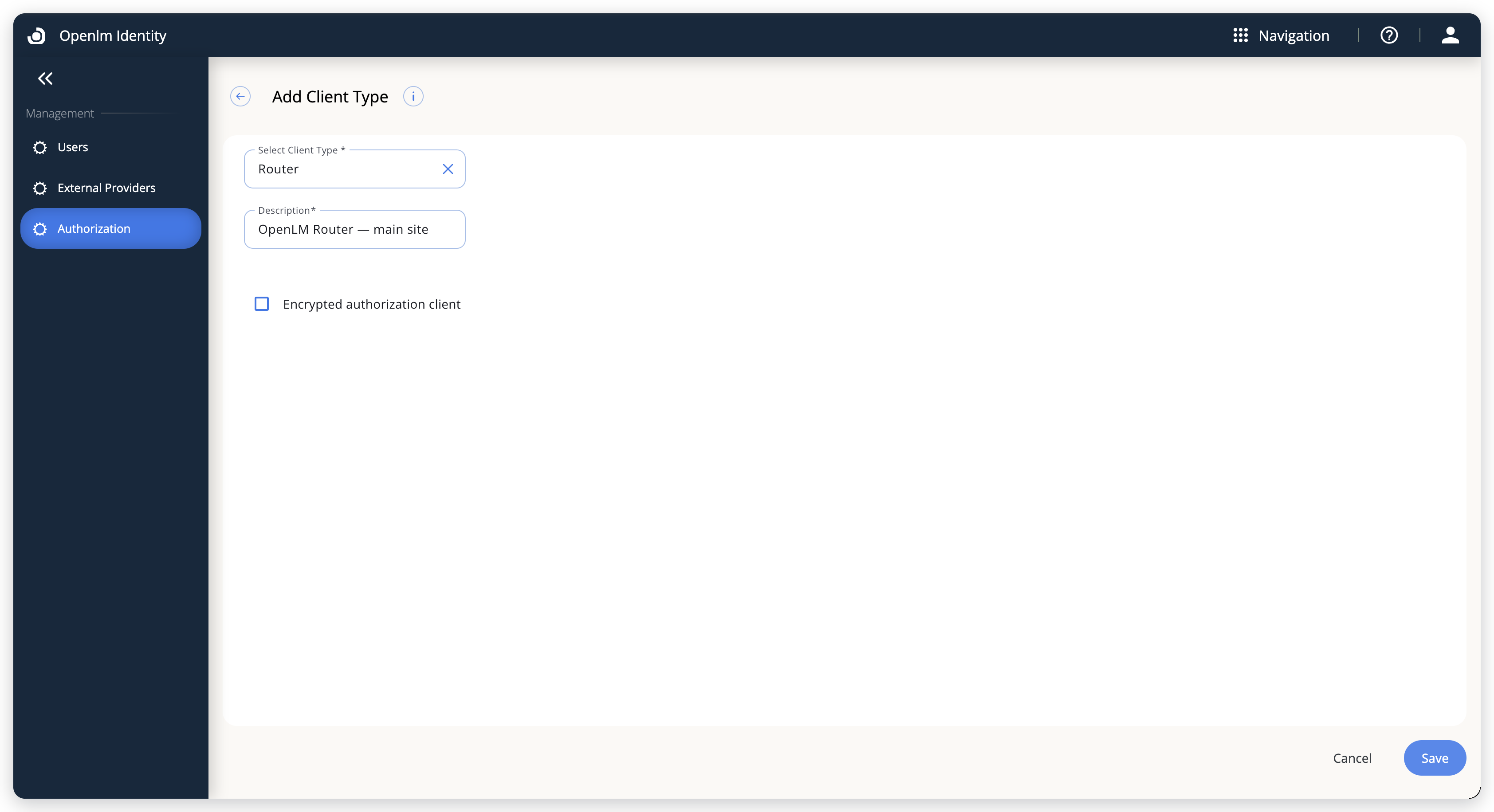 LicOps signs in with a client of type Router, the same as a failover Router.
-
Download the authorization file, a JSON file such as
router-authorization.json.
The file holds the three values LicOps needs: the Base URL of your OpenLM Platform, the Client ID, and the Client Secret. If you no longer hold the secret, select the client on the Authorization page, and then select Reset Secret. The previous secret stops working. For more about authorization files, see Identity.
Use a client whose type is Router. A credential of another type can sign in, and OpenLM Platform still refuses the queries LicOps makes. The problem appears later as missing pools rather than as a sign-in failure.
Enter the credentials
To enter the credentials in the Router UI:
-
Open
http://<licops-host>:8101/router-management/to reach Platform Connection.Replace
<licops-host>with the host that runs LicOps. -
Select Import Auth File, and then select the authorization file.
-
To enter the values by hand instead, fill in Base URL, Client ID (Optional), and Client Secret (Optional).
Always fill in all three fields. Leave Request Timeout (seconds) at
30. -
Select Check Connection, and then select Save.
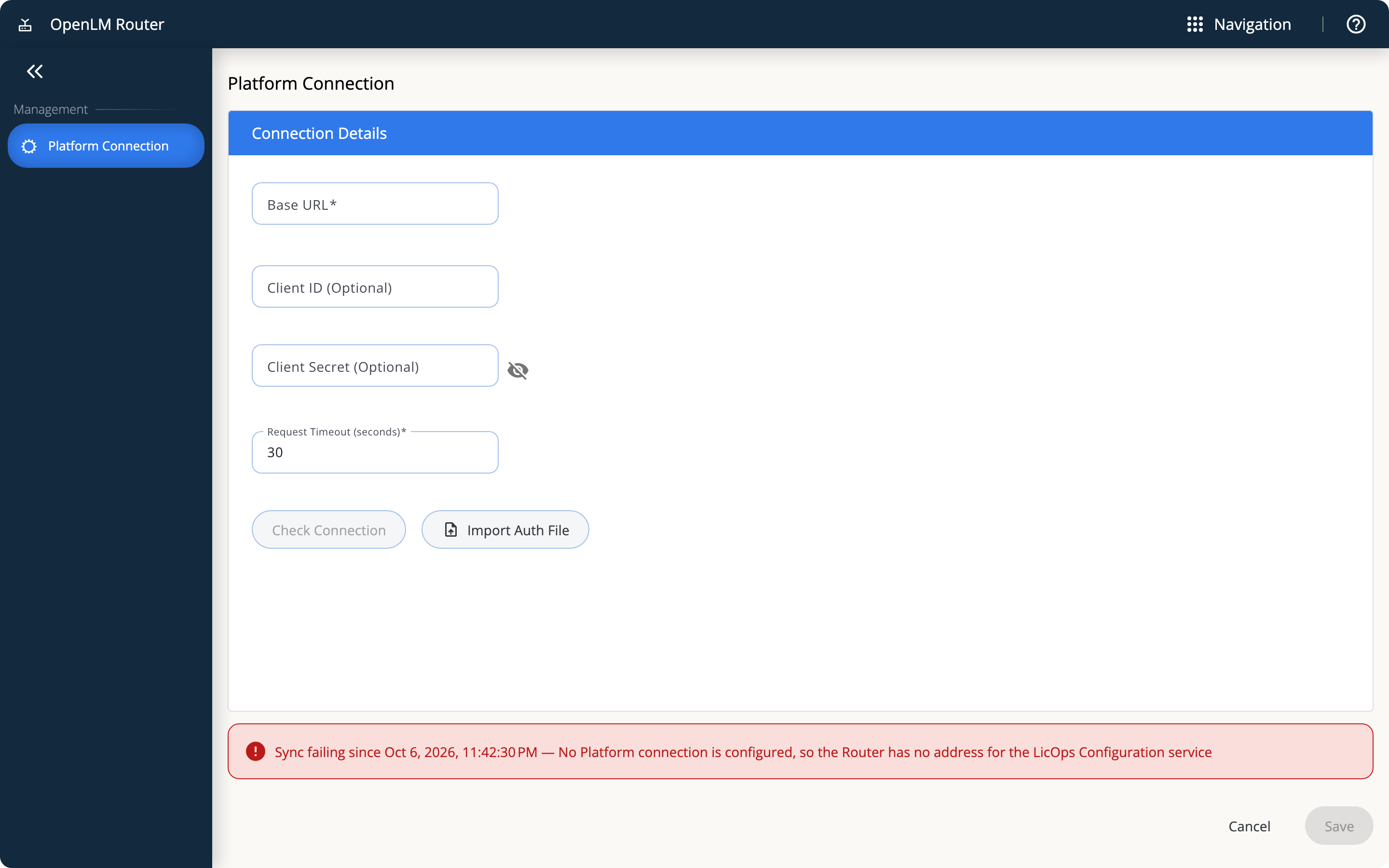 The Router UI is the same for LicOps and for a failover Router. Until the connection works, an error notice under the form gives the reason.
Wait about 10 seconds after you save, and then check that no error notice appears under the form. No notice means the Router is syncing with OpenLM Platform. If the notice stays, it names the reason. See Troubleshooting.
To script the connection instead, run this command to send the same three values to the Router API:
curl -X PUT http://localhost:8100/api/v1/admission-controller/platform-credentials \
  -H "Content-Type: application/json" \
  -d '{
    "baseUrl": "https://platform.example.com",
    "clientId": "<client-id>",
    "clientSecret": "<client-secret>",
    "requestTimeoutSeconds": 30
  }'
The Router UI and the REST API work the same way as for a failover Router. For every field and the connection check, see Configure OpenLM Router.
Confirm LicOps is running in LicOps mode
When LicOps first syncs, it registers itself with OpenLM Platform as a LicOps Router, and OpenLM Platform creates its starting configuration: a listen port, 30001, which matters only if you route checkouts through LicOps, and session affinity turned off. LicOps collects that configuration on its next sync. Confirm it took effect:
curl http://localhost:8100/api/v1/status
{
  "status": "ok",
  "listenPorts": [30001],
  "message": "Load balancer mode active",
  "configurationManagement": {
    "shape": "serviceManaged",
    "lastSync": {
      "lastSuccessfulSync": "2026-10-15T13:36:02Z",
      "lastAppliedConfigVersion": 1,
      "lastFailure": null
    }
  }
}
"message": "Load balancer mode active" confirms a LicOps Router. A Router that reports port mappings or pairStatuses instead was started in failover mode. See Troubleshooting.
In OpenLM Platform, the same configuration appears in LicOps Configuration, the app that configures both OpenLM LicOps and a failover OpenLM Router. To open it:
- Select Navigation, then LicOps Configuration under Licenses and Features.
- Select LicOps, and then read the listen ports and the session-affinity policy the Router runs on.
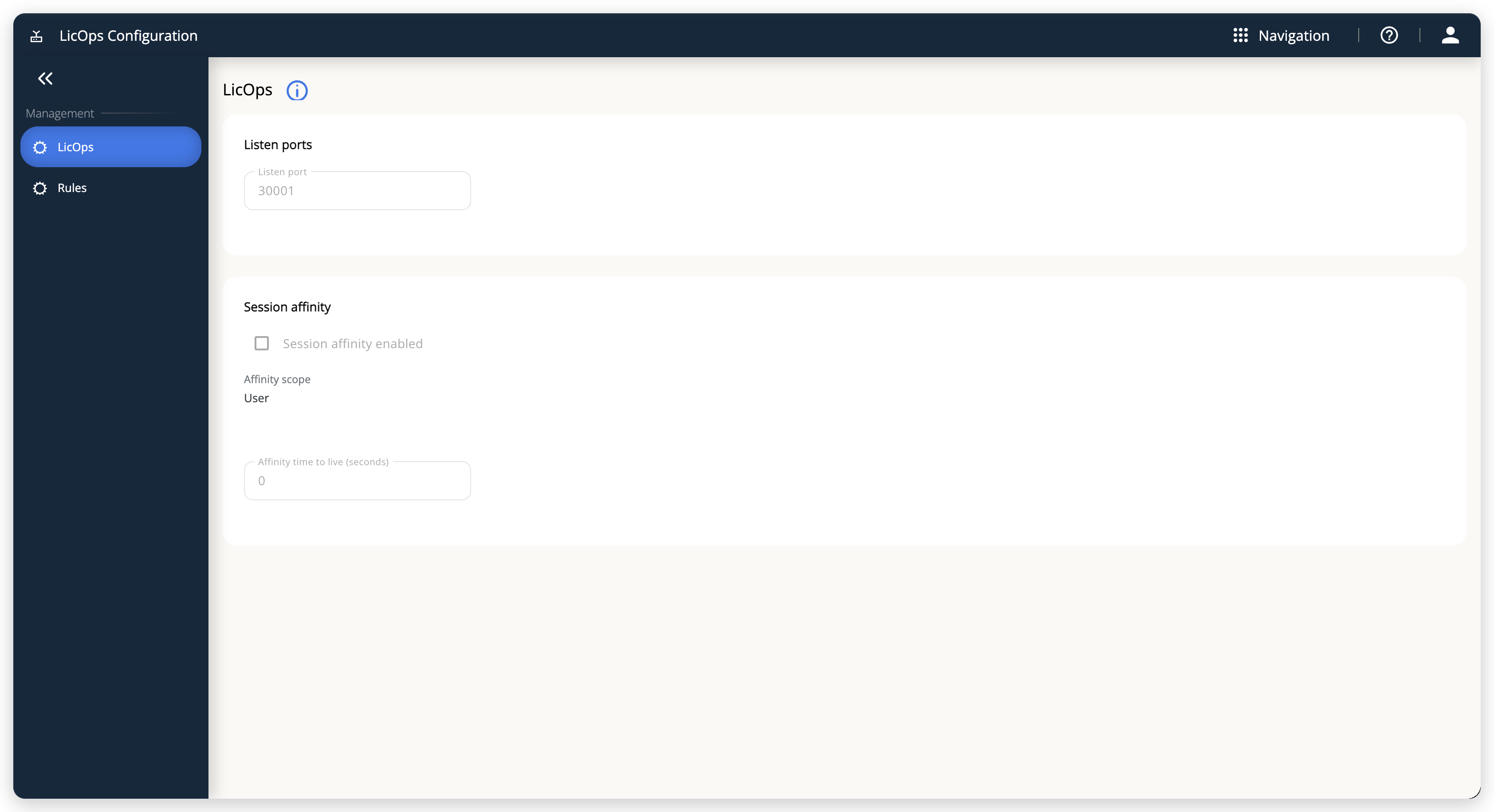 The LicOps page appears only for a Router in LicOps mode. A failover Router shows Port Mappings instead.
The LicOps page is for reference: you do not edit the listen port or session affinity there. If you need different values, contact OpenLM Support.
If LicOps Configuration shows the message that no Router has reported, the Router hasn't synced with OpenLM Platform. Wait about 10 seconds after you connect it, and then reload the page. The page doesn't refresh by itself.
Check that LicOps lists your license pools
LicOps admits jobs only against the pools it has built from the license servers and features of OpenLM Platform. To list them, run this command:
curl http://localhost:8100/api/v1/stats
[
  { "serverId": 42, "host": "lic01.example.com", "port": "27000", "vendor": "MLM", "feature": "MATLAB",
    "total": 50, "used": 31, "reserved": 2, "free": 17, "isHealthy": true, "activeSessions": 0 },
  { "serverId": 43, "host": "lic02.example.com", "port": "27000", "vendor": "MLM", "feature": "MATLAB",
    "total": 50, "used": 28, "reserved": 0, "free": 22, "isHealthy": true, "activeSessions": 0 }
]
Each license server in each pool has one row. The following table explains the fields:
| Field | What it means |
|---|---|
vendor, feature | The pool's name. These are the exact strings every request to LicOps must send, including their case. |
total | The seats the license server grants for the feature. |
used | The seats the license server reports checked out, as of the last reading by OpenLM Platform. |
reserved | The seats LicOps has admitted on this server that are not checked out yet. |
free | What a new request can still get here: total − used − reserved. |
isHealthy | Whether OpenLM Platform reports the server as up. LicOps never places a seat on an unhealthy server. |
A license server appears in this list only if OpenLM Platform monitors it through the OpenLM Broker on that server. If a server or a whole pool is missing, see System requirements.
Copy the vendor and feature names from this list rather than entering them. A request whose names match no pool is denied as NoServerAvailable, which reads like a shortage of servers rather than a spelling mistake.
If the list is empty ([]), LicOps has no pools, and every request is denied. Allow about 10 seconds after you connect, then check the connection as described in Troubleshooting.
Run a test admission
Before you connect a scheduler, send one job's worth of requests by hand. Use a pool from the list in the previous section:
SID=$(uuidgen)

# Ask for one seat.
curl -s -X POST http://localhost:8100/api/v1/admission-controller/admit \
  -H 'Content-Type: application/json' \
  -d "{\"sessionId\":\"$SID\",\"vendor\":\"MLM\",\"feature\":\"MATLAB\",\"totalQuantity\":1}"

# Ask which server to check out from.
curl -s -X POST http://localhost:8100/api/v1/admission-controller/dispatch \
  -H 'Content-Type: application/json' \
  -d "{\"sessionId\":\"$SID\",\"executionNodeIp\":\"127.0.0.1\"}"

# Give the seat back.
curl -s -X POST http://localhost:8100/api/v1/admission-controller/release \
  -H 'Content-Type: application/json' \
  -d "{\"sessionId\":\"$SID\"}"
Check that the three answers are "decision": "Admit", then a licenseFile such as 27000@lic01.example.com, then "state": "Released". Between the first and the last request, the pool's reserved count in /api/v1/stats is one higher. If admit answers "decision": "Deny", its reason field gives the cause. See API reference.
Next steps
For your next tasks, see these pages:
- To decide which server each job lands on, see Control placement with admission rules.
- To cap seats on a server during set hours, see Cap seats on a schedule.
- To send real jobs through LicOps, see Connect workloads.
The documentation team might draft this page using a large language model. A technical writer reviews every page and verifies it against the product before publishing it. A human makes the final decision.