Cap seats on a schedule
When batch jobs and people share the same license servers, the jobs can take every seat while engineers are at their desks. A reservation stops that: during the hours you choose, LicOps hands out no more than a set number of seats on each server, and leaves the rest alone. Outside those hours, the jobs can use everything.
A reservation covers one vendor and one or more of its features, and holds a schedule of periods. Each period sets, for each server you list, the most seats LicOps can hand out there.
While a period is in force, LicOps never admits more than Maximum seats on a server, and nothing on a server that is Blocked during this period.
Reserved seats are saved with the reservation, but LicOps does not hold them on the license server, so users who check out without going through LicOps can still take them. To keep seats free for those users, set Maximum seats below the server's total.
Create a reservation
To create a reservation:
- In OpenLM Platform, select Navigation, then LicOps Configuration under Licenses and Features.
- Select Rules, then New Reservation.
- Under Pool, select the Vendor, then one or more Features. LicOps saves one reservation for each feature, all sharing the schedule you set here. A feature can have only one reservation.
- Under Schedule, set Period 1:
- Turn on Applies all day, every day for a limit that never lapses, or set From and To for a time window. A window such as 8 AM to 6 PM applies every day. A window such as 6 PM to 8 AM runs past midnight.
- In Servers not in the list, select No limit to leave other servers alone, or Blocked during this period to stop LicOps handing out this feature on them at all while the period is in force.
- Select + Add server for each server you want to cap, and set its Maximum seats: the most seats of this feature LicOps hands out on that server during the period. Maximum seats is at least
1and no more than the server's licensed seats. Reserved seats is saved with the reservation:0or more, and no more than Maximum seats. LicOps does not hold these seats on the license server.
- (Optional) To add another time window, select + Add period. Periods cannot overlap.
- Select Save rule.
To check which period is in force, read Currently active. It uses your computer's clock. LicOps itself decides by the clock of the machine it runs on, which can differ. See Make the schedule follow your time zone.
The following screenshot shows a reservation with a daytime and an evening period.
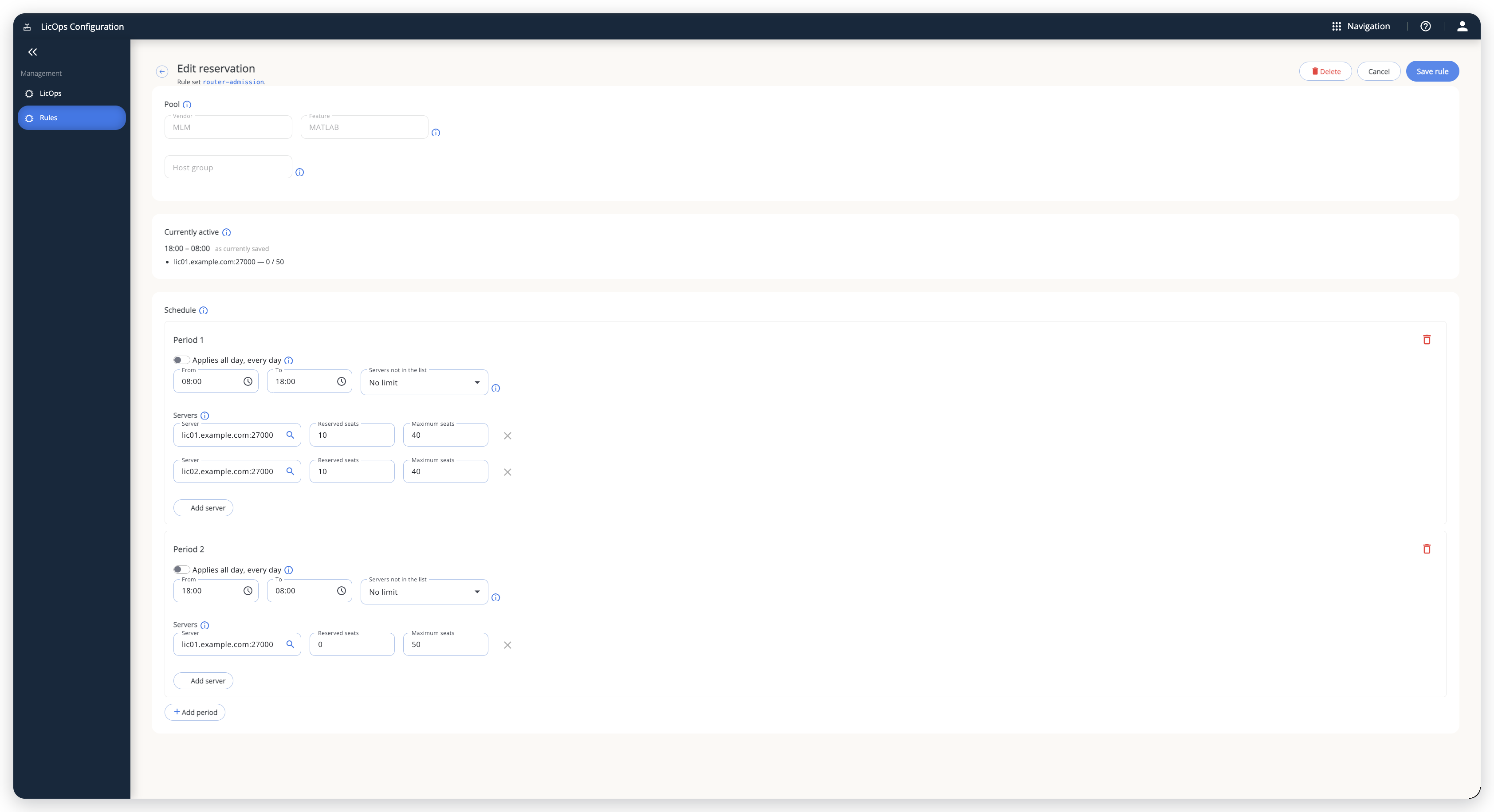 A reservation with a daytime and an evening period. Currently active shows the period in force at your computer's local time.
The reservation appears in the Rules list with your admission rules, with the action Reserve seats per server for time periods. To change or remove it, select it there.
What happens during a period
LicOps checks the schedule every minute. When a period starts, its limits apply to new requests from then on. When it ends, the limits lift, or the next period's limits take over. The following table lists what LicOps does in each situation:
| Situation | What LicOps does |
|---|---|
| A listed server is below its Maximum seats | Admits as usual. |
| A listed server has reached its Maximum seats | Places new requests on other servers in the pool. |
| A server not in the list, with No limit | Admits as usual. |
| A server not in the list, with Blocked during this period | Places nothing on it for these features. |
| Every server that has a free seat is capped or blocked | Denies the request with ConstraintBlocked. |
Maximum seats counts only the seats LicOps hands out. Seats that users check out directly from the license server do not count toward it, although they still reduce the server's free seats.
A period starting does not take seats back. If more jobs than the new maximum are already running on a server, they keep their seats, and LicOps admits no new ones there until enough of them end.
A reservation works alongside your admission rules. A rule decides where LicOps places a seat. The reservation decides whether a server still has room under its cap.
Make the schedule follow your time zone
LicOps reads the time of day from the machine it runs on. In Docker, containers run in UTC unless you give them a time zone, so a period you meant as 8 AM local time can start hours early or late. Add your time zone to the routerapi environment:
- TZ=Europe/Berlin
Then recreate the container with docker compose up -d routerapi. The same applies to the time of day condition in admission rules.
See which limits are in force
To see each server's caps next to its seat counts, read the availability report:
curl http://localhost:8100/api/v1/admission-controller/availability
Each server lists its constraints, with the cap as limit, where 9223372036854775807 means no cap is in force, the seats LicOps holds under it as held, and what is left as headroom. A server with free seats and no headroom is the reason a request was denied with ConstraintBlocked. See Operate OpenLM LicOps.
The documentation team might draft this page using a large language model. A technical writer reviews every page and verifies it against the product before publishing it. A human makes the final decision.