Database Configuration Tool
To generate database connection strings or upgrade OpenLM databases in an on-premises OpenLM Platform deployment, use the Database Configuration Tool. If OpenLM hosts your OpenLM Platform deployment, you never need it: the databases are managed by OpenLM.
Use it to:
- Generate database connection strings for the databases an on-premises deployment uses. The tool builds strings for MariaDB, MySQL, Microsoft SQL Server (SQL Server or Windows authentication), SQLite, and PostgreSQL. OpenLM Platform keeps operational and identity data in MariaDB, MySQL, or SQL Server, and reporting data in SQL Server or PostgreSQL.
- Upgrade OpenLM databases between product versions with the bundled Database Upgrade Tool.
The tool ships as a Docker-based interface. For more information, see the release notes.
The tool runs in your browser. It builds the string from what you enter and sends nothing to OpenLM Platform or to the database, so it doesn't check that the server is reachable or that the credentials work. The tool doesn't save anything either: the string disappears when you start another or reload the page.
Open the tool
On a running on-premises deployment, open the tool at the /dbconfigurationtool/ path of the fully qualified domain name of your OpenLM Platform deployment:
https://<your-platform-fqdn>/dbconfigurationtool/
The page doesn't ask you to sign in. If it doesn't load, check that your Helm values file turns on the dbconfigurationtoolui component (enabled: true).
Generate a connection string
To generate a connection string:
-
Under Select Database, select the type of database the string is for.
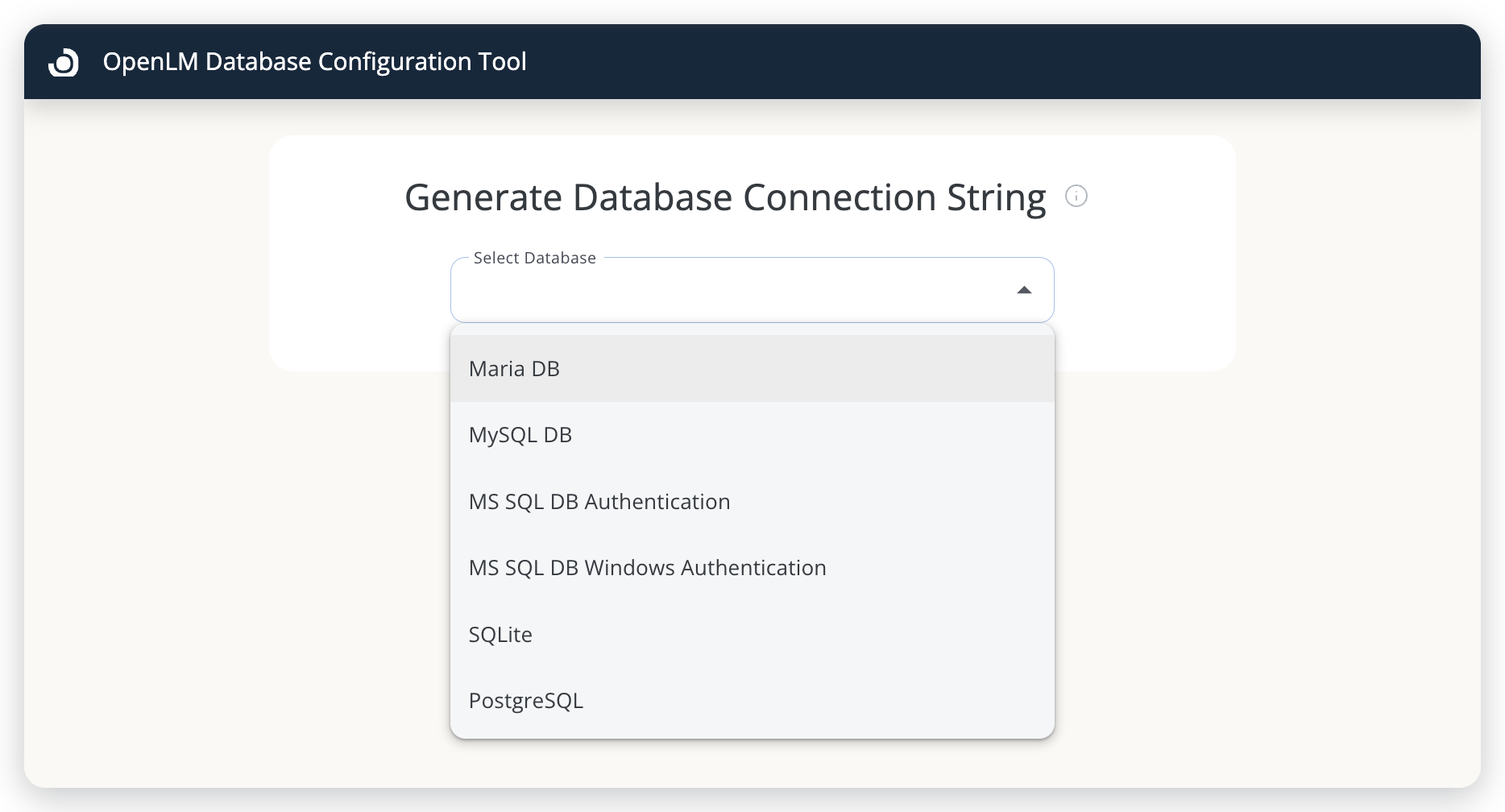 Select the database type first. The form changes to match it.
-
Fill in every field of the form.
The numeric fields start with the usual defaults. For the fields of each database type, see Fields by database type.
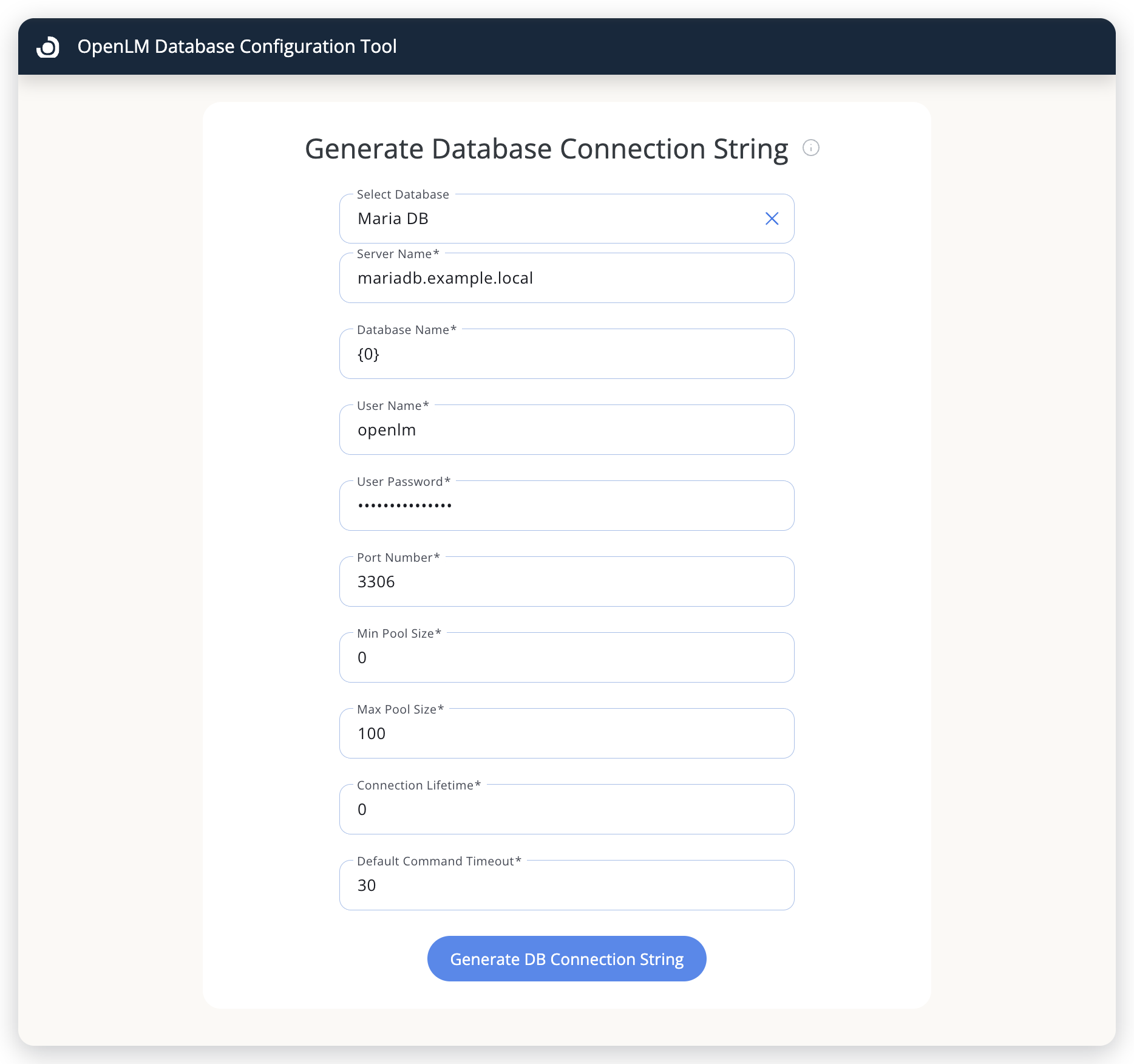 A Maria DB form for the operational database template:
{0}stands in for the database name. -
Select Generate DB Connection String. If a field is empty or out of range, the field is marked as invalid and the tool shows "DB connection string is not generated because of errors!" instead of a string.
-
Select Copy, then paste the string into the secret that holds it. The button shows Copied for a moment when the string is on your clipboard.
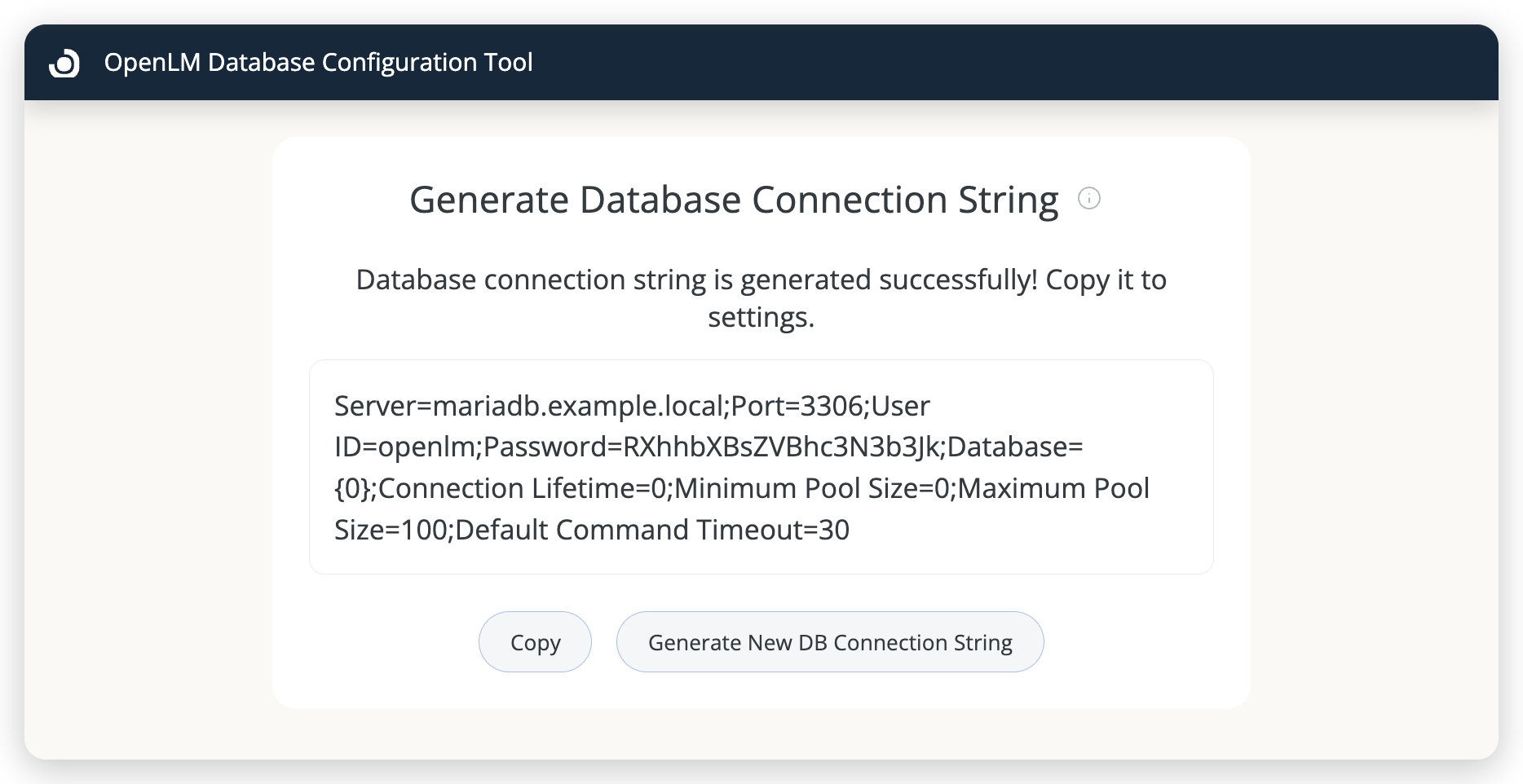 The generated string. The password in it is Base64-encoded.
-
To build another string, select Generate New DB Connection String. This clears every form and the database type, so copy the current string first.
For help on the page itself, hover over the info icon next to the page title.
Fields by database type
Each database type has its own form. Values you enter in a form stay there while you switch types, until you select Generate New DB Connection String. The following table lists the fields and defaults for each database type:
| Database type | Fields | Defaults |
|---|---|---|
| Maria DB, MySQL DB | Server Name, Database Name, User Name, User Password, Port Number, Min Pool Size, Max Pool Size, Connection Lifetime, Default Command Timeout | Port Number 3306, Min Pool Size 0, Max Pool Size 100, Connection Lifetime 0, Default Command Timeout 30 |
| MS SQL DB Authentication | Server Name, Database Name, User Name, User Password, Min Pool Size, Max Pool Size, Encrypt, Trust server certificate | Min Pool Size 0, Max Pool Size 100, Encrypt and Trust server certificate cleared |
| MS SQL DB Windows Authentication | Server Name, Database Name, Max Pool Size, Encrypt, Trust server certificate | Max Pool Size 100, Encrypt and Trust server certificate cleared |
| SQLite | Database Name | None |
| PostgreSQL | Host, Port Number, Database Name, User Name, User Password, Min Pool Size, Max Pool Size, Connection Lifetime, Command Timeout, Pooling | Port Number 5432, Min Pool Size 0, Max Pool Size 100, Connection Lifetime 0, Command Timeout 30, Pooling cleared |
- Port numbers must be from 1 to 65535. Pool sizes, lifetimes, and timeouts must be 0 or more.
- The SQL Server forms have no port field. To use a port other than the default, add it to Server Name after a comma, for example
sqlserver.example.local,1433. - MS SQL DB Windows Authentication connects as the Windows account the service runs under (
Integrated Security=True), so it has no user or password fields. - For SQLite, enter the database file in Database Name. The string is
Data Source=followed by that value.
The SQL Server forms put the port in Server Name, as the following screenshot shows.
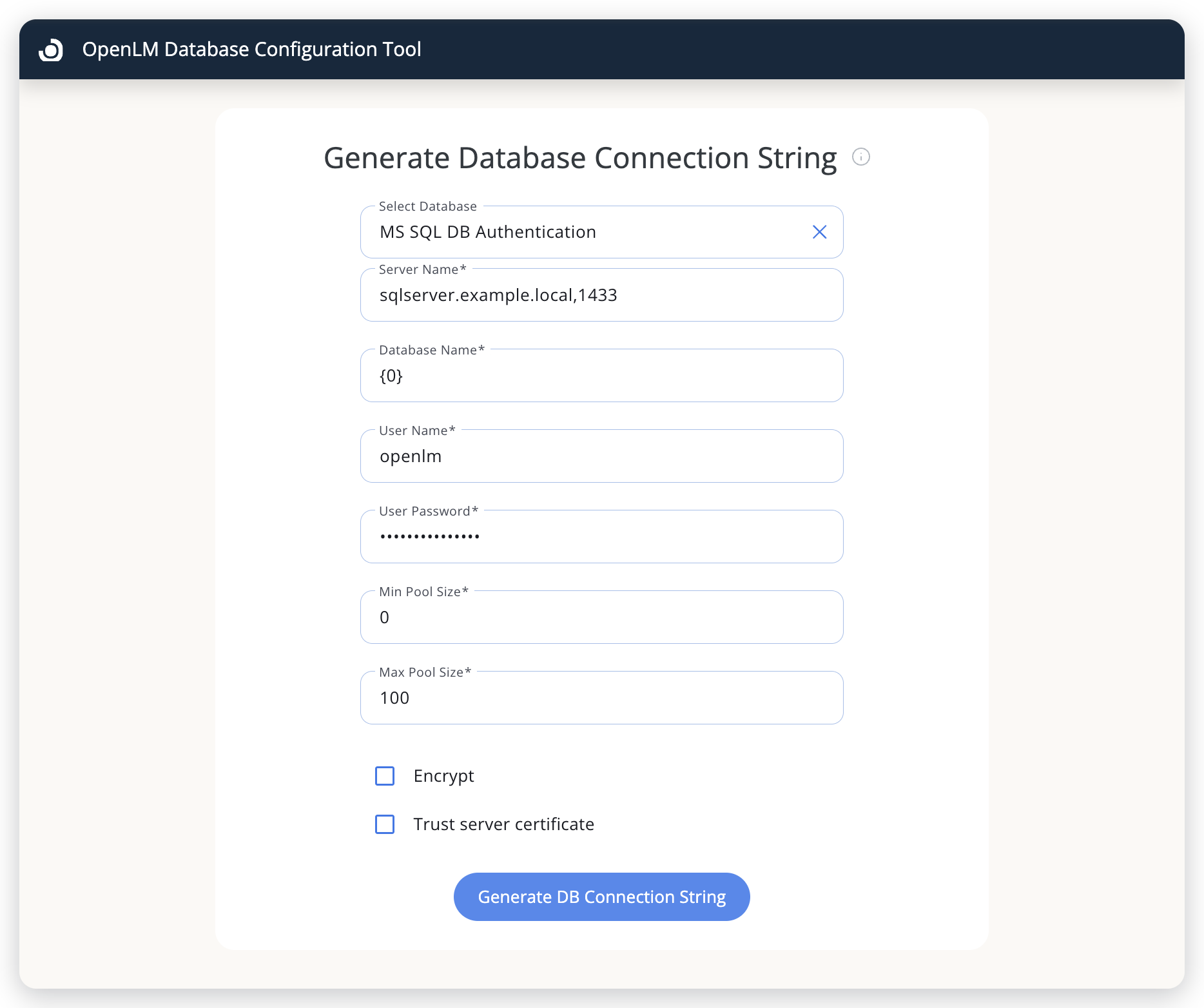 The MS SQL DB Authentication form. The port goes into Server Name after a comma.
Where the connection strings are used
The connection strings you generate here go into the secrets you create during Platform installation. The tool always Base64-encodes the password before it puts it in the string, so use its output only where the installation expects a Base64-encoded password:
| Installation value | Use the tool's output? |
|---|---|
INFRASTRUCTURE__ServerConnectionStringTemplate | Yes. Select Maria DB, MySQL DB, or MS SQL DB Authentication, and enter {0} as Database Name: the services replace it with each database name. |
| The identity database connection string | Yes. |
REPORTING_DATABASE_CONNECTIONSTRING | Yes. Select MS SQL DB Authentication or PostgreSQL. |
PASSWORD in openlm-generic-reporting-mssql-credentials | No. This value takes the plain-text password. |
For the plain-text password, see Create the secrets.
Use a database password made of unaccented letters, digits, and common symbols, or Base64-encode the UTF-8 password yourself and replace the Password= value.
The tool encodes each character of the password as a single byte, while the OpenLM Platform services read it back as UTF-8. Characters outside unaccented English letters, digits, and common symbols, such as é or €, break the password: the services read é as a different character, and € stops the tool from generating the string at all.
Related
For related information, see these pages:
- On-premises deployment: the deployment paths and their database prerequisites.
- Components system requirements: supported database engines and versions.
- Database Configuration Tool release notes.
The documentation team might draft this page using a large language model. A technical writer reviews every page and verifies it against the product before publishing it. A human makes the final decision.