Process mapping in Dongle Monitoring
A dongle tells you that a license key was plugged in. It doesn't tell you which applications that key unlocks. Process mapping records the link: you tell Dongle Monitoring which software each dongle vendor licenses by linking software vendors from Process Manager and mapping their monitoring targets, automatically or by hand. Dongle Monitoring keeps each mapping current as Process Manager changes and flags the mappings that stop resolving.
In Dongle Monitoring, open Vendors. Select Edit Vendor on a dongle vendor's row to link software vendors, or Open Mapped Monitoring Targets to work with its mappings.
Related: Process Manager · Alerts
Terms used on this page
Process mapping relies on the following terms. They mean different things, and this page uses them exactly as defined here:
- Dongle vendor: a Vendor ID and Product ID pair registered in Vendors, for example HASP (
0529/0001). Mappings attach to a dongle vendor. - Software vendor: the vendor name that Process Manager records on each monitoring target it watches, for example Autodesk or Dassault Systemes.
- Dongle: a physical device that someone plugs into a workstation. Nothing in process mapping is set on an individual dongle. Every dongle of a dongle vendor shares that dongle vendor's mapping.
- Monitoring target: what Process Manager watches, which is a process name such as
acad.exe, a specific file, or a folder. A target can be narrowed to one DLL that a process loads, shown asacad.exe › civil3d.dll. You always pick targets from Process Manager's list. You never type them.
Before you start
Check the following before you map anything:
- Activate both Dongle Monitoring and Process Monitoring in OpenLM Products. Software vendors and monitoring targets come from Process Manager, which is part of Process Monitoring.
- To change mappings, you need the Dongle Monitoring Admin role. With the Viewer role, you see the mappings on the Vendors list and the Mapped Monitoring Targets page but can't change them.
- You don't need a Process Manager role to map targets. A Process Manager role only adds links into Process Manager: Admin links target names to their definitions, and Admin or Viewer shows the links for defining a new target.
- Define a target in Process Manager before you map it.
Link software vendors to a dongle vendor
Start by telling Dongle Monitoring whose applications a dongle vendor licenses. One dongle vendor can license several software vendors, for example a WIBU key that licenses both Autodesk and Dassault Systemes applications.
To link software vendors:
- In Vendors, select Edit Vendor on the dongle vendor's row, or select Add Vendor to register a new dongle vendor.
- Under Licensed Software Vendors, select Add Software Vendor, and then select from the software vendors that Process Manager knows about and that aren't linked yet.
- Select one or more software vendors. Each one appears as a chip. To unlink a software vendor, select × on its chip.
- Select Save.
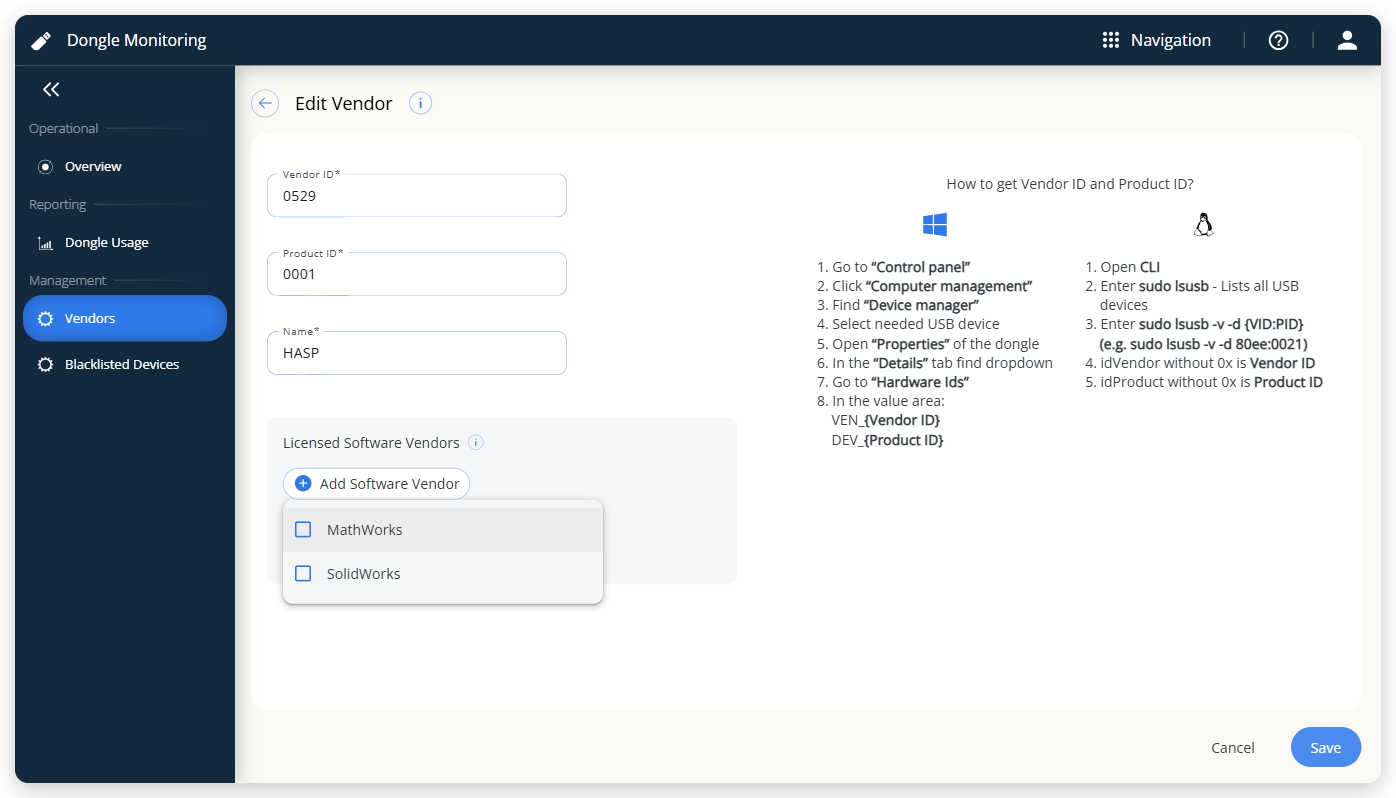 Add Software Vendor lists only the software vendors that aren't linked yet.
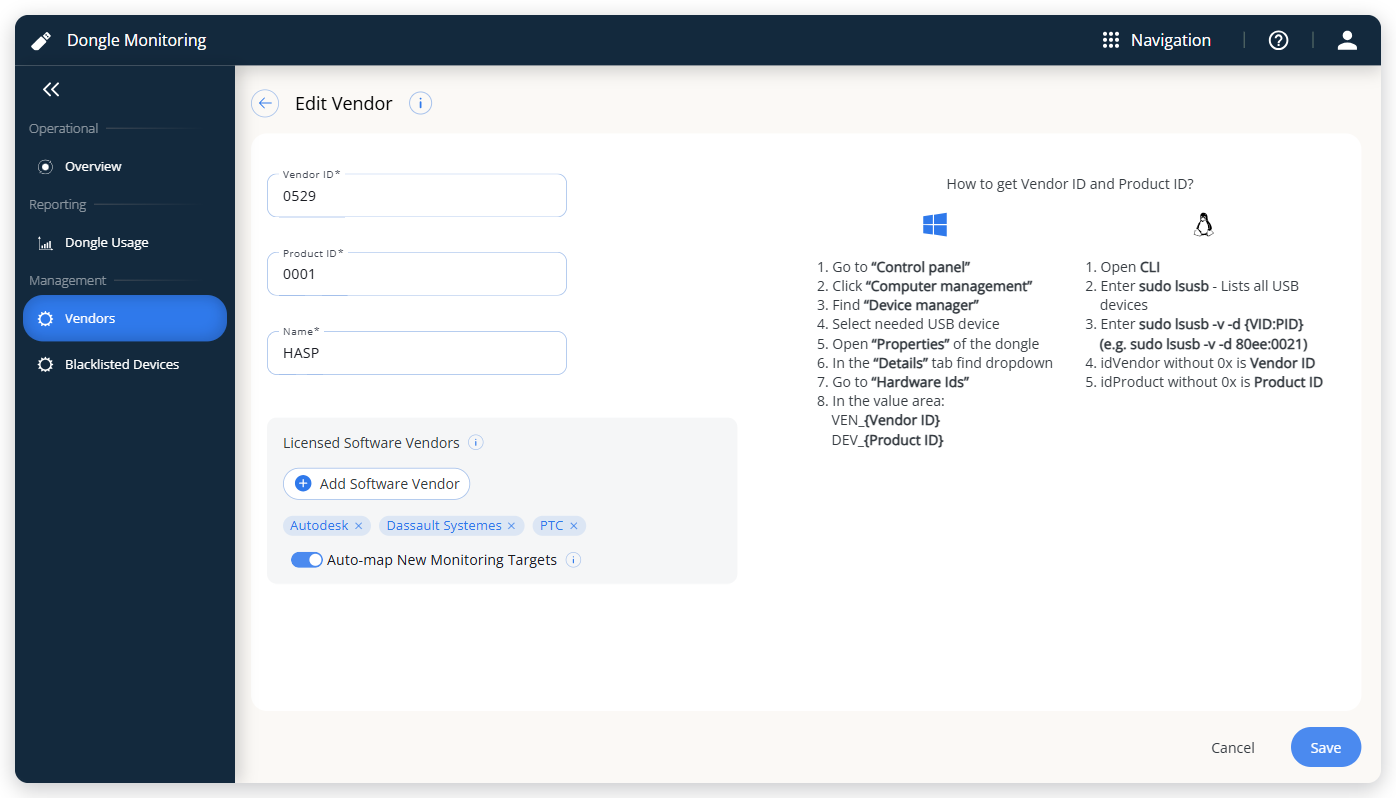 HASP with three linked software vendors and auto-map on.
If Auto-map New Monitoring Targets is on when you save, Dongle Monitoring maps the existing targets of the linked software vendors immediately. If Process Manager doesn't respond at that moment, the save still succeeds. Dongle Monitoring then retries every hour and maps the targets once Process Manager responds.
Unlinking a software vendor doesn't remove the targets already mapped from it. To remove them, use Remove a mapping.
Map new targets automatically
To keep a dongle vendor in step with its linked software vendors, turn on Auto-map New Monitoring Targets. The toggle sits in the Licensed Software Vendors section of the vendor form and at the top of the Mapped Monitoring Targets page. Both control the same setting.
The setting works as follows:
- On: Dongle Monitoring maps every monitoring target of a linked software vendor, including targets added in Process Manager later, usually within a few minutes. Turning auto-map on from the Mapped Monitoring Targets page maps all current targets at once.
- Off: Dongle Monitoring maps only the targets you add yourself. Turning auto-map off doesn't remove any existing mapping.
- Default: on for every new dongle vendor. Dongle vendors that existed before process mapping was added start with auto-map on too.
Auto-map maps everything a linked software vendor has. If you remove a target while auto-map is on, auto-map maps it again the next time Process Manager's list changes. To keep a target unmapped, turn auto-map off first, and then remove the target.
Check mappings on the Vendors list
To see at a glance which dongle vendors are mapped and which mappings need attention, open Vendors. Two columns summarize each dongle vendor's mapping:
| Column | What it tells you |
|---|---|
| Software Vendors | The linked software vendors. The first two appear by name and the rest as +N. -- means that no software vendor is linked. |
| Monitoring Targets | How many targets are mapped. A process › DLL row counts as a target of its own. A red N orphaned chip shows how many mappings no longer resolve in Process Manager, as of the last check. |
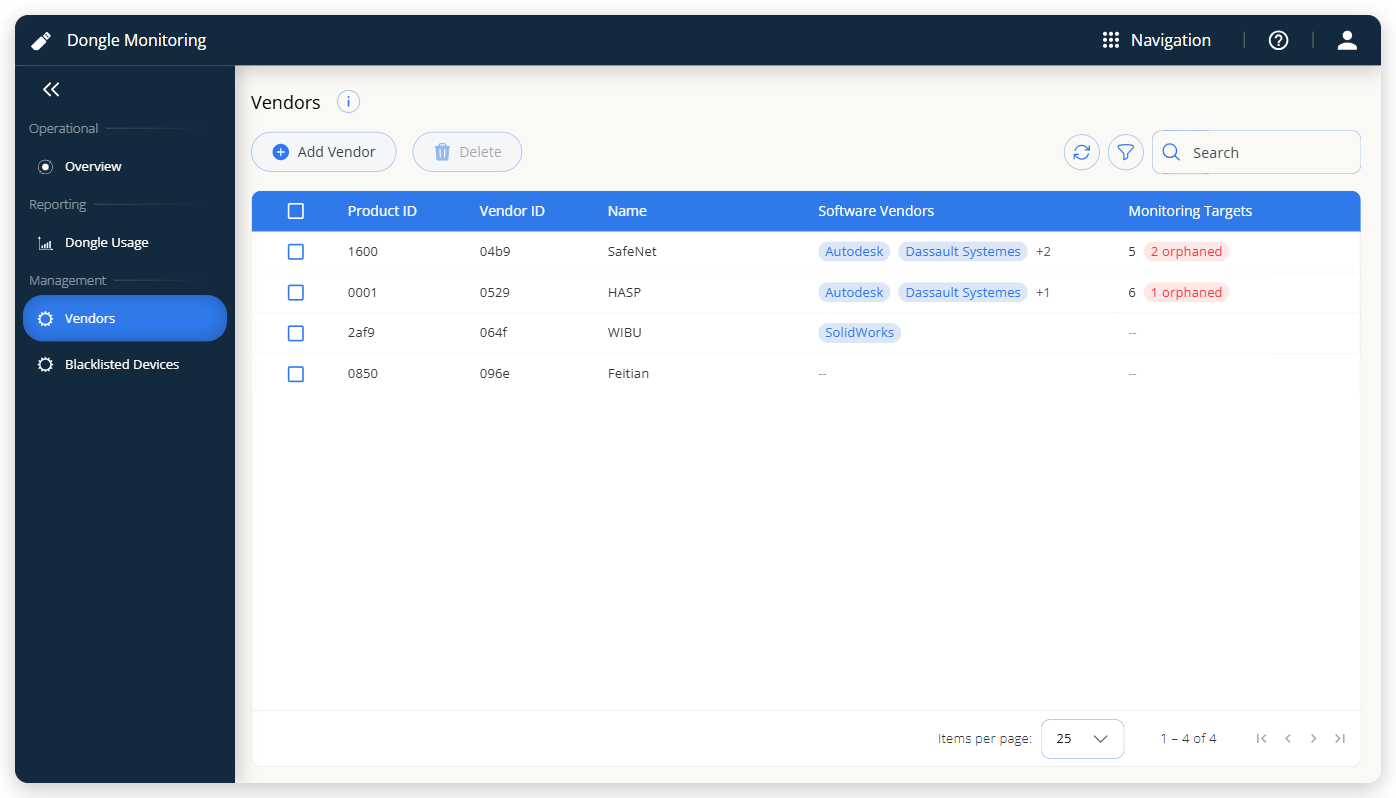 HASP links three software vendors and has six mapped targets, one of them orphaned.
To work with a dongle vendor's mappings, select Open Mapped Monitoring Targets on its row.
Review the mapped targets of a dongle vendor
To see everything mapped to one dongle vendor and whether each mapping still resolves, open its Mapped Monitoring Targets page. The card at the top identifies the dongle vendor by Vendor ID and Product ID, with its linked software vendors and the number of mapped targets.
On this page you can:
- Turn Auto-map New Monitoring Targets on or off, or select Edit Vendor to change the linked software vendors. Viewers see the toggle but can't change it.
- Select a Monitoring Target name to open its definition in Process Manager in a new tab. Names link only for the Process Manager Admin role, a DLL row links only its process part, and an orphaned row doesn't link.
- Recognize File and Folder targets by their File or Folder chip. Hover over the ⓘ next to the chip to see what counts. A folder covers every executable that runs from it, including its subfolders.
- Check each mapping's Health: Healthy, or one of the two states described in Fix orphaned mappings.
- Narrow the list with the Monitoring Target, Software Vendor, and Health filters.
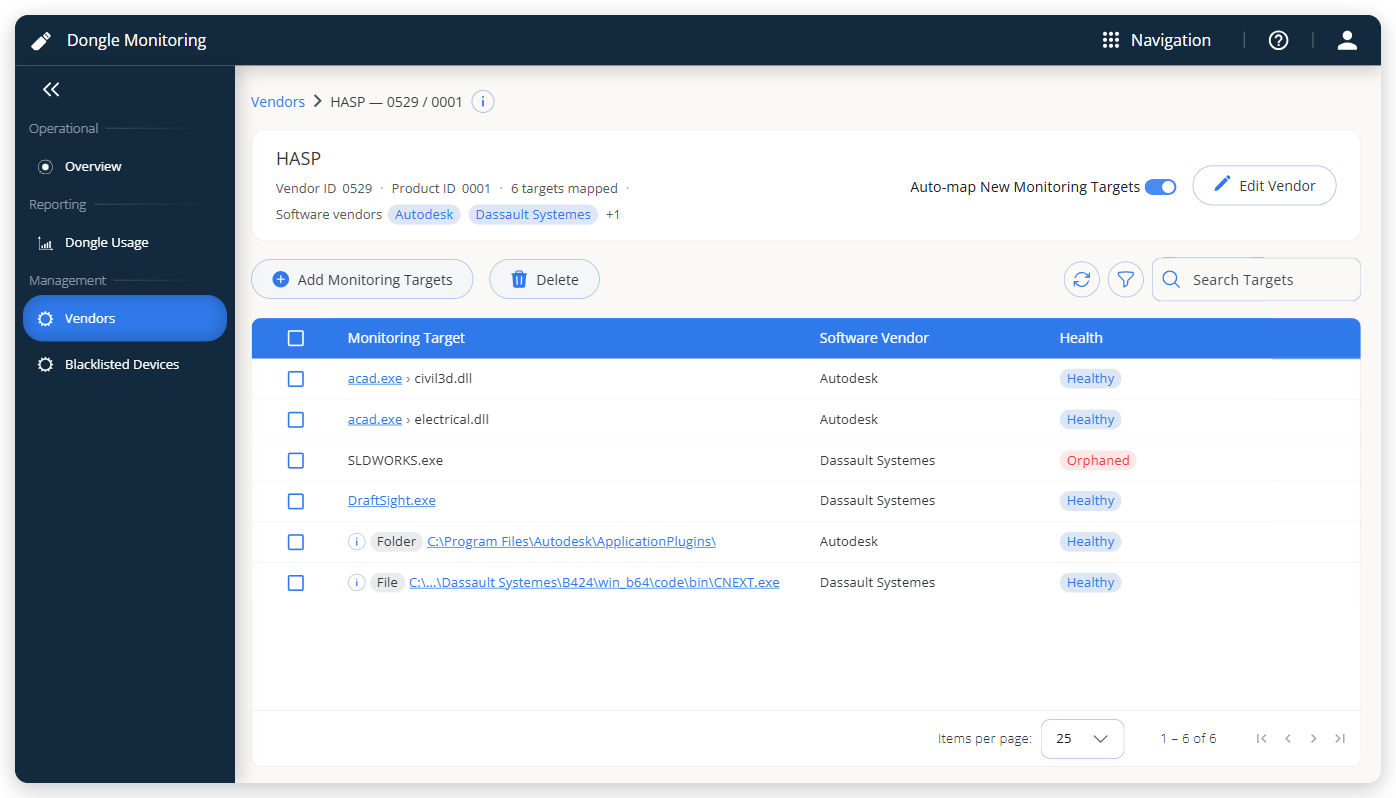 The card identifies the dongle vendor, and the grid lists its mapped targets with their health.
Add monitoring targets by hand
Map targets yourself when auto-map is off, or when you want a target from a software vendor that isn't linked yet.
To add monitoring targets:
- On the Mapped Monitoring Targets page, select Add Monitoring Targets.
- In Software Vendors, keep the dongle vendor's linked software vendors, or change the selection to browse another software vendor's targets.
- Select the targets to map. A process that loads DLLs appears once for the whole process and once for each DLL, so you can map either or both. Targets already mapped to this dongle vendor don't appear. The dialog keeps your selection as you page through the list, but sorting the list clears it.
- Select Add Selected, or select Add All N to map every target in the list.
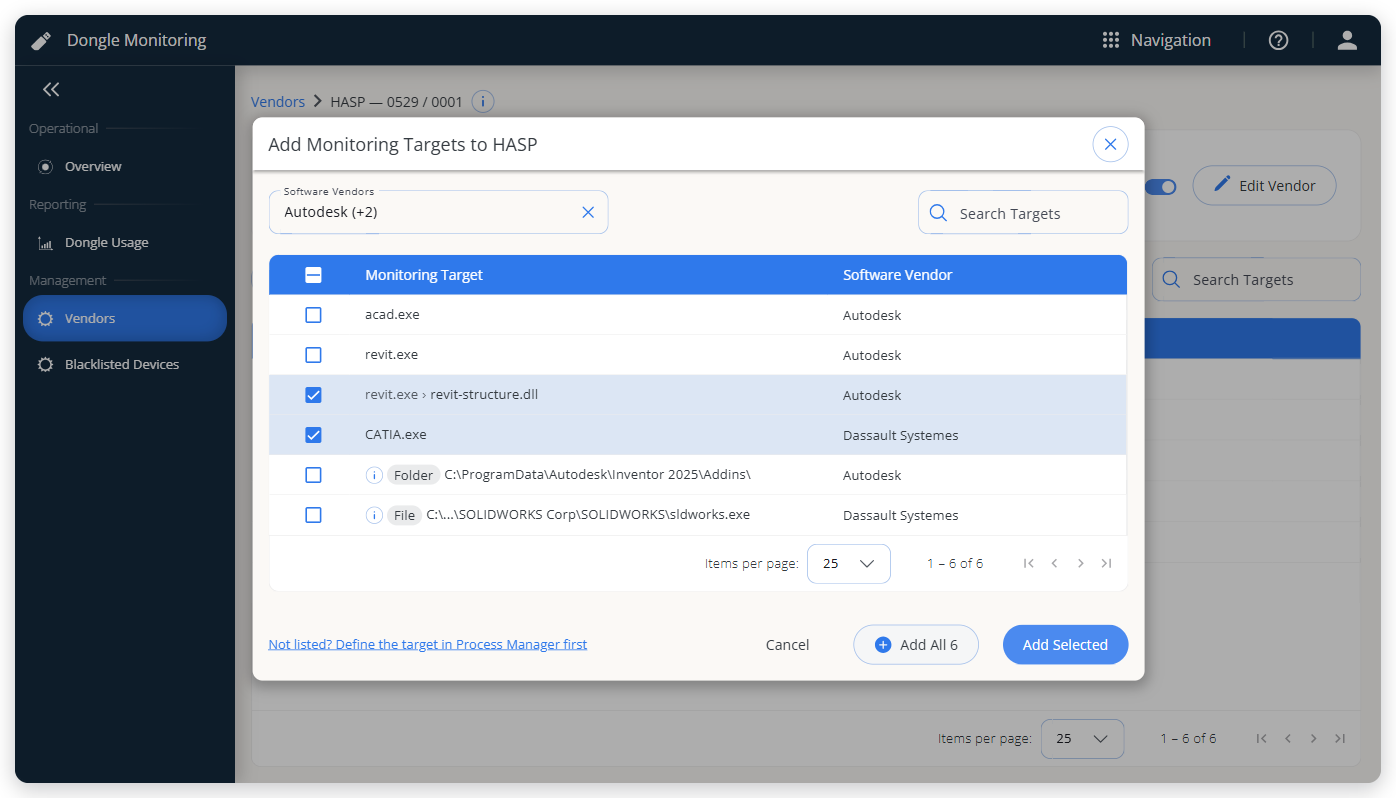 Two targets selected. The selection is kept when you page through the list.
When you select a software vendor that isn't linked yet in Software Vendors, a notice explains what happens if you add one of its targets. Adding the target links that software vendor to the dongle vendor. When auto-map is on, all of that software vendor's targets are then mapped, not only the ones you add.
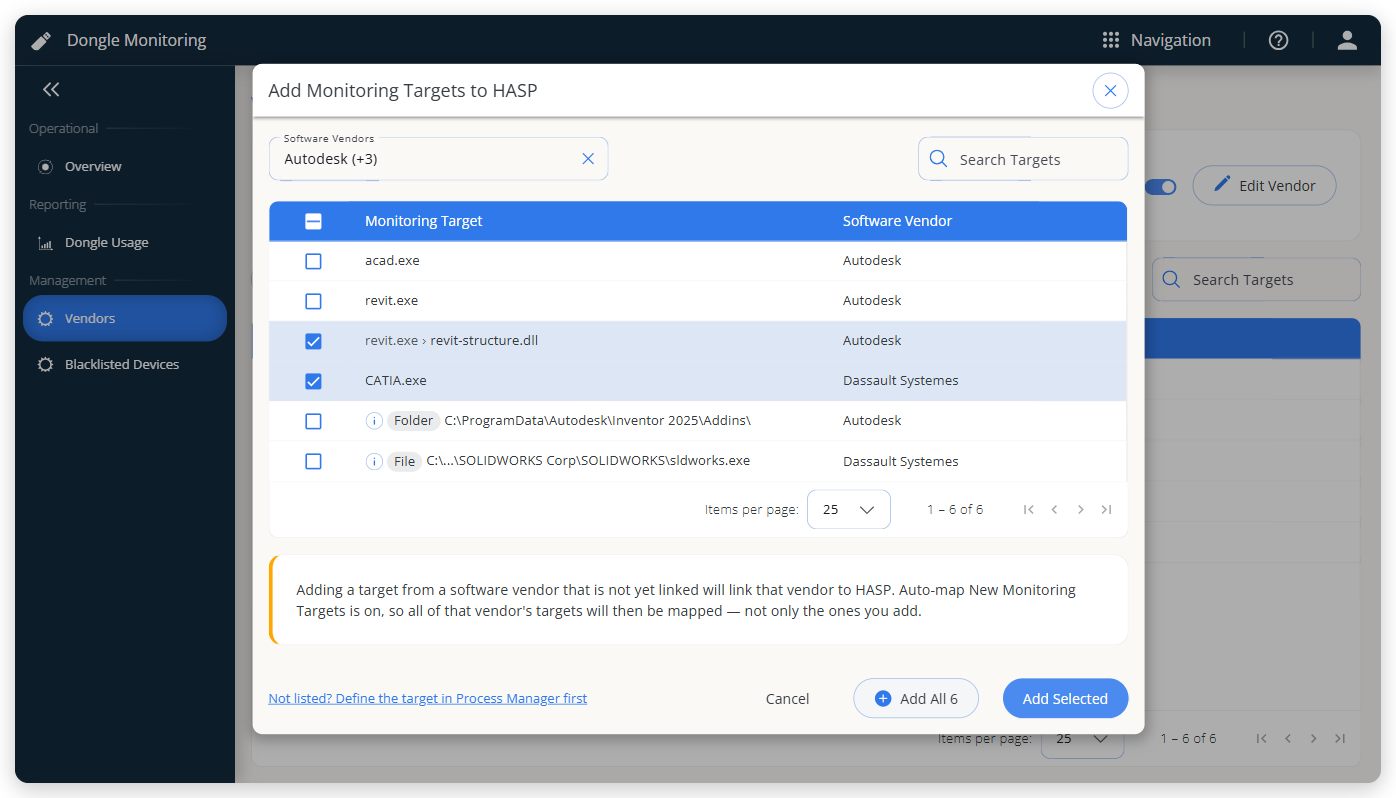 The notice for a software vendor that isn't linked yet, with auto-map on.
When the dialog adds every target, it closes and confirms how many it added. For each target it can't add, the dialog shows the reason: Not found in Process Manager, DLL isn't part of this monitoring target, or Already mapped.
If the target you need isn't in the list, define it in Process Manager first. With a Process Manager role, the dialog links there through Not listed? Define the target in Process Manager first.
Remove a mapping
Removing a mapping only affects Dongle Monitoring. It changes nothing in Process Manager.
To remove mappings:
- On the Mapped Monitoring Targets page, select the rows to remove.
- Select Delete, and then select Confirm in the Remove Confirmation dialog.
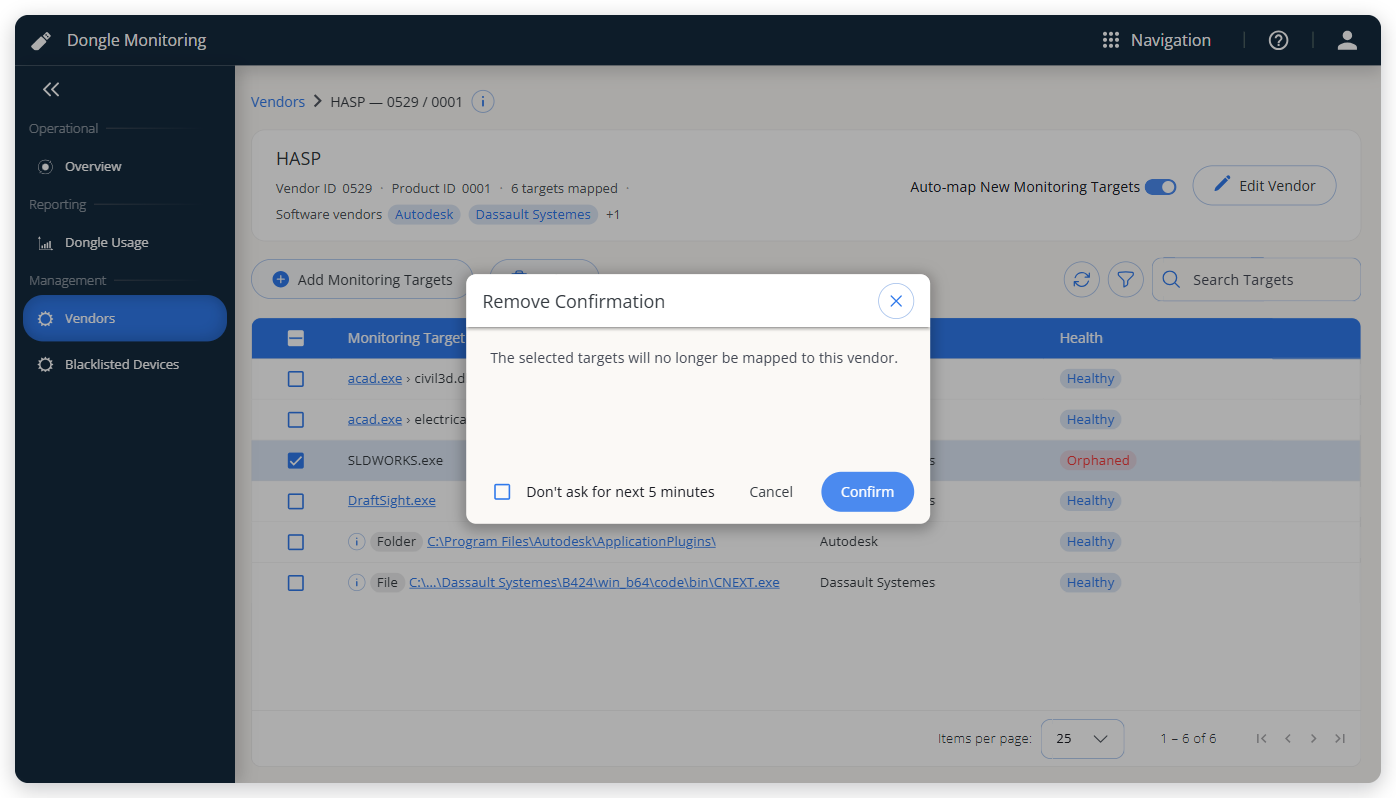 Removing a mapping changes nothing in Process Manager.
If the target belongs to a linked software vendor, turn auto-map off first. Otherwise auto-map maps it again.
Fix orphaned mappings
A mapping is orphaned when what it points to no longer exists in Process Manager. Dongle Monitoring checks every time Process Manager's list changes, and marks the mapping's Health as follows:
| Health | What happened |
|---|---|
| Orphaned | The monitoring target was deleted from Process Manager. |
| DLL not in definition | The target still exists, but the mapped DLL was removed from it. Only that DLL row is affected. A mapping of the whole process stays Healthy. |
To see why a mapping no longer resolves, hover over its red health chip.
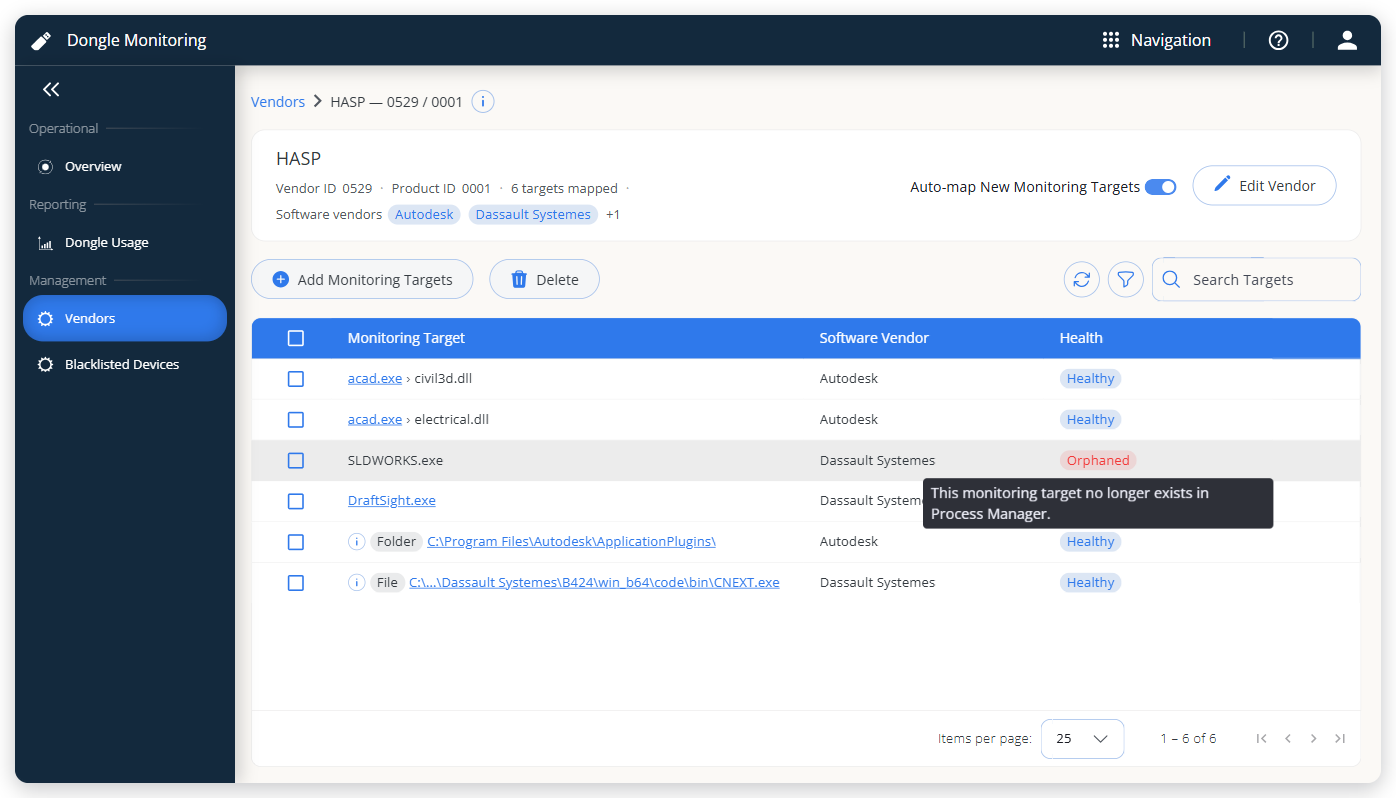 The tooltip on a red health chip says why the mapping no longer resolves.
To fix an orphaned mapping:
- In Vendors, look for a red N orphaned chip, and open that dongle vendor's Mapped Monitoring Targets page.
- If the target or DLL was removed by mistake, restore it in Process Manager. A restored DLL heals its row. A target that you create again reconnects automatically when it's the only target in Process Manager with that name, software vendor, and type, and it includes the mapped DLL. Otherwise, remove the orphaned row and map the new target.
- If the target is gone for good, or its replacement is already mapped, select the orphaned row and remove the mapping.
An orphaned mapping that you leave in place stays red and keeps counting toward the orphaned total.
Get alerted about orphaned mappings
To hear about an orphaned mapping when it happens, create an alert rule with the Orphaned process mapping condition in OpenLM Alerts. The rule sets the alert's name, severity, and email recipients.
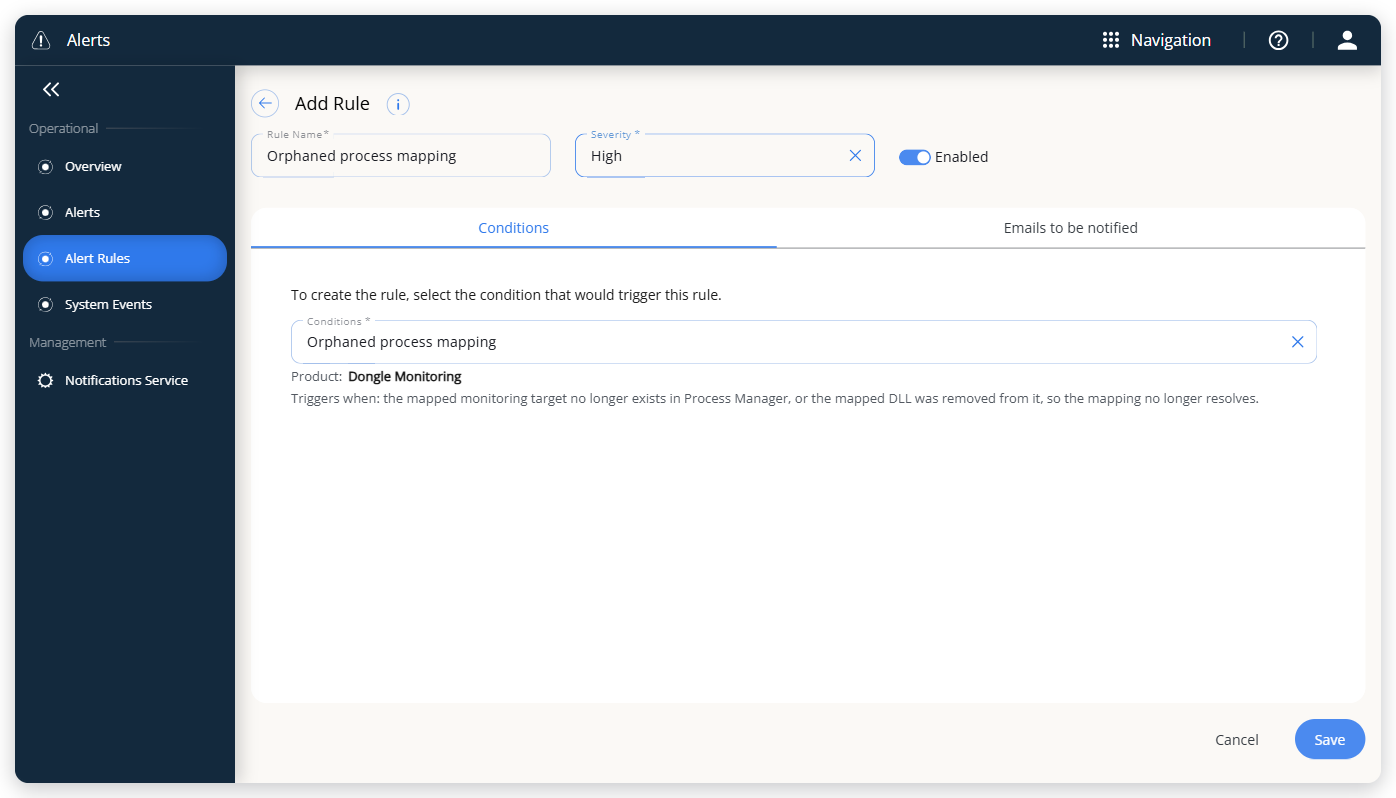 Add the recipients on the Emails to be notified tab.
OpenLM Alerts raises one alert for each orphaned mapping while the rule is turned on. It doesn't alert later about a mapping that was already orphaned before you created the rule, and it doesn't alert again while a mapping stays orphaned. If you fix a mapping and it breaks again later, you get a new alert. Fixing a mapping doesn't withdraw its alert.
Each alert names the dongle vendor with its Vendor ID and Product ID, the monitoring target and its type, the software vendor, the DLL if one is mapped, the reason, and the time the problem was detected.
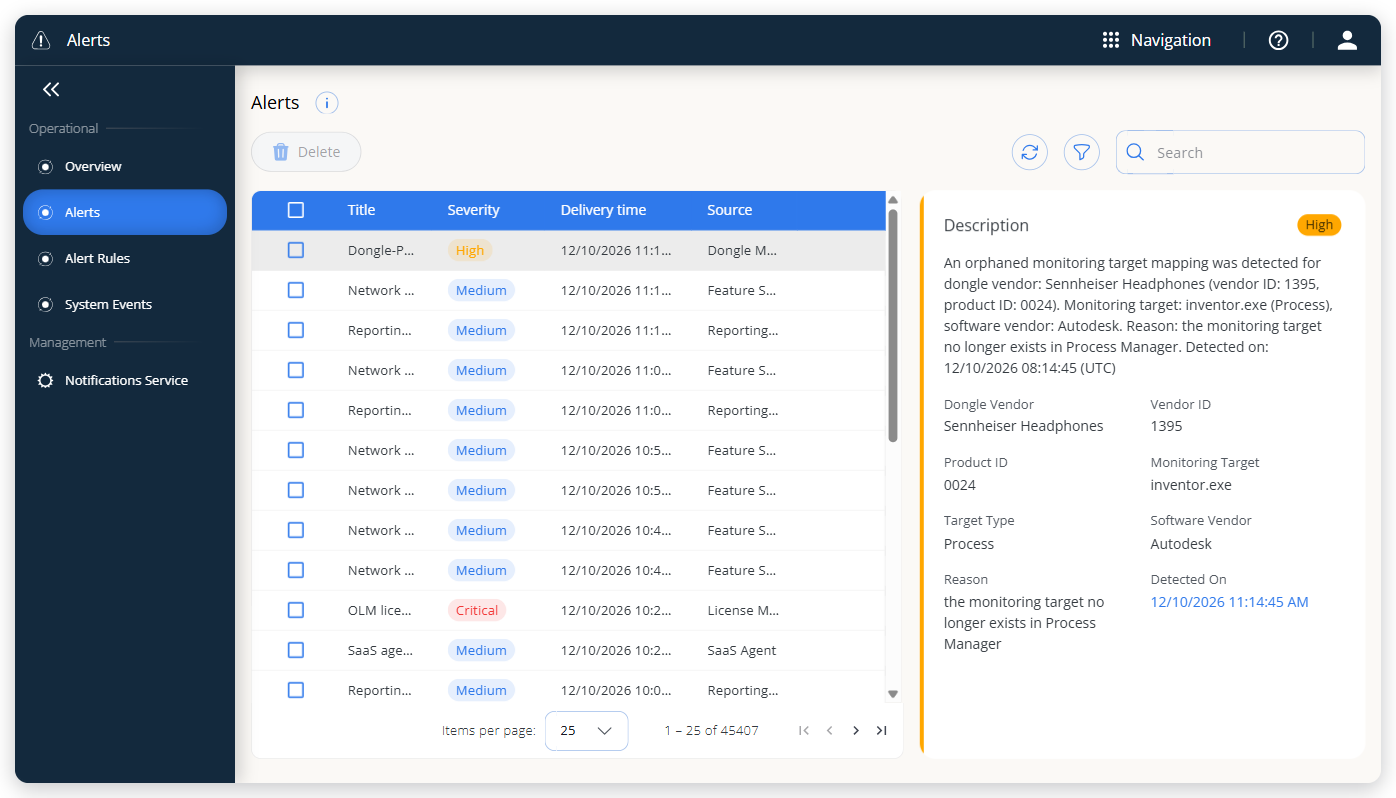 An orphaned-mapping alert. The alert's title is the rule's name.
What process mapping doesn't do
Process mapping only reads from Process Manager, keeps no history, and has a size limit:
- It never writes anything to Process Manager. You create, edit, and delete monitoring targets in Process Manager.
- It doesn't manage license cost, expiry, or assigned users.
- It isn't set on individual dongles. Every dongle of a dongle vendor shares one mapping.
- It keeps no history. Deleting a dongle vendor deletes its mappings, and adding the same Vendor ID and Product ID again starts with no mappings.
- It maps at most 2,000 targets to one dongle vendor. Once a dongle vendor reaches that limit, Dongle Monitoring refuses new targets, and auto-map stops mapping new targets without a message.
Troubleshooting
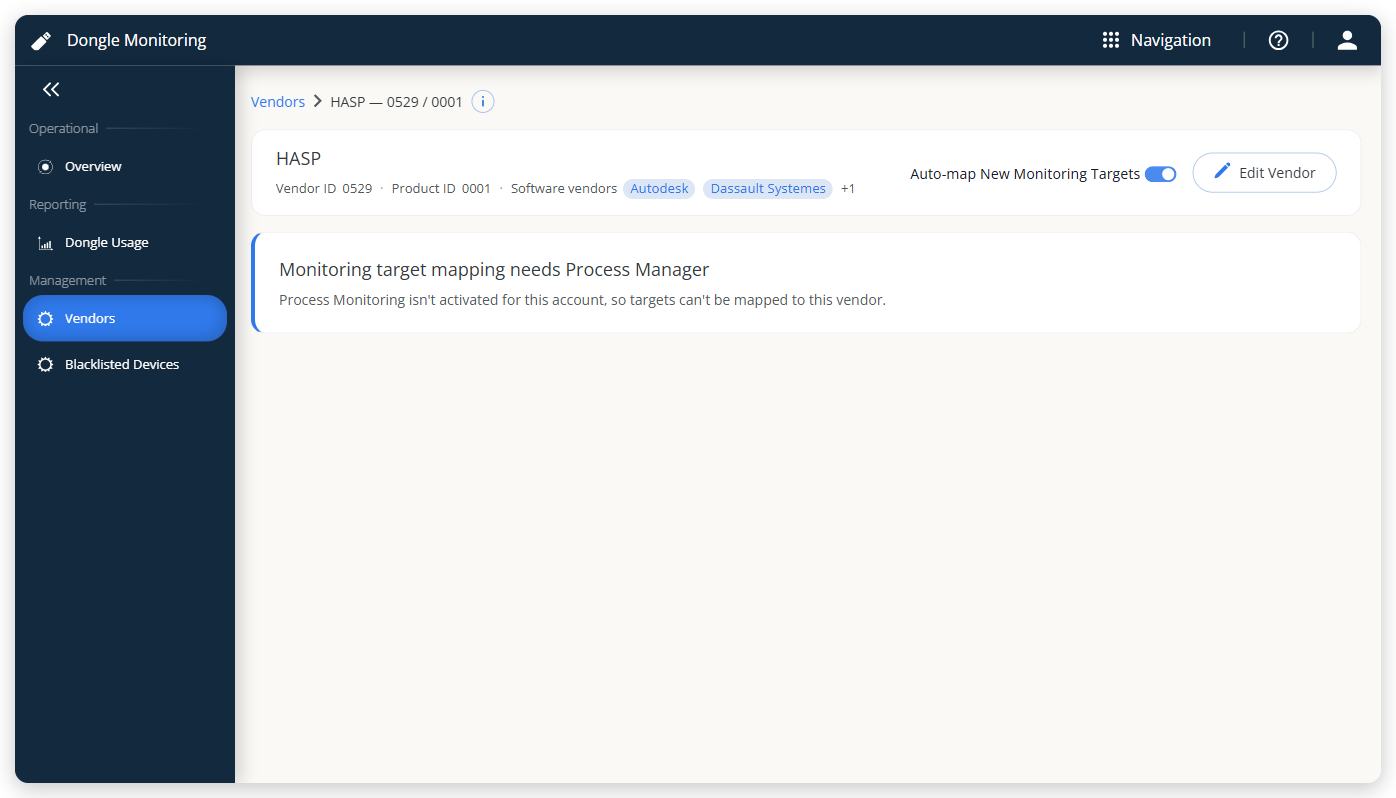 The message when Process Monitoring isn't activated.
When the Mapped Monitoring Targets page shows a message instead of targets, use the following table to fix it:
| Message | What to do |
|---|---|
| Monitoring target mapping needs Process Manager | Activate Process Monitoring for your account in OpenLM Products. |
| Process Manager can't be reached right now. | Wait for Process Manager to respond, and then select Try Again. Existing mappings aren't affected. |
| Dongle Monitoring couldn't authenticate with Process Manager. | This is a configuration problem, not a permission problem. Contact OpenLM Support. |
| No targets mapped yet. | Nothing is mapped to this dongle vendor yet. Link a software vendor or add targets. |
The documentation team might draft this page using a large language model. A technical writer reviews every page and verifies it against the product before publishing it. A human makes the final decision.