Change, upgrade, or uninstall Broker
After you install the Broker, you import certificates, upgrade the Broker, and remove it on the license server itself. To change the license managers and settings of a running Broker, use the Broker UI.
Import a TLS certificate for the Broker
If the Broker connects over HTTPS to an on-premises OpenLM deployment (a self-hosted OpenLM Platform or OpenLM SLM) whose certificate the Broker machine doesn't trust, add that certificate to the trust store of the Broker machine. Windows and Linux/Unix Brokers read different trust stores, so the steps depend on your operating system.
On Windows
Import the certificate into Local Computer, then Trusted Root Certification Authorities, with certlm.msc or with this command:
certutil -addstore Root my-cert.crt
Then restart the OpenLM Broker service to apply the change.
The Broker service runs with -Djavax.net.ssl.trustStoreType=Windows-ROOT, so it checks certificates against the Windows certificate store and never reads Java's own cacerts file.
On Linux/Unix
The Broker uses the trust store of the Java runtime that JAVA_HOME points at. To make it trust the certificate:
-
Use HTTPS in the OpenLM server URL:
https://<your-openlm-server>:<port>. -
Test the connection.
Some Java distributions import TLS certificates from the system trust store. If the Broker connects, you're done.
-
If you get SSL errors, find the cause.
The usual causes are that Java can't read the trusted root certificate directory, that Java doesn't use the system trust store, or that the certificate has to be added to the Java KeyStore by hand.
-
If the Broker still can't connect, import the certificate with
keytool.On Java 11 and higher, the trust store is at
$JAVA_HOME/lib/security/cacerts. On Java 8, it's one level deeper, at$JAVA_HOME/jre/lib/security/cacerts.keytool -import -trustcacerts \-keystore $JAVA_HOME/lib/security/cacerts \-storepass changeit \-noprompt \-alias mycert \-file my-cert.pemkeytoolimports.crt,.cer, or.pemfiles. Convert a.pfxfile to.crtbefore you import it. -
Restart the Broker service or process to apply the change.
Upgrade the Broker
To upgrade one Broker or a fleet of them, pick the way that matches how you manage your Brokers:
- Many Brokers, from the OpenLM Platform: use Update Brokers in the Broker Hub. It sends the update to the Brokers you select and needs no access to the license servers. See Update Brokers.
- One Broker, from its own UI: in the Broker UI, select Settings, then Update Broker Version, and select Update. The Broker downloads the latest version and updates itself in place. See Broker settings.
- On the license server, on Windows: run the silent installation command with the installer for the version you upgrade to and the instance ID of the Broker you upgrade. The installer upgrades that instance in place. See Upgrade a Broker silently.
- On the license server, on Linux or Unix: follow the steps for your package type in the next sections.
An upgraded Broker keeps its place in the Broker Hub only when it keeps its broker.id. If it appears as a new Broker, see Why does an upgraded Broker appear as a new Broker?
Upgrade a tar.gz installation on Linux or Unix
To upgrade a Broker that you installed from the tar.gz archive:
-
Download OpenLM Broker for Unix/Linux. See Download the installer.
-
Remove the current Broker installation:
-
With systemd, uninstall the current Broker service:
sudo ./broker.sh uninstall -
Without systemd, stop the Broker process:
sudo ./broker.sh stop
-
-
Extract the archive
OpenLM_Broker_<version>.tar.gzto a folder of your choice. -
Copy
broker.xml,broker.id, andsettings.shfrom the previous Broker installation folder to the new folder, and overwrite the files there.broker.idholds the identity of the Broker. Without it, the upgraded Broker reports in as a new Broker. -
If the previous folder has
application.properties,proxy.properties,bufferfiles, ormarkerfiles, copy them too.They hold the HTTPS and proxy settings, data that wasn't sent yet, and the read positions in license manager logs.
-
From the new
openlm-brokerfolder, install the Broker service for the new version:-
With systemd, install the service:
sudo ./broker.sh install -
Without systemd, start the process:
sudo ./broker.sh start
-
After the upgrade, open the Broker UI or run sudo ./broker.sh config, and confirm that the settings and license servers are unchanged. Then confirm that the license managers of the Broker still appear in Broker Hub.
Upgrade a DEB or RPM package
Install the newer package over the installed one. A package always installs to /opt/broker. When the machine has systemd, the package restarts the Broker service after the upgrade.
-
Copy
broker.xmlandbroker.idfrom/opt/brokerto a safe place. If the upgraded Broker appears as a new Broker, you can copy them back. -
Download the DEB or RPM package for the version you upgrade to. See Download the installer.
-
Install it:
# Debian and Ubuntusudo dpkg -i openlm_broker_<version>_amd64.deb# RHEL-family systemssudo rpm -Uvh openlm_broker_<version>.x86_64.rpm -
Confirm in the Broker Hub that the Broker is Up with the new version.
Uninstall the Broker
To remove the Broker, uninstall it on the license server. The uninstallation keeps the configuration of the Broker, so a later reinstallation picks up the same setup. For a clean removal, delete the installation folder by hand after you uninstall.
On Windows, the installation folder keeps broker.xml, broker.id, broker.xml.backup, application.properties, and the bufferfiles, logs, and markerfiles folders. When you reinstall into the same folder, the Broker starts with the kept broker.xml and broker.id, and the Broker Hub lists it under the same ID as before.
To remove the Broker from OpenLM Platform as well, remove it in the Broker Hub. Uninstalling alone leaves it listed there. See Remove Brokers.
Remove it on Windows
Remove the Broker from Windows in one of these ways:
-
Programs and Features: in the Control Panel, select Programs, then Uninstall a program. Select OpenLM Broker, then Uninstall, and confirm with Yes. Each instance has its own entry, for example OpenLM Broker 2.
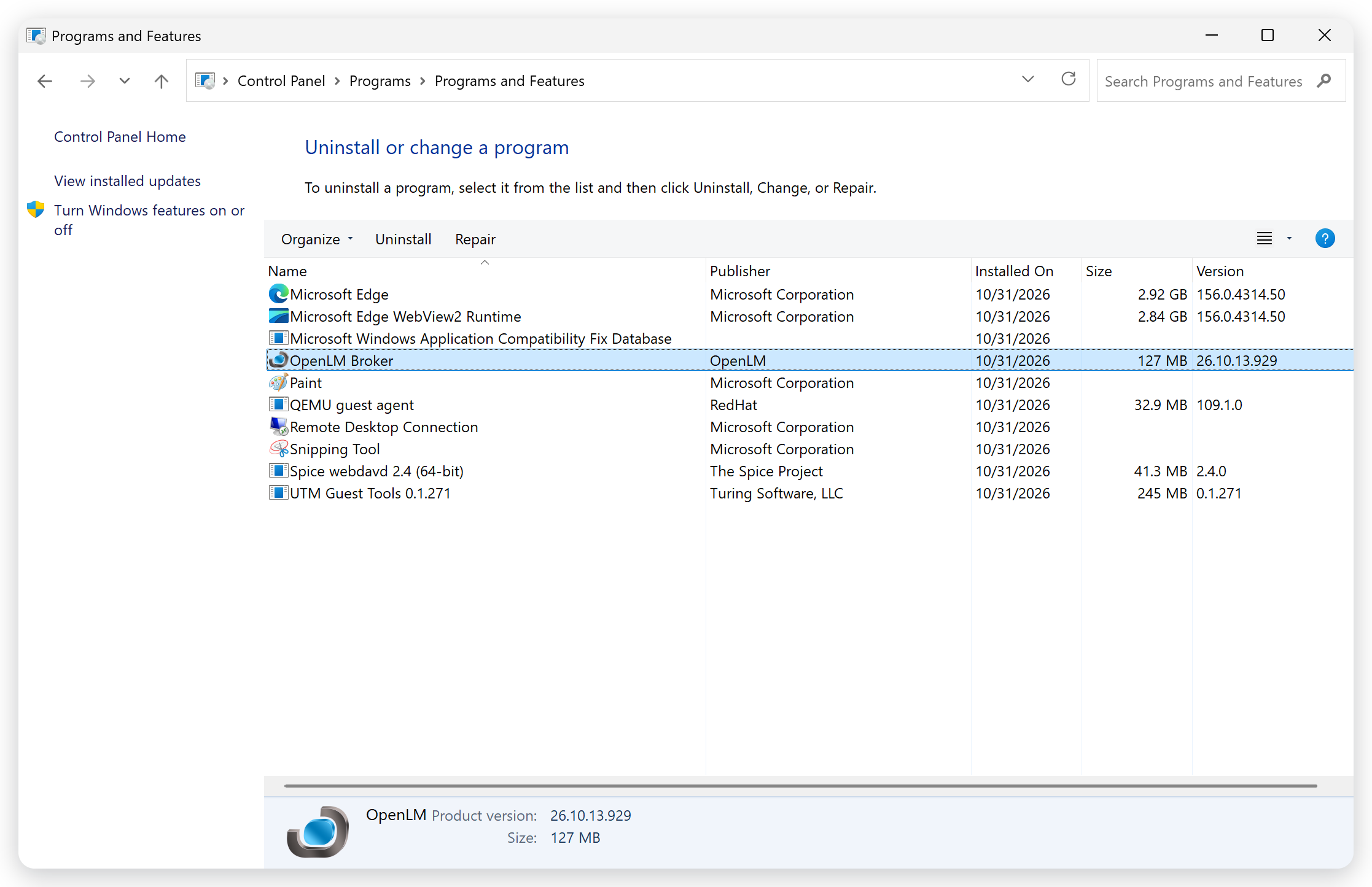 OpenLM Broker in Programs and Features
-
The installer: open the installer again, and select Modify. On the Select Instance page, select the instance, and then select Remove.
-
Silent uninstallation: run
msiexec /xwith the instance ID you installed under:msiexec /x "<broker-msi-path>" /qn TRANSFORMS=":I01"Replace
<broker-msi-path>with the full path of the Broker MSI file.:I01is the instance ID: change it to match the instance you remove. For how instance IDs work, see Silent installation.
For a silent uninstallation, pass the installer of the same version as the instance you remove. The installer matches the registered instance on both its ID and its version, and fails with Failed to detect Broker instance to uninstall. if either doesn't match. Keep the installer you deployed with, or download the matching version before you uninstall.
Remove it on Linux/Unix
Stop the service and remove it from systemd:
sudo ./broker.sh uninstall
The command stops the Broker, deactivates the service, and deletes its systemd unit files. It leaves the Broker folder in place, including broker.xml and the logs.
On a machine without systemd, uninstall is unavailable. Stop the process instead:
sudo ./broker.sh stop
Remove a DEB or RPM package
Remove the package with your package manager. The package removal stops the Broker service and deletes its systemd unit files.
On RHEL-family systems, the package is named openlm_broker:
sudo rpm -e openlm_broker
On Debian and Ubuntu, find the package name first, and then remove it:
dpkg -l | grep -i openlm
sudo apt-get remove <package-name>
Continue to Connect your first license manager to start collecting license data. If the Broker doesn't come back after a change, see Troubleshoot Broker.
The documentation team might draft this page using a large language model. A technical writer reviews every page and verifies it against the product before publishing it. A human makes the final decision.