Install Workstation Agent on macOS
To collect application usage from Macs, install the Workstation Agent on each Mac and connect it to OpenLM Platform with its authorization file. You can install the package on one Mac, or push it across a fleet with your MDM.
The Workstation Agent runs on macOS 10.15 (Catalina) or higher, on both Intel (x86_64) and Apple Silicon (arm64) Macs. The agent is a self-contained binary, so you don't install a separate .NET runtime.
The Workstation Agent for macOS is not notarized by Apple, so Gatekeeper blocks the downloaded installer. After you download the installer, remove the quarantine attribute before you open it, as described in step 2 of Install on a single Mac.
Before you begin
Confirm these prerequisites:
- The Mac runs macOS 10.15 (Catalina) or higher, and meets the system requirements.
- You have administrator (
sudo) rights. The installer writes to/Library/OpenLMAgent/. - The Mac has outbound access to your OpenLM Platform address on the Agents Hub port (default
443, SSL turned on). The agent connects over a WebSocket. - You have the authorization file for the agent. Generate it for a client of type Agent in Identity, as described in Authorize components. Identity names the file
agent-authorization.json.
Install on a single Mac
To install the Workstation Agent on one Mac:
-
Download the macOS Workstation Agent from the Downloads page.
Select the build that matches the processor of the Mac: Intel (x86_64) or Apple Silicon (arm64).
-
Remove the quarantine attribute from the downloaded installer, so that Gatekeeper doesn't block it:
xattr -d com.apple.quarantine <file>Replace
<file>with the package you downloaded, for example~/Downloads/<file-name>.pkg. Repeat this step on every machine where you install from a browser download. -
Open the package (
.pkg) and follow the macOS Installer prompts. -
Copy your authorization file over the placeholder the package installs,
/Library/OpenLMAgent/agent-authorization.json. -
Restart the agent, as described in Connect the agent.
-
Check the agent, as described in Check the agent.
The installer copies files to /Library/OpenLMAgent/, signs the binary, and registers a LaunchAgent that starts the agent automatically when a user signs in.
The installer opens on its welcome pane.
 The macOS Installer welcome pane.
At the end, the installer confirms a successful installation.
 The installer confirms a successful installation.
Install across a fleet with MDM
Push the package through your MDM and run the macOS installer command in the root context:
sudo installer -pkg <file-name>.pkg -target /
Replace <file-name> with the name of the package. The package identifier is com.openlm.agent. The installation runs without an interface, and the bundled scripts handle signing, permissions, configuration backup on upgrade, and LaunchAgent activation.
Some MDM platforms require a signed and notarized package for unattended installation. Because the build is ad-hoc signed and not notarized, validate it against your MDM's Gatekeeper policy before a fleet rollout.
Connect the agent
The agent reads its authorization file from /Library/OpenLMAgent/agent-authorization.json, and its configuration from /Library/OpenLMAgent/settings.json. For OpenLM Platform in the cloud, the authorization file also gives the agent the address to connect to. For a self-hosted OpenLM Platform, set the server address under agentsHub in settings.json:
{
  "agentsHub": {
    "address": "<your-openlm-server-host>",
    "port": 443,
    "useSSL": true
  }
}
Replace <your-openlm-server-host> with the host of your self-hosted OpenLM Platform.
After you edit settings.json or replace the authorization file, restart the agent so the change takes effect:
launchctl kickstart -k "gui/$(id -u)/com.openlm.agent"
On upgrade, the installer preserves settings.json and agent-authorization.json, so your configuration survives package updates.
These optional settings are common:
process.trackingMs: process monitoring interval in milliseconds (default30000).webmonitor.useWebMonitor: turn on browser activity monitoring (defaulttrue).process.autoPromptScreenRecording: prompt for the Screen Recording permission at start (defaultfalse).logging.minimumLevel: log verbosity, for exampleInformationorDebug(defaultInformation).
Grant the required permissions
The agent needs two macOS privacy permissions. Grant them so data collection works:
- Screen Recording: required to track window titles. Open System Settings, select Privacy & Security, then Screen Recording, and turn on OpenLM Workstation Agent. Restart the agent afterward.
- Full Disk Access: required to read Safari browsing history. Open System Settings, select Privacy & Security, then Full Disk Access, and turn on the
OpenLM.Agent.macOSbinary. Without it, Safari history collection fails silently. Other browsers are unaffected.
The agent is turned on in the Screen Recording list.
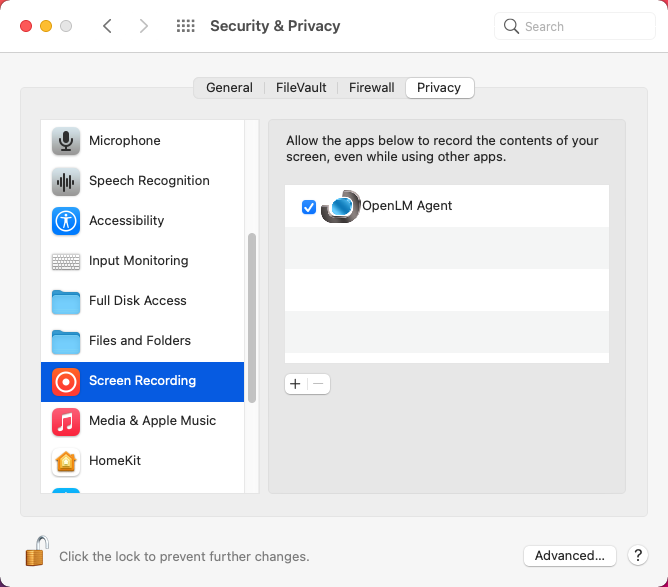 The agent turned on for Screen Recording.
The agent is turned on in the Full Disk Access list.
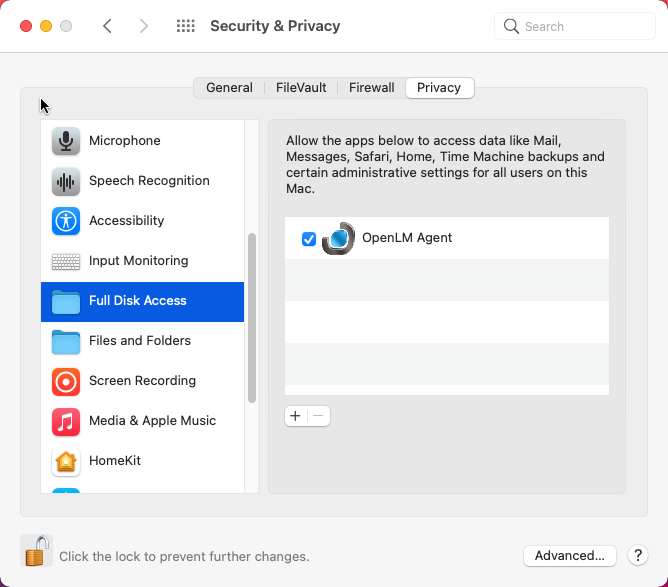 The agent turned on for Full Disk Access.
For fleet machines, you can pre-approve these permissions with a PPPC (Privacy Preferences Policy Control) configuration profile pushed through MDM. Because the build is ad-hoc signed, a PPPC profile might not reliably pre-approve the agent, and users might still be prompted. Plan for a one-time manual grant per machine as the reliable path.
Check the agent
Confirm the agent process is running:
launchctl print "gui/$(id -u)/com.openlm.agent"
pgrep -x "OpenLM.Agent.macOS"
A running state and a non-empty pgrep result confirm the agent runs.
Confirm the agent reports to OpenLM Platform:
- In Agent Activity, select the Refresh icon, and confirm the workstation appears as online.
- If monitored applications are running, confirm sessions appear in Process Manager, then Active Processes.
Check the per-user logs for a successful connection and no permission warnings:
tail -n 100 /Library/OpenLMAgent/logs/$(whoami)/<latest-log-file>
Open the Personal Dashboard
Users open their Personal Dashboard from the Workstation Agent. The package copies the OpenLM Agent app into the Applications folder. To open the dashboard, open OpenLM Agent, for example from Launchpad or Spotlight.
The dashboard opens in the default browser. Users sign in with their account in Identity, as described in the prerequisites of the Personal Dashboard. If the dashboard doesn't open, see Why doesn't the Personal Dashboard open?
Uninstall the agent
Run the bundled uninstaller with administrator rights:
sudo sh /Library/OpenLMAgent/uninstall.sh
The uninstaller stops the agent, removes the LaunchAgent and the /Applications/OpenLM Agent.app copy, and deletes /Library/OpenLMAgent/, including logs.
The uninstaller does not reset the privacy permissions you granted. To remove them, run:
tccutil reset ScreenCapture com.openlm.agent
tccutil reset SystemPolicyAllFiles com.openlm.agent
Known limitations
The macOS build has these limitations:
- The macOS build is ad-hoc signed and not notarized. Gatekeeper can warn on a browser-downloaded installer, and a PPPC profile might not reliably pre-approve permissions. Plan for manual permission grants.
- Safari history collection requires Full Disk Access. Without it, Safari history is skipped silently. Other browsers are unaffected.
- The agent installs as a LaunchAgent, so it runs only while a user is signed in. This is by design: it needs the user's GUI session to track window titles and per-user browser history.
- Uninstalling does not reset the privacy permissions. Reset them manually if needed.
If the agent doesn't start, appear in Agent Activity, or collect window titles or Safari history, see Troubleshoot Workstation Agent.
The agent reports the applications that OpenLM Platform asks it to monitor. To select them, open Navigation, select Agents, then Process Manager, and add the processes of your licensed applications, as described in Process Manager.
After that, continue the setup with Install the Directory Synchronization Agent (DSA) to synchronize user and group data from your directories.
The documentation team might draft this page using a large language model. A technical writer reviews every page and verifies it against the product before publishing it. A human makes the final decision.