Agent Activity
To monitor and maintain the agents installed across your organization, use Agent Activity in Agents Hub. Check which agents report to your account, find the ones that are offline or out of date, and keep them current. Agents run on users' machines, or in tools such as ServiceNow, and report software and license activity to OpenLM Platform. You can search and filter the list of agents and see whether each one is online. Administrators can also upgrade Workstation Agents, restart them remotely, and remove records that are obsolete or no longer needed.
Before you begin
Confirm these prerequisites:
- At least one Workstation Agent is installed and connected, so that agents appear in the console.
- The Workstation Agent installer, from the OpenLM Downloads page, if you still need to install the agent.
Agent Activity is part of OpenLM Platform process monitoring tools and comes with your OpenLM Platform account, so you don't activate a separate product. On the OpenLM Products page, it's the Agent Activity Manager system product.
To open Agent Activity, select Navigation (the grid icon in the OpenLM Platform header), then Resource Tracking, then Agent Activity. The page opens in Resource Tracking, where the sidebar lists it under Agents Hub.
For related tasks, see Agents Hub and Components system requirements.
With Agent Activity you can:
- View every installed agent: a row for each agent, with host name, username, IP address, agent version, agent type, online status, and activity timestamps.
- See which agents are online: a check mark shows each agent that is connected and reporting. Select Refresh to see the latest status.
- Find specific agents: filter by host name, username, IP address, version, agent type, online status, virtual machine, and last-report date.
- Upgrade agents: upload a new Workstation Agent installer (
.msi) and roll it out to the Workstation Agents on Windows that you select. - Finish upgrades automatically: agents in an upgrade that are offline install it when they reconnect.
- Restart all Workstation Agents: send a restart command to every Workstation Agent.
- Remove agents: delete obsolete agent records from the console.
How Agent Activity works
The following concepts explain how Agent Activity shows agents and their status.
Agents and agent types
An agent is OpenLM software installed on a user's machine that monitors application and license usage and periodically reports activity to OpenLM Platform. Each agent appears automatically in the console once it is installed and starts reporting. You never create agents manually. An agent is uniquely identified by the combination of its account, username, host name, and agent type, so the same person on a second machine, or a second agent type on the same machine, appears as a separate row. Agent Activity tracks several agent types, including:
- Workstation Agent: installed on a user's desktop or workstation.
- ServiceNow ACC Agent: a ServiceNow Agent Client Collector agent that reports to OpenLM through the OpenLM ACC Plugin, in place of the Workstation Agent.
Online and offline status
Agent Activity shows an agent as online based on two checks:
- The agent's connection: an agent is online while it is connected to Agents Hub and reporting. When its connection closes, for example because the machine shuts down, loses the network, or the agent stops, Agents Hub reports it offline.
- A connectivity check: every minute, OpenLM Platform checks whether the central Agents Hub is reachable. If it isn't, OpenLM Platform switches all agents marked online to offline.
When a Workstation Agent or ServiceNow ACC Agent goes offline, OpenLM Platform also tells downstream services to close that agent's open sessions (processes, dongles, and so on), so that licenses are released instead of staying open.
The Agent Activity page isn't a live feed. It loads when you open it and refreshes when you change a filter, sort, or page. To see the latest online status and timestamps, select Refresh.
Activity timestamps
The following table explains the timestamps that Agent Activity shows:
| Timestamp | What it means |
|---|---|
| Last Report On | The most recent time the agent reported in. This is the most reliable indicator of how recently the agent was reporting. |
| Current Machine Date | The clock time on the agent's own machine at its last report. This can differ from server time if the machine clock is off. |
| User Idle Duration | How long the user at that machine has been idle. 0 second(s) means the user is, or was, active. |
| Last Process List Update On | The last time the agent reported activity for a monitored application or process. |
Install and connect the Workstation Agent
To install the Workstation Agent and connect it to OpenLM Platform, follow Install Workstation Agent. It covers Windows, Linux, and macOS, a self-hosted OpenLM Platform, and deployment to many machines. After the installation, select Refresh on this page to see the new agent.
To generate the authorization file for the agent, see Authorize components.
Open Agent Activity in your browser
To open Agent Activity directly, use your OpenLM cloud address:
https://<cloud-instance>.openlm.com/resourcetracking/#/agents-hub/agent-activity
Here <cloud-instance> is your specific cloud instance (for example, cloud-us).
Sign in to Agent Activity
Agent Activity has no separate sign-in form. Sign-in uses the single sign-on of OpenLM Platform:
- Open Agent Activity from your OpenLM Platform account.
- If you aren't signed in, OpenLM Platform redirects your browser to the OpenLM sign-in page. Sign in there.
- OpenLM Platform returns you to the page you opened.
OpenLM Platform keeps your identity in a secure session. You don't enter a password on this page, and the console stores no sign-in token in your browser. If your session expires, OpenLM Platform asks you to sign in again.
Roles and permissions
What you can do in Agent Activity depends on your Agents Hub role. Agents Hub has two roles: Admin and Viewer. The Account Administrator role has the same rights as Admin:
| Action | Admin | Viewer (read-only) |
|---|---|---|
| View the Agents list, all columns and data | Yes | Yes |
| Search, filter, date-range, refresh, select columns | Yes | Yes |
| Upgrade agents (upload installer) | Yes | No |
| Restart all Workstation Agents | Yes | No |
| Remove (delete) agents | Yes | No |
Users with the Agents Hub Admin role or the Account Administrator role see the action buttons (Restart All Workstation Agents, Upgrade Agents, and Delete). Users with the Agents Hub Viewer role see the same agent list and information, without those buttons.
If you have neither role, Agent Activity shows a "Not enough permissions" page instead of the Agents list. The Agent Activity Manager product has no roles of its own, so assign the Agents Hub roles.
If you need to run agent operations but don't see the action buttons, you have the Viewer role. Ask your OpenLM administrator for the Agents Hub Admin role.
Find your way around Agent Activity
Before you act on agents, get to know the Agent Activity page. The following screenshot shows its main areas.
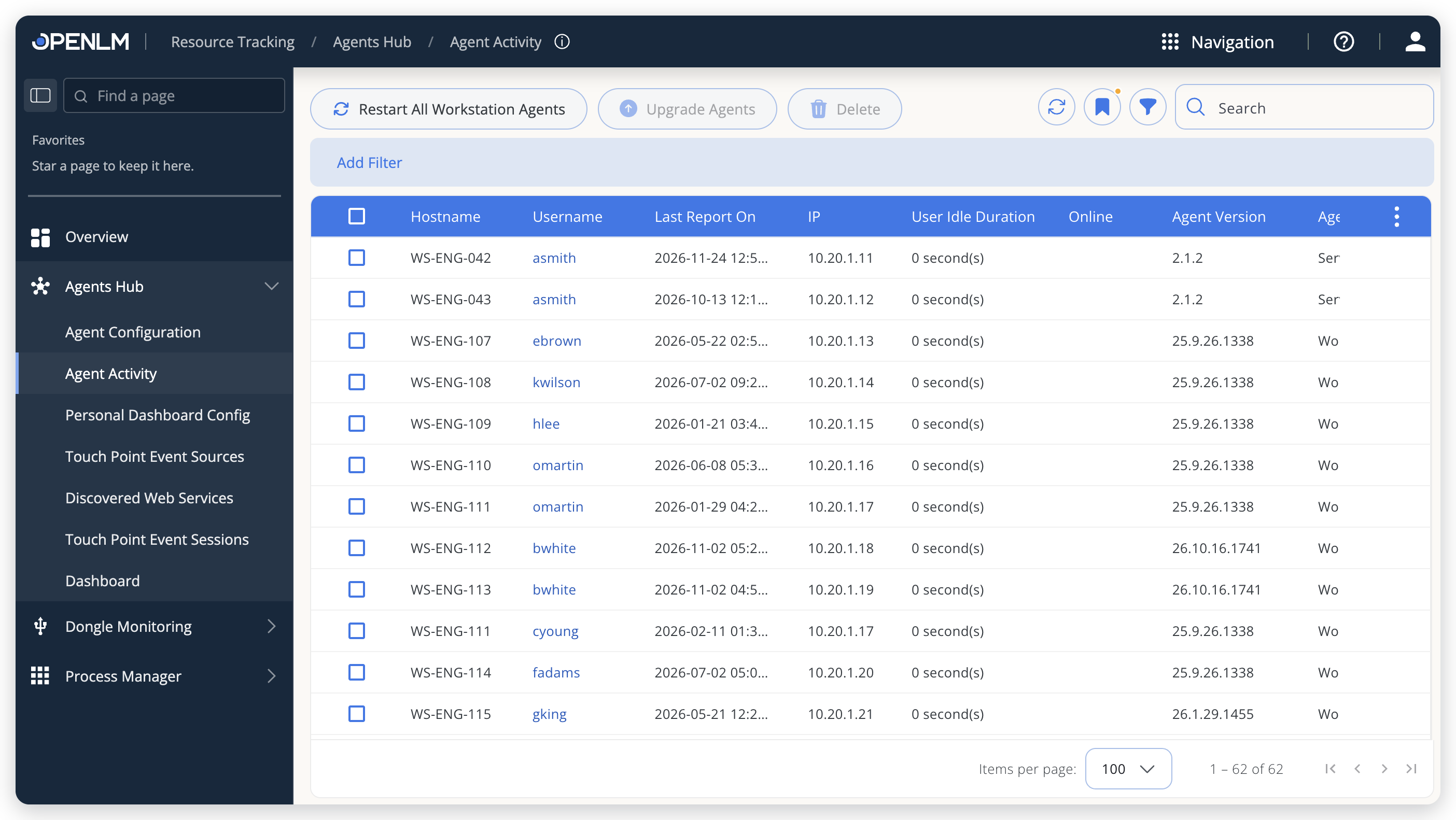 Agent Activity in Resource Tracking, with the filter bar shown.
The page has the following areas:
- Header: the breadcrumb (Resource Tracking, then Agents Hub, then Agent Activity, with an information icon), the Navigation button, Help, and the User menu, which shows your signed-in account and has Sign out.
- Sidebar: the Resource Tracking sidebar, with Agent Activity under Agents Hub. For its controls, see Move between pages.
- Action toolbar (administrators only): Restart All Workstation Agents, Upgrade Agents, and Delete.
- Search and filter controls: a Refresh button, Saved views, Toggle Filters (the funnel icon), which shows or hides the filter bar, and a Search box. To keep a set of filters and columns for later, save it as a view.
- Agents table: the list of agents, with row check boxes, sortable columns, a column chooser (⋮), and a paginator.
Agents list
To compare agents, scan the table, where each agent has its own row. The table has many columns, so scroll horizontally to see them all. The following screenshot shows the columns further along, including Agent Version and Agent Type.
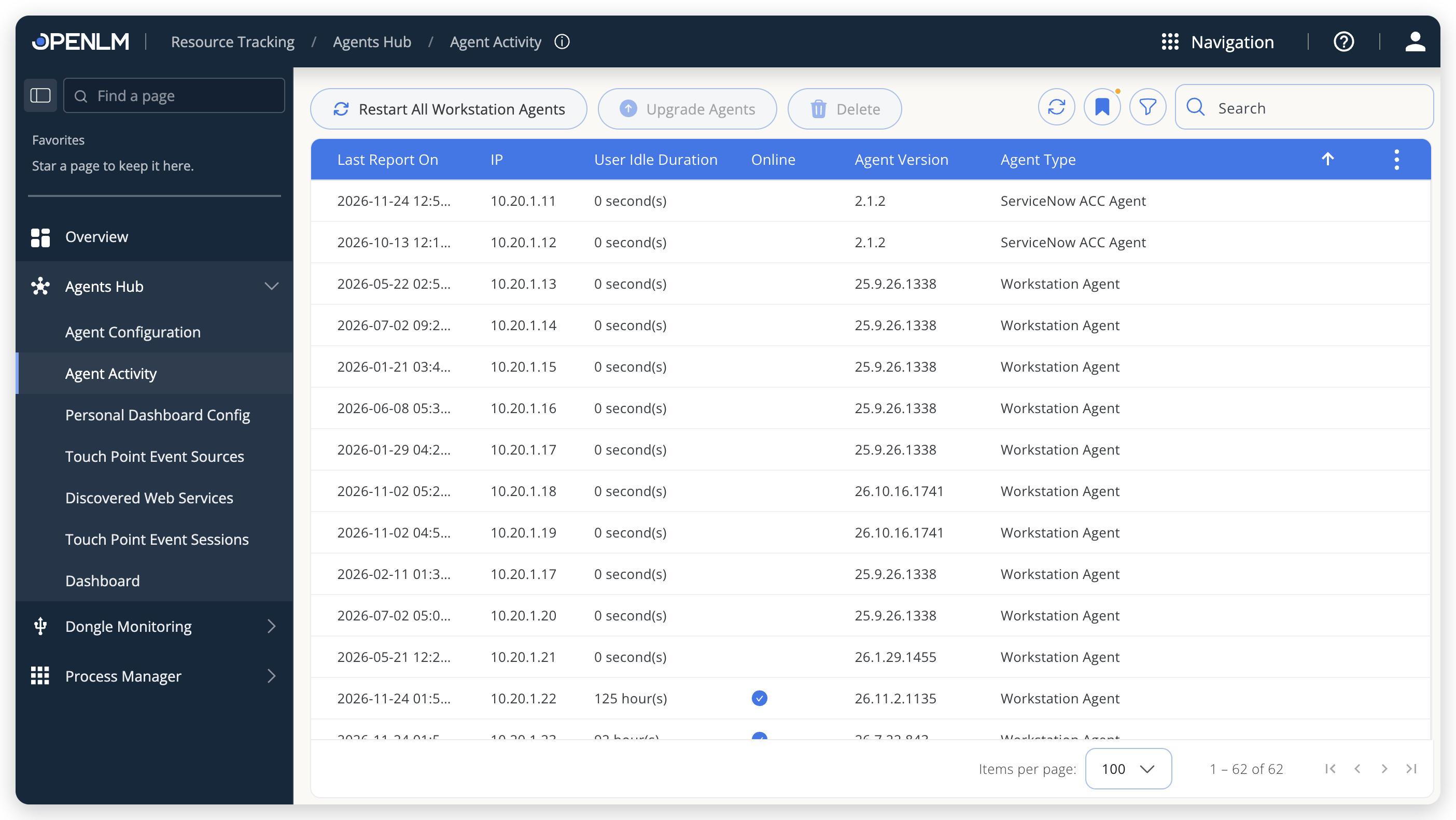 Additional columns of the agents table, shown by scrolling horizontally.
Columns
The following table lists the columns of the agents table, what each shows, and notes about it:
| Column | Shows | Notes |
|---|---|---|
| Hostname | The machine or host name reported by the agent. | Always shown. Filterable. |
| Username | The user account associated with the agent. | Always shown. Filterable. |
| Last Report On | When the agent most recently reported in. | Always shown. Sortable. Filterable by date range. |
| IP | The IP address reported by the machine. | Always shown. Filterable. |
| User Idle Duration | How long the user has been idle. | Optional column. Not sortable. |
| Online | Whether the agent is online. | Always shown. A check mark means online, blank means offline. |
| Agent Version | The installed agent software version. | Optional column. Filterable. Shows an upgrade marker when an upgrade is queued. |
| Agent Type | Workstation Agent, ServiceNow ACC Agent, or another agent type. | Always shown. Filterable. |
| Operating System | The workstation's operating system, or Unknown when the agent doesn't report it. | Optional column. |
| OS Version | The version of that operating system, or Unknown. | Optional column. |
| Virtual | Whether the workstation is a virtual machine: Yes, No, or Unknown. | Optional column. Filterable. |
| Current Machine Date | Local date and time on the agent's machine. | Optional column. Sortable. |
| Last Process List Update On | Last time the agent reported monitored-process activity. | Optional column. Sortable. |
To open a user in Users and Groups, select the username.
A check mark in Online means the agent is online, and a blank means it is offline. Date and time values use your configured date format and time zone. Empty values appear blank. User Idle Duration appears in seconds, minutes, or hours (for example, "0 second(s)", "45 minute(s)", "198 hour(s)").
Sort, select columns, and page through the list
To change how the list looks, use the following options:
- Sort: select a sortable column header to sort by it.
- Show or hide columns: use the column chooser (the ⋮ menu in the header row) to show or hide the optional columns (User Idle Duration, Agent Version, Operating System, OS Version, Virtual, Current Machine Date, and Last Process List Update On). The other columns are always shown.
- Paging: the table loads 25 agents per page by default. Use the paginator to move between pages.
- Layout is remembered: your browser saves your column choices.
- Refresh: select the Refresh button to reload the list with the latest data. Refreshing also clears your current selection.
Find agents with filters and search
To narrow the list:
- Select Toggle Filters (the funnel icon) to show the filter bar.
- Select Add Filter.
- Select the field to filter on.
Each filter appears in the bar as a chip, for example "Hostname is any of" followed by the hosts you picked. To remove a filter, select its close icon. Clear All removes every filter. Hiding the bar with Toggle Filters keeps your filters, and the funnel icon shows how many are active.
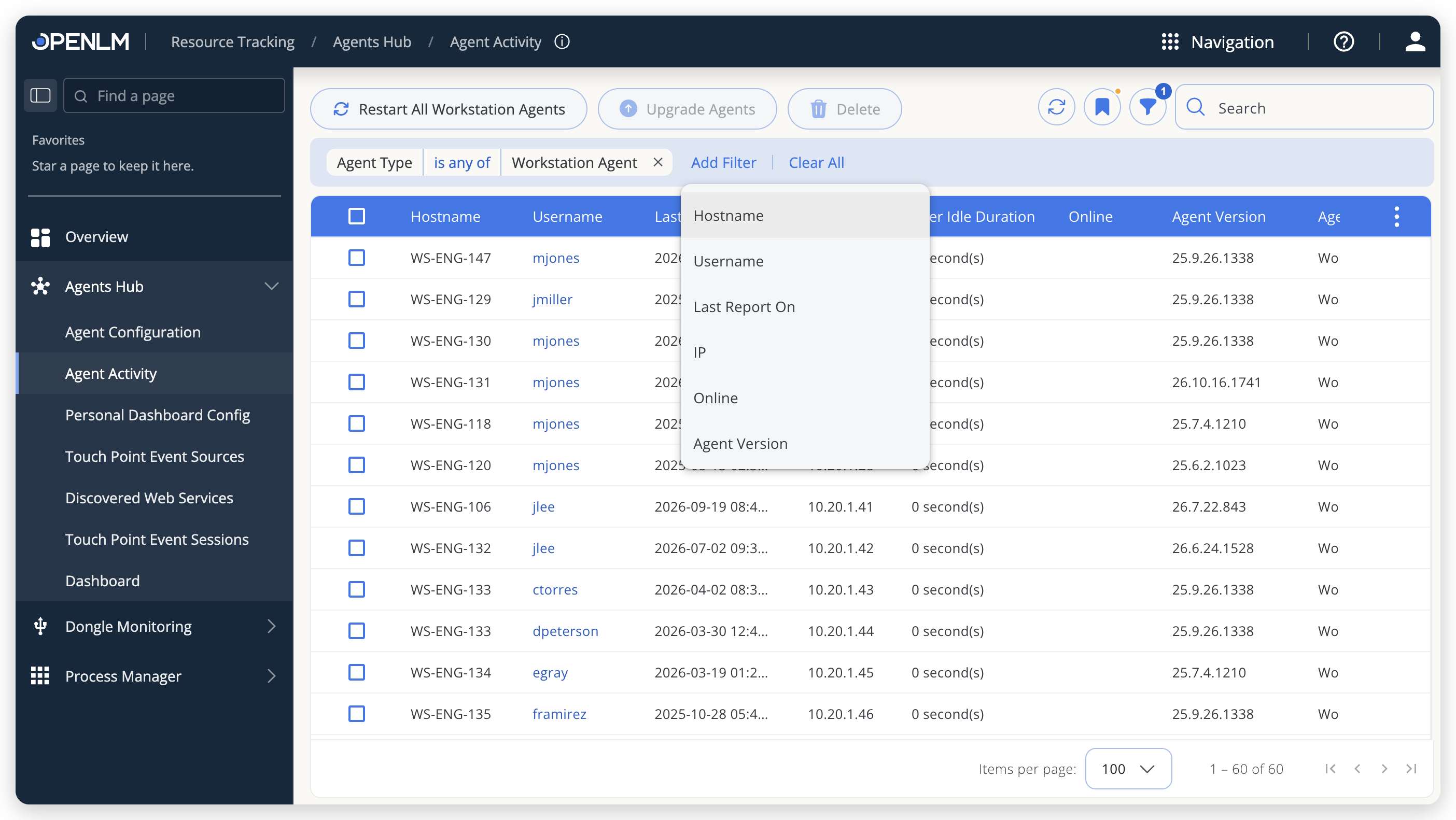 The filter bar with one filter applied. Add Filter lists the fields you can filter on, and the funnel icon shows how many filters are active.
You can filter on Hostname, Username, Last Report On, IP, Online, Agent Version, Agent Type, and Virtual. For Hostname, Username, IP, and Agent Version, type to search the available values.
Available filters
The following table lists the filters, their type, and how each behaves:
| Filter | Type | Behavior |
|---|---|---|
| Hostname | Multiselect | Type to search the values. |
| Username | Multiselect | Type to search the values. |
| IP | Multiselect | Type to search the values. |
| Agent Version | Multiselect | Type to search the values. |
| Online | Multiselect | Two fixed options: Yes (online) and No (offline). |
| Agent Type | Multiselect | Fixed options, one per agent type, for example ServiceNow ACC Agent and Workstation Agent. |
| Virtual | Multiselect | Three fixed options: Yes, No, and Unknown. |
| Last Report On | Date range | Limits the list to agents whose last report falls in the chosen range. Future dates can't be selected. |
Filters apply automatically as you change them (the console has no separate "Apply" button), and any filter change returns you to the first page. An agent must match every active filter. Within a single filter, an agent can match any selected value: for example, two selected host names return agents on either host.
Search box
The Search box highlights matches and doesn't filter. Typing in it highlights matching text in the rows shown. It doesn't reduce the list or change the total count. To narrow the list, use the filters instead.
Select agents for bulk actions
To act on several agents at once, select them first. Bulk actions (Upgrade Agents and Delete) act on the agents you select. Use the row check boxes to select agents. The header check box selects every agent on the current page.
To select agents on every page, select the header check box, then select "Select All 62 Agents" in the banner that reads, for example, "25 agents on this page were selected". The banner then reads "All 62 agents were selected" and offers a "Clear Selection" link.
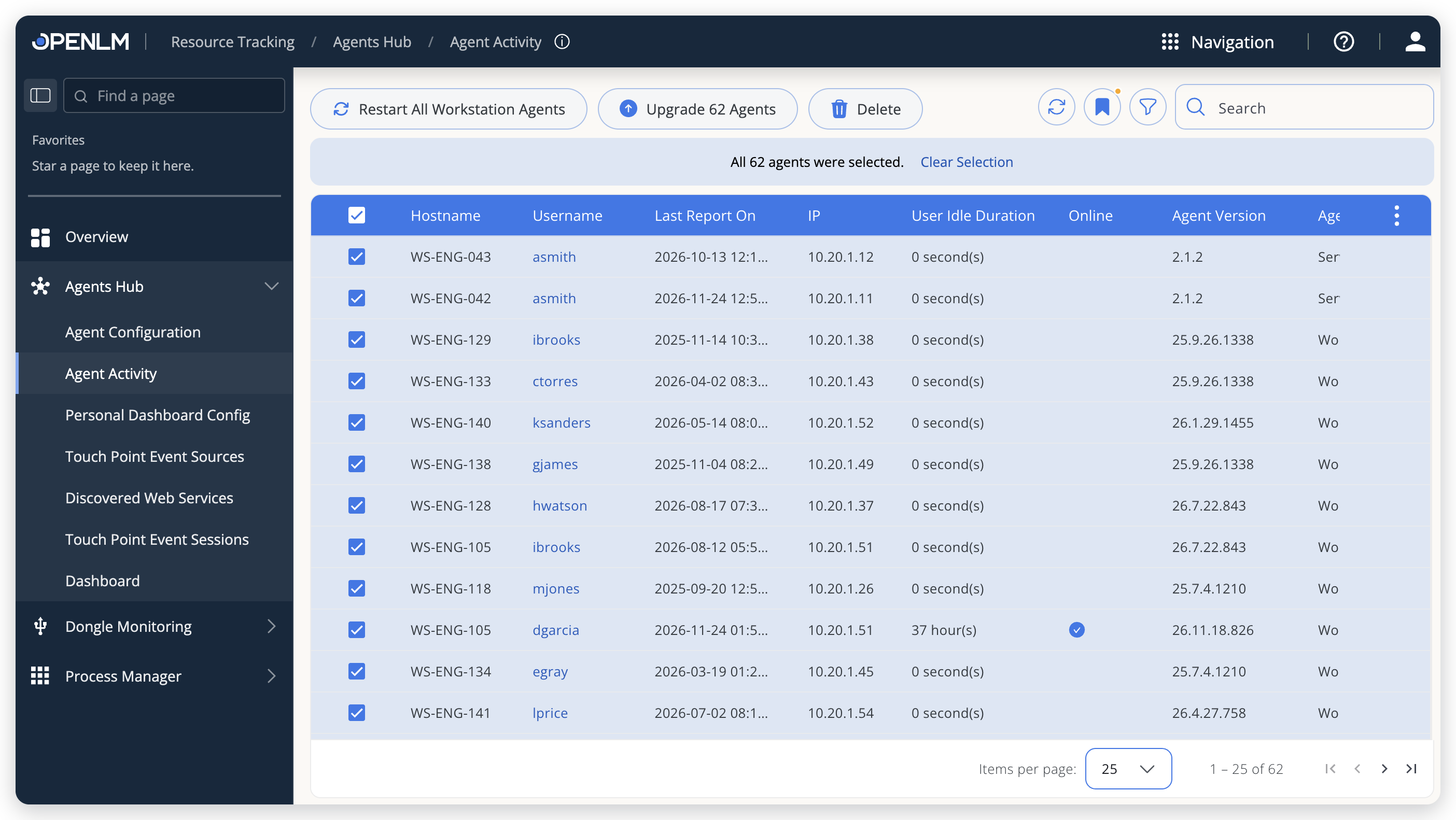 Global selection: all 62 agents are selected, and the button reads "Upgrade 62 Agents".
The console has two selection modes, which change which agents a bulk action affects:
- Specific agents: the exact rows you checked.
- All matching agents: after you select "Select All N Agents", the action affects every agent that matches all your filters, even those on other pages. With no filter applied, this means all agents.
Changing a filter or refreshing clears your current selection.
Upgrade agents
To move Workstation Agents to a newer version, upload a Workstation Agent installer (.msi) and select the agents. The target version comes from the installer's file name, so you don't enter a version.
Only Workstation Agents on Windows install the upgrade. If your selection includes other agent types, the console skips them. If it includes no Workstation Agent, the upgrade fails with "No upgradeable Agents found matching the provided selection criteria." Workstation Agents on Linux and macOS receive the request but don't install the .msi.
If auto-upgrade is already on, Upgrade doesn't ask for an installer. Confirm, and the console upgrades the selected agents to the version that auto-upgrade uses. To upgrade to a different version, turn auto-upgrade off first.
Upgrade the selected agents
To upgrade the selected agents:
-
Select the agents to upgrade.
Check specific rows, or use "Select All N Agents" to select agents on every page (see Select agents for bulk actions). The Upgrade button is unavailable until you select at least 1 agent.
-
Select Upgrade Agents.
The button label shows how many agents the action affects, for example "Upgrade 62 Agents". The Upgrade Agents dialog opens.
-
Select Upload File.
-
Select the Workstation Agent
.msiinstaller.The upload starts automatically, and a progress bar shows "Uploading… NN%".
-
Wait for the upload to finish.
If the upload succeeds, the file name shows as accepted. If the file is rejected, the reason appears beneath the file name.
-
Select Confirm.
The upgrade request is sent for your selected agents and the dialog closes. Confirm has no effect until a file has uploaded successfully.
-
(Optional) To stop instead, select Cancel.
The following screenshot shows the dialog.
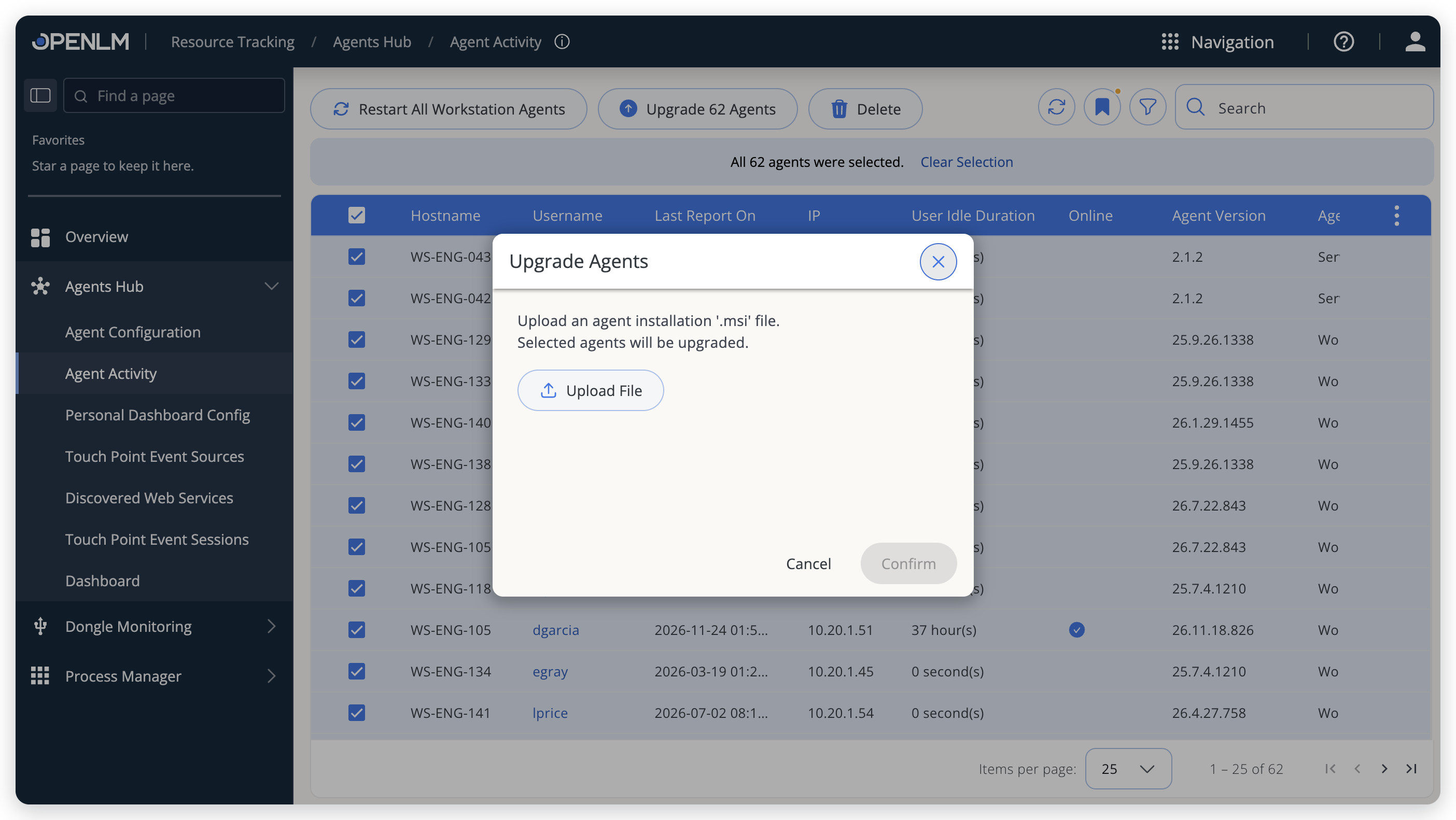 The Upgrade Agents dialog.
Installer requirements
The console checks the installer before it accepts it. The file name must:
- end in
.msi - contain both "openlm" and "agent" (not case-sensitive)
- contain a 4-part version number such as
25.9.26.1338
If a file doesn't meet these rules, the console rejects the upload with a message such as those listed in On-screen messages. The console ignores a file that isn't a .msi, without an error. The console accepts installers up to 250 MB.
Each agent checks the installer again before it installs it. The agent installs the upgrade only if the installer:
- is newer than the version the agent runs
- is 200 MB or smaller
- is signed by OpenLM, and the workstation can reach the certificate revocation service to check the signature
If a check fails, the agent keeps its current version. The console doesn't show this result.
Selecting Confirm queues the upgrade and turns on auto-upgrade. Selected agents that are connected receive the upgrade immediately and install it in the background. Selected agents that are offline receive it when they reconnect. Agents queued for upgrade show a small upgrade marker in the Agent Version column with the tooltip "This Agent was selected for upgrade." On success, the message "Agents upgrade request was sent successfully" appears.
While a Windows Workstation Agent upgrades, it stops and restarts, and data it buffered offline but hadn't sent yet is lost.
Agents share the installer peer-to-peer: in each subnet, one agent downloads it from Agents Hub and the other agents download it from that agent.
Auto-upgrade
Starting an upgrade turns on auto-upgrade for the uploaded version. While auto-upgrade is on, each agent in your upgrade selections that connects with an older version is upgraded to that version. Agents you didn't select, including agents installed later, aren't upgraded automatically. Auto-upgrade never downgrades an agent. A banner shows the active version, for example: "Auto-upgrade to "26.9.17.852" version is enabled".
Turn off auto-upgrade
To turn off auto-upgrade:
- Select Turn Off on the auto-upgrade banner.
- In the "Turn off Auto-upgrade" confirmation dialog, confirm to stop.
When you turn auto-upgrade off, agents that were already upgraded keep the new version. To start auto-upgrade again, upload the .msi file again. On success, the message "Auto-upgrade was stopped successfully" appears.
Restart all Workstation Agents
To restart every Workstation Agent, select Restart All Workstation Agents and confirm. Restarting is an administrator action, and it always affects all Workstation Agents. You don't select individual agents. The command goes to every Workstation Agent that is connected when you confirm. Agents that are offline don't receive it later.
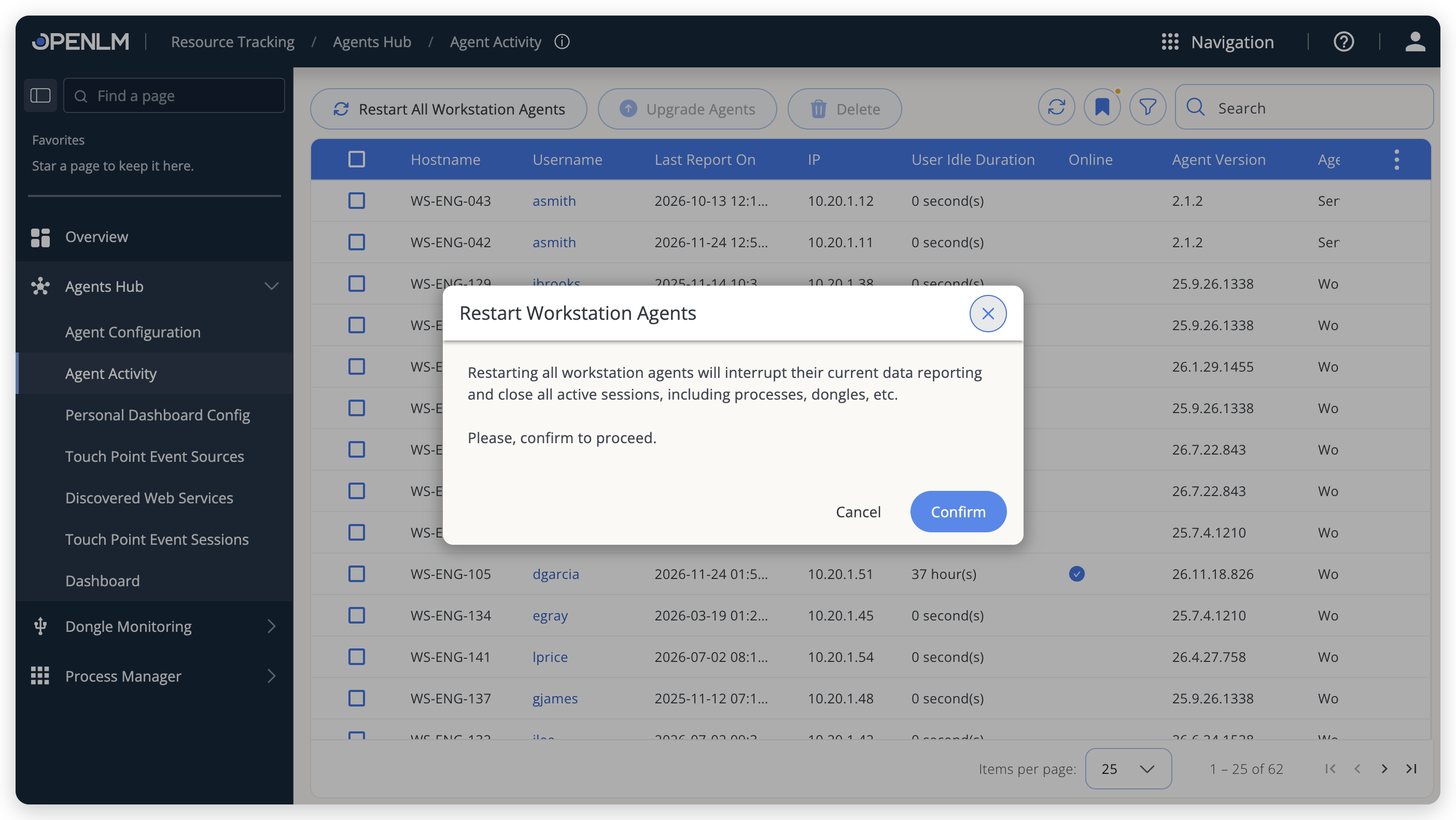 The restart confirmation dialog.
On success, the message "Agents restart request was sent successfully" appears.
Remove agents
To remove obsolete agent records from the console, use Delete. Removing is an administrator action.
- Select the agents to remove (specific rows, or all matching agents through "Select All").
- Select Delete.
- In the confirmation, confirm. The title is Delete selected agents or Delete all filtered agents, depending on how you selected, and the message states how many agents you delete, for example "Are you sure you want to delete 3 agents? Deleted agent records cannot be restored."
On success, the message "Agent information was deleted successfully" appears and the list reloads.
Deleting removes the agent's record from the console view. If the agent is still installed and active, it reports in again and reappears in the list.
Sign out
To sign out, open the User menu in the header (it shows your signed-in account) and select Sign out.
Troubleshooting
The following table lists common symptoms and what to do about each:
| Question or symptom | What to do |
|---|---|
| A "Not enough permissions" screen appears. | Your account has neither the Admin nor the Viewer role for Agents Hub. Ask your OpenLM administrator to grant a role. |
| The list is visible, but the Restart, Upgrade, and Delete buttons are not. | You have the read-only Viewer role. Ask your administrator for the Agents Hub Admin role. |
| The online status or timestamps look out of date. | The page isn't live. Select Refresh (or reapply a filter). OpenLM Platform checks once a minute whether Agents Hub is reachable. |
| An agent shows as offline but the machine is on. | The agent might not have reported recently, or Agents Hub was briefly unreachable. It returns to online after its next successful report. |
| An agent selected for upgrade keeps its old version. | Check that it is a Workstation Agent on Windows, and that the installer is newer than the agent, 200 MB or smaller, and signed by OpenLM. The workstation must reach the certificate revocation service to check the signature. |
| The installer upload failed. | Check the message under the file name and confirm the file name ends in .msi and contains "openlm", "agent", and a 4-part version number. |
| Typing in Search doesn't shrink the list. | Search only highlights matches. Use the filters to narrow the list. |
| The Upgrade button is unavailable. | Select at least 1 agent first. |
On-screen messages
The following sections list the messages that Agent Activity shows for confirmations, successes, and installer upload errors.
Confirmations
The following table lists the confirmation text for each action, quoted as the console shows it:
| Action | Confirmation text |
|---|---|
| Restart all Workstation Agents | "Restarting all workstation agents will interrupt their current data reporting and close all active sessions, including processes, dongles, etc. Please, confirm to proceed." |
| Turn off auto-upgrade | "If the upgrade is turned off any agents already upgraded will retain the new version. To run the process again you will need to upload ".msi" file again. Please, confirm to continue" |
| Delete agents | "Are you sure you want to delete N agents? Deleted agent records cannot be restored." (titled Delete selected agents or Delete all filtered agents) |
Success messages
On success, the console shows one of these messages:
- "Agents upgrade request was sent successfully"
- "Agents restart request was sent successfully"
- "Agent information was deleted successfully"
- "Auto-upgrade was stopped successfully"
Installer upload errors
The following table lists the installer upload errors and what each means:
| Message | Meaning |
|---|---|
| Only .msi files are allowed. | The file is not a .msi installer. |
| File must be an OpenLM Agent MSI. | The file name must contain both "openlm" and "agent". |
| Failed to parse Agent version from filename. | The file name has no 4-part version number (for example, 25.9.26.1338). |
| Total upload size exceeds the maximum allowed size of 250 MB. | The installer is larger than 250 MB. |
| File chunk is empty. / File name is required. | The upload was incomplete or malformed. Try the upload again. |
| File upload failed. | A general upload failure with no specific server detail. Try again. |
Empty state
When no agent has reported in yet, the table shows No agents reporting yet. When no agents match your filters, it shows No matching agents, with a Clear filters link that removes them.
Glossary
The following table defines the terms used on this page:
| Term | Definition |
|---|---|
| Agent | OpenLM software installed on a user's machine that monitors usage and reports activity to OpenLM Platform. |
| Workstation and ServiceNow ACC Agent | Agent types, distinguished by where the agent runs. |
| Online and offline | Whether the agent is reporting in. Shown as a check mark (online) or blank (offline). |
| Last Report On | The most recent time an agent reported in. |
| Auto-upgrade | A mode, turned on by starting an upgrade, in which selected agents that are offline upgrade to the uploaded version when they reconnect. |
| Admin and Viewer | The two Agents Hub roles. Admins can act on agents, and Viewers have read-only access. |
| Bulk action | An action (Upgrade or Delete) applied to multiple selected agents at once. |
| Global selection | Selecting agents on every page ("Select All N Agents"), rather than only the visible page. |
The documentation team might draft this page using a large language model. A technical writer reviews every page and verifies it against the product before publishing it. A human makes the final decision.