Software Asset Management (SAM)
To record what your organization owns and compare it with what it uses, open Software Asset Management (SAM). OpenLM Platform monitors what is being used (license checkouts on your license servers and applications running on workstations), and SAM supplies the other half of the picture: who you bought each license from, what you paid, how long it is valid, and which monitored feature or process it entitles you to run. Connect those two halves and OpenLM Platform shows whether you are over-licensed, under-licensed, or paying for software nobody runs.
What you can do with SAM
With SAM, you can do the following:
- Keep a list of the sellers you buy software from, with their contact details.
- Record an entitlement record for every purchase: the software, its business owner, the pricing type, the purchase order, the quantity, and the cost.
- Handle the three ways software gets bought: Perpetual licenses, SubscriptionBased licenses, and Maintenance (annual maintenance contract, AMC) renewals attached to an earlier perpetual purchase.
- Create an entitlement record from a purchase order document: OpenLM Platform extracts the fields for you, and you review them before anything is saved.
- Map each entitlement to the licensed features on a license server, or to the processes OpenLM Platform sees running on workstations, so ownership and usage line up.
- See which monitored features no entitlement covers, so no feature goes unaccounted for.
- Store the signed contracts behind those purchases, with their scope, versions, amendments, legal holds, and an append-only audit trail.
- Compare what you purchased with what is deployed on your license servers, in the Software Inventory and License Analysis reports.
- Send all of it to OpenLM Platform reporting, with costs also expressed in a single currency.
Record a purchase in SAM
To account for a software purchase, you record three things, in this order:
- Who you bought from: Register the vendor, reseller, or distributor as a seller. Do this first, because a purchase must name a seller, and only sellers that already exist can be picked.
- What you bought: Record the purchase as an entitlement record, with the commercial terms, the cost, and the licensed feature or process it entitles you to run. Connecting that entitlement to what OpenLM Platform monitors turns "50 licenses bought" into "32 of 50 licenses in use".
- What you signed: File the contract behind the purchase, so the agreement, its scope, and its clauses live next to the money.
Only the first two are needed to get value. Contracts matter when you have to answer what the agreement permits, not only what you paid.
Each of these has its own screen under Management in the SAM navigation: Sellers, Entitlement Records, and Contract Management. The Reporting section of the navigation holds the Software Inventory and License Analysis reports. See Compare what you own with what is deployed.
Where the features and processes come from
SAM does not discover software itself. SAM gets the feature and process lists you select from when mapping an entitlement from other OpenLM Platform services:
- Licensed features: Vendor, feature name, license type, version, and the servers reporting them. They come from OpenLM Platform license server monitoring, collected through OpenLM Broker and passed to SAM through the OpenLM Platform reporting pipeline.
- Processes and host names: They come from OpenLM Platform process monitoring, collected on end-user machines by the Workstation Agent. For more information, see What the Workstation Agent does.
Why is a feature or process missing from the mapping dialog?
If a feature or a process is missing from the mapping dialogs, the cause is usually in data collection, but not always. SAM skips license procurements that belong to a package or that arrive without a license-manager type, and process records that arrive without a process name or host name. If the data clearly reaches OpenLM Platform elsewhere but never appears in SAM, contact OpenLM Support rather than assuming the license server is at fault.
Expiry status
To see whether an entitlement has expired, check its Expiry Status, which is Active, Expired, or blank. You can't set it in the interface, because SAM calculates it.
Once a day, a scheduled server-side pass matches each entitlement against the procurement data OpenLM Platform holds for the same combination of feature name, version, vendor, and license type. A procurement whose expiry date is in the past counts as expired, and if any matching procurement is expired the entitlement becomes Expired: the strictest match wins. A future expiry date, or no expiry date at all (as with a perpetual license), counts as Active.
Keep these points in mind:
- Blank: Blank is a normal state, and it means "not evaluated". An entitlement that matches no procurement data keeps an empty Expiry Status cell, and filtering the column on Active or Expired does not return it. Because the match key includes the feature name, vendor, and license type, only entitlements mapped to license-server features can ever match: entitlements mapped to processes, and entitlements with nothing mapped, stay blank.
- Update delay: Changes take up to a day. The status is recalculated on the daily pass, not when you save. After a renewal arrives, an Expired entitlement changes back to Active on the next pass, and no button forces it sooner.
The CSV import template has an ExpiryStatus column, and an imported value is stored as given. Leave it blank and let SAM derive the status: the daily pass overwrites an imported value once it finds matching procurement data.
Mapping status
To see how much of a purchase is accounted for, check the Mapping status column. It compares the quantity you selected while mapping against the quantity on the purchase:
| Status | Meaning |
|---|---|
| Unmapped | Nothing is mapped: you selected no installations, or you saved the record with the mapping tab empty. |
| Partial | You mapped fewer installations than you purchased. Licenses remain unaccounted for. |
| Complete | Mapped installations match or exceed the purchased quantity. |
The Mapping status filter also offers Invalid. SAM never sets that state, so filtering on it returns no rows.
A purchasing quantity of -99 means unlimited, and SAM saves an unlimited entitlement as Complete once anything is mapped.
Before you begin
Confirm these prerequisites:
- An OpenLM Platform account with Software Asset Management activated in OpenLM Products.
- A SAM administrator role to create or change anything, or the viewer role to read it. See Roles and permissions.
- License and process data flowing into OpenLM Platform, so that entitlements have something to map to. See Where the features and processes come from.
- Your purchase paperwork: purchase order numbers, quantities, costs, dates, and, for contracts, the signed PDF.
To open SAM, select Navigation (the grid icon in the OpenLM Platform header), then Software Asset Management, then Software Asset Management.
Roles and permissions
What you can do in SAM depends on your assigned role. The following table lists each role and what it can do:
| Role | What you can do |
|---|---|
SAM administrator (SAM_Admin) | Full access. Everything a viewer can do, plus add, edit, and delete sellers, entitlement records, and contracts, import CSV files, upload purchase orders and contract PDFs, change contract and rule statuses, set and release legal holds, and open a contract PDF. Account administrators have the same access. |
SAM viewer (SAM_Viewer) | Read-only access. View the sellers, entitlement records, and contracts grids, their filters and details, the unmapped-features view, contract metadata, contract rules, and the audit log. Export CSV files. |
Keep these points in mind:
- Writes: Every write needs the administrator role: adding, editing, and deleting sellers, entitlement records, and contracts alike.
- Grid controls: Row selection check boxes, the Delete button, and the per-row edit icon appear only for administrators, on all three grids. On Sellers and Entitlement Records, administrators open a record with the edit icon, so a viewer reads those grids but cannot open a row. On Contract Management, selecting a row opens the contract for any SAM role.
- Contract PDF: A viewer cannot open a contract PDF. The document is the signed legal agreement and its exhibits can carry names, signatures, and financial terms, so only administrators can download it. Contract metadata, rules, and the audit log stay readable.
- Missing permissions: Users without any of the SAM administrator, SAM viewer, or account administrator roles see a missing-permissions page from the Sellers, Entitlement Records, Contract Management, and report screens. Ask your administrator to assign a SAM role. This page is separate from the activation notice, which depends on whether Software Asset Management is activated for your account, not on your role.
Key terms
These terms appear throughout this guide and in SAM. The following table lists each term and its meaning:
| Term | Meaning |
|---|---|
| Seller | The company software was purchased from. Created manually in SAM. |
| Entitlement record | One purchase: what you own, from whom, on what commercial terms, and which monitored feature or process it covers. |
| Procurement data | The licensed-feature records OpenLM Platform already holds from your license servers: feature, version, vendor, license type, server, quantity, and expiry date. SAM matches entitlements against this data to derive expiry status. Procurement data has no cost or purchase order information. |
| Pricing type | How the license was bought: Perpetual, SubscriptionBased, or Maintenance. The interface shows these values exactly as stored. |
| Maintenance (AMC) | An annual maintenance contract attached to an earlier perpetual purchase, recorded as its own entitlement record that names its parent purchase orders. |
| Parent purchase order | The purchase order of the perpetual entitlement that a maintenance record renews. |
| Mapping | The link between an entitlement record and the licensed features on servers, or the processes on hosts, that it entitles you to run. |
| Installation record | One mapped feature-and-server or process-and-host pairing, with the quantity it accounts for. |
| Unmapped feature | A monitored feature that no entitlement record covers. |
| Contract | The signed agreement behind one or more purchases, with its own scope, version, and rules. |
| Contract rule | A contract clause that software can check: temporal, quantity, geographic-entity, or product-version. A rule is in Proposed, Approved, Rejected, or Withdrawn state. |
| Legal hold | A marker that preserves a contract, blocking deletion until the hold is released. |
Get started
To open SAM and follow its typical workflow, use the following sections.
Open Software Asset Management
To open SAM, enter an address of the following form in your web browser. SAM runs inside OpenLM Platform:
https://cloud-XX.openlm.com/sam/#/sellers
where cloud-XX is your OpenLM Platform instance (for example, cloud-us). You can also open it from the OpenLM Platform Navigation menu.
SAM uses OpenLM Platform single sign-on, so it has no separate sign-in form. If you are not already signed in, your browser redirects you to the OpenLM Platform sign-in page and returns you to SAM afterward.
If you land on an activation notice instead of the interface, activate Software Asset Management in OpenLM Products. The same screen also appears when a request is refused for permission reasons, so if the product is already active, check your SAM role instead.
The SAM workflow
A typical path through SAM has these steps:
-
Add the seller you bought from, on the Sellers screen.
-
Record the purchase as an entitlement record.
Fill in the three tabs yourself, upload the purchase order and review what OpenLM Platform extracts, or import a CSV file.
-
Map the entitlement to the licensed features or the processes it covers, so ownership meets usage.
-
Check the gaps. Use Unmapped Features to find monitored features that no entitlement covers, and the Mapping status column to find purchases you have not fully accounted for.
-
File the contract behind the purchase, upload its signed PDF, and review the rules extracted from it.
-
Compare what you own against what is used. Entitlement and cost data goes to OpenLM Platform reporting.
Work with sellers
A seller is any company you buy software from: a vendor, a reseller, or a distributor. Sellers exist so that every purchase has an owner you can group and report by, and because an entitlement record cannot name a seller that does not exist.
View sellers
To view sellers, open Sellers. The grid lists every seller in your tenant, with these columns: Seller Name, Description, Contact Name, Contact Email, and Contact Phone.
The following image shows the Sellers grid.
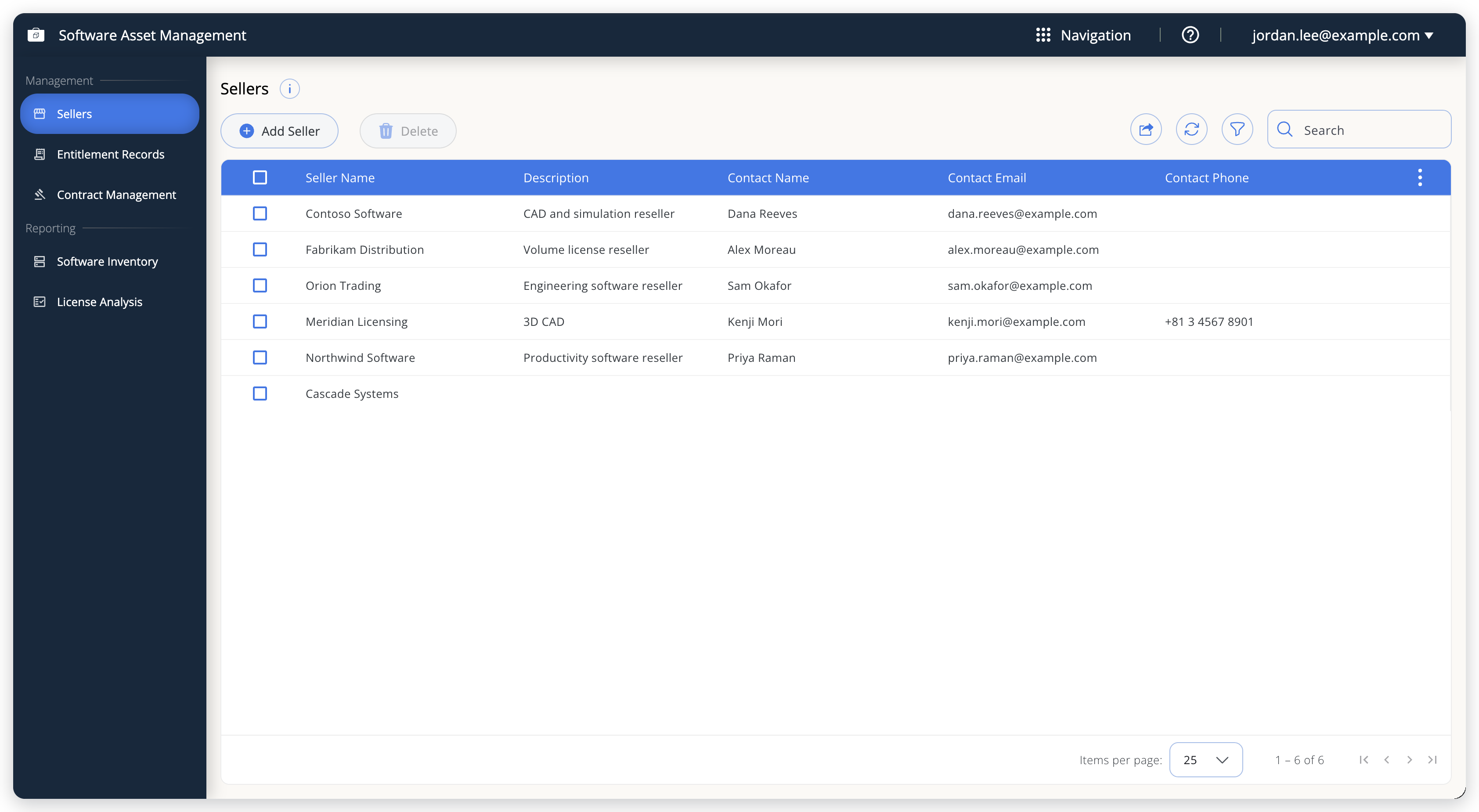 Sellers screen listing the companies you buy software from.
The toolbar has these controls:
- Add Seller: Adds a seller.
- Delete: Removes the sellers whose rows you selected. It is available after you select a row.
- Export CSV icon: Exports the list as a CSV file.
- Refresh and filter icons and the Search box: Reload the grid, show the per-column filters, or search it.
To open a seller for editing, hover over its row and select the edit (pencil) icon at the end of the row. Selection check boxes, Delete, and the edit icon appear only for administrators.
Search highlights text but does not filter. The toolbar search box highlights matching text in the rows already on screen. It does not narrow the list and does not search sellers on other pages. To narrow the grid, use the filter icon and the per-column filters.
Add a seller
To add a seller:
-
Select Add Seller.
-
Enter the seller details.
Only Seller Name is required:
Field Notes Seller Name Required, and must be unique in your tenant (the check ignores case). A duplicate is refused with "A seller with name -> <name>already exists!".Description Free text, useful for what the seller supplies, for example "CAD and simulation reseller" (computer-aided design). Contact Name Your contact at the seller. Contact Email Validated as an email address. The form does not accept plus-addressing ( name+tag@example.com) or top-level domains longer than 4 characters, such as.software.Country Name The seller's country. Also validates the phone number. Contact Phone Must start with +and the country code, for example+44, and is validated for the selected country. -
Select Save.
The following image shows the Add/Edit Seller form.
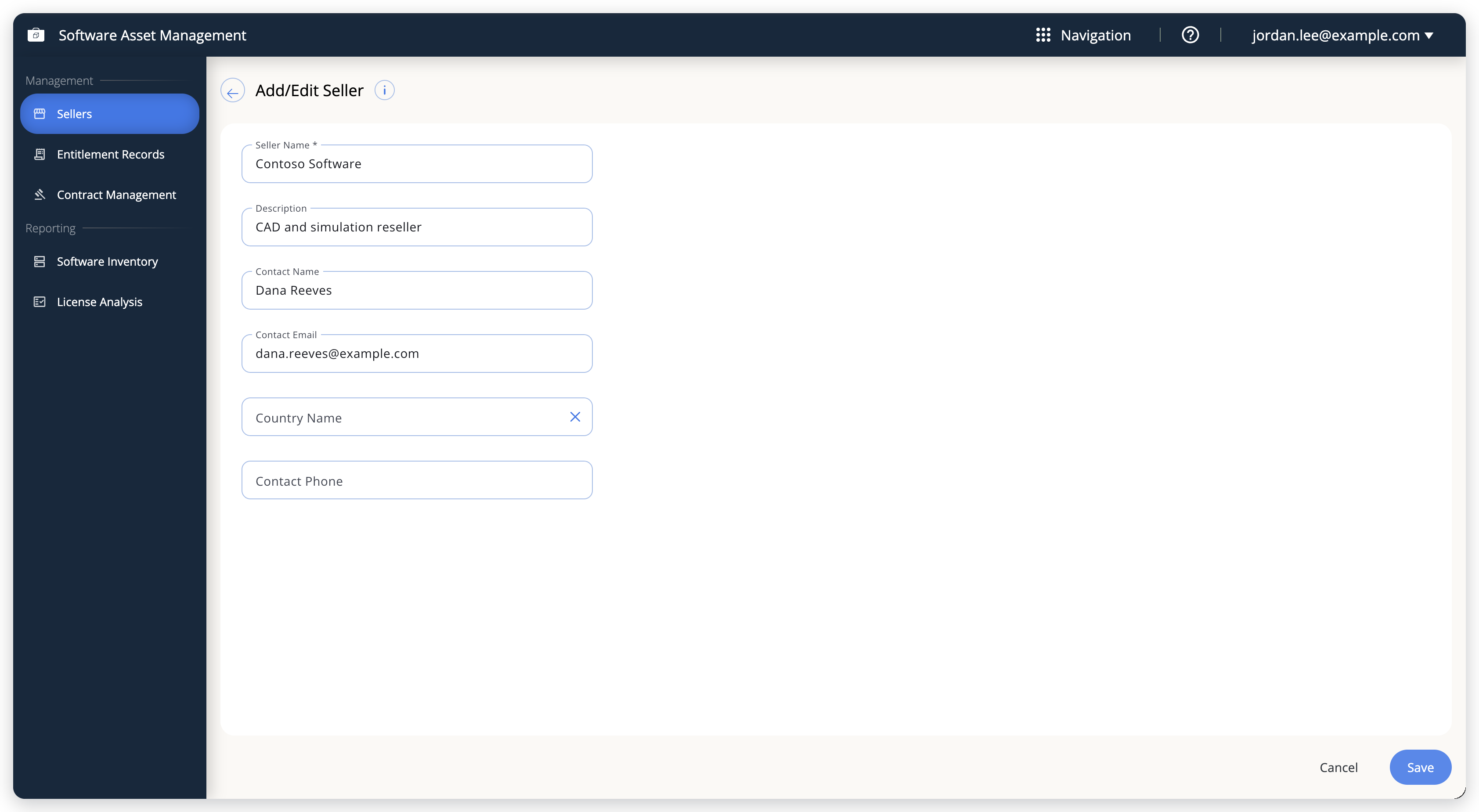 Add/Edit Seller form with the country and phone fields still empty.
Enter the country before the phone number. The phone number is validated against the country you select, and the check does not run again when the country changes. If you entered the number first and see an error, select the country and then edit the phone field again. Retyping its last digit is enough to clear the error.
If you leave the form with unsaved changes, a dialog asks whether to save them before you navigate away.
Renaming a seller also updates the seller name stored on every entitlement record that points at it, so existing purchases follow the new name.
Delete sellers
To delete sellers:
-
Select the rows you want to remove.
-
Select Delete.
-
Confirm the deletion.
The confirmation also offers to stop asking for a few minutes. Use that option only if you are about to delete several sellers in a row.
Deleting a seller does not delete anything that references it. Entitlement records survive and keep the seller's name. Contracts survive too, but a contract stores only the seller's internal id, so the Contracts grid then shows a raw id in its Seller column. Check both screens for a seller before you remove it.
Work with entitlement records
An entitlement record is one purchase: what you bought, from whom, on what commercial terms, and what it entitles you to run.
View entitlement records
The Entitlement Records grid has the following columns:
| Column | What it shows |
|---|---|
| Expiry Status | Active, Expired, or blank, derived by SAM. See Expiry status. |
| Seller | The seller the software was bought from. |
| Software Name | The normalized name of the monitored feature or process this purchase covers. |
| Software version | The version the entitlement applies to. |
| Feature | The licensed feature, for entitlements mapped to a license server. |
| Process Name | The process, for entitlements mapped to workstation software. |
| Business Owner | The person accountable for the entitlement and its correct use. |
| Pricing Type | Perpetual, SubscriptionBased, or Maintenance. |
| Purchase date | When the purchase was made. |
| License type | The license model reported by the license manager, for example Floating, NamedUser, or Disposable. |
| Mapping status | How much of the purchase is mapped. See Mapping status. |
| Subscription cycle | Monthly, Quarterly, or Annually, for subscriptions. |
The following image shows the Entitlement Records screen.
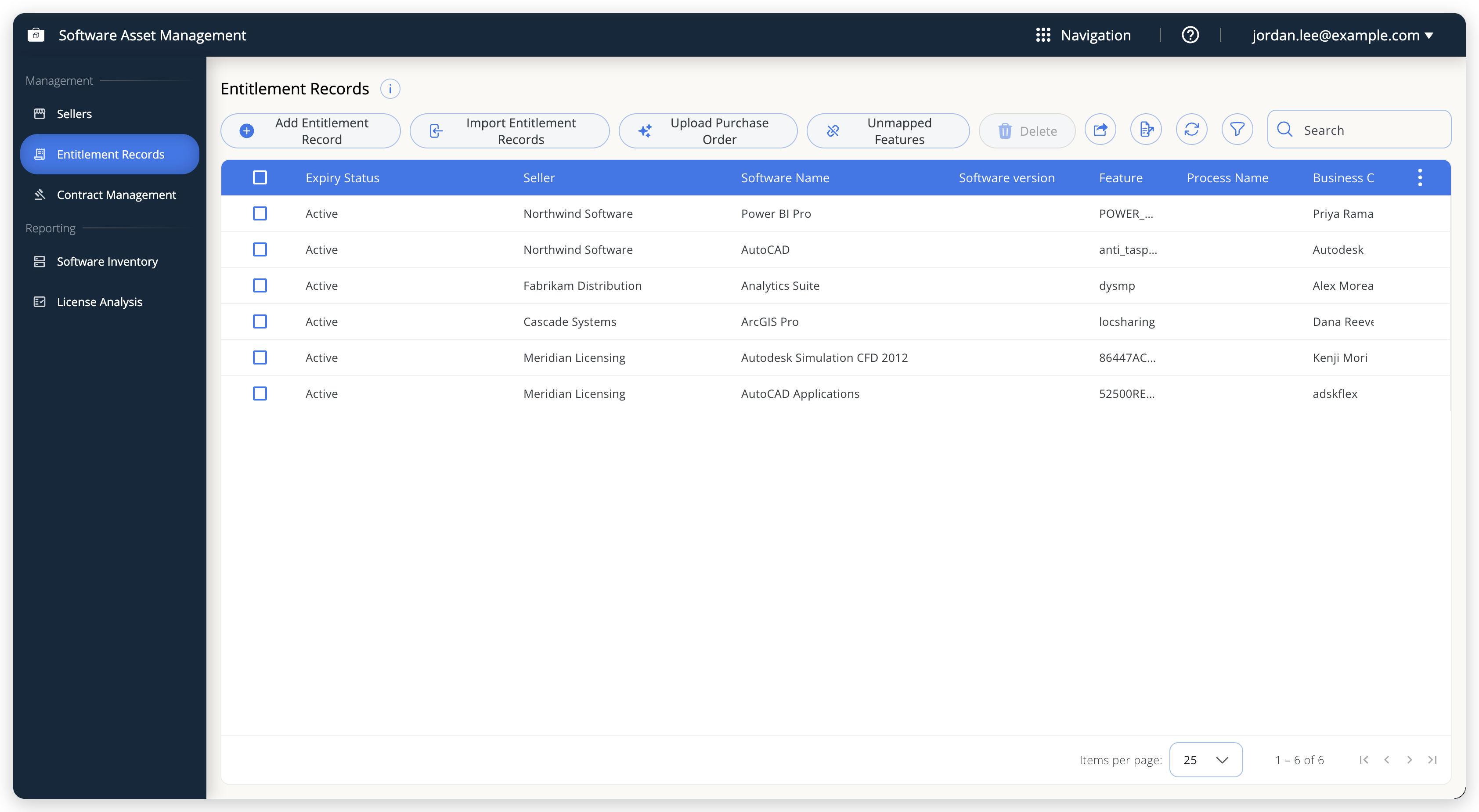 Entitlement Records screen with the four ways to add records and the Unmapped Features view.
The toolbar has four ways to get records in:
- Add Entitlement Record: Enter one record yourself.
- Import Entitlement Records: Load a CSV file.
- Upload Purchase Order: Extract one record from a document (cloud only).
- Export CSV Template: Prepare the CSV file.
The toolbar also has Export CSV to download your existing records, Unmapped Features to find what you have not accounted for, Delete, and the refresh, filter, and Search controls.
To filter by column, select the filter icon. Each column header becomes a filter: a multi-select drop-down list for 11 of the columns, and a date range for Purchase date. Search highlights matching text in the rows on screen rather than filtering the grid. Administrators open a record with the edit (pencil) icon that appears at the end of the row.
Add an entitlement record manually
To add an entitlement record yourself, select Add Entitlement Record. The form has three tabs (General, Purchase Information, and Feature/Process Mapping) and a single Save button covering all of them.
If a required field is missing, SAM does not save and shows an error naming the first missing field, for example "Purchase Order is required." SAM shows the tab that holds the field. Only one missing field is reported at a time.
General tab
Under Seller and Software, Seller, Software Name, and Business Owner are required, though only Seller is marked with an asterisk. Vendor Product ID is optional:
- Seller: pick from your sellers. If the seller is missing, add it in Sellers first.
- Software Name: the normalized name of the monitored feature or process the purchase covers. This field is unavailable until you pick a seller.
- Business Owner: who is responsible for managing this entitlement and ensuring the software is used correctly.
- Vendor Product ID: the identifier the vendor uses for this product, such as a plan, tier, or edition code. Optional, up to 256 characters.
Purchase Information tab
This tab records the money and the term. Enter these fields on every purchase:
| Field | Notes |
|---|---|
| Pricing Type | Required. Perpetual, Maintenance, or SubscriptionBased. Your choice changes which of the remaining fields appear. |
| Purchase Date | Required. Must not be later than the license start date. |
| Purchase Order | Required: the purchase order number. |
| Item Number | Required: the line item on the purchase order. |
| Purchase Country | Required. |
| Purchase Currency | Required. The currency the purchase was paid in. |
| Purchasing Quantity | Required, and greater than 0, or -99, which means unlimited. |
| Unit Cost | Required, and greater than 0. |
| Total Cost | Calculated and shown, not entered. |
The remaining fields depend on the pricing type:
- Perpetual: adds License Start Date, and an Is Maintenance Cost Included toggle. Selecting it adds Unit Maintenance Cost, Maintenance Start Date, and Maintenance End Date. A perpetual license must not have a license end date.
- SubscriptionBased: adds Subscription Cycle (Monthly, Quarterly, or Annually), License Start Date, and License End Date. The end date must not be earlier than the start date.
- Maintenance: adds Parent Purchase Order (required), Maintenance Start Date, and Maintenance End Date. No license start or end date applies.
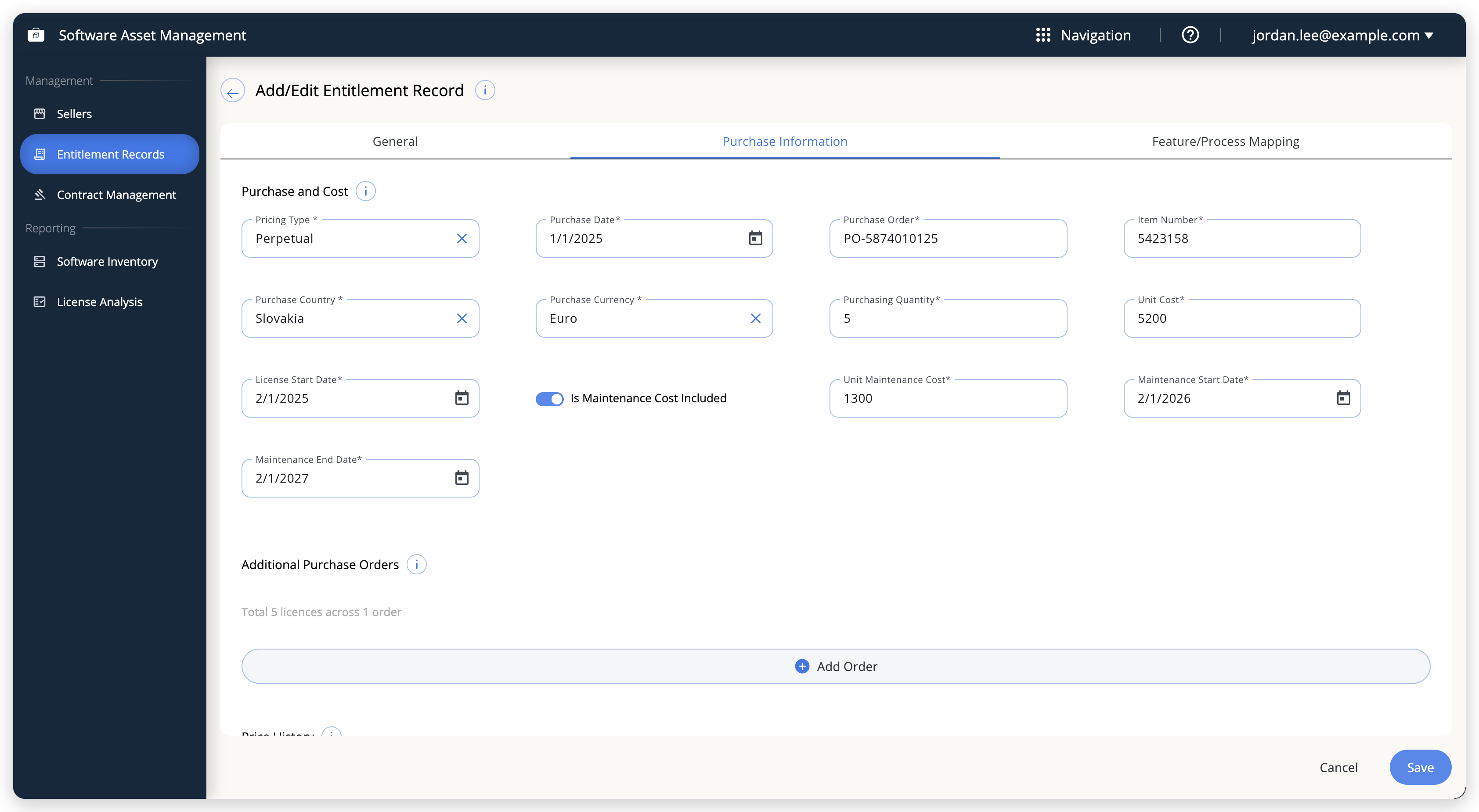 A perpetual purchase with maintenance folded in.
Keep these two rules in mind:
- Maintenance term: Maintenance folded into a perpetual purchase must be a supported term. When you turn on Is Maintenance Cost Included, SAM sets the maintenance end date to 1 year after the start date you pick. When you add a record, it also accepts 1, 3, or 6 months, or 1 to 5 years, and rejects any other span. Editing a saved record still requires exactly 1 year, and the error then reads "Time span starting AMC start date till AMC end date should be 1 year." Any other term belongs in its own record with pricing type Maintenance, which accepts any end date on or after its start date.
- Maintenance coverage: A maintenance record cannot cover more licenses than were bought. The Parent Purchase Order list offers the purchase orders of existing perpetual entitlements for the same feature (matched on vendor, license type, and feature name) or the same process. Only perpetual records can be parents. SAM adds up the quantities on the parents you select and rejects the record if its purchasing quantity is higher.
Additional purchase orders and price history
When you buy more of the same product later, as a top-up or a renewal, record it as an additional order on the existing entitlement record instead of creating a duplicate record. The purchase order at the top of the tab stays the primary order.
- Under Additional Purchase Orders, select Add Order.
- Fill in the order: Purchase Date, Purchase Order, Item Number, Purchasing Quantity, Purchase Currency, Purchase Country, and Unit Cost are required. The remaining fields follow the record's pricing type, as for the primary order.
- Select Save.
To remove an order, use its remove action. Removing an order also removes its entry from the price history.
The summary line under the heading reads, for example, "Total 5 licences across 1 order". It adds up the quantities of every order that has a purchase order number, the primary order included, and shows the coverage dates when the orders have them.
Price History is a read-only list of the primary order and every additional order, most recent first, with Effective (the purchase date), Order, Qty, and Unit Cost. As the screen notes: "A corrected price applies from its own date forward. Figures already reported stay as they were."
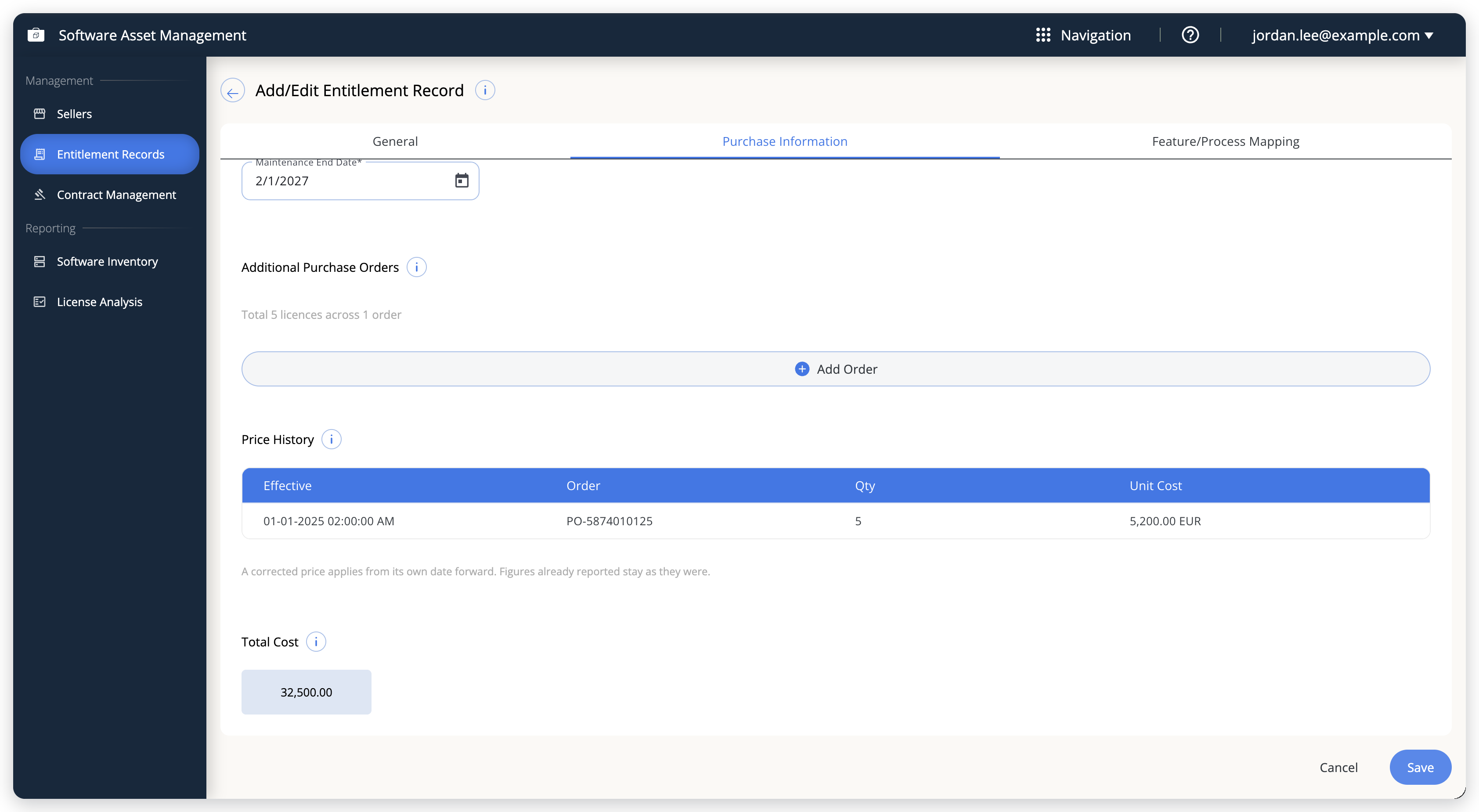
Additional orders count toward Total Quantity in the Software Inventory and License Analysis reports only when the license feed does not supply a quantity. When it does, the feed's number wins. The Total Cost box on this tab shows the primary order only.
Feature/Process Mapping tab
This tab is optional. You can save an entitlement record with nothing mapped (its mapping status becomes Unmapped) and map it later.
To map an installation record:
- Select Map Installation Record.
- Select Features or Process. An entitlement record maps to one or the other, never both.
- Features opens Map Features: pick one or more features from the grid of monitored features (Quantity, Expiry Status, Feature Name, License Type, Vendor Name, Version) and enter in Quantity how many units of that feature one unit of the product gives you (for example, 6 tokens per license). SAM multiplies it by the total purchased quantity across all orders and shows the result as Units Owned in the mapped-feature list after you save. Then pick the servers reporting it (Server Name, Quantity, Token?), where Quantity is the figure the server reports rather than an entry field.
- Process opens Map Processes: pick a process (Expiry Status, Process Name, Version), then the hosts running it.
- Select Add.
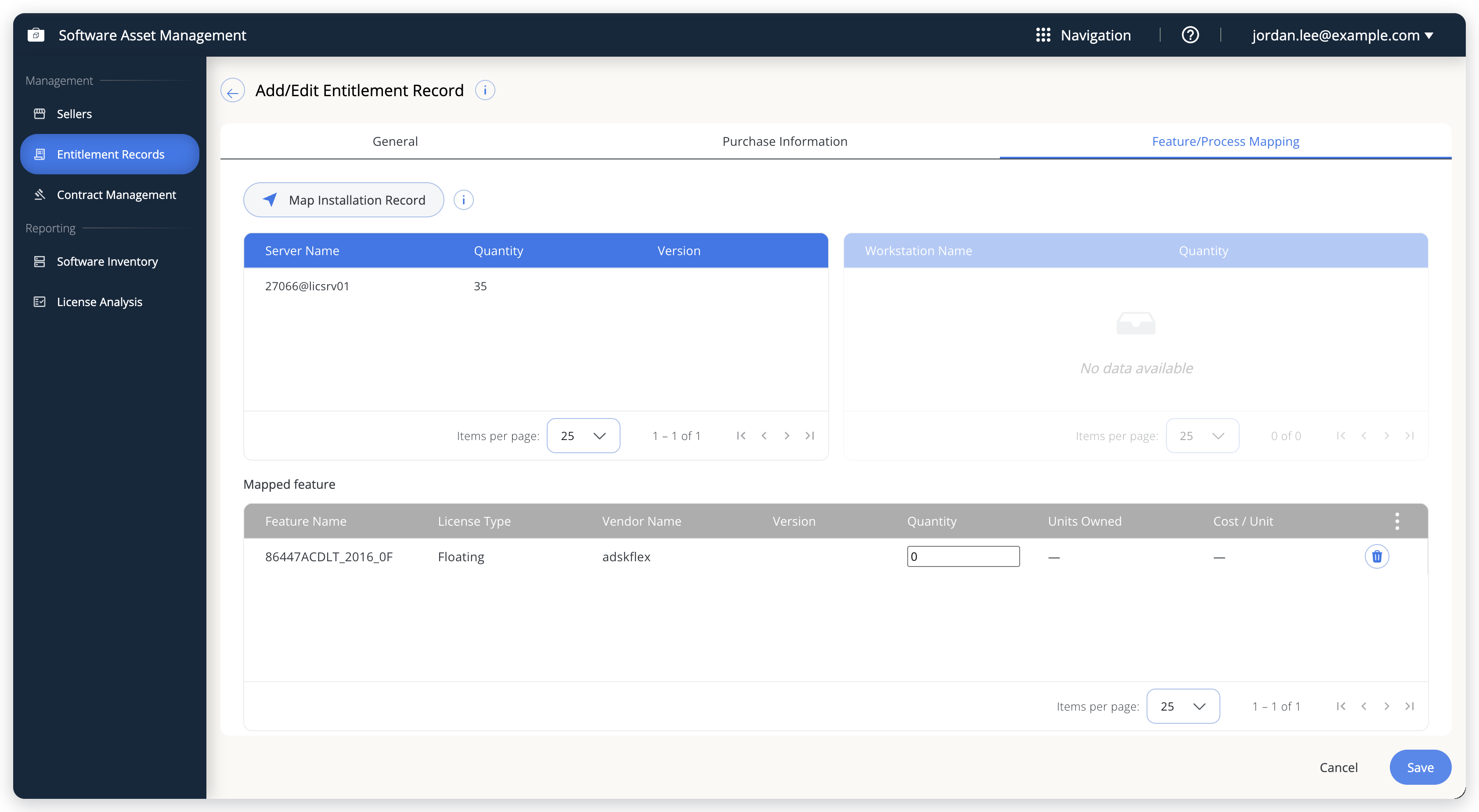 The mapping tab of a saved record: the installations you selected at the top, and the mapped-feature ledger under them.
The top of the tab lists the installations you selected: Server Name and Quantity for features, or Workstation Name and Quantity for processes. The side you did not use is grayed out. The mapped ledger lists Feature Name, License Type, Vendor Name, Version, Quantity, Units Owned, and Cost / Unit for features, or Process Name, Version, and Selected Quantity for processes. Each row has a remove action that unmaps it after a confirmation.
- Duplicate mapping: A feature another entitlement already covers cannot be mapped twice. Such features appear grayed out and labeled Mapped to
<product>in Map Features. If you select one, SAM clears the selection and shows a warning. Unmap it from the other record first. - Allocation limit: You cannot allocate more than you purchased. For license-server features, SAM caps the mapped quantity at the purchasing quantity and saves, unless your edit lowers Purchasing Quantity to less than what is already mapped, which is rejected. For processes, saving fails if you map more workstations than you purchased. Map fewer, or raise the quantity on the Purchase Information tab.
- Editing mapped records: Editing a record mapped to processes can be rejected even if you did not change the quantity. The error reads "Purchasing Quantity can't be reduced below the
<N>installation(s) already allocated." This is a known issue.
Create an entitlement record from a purchase order
To skip entering a purchase by hand, upload the purchase order and OpenLM Platform reads it. This is available on the cloud-hosted OpenLM Platform only.
-
Select Upload Purchase Order.
-
Select or drag in the file. SAM accepts PDF, PNG, and JPG files, up to 20 MB.
-
Select Extract details and wait while the document is analyzed.
-
Review the extracted fields on the Review Extracted Details screen.
SAM shows the document alongside the extracted fields, arranged in 2 tabs: Seller & Software and Purchase Information.
-
Correct anything that is wrong, then select Create Entitlement Record.
You don't need a template: SAM reads purchase orders as they are, and each line item becomes its own entitlement record. The overall confidence drops when the document leaves out any of the 7 core fields: purchase order number, seller, quantity, unit cost, total cost, purchase date, and currency. If a field comes back NOT FOUND, enter it on the review screen. To add many records at once, use Import Entitlement Records with the CSV template instead.
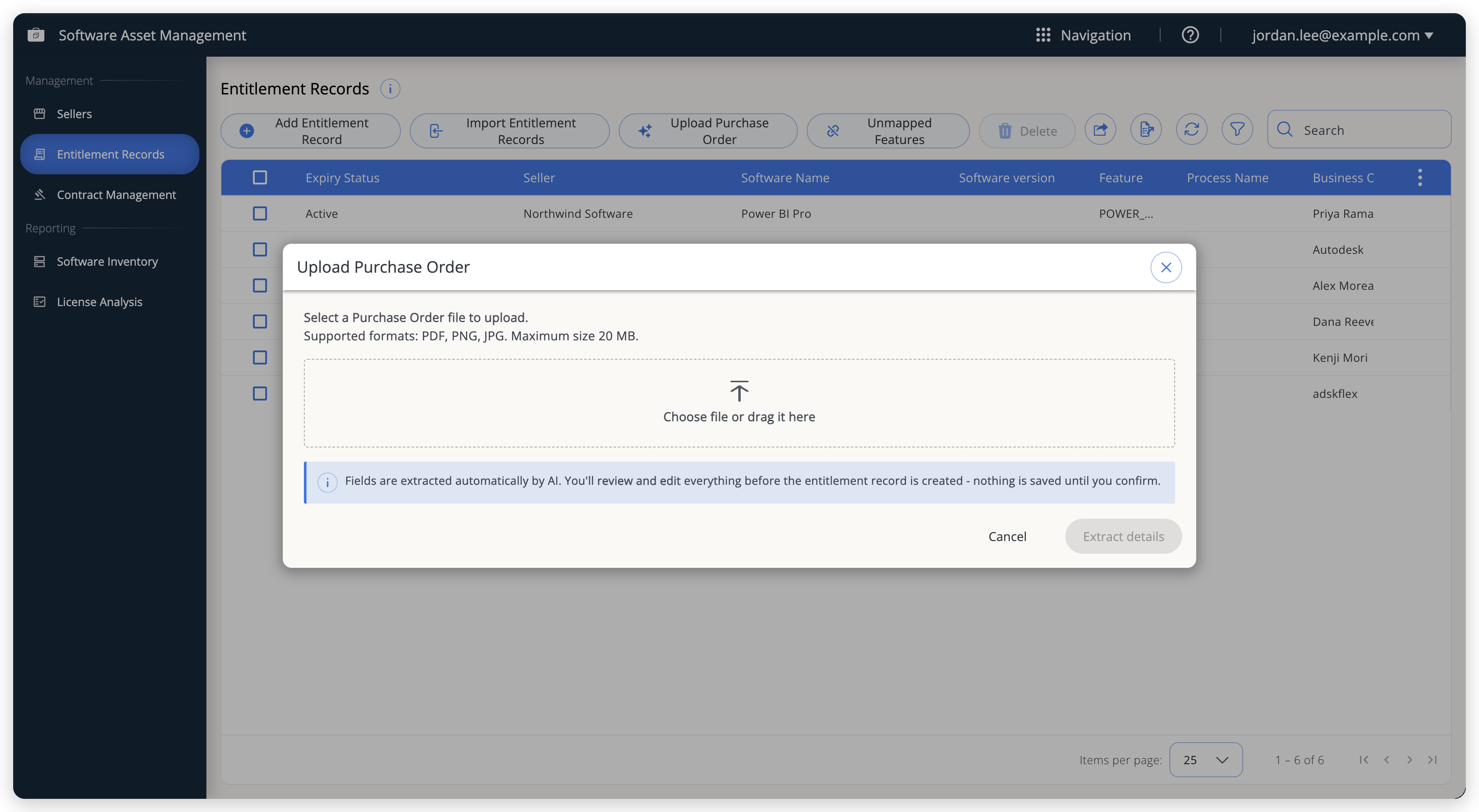 Uploading a purchase order. Nothing is saved until you confirm the extracted details.
The extractor scores the money and identity fields: purchase order number, seller, software name, quantity, unit cost, total cost, purchase date, currency, and the license dates. Each scored field carries a confidence chip, and the document shows an overall confidence. The following table lists the chips:
| Chip | Meaning |
|---|---|
| HIGH | 80% confidence or higher. |
| MEDIUM | Between 55% and 80%. |
| LOW | Less than 55%. |
| NOT FOUND | The field was not found in the document. |
Any field that comes back LOW or NOT FOUND, or that is empty and needed for the pricing type you chose, is highlighted and marked "Please verify this field" until you edit it. Fields the extractor does not score carry no chip, so a missing chip does not mean the value was confirmed.
It asks for the same facts but behaves differently in places: Total Cost is editable here, and the unlimited quantity value -99 is rejected. Nothing is saved until you select Create Entitlement Record, so check every money field regardless of what its chip says.
A record created this way starts with no mapping, so open it afterwards and map it.
Import entitlement records from a CSV file
To import entitlement records from a CSV file:
-
Select the export icon at the top of the grid (tooltip Export CSV Template) to download the template.
The template is a header row with no data.
-
Fill in one row per entitlement record.
-
Select Import Entitlement Records.
-
Choose your file (up to 500 rows).
-
Select Continue.
-
In Review Entitlement Records, fix any flagged rows.
-
Select Submit.
The template's columns are:
SellerName, SoftwareName, BusinessOwner, SerialNo, FeatureName, Vendor, LicenseType,
ProcessName, SoftwareVersion, ServerName1, ServerName2, ServerName3, HostName1,
HostName2, HostName3, PricingType, SubscriptionCycle, PurchaseOrderNumber, ItemNumber,
PurchaseDate, LicenseStartDate, LicenseEndDate, PurchaseQuantity, UnitCost,
IsMaintenanceCostPresent, UnitMaintenanceCost, AmcStartDate, AmcEndDate,
ParentPurchaseOrderNumber1, ParentPurchaseOrderNumber2, PurchaseCurrency,
PurchaseCountry, TotalCost, ExpiryStatus, QuantityPerProduct, FeatureVersion
The last 2 columns are optional.
SAM validates imported rows exactly like rows you enter by hand, so the pricing-type rules apply. Rows are saved one at a time: the rows that pass are created even when others fail. Each failed row is flagged in the preview with its error. Resubmitting sends every row again, so remove the rows that were already created before you submit again, or they fail as duplicates. A row whose Purchase Order and Item Number pair already exists is one of those failures.
The server and host columns are numbered because a row can map up to 3 servers and 3 hosts. For anything larger, map in the interface.
The template download is empty by design: headers only. To export your existing records, use the Export CSV button at the top of the grid.
Find features that no entitlement covers
Select Unmapped Features to open a read-only view described in the app as "Every feature in the tenant that no product currently owns."
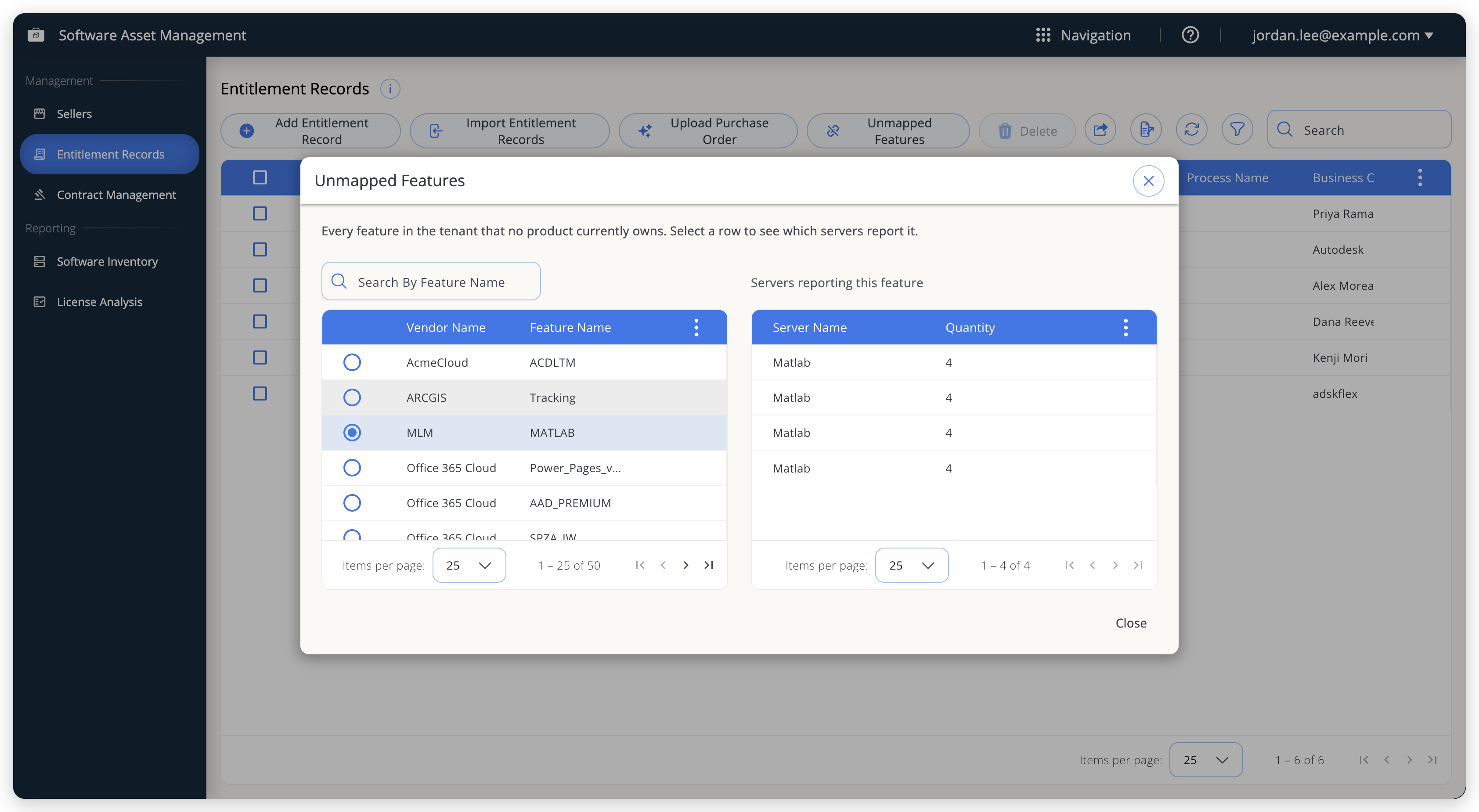 Unmapped Features: monitored features that no entitlement record covers, and the servers reporting the selected one.
Search by feature name, then select a row to see the servers reporting that feature and the quantity each reports. This is the list to work through when you want confidence that everything OpenLM Platform monitors is backed by something you own: each entry is either a purchase you have not recorded or software you are running without an entitlement.
Delete entitlement records
Select the rows and select Delete, then confirm.
Work with contracts
To keep the signed agreements behind your purchases, use Contract Management: "Contracts are the licensing agreements signed with sellers." Each contract carries its own scope, version history, signed PDF, rules that software can check, and an append-only audit log.
Contract Management is available on cloud deployments only.
An open contract has these tabs: Overview, Document, Publication, Violations, Conflicts, Purchase orders, Entitlements, and Audit log. Every tab after Document works only on a saved contract. Until you save, each shows a message such as "Save the contract first to link purchase orders."
View contracts
The grid lists Title, Seller, Status, Parsing, Violations, Version (shown as v1, v2, and so on), Effective, Expiry, Hold, Created, and Updated. The status shows as a colored chip:
| Status | Meaning |
|---|---|
| Draft | Being prepared. |
| In review | Under review, not in force. |
| Active | In force. |
| Expired | Past its expiry date. |
| Superseded | Replaced by a later amendment in its chain. |
The Hold column marks contracts under legal hold, which cannot be deleted while the hold stands.
The Parsing column shows where the signed PDF is in parsing: Not parsed, Queued, Parsing…, Parsed, Parse failed, or Parsing skipped. The Violations column counts the contract's Open compliance violations. Acknowledged violations are not counted. See Track compliance violations.
To find contracts, enter part of a seller's name in Search by vendor name, or turn on the filters and filter by seller, status, expiry range, hold, or parsing status.
Save a set of filters
If you use the same filters often, save them as a named set:
-
Set the filters, the vendor search, or both.
-
Select Save Filters.
This button appears once a filter or search is set.
-
Enter a Name.
-
Select Save.
Reusing a name replaces the set that has it.
To apply a set later, select Saved Filters, then select its name. To delete a set, select the remove icon next to it. Deleting asks no confirmation.
Saved sets live in this browser only. They are not shared with other users or other browsers, and clearing the browser's site data removes them.
Add a contract
To add a contract:
-
Select Add Contract.
-
On the Overview tab, fill in the Contract metadata.
Title, Seller, Effective date, and Expiry date are required. Optionally, set Relationship to link this contract into an existing chain as its amendment.
-
Under Scope, decide which subjects the contract applies to.
Product scope mode governs both Product SKUs and Vendors. Entity scope mode governs both Legal entities and Geographic regions. Each mode accepts
All,Whitelist(an allow list), orBlacklist(a deny list), and the chip lists under the modes hold the values. -
Select Save.
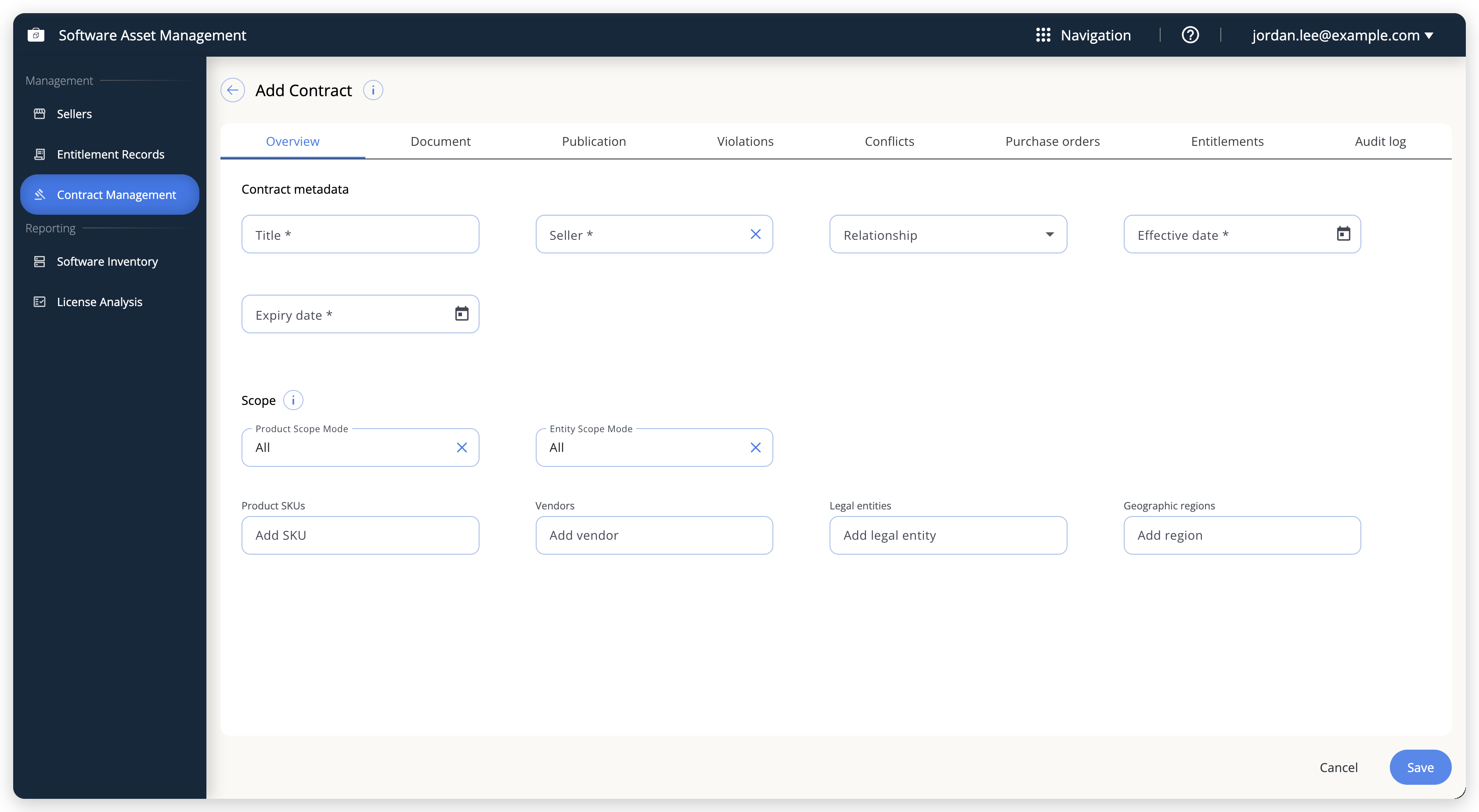 Adding a contract. Scope is set here once. After the first save, it can only change through a new amended version.
Only Title, the amendment link, and the version number can be edited afterwards. Seller, Effective date, Expiry date, and everything under Scope are locked, and changing them requires a new version that amends this contract. The app states the rule for scope plainly: "Decides which subjects this contract applies to — set once at creation, changed only via a new amended version."
The scope chip lists still appear editable on a saved contract. Anything you add or remove there is discarded on save even though the app reports success, so do not rely on it.
After a contract is saved, its Overview tab has a collapsible Technical details section with the MIME type, the PDF's SHA-256 checksum, who created and last updated it, the parsing state, when it was last parsed, how many parse attempts there have been, and a parse error when the last attempt failed. The original file name is shown on the Document tab.
An Amendment chain section lists the chain's versions in order. A contract that amends nothing and has not been amended shows a single entry: itself. Within a chain, a later amendment replaces earlier rules for the same clause category.
The header of an open contract shows its status chip, version, and legal-hold chip, along with a Change status control and a legal-hold button.
Upload the signed PDF
On the Document tab, select or drag in the contract PDF. The file is staged with the note "Will upload when you Save" and uploaded when you save the contract. A preview appears in the tab, and you can remove a staged file before saving.
SAM accepts PDF files only, and checks the file's content rather than trusting its name. The drop zone advises a 40 MB maximum: the upload is refused over 50 MB, and a document larger than 40 MB is stored, but parsing ends as Parse failed with a size error. Keep contracts under 40 MB so they are parsed.
After the PDF is stored, OpenLM Platform queues it for parsing and reports the outcome on the Overview tab as Not parsed, Queued, Parsing…, Parsed, Parse failed, or Parsing skipped. A contract stays Not parsed until a worker picks it up. Parsing proposes contract rules for you to review. A contract whose parse fails is still saved, but unparsed.
The PDF itself does not leave your cluster. OpenLM Platform extracts the text locally and removes personal data from it: signature blocks, names in labeled positions such as "signed by", "attention", and "name:" fields, and by default also currency amounts, email addresses, and phone numbers. It then sends only that scrubbed text to the external model service it uses for extraction. The document stays in OpenLM Platform object storage. Company and legal-entity names are deliberately kept, because the geographic and entity clauses SAM extracts depend on them.
Review contract rules
The rules panel on the Document tab appears once a contract is saved. Rules are the clauses of the contract that software can check, in 4 categories (Temporal, Quantity, Geographic entity, and Product version), and sit in 3 tabs: Proposed, Approved, and Rejected.
Every card shows where the rule came from (Human, AI, or AI, edited by human). On the Proposed tab a card also shows a structural confidence and, for AI proposals, an LLM confidence, quotes the source text it came from, and offers Jump to page to show that text in the PDF. Approving or rejecting a rule removes the quote and the confidences from the card, and the evidence stays in the audit log. Approved cards show the rule's validity window instead. Show expression tree reveals the exact logic behind any rule. Only temporal rules get a plain-language summary. Other shapes show a placeholder.
Change status moves a rule along a fixed path: a proposed rule can be approved or rejected, an approved rule can only be withdrawn, and a rejected rule can only go back to Proposed. Withdrawing is final, so author a replacement rather than withdrawing a rule you might want back. The dialog asks for a Reason, which is required when you reject or withdraw.
Only approved rules take effect, and only while the current date falls inside the rule's own validity window. Within one amendment chain, a single rule per clause category is enforced: the latest amendment wins.
Add rule and Edit both use the temporal rule form: the dialog says "Only temporal rules can be authored here. Quantity, geography and product-version rules aren't available yet." Editing a proposed Quantity, Geographic entity, or Product version rule converts it into a Temporal rule and discards its original expression. Reject such a rule and author a replacement instead of editing it.
Check which rules are enforced
The Publication tab shows which of the contract's rules are in the rule set that OpenLM Platform enforces. The tiles at the top show the number of Approved rules, how many of them can be published (Registerable), how many are In current snapshot, and your account's Tenant rule set version, shortened to its first 8 characters. Select the copy icon to copy the full version.
The grid lists each rule with its Category, Status, whether it is published, and, in Why not, a plain sentence explaining why a rule is not enforced. For example:
- "This rule has not been approved yet, so it is not being enforced."
- "This rule has not started yet. It will be enforced from its start date."
- "This rule has ended, so it is no longer being enforced."
- "This contract is
<status>, so none of its rules are being enforced." - "Location-based rules cannot be checked yet, because usage data records the country at best and not for every licence."
Review a contract's violations and conflicts
The Violations tab lists the compliance violations that involve this contract, with Severity, Subject, Message, Rules, Verdict, Status, and Evaluated. Administrators can acknowledge or resolve each one, as on the compliance violations dashboard.
The Conflicts tab is read-only. It lists open conflicts between this contract and others: 2 or more contracts that set different values for the same clause category. Each row names the Clause category, an example subject, and the conflicting contracts with their values. Select a contract name to open it.
Link purchase orders to a contract
The Purchase orders tab connects the contract to the purchase order lines it covers. The grid shows each linked line's PO number, Item, Vendor, SKU, and Quantity, how it was matched, and any other contracts the same line is linked to.
To link a line (administrators only):
-
Select Link Purchase Order.
-
Pick a line from Suggested purchase order lines, or enter the Purchase order number and, optionally, the Item number and a Comment.
Suggestions match the contract's vendors and products. A line flagged Ambiguous also matched other products, so check it before linking.
-
Select Link.
SAM never links lines on its own. Every link you make is recorded as Manual, including an accepted suggestion. A line can be linked to more than one contract. SAM does not check the purchase order number against your entitlement records, so check it before you link. To remove a link, select Unlink on its row. The purchase order itself is not affected.
Grant entitlements from a contract
The Entitlements tab records which entitlement records the contract grants, and on what terms. The product and quantity come from the entitlement record. The contract contributes the Entitlement type (Named user, Concurrent, Device, Core, or Site), the Geographic scope, and the Effective date and Expiry date, which default to the contract's dates.
To grant an entitlement (administrators only):
- Select Add From PO Line to grant from a purchase order line the entitlement record carries, or Add From Clause to grant from the contract's terms without a purchase order line.
- Pick the entitlement record. The list shows records whose seller is one of the contract's scope vendors.
- For a purchase order grant, pick the purchase order line.
- Set the terms and select Grant.
Use Edit Terms to change a grant's terms, and Revoke to remove the grant. Revoking does not change the entitlement record itself.
Set or release a legal hold
Select Manage legal hold in the header of an open contract (or Release legal hold if one is set), enter a Reason, and confirm with Enable hold or Release hold.
The reason is required and lands in the audit log, where it cannot be edited afterward. While a hold stands, deletion is blocked, and the Delete button on the grid is unavailable, with the tooltip "Delete is blocked while a selected contract is under legal hold".
Read the audit log
The Audit log tab is an append-only history of everything that happened to the contract, described in the app as "the system's answer to 'who approved this, and when.'" Each entry names the action, the actor, and the timestamp, and shows the raw action name under it. Where a change altered stored values, Show what changed lists each changed field with its before and after values.
Logged actions include contract created, contract updated, status changed, legal hold turned on and released, PDF uploaded and replaced, contract deleted, amendment linked to chain, rule created, updated, and status changed, and the retention actions (retention policy set, deleted by retention policy, and retention deletion failed). On an unsaved contract, the tab shows "Save the contract first to see its audit history."
Each entry is tagged Manual or Automated. Automated entries come from the system, such as scheduled jobs and services. To narrow the list, filter by action, or by Manual only or Automated only, and select Clear Filters to start over. View full record snapshot shows the whole record as it was after the change.
Track compliance violations
OpenLM Platform regularly checks your usage against the approved rules of your contracts. Every breach it finds is a compliance violation. To see them all in one place, select Compliance Violations in Contract Management.
The dashboard groups violations by rule, one row per rule, with Rule, Severity (Info, Warning, or Error, showing the group's highest), Affected subjects, Status, and Last evaluated. Select the info icon on a rule to see its details. Select a row to open a side panel that lists each violation with its subject, contract, message, and verdict. A subject that is an entitlement record links to it.
Each violation moves through 3 statuses:
| Status | Meaning |
|---|---|
| Open | Found by the latest check and not handled. |
| Acknowledged | Someone has seen it. It stays acknowledged while later checks keep finding it. |
| Resolved | Closed by a person, or closed automatically when a later check no longer finds it. |
Administrators can act on a single violation or on a whole rule group:
- Acknowledge works on open violations only.
- Resolve works on Open and Acknowledged violations and takes optional Resolution notes.
- Acknowledge Group and Resolve Group act on every matching violation of that rule under the current filters.
Use the filters to narrow the dashboard by Status, Severity, and the date a violation was last evaluated. Search matches the rule. Select Export CSV to download the violations that match the Status, Severity, and date filters, one row per violation. The Search box does not apply to the export.
Compare what you own with what is deployed
To compare your entitlement records with what your license servers report, use the two reports under Reporting in the SAM navigation. Use Software Inventory to see what you have, and License Analysis to find where purchased and deployed licenses disagree. Both reports are available on cloud deployments only.
Deployed is the license quantity the license servers reported for the mapped features. SAM stores it when the entitlement record is saved, so it does not follow later changes on the license server. It is not live usage. For usage, see the reporting views in OpenLM Platform.
View the software inventory
Select Software Inventory under Reporting. The grid lists each software item that comes from your entitlement records or from the license feed, with these columns: Software Name, Product Name, Feature Code, Publisher, Version, Deployment Type, Deployed, Servers, and Additional Key. The report makes no compliance judgment. Use License Analysis for that.
The following image shows the Software Inventory report.
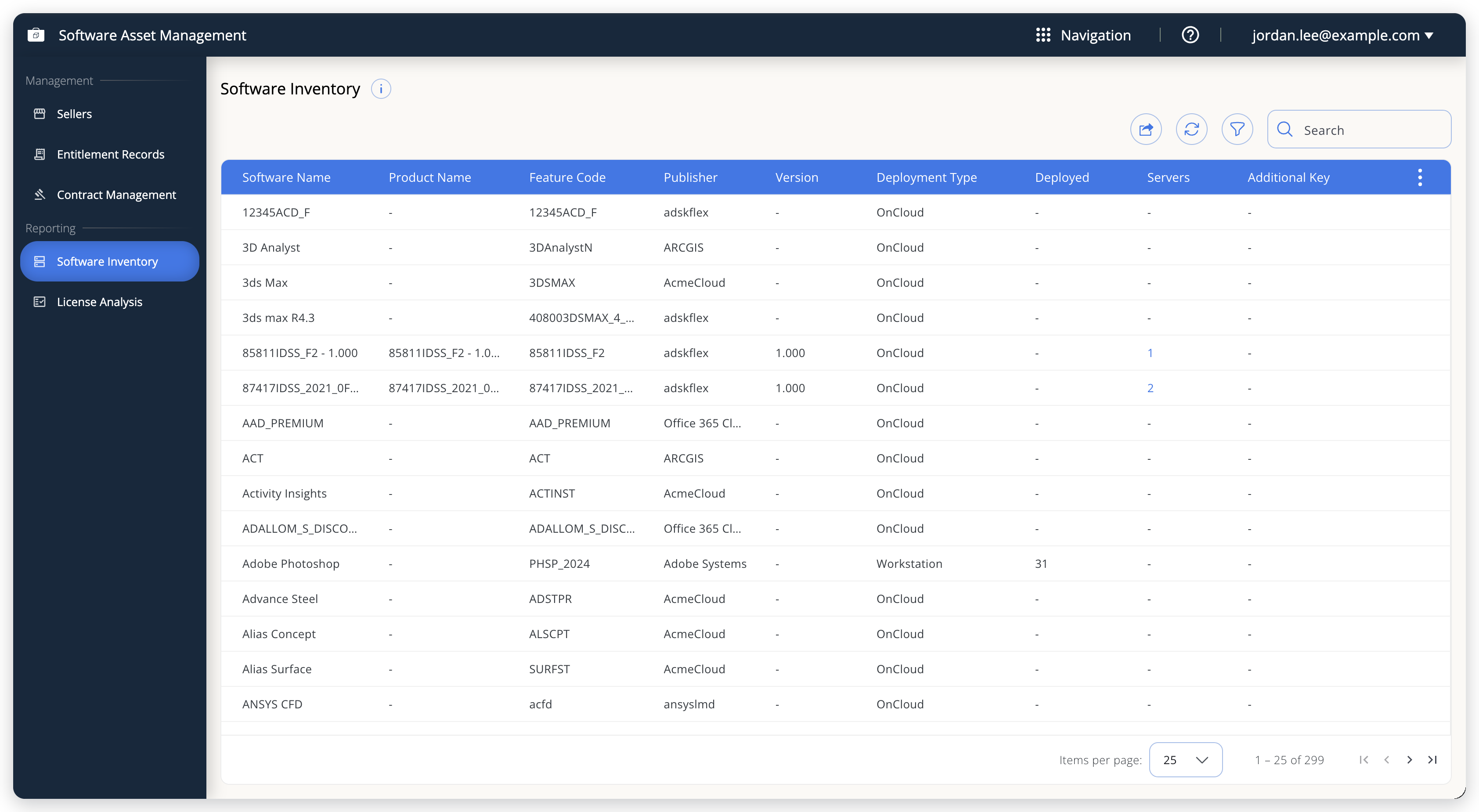 Software Inventory report with one row per software item.
To see the license servers behind a row, select the number in its Servers column. The details dialog opens on the Servers tab, which shows each server with its state: Up, Down, Data error, or Unknown. The Package Info and Details tabs show the rest of the row.
Select Export CSV to download the grid as a CSV file.
Find over-deployed, expiring, and incomplete licenses
Select License Analysis under Reporting. The report compares the licenses you purchased (Total Quantity) with the licenses deployed on your license servers (Deployed), and sorts the rows into tabs:
| Tab | Shows |
|---|---|
| All | Every row. |
| Over-deployed | Deployed is higher than Total Quantity. |
| Expiring | The license expires within 30 days or has already expired. |
| Incomplete | Total Quantity or Deployed is missing, so the report cannot judge compliance for the row. |
The tabs overlap: a row can be both over-deployed and expiring, so the tab counts do not add up to the count on All.
The grid shows Status, Software Name, Feature Code, Publisher, License Type, License Id, Total Quantity, Deployed, Issue Date, Start Date, and Expiry Date. A Total Quantity of -99 means unlimited.
The following image shows the License Analysis report.
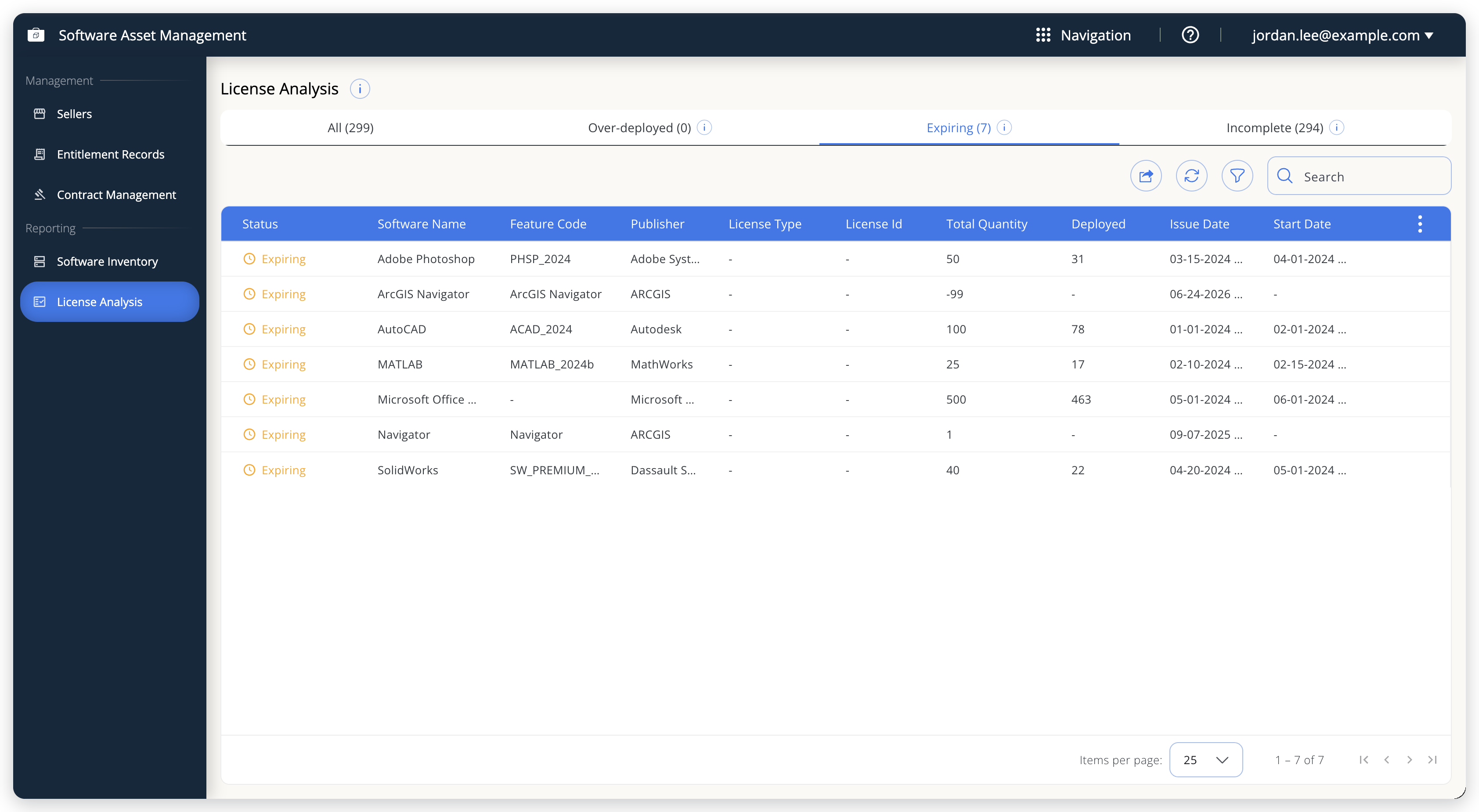 License Analysis report on the Expiring tab, with the tab counts.
To see the purchase orders behind a quantity, select the number in its Total Quantity column. The number is a link only when purchase orders back the row. The details dialog opens on the Licenses tab. The Summary, Servers, and Details tabs show the rest of the row.
Select Export CSV to download the grid as a CSV file.
Costs and currency
Each entitlement record keeps the currency of the original purchase (Purchase Currency), and SAM also expresses costs in US dollars so that purchases in different currencies can be compared and totaled.
The entitlement records SAM publishes for reporting carry USD amounts converted at the rate that applied on the record's Purchase Date, and the rate and its date are included with the record. OpenLM Platform refreshes that rate series daily and backfills days it missed, so a conversion reflects when the purchase happened rather than when the report is run.
How the total is derived depends on the pricing type. A perpetual license is valued on its unit cost, plus its unit maintenance cost when maintenance is included. A subscription and a standalone maintenance record are valued over the term between their start and end dates.
SAM's cost events use a built-in rate table that does not cover every currency the Purchase Currency list offers. A currency the table does not know is converted at 1:1, so its amounts appear as though they were already dollars. Check totals for purchases made in less common currencies.
Where SAM data goes next
Entitlement and cost data does not stay inside SAM. SAM publishes entitlement records and cost events to OpenLM Platform, where reporting combines them with monitored usage. That makes it possible to compare what you own with what you use, for example in the Usage report and in the License utilization BI report.
Cost events are emitted only for records that have a feature or process mapping. An unmapped record, including one created from a purchase order, reaches reporting as an entitlement but contributes no cost until you map it.
Reference
This section lists the Seller CSV export columns, the validation messages, and related pages.
Seller CSV export columns
Id, CustomerId, Name, Description, ContactName, ContactEmail, ContactPhone, CountryCode.
If your tenant has no sellers, the downloaded file contains the text Seller data is empty! instead of CSV rows.
Validation rules
The following table lists the messages you are most likely to meet and what they mean:
| Message | Cause |
|---|---|
| "Seller name cannot be empty" | Seller Name is the one required field on a seller. |
"A seller with name -> <name> already exists!" | Seller names must be unique in your tenant, and the check ignores case. |
| "Invalid email format" | The contact email does not match the form's pattern. This includes otherwise valid addresses that use plus-addressing or a long top-level domain. |
| "Invalid phone number format" | The phone number is not valid for the selected country. Set the country first, then edit the number again. |
| "Only positive values and unlimited value (-99) are allowed." | Purchasing quantity must be greater than 0, or exactly -99 for unlimited. |
| "Unit Cost must be greater than 0." | Unit cost of 0 or less. |
| "Purchase Date cannot be greater than License Start Date" | The purchase cannot postdate the license term it buys. |
| "For Perpetual Pricing Type, License End Date must be null" | Perpetual licenses do not expire. Use SubscriptionBased for a fixed term. |
| "AMC period must be a supported term from the AMC Start Date: 1, 3 or 6 months, or 1 to 5 years" | Maintenance folded into a perpetual record you add must span one of the supported terms. |
| "Time span starting AMC start date till AMC end date should be 1 year." | You edited a saved perpetual record whose included maintenance does not span exactly 1 year. |
| "For Maintenance Type Parent Purchase Order Numbers cannot be null or empty" | A maintenance record must name the perpetual purchase orders it renews. |
| "Count of maintenance purchased cannot be greater the count of perpetual license purchased" | The maintenance quantity exceeds the quantity on its parent purchase orders. |
| "Subscription Cycle is required for Subscription-based pricing type" | Subscriptions need a cycle: Monthly, Quarterly, or Annually. |
| "Selected ProcessInstallations cannot be more than PurchaseQuantity" | More workstations were mapped than licenses purchased. |
"Purchasing Quantity can't be reduced below the <N> installation(s) already allocated. Reduce the allocation on the Feature/Process Mapping tab first." | The edit lowers Purchasing Quantity to less than what is already mapped. For records mapped to processes, it can also appear when you did not change the quantity, a known issue. |
Related
For related information, see the following pages:
- SAM Catalog: the normalized inventory of the applications themselves.
- Product Discovery: the software installed across your workstations.
- OpenLM Products: activating Software Asset Management.
- License Servers: the servers whose licensed features entitlements map to.
- What the Workstation Agent does: the source of process and host data.
Frequently asked questions
The following questions cover creating records, validation errors, status values, mapping, and contracts.
Why can't I create an entitlement record?
An entitlement record must name a seller, and the Seller field offers only sellers that already exist, so add the seller first. If sellers exist and you still cannot save, check that you have the SAM administrator role. Viewers can read everything but change nothing.
Why is my phone number rejected?
Because it is validated against the seller's country. Set Country Name first, then enter the number starting with + and the country code. If you entered the number before the country, the error does not clear on its own. Edit the phone field again to run the check.
Why is my maintenance end date rejected?
Because maintenance recorded inside a perpetual entitlement must be a supported term (1, 3, or 6 months, or 1 to 5 years), and an edit to a saved record still requires exactly 1 year. For any other span, create a separate record with pricing type Maintenance, which accepts any end date on or after its start date and links back through Parent Purchase Order.
Why is my entitlement record's Expiry Status blank?
Because nothing has matched it. SAM derives the status from procurement data for the same feature, version, vendor, and license type, on a daily pass. Records mapped to processes, records with no mapping, and records whose feature OpenLM Platform does not see all stay blank. Blank means "not evaluated", not "expired".
Why is my entitlement record marked Expired when the license has not expired?
Because a matching procurement has a past expiry date, and the strictest match wins. Check that the monitored data for that feature is current. After a renewal arrives, the status changes back on the next daily pass.
Why does Mapping status say Partial when I mapped everything I could find?
Partial means the mapped quantity is lower than the purchased quantity. Either some installations are not reported to OpenLM Platform, or the purchase covers more licenses than you have deployed. Both are legitimate states. The column shows that the purchase is not fully accounted for, not that something is broken.
Why can't I select a feature in Map Features?
Because another entitlement record already covers it. Such features are grayed out and labeled Mapped to <product>. Unmap the feature from that record first, or map a different feature.
Why don't I see the Upload Purchase Order button?
It is available on the cloud-hosted OpenLM Platform. On other deployments, add the record manually or import a CSV file.
Why can't I open the contract PDF?
Opening the signed document requires the SAM administrator role. Viewers can still read the contract's metadata, its rules, and its audit log.
Why can't I delete a contract?
Because it is under legal hold, or one of the contracts you selected is. Release the hold first. That action, and the reason you give for it, are recorded in the audit log.
Why didn't my scope change stick?
Because scope is fixed when the contract is created. The chips still appear editable on a saved contract, but the change is discarded on save. To change scope, create a new version that amends the existing contract using Relationship.
The documentation team might draft this page using a large language model. A technical writer reviews every page and verifies it against the product before publishing it. A human makes the final decision.