Licenses
To monitor and manage every license OpenLM Platform tracks across your license servers, open Licenses. From there you can see how many seats are in use right now, check what you own and when it expires, analyze usage trends, and control how licenses are counted, named, and displayed.
What you can do depends on your role. Anyone with the Software License Management Viewer role or the Licenses Viewer role can open the monitoring views: Live Statistics, Procurements, and Feature Insights. Changing how licenses are counted or displayed in Checkout Policy, Product Package, and Show/Hide Features requires the Software License Management Admin role or the Licenses Admin role. The Licenses roles give access to this service only, as described in Identity.
Before you begin
To open Licenses, select Navigation (the grid icon in the OpenLM Platform header), then Licenses and Features, then Licenses.
For related tasks, see License Servers and License Allocations.
Where the license data comes from
You don't collect anything from this section. You read back and refine what the OpenLM Platform monitoring engine has already gathered from your license servers.
On a schedule, OpenLM Platform queries each connected license server, directly or through an OpenLM Broker installed next to it. Each query reads what the license manager reports: the features it serves, how many seats each has, and which are checked out. When Read License File is turned on for that server, the query also parses the server's license file for procurement details such as issued and expiration dates, serial numbers, and host locks. For the Broker, see License Servers.
Everything you see here is that collected data, read back:
- Live usage: the Used, Borrowed, and Available figures come from the checkout sessions OpenLM Platform tracks when you load the page.
- Procurement details: these come from the parsed license files.
- Product names: these come from a catalog OpenLM Platform builds automatically the first time it sees each feature, which you refine on the Product Package page.
Because each page shows the latest collected sample, how current it is depends on each server's polling schedule and health. You manage the polling schedule, and see when each server was last read successfully, on the License Servers page.
To refresh, filter, search, or change columns in any grid, use these controls: Refresh to pull the latest data, Toggle Filters to filter by column, Search to highlight matching rows, and the ⋮ menu to select which columns appear.
Live Statistics
To see how many seats of a feature are in use right now, and jump to who is holding them, open Live Statistics, the default page. Each row is one license, and OpenLM Platform works out the usage figures from the sessions that are open when you load or refresh.
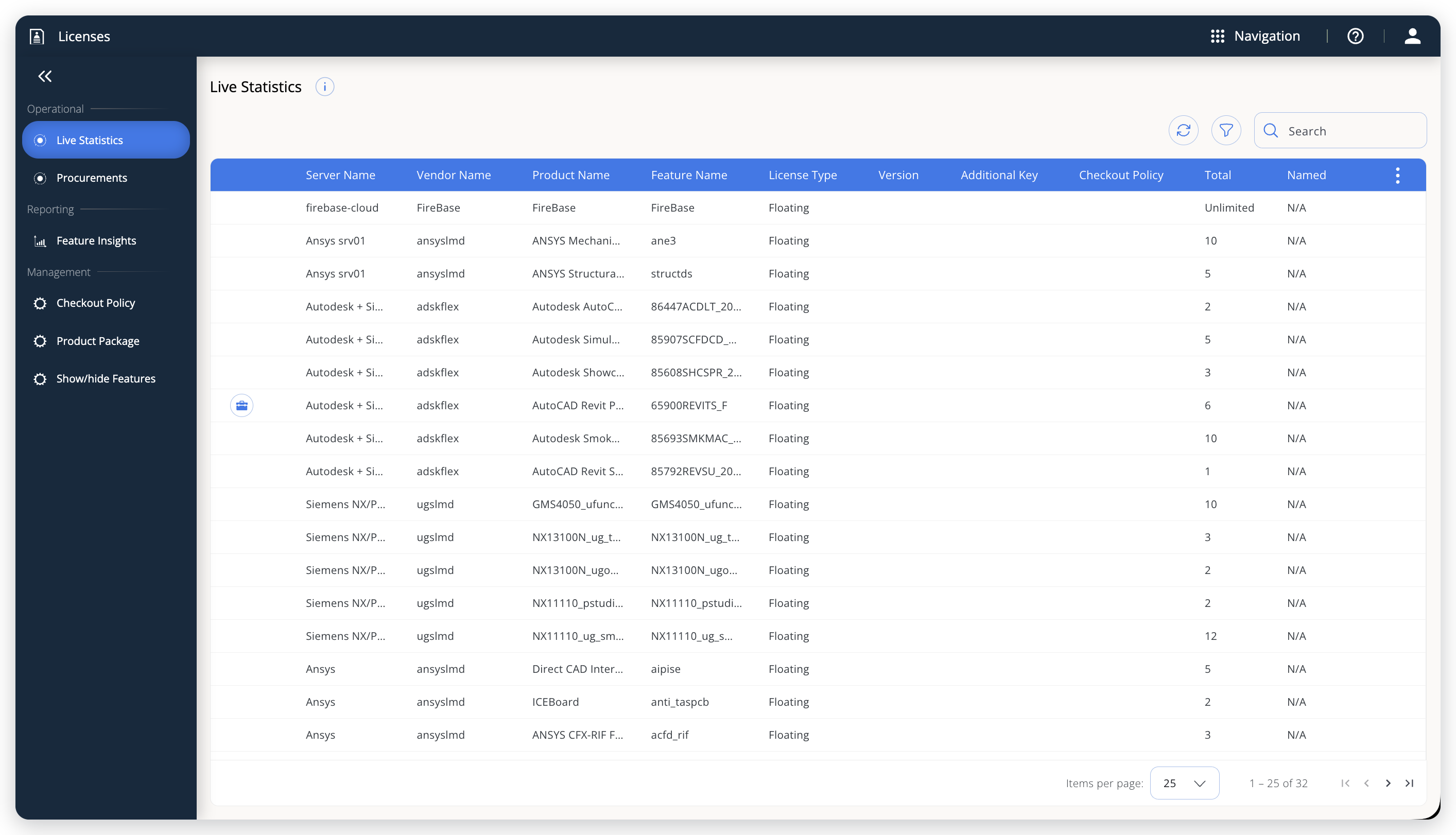 Live Statistics shows one row per license, with real-time usage and availability across every license server that is turned on.
"Live" means current, not streaming. The grid doesn't refresh on its own. Select Refresh to pull the latest numbers.
When a feature's Used count is greater than zero, select it to jump to the Usage service and see exactly who is holding those seats. To see which features a package bundles, select the package icon at the start of its row (Show Package Details). The dialog lists the features with their product name, vendor, version, and current usage.
The following table lists the columns the grid can show:
| Column | What it shows |
|---|---|
| Server Name | The license server (license manager) that serves this license. |
| Vendor Name | The license vendor (vendor daemon). |
| Product Name | The commercial product mapped to the feature (from the product catalog). Can be empty. |
| Feature Name | The feature name as reported by the license manager. |
| License Type | The license model, for example Floating, Node Locked, Named User, or Single Use. |
| Version | The license/feature version, when present. |
| Additional Key | An extra key that distinguishes a feature that appears more than once. |
| Checkout Policy | The checkout policy assigned to the license on the Checkout Policy page. Empty when none is set. |
| Total | Total seats in the pool. Shows Unlimited for uncounted licenses and N/A when unknown. |
| Named | Named-user (base) seats. N/A when the license has no named quantity. |
| Used | Seats consumed by open sessions. Select the count to see who is holding the license. |
| Allocated | Active license allocations (reservations) for the license. |
| Borrowed | Of the used seats, how many are borrowed (offline checkouts). Borrowed seats are already counted in Used. |
| Overdraft | Extra seats the license permits beyond Total, for license managers that support overdraft. |
| Available | Seats free right now (Total − Used). Shows Unlimited for unlimited licenses. |
Procurements
To confirm what your license files entitle you to, and find what's about to expire, open Procurements. Where Live Statistics shows the seats you can use right now, Procurements shows what you purchased: one row per entitlement line, taken straight from the license and vendor files, with the quantity, validity dates, and identifying details recorded in each file.
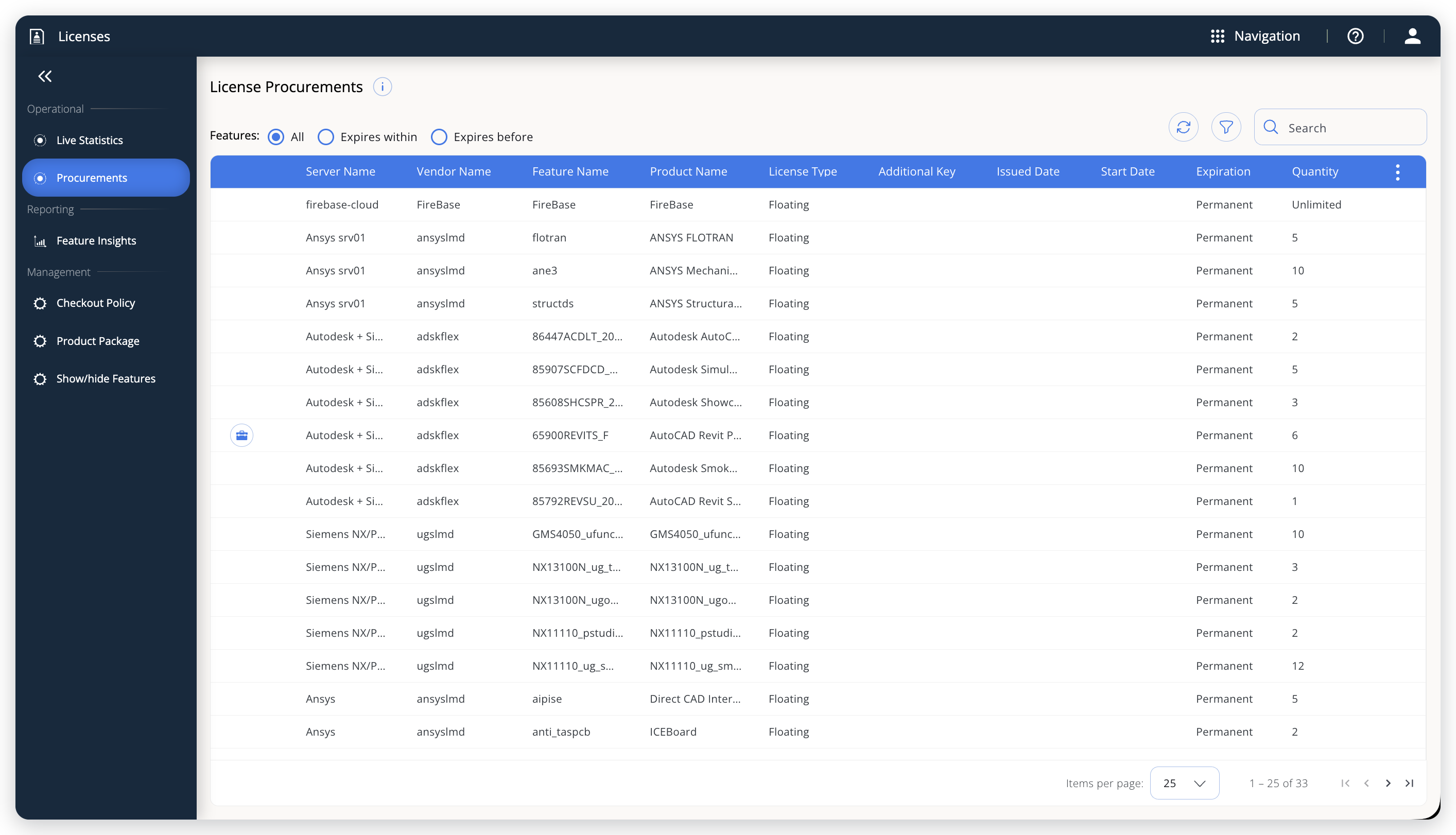 Procurements lists what your license files entitle you to, with a built-in filter for licenses expiring soon.
To answer "what expires soon?", use the Features control over the grid:
- All: every entitlement (the default).
- Expires within: a forward-looking window. Enter a number and select days, months, or years. Already-expired lines are not shown.
- Expires before: everything expiring before a date you pick.
As on Live Statistics, package rows carry a package icon. Select it to list the component features the package bundles.
The following table lists the columns the grid can show:
| Column | What it shows |
|---|---|
| Server Name / Vendor Name | The license server and vendor the entitlement came from. |
| Feature Name / Product Name | The licensed feature and the product it maps to. |
| License Type | The license model recorded in the file. |
| Additional Key | Additional key information from the license file. |
| Issued Date / Start Date | When the license was issued and when it becomes valid. |
| Expiration | The expiry date and time, or Permanent for licenses that never expire. |
| Quantity | Seats procured. Shows Unlimited or N/A where applicable. |
| Version | The licensed version. |
| Overdraft | Extra seats beyond the quantity that the license allows. |
| Serial Number / Asset Info | The serial number and asset information from the file. |
| Vendor String / Vendor Info / Notice | The vendor and notice fields from the license file. |
| Host IDs | The host IDs the license is locked to. |
Feature Insights
To analyze how your features are used, by group, by user, and over time, open Feature Insights, an interactive usage dashboard. It opens on three reports (Feature Usage Per Group, Feature Usage Per User, and Session Report), each with a chart, a data table, and a panel of filters (date range, server, vendor, license type, feature, software, user, and more) so you can narrow it to exactly the usage you want to examine.
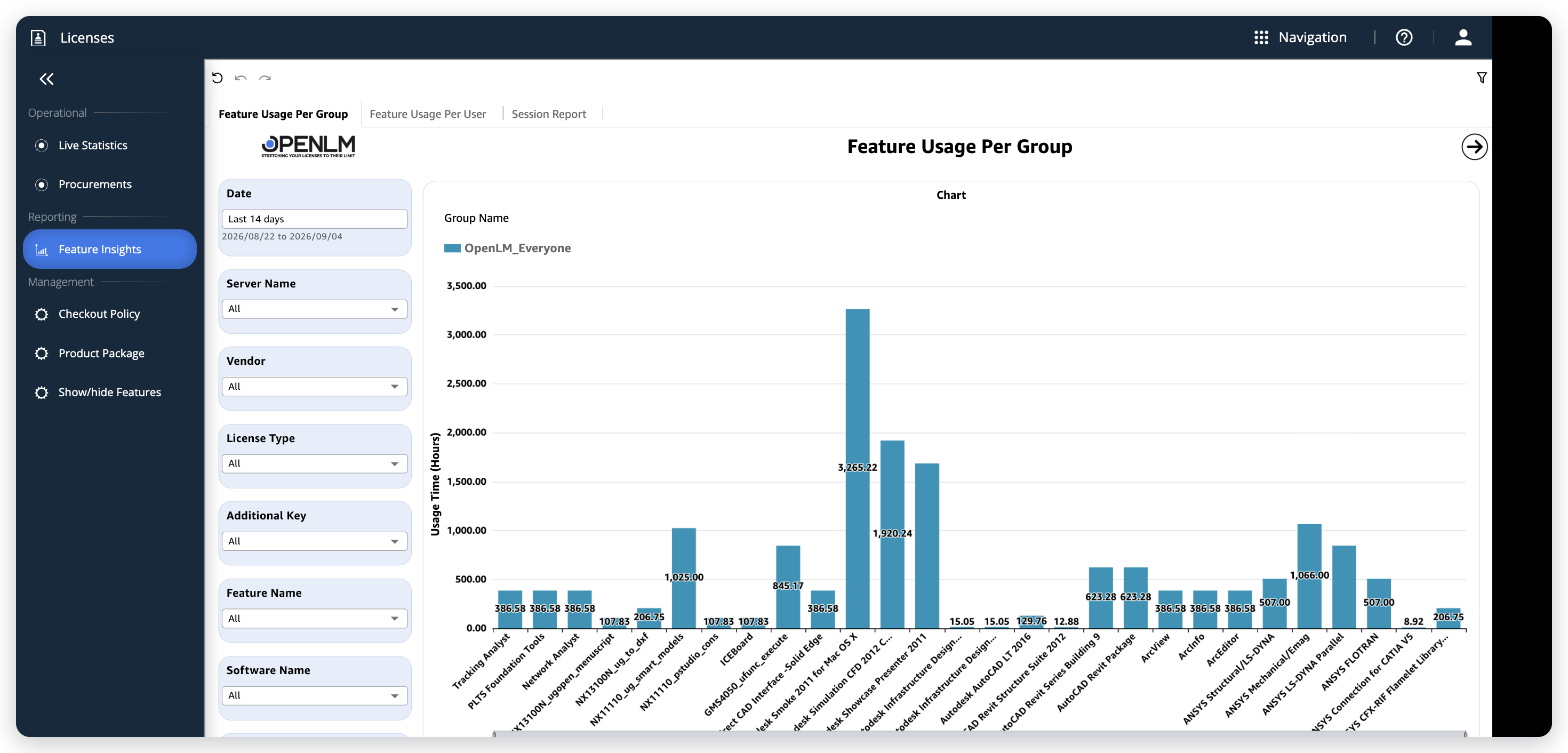 Feature Insights is an interactive usage dashboard, shown here on the Feature Usage Per Group report.
Feature Insights is available only in the cloud-hosted OpenLM Platform. On on-premises deployments, the page does not appear in the sidebar.
Checkout Policy
When one person opens the same application several times at once, across two monitors or on two machines, you can have OpenLM Platform count that as a single consumed seat rather than several. You choose that behavior per feature in Checkout Policy.
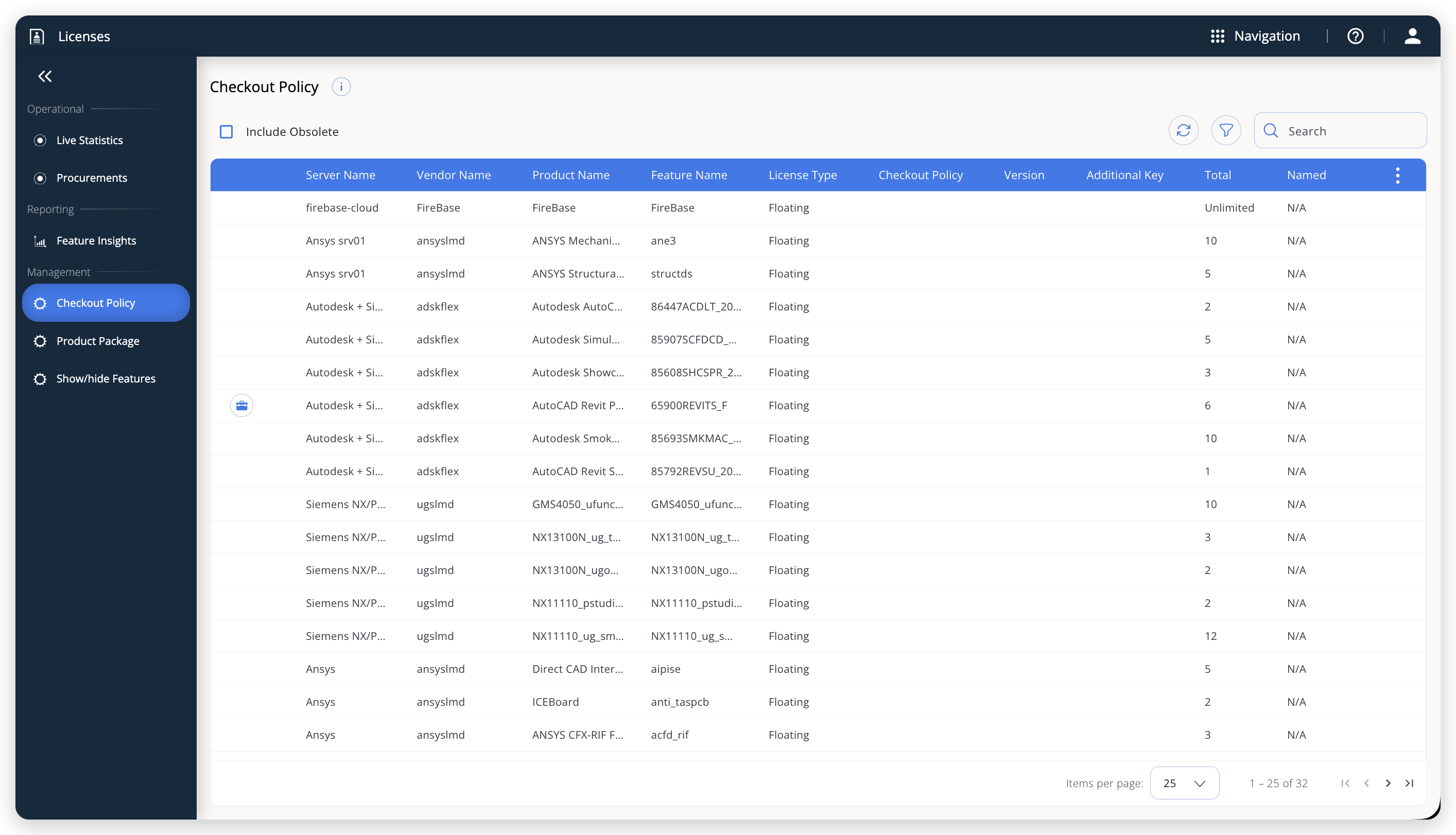 Assign a checkout policy per feature to control how OpenLM counts a user's concurrent checkouts.
To set a policy:
- Point to a feature's row.
- Select the Edit (pencil) icon.
- Select a policy from the drop-down list.
The following table lists the policies and when concurrent checkouts count as one seat:
| Policy | Concurrent checkouts count as one seat when they share the same |
|---|---|
| None | No consolidation, so every checkout counts |
| User | user |
| Display | display |
| UserAndDisplay | user and display |
| Host | host |
| UserAndHost | user and host |
Selecting None clears the policy. To include obsolete licenses and licenses on servers that are turned off but not deleted, select the Include Obsolete check box over the grid.
The Edit icon appears only on licenses whose policy you are allowed to set. Licenses that are unmanaged, or whose policy already comes from the license file or the license manager's own output, are read-only here.
Product Package
To give raw features friendlier names and organize related features into packages, use Product Package. The names you see across OpenLM Platform, such as the Product Name column and the product filters, come from a catalog OpenLM Platform builds automatically the first time it sees each feature.
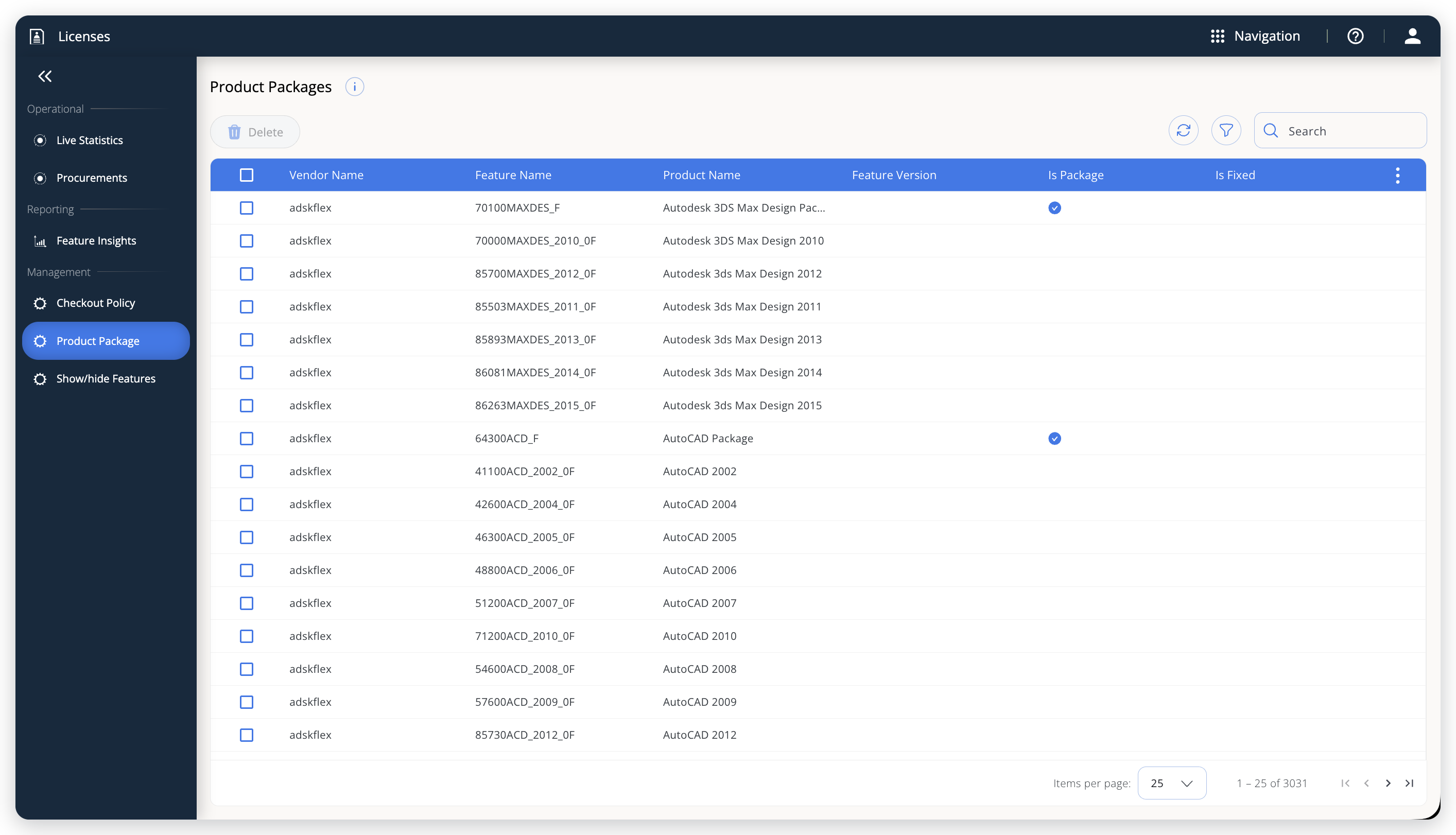 The Product Package catalog maps each feature to a friendly product name and organizes features into packages.
Each row is one catalog entry. The following table lists the columns:
| Column | What it shows |
|---|---|
| Vendor Name | The feature's vendor. |
| Feature Name | The raw feature name from the license manager. This is the entry's fixed identity and cannot be changed. |
| Product Name | The friendly product name shown for this feature everywhere else in OpenLM Platform. |
| Feature Version | The feature's version. |
| Is Package | Marked when the entry is a package that other features can be grouped under. |
| Is Fixed | Marked when the product name is pinned (see the next section). |
To remove entries, select one or more rows with the check boxes, then select Delete. Deleting an entry does not delete any licenses. The licenses lose their product name.
Rename a product or build a package
Select the Edit (pencil) icon on a row to open the Edit Product Package page, then:
- Product Name: (Required) set the friendly name shown across OpenLM Platform. You can change it but not leave it blank.
- Vendor Name and Version: (Optional) descriptive fields.
- Parent Package: assign this feature to an existing package.
- Package: turn on to make the entry a package that other features can join. Because packages can't be nested, turning Package on turns off Parent Package.
- Fixed: pin the product name so the next poll of the license server by OpenLM Platform doesn't overwrite it.
Select Save to apply your changes, or Cancel to discard them. If you leave with unsaved changes, OpenLM Platform prompts you first.
A renamed product appears immediately on the other Licenses pages and in the product and feature filters across OpenLM Platform, but it doesn't change usage already recorded. Existing sessions keep the product name they were recorded with.
Show/Hide Features
To leave out features that are noise, such as bundled utilities nobody tracks, without deleting anything, hide them in Show/Hide Features.
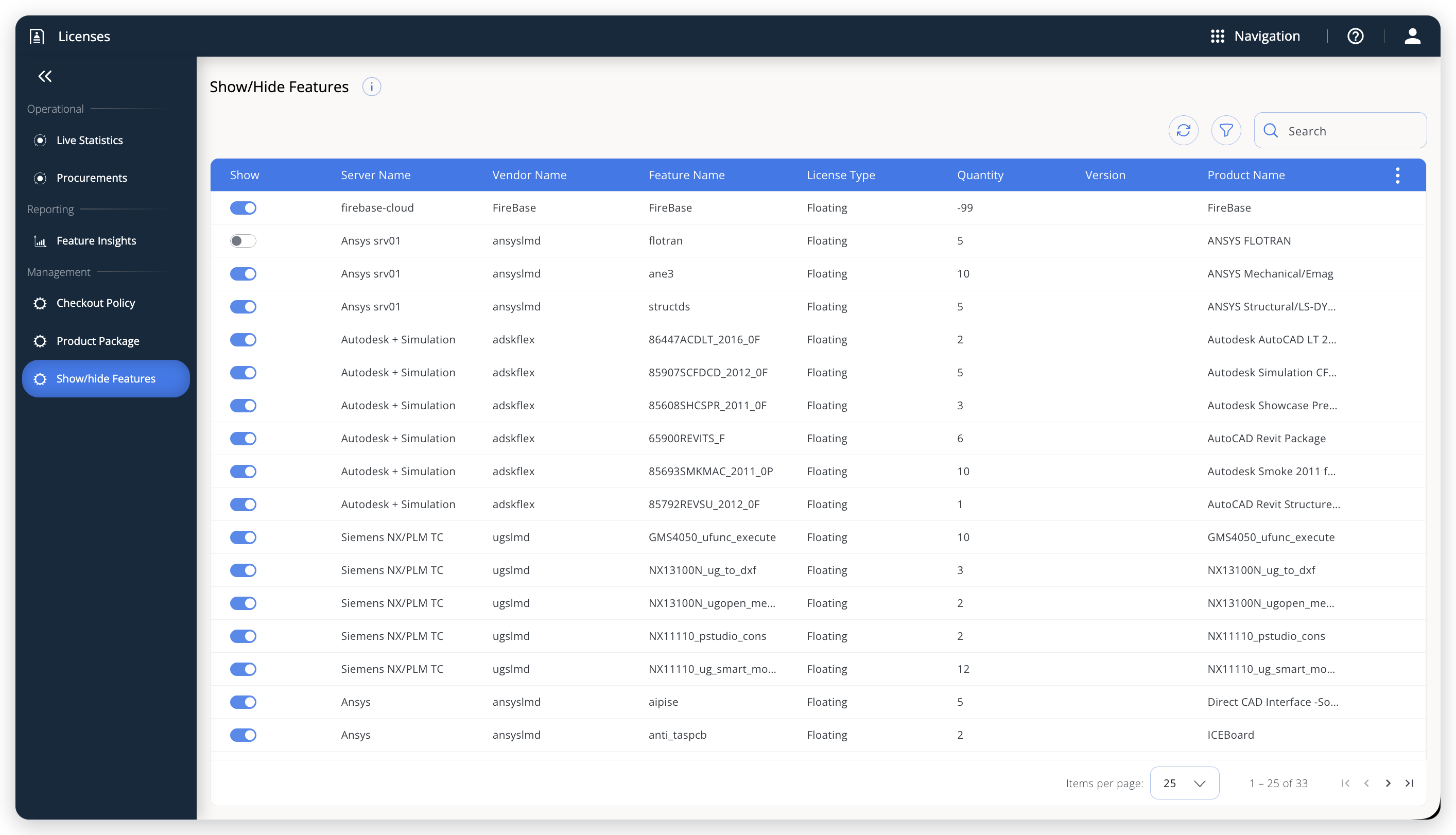 Turn a feature's Show toggle on or off to include or exclude it from the OpenLM Platform license statistics.
Turn the Show toggle off or on for a feature to hide or show it. The change saves immediately, a brief message confirms it, and you can reverse it at any time.
A hidden feature drops out of Live Statistics, Checkout Policy, and the feature and product pickers across OpenLM. It isn't deleted, its data is preserved, and it stays on this page so you can show it again whenever you like.
The documentation team might draft this page using a large language model. A technical writer reviews every page and verifies it against the product before publishing it. A human makes the final decision.