Destination Systems
To hand the user and group changes that Directory Sync detects over to your own AWS infrastructure, add a destination system. A destination system is an Amazon S3 bucket or an Amazon Simple Queue Service (SQS) queue that receives directory update data from the OpenLM Directory Synchronization Service (DSS). SQS queues must be first in, first out (FIFO) queues.
When DSS detects changes to users and groups in your LDAP or Active Directory, Directory Sync automatically sends that data to your configured AWS destinations.
Destination Systems replaces the separate LDAP Connector service. The Navigation menu has an LDAP Connector tile that opens that earlier service. It works with the same destination systems. This page documents the Destination Systems page of Directory Sync.
Before you begin
Confirm these prerequisites:
- An active OpenLM Platform account with the LDAP Connector product activated.
- The Admin role for the LDAP Connector product. Account administrators always see the page. Without the role, the sidebar hides the Destination Systems entry, and opening the page by its address returns you to Agents.
- Directory Synchronization Service (DSS) configured with at least one sync definition.
- In your AWS account, at least one destination configured: an Amazon S3 bucket, to receive the changes as files, or an Amazon SQS FIFO queue, to receive them as messages. You can add both.
- AWS credentials (Access key and Secret access key) for the destination. Use a service account for machine-to-machine authorization rather than personal credentials.
- Permissions for those credentials:
s3:ListBucketands3:PutObjectfor a bucket, orsqs:ListQueuesandsqs:SendMessagefor a queue. The Add Destination System page lists the minimum permissions.
To open Destination Systems, select Navigation (the grid icon in the OpenLM Platform header), then Users, then Directory Sync, then Destination Systems in the sidebar.
Destination Systems is available only in the cloud-hosted OpenLM Platform. On-premises installations don't include it.
Activate the LDAP Connector
The LDAP Connector is a separate product in OpenLM Products. To activate it:
- Open Products in OpenLM Platform.
- Find the LDAP Connector.
- Activate the LDAP Connector.
- Give each user who needs the page the product's Admin role.
For more information, see Users management in Identity.
After you activate the product, Destination Systems appears in the Directory Sync sidebar for users who have the Admin role, and for account administrators. The LDAP Connector tile also appears in the Navigation menu.
Check destination systems
To see where your directory changes go, and whether the last delivery worked, open Destination Systems. On each destination system card, check:
- Its Name and its System (Amazon S3 or Amazon SQS).
- The fields that identify the target: Bucket name and Path prefix for Amazon S3, or Fifo queue url for Amazon SQS.
- A status line: No syncs yet, Last sync followed by the date and time of the last successful sync, Sync in progress, or Last sync failed.
Select a card's header to open the destination system's details. The list refreshes every 10 seconds.
The following screenshot shows the card list.
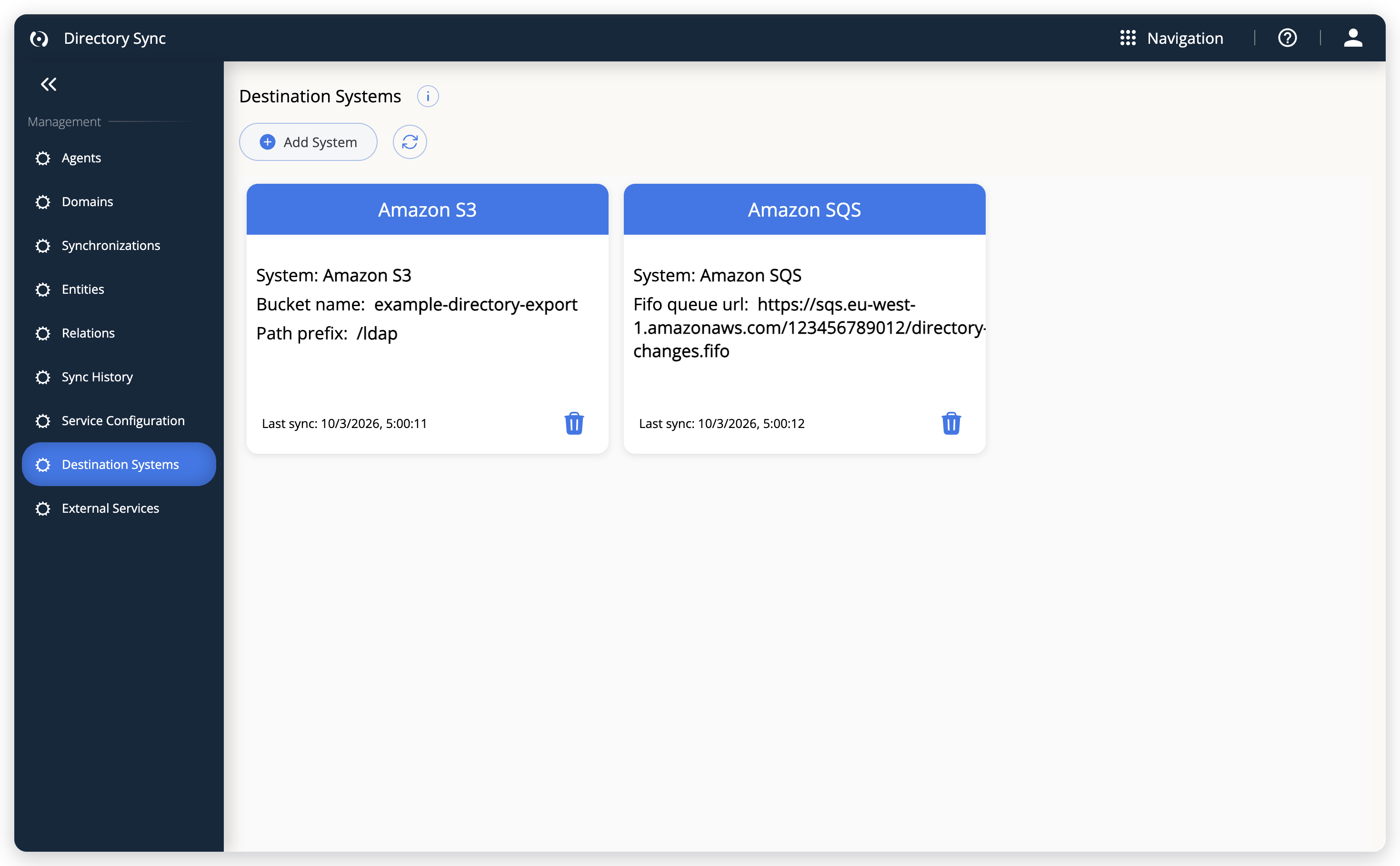 Each destination system is a card. Select its header to open the details.
Configure destination systems
The following sections cover adding, editing, testing, and deleting destination systems.
Add an Amazon S3 destination
To add an Amazon S3 destination:
- In the sidebar, select Destination Systems.
- Select Add System. If you have no destination systems yet, select the Add Destination System card instead.
- In System, select Amazon S3.
- Fill in the fields:
- Name: A display name for this destination. It must be unique among your destinations of the same system.
- Bucket name: The name of your Amazon S3 bucket.
- Path prefix: (Optional) A folder path inside the bucket. Directory Sync writes each sync event as an object named
<path prefix>/<UTC timestamp>.sync. - Access key: Your AWS access key.
- Secret access key: Your AWS secret access key.
- Region: The AWS region of your bucket. You select it from a list.
- Select Check Connection to test the settings.
- Select Save.
For the connection test, see Check connection. For help with the AWS side, read the setup instructions that the page shows for the system you selected.
The following screenshot shows the form for an Amazon S3 destination.
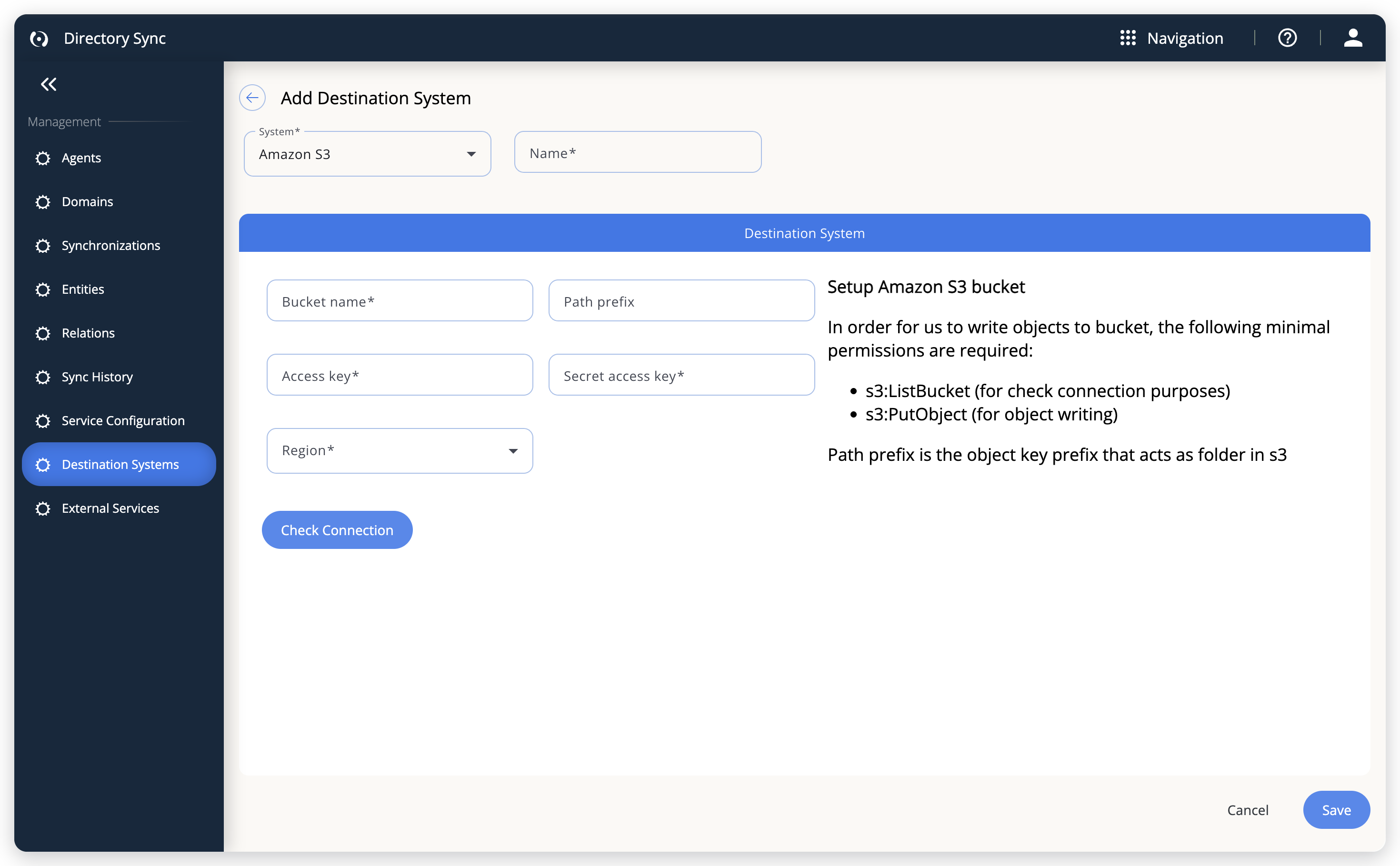 Adding an Amazon S3 destination.
Add an Amazon SQS destination
To add an Amazon SQS destination:
- In the sidebar, select Destination Systems.
- Select Add System. If you have no destination systems yet, select the Add Destination System card instead.
- In System, select Amazon SQS.
- Fill in the fields:
- Name: A display name for this destination. It must be unique among your destinations of the same system.
- Fifo queue url: The full URL of your Amazon SQS FIFO queue (obtained from the AWS console). The queue must be a FIFO queue. Directory Sync sends messages with the message group ID
default-group. - Access key: Your AWS access key.
- Secret access key: Your AWS secret access key.
- Region: The AWS region of your queue. You select it from a list.
- Select Check Connection to test the settings.
- Select Save.
For the connection test, see Check connection.
Edit a destination system
To edit a destination system:
- Select the card header of the destination system to open its details.
- Select Edit System to modify the configuration.
- Update the required fields.
- Select Save.
The saved Access key and Secret access key appear as masked password fields. Leave them as they are to keep the stored keys, or enter new values to replace them.
Check connection
To verify that Directory Sync can reach the configured AWS resource with the provided credentials, select Check Connection on the Add Destination System or Edit Destination System page, or on the details page of a destination system. The check works as follows:
- On a new destination system, the check uses the values you entered. If a required field is empty, the button only highlights it.
- On an existing destination system, the check uses the saved configuration, not unsaved edits. Save your changes first, then check again.
- A successful check leaves a test item behind.
- For Amazon S3, the check writes a small text file named
openlm-connection-test-<UTC timestamp>.txtunder the path prefix. - For Amazon SQS, the check sends one test message to the queue.
- The check needs write permission on the bucket, or permission to send messages to the queue.
- Delete the test file or message if you don't want to keep it.
- The result appears under the button: "Connection tested successfully." (shown in green) or "Check connection failed." (shown in red), followed by "Unable to connect. Check the platform settings and credentials, then try again." The check shows no progress indicator, so wait for the result.
Delete a destination system
To delete a destination system:
- In the card list, select the trash icon on the destination system's card.
- In the Delete Destination System dialog, select Confirm.
The details page has no Delete button. Delete a destination system from its card.
Review the sync history of a destination system
To check whether deliveries to a destination are working, select the card header of the destination system to open its details. Check the saved configuration (read-only, with the keys masked) and the history grid, which lists the outcome of each sync event for this destination. The grid has these columns:
- Sync Status: Successful, In Progress, or Failed.
- Sync Date: When the sync event ran.
Select Refresh to reload the grid, or use Search to filter by status or date. This grid is not the Sync History page of Directory Sync, which lists directory sync runs.
The following screenshot shows the details page of an Amazon S3 destination.
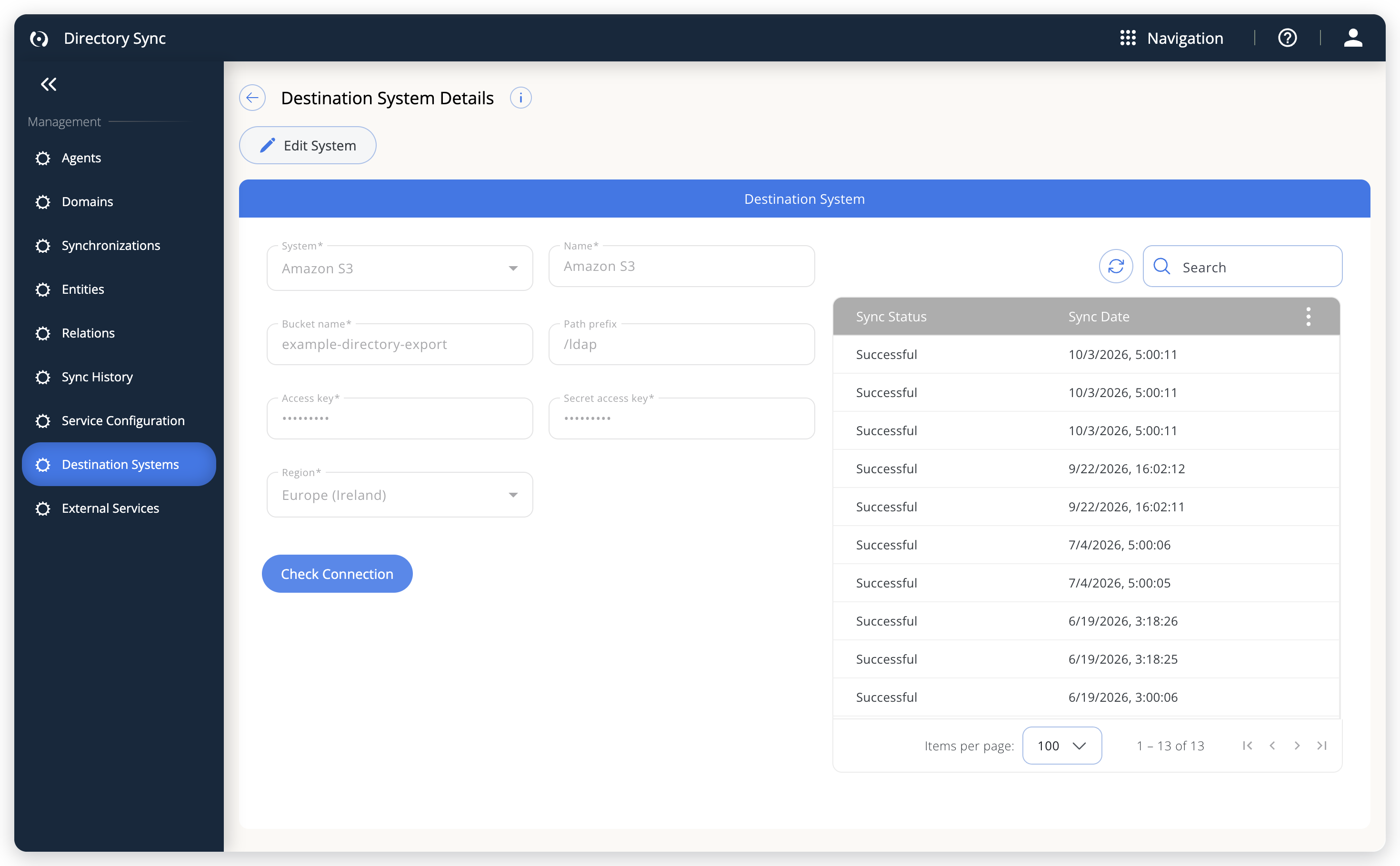 Destination system details and its sync history.
How synchronization works
DSS and the LDAP Connector service deliver directory changes in this order:
- DSS detects changes in the configured LDAP or Active Directory source (user creation, updates, or deletions).
- DSS publishes the changes as events to Kafka.
- The LDAP Connector service receives these events and forwards the data to all configured destination systems.
- New files appear in the Amazon S3 bucket and new messages are available in the Amazon SQS queue.
Troubleshooting
The following table lists symptoms, likely causes, and fixes:
| Symptom | Likely cause | How to fix |
|---|---|---|
| Destination Systems is missing from the sidebar | The LDAP Connector product is not active, you don't have its Admin role, or the deployment is on-premises | Activate the product in OpenLM Products, and ask an account administrator to assign you the role. On-premises deployments don't have the page. |
| A card shows Last sync failed | The last delivery to this destination failed | Open the destination system and select Check Connection to test the saved configuration. If it fails, check the bucket name or queue URL, the region, the keys, and their permissions. |
| "Check connection failed." right after you edited a destination system | The check tests the saved configuration, not your unsaved edits | Select Save, then select Check Connection again. |
| A test file or message appears in your bucket or queue | Check Connection writes one when it succeeds | Delete it if you don't want to keep it. |
The documentation team might draft this page using a large language model. A technical writer reviews every page and verifies it against the product before publishing it. A human makes the final decision.