External Services
To stop leavers from keeping accounts in the SaaS services you use, add those services to External Services. When Directory Sync Service (DSS) detects that a user has been deleted from your internal Active Directory, External Services removes that user from all configured external platforms or notifies you to take action manually.
External Services removes users only. It doesn't create or update users in external services.
External Services replaces the separate Identity Alignment app, which replaced OneDirectorySync. If you see references to OneDirectorySync in logs or configurations, they refer to this service. The Navigation menu has an Identity Alignment tile that opens that earlier app. It works with the same services. This page documents the External Services page of Directory Sync.
Before you begin
Confirm these prerequisites:
- The Identity Alignment product is active in OpenLM Products.
- You have the Admin role for Identity Alignment. Account administrators always see the page. Without the role, the sidebar hides External Services, and opening the page by its address returns you to Agents.
- Directory Sync Service (DSS) is activated and running sync cycles.
- Directory Synchronization Agent (DSA) is installed in your environment and connected to Active Directory.
- Cloud Broker is configured with the required credentials for each target service (for regular services).
Identity Alignment has no card of its own in OpenLM Products. OpenLM Platform activates it automatically after Directory Sync is active and your OpenLM license covers Identity Alignment, and deactivates it when Directory Sync is deactivated.
External Services is available in OpenLM Platform only.
To open External Services, select Navigation (the grid icon in the OpenLM Platform header), then Users, then Directory Sync, then External Services in the sidebar.
For related tasks, see Directory Sync and Cloud Broker.
What External Services does
External Services does the following:
- Reacts to DSS sync results and identifies deleted users
- Removes users from configured external services through Cloud Broker
- Supports both built-in service integrations and custom service definitions
- Sends email or ticketing notifications, depending on each service's deletion scenario
- Offers a deletion scenario per service: automatic deletion, notification only, or deletion with notification
How it works
When a user leaves, the following happens:
- A user is deleted from your internal Active Directory.
- DSS runs a sync cycle and detects the deletion.
- DSS sends a user-removal event to External Services, but only while the Identity Alignment product is active in OpenLM Products.
- External Services processes the deleted user for each configured service. It doesn't check first whether the user has an account in that service.
- For each configured service, External Services takes the configured action:
- Delete Only: Cloud Broker removes the user from the external service. If the user cannot be removed, the user is marked as "removed."
- Notify Only: External Services sends a notification that the user should be deleted manually. No automatic deletion occurs.
- Delete And Notify: Cloud Broker removes the user, and External Services sends a confirmation.
- For custom services, External Services checks if the user exists in the uploaded user list and sends a notification to remove the user manually.
When a user is a member of groups in the external service, External Services removes the relationship between the user and the group, rather than hard-deleting the user immediately.
External Services handles service configuration and orchestration. Cloud Broker deletes the user from external services. You must configure the service in Cloud Broker with the required credentials before you add it here.
Cloud Broker also has a page named External Services. That is where you connect a SaaS platform in the first place. The External Services page of Directory Sync decides what happens to leavers on platforms you have already connected.
Open External Services and Service Configuration
Use these entry points in the Directory Sync sidebar:
- To add, change, or delete a service, open External Services in the Directory Sync sidebar.
- To set the default notification email and ticketing email, open Service Configuration and select the Identity Alignment Notifications tab.
Configure External Services
To see which services are configured, and how each one handles leavers, open External Services. The list shows each service's Service Name, Description, and Option, which is its deletion scenario: Delete Only, Delete And Notify, or Notify Only. Filter by Service Name to find a service. Search highlights matching text in the rows of the current page.
The following screenshot shows the list of configured services.
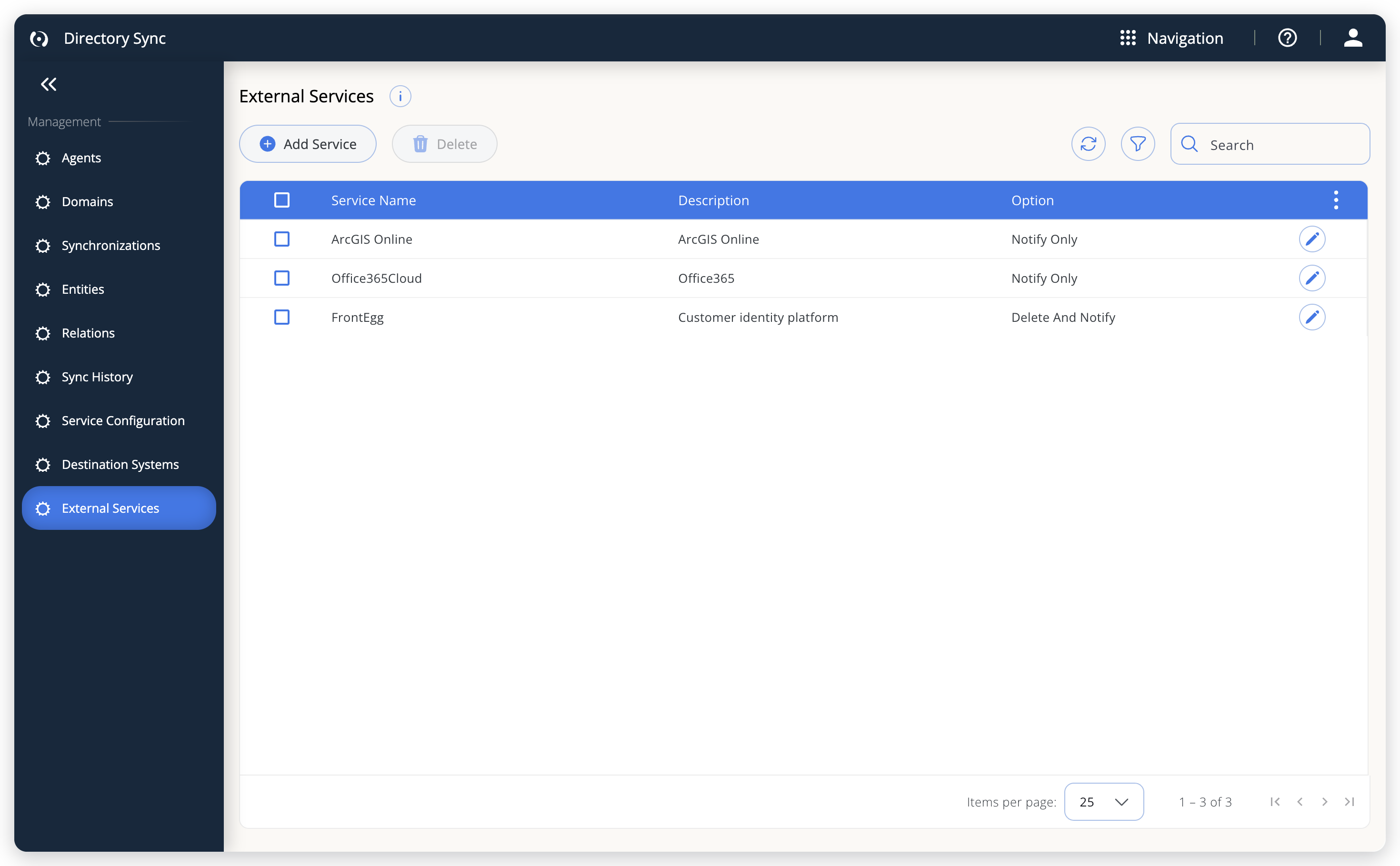 The External Services list. Option shows how each service handles leavers.
Configure notification settings
Set up default notification email addresses on the Identity Alignment Notifications tab of Service Configuration. These defaults apply to all services.
To set the defaults:
- In the sidebar, select Service Configuration.
- Select the Identity Alignment Notifications tab.
- Under Default email for notifications, enter the Email.
- (Optional) Under Default ticketing system email for notifications, enter the Ticketing system email if you want deletion events to create tickets in your IT service management system.
- Select Save.
The following screenshot shows the tab.
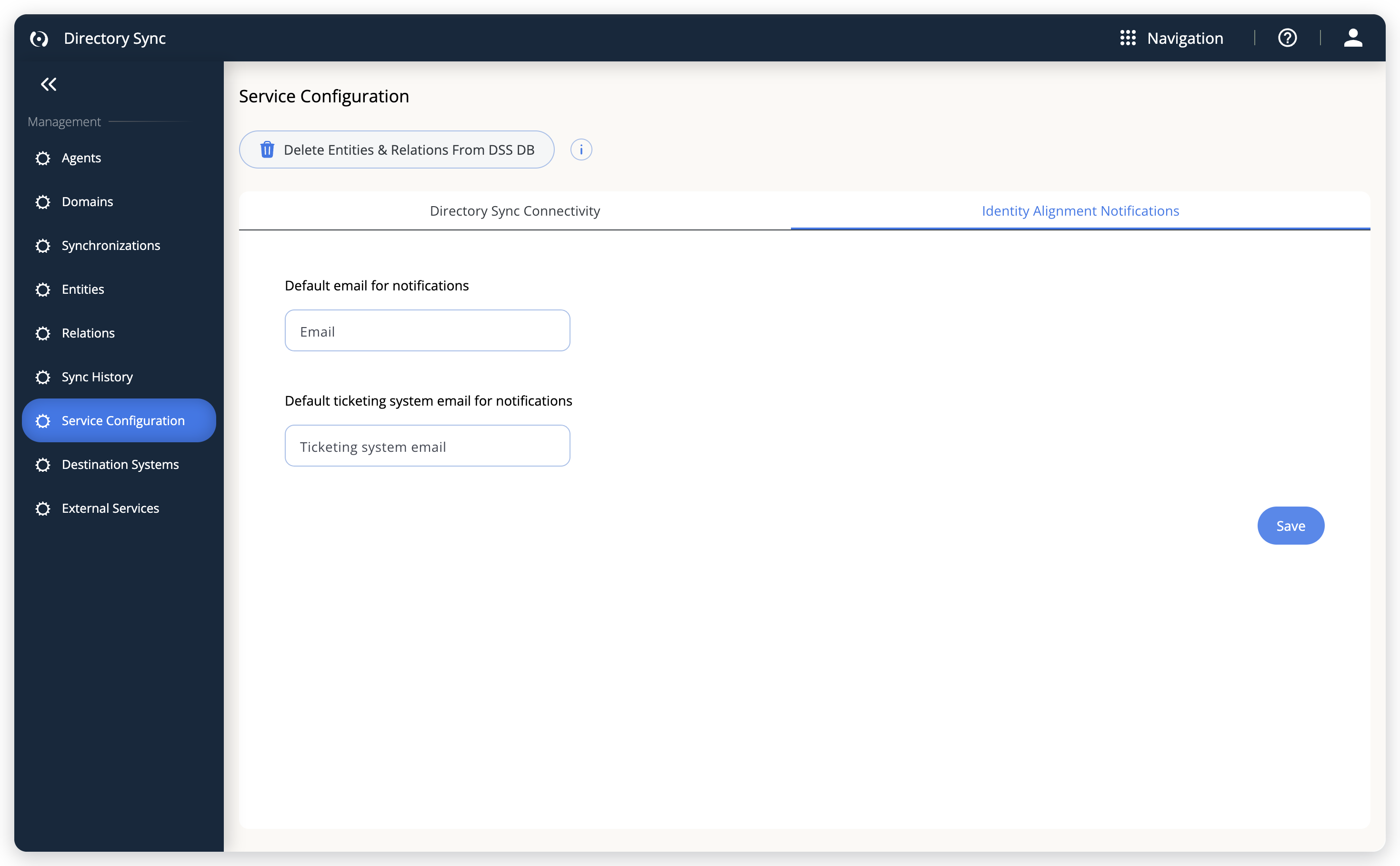 Default notification addresses for External Services.
The tab appears on OpenLM Platform only, for users who have the Identity Alignment Admin role. Service Configuration itself is for admins only. Directory Sync checks only that each value looks like an email address, so check them for typos.
Add a regular service
Before you add a service, confirm it is already configured in Cloud Broker with valid credentials. To add a regular service:
-
In the sidebar, select External Services.
-
Select Add Service.
-
On the Add External Service page, open the Available services drop-down list.
The list shows the services that are configured in Cloud Broker. Each entry shows the service name and, when the service has one, its description after a vertical bar.
-
Select a service.
-
On the Account tab, review the service details.
Service and Description are read-only and come from the Cloud Broker configuration for the selected service.
The following screenshot shows the Account tab.
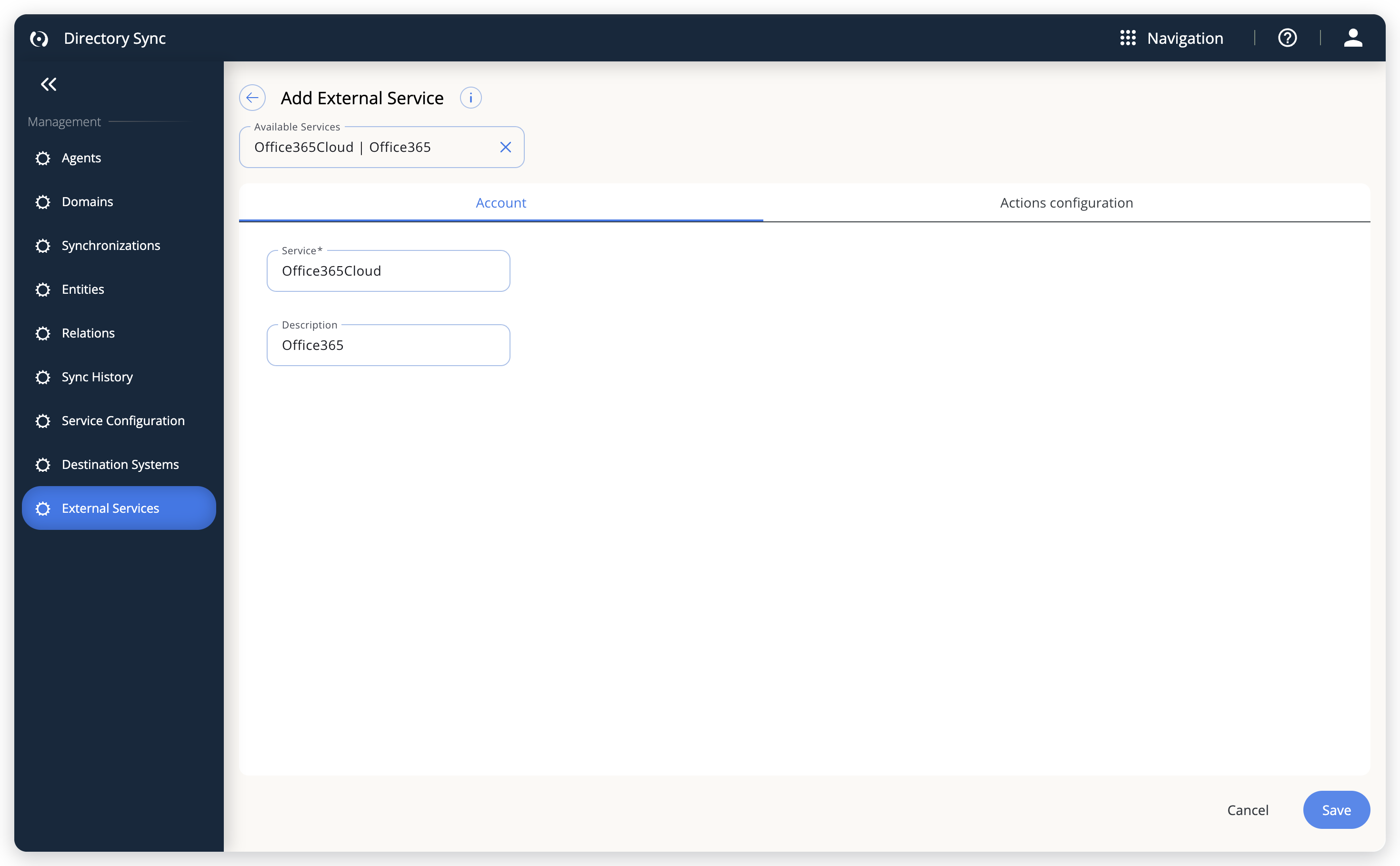 The Account tab shows the Cloud Broker service you selected.
-
Open the Actions configuration tab.
-
Under Select the scenario of deleting a user, select one of the following options.
The third option is selected by default:
- Delete user without additional notification. If the user can't be removed at all, it will be marked as removed.: Cloud Broker removes the user. If the user cannot be removed, the user is marked as "removed."
- Delete user and notify: Cloud Broker removes the user and External Services sends a notification.
- Don't delete, just notify that user should be deleted.: External Services sends a notification only. No automatic deletion occurs.
-
(Optional) Turn on Custom email.
-
(Optional) Enter an Email to override the default notification email for this service.
-
(Optional) Turn on Custom ticketing system.
-
(Optional) Enter a Ticketing Email to override the default ticketing email for this service.
-
Select Save.
The page returns to the list. The following screenshot shows the Actions configuration tab.
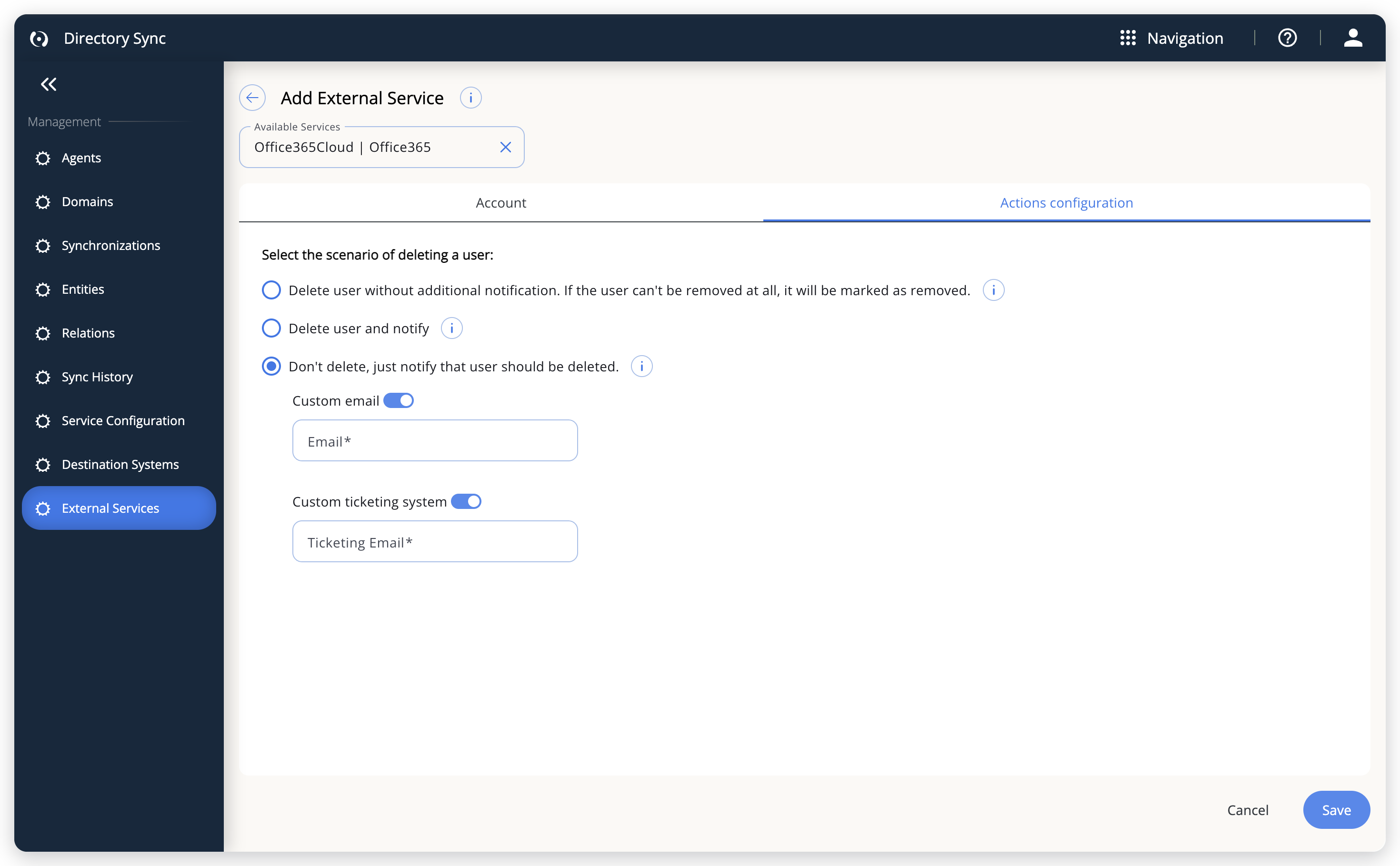 Choose what happens to leavers, and optionally override the notification addresses for this service.
Both override fields must contain a valid email address. Turning a toggle off clears its value.
Add a custom service
To track user deprovisioning for platforms that Cloud Broker doesn't support natively, or when you prefer not to share API credentials, use custom services.
Not all external platforms provide APIs that allow automatic user deletion. For these platforms, export users from the external service and upload the file to External Services for reference. To add a custom service:
-
In the sidebar, select External Services.
-
Select Add Service.
-
In Available services, select Custom.
The page shows a single Users tab.
-
Enter a Description. It is required.
-
Select Upload File.
-
Select a
.csvfile that lists the users in your external service.Include each user's email address. The file picker accepts
.csvfiles only. -
Select Save.
When a user is deleted from Active Directory, External Services checks whether that user exists in the uploaded file. If a match is found, External Services sends a notification that the user must be removed from that service manually.
Custom services use the default notification settings configured on the Identity Alignment Notifications tab of Service Configuration. Per-service email overrides are not available for custom services.
Use custom services when:
- The external platform does not provide APIs for user management.
- The service is not supported by OpenLM Cloud Broker.
- You do not want to share credentials with OpenLM Platform.
Edit a service
To edit a service:
- Point to the service's row.
- Select the Edit Rule icon.
- On the Edit External Service page, change the settings:
- For a regular service, change the deletion scenario and the custom email overrides on the Actions configuration tab. The Account tab is read-only.
- For a custom service, change the Description or upload a new
.csvfile on the Users tab. The tab also lists the File name and Upload date of the stored file. Select the file name to see its contents.
- Select Save.
Delete services
To delete services:
- Select the check boxes of the services to delete. Delete stays unavailable until you select at least one.
- Select Delete, and confirm in the dialog.
No success message appears. The services leave the list, and an error message appears if something fails.
Service types
External Services supports two types of services.
Regular services
Regular services connect to external platforms through Cloud Broker. When a user is deleted from Active Directory, External Services instructs Cloud Broker to remove the user from the external service automatically.
You can add any service that is configured in Cloud Broker, including:
- Autodesk Cloud
- Cloudflare
- GitLab
- Monday
- Office 365
Custom services
Custom services require a manually uploaded user list (a .csv export). External Services does not connect to the external platform directly. Instead, it checks whether a deleted user exists in the uploaded file and sends a notification for manual removal.
Deletion scenarios
When you add a regular service, select one of the following deletion scenarios. The Option column of the services list shows the scenario you chose. The following table lists the scenarios:
| Scenario | Option column | Behavior |
|---|---|---|
| Delete user without additional notification. If the user can't be removed at all, it will be marked as removed. | Delete Only | Cloud Broker removes the user from the external service. If the user cannot be removed, the user is marked as "removed." No notification is sent. If the external service supports a soft delete, the user is deleted that way, which keeps the historical data of the deleted user. Otherwise, the user is fully deleted. |
| Delete user and notify | Delete And Notify | Cloud Broker removes the user, and External Services sends a confirmation of the deletion. By default, the notification goes to the default email and ticketing system email. Turn on Custom email or Custom ticketing system to use other addresses for this service. |
| Don't delete, just notify that user should be deleted. | Notify Only | External Services sends a notification only. No automatic deletion occurs. Use this when you want to review and confirm deletions manually. New services start with this scenario selected. |
Error handling
If Cloud Broker fails to connect to an external service or encounters an error during the deletion process:
- For a service set to Delete And Notify, External Services sends an email notification indicating that the delete action failed. A service set to Delete Only sends no notification, even when the deletion fails.
- The notification includes details from the Cloud Broker response to help you diagnose the issue.
Example: offboarding a departing employee
When an employee leaves your organization, you want to remove their access across all external platforms.
Scenario: John Doe leaves the company. They have accounts in Monday, GitLab, and a custom HR platform.
- An administrator deletes John Doe from Active Directory.
- DSS runs a sync cycle and detects the deletion.
- External Services receives the event and checks the configured services.
- For Monday and GitLab (configured as Delete user and notify): Cloud Broker removes John Doe from both services. The administrator receives email confirmations.
- For the custom HR platform: The administrator receives a notification to remove John Doe manually.
Without External Services, the administrator would need to sign in to each external platform individually and remove the user manually.
Troubleshooting
The following table lists symptoms, likely causes, and fixes:
| Symptom | Likely cause | How to fix |
|---|---|---|
| External Services is missing from the sidebar | The Identity Alignment product is not active, you don't have its Admin role, or the deployment is on-premises | Activate Directory Sync in OpenLM Products and check that your OpenLM license covers Identity Alignment, which then activates automatically. Ask an account administrator to assign you the role. On-premises deployments don't have the page. |
| User not removed from a regular service | Cloud Broker not configured or unreachable | Check that the service is configured in Cloud Broker with valid credentials. |
| No deletion events received | DSS not detecting deletions, or the Identity Alignment product is not active | Check that DSS is activated and sync cycles are completing in Sync History. Confirm DSA is installed and connected to Active Directory. Directory Sync sends user-removal events only while the Identity Alignment product is active in OpenLM Products. |
| No notifications received | Email settings not configured | Check the default notification email on the Identity Alignment Notifications tab of Service Configuration. |
| Custom service not matching users | Uploaded file is outdated, or does not list the user's email address | Upload an updated file with current user data from the external service. |
| Service not appearing in the service list | Service not configured in Cloud Broker | Add the service in Cloud Broker first, then add it in External Services. |
| Deletion failed email received | Cloud Broker connection error | Review the error details in the email notification. Check Cloud Broker logs and verify the service credentials. |
FAQ
Frequently asked questions about External Services
Does External Services create or update users in external services? No. External Services removes users only. It does not create or update user accounts in external platforms.
Why only removal and not full synchronization? Customer feedback indicated that automatic user creation in external platforms can lead to higher licensing costs. Removing users when they leave the organization is the primary use case that provides clear cost savings without the risk of unintended account creation.
Does External Services delete users from the internal directory? No. External Services reacts to deletions that have already occurred in Active Directory. It removes users from external services, not from the directory itself.
Can I use External Services without Cloud Broker? For regular services, no. Cloud Broker handles the actual user removal from external platforms. For custom services, Cloud Broker is not required because External Services only sends notifications.
What happens if Cloud Broker fails during deletion? For a service set to Delete And Notify, you receive an email notification indicating that External Services failed to run the delete action. The notification includes the error details from the Cloud Broker response. A service set to Delete Only sends no notification.
Can I add a service that is not in the supported list?
Yes. Use the custom service type and upload a .csv file with your user list. You receive notifications to remove users manually.
Can I override notification emails for custom services? No. Custom services use the default notification settings configured on the Identity Alignment Notifications tab of Service Configuration. Per-service email overrides are available only for regular services.
What dependencies does External Services require? External Services requires DSS (Directory Sync Service) to be activated and DSA (Directory Synchronization Agent) to be installed. For regular services, Cloud Broker must be configured with the target service credentials. The Identity Alignment product activates automatically after Directory Sync is active, if your OpenLM license covers it.
How often does DSS sync run? DSS sync frequency is configured for each synchronization on the Synchronizations page of Directory Sync, not in External Services. Check your sync definitions for the current schedule.
The documentation team might draft this page using a large language model. A technical writer reviews every page and verifies it against the product before publishing it. A human makes the final decision.