Green Hills
OpenLM は Green Hills ライセンスの使用状況を監視できます。
ライセンスサーバーを問い合わせる方法は 2 通りあります:
- クイック方式: OpenLM Server がライセンスサーバーをリモートで問い合わせます。
- 堅牢方式: OpenLM Broker がサーバーをローカルで問い合わせ、データを OpenLM Server に送信します。この方式は通信障害への耐性を高め、ネットワーク/セキュリティ制限を回避し、将来的にログファイル解析を有効にできる可能性があります。
OpenLM Server のみで Green Hills を監視
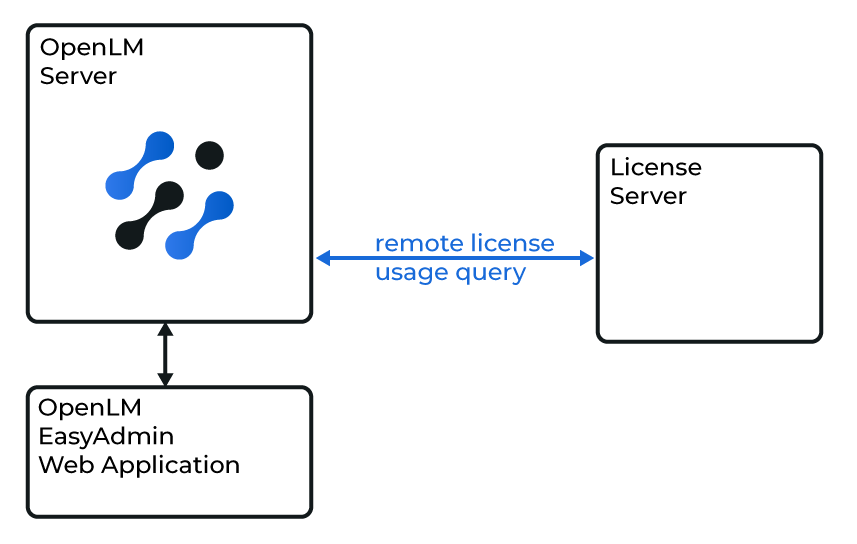
OpenLM Server の設定
-
OpenLM Server をインストールします。
-
EasyAdmin → Start → Administration → License Manager Servers を開きます。
-
Add LM をクリックします。
-
Display name にわかりやすい名前を入力します。
-
Type から Green Hills を選択します。
-
設定を切り替えます:
- Use Broker = Off
- Enable Triad Configuration = Off
-
ライセンスサーバーの詳細(Hostname/IP、Port、Time zone)を入力します。
-
例:
GH_license_server,2009,Pacific Time -
サーバー名とポートを確認するには、Green Hills サーバーで管理者として次のコマンドを実行します:
<full path>\lic_find_licenses.exe -w -l <host name>
-
-
Save をクリックします。
-
LM Tools でドロップダウンから Green Hills を選択し、Green Hills 実行ファイルのフルパスを入力します。
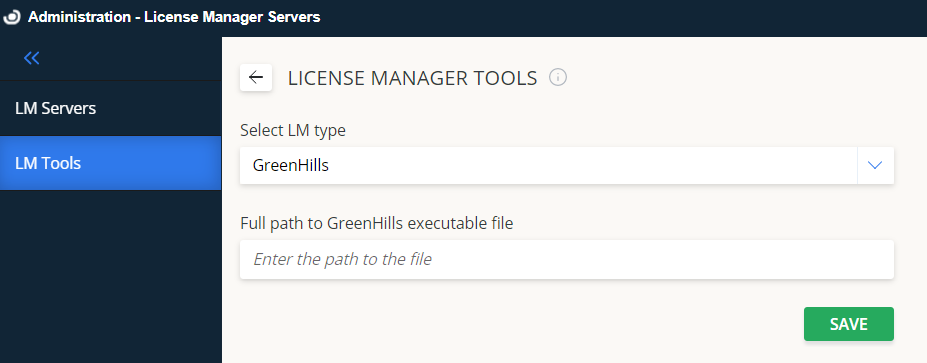
-
もう一度 Save をクリックします。
サーバー稼働の確認
- LM Servers 画面で Test をクリックします。
- 正常なテキスト応答が返れば、Green Hills ライセンスサーバーへの接続が有効です。
OpenLM Server + Broker で Green Hills を監視
Broker の使用は任意ですが推奨です。バッファリング、安定性、ネットワーク/セキュリティ面の柔軟性が向上します。
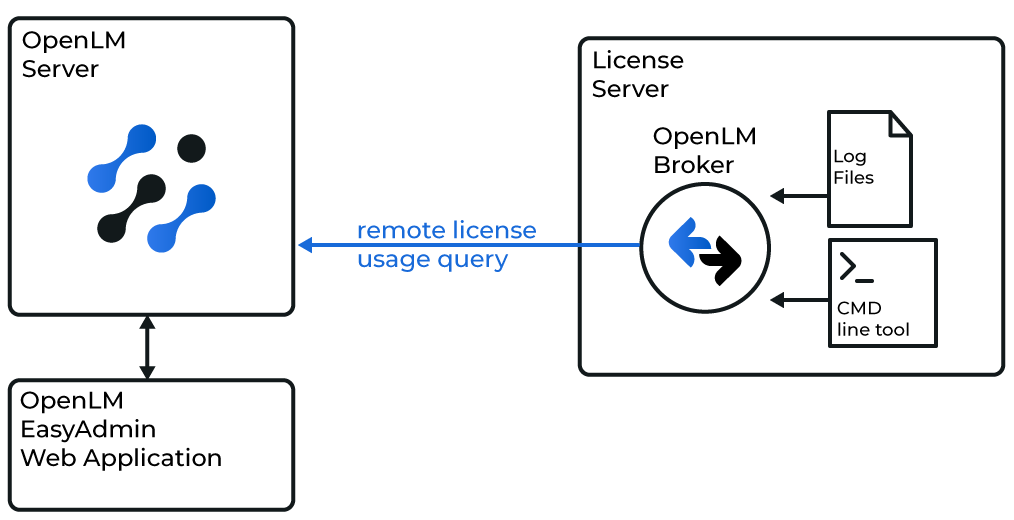
Broker のインストール
- ダウンロード して最新の OpenLM Broker をインストールします。
OpenLM Server の設定
- 直接方式と同じ手順で設定し、Use Broker = On にします。
Broker の設定
-
OpenLM Broker にアクセスします。
-
Add Port をクリックします。
-
ライセンスサーバーの Port(例:
2009)を入力します。 -
OpenLM Server hostname と Port(既定:
5015)を入力します。 -
ベンダー名を GHS に設定します。
-
statusとdata_inquiryの各コマンドのフルパスを確認します。 -
Execute をクリックして動作を確認します。
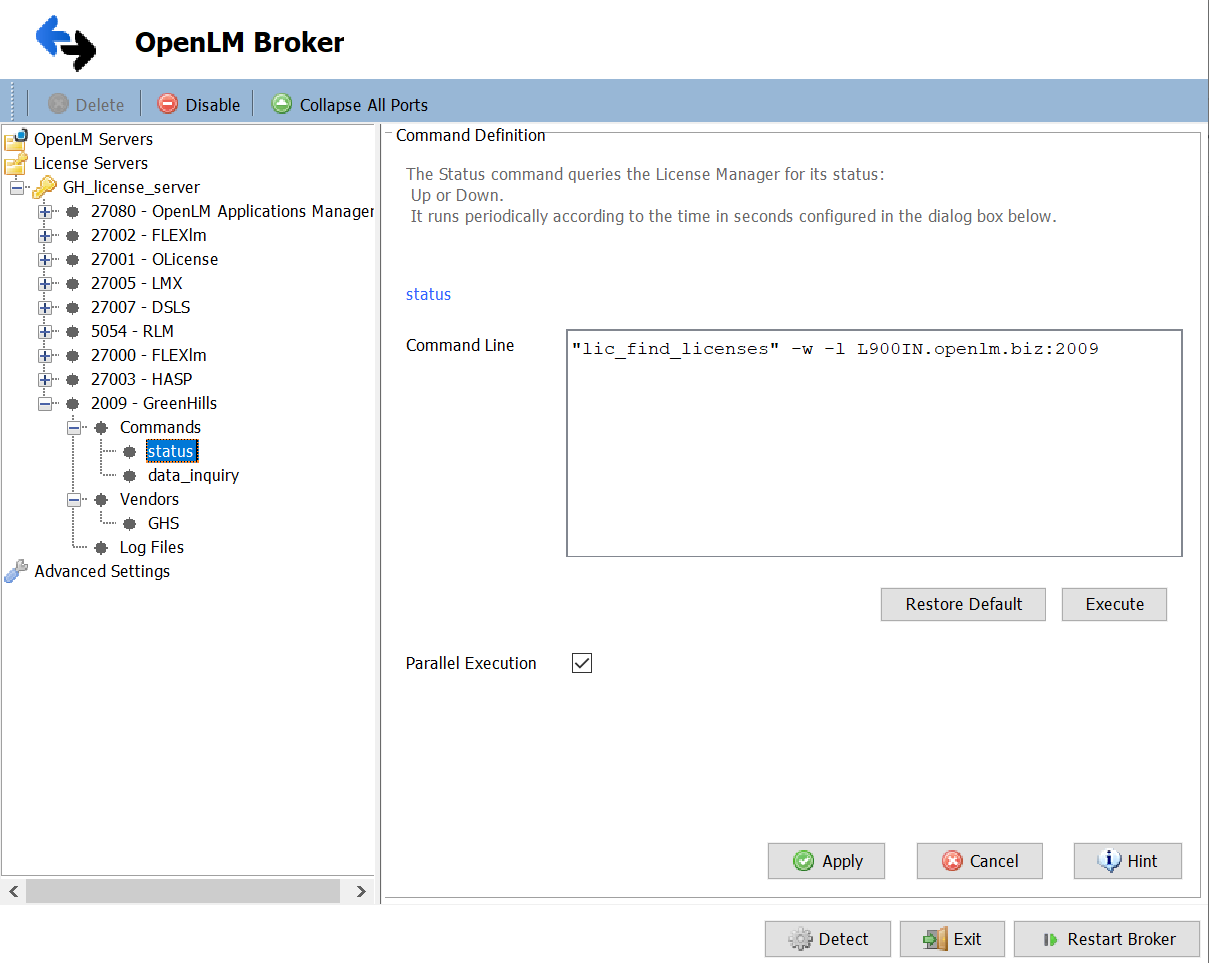
代替: Web UI で Broker を設定
- ブラウザで http://localhost:5090/ を開きます。
- License Managers → Add License Manager に移動します。
- ドロップダウンから Green Hills を選択し、任意のポート(例:
888)を入力して Add をクリックします。 - Vendors → Add Vendor に進み、Green Hills を入力して Confirm をクリックします。
- Log Files → Add Log File に移動します。
- パスを参照または手入力します。
- Green Hills ベンダーに割り当てます。
- Save をクリックします。
設定の確認
- ブラウザで EasyAdmin を開きます。
- Start → Widgets → License Servers に移動します。
- 保留中の Green Hills ライセンスマネージャーを承認します。
- 緑色の丸アイコン は接続が有効であることを示します。