InfoGraph
以下の手順で OpenLM を設定し、InfoGraph License Manager のライセンス使用状況を監視してライセンス統計を取得します。
要件
ライセンスマネージャーを問い合わせる前に、次を用意してください:
- オンプレミスの OpenLM SLM v2.x(または OpenLM Cloud アカウント)
- InfoGraph License Manager と同じマシンに OpenLM Broker v24.11 以降
監視機能
| Broker の LM タイプ | コマンド | ログ | 数量 | 有効期限 | 拒否 | 借用 | 割り当て | レポート粒度 |
|---|---|---|---|---|---|---|---|---|
| InfoGraph | いいえ | はい | いいえ | いいえ | いいえ | いいえ | いいえ | 秒 |
Broker を使用すると、バッファ付き通信が有効になり、ライセンスマネージャーサービスのリモート起動・停止も可能になります。
OpenLM Broker の設定
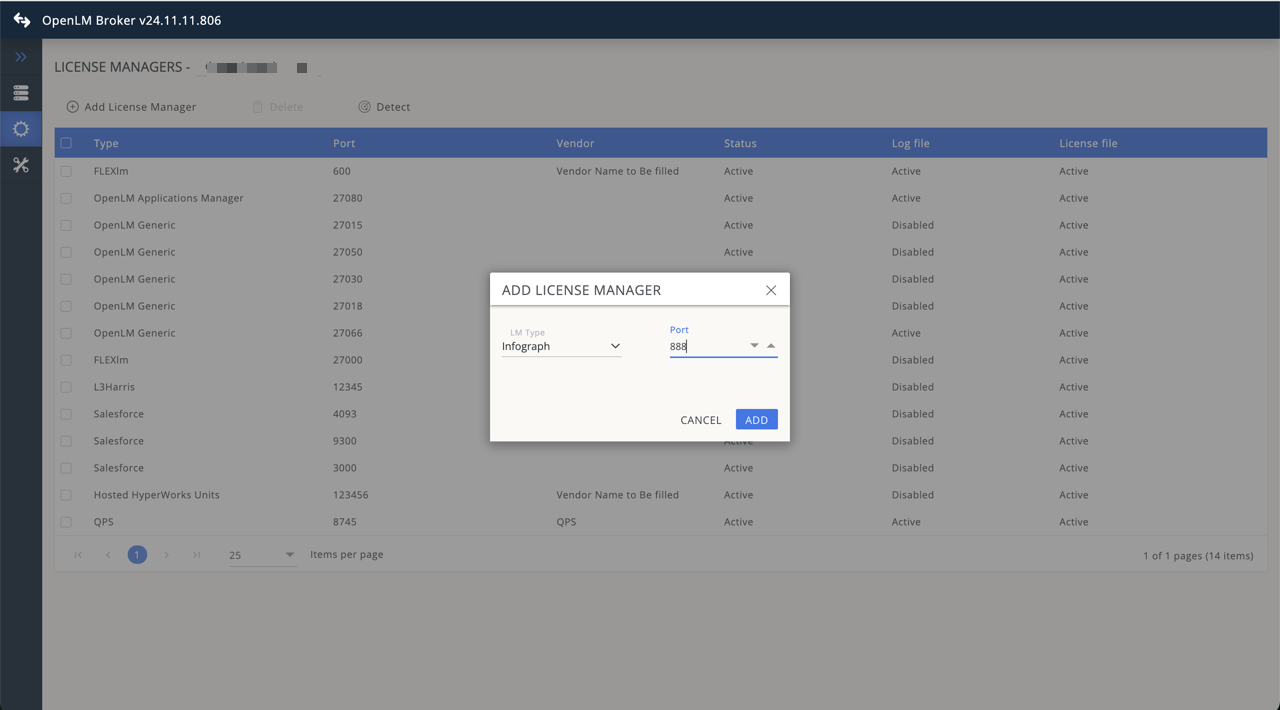
OpenLM Broker で InfoGraph License Manager を追加
OpenLM Broker は事前にインストールし、OpenLM SLM へレポートするよう設定しておく必要があります。
-
Broker Web UI を
http://localhost:5090で開きます。
既定ポートが使用中の場合は5091または5092を試してください。 -
License Managers → Add License Manager に移動します。
-
LM Type のドロップダウンから InfoGraph を選択します。
-
ポート番号(例:
888)を入力して Add をクリックします。 -
Settings タブに移動します。
- Broker がライセンスファイルパスを自動検出する場合があります。
- 検出できない場合は Set license file path manually を選択し、
lgraph.xmlを指定します。
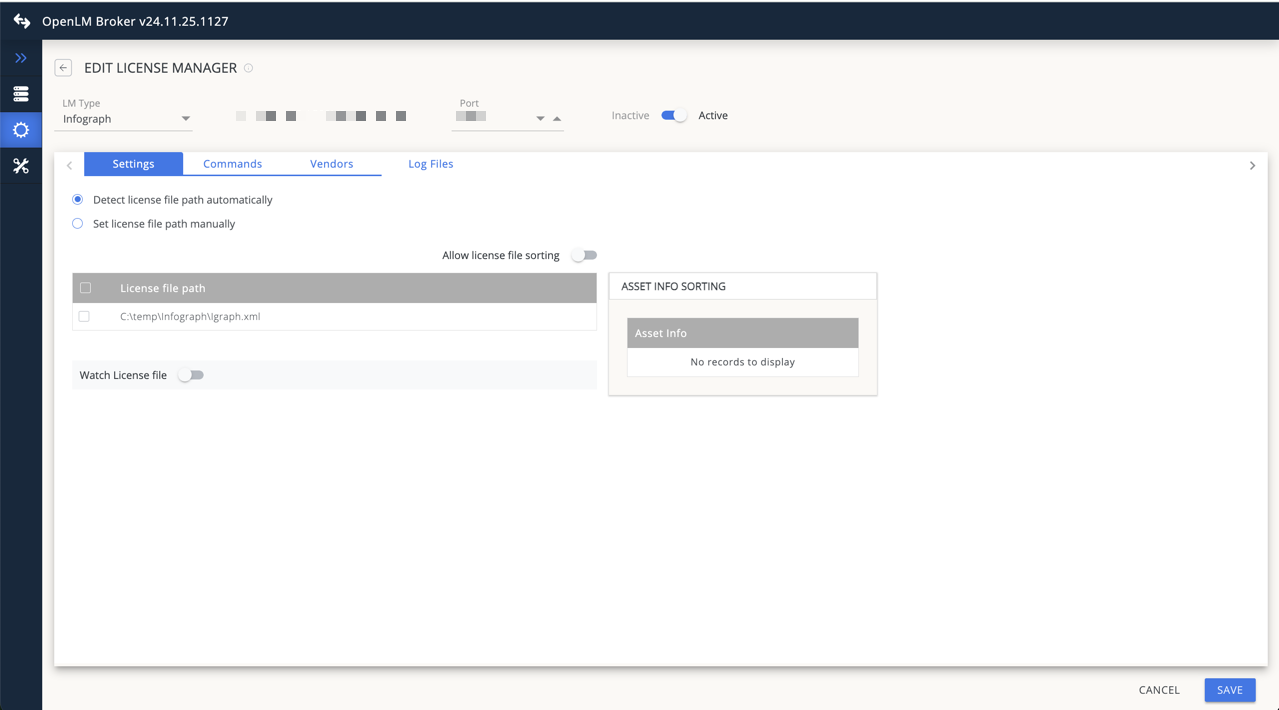
OpenLM Broker で InfoGraph のライセンスファイルパスを設定 -
Vendors タブに移動し、Add Vendor をクリックして
InfoGraphを入力し、Continue をクリックします。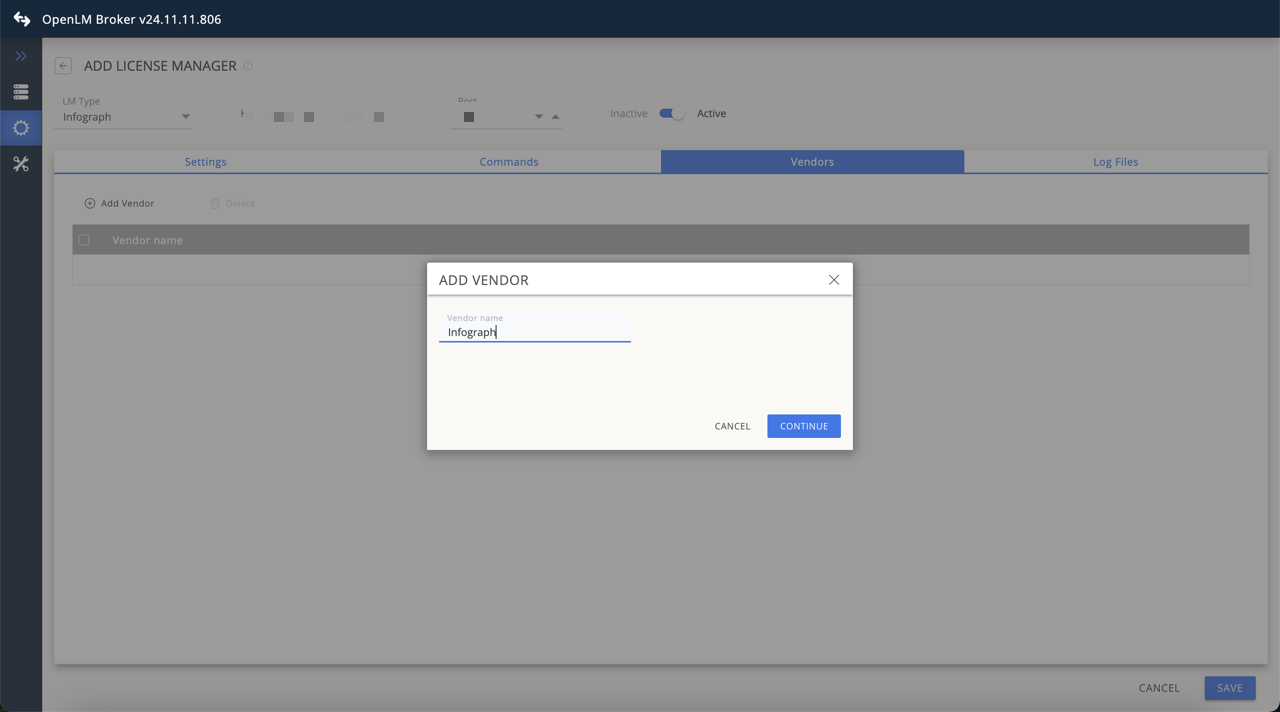
OpenLM Broker で InfoGraph ベンダーを追加 -
Log Files タブに移動し、Add Log File をクリックします。
Watch file by pattern をオフにします。必要に応じて複数のログファイルを追加できます。Continue をクリックして Save をクリックします。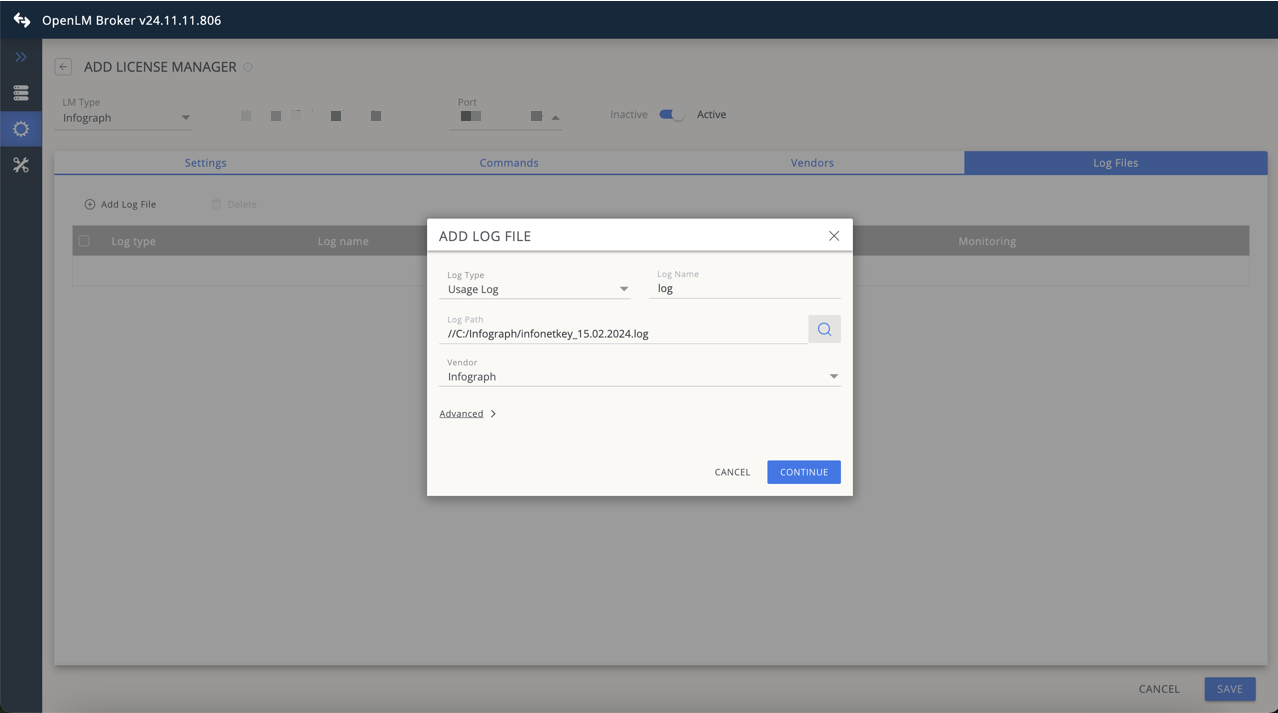
OpenLM Broker で InfoGraph のログファイルを追加
OpenLM の設定
上記手順が完了すると、Broker は OpenLM SLM にデータを送信しているはずです。
EasyAdmin UI で設定を承認します:
-
EasyAdmin を開きます。
-
Start → Widgets → License Manager Servers に移動します。
-
Servers Pending Approval のリンクをクリックします。
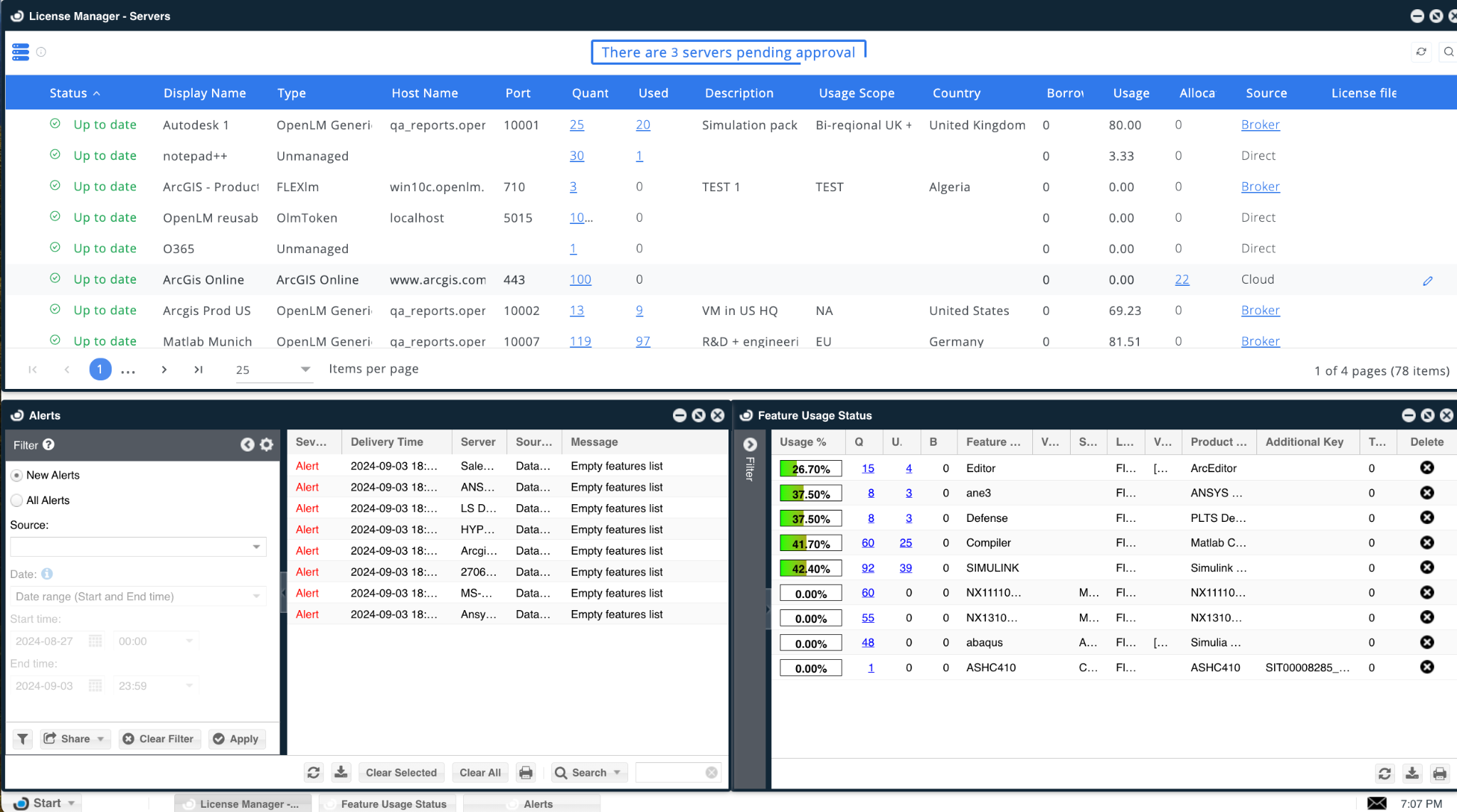
EasyAdmin の保留中ライセンスマネージャー -
保留中の InfoGraph エントリをダブルクリックします。OpenLM Generic と表示されます。
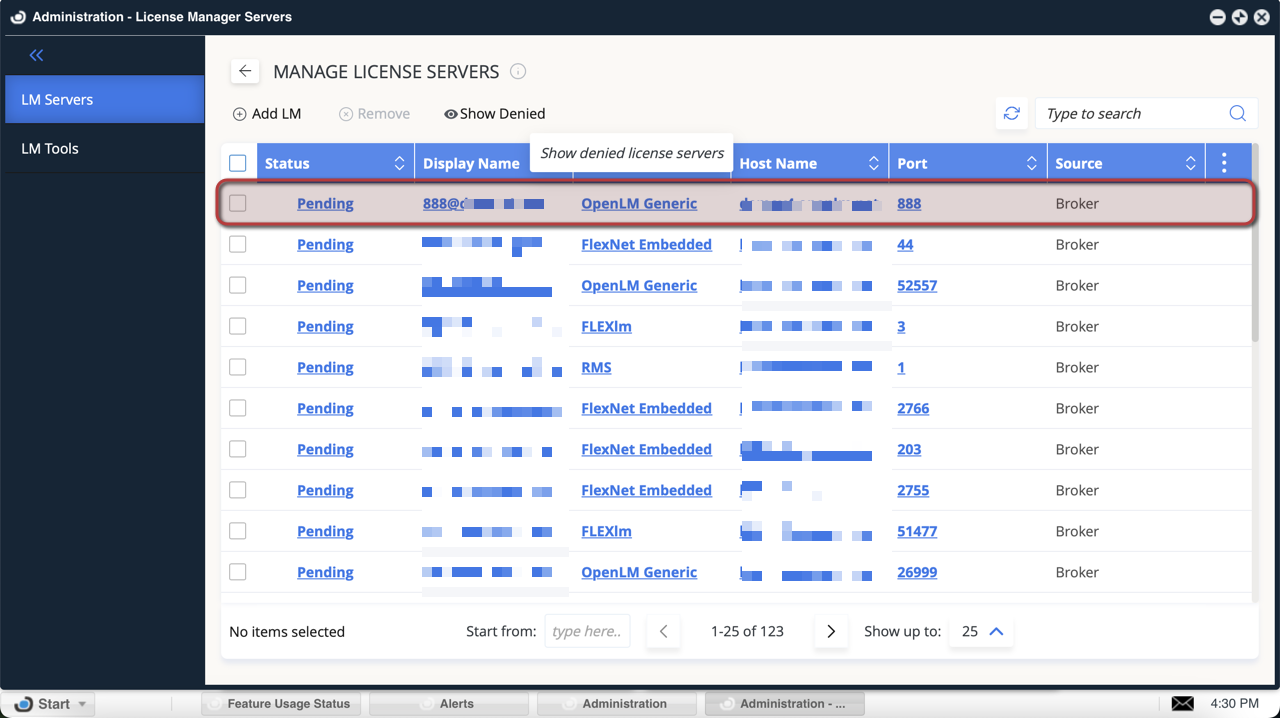
EasyAdmin の保留中 InfoGraph ライセンスマネージャー -
Display Name に任意の名前(例:
InfoGraph)を入力します。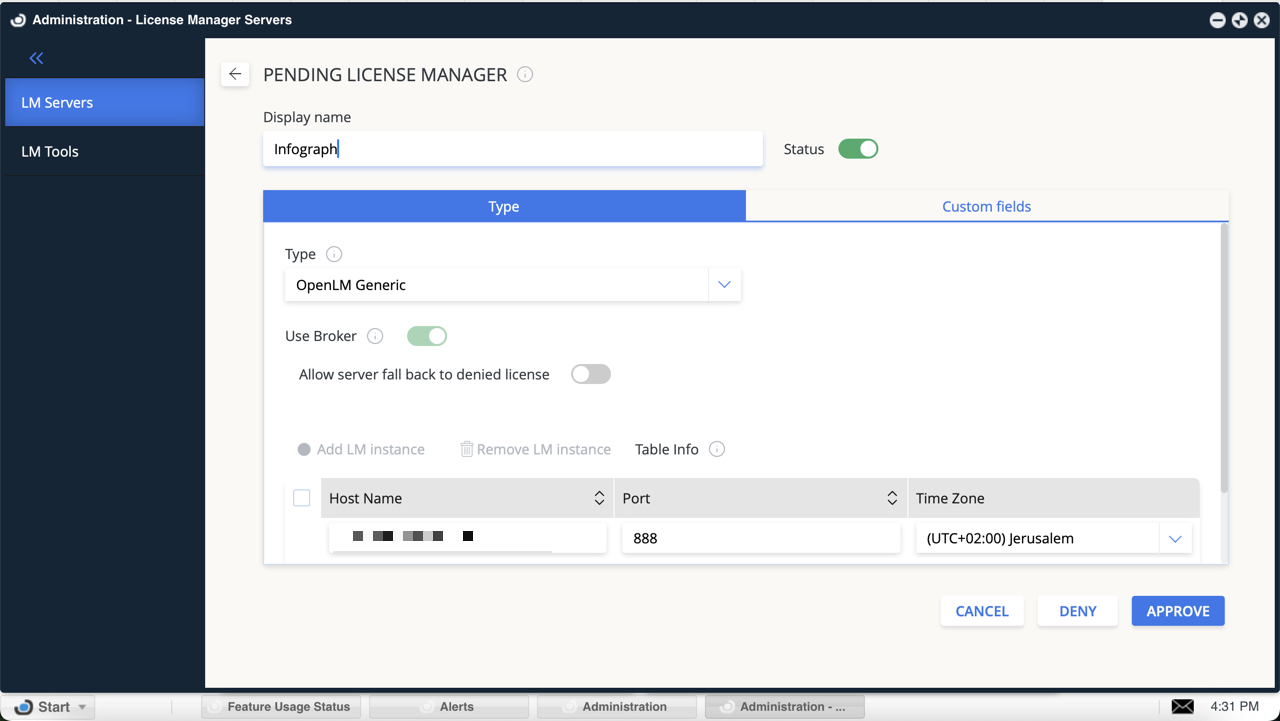
InfoGraph ライセンスマネージャーの表示名を編集 -
(任意)Custom Fields タブで国、使用範囲、説明などを追加します。
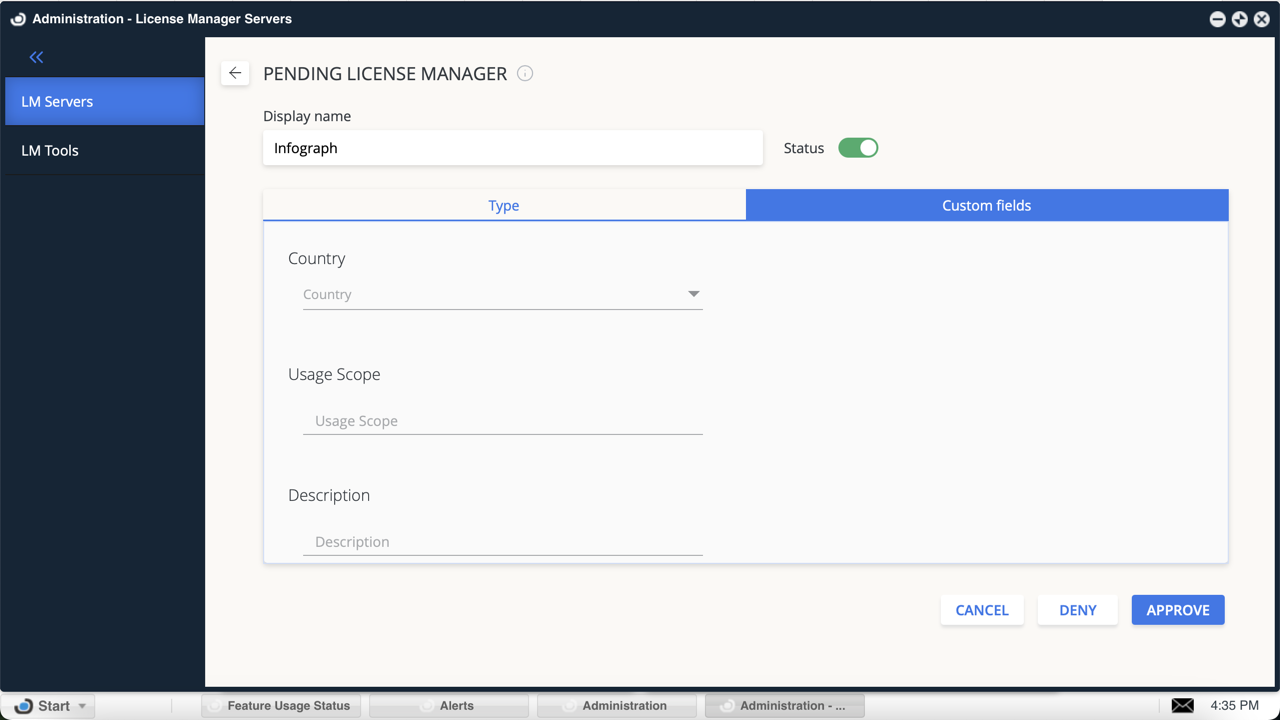
InfoGraph ライセンスマネージャーのカスタムフィールド -
設定内容を確認して Approve をクリックします。
これで InfoGraph が OpenLM SLM に追加されます。ステータスの更新に最大 3 分かかることがあります。
緑色の丸アイコンは接続が有効であることを示します。
設定の確認
-
EasyAdmin を開きます。
-
Start → Widgets → License Manager Servers に移動します。
-
一覧に InfoGraph ライセンスマネージャーが表示され、緑色の丸アイコンになっていることを確認します。
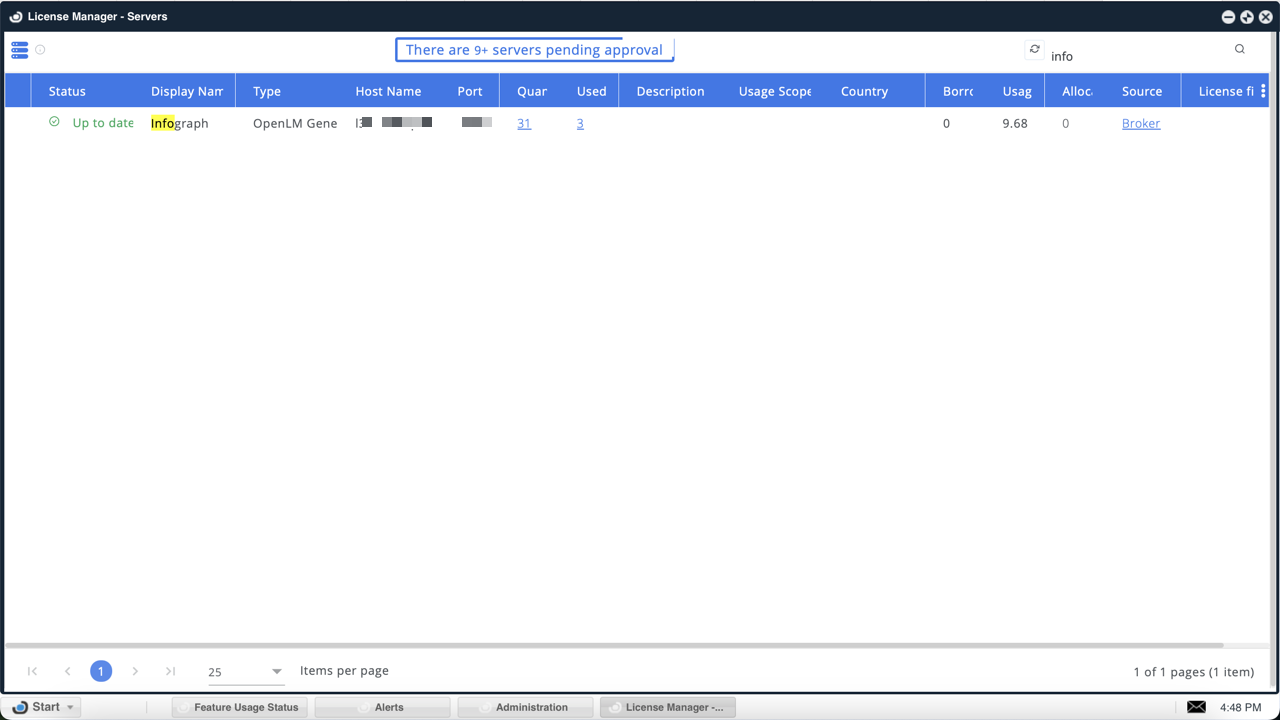
EasyAdmin の緑色の丸アイコンは接続が有効であることを示します
新しい接続の後、ステータス更新まで最大 3 分かかることがあります。