OLicense
OLicense は OpenLM がサポートするライセンスマネージャー の 1 つです。
本ガイドでは、OpenLM を OLicense-Server と連携し、ライセンス使用状況を監視して統計情報を取得する方法を説明します。
OLicense-Server を問い合わせる方法は 2 通りあります:
- 直接方式: OpenLM Server がライセンスサーバーをリモートで問い合わせます。
- Broker 方式: OLicense-Server マシンに OpenLM Broker をインストールし、ローカルで問い合わせて OpenLM Server に送信します。
OpenLM Server のみで問い合わせ(直接方式)
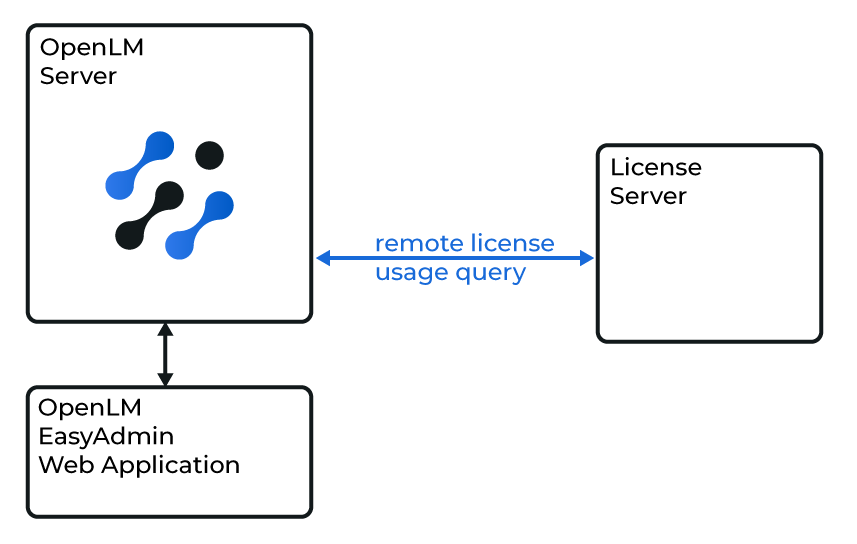
OpenLM Server と OLicense の直接連携
EasyAdmin の設定
- OpenLM Server をインストールします。
- EasyAdmin → Start → Administration → License Manager Servers を開きます。
- LM Tools で LM type から OLicense を選択します。
- OLicense をインストールしているマシンから
olixtool.exeをコピーします。- 既定パス:
C:\Program Files\optimum\olicense - コピー先:
C:\Program Files\OpenLM\OpenLM Server\LM
- 既定パス:
- EasyAdmin で Full path to the OLicense executable にコピーした
olixtool.exeのパスを設定します。 - SAVE をクリックします。
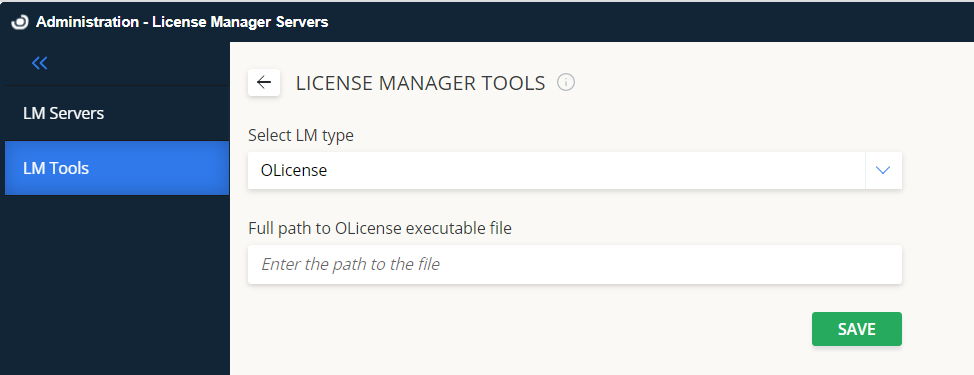
EasyAdmin の OLicense 設定
OLicense サーバーの追加
- EasyAdmin で Start → Administration → License Manager Servers に移動します。
- Add LM をクリックします。
- Display name にわかりやすい名前(例: OLicense central)を入力します。
- Type から OLicense を選択します。
- トグルを設定します:
- Use Broker:
- Off(既定): OpenLM Server が OLicense を直接問い合わせます。
- On: OpenLM Broker が使用状況情報を提供します。
- Is Triad Configuration: Off のままにします。
- Use Broker:
- OLicense-Server の Hostname と Port を入力します(既定ポート: 80)。
- Time Zone を選択します。
- SAVE をクリックします。
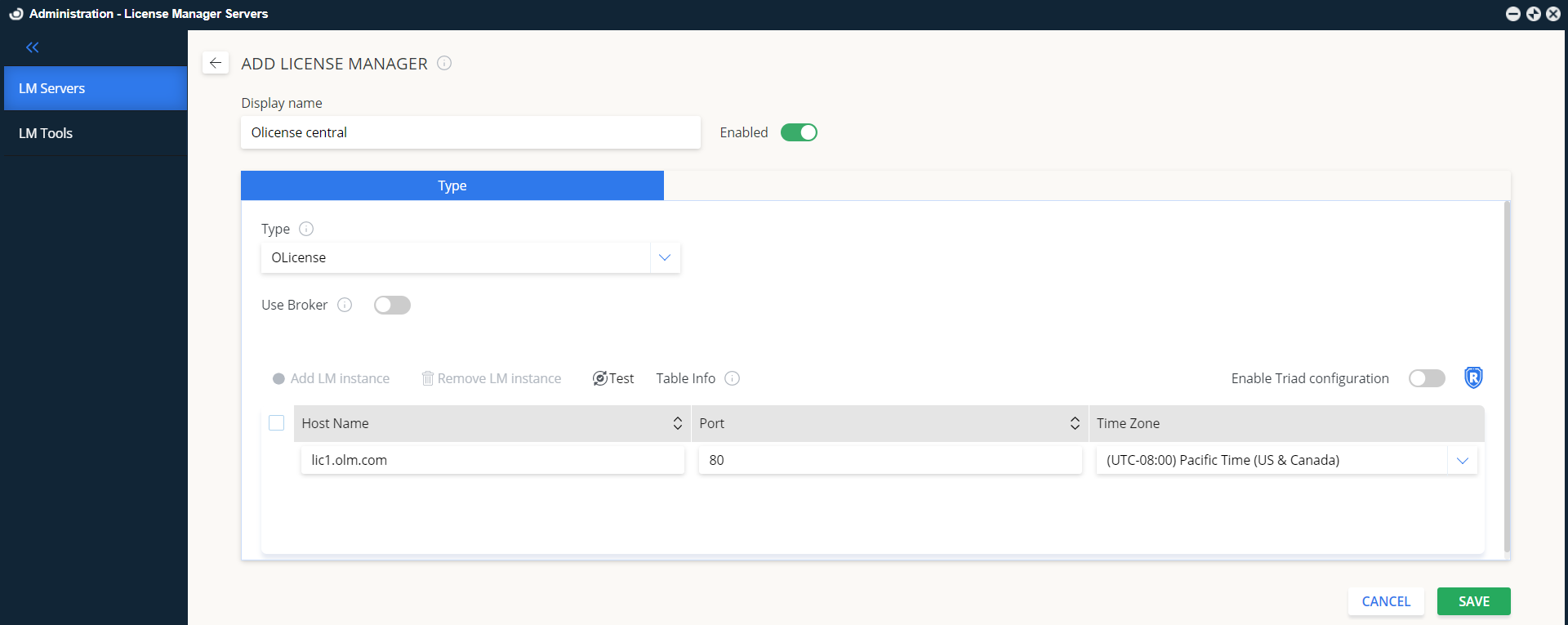
EasyAdmin で OLicense サーバーを追加
OpenLM Broker で問い合わせ
OpenLM Broker は任意ですが推奨です。OLicense をローカルで問い合わせて OpenLM Server に送信し、ネットワーク障害時のバッファ付き通信を確保します。
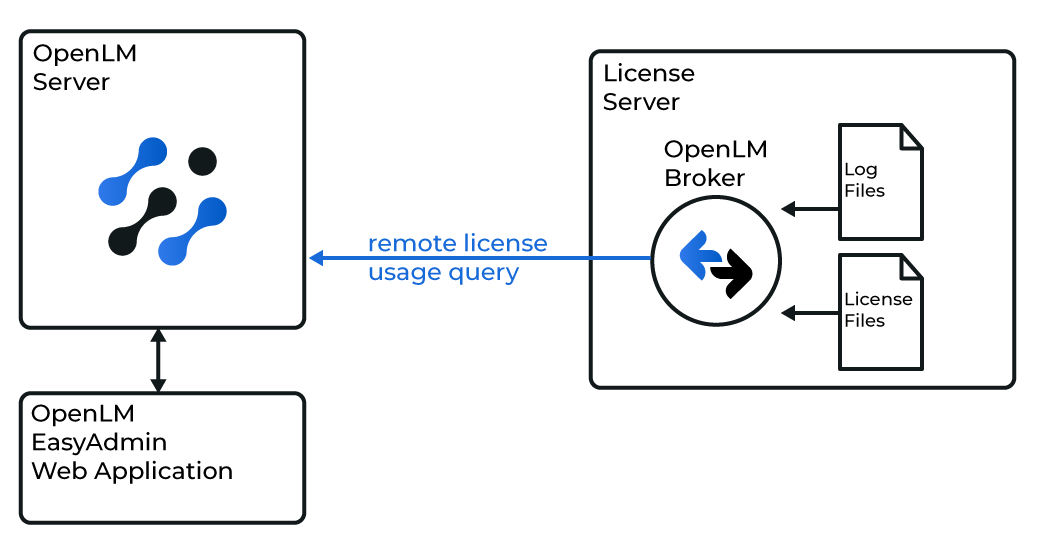
OLicense に対する OpenLM Broker 設定
OpenLM Server の設定(Broker 利用)
上記のサーバー設定手順を繰り返し、Use Broker = On にします。
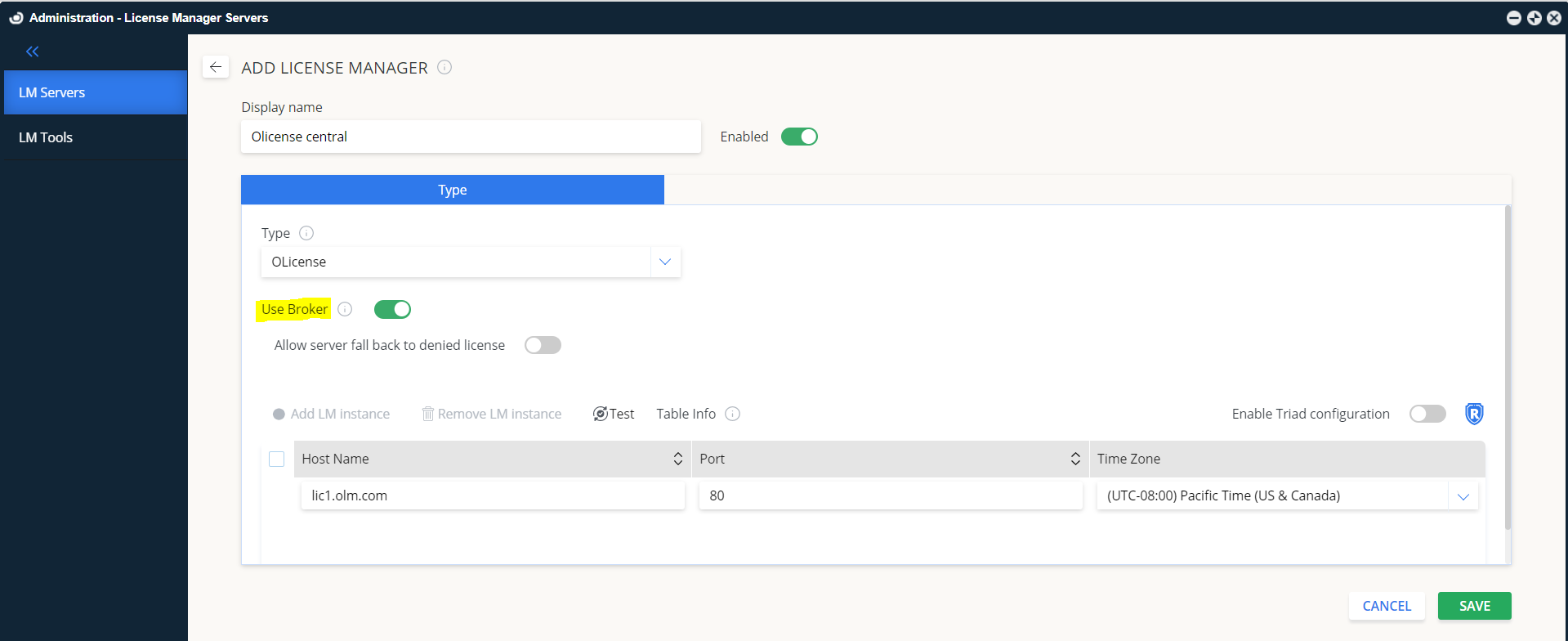
Broker 有効時の EasyAdmin 設定
OpenLM Broker の設定
- ダウンロード して最新の OpenLM Broker をインストールします。
- 正しいポート(既定: 80)で OLicense を監視するよう Broker を設定します。
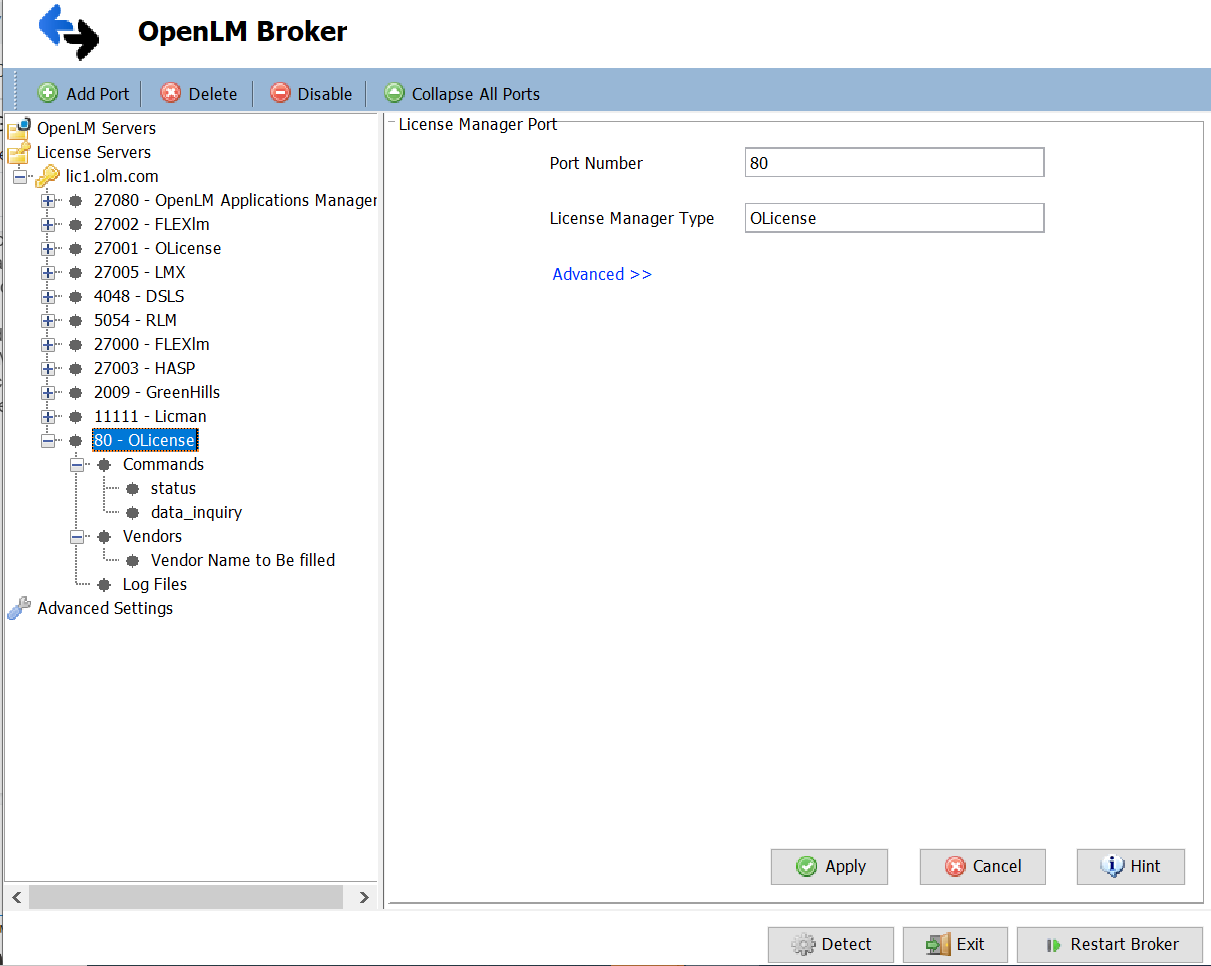
Broker で OLicense のポートを設定 - Broker の各フィールドを EasyAdmin の設定に合わせます。
- Commands ノードで
olixtool.exeのパスを設定します。
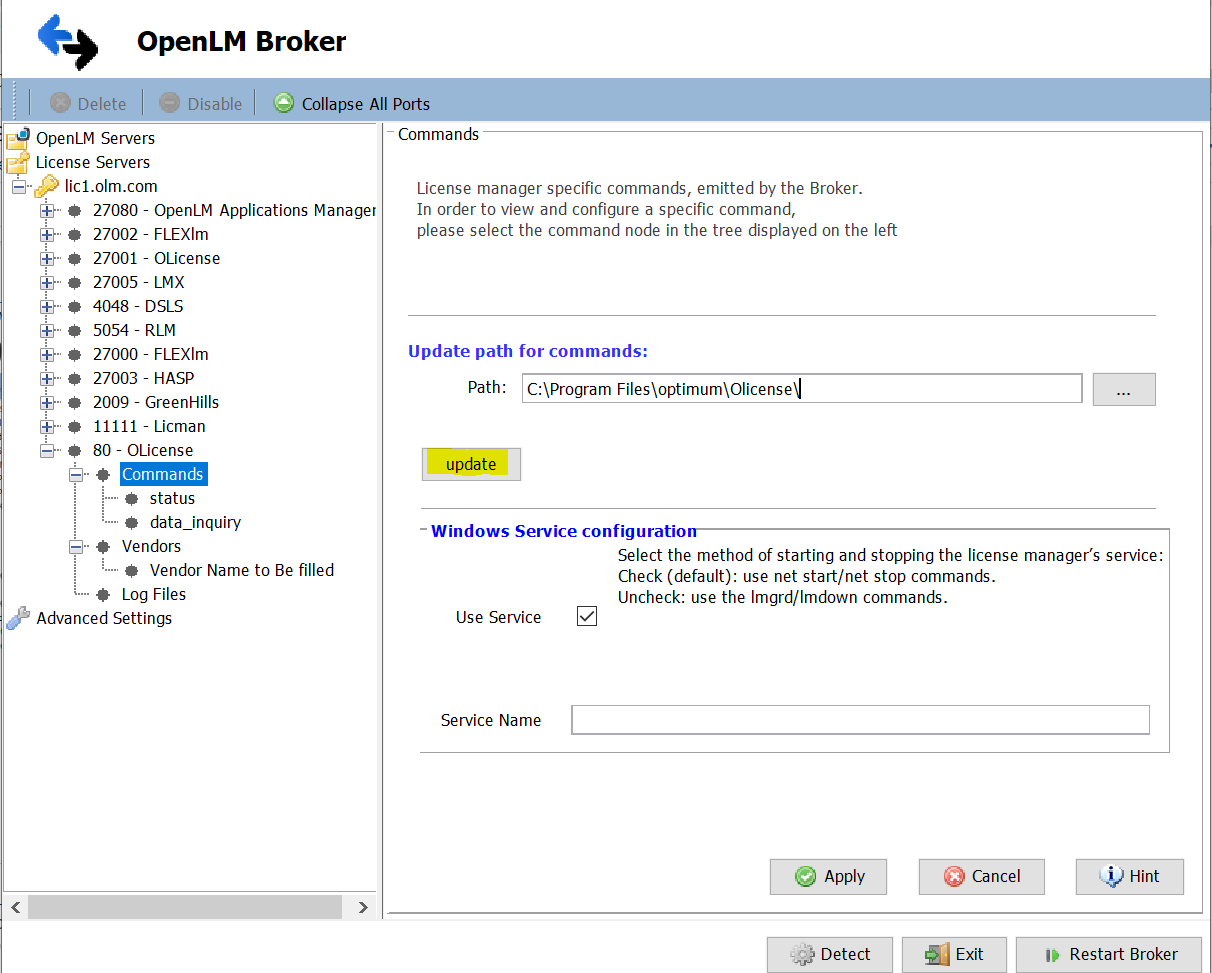
Broker でコマンドパスを設定 - status と data_inquiry で Execute をクリックしてテストします。
- Apply をクリックし、Broker を再起動します。
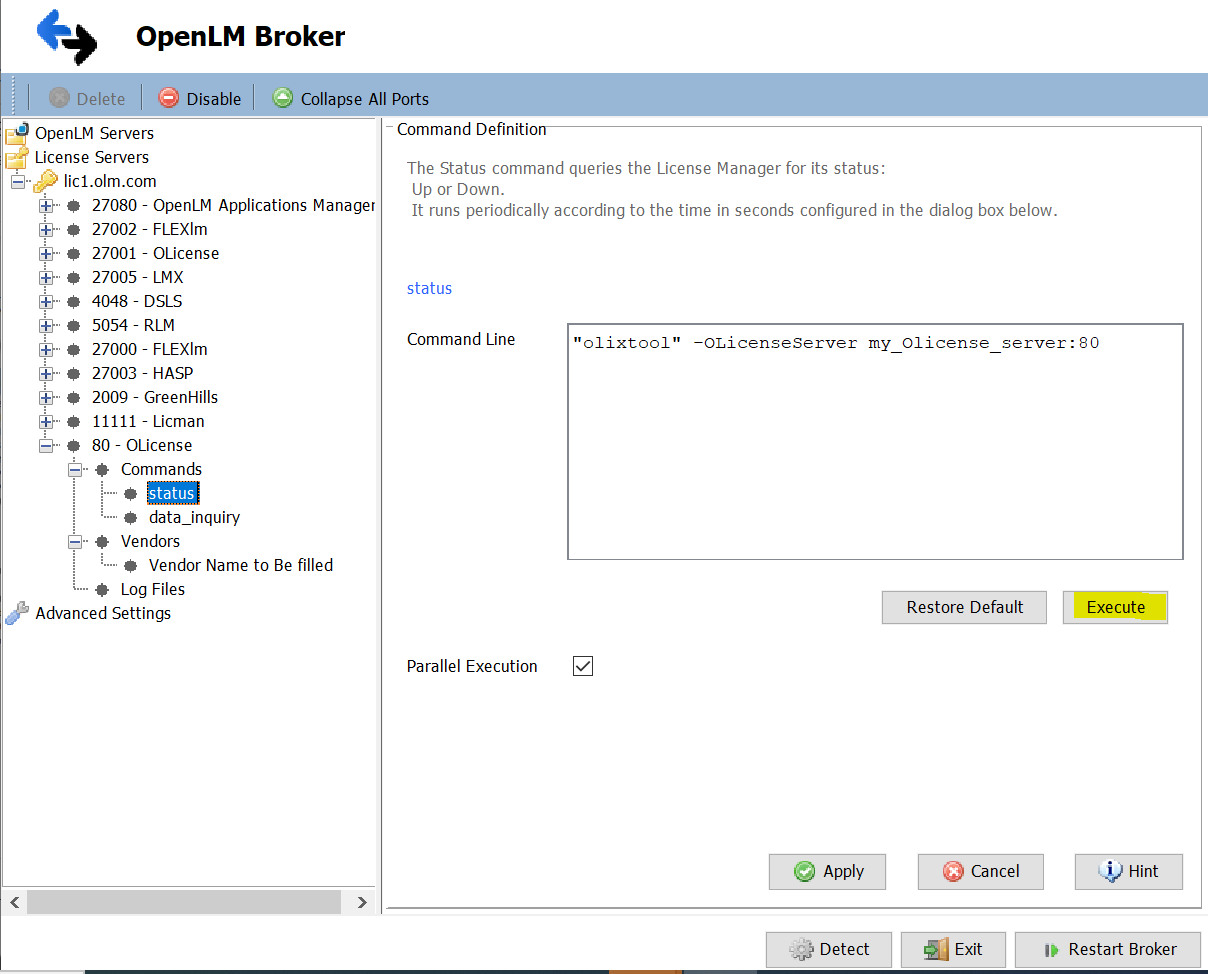
設定後に Broker を再起動
代替: Broker Web UI の手動設定
- 最新の OpenLM Broker をインストールします。
- Broker Web UI を開きます。
- License Managers に移動します。
- OLicense が自動検出された場合は確認して保存します。
- 検出されない場合は Add License Manager → OLicense を選択 → ポート(既定: 80)を入力 → ADD。
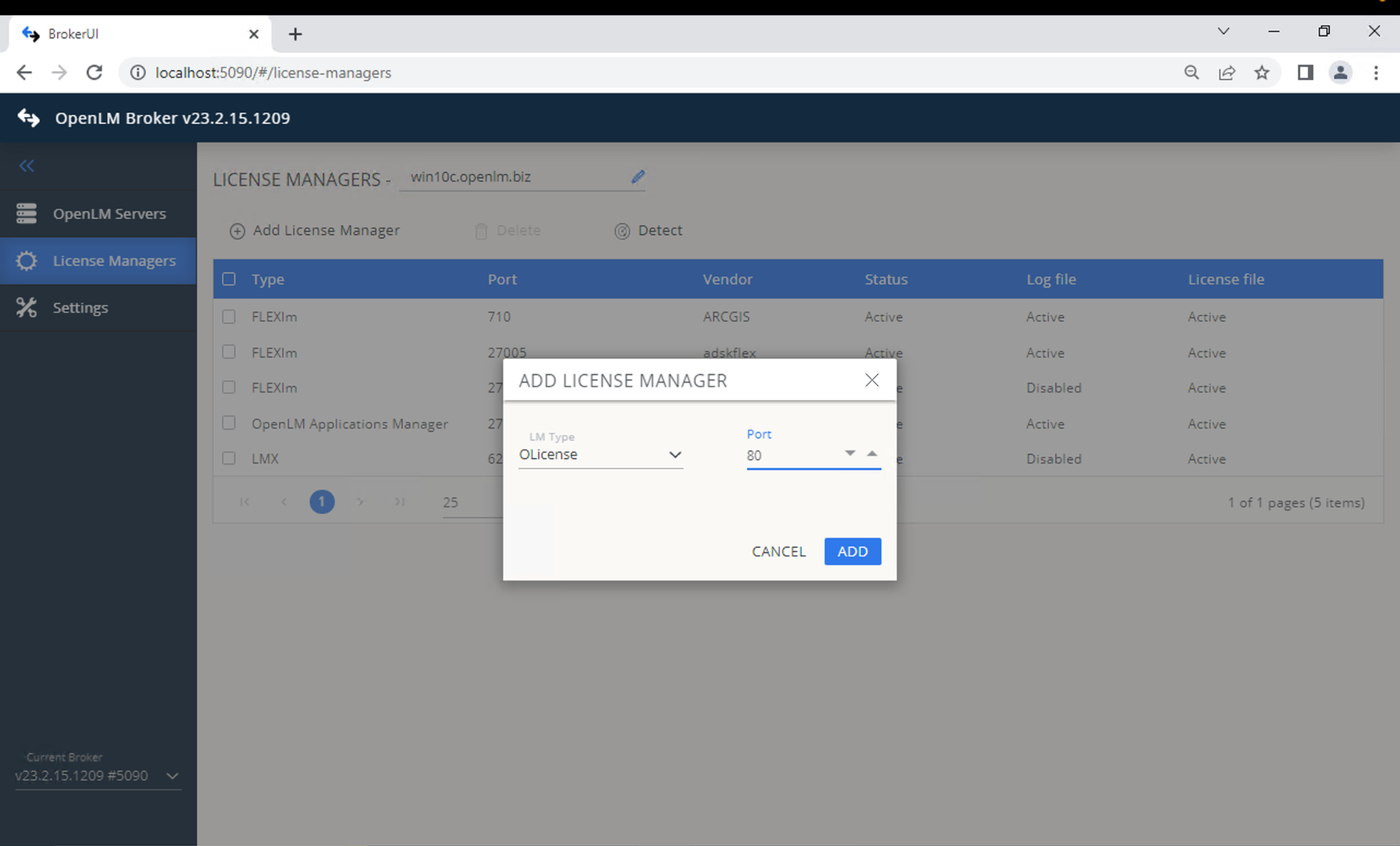
Broker で OLicense を手動追加
- Commands で
olixtool.exeのパスを設定し、Execute で出力を確認します。
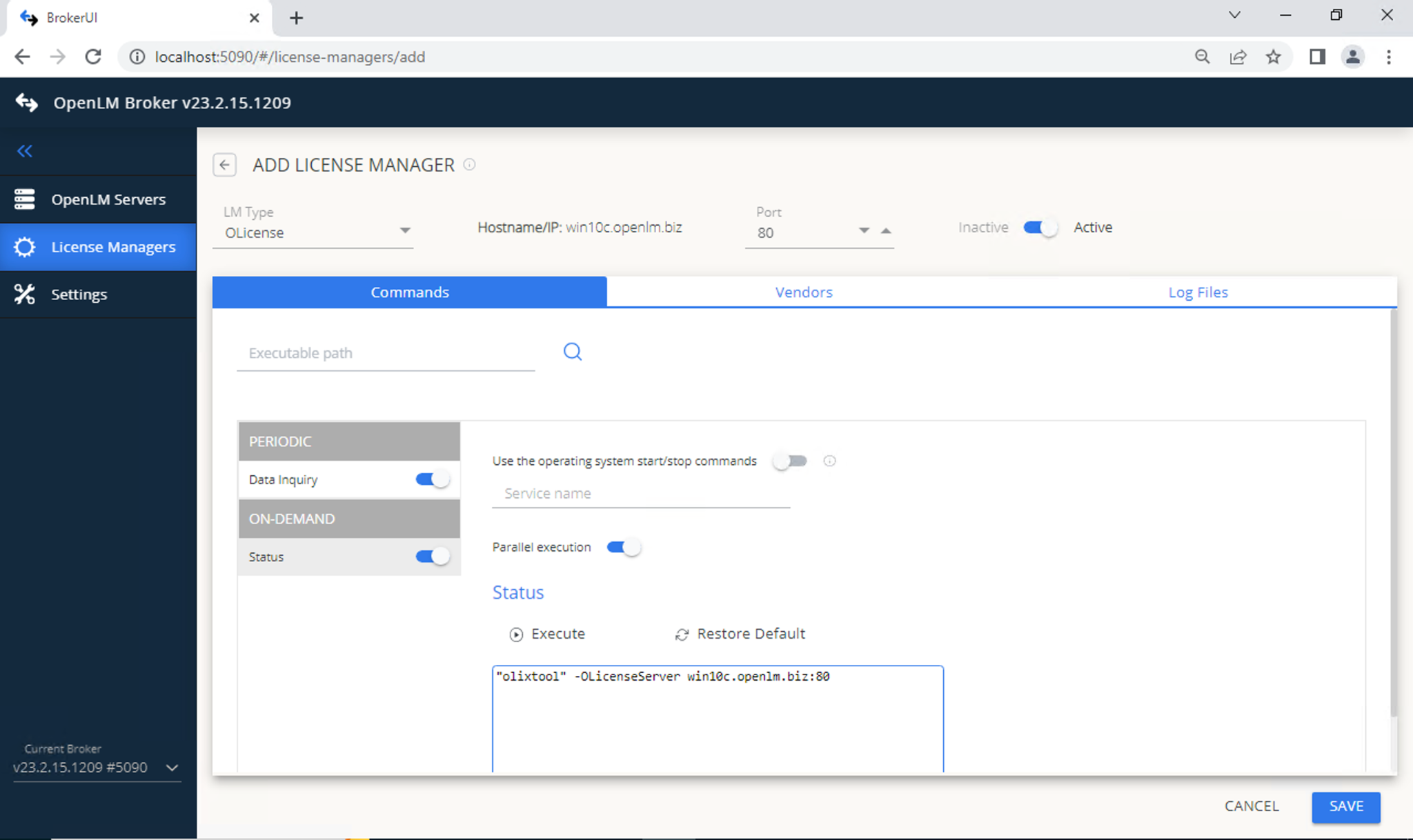
Broker Web UI でコマンドパスを設定 - Vendors で Add Vendor → “OLicense” を入力 → Continue。
- SAVE をクリックします。
- OpenLM Server を上記手順で設定します。
EasyAdmin での確認
- EasyAdmin を開きます(
http://<OpenLM Server>:5015)。 - Start → Widgets → License Servers に移動します。
- 一覧に OLicense が表示されることを確認します。
- 緑色の丸アイコン は接続が有効であることを示します。