ProgeCAD
ProgeCAD は CAD とコンセプトスケッチ向けの 2D/3D 設計ソフトウェアです。AutoCAD と互換性があり、ネイティブ .dwg 形式で Direct Modeling をサポートします。
OpenLM は ProgeCAD Network License Manager (NLM) 13.0.18 以降を監視できます。ライセンスサーバーが定期的に XML ファイルを生成し、OpenLM がそれを解析して EasyAdmin に使用状況を表示します。
前提条件
ProgeCAD の監視には次が必要です:
- ProgeCAD ライセンスサーバーに OpenLM Broker をインストール済み。
- ネットワーク内の任意の Windows マシン(ライセンスサーバー含む)に OpenLM Server をインストール済み、または OpenLM Cloud アカウント。
Broker が ProgeCAD ライセンスサーバーをローカルで問い合わせ、OpenLM Server にデータを転送します。
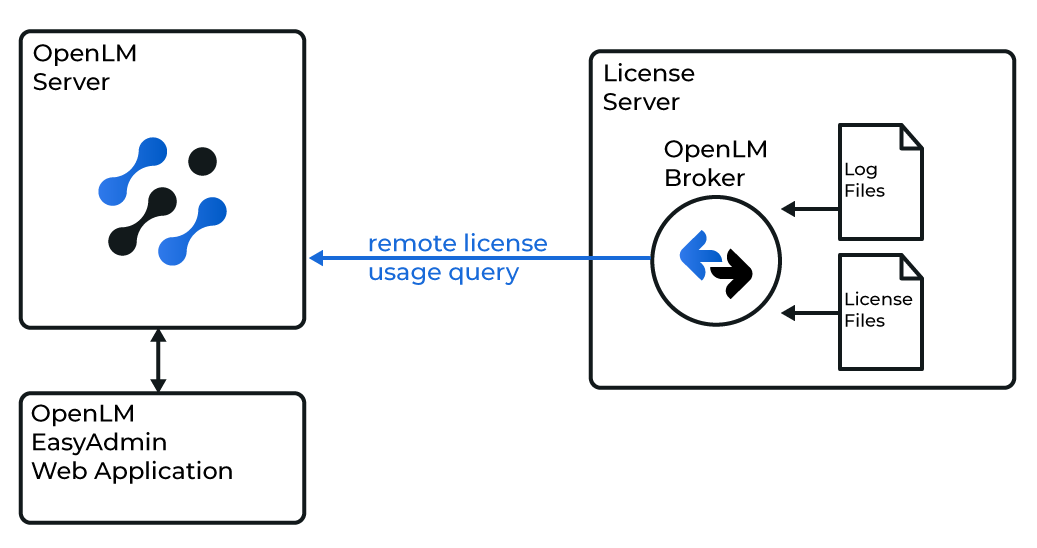
OpenLM で ProgeCAD を監視する設定
- OpenLM Server をダウンロードしてインストールするか、Cloud アカウントを作成します。
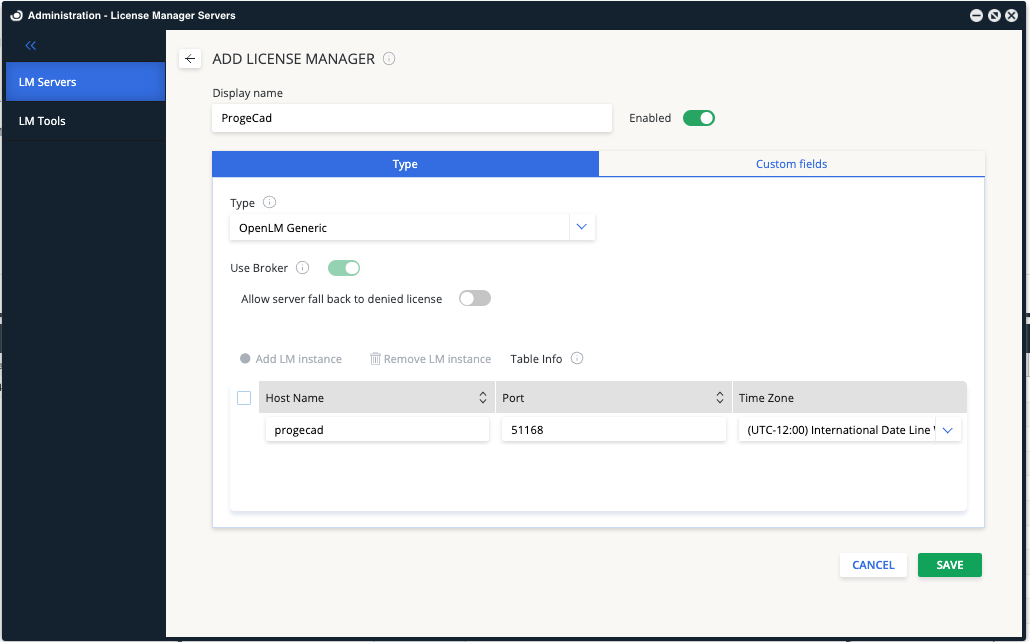
- EasyAdmin → Start → Administration → License Manager Servers → Add LM を開きます。
- Description にわかりやすい名前(例:
My ProgeCAD license server)を入力します。 - Type から OpenLM Generic を選択します。
- サーバーの Hostname or IP(例:
progecad_server)を入力します。 - ライセンスサーバーの Time Zone を正しく設定します。
- Description name が Broker で使用する名前と一致していることを確認します。
- ProgeCAD の Port(例:
51168)を入力します。Broker でも同じ番号を使用します。 - Is Triad Configuration はオフのままにします。ProgeCAD は triad 冗長化に対応していません。
- Use Broker をオンにします。
- Save をクリックします。
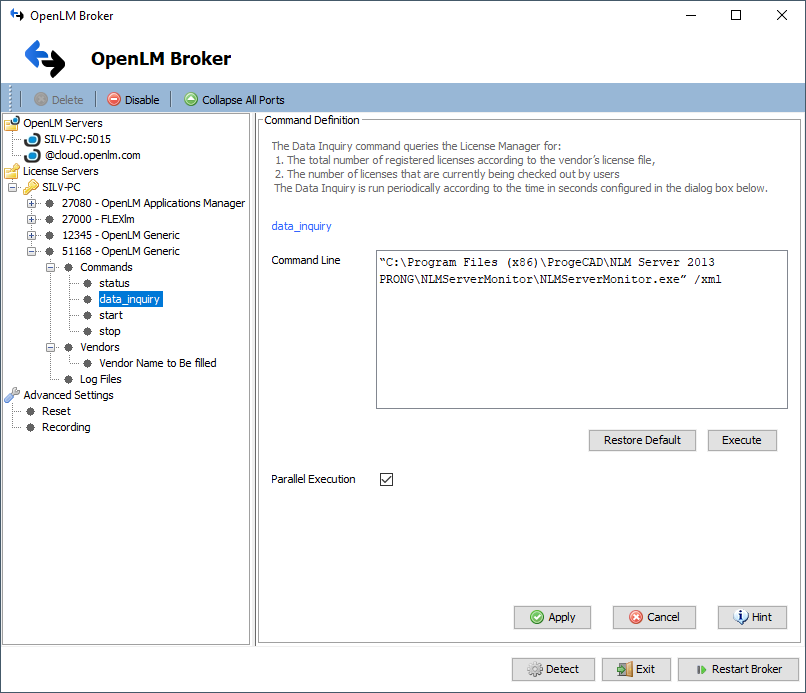
OpenLM Broker の設定(デスクトップ UI)
- 最新の OpenLM Broker をダウンロードしてインストールします。
- Broker で Add Port をクリックします。
- ライセンスサーバーノード(例:
progecad_server)を選択します。 - Server と同じポート(例:
51168)を入力します。 - Type から OpenLM Generic を選択します。
- Apply → OK をクリックします。
- ライセンスサーバーノード(例:
- Commands で data_inquiry を選択し、次を入力します:
"<Full path to NLMServerMonitor.exe>" /xml"C:\Program Files (x86)\ProgeCAD\NLM Server 2013 PRONG\NLMServerMonitor\NLMServerMonitor.exe" /xml
- Execute をクリックしてコマンドを検証します。
- Apply をクリックします。
- Status コマンドでも手順 3〜5 を繰り返します。
- Vendors に ProgeCAD を入力します(大文字小文字を区別)。Apply をクリックします。
- Restart Broker をクリックします。
OpenLM Broker の設定(Web UI)
または Broker Web UI を使用します:
- 最新の Broker をインストールします。
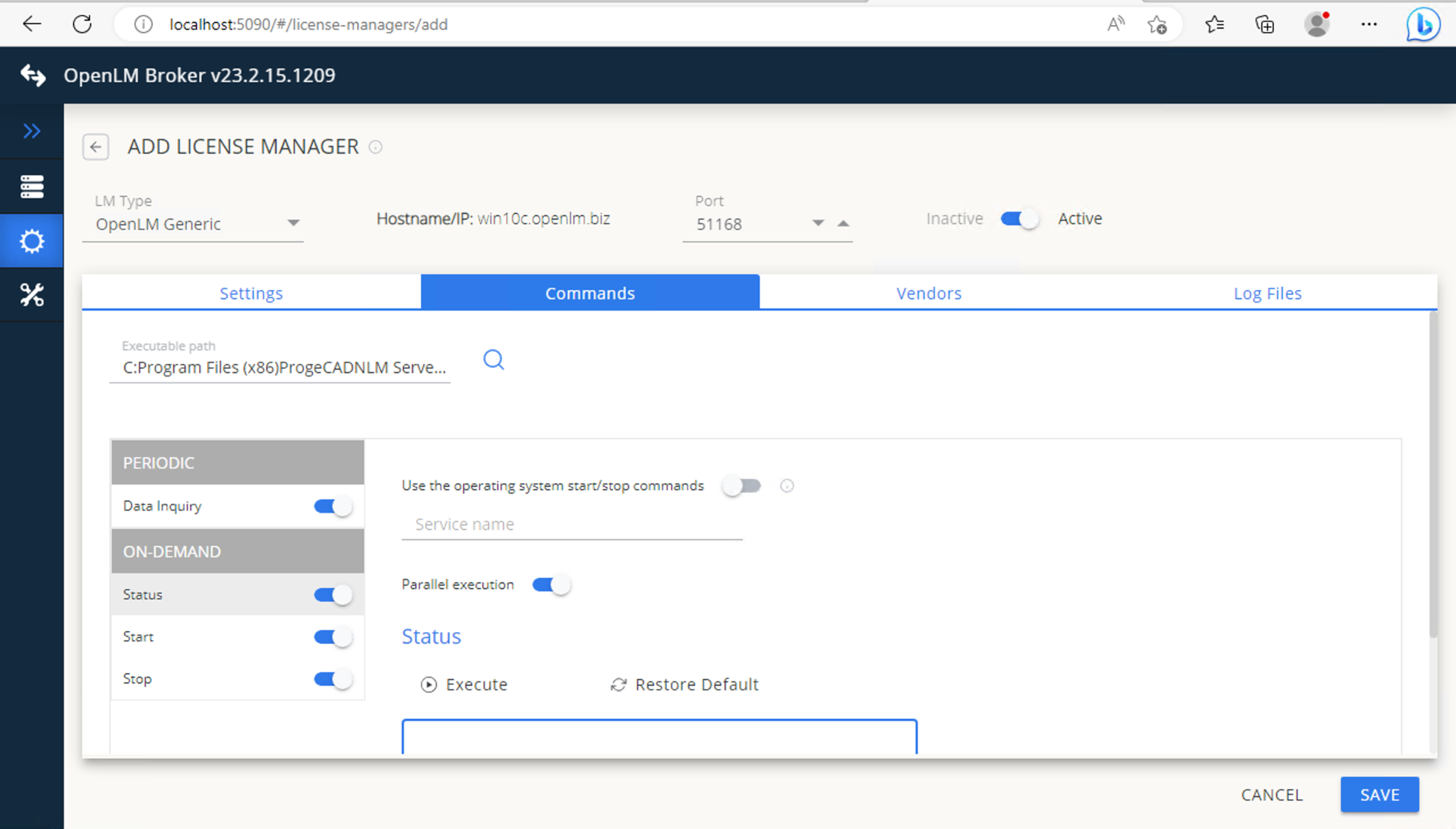
http://localhost:5090/を開きます。- License Managers → Add License Manager に移動します。
- Type から OpenLM Generic を選択し、ポート(例:
51168)を入力して Add をクリックします。
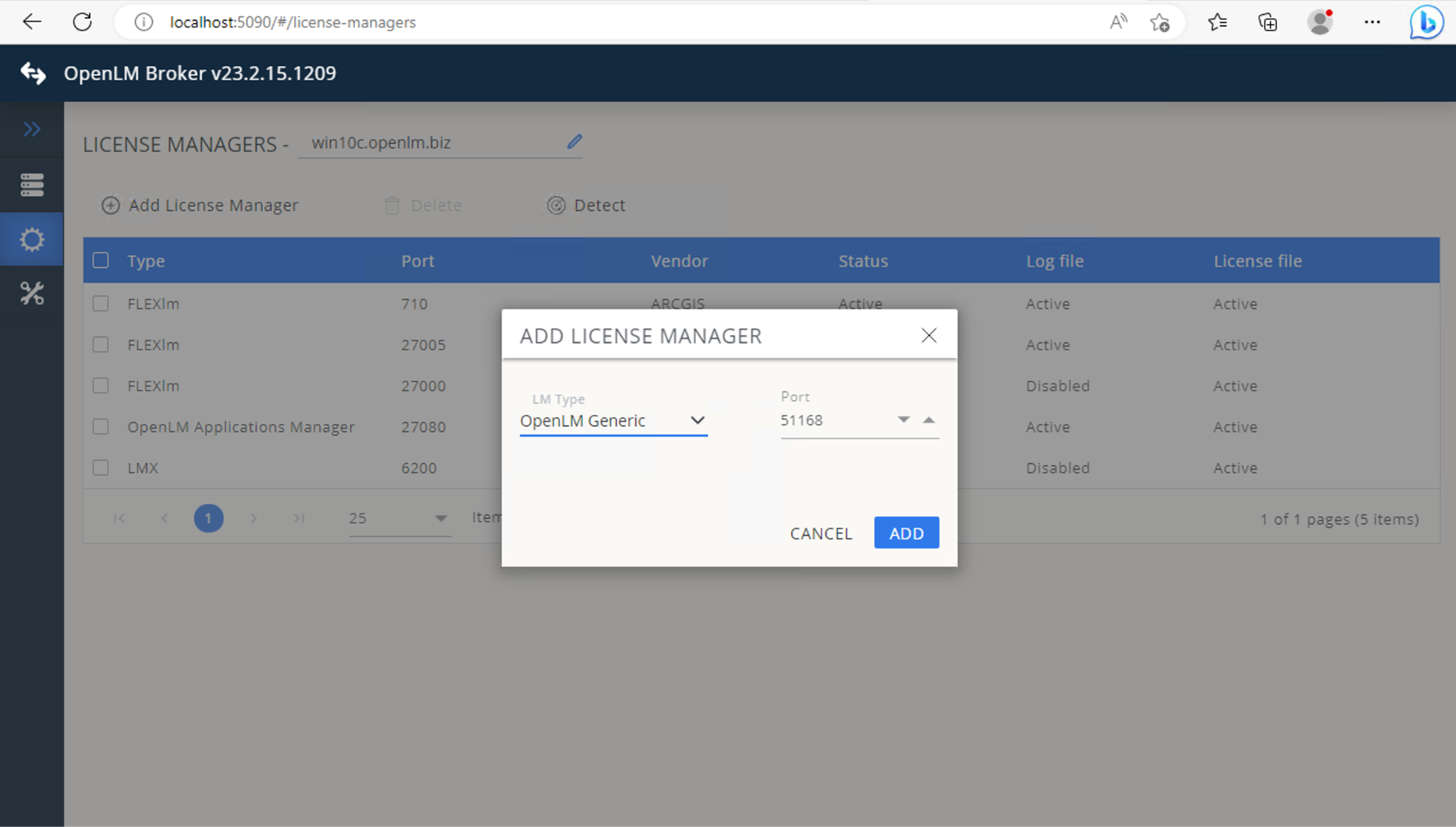
- Commands タブで Executable path に次を入力します:
"<Full path to NLMServerMonitor.exe>" /xml
- Save をクリックし、続けて Execute で出力を検証します。
- Vendors タブで Add Vendor をクリックし、
ProgeCAD(または任意の名前)を入力して Continue → Save をクリックします。
設定の確認
設定後、新しいライセンスマネージャーを承認します:
- EasyAdmin → Start → Administration → License Manager Servers を開きます。
- Pending アイコンをクリックして ProgeCAD ライセンスマネージャーを承認します。
承認後、EasyAdmin で ProgeCAD のライセンス使用状況レポートを確認できます。