pure::variants
以下の手順で OpenLM を設定し、pure::variants License Manager のライセンス使用状況を監視して統計情報を取得します。
要件
開始前に、以下を満たしていることを確認してください:
- 組織内のマシンに OpenLM Server v2x をインストール済み、または OpenLM Cloud(SLMC)アカウント
- pure::variants License Manager と同じマシンに OpenLM Broker v22.3 以降をインストール
監視機能
| 機能 | 粒度 | ライセンス総数 | ライセンス使用状況 | 拒否レポート | 借用ライセンスレポート | 有効期限レポート | 複数サーバー冗長 |
|---|---|---|---|---|---|---|---|
| 対応 | 分単位 | ✔ | ✔ | ❌ | ❌ | ❌ | ❌ |
OpenLM Broker の設定
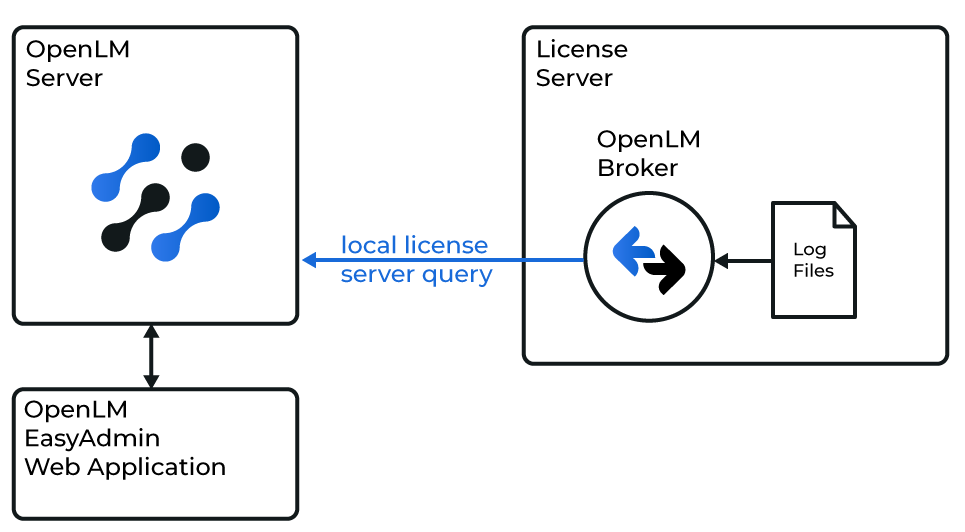
OpenLM と pure::variants License Manager の連携図
注意
OpenLM Broker は事前にインストールし、OpenLM へレポートするよう設定しておく必要があります。
- Broker Web UI を
http://localhost:5090/で開きます(5090 が使用中の場合は別のポートを使用)。 - License Managers → Add License Manager に移動します。
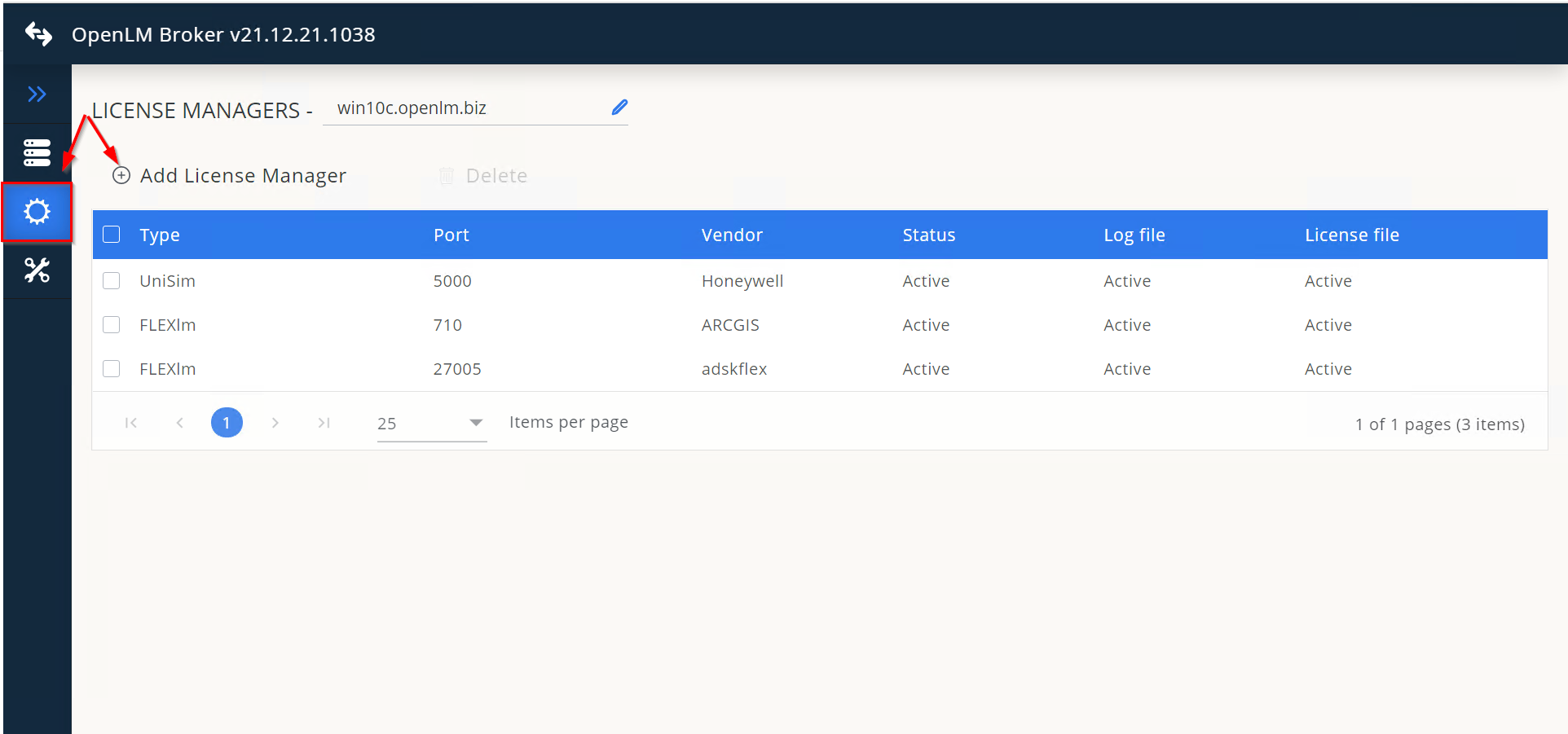
- ドロップダウンから Pure Variants を選択し、ポート番号(例: 888)を入力して Add をクリックします。
- Settings タブで Watch License File がオフになっていることを確認します。
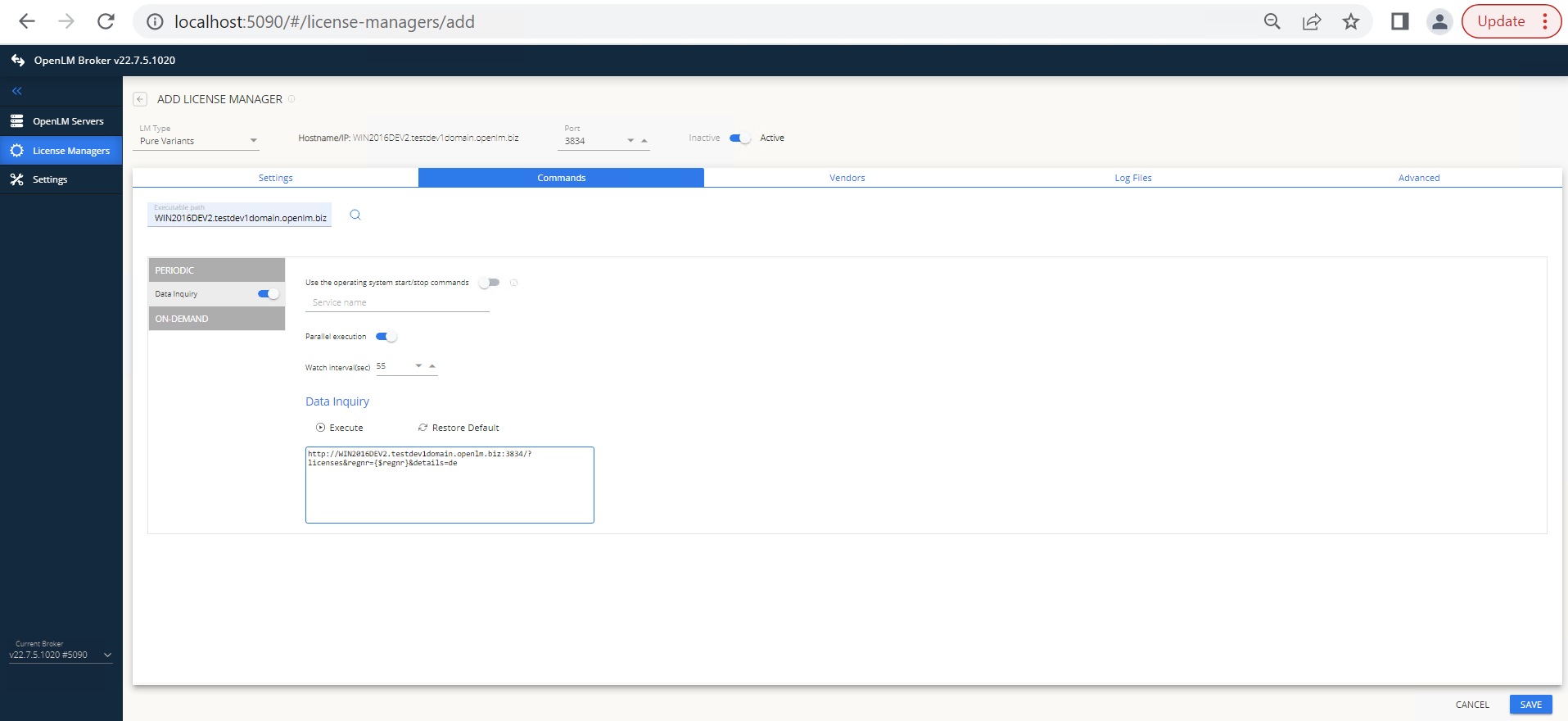
- Commands タブで pure::variants の実行ファイルパスを入力します。
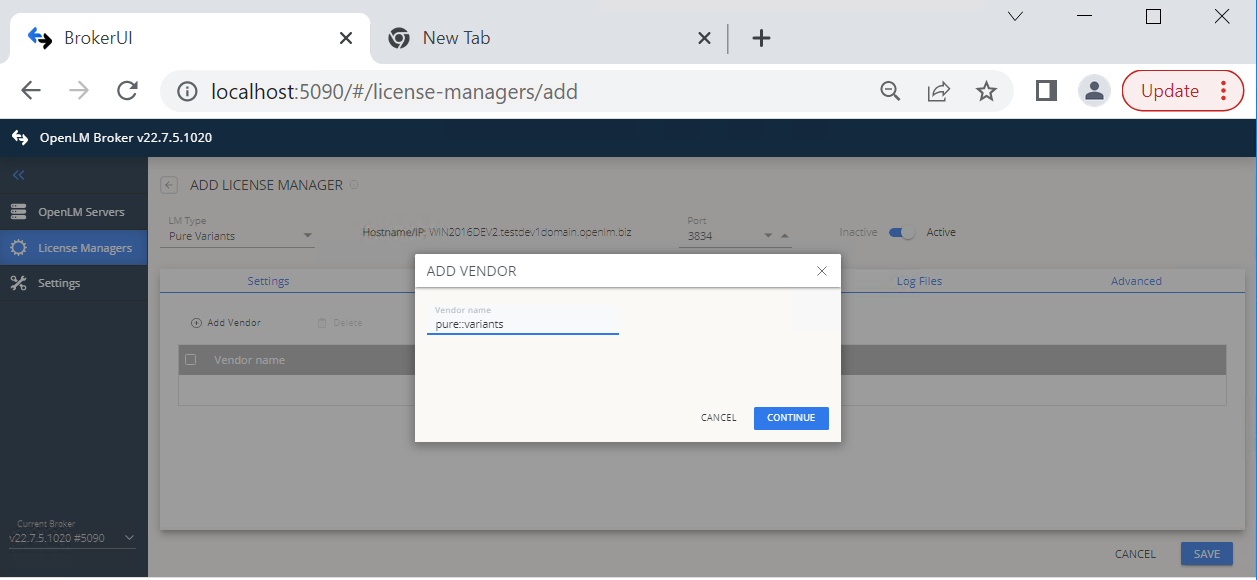
- Vendors タブ → Add Vendor で
pure::variantsを入力し、Continue をクリックします。
- Advanced タブで pure::variants のログインとパスワードを入力します。
- Save をクリックします。
OpenLM Server の設定
EasyAdmin による自動設定
- EasyAdmin を開き、Start → Widgets → License Manager Servers に移動します。
- Servers pending approval のアイコンをクリックします。
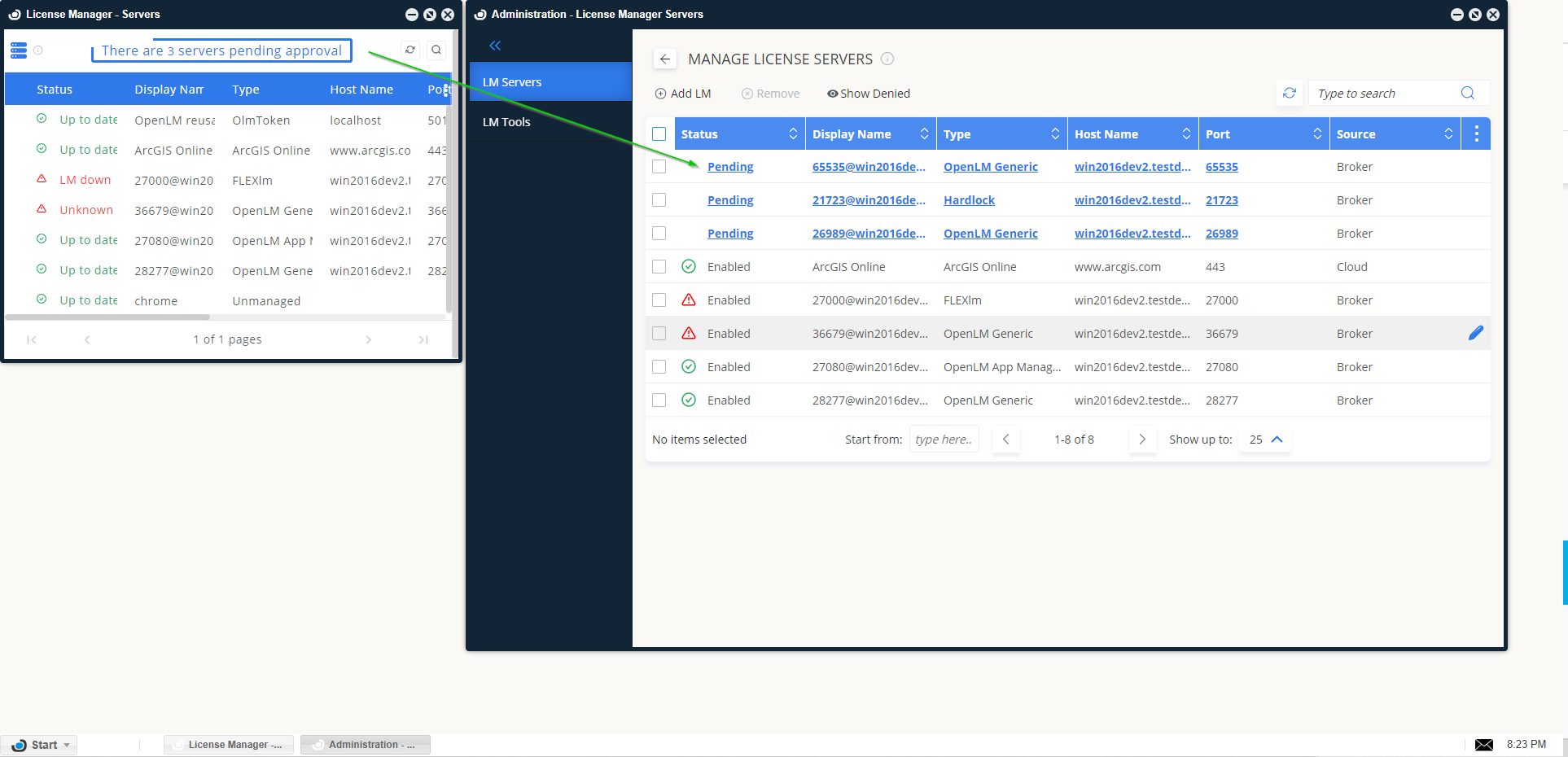
- pure::variants のエントリ(OpenLM Generic と表示)を選択し、設定内容を確認します。
- Approve をクリックします。
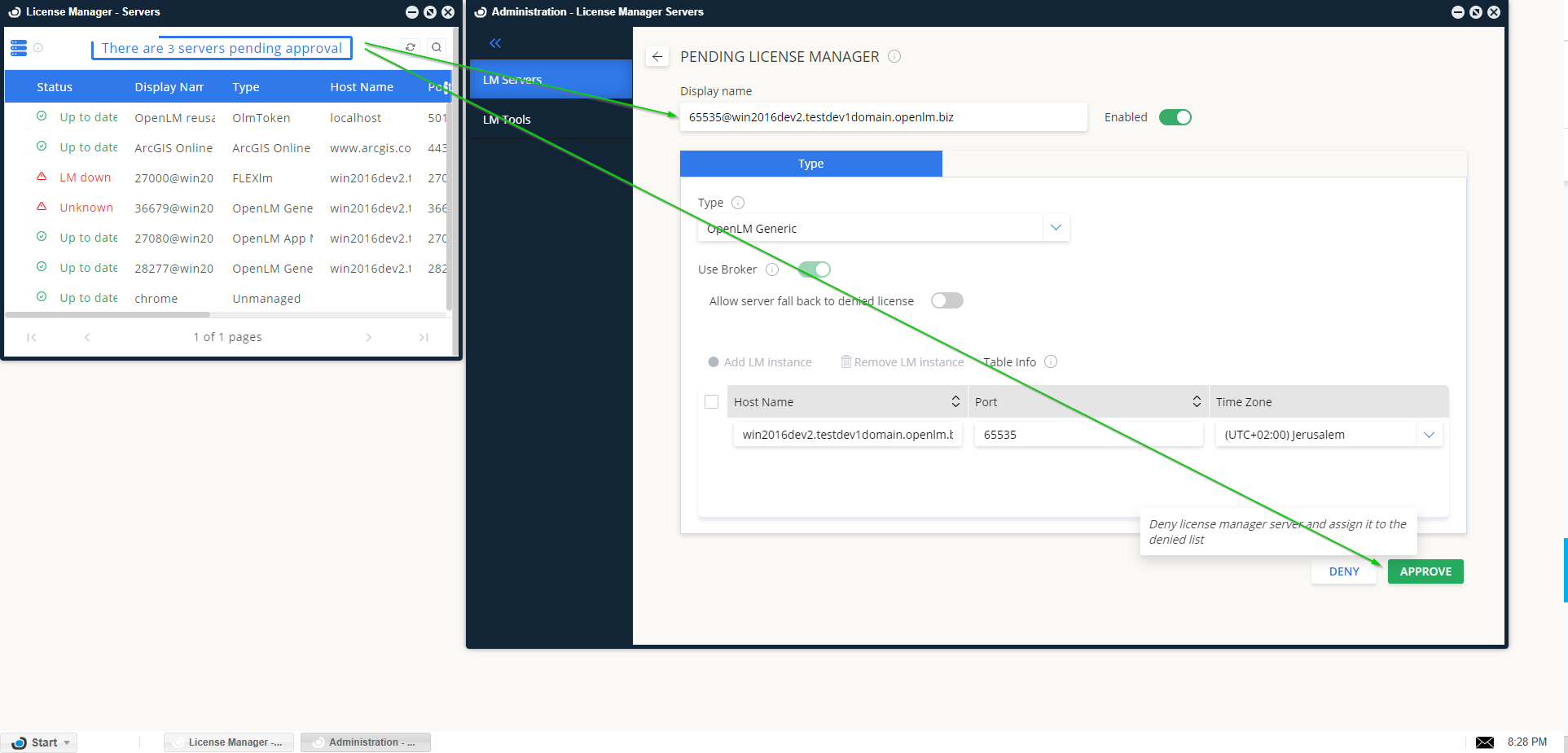
pure::variants License Manager は自動で追加され、しばらくするとレポートが開始されます。
設定の確認
- EasyAdmin を開きます。
- Start → Widgets → License Servers に移動します。
- 一覧に pure::variants License Manager が表示され、緑色の丸のステータスになっていることを確認します。
注意
新しい接続がアクティブとして表示されるまで最大 3 分かかることがあります。