Razorcat
以下の手順で OpenLM を設定し、Razorcat ライセンスマネージャーのライセンス使用状況を監視して統計情報を取得します。
要件
開始前に次を用意してください:
- 組織内のマシンに OpenLM Server v2.x をインストール済み
- Razorcat と同じマシンに OpenLM Broker v22.5 以降
- Broker をサービスアカウントで実行するよう設定済み
監視機能
OpenLM Broker 経由で Razorcat に対して利用できる監視機能は次のとおりです:
| 機能 | 粒度 | ライセンス総数 | ライセンス使用状況 | 拒否レポート | 借用ライセンスのレポート | 有効期限のレポート | 冗長化(複数サーバー) |
|---|---|---|---|---|---|---|---|
| 対応 | 分 | ✔ | ✔ | ❌ | ❌ | ❌ | ❌ |
OpenLM Broker の設定
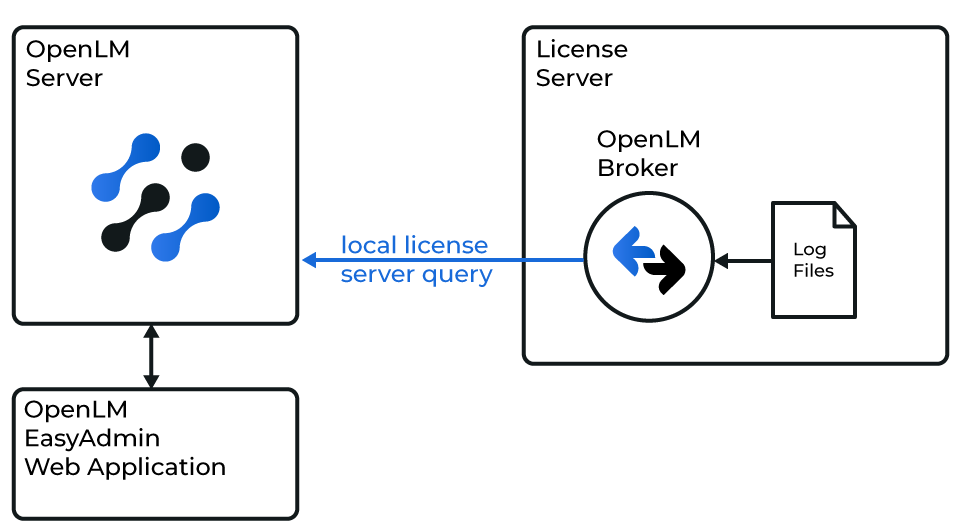
OpenLM と Razorcat ライセンスマネージャーの連携図
注意
OpenLM Broker を事前にインストールし、設定してから開始してください。
手動設定(Broker デスクトップ UI)
- Add Port をクリックします。
- Razorcat サーバーのポート番号(例:
36679)を入力します。 - License Manager Type から Razorcat を選択します。
- Commands で Update path for commands の参照アイコンをクリックし、
flsutil.exeがあるフォルダ(通常はC:\Program Files\Razorcat\FLS_4.2\bin)を選択して Update をクリックします。 - Apply をクリックします。
- Commands の Data Inquiry を選択して Execute をクリックし、出力が有効であることを確認します。
- フォールバック FLS を使用する場合は
-h localhostを追加します(ローカルホストのみ有効)。
- フォールバック FLS を使用する場合は
- Restart Broker をクリックします。
手動設定(Broker Web UI)
- ブラウザで http://localhost:5090/ を開きます。
- License Managers → Add License Manager に移動します。
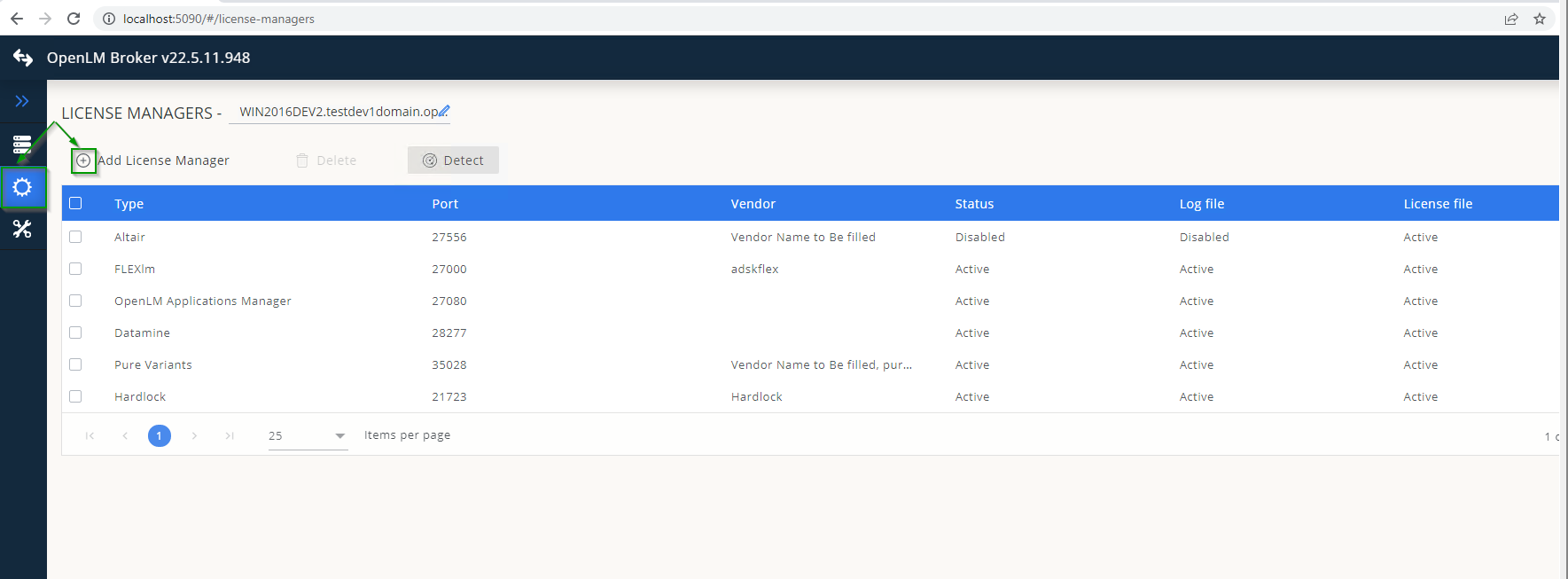
- 種別のドロップダウンから Razorcat を選択し、ポート番号を入力して Add をクリックします。

- Commands タブで Executable Path を
flsutil.exeがあるフォルダに設定します(拡大鏡アイコンで参照可)。 - Service Name を入力します(例:
Razorcat)。
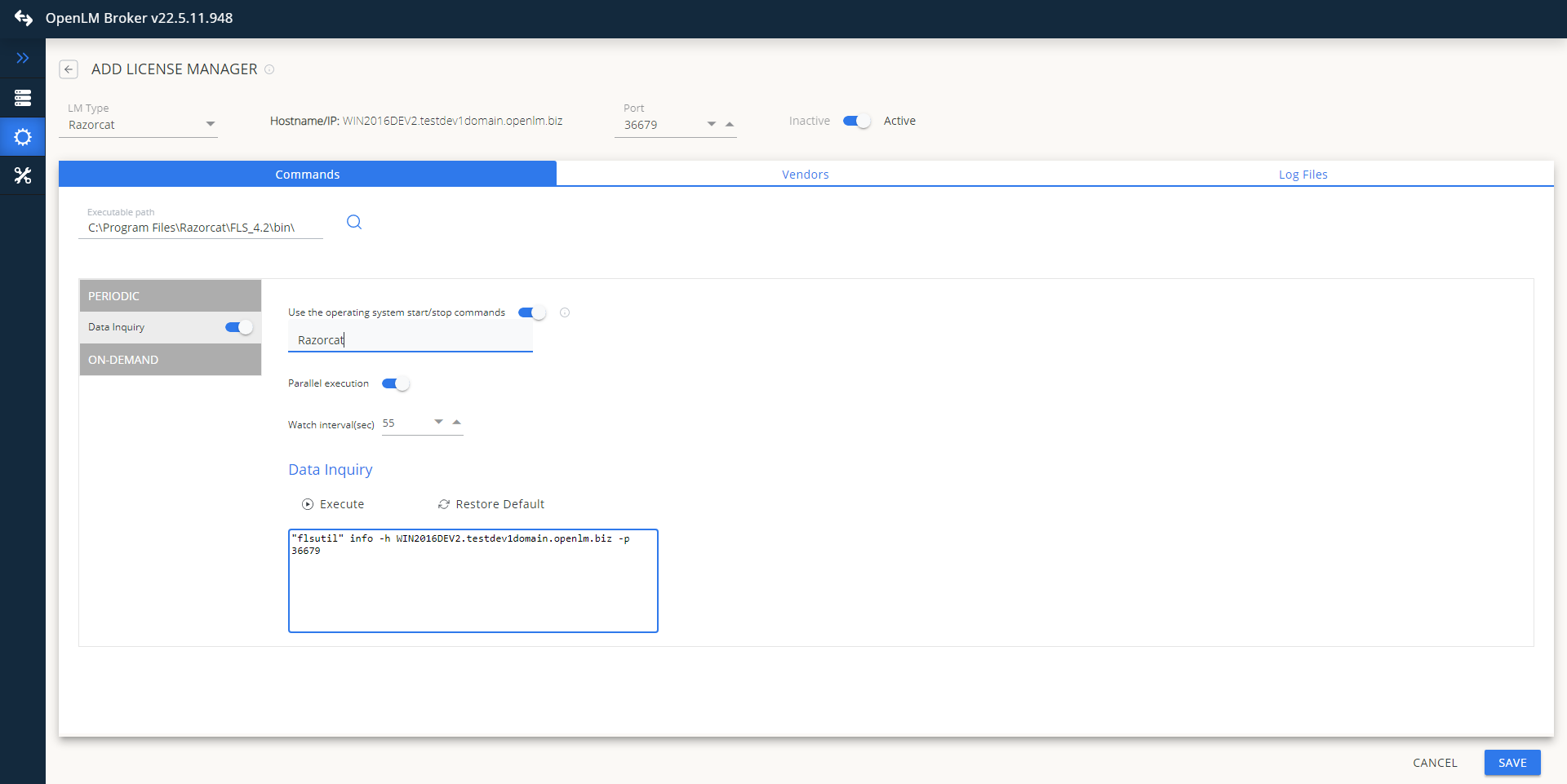
- Vendors タブ → Add Vendor に進み、Razorcat を入力して Continue をクリックします。

- Save をクリックします。
OpenLM Server の設定
EasyAdmin による自動設定
- EasyAdmin を開きます(Start → Widgets → License Manager - Servers)。
- Servers pending approval アイコンをクリックします。
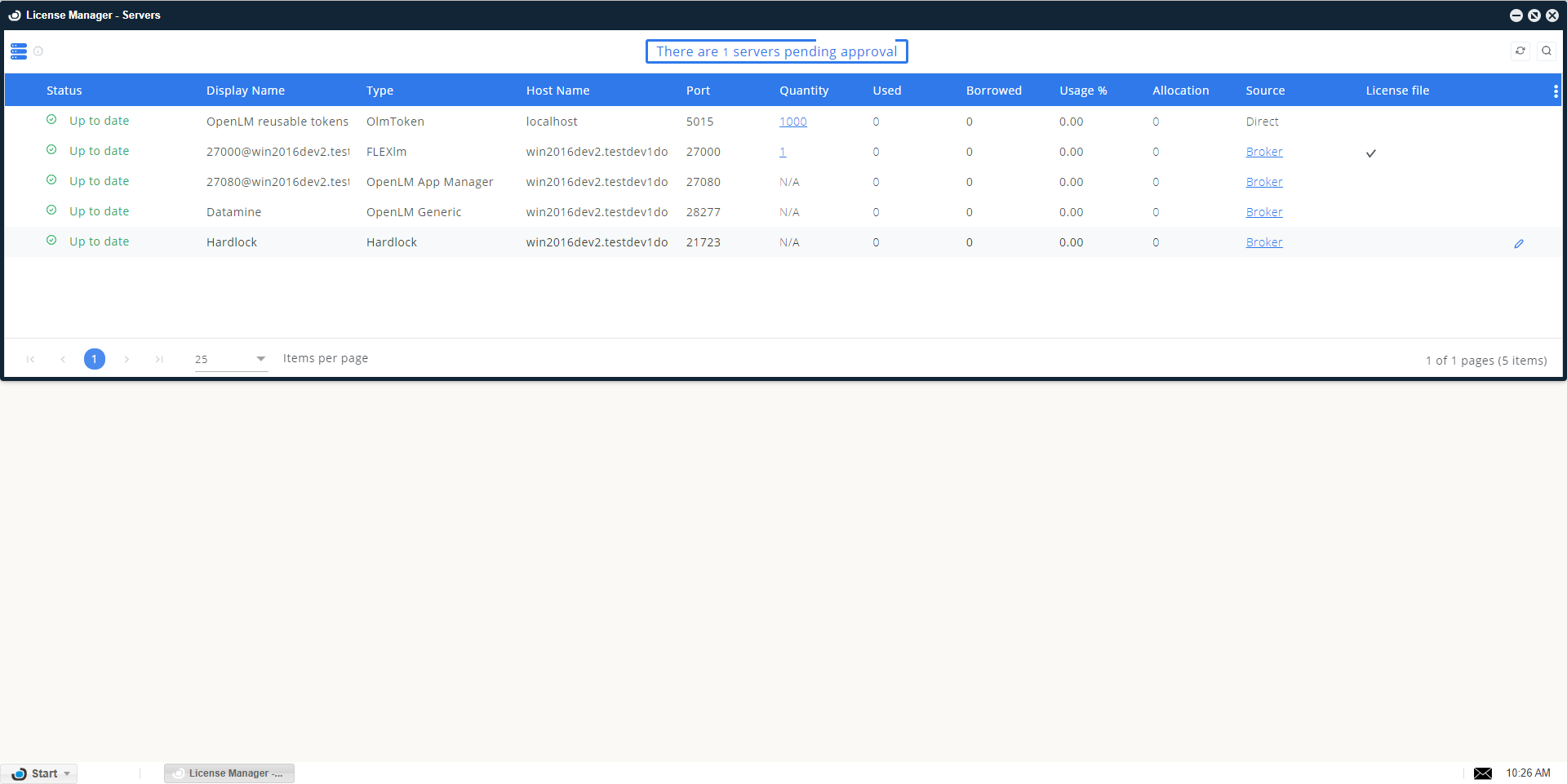
- Razorcat のエントリをダブルクリックします(種別は OpenLM Generic と表示されます)。
- (任意)接続名を変更し、種別は OpenLM Generic のまま、Enabled をオンにして Approve をクリックします。
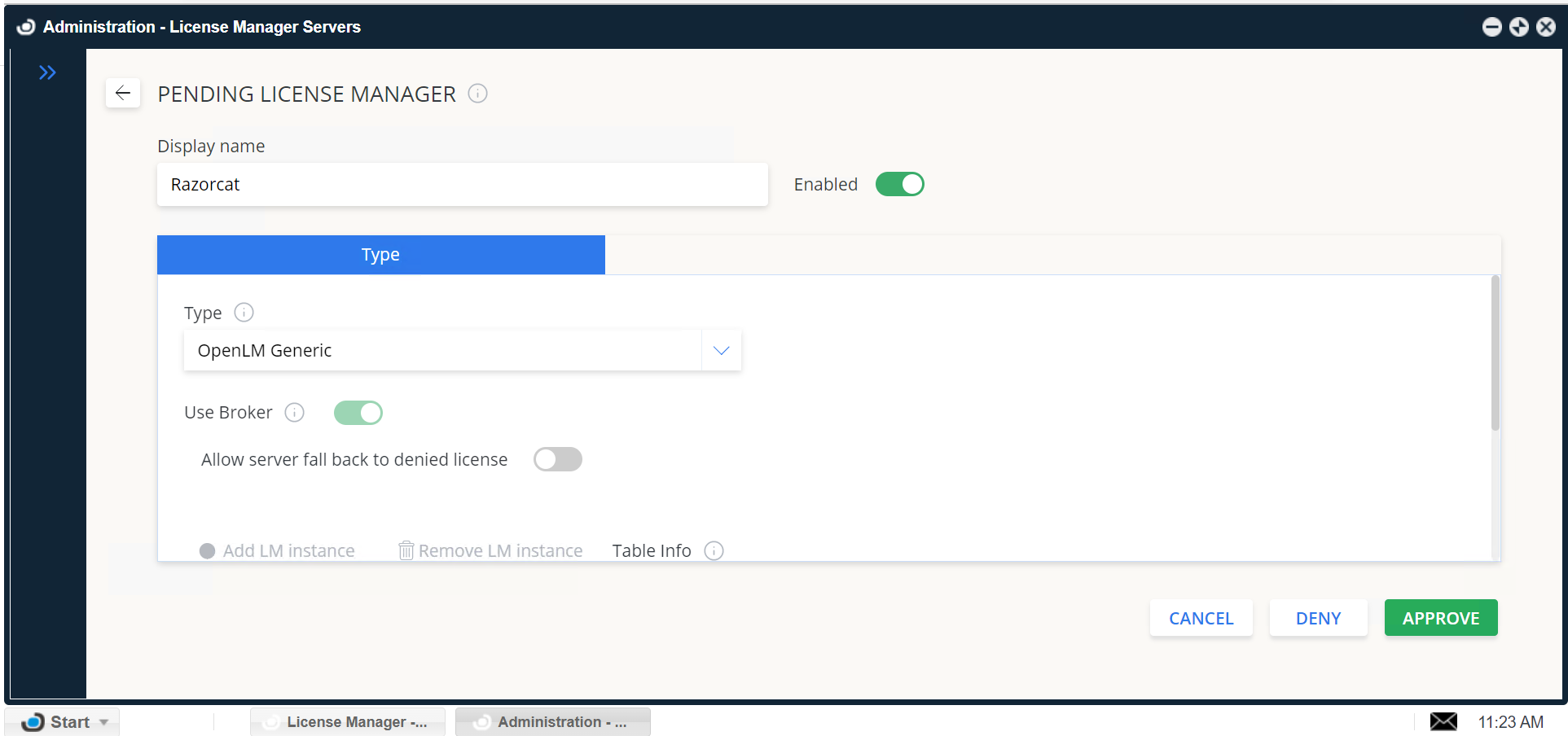
EasyAdmin による手動設定
自動設定が失敗した場合:
- Start → Administration → License Manager Servers に移動します。
- Add LM をクリックします。
- Type から OpenLM Generic を選択します。
- 説明(例:
Razorcat)を入力します。 - ライセンスサーバーの場所のタイムゾーンを設定します。
- Razorcat が動作しているマシンの Hostname と Port を入力します。
- Is Triad Configuration のチェックを外します。
- Use Broker をオンにします。
- Save をクリックします。
設定の確認
- ブラウザで EasyAdmin を開きます。
- Start → Widgets → License Servers に移動します。
- 一覧に Razorcat が表示され、緑色の丸アイコンになっていることを確認します。
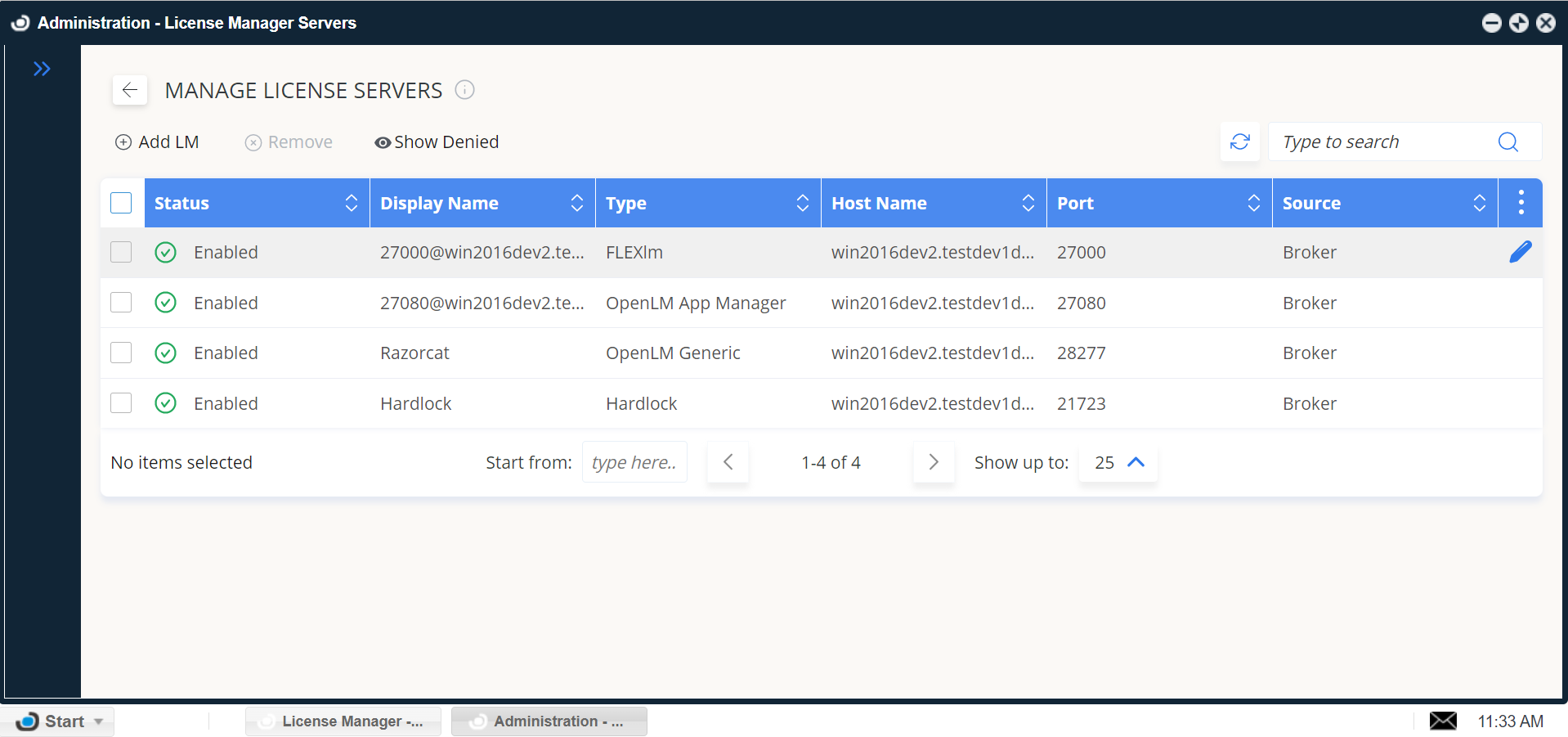
注意
新しい接続の後、アクティブ表示まで最大 3 分かかることがあります。