SlickEdit
注意
この設定を開始する前に、OpenLM Broker をインストールし、OpenLM Server にレポートするよう設定しておく必要があります。
概要
SlickEdit はクロスプラットフォームの多言語ソースコード/テキストエディタです。さまざまなコーディングツールや時間短縮のプログラミング機能を提供します。SlickEdit 2014 は 9 つのプラットフォームで 40 以上の言語をサポートします。
SlickEdit の利用は独自のライセンスマネージャーで管理されます。本ガイドでは、OpenLM を設定して SlickEdit ライセンスマネージャーを監視し、使用状況と統計情報を収集する方法を説明します。
ライセンスサーバーを問い合わせる方法は 2 通りあります:
- OpenLM Server からライセンスサーバーを直接問い合わせる。
- OpenLM Broker でローカルに問い合わせ、OpenLM Server に情報を送信する。
OpenLM Server 直接方式
OpenLM Server で SlickEdit を有効化
OpenLM Server を SlickEdit と連携させるには:
- OpenLM Server をダウンロードしてインストールします。
- EasyAdmin を開きます。
- Start → Administration → License Manager Servers に移動します。
- LM Tools タブを選択し、SlickEdit を選びます。
- SlickEdit の selicutil.exe 実行ファイルを次にコピー/インストールします:
C:\Program Files\OpenLM\OpenLM Server\LM\ - SlickEdit executable file テキストボックスにフルパスを入力します。例:
Apply をクリックします。C:\Program Files\OpenLM\OpenLM Server\LM\selicutil.exe
- Windows Services で OpenLM Server サービスを再起動します。
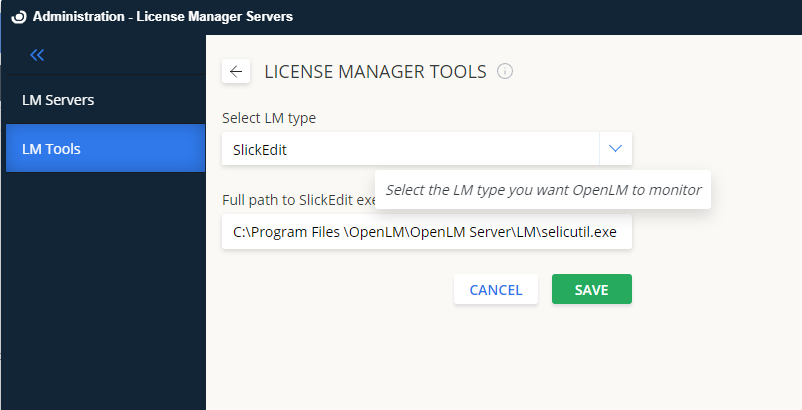
EasyAdmin で SlickEdit を設定
SlickEdit サーバーの追加
- EasyAdmin で Start → Administration → License Manager Servers に移動します。
- LM Servers タブを選択し、Add License Manager をクリックします。
- Type のドロップダウンから SlickEdit を選択します。
- Display Name にわかりやすい名称(例: SlickEdit license server)を入力します。
- ライセンスサーバーの Time zone を設定します。
- ライセンスサーバーの Hostname と Port を入力します。
既定ポートは27100です。他のアプリが使用していないこと、ファイアウォールで開放されていることを確認してください。 - Is Triad Configuration はオフのままにします。SlickEdit は複数サーバー冗長化に対応していません。
- Use Broker はオフのままにします。
- Save をクリックします。Windows Services で OpenLM Server サービスを再起動します。
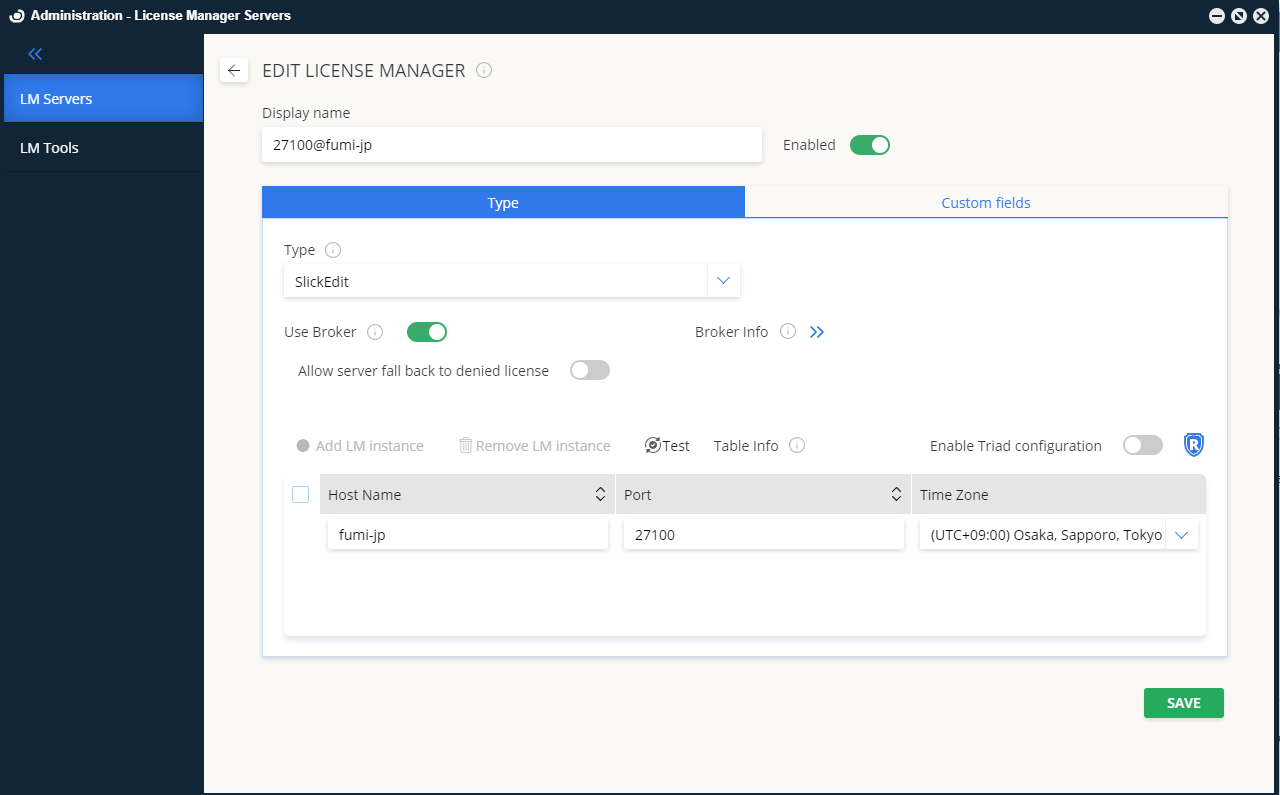
EasyAdmin で SlickEdit サーバーを追加
Broker による監視
SlickEdit 向け OpenLM Broker の設定
OpenLM Broker は任意ですが推奨です。SlickEdit ライセンスマネージャーマシンにインストールして設定します。Broker の利点:
- より正確なライセンス統計
- OpenLM Server とライセンスマネージャー間の安定した通信
Broker を設定するには:
- ダウンロードページから最新の OpenLM Broker をインストールします。
- Broker でライセンスマネージャーノードを選択します。Auto-Detect で SlickEdit が見つからない場合は Add Port をクリックします。
- SlickEdit ライセンスサーバー(例:
slickedit_license_server)のポート27100を監視するよう設定します。 - ベンダー名を SlickEdit に設定します。
- Commands ノードで
selicutil.exeのフルパスを入力し、Update → Apply をクリックします。 - 画像のとおり Status と Data_inquiry のコマンドを設定し、
<fullpath>をselicutil.exeの実際のパスに置き換えます。
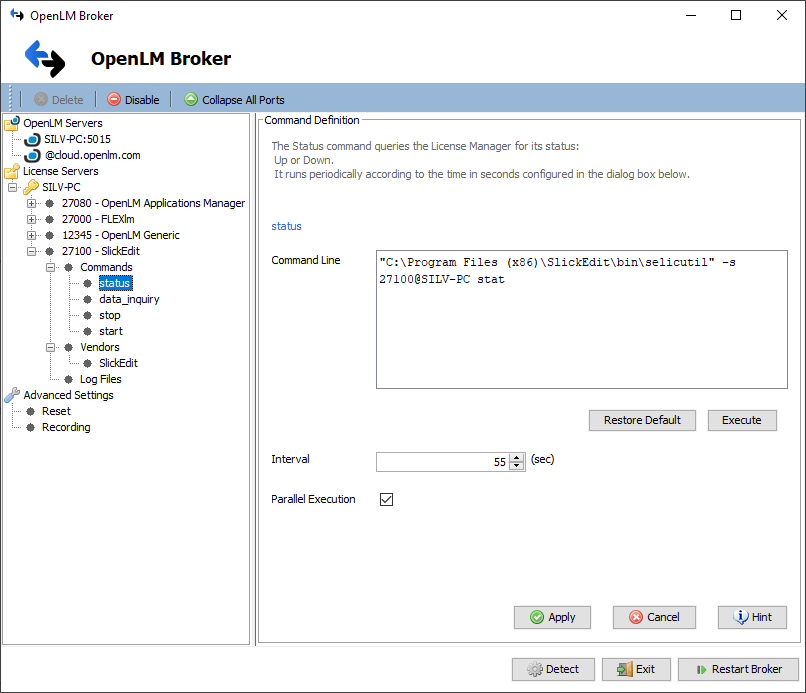
Broker で SlickEdit コマンドを設定
- Restart Broker をクリックします。
- Broker web UI から設定することもできます。
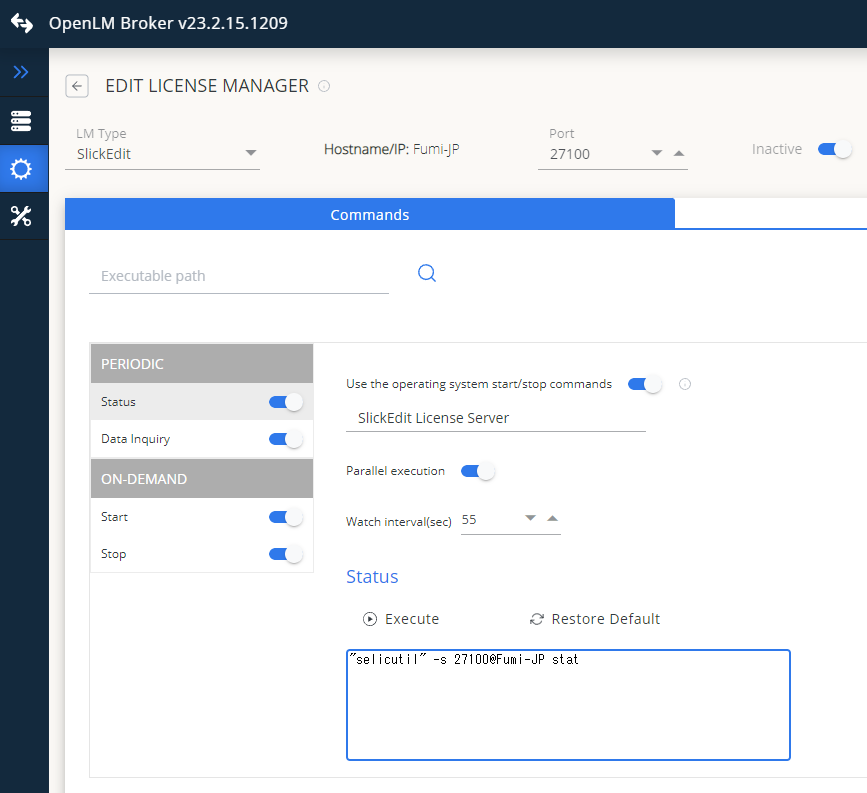
Broker Web UI で SlickEdit を設定
設定の確認
SlickEdit の設定を確認するには:
- EasyAdmin を開きます。
- Pending Approval のリンクをクリックし、SlickEdit サーバーを承認します。
- サーバー一覧にライセンスマネージャーが表示されることを確認します。
緑色の丸アイコンは接続が有効であることを示します。

EasyAdmin で SlickEdit を承認
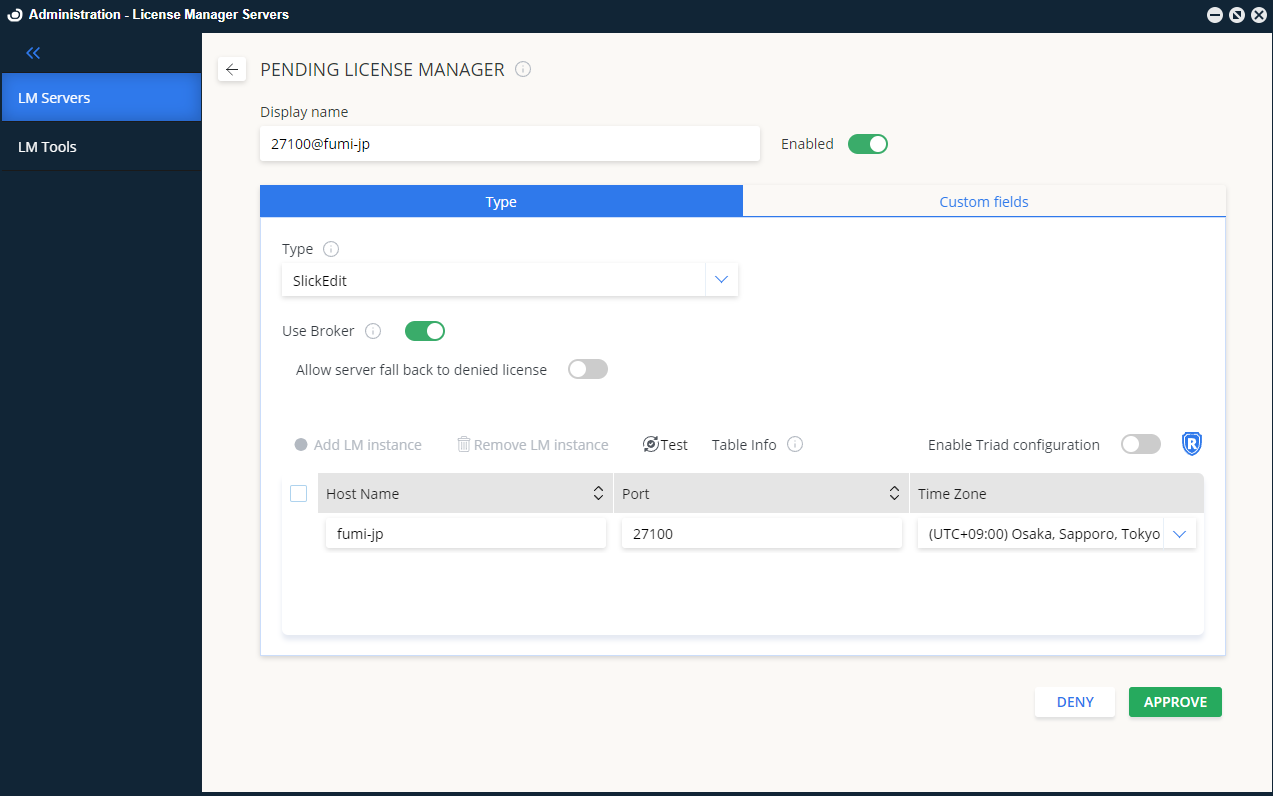
EasyAdmin で SlickEdit ライセンスサーバーを承認済み
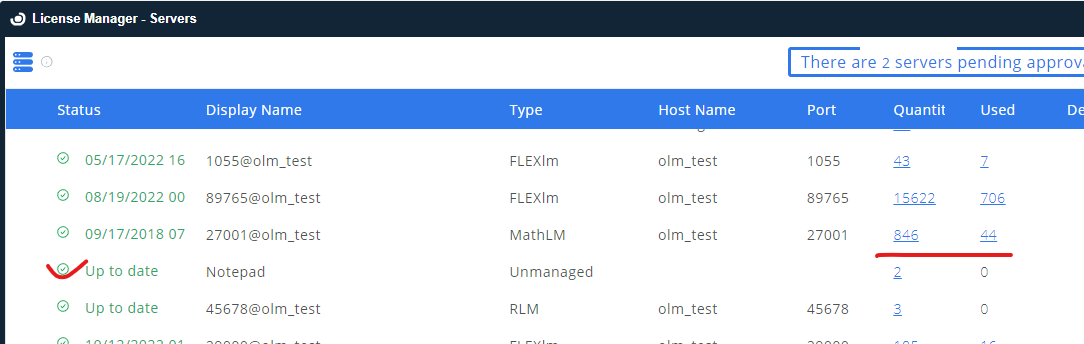
SlickEdit ライセンスマネージャーのアクティブ接続表示