VSLM
以下の手順で OpenLM を設定し、Kisters VSLM License Manager のライセンス使用状況を監視して統計情報を取得します。
要件
開始前に次を用意してください:
- 組織内のマシンに OpenLM SLM v2.x をインストール、または SLMC アカウントを用意
- Kisters VSLM License Manager と同じマシンに OpenLM Broker v24.8 以降をインストール
監視機能
| Broker の LM タイプ | ライセンス総数 | ライセンス使用状況 | 拒否 | 借用 | 有効期限 | 冗長 | レポート粒度 |
|---|---|---|---|---|---|---|---|
| VSLM | いいえ | いいえ | いいえ | はい | はい | いいえ | 秒 |
Broker を使用すると、バッファ付き通信が有効になり、ライセンスマネージャーサービスのリモート起動・停止も可能になります。
OpenLM Broker の設定
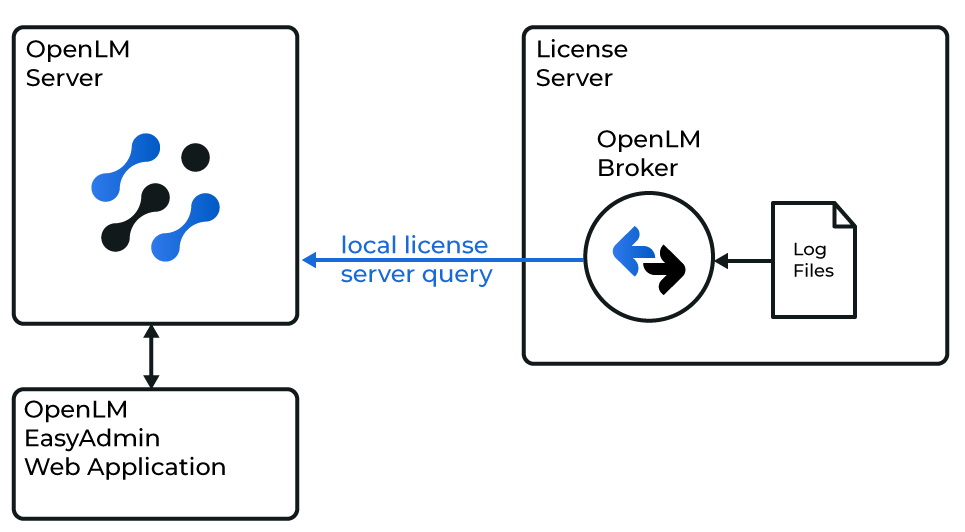
OpenLM と VSLM License Manager の連携図
OpenLM Broker は事前にインストールし、OpenLM へレポートするよう設定しておく必要があります。
手順
-
Broker Web UI を
http://localhost:5090で開きます。
既定ポートが使用中の場合は5091または5092を試してください。
Detect をクリックしてライセンスマネージャーを自動検出することもできます。 -
License Managers → Add License Manager に移動します。
-
ドロップダウンから VSLM を選択し、ポート番号(例:
888)を入力して Add をクリックします。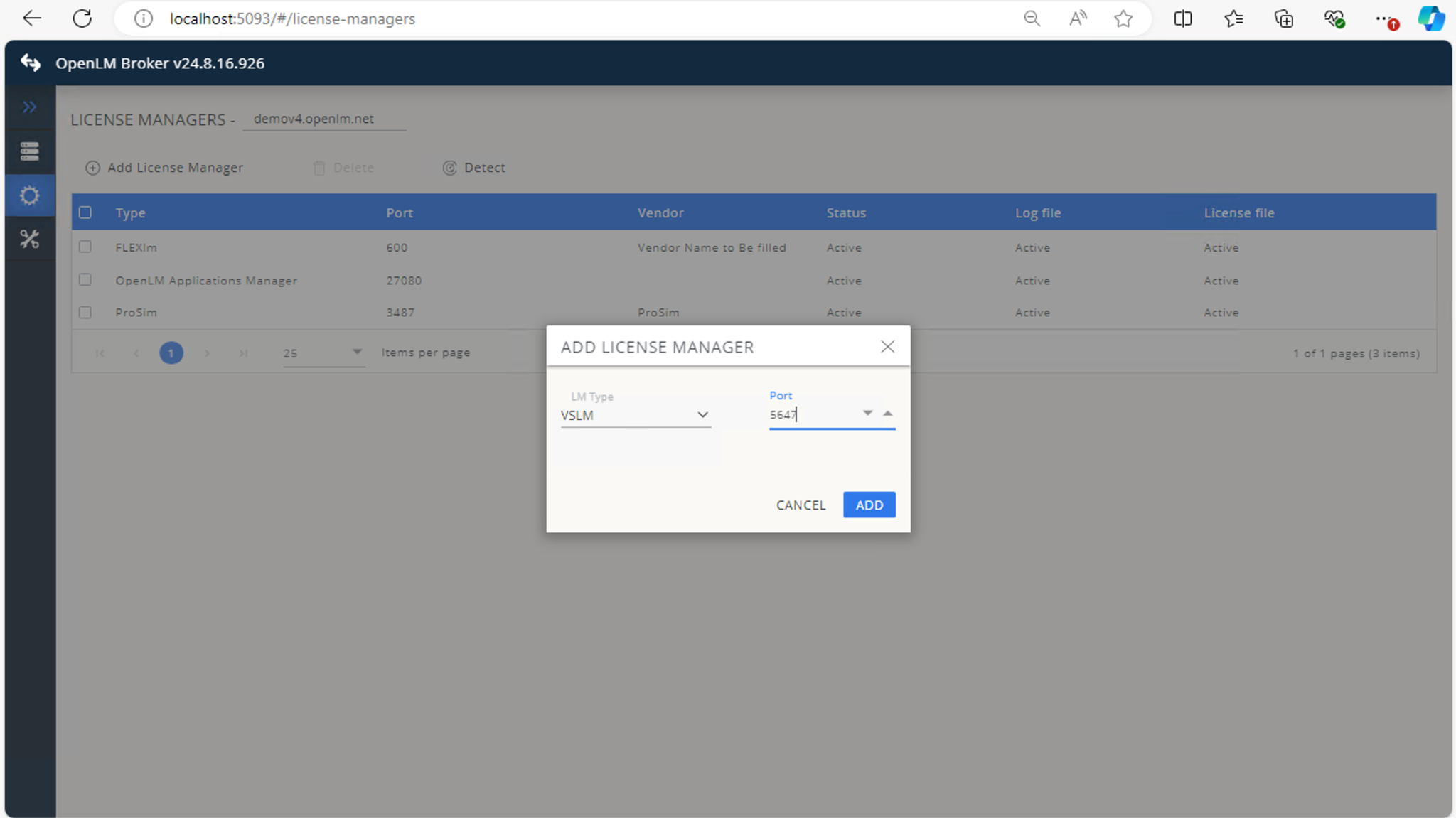
-
Commands で設定を確認し、必要に応じて調整します。
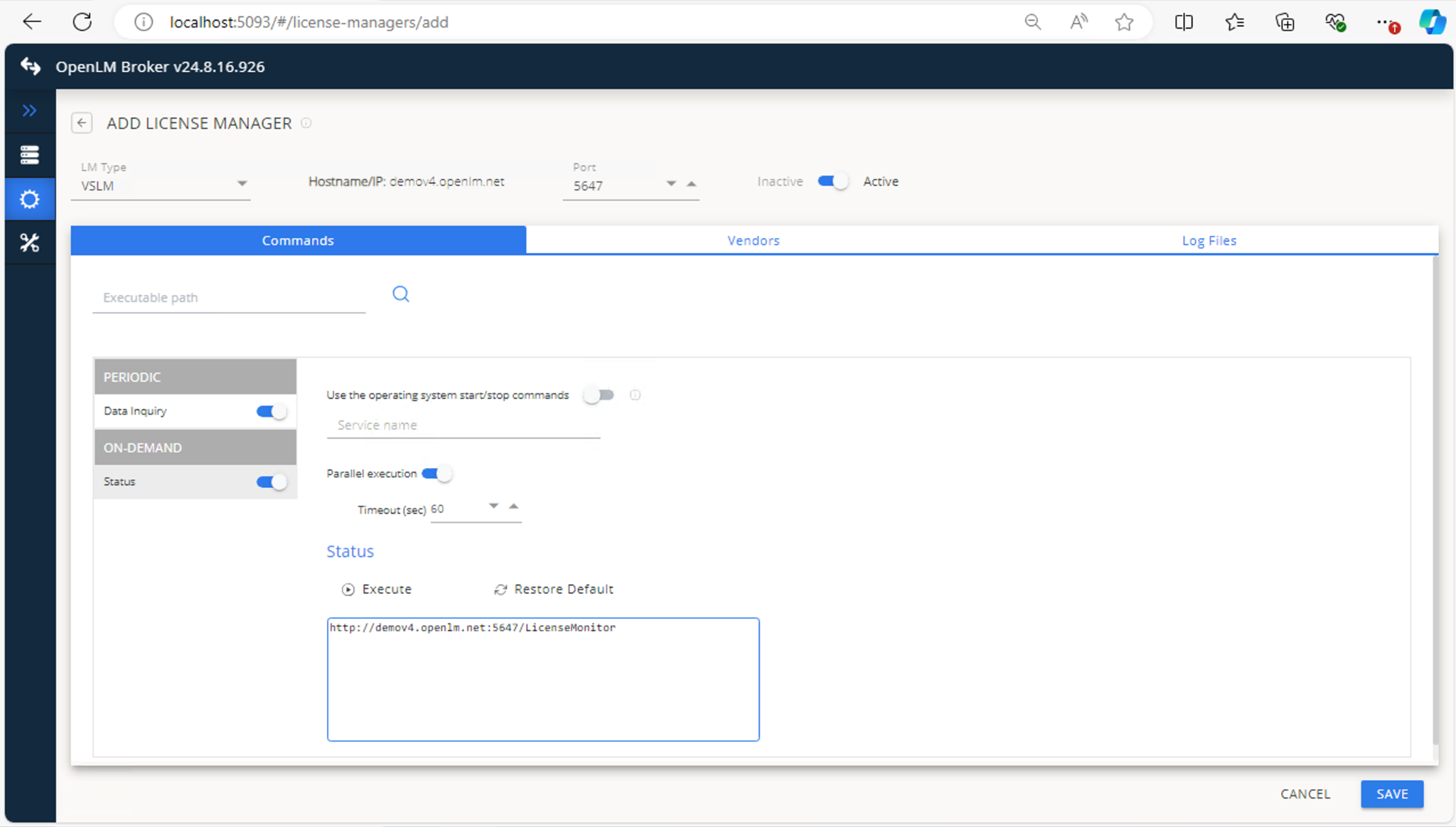
-
Vendors で Add Vendor をクリックし、
VSLMを入力して Continue をクリックします。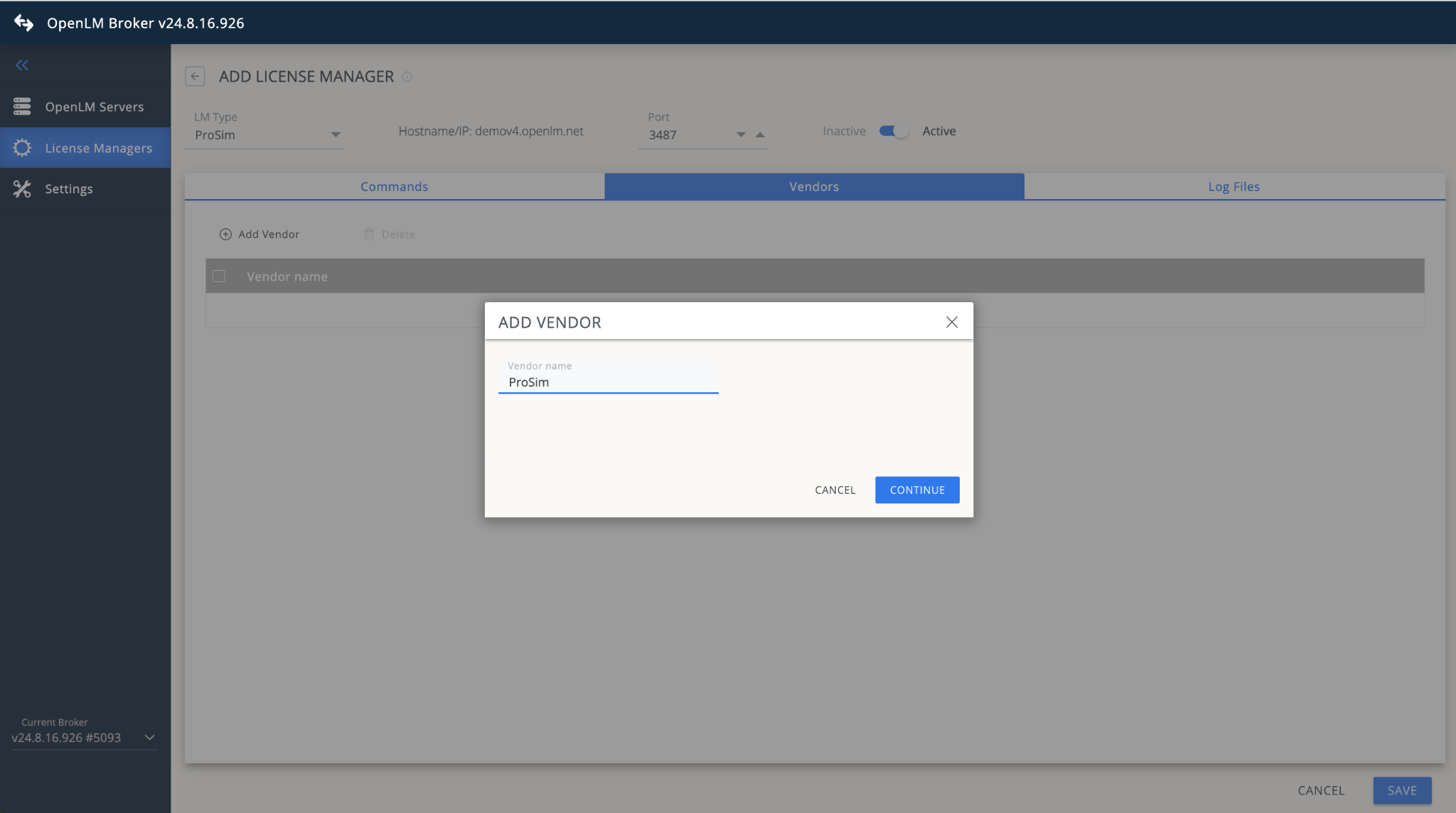
-
Log Files で Add Log File をクリックし、VSLM のログ位置を指定して Watch file by pattern がオフになっていることを確認します。
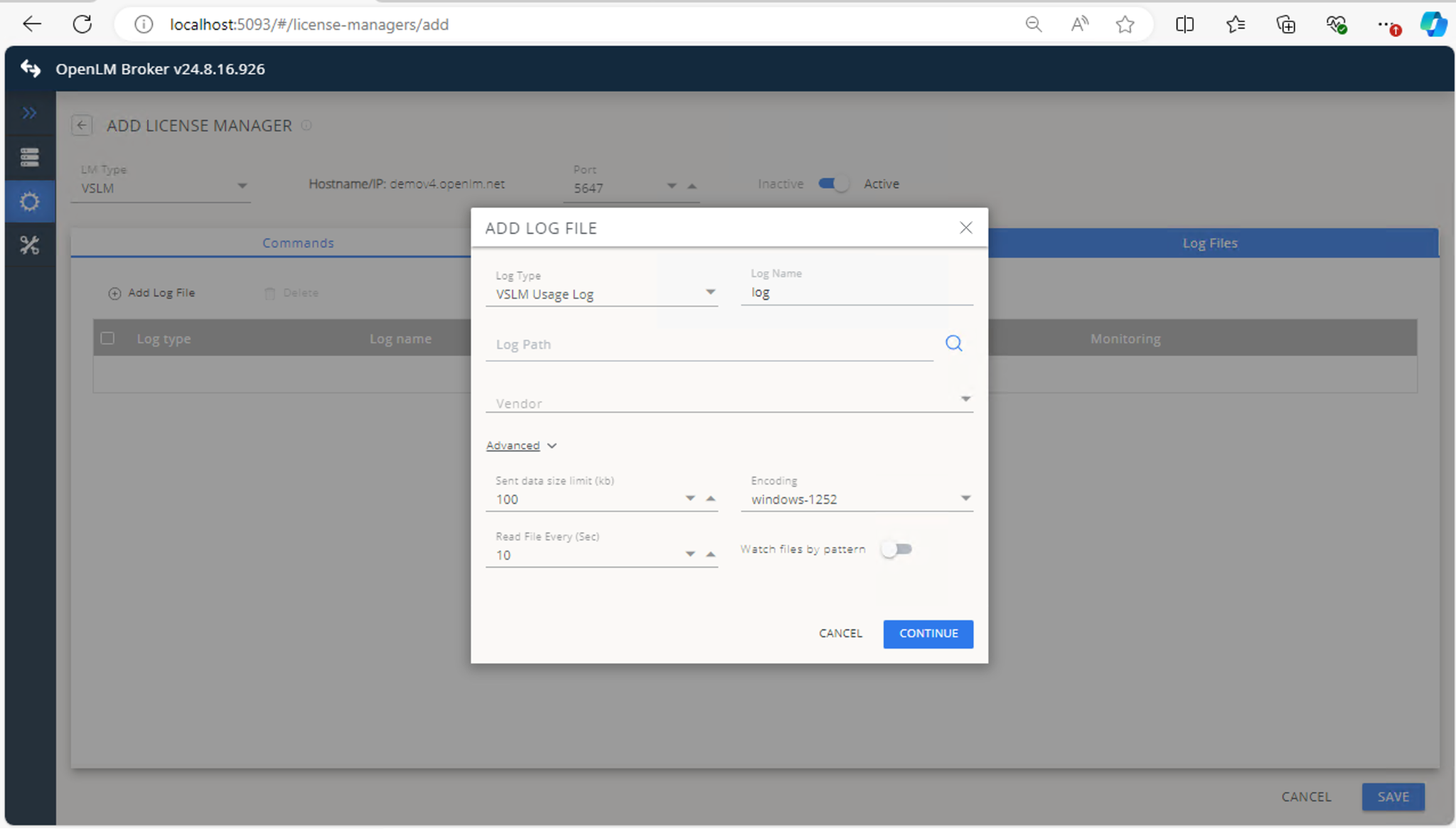
-
Save をクリックします。
OpenLM Server の設定
Broker の設定後、EasyAdmin でライセンスマネージャーを承認します:
-
EasyAdmin を開きます。
-
Start → Widgets → License Manager Servers に移動します。
-
There are Servers Pending Approval のアイコンをクリックします。
-
保留中のライセンスマネージャー(OpenLM Generic と表示)をダブルクリックし、内容を確認して Approve をクリックします。
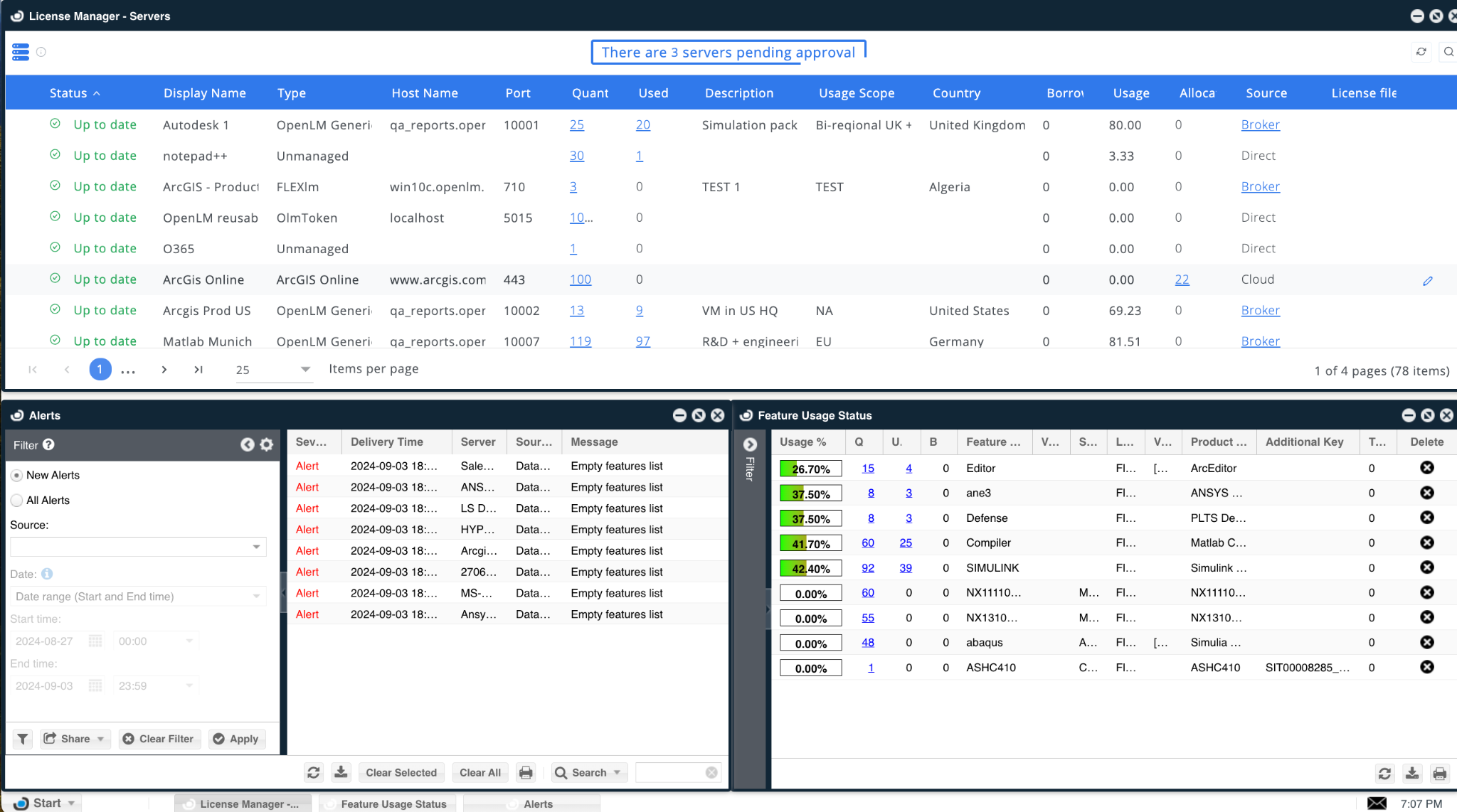
承認後、VSLM License Manager の監視が開始されます。緑色の丸は接続がアクティブであることを示します。
設定の確認
- EasyAdmin を開きます。
- Start → Widgets → License Servers に移動します。
- 一覧に VSLM が表示され、緑色の丸のステータスになっていることを確認します。
新しい接続の場合、ステータス更新まで最大 3 分かかることがあります。