Personal Dashboard user authentication
Activating user authentication
- Access your Personal Dashboard.
- Click the Settings tab→SSLtab and provide the password and the path to the SSL Certificate, then restart the End User Services Service.
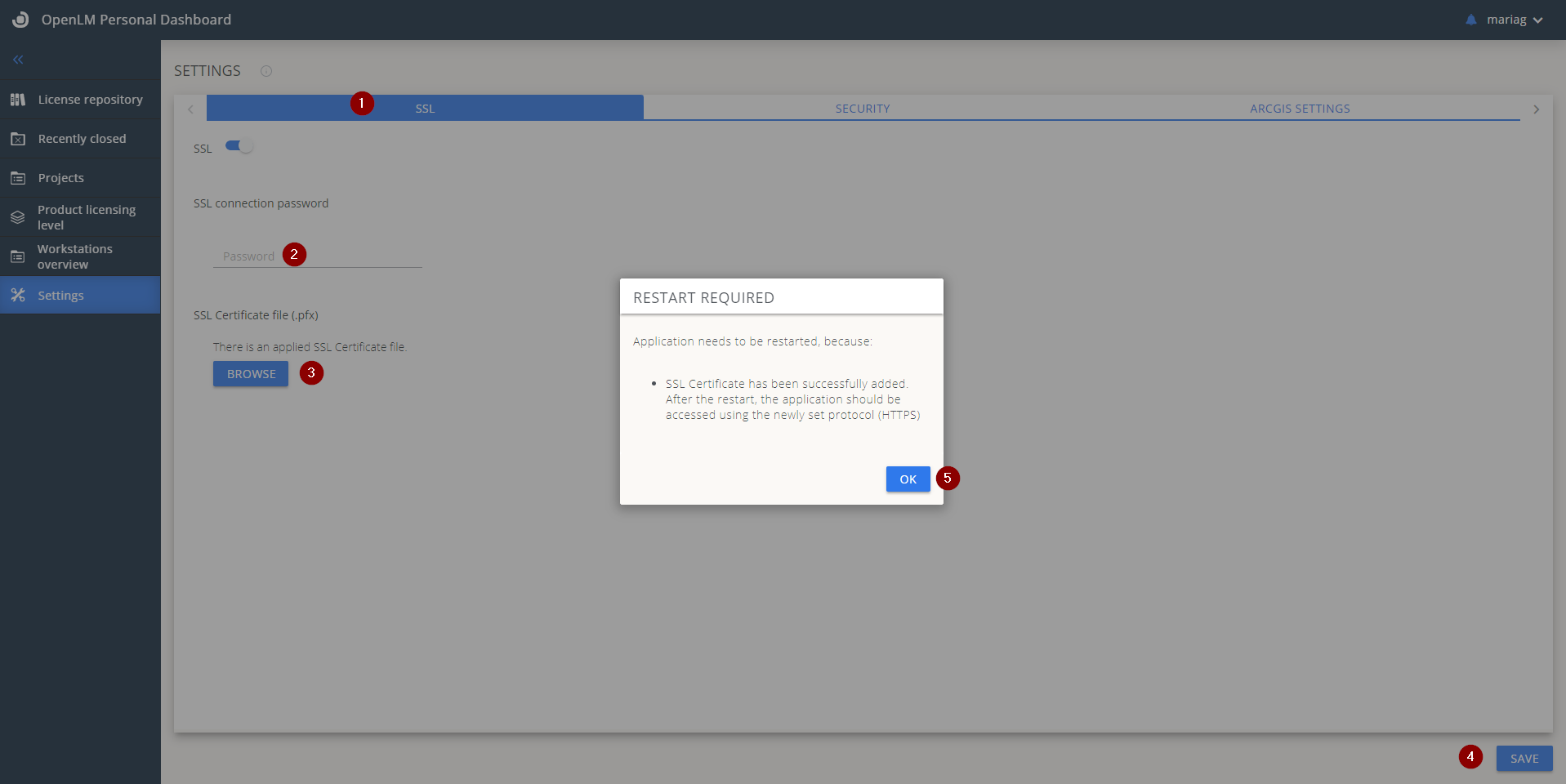
Note: if previously your Personal Dashboard was not secured with the SSL configuration, make sure you issue a new authorization file at EasyAdmin User interface→ Start → Administartion → System&Security →Security →Authorization→ADD. Thengo to C:\Program Files\OpenLM\End-User Services and replace the existing authorization file with the newly created one, and restart the End User Services Service.
- Now reopen your Personal Dashboard with the updated address: https://fqdn:53555.
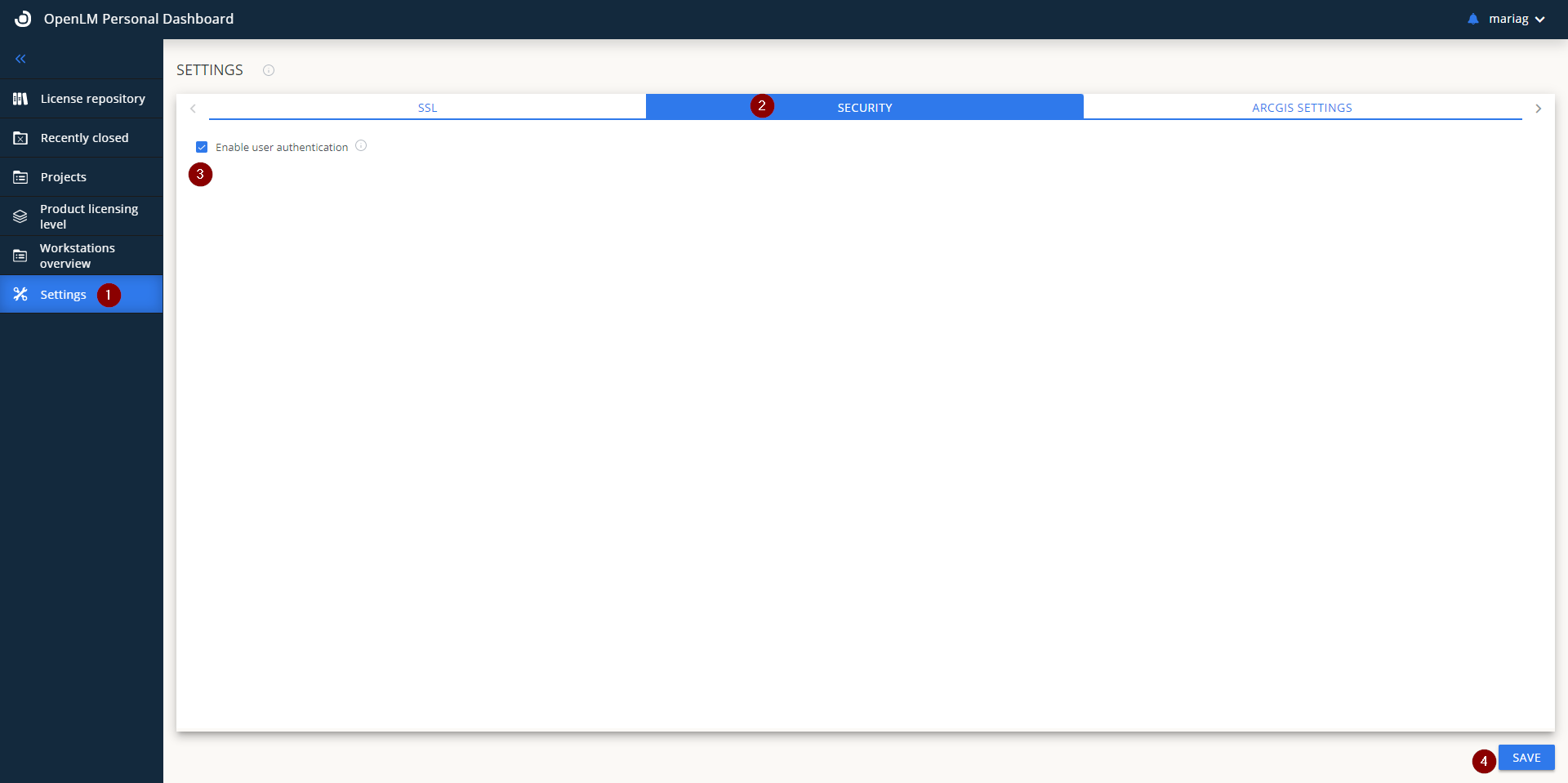
- Switch to the SECURITY tab and check the Enable user authentication box.
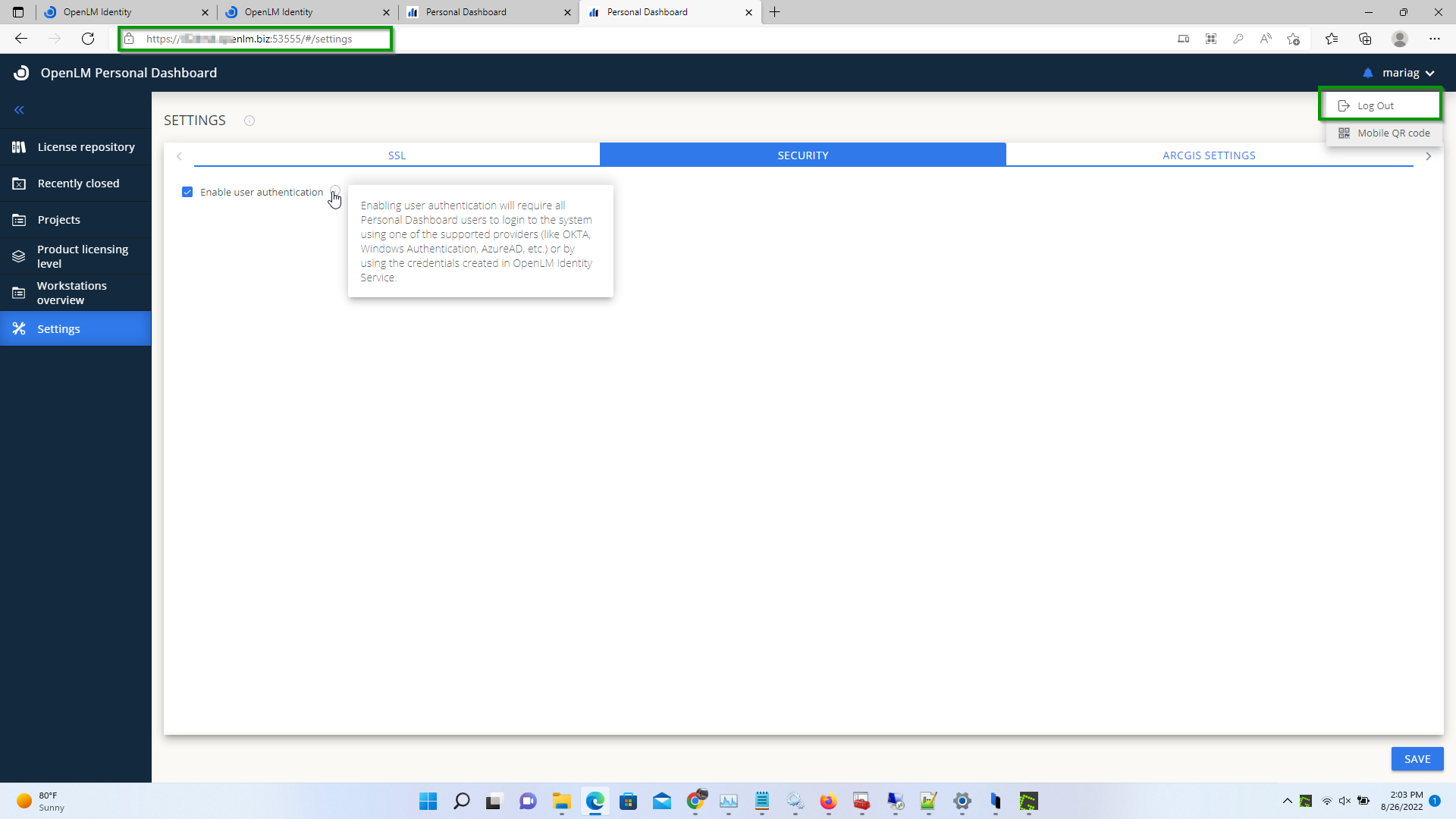
- Restart the End User Services Service and, if necessary, refresh the page. We observe that now it is possible to log out from our Personal Dashboard Account:
How to filter the License Managers' information available in PD
Administrators might want OpenLM Personal Dashboard Users to only see specific servers/licenses and not all of them, as the default setting. For this ACL must be enforced for the Personal Dashboard.
- Access the EasyAdmin User Interface→Administrtation→Roles. The Roles Window opens.
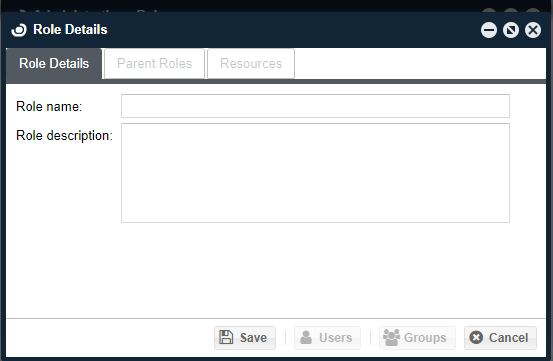
- Click **Add.**Provide a Role name and description. Click Save.
- After Clicking Save, the Resources tab is enabled. Click on it then → Add.
- Select the desired roles:
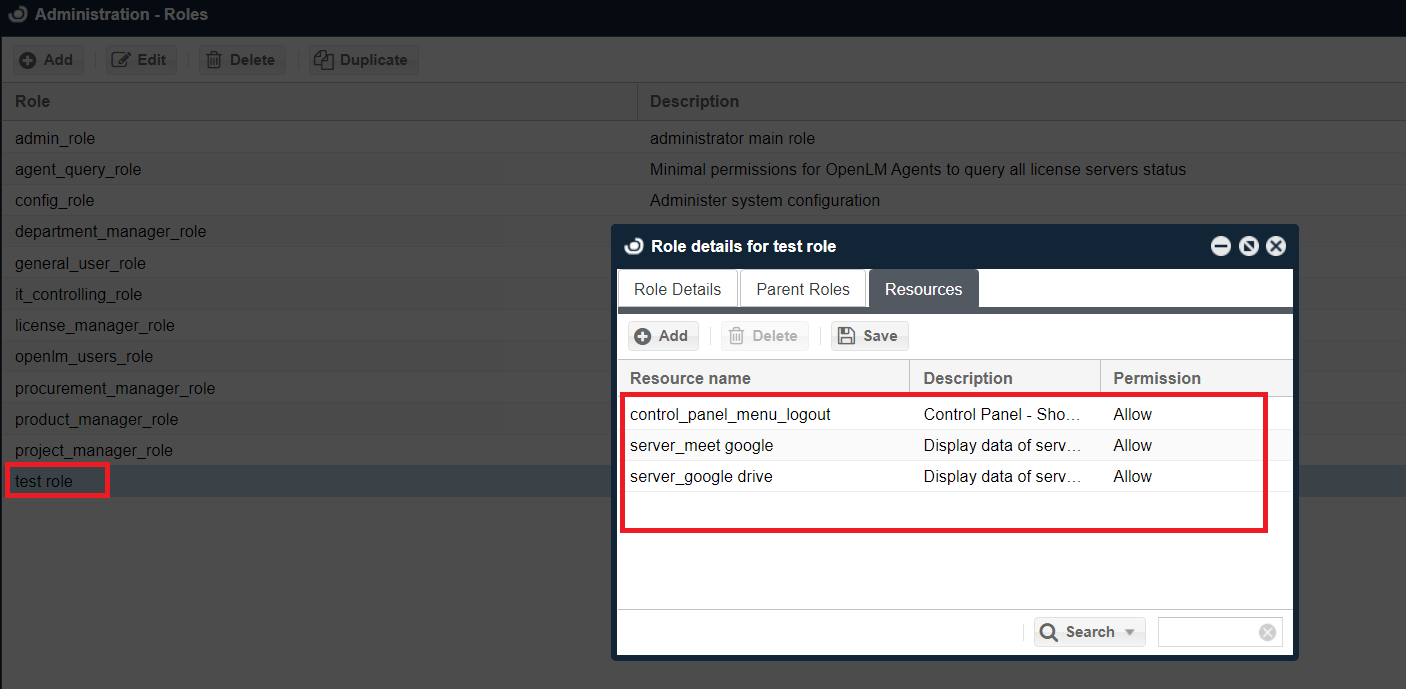
- Switch to the Role Details tab and click on Users→ADD:
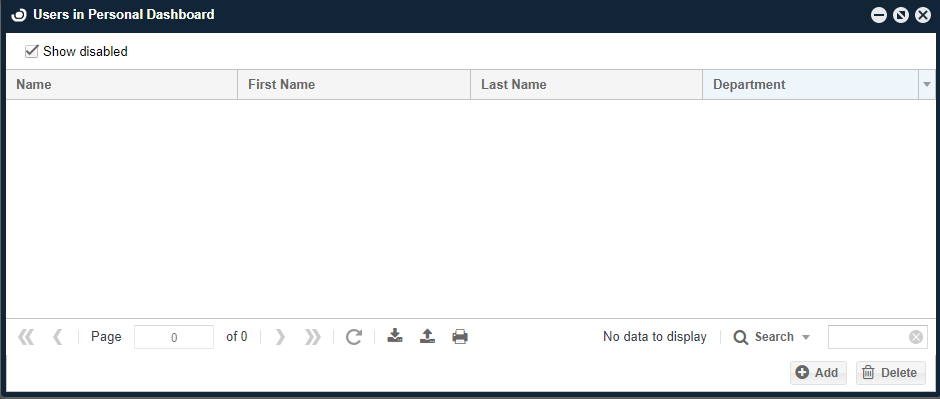
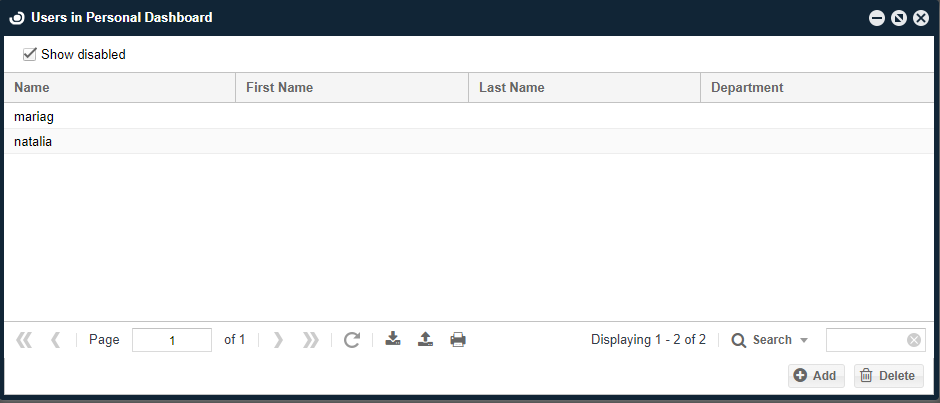
- Select the users to assign this role:
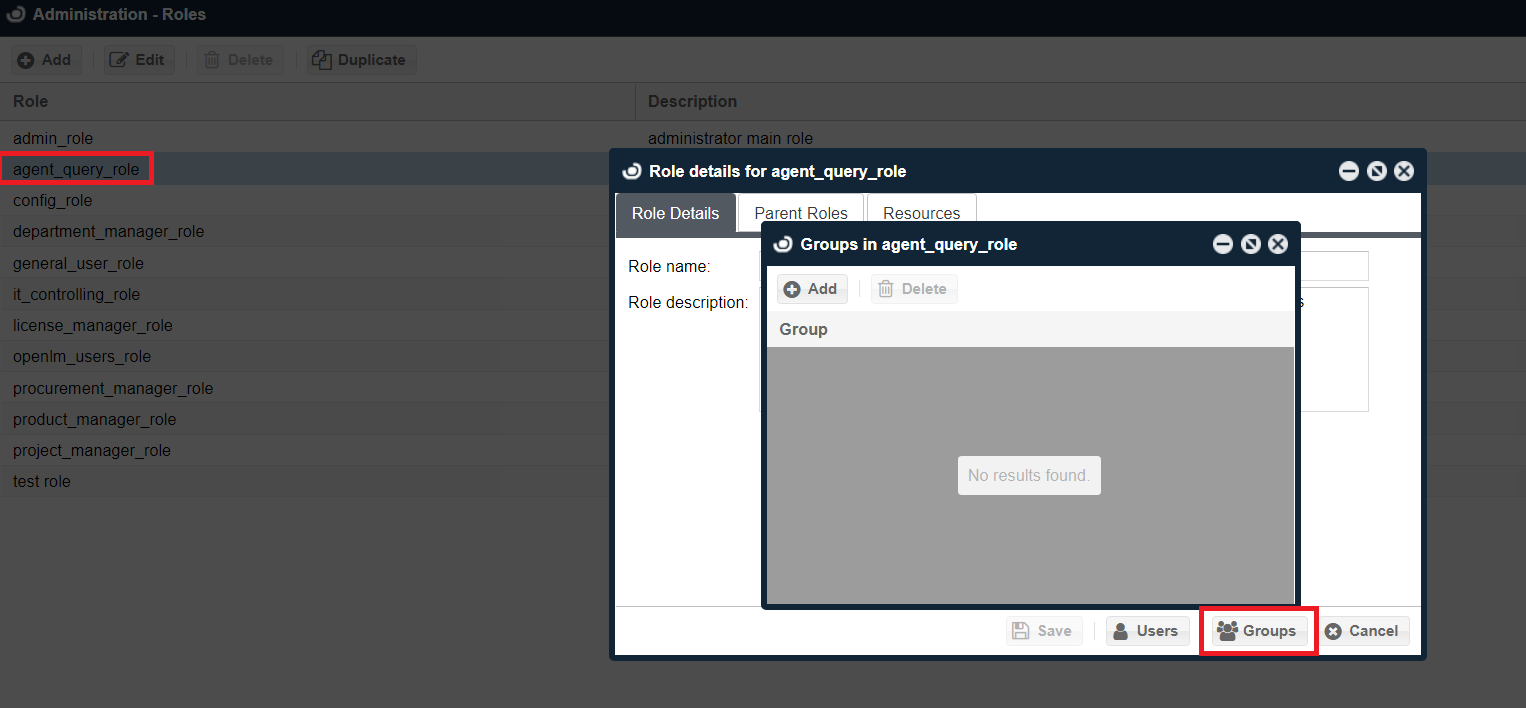
- Go back to Administrtation→Rolesand double click on agent_query_role→Groupsand delete OpenLM_Everyone group:
- Restart the OpenLM SLM and End-User Service services
- Now the Personal Dashboard User will only see the servers that have been assigned to them.