Altair Managed
This guide describes how to configure OpenLM to monitor the use of your Altair Units from managed Altair Licensing and collect statistics. Managed Altair Licensing is the cloud-based license server that Altair runs for Altair Units, which you manage in Altair One. OpenLM Broker supports it with the Altair Managed LM Type: Broker runs almutil, the Altair license utility, on a machine that is authorized for your Altair Units, and reports the data to OpenLM SLM as OpenLM Generic.
The LM Type list in Broker has four types for Altair and LM-X licensing. Choose the one that matches how your licenses are served:
- Altair: an Altair License Server on your network. See Altair.
- LMX: an LM-X license server of another vendor. See LM-X.
- Altair Managed: Altair Units from managed Altair Licensing, read with the
almutilcommand for managed licensing. This guide covers it. - Hosted HyperWorks Units: Altair Units from managed Altair Licensing, read with the
almutilcommand that also names a license server host and port. See Hosted HyperWorks Units (HHWU).
Altair Managed and Hosted HyperWorks Units read the same data and report it the same way. They differ only in the almutil command that Broker runs, and in the Type that OpenLM SLM gives them: OpenLM Generic and Hosted HyperWorks Units. Altair One is monitored in OpenLM Platform, not in Version 26. See Altair One.
Requirements
Before starting, install:
- OpenLM SLM or Software License Management Cloud (SLMC) environment with permissions to approve new OpenLM Generic license managers.
- OpenLM Broker v25.4.11.1409 or higher, the first version that lists Altair Managed as an LM Type, reporting to OpenLM SLM.
almutilon the Broker machine, for example in thebinfolder of an Altair License Management System installation, such asC:\Program Files\Altair\licensing2025.0\bin. Broker doesn't includealmutil.
You also need:
- Altair Units that your company bought and enabled in Altair One, and an Altair One account that can use them.
- Internet access from the Broker machine to Altair. Managed Altair Licensing is a cloud-based licensing system.
- A Windows account for the OpenLM Broker service that is authorized for your Altair Units. See Authorize the Broker machine.
Monitoring capabilities
The current monitoring capabilities for Altair Managed through OpenLM Broker are:
| LM Type in the Broker | Commands | Logs | Quantity | Expiration date | Denied | Borrowing | Allocations | Report resolution |
|---|---|---|---|---|---|---|---|---|
| Altair Managed | Yes | No | Yes | Yes | No | No | No | Minutes |
For each feature of your Altair Units, OpenLM SLM reports:
- Feature name and Version: the Altair feature, for example
GlobalZoneEUorHWHyperMesh, and its version. The product name is the feature name and the version, for exampleGlobalZoneEU - 25.0. - Total and Used: the units of the feature and the units in use. A feature that Altair serves without a limit, usually a product feature such as
HWHyperMesh, shows Unlimited. - Expiration date: the expiration date of the feature.
- Vendor: Altair, unless you add a vendor on the Vendors tab in Broker.
For each user, OpenLM SLM reports the username, the workstation, the start time, and the units that the user holds. Altair can report several shared checkouts for one user on one workstation. Broker reports them as one session, with the largest number of units of those checkouts and the time of the earliest one.
Broker doesn't report denials, borrowed units, or allocations for Altair Managed, and doesn't start or stop anything.
Full list of supported capabilities.
How OpenLM interfaces with Altair Managed
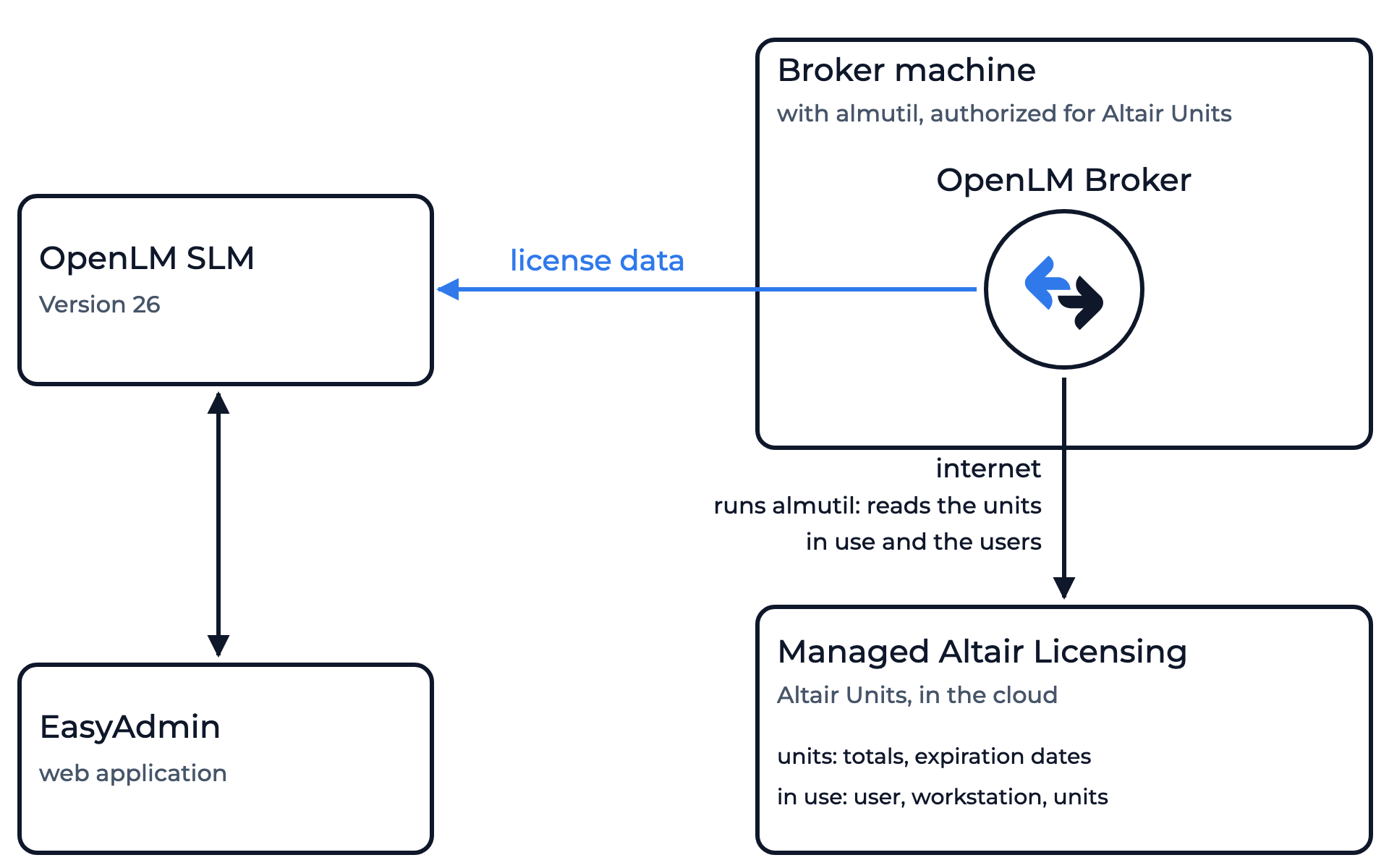 How OpenLM collects Altair Managed usage
Broker runs almutil every 55 seconds by default. It reads your Altair Units, the units in use, and the users who hold them, and sends them to OpenLM SLM.
Each query reads the current state. A session that starts and ends between two queries doesn't reach OpenLM SLM, and Broker doesn't upload the usage history from before you add the license manager.
Authorize the Broker machine
almutil returns your Altair Units only to a Windows user that is authorized for them. Altair authorizes each user of a machine separately and keeps the settings in that user's profile, in C:\Users\<USERNAME>\AppData\.altair_licensing\<HOSTNAME>\altair_hostedhwu.cfg. The OpenLM Broker service runs as Local System by default, which isn't authorized, so Broker gets no units even when almutil works in your own command prompt.
To authorize the account that runs Broker:
-
Choose a Windows account for the OpenLM Broker service, for example a service account, and make it a member of the local Administrators group on the Broker machine.
-
Sign in to the Broker machine with that account and start the Altair License Utility,
almutil_gui.exe.It's in the start menu under the Altair version, or in the
security\bin\win64\guifolder of the Altair installation, for exampleC:\Program Files\Altair\2026\security\bin\win64\gui\almutil_gui.exe. -
On the Managed Licensing tab, enter the Altair One credentials under Authorization and select Sign In.
-
In Windows Services, open the OpenLM Broker service. On the Log On tab, set the same account, then restart the service.
If your network needs a proxy to reach Altair, set it with almutil -proxy as that account. See the Altair Units Licensing guide for the authorization, the proxy settings, and the Altair License Utility.
OpenLM Broker configuration
Make sure OpenLM Broker is already installed and configured to report to OpenLM SLM before continuing.
-
Open a browser on the Broker machine and go to the Broker web UI at http://localhost:5090/.
-
On the License Managers page, check that Host shows the host name of the Broker machine.
OpenLM SLM lists the license server under this host. The field holds the host for every license manager on the page.
-
Go to License Managers → Add License Manager.
-
From LM Type, select Altair Managed.
-
In Port, enter a port number that no other license manager on this Broker uses, for example
6202, and select Add.The port only names the license server: OpenLM SLM lists it as
6202@<host>. Broker doesn't pass the port toalmutil.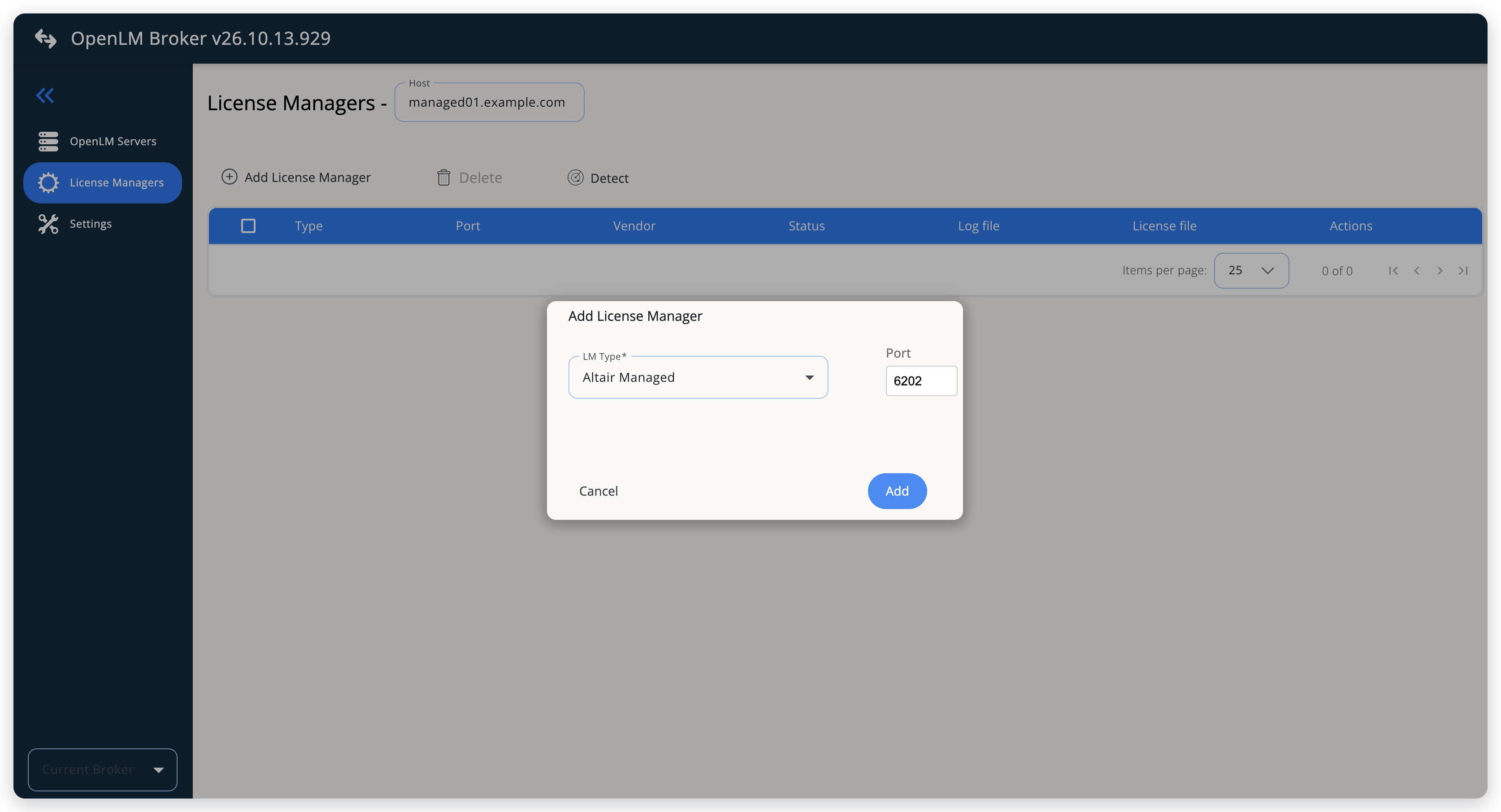 Add Altair Managed as the license type.
-
On the Commands tab, enter the folder that holds
almutilin Executable path, for exampleC:\Program Files\Altair\licensing2025.0\bin. You can also select the search icon next to the field and browse to the folder.Executable path is empty by default, and Broker can't run
almutilwithout it. When you save, Broker puts the folder in front ofalmutilin the Data Inquiry command.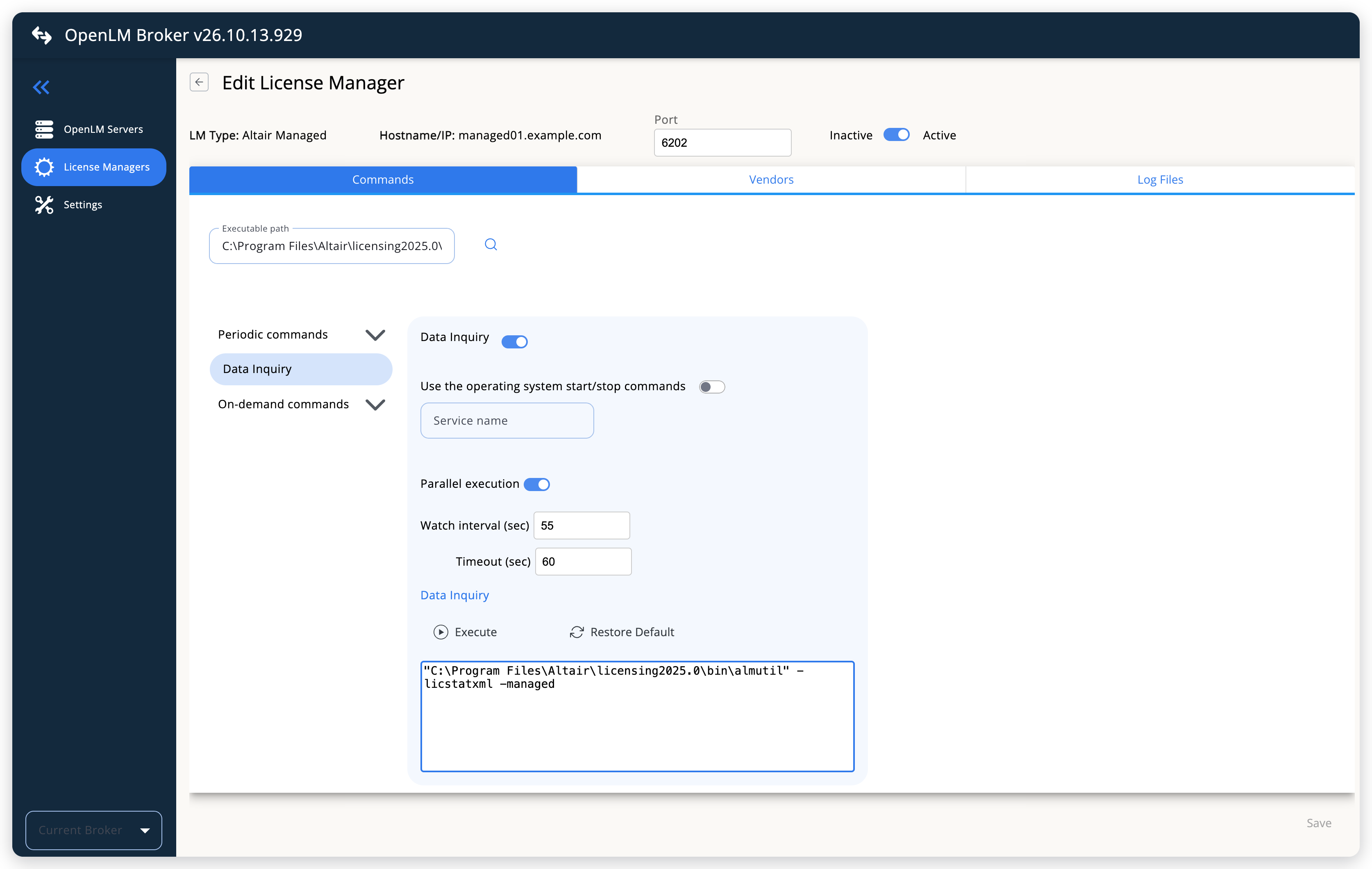 Set the Executable path to the folder of almutil.
-
(Optional) On the Vendors tab, add a vendor. Without one, Broker reports the vendor Altair.
-
Select Save.
Verify the setup: open the license manager again, select Data Inquiry on the Commands tab, and select Execute. A working connection returns the features with their units, the units in use, and the users who hold them. If you never saved the license manager, Broker answers "Need to save first in order to execute command".
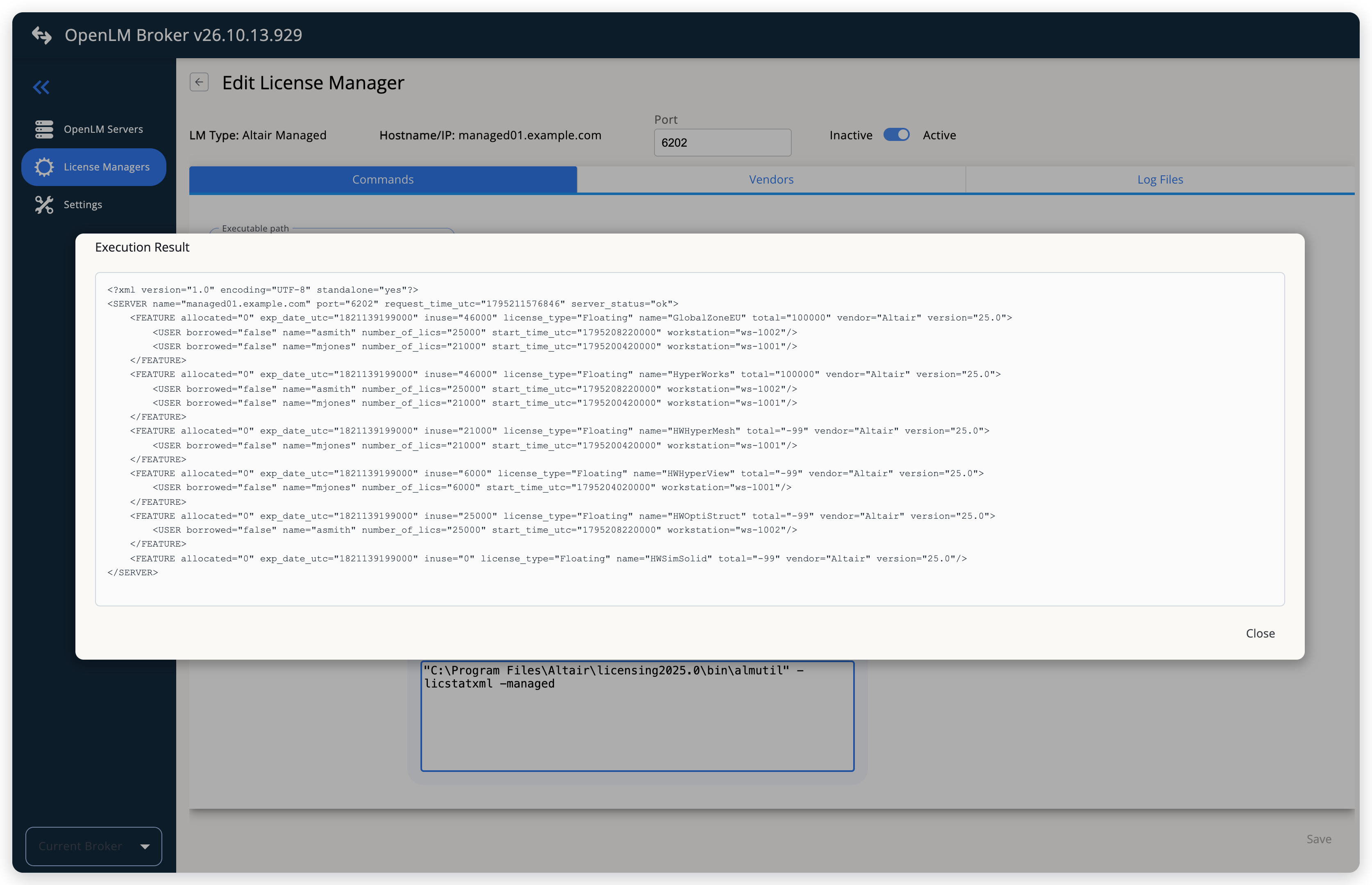 Test the connection with Execute.
Detect doesn't add Altair Managed. Add the license manager by hand.
OpenLM SLM configuration
Automatic configuration through EasyAdmin
If Broker is configured, it sends data to OpenLM SLM automatically. To approve it:
-
Open EasyAdmin (
http://<Server IP>:5015, or Windows Start → OpenLM → EasyAdmin) and go to Start → Widgets → License Manager - Servers. -
Select the There are N servers pending approval link at the top of the widget.
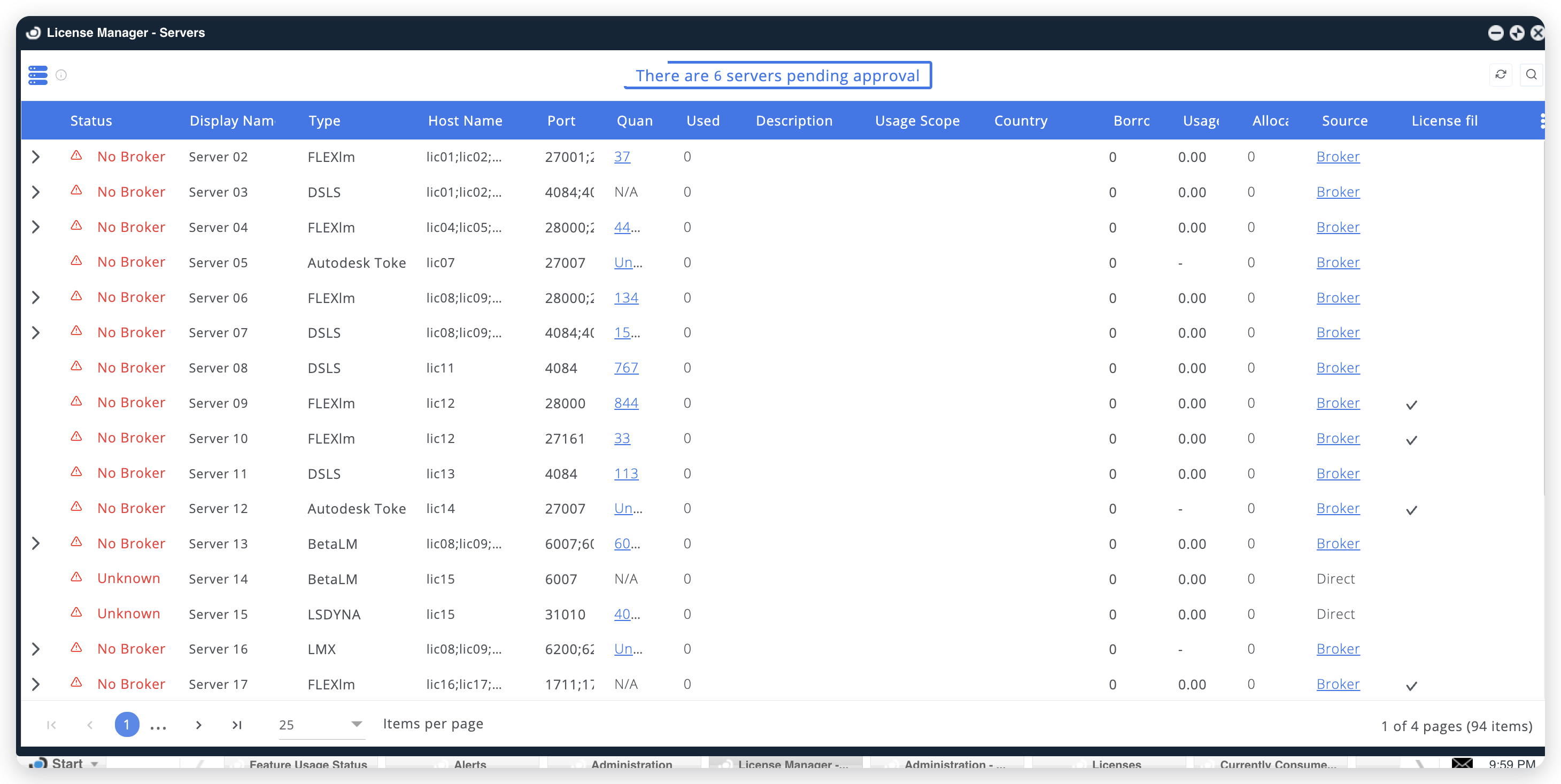 Pending approval message.
The Administration - License Manager Servers window opens, with the pending entries at the top of the list.
-
Find the pending entry with the host name and the port as configured in Broker, and select the edit icon at the end of its row.
The entry has the Status Pending, the Display Name
<port>@<host>, and the Type OpenLM Generic, because OpenLM SLM has no Altair Managed type. The edit icon appears when you hover over the row.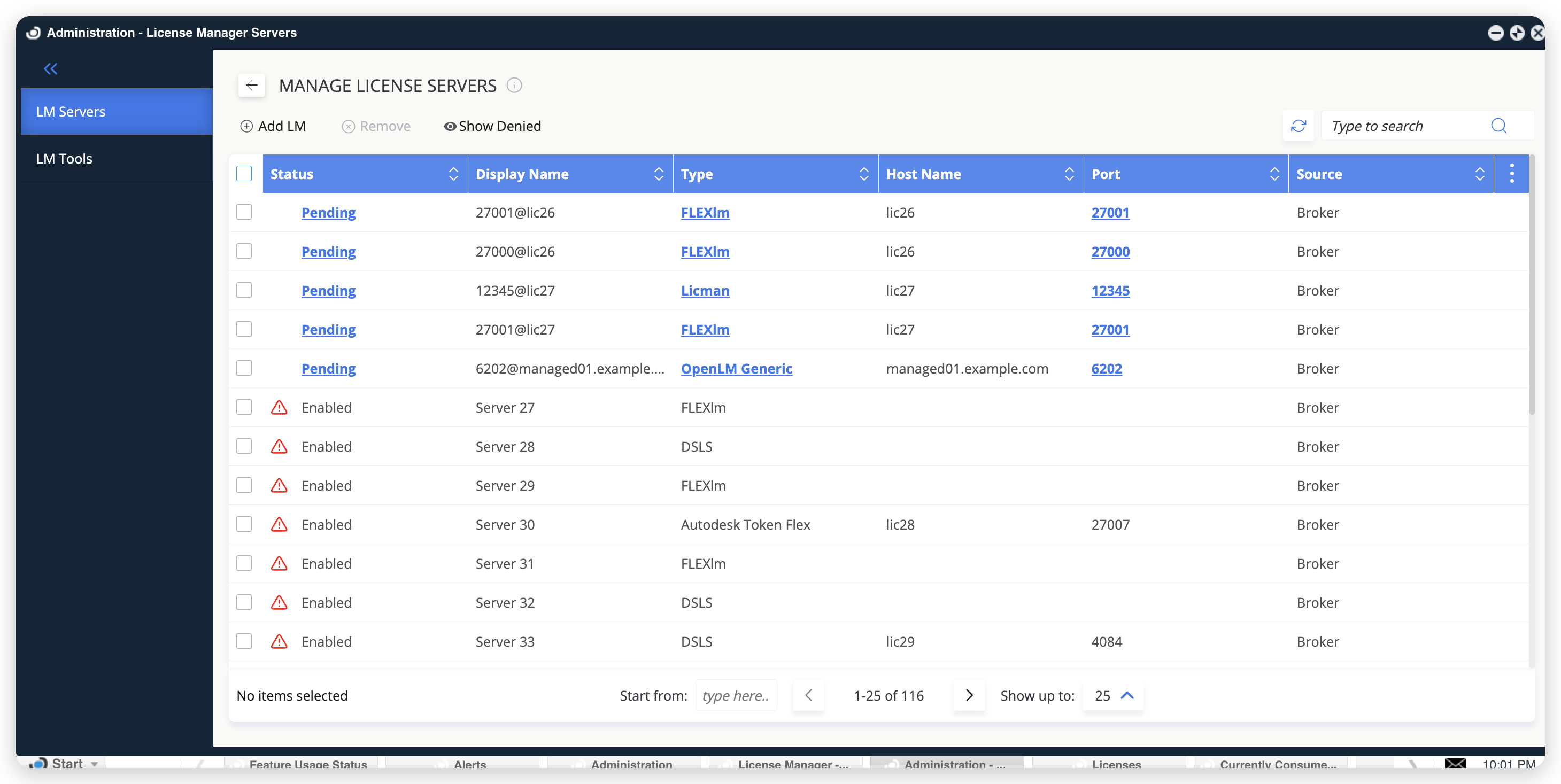 Approve the pending license server.
-
Update the Display name to something meaningful, confirm the Host Name and Port, and select APPROVE.
Use Broker is on, and Time Zone is the time zone of the Broker machine.
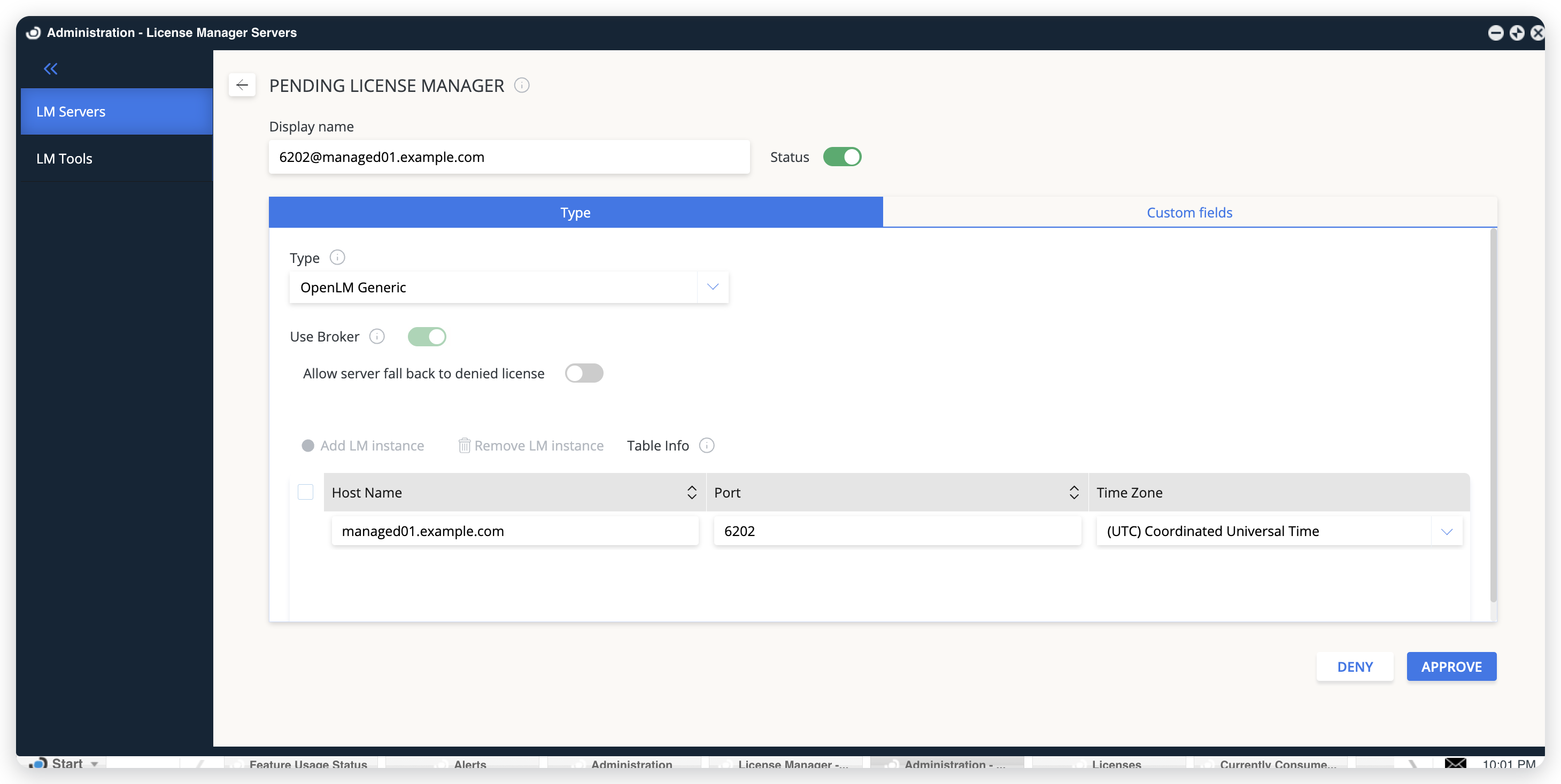 Update the display name and approve.
Manual configuration through EasyAdmin
If automatic approval fails, configure manually:
-
Go to Start → Administration → License Manager Servers.
-
Select Add LM.
-
In Display name, enter a name for the connection, for example
Altair Units. -
From Type, select OpenLM Generic.
The Type list has no Altair Managed. OpenLM Generic always uses Broker.
-
In the row under Host Name, Port, and Time Zone, enter the host name and the port exactly as configured in Broker, and select the time zone of the Broker machine.
-
Select SAVE.
The Time Zone of the entry must match the time zone of the Broker machine. When the two differ, the license server doesn't show as Up to date.
Verify your configuration
To confirm Altair Managed monitoring:
-
Open EasyAdmin in your browser.
-
Go to Start → Widgets → License Manager - Servers.
-
Find the license server and confirm that its Status is Up to date.
Quantity shows Unlimited when any feature has no limit, which is usual for Altair Units. Used adds up the units in use across all features.
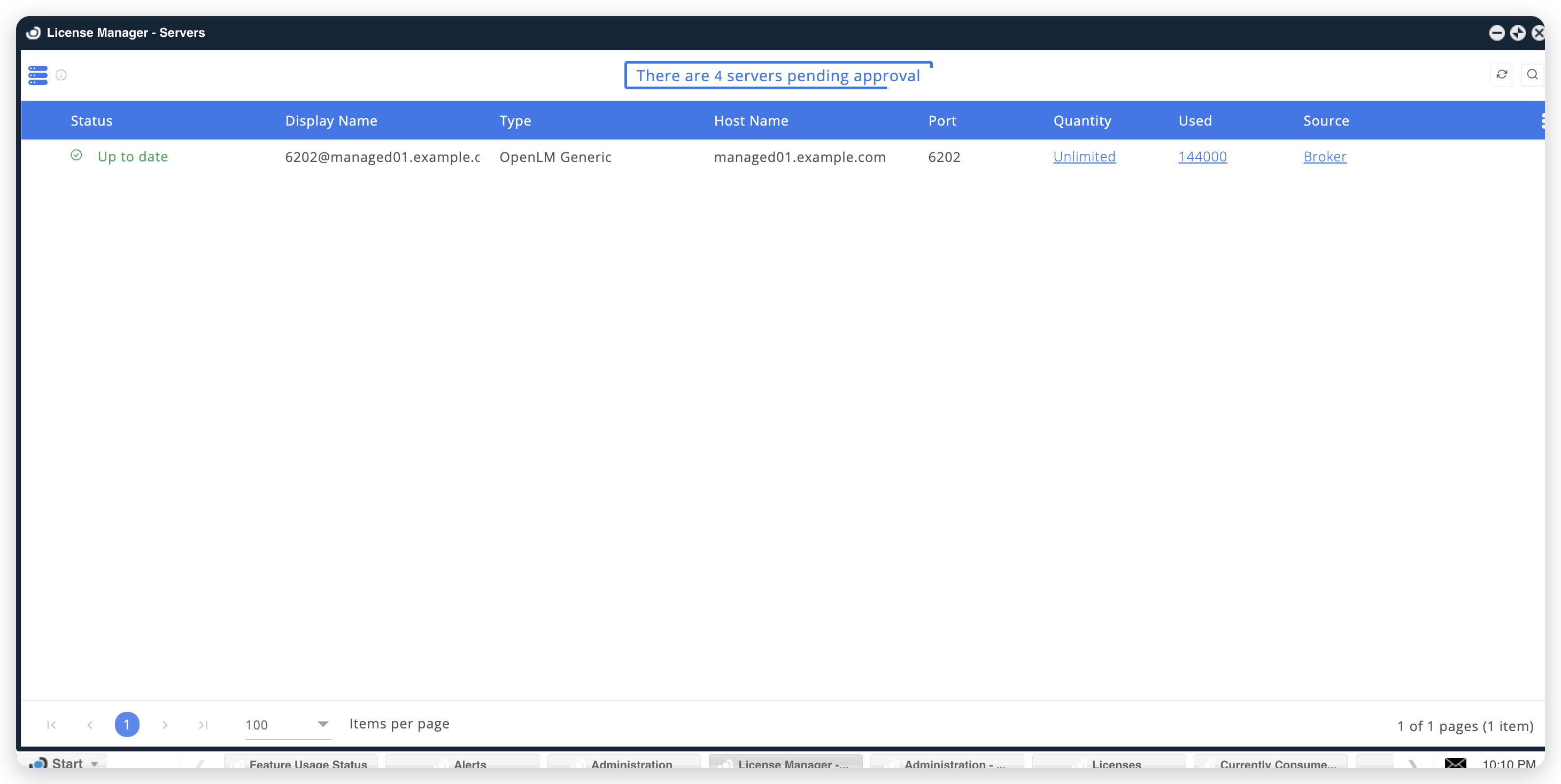 The license server is up to date.
-
In the row of the license server, select the number in Quantity.
The Licenses window opens with 1 row for each feature, with Vendor Altair, License Type Floating, and its units in Total. Compare the features with the usage of your Altair Units in Altair One.
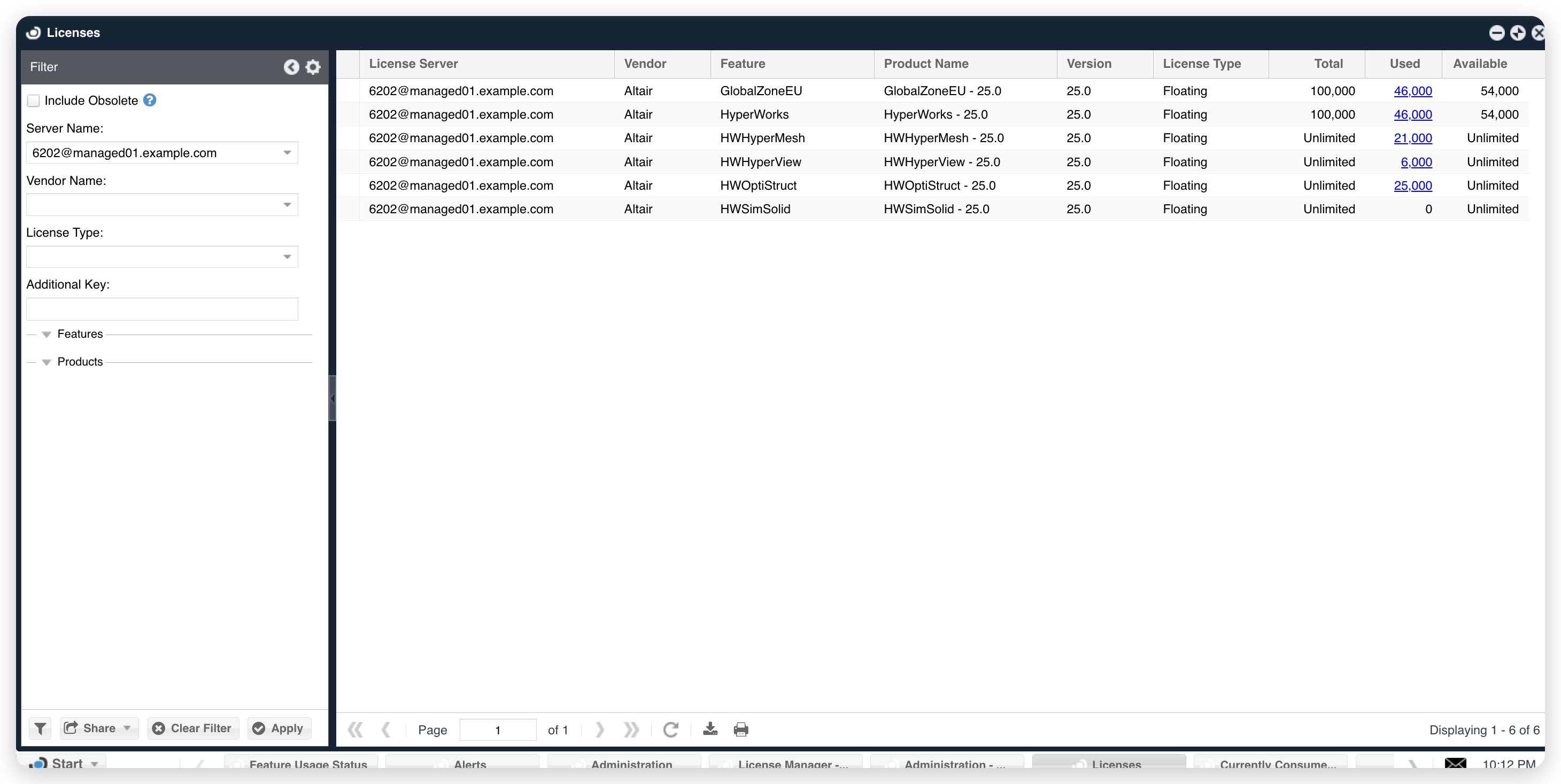 Altair Managed features in the Licenses window.
-
Select a feature's number in Used to confirm that sessions arrived.
The Currently Consumed Licenses window opens. Each user appears with the username, Workstation, Start Time, and the units that the user holds in Consumed Tokens.
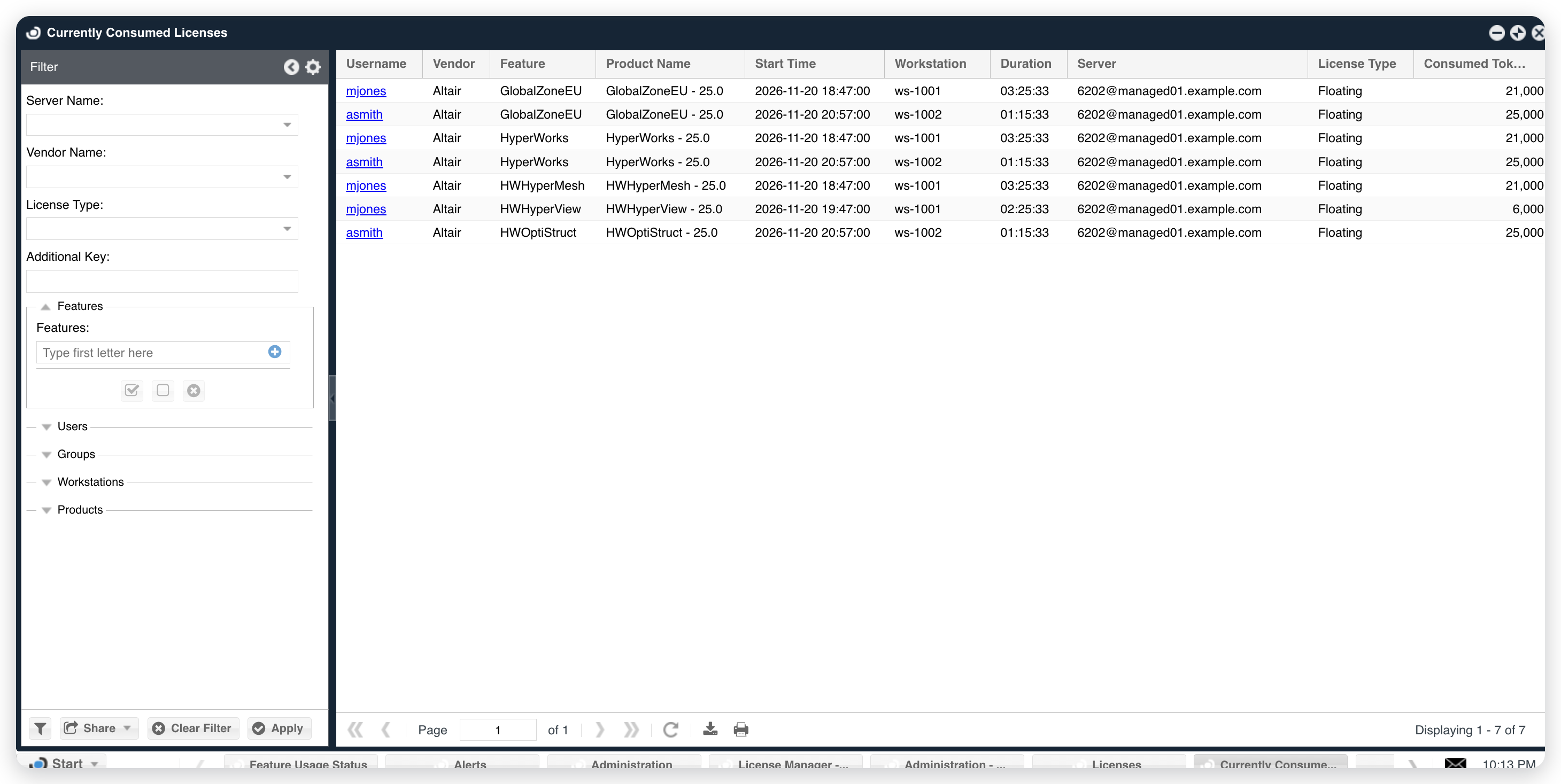 Altair Managed sessions in Currently Consumed Licenses.
Troubleshooting
The Broker log holds the detail for each of these problems, in the logs folder of the Broker installation. The periodic queries write to port-<port>-Altair Managed.log.
If the license server never appears as pending in EasyAdmin, confirm that the Broker reports to OpenLM SLM: other license managers on the same Broker update in EasyAdmin.
If the license server shows Data error with Used 0, open the license manager in the Broker UI, select Data Inquiry on the Commands tab, and select Execute. Compare the result with this table:
| Execute result | Cause | What to do |
|---|---|---|
<LICSTAT></LICSTAT>, then null | almutil returned no units to the account that runs Broker. | Authorize that account, as Authorize the Broker machine describes. |
Command could not be launched with CreateProcess error=2 | Broker found no almutil in Executable path. | Set Executable path to the folder of almutil and select Save. |
The units as plain text, then UnmarshalException | The Data Inquiry command lost -licstatxml, so almutil answers in plain text. | Select Restore Default next to the command, then Save. |
If almutil works in a command prompt but not in Broker, the cause is the account of the OpenLM Broker service, which runs as Local System. Set an authorized account on the Log On tab of the OpenLM Broker service, as Authorize the Broker machine describes. Giving Local System access to the almutil folder doesn't help.
After an Altair upgrade, the installation folder can carry the new version number, and Executable path can point at a folder that no longer holds almutil. Set Executable path to the folder of the new version and select Save.
Known limitations
- Broker doesn't report denials, borrowed units, or allocations, and doesn't read a log or a license file.
- A feature that Altair serves without a limit shows Unlimited in Total, and the license server shows Unlimited in Quantity. Used in License Manager - Servers adds up the units of all features.
- Broker reports the shared checkouts of one user on one workstation as one session.
- Detect doesn't add Altair Managed. Add the license manager by hand.
- Broker reads the current state, so it can miss a session shorter than the watch interval.
- Broker doesn't upload usage history.
The documentation team might draft this page using a large language model. A technical writer reviews every page and verifies it against the product before publishing it. A human makes the final decision.