Altium
This integration allows OpenLM to monitor Altium License Manager for license usage, expirations, and denials.
Requirements
- OpenLM SLM:
- Version 2.x installed on-premises, or
- An SLMC account.
- OpenLM Broker:
- Version 24.8 or higher installed on the same machine as the Altium License Manager.
Monitoring capabilities and features
| Feature | Resolution | License totals | License usage | Denials reporting | Borrowed license reporting | Expiration date reporting | Multiple server redundancy |
|---|---|---|---|---|---|---|---|
| Support | By minute | ✔ | ✔ | ❌ | ❌ | ✔ | ❌ |
OpenLM Broker configuration
- Open a web browser and go to
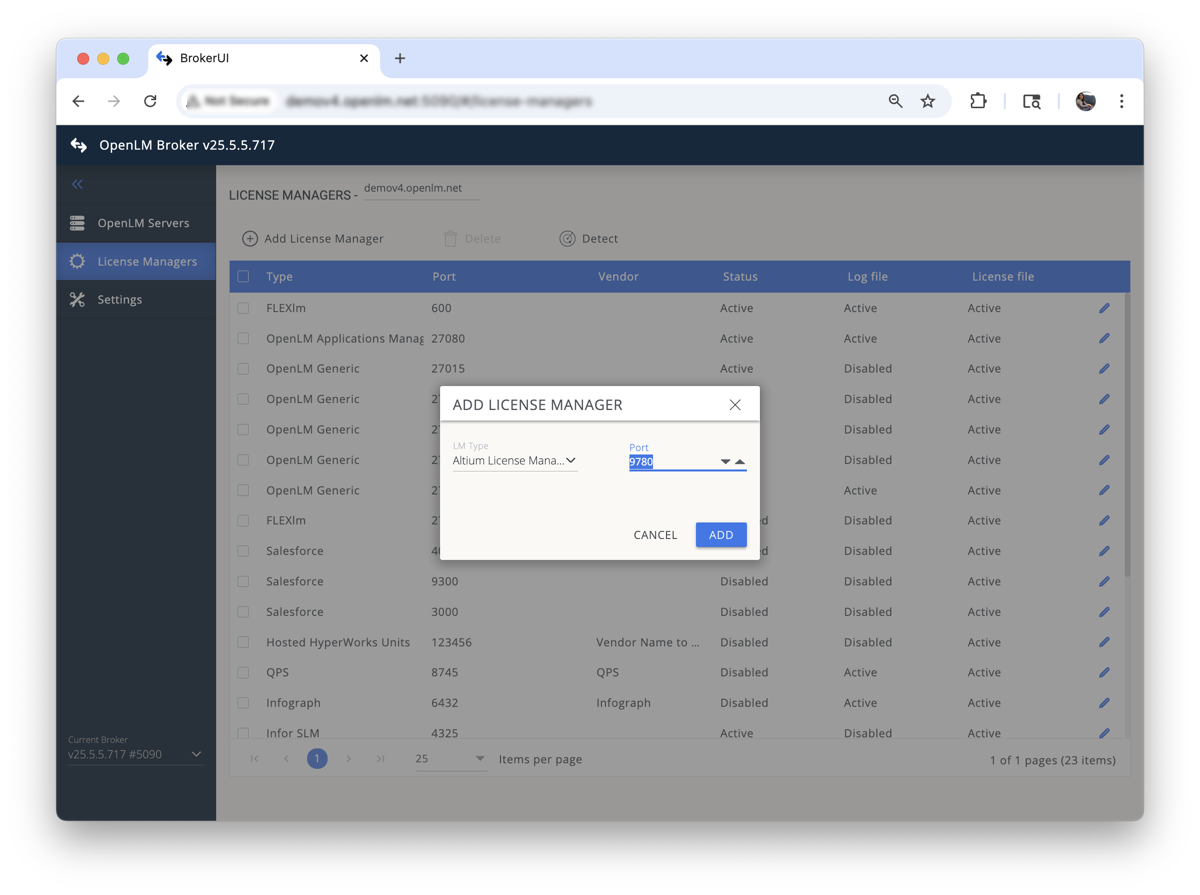
http://localhost:5090(or another configured port such as 5091, 5092). - Go to the License Managers tab and select Add License Manager.
- In the pop-up:
- Select Altium from the drop-down.
- Enter the port number (for example,
9780). - Select Add.
- In the Commands tab:
- Verify Data Inquiry is correctly set for your Altium instance.
- Edit the
altium@<port>file inC:\Program Files\OpenLM\OpenLM Broker\and add the Altium username and password. - Save the file and return to the Broker interface.
- Select Execute to confirm valid data output.
- In the Vendors tab:
- Select Add Vendor.
- Enter Altium as the vendor name.
- Select Continue.
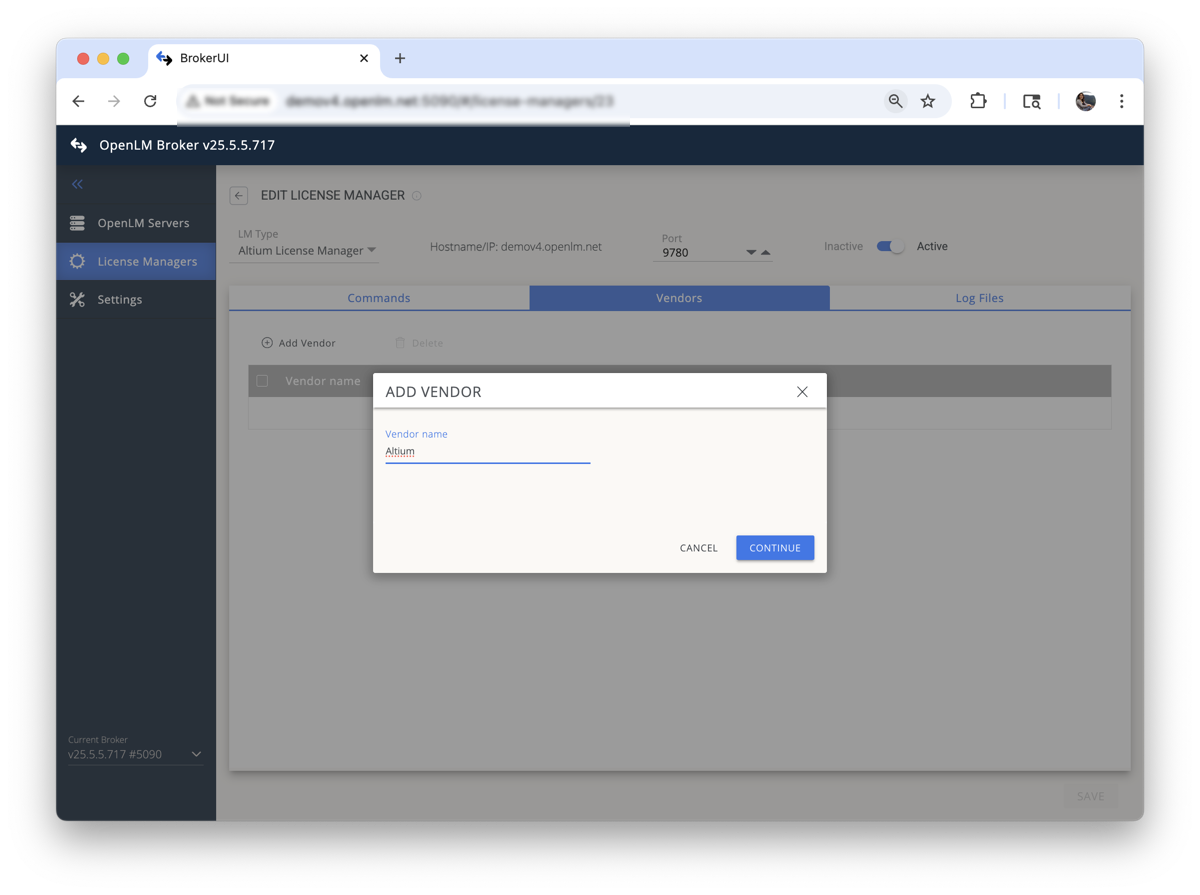
- Select Save to complete the Broker configuration.
OpenLM Server configuration
Automatic configuration through EasyAdmin
- Open EasyAdmin.
- Go to Start → Widgets → License Manager Servers.
- Select the Pending Approval icon.
- Double-click the pending Altium server entry (shown as OpenLM Generic).
- Verify settings and select Approve.
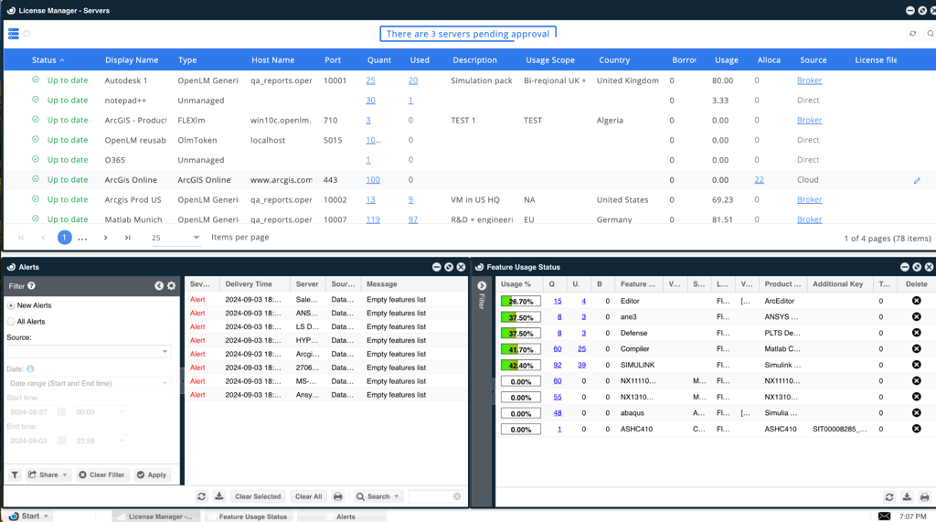
A green circle indicator shows an active connection. Status for new connections may take up to 3 minutes to update.
Manual configuration through remote sampling
If automatic configuration fails:
- In EasyAdmin, go to Start → Administration → License Manager server.
- Select Add LM.
- Enter a description (for example, "Altium License Server").
- Select Altium from the Type drop-down.
- Enter:
- LM Address (server address hosting Altium)
- Username and Password for Altium Infrastructure Server
- Set Time Zone to match the Altium server.
- Select TEST CONNECTION and ensure a success pop-up appears.

- Select Save.
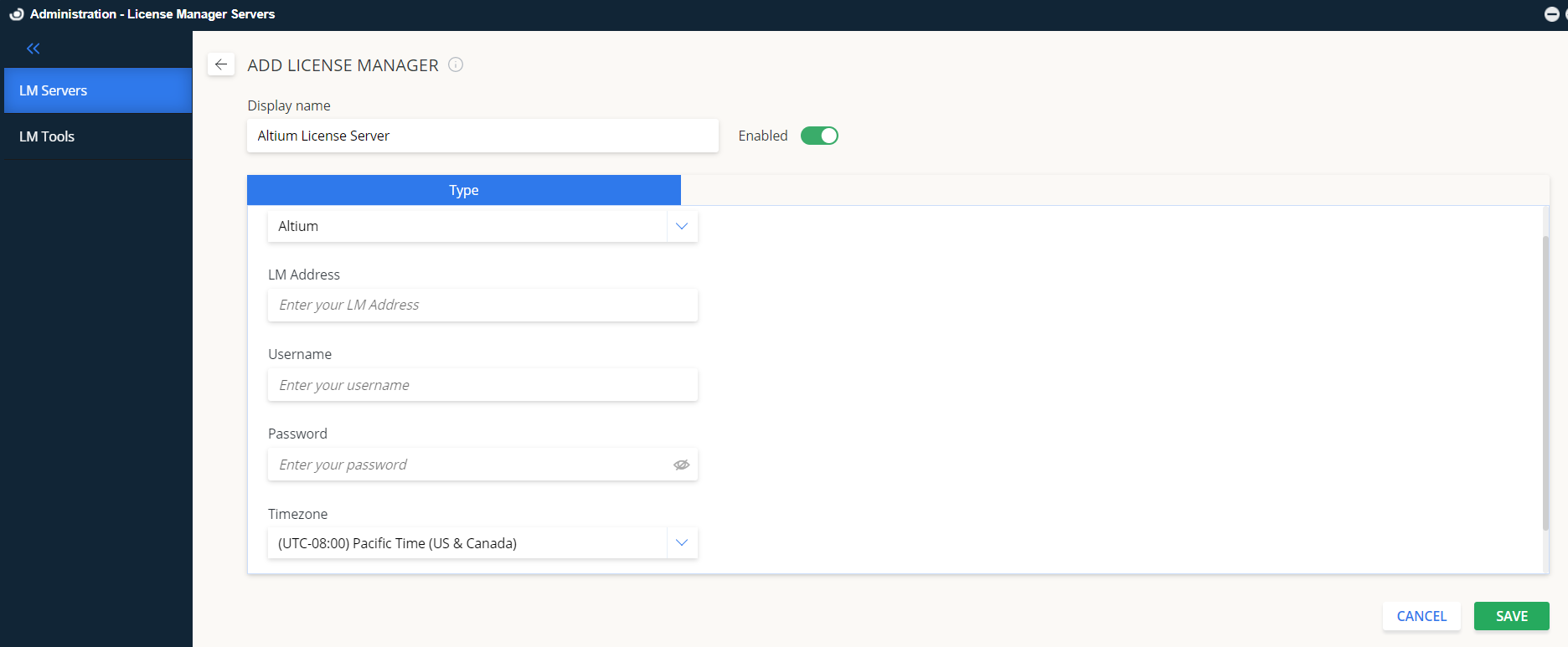
The Altium server is now ready to interface with OpenLM.
How to verify configuration
- Open EasyAdmin.
- Go to Start → Widgets → License Servers.
- Verify that Altium appears with a green status indicator.