Altiva
Follow these steps to monitor Altiva licenses with OpenLM. Altiva Licence Server (ALS) serves pooled licenses for Altiva Software products, such as CADconform, from a Windows server on your network. OpenLM Broker runs on the ALS server, reads 2 ALS log files there, and reports the license pool and each check-out, check-in, and refused request to OpenLM SLM.
Requirements
Before starting, make sure you have:
- OpenLM SLM installed on a machine in your organization, or a Software License Management Cloud (SLMC) account.
- OpenLM Broker v4.14.0.1565 or higher, installed on the ALS server and reporting to OpenLM SLM. Earlier Broker versions do not list Altiva as a license manager type.
- Altiva Licence Server running as a service on that Windows server.
- Access to the ALS server, to find the ALS log folder.
Monitoring capabilities
The current monitoring capabilities for Altiva through OpenLM Broker are:
| LM Type in the Broker | Commands | Logs | Quantity | Expiration date | Denied | Borrowing | Allocations | Report resolution |
|---|---|---|---|---|---|---|---|---|
| Altiva | No (a data inquiry reads licences.log) | Yes | Yes | Yes | Yes | No | No | Seconds |
From licences.log, Broker reports on every data inquiry:
- Feature name: the Product column, for example
CADCONFORM. - Version: the Version column of the first row of the product.
- Total: the number of rows of the product.
licences.loglists each license copy on its own row. - In use: the rows of the product whose Status starts with
Checked out to:. - Username and Workstation: Broker reports the name in the Status column as the username, and the address in parentheses after it as the workstation. Depending on the ALS settings, that name can be a computer name. See Known limitations.
- Expiration date: the Expires date, as the end of that day in the local time of the Broker machine, converted to UTC.
- Vendor: the vendor that you select for the log file.
From access.log, Broker reports each event as ALS writes it:
SERVEDis a check-out. Its time gives the session its start time, to the second.RETURNEDandTIMEOUTare check-ins.REFUSEDis a denied request.
Broker ignores RESTART and every other line. Borrowed licenses and license allocations are not available for Altiva.
How OpenLM interfaces with Altiva
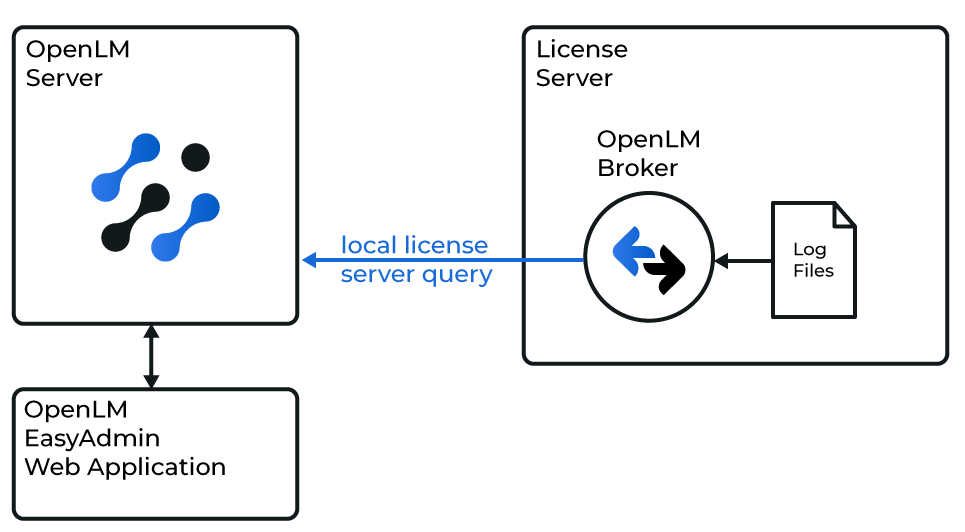 How OpenLM collects Altiva usage
Broker runs on the ALS server, reads 2 files in the ALS log folder there, and sends the license data to OpenLM SLM. When you configure an Altiva port, Broker fills in these settings:
-
Data Inquiry: Broker runs this command every 55 seconds, by default, and reads the license pool from its output:
cmd /c type "{$path}licences.log"{$path}is the Executable path of the license manager, which you set to the ALS log folder. ALS rewriteslicences.logeach time a license is checked out or in, so the file always holds the current state of the pool. Each license copy has its own row:No.;Product;Version;Serial No.;Sub-Copy No.;Dept;Expires;Status;Last Update1;CADCONFORM;8;1001;1;-;30-Jun-27;Checked out to: jdoe (10.0.12.34);Mon Oct 26 09:14:05 20262;CADCONFORM;8;1001;2;-;30-Jun-27;AVAILABLE;- -
Log file: Broker reads
access.logevery 10 seconds, by default, from where it stopped. It reads these kinds of line:TIME;OPERATION;REQUEST;SERVED;USERMon Oct 26 09:14:05 2026;SERVED;CADCONFORM8;CADCONFORM8;jdoe (10.0.12.34)Mon Oct 26 11:02:47 2026;RETURNED;CADCONFORM8;-;jdoe (10.0.12.34)Mon Oct 26 11:05:10 2026;REFUSED;CADCONFORM8;-;asmith (10.0.12.51)The REQUEST column joins the product name and its version, for example
CADCONFORM8. Broker cuts it before the first digit, so that the feature name matches the product name inlicences.log. -
Sessions: Broker keeps the start time of each open session, keyed by feature, username, and workstation, and adds it to the matching license in use that it reports from
licences.log. A check-in removes the session. -
First read: The first time Broker reads
access.log, it starts at the end of the file. The licenses that are already checked out appear with the next data inquiry, without a start time. Broker does not upload earlier usage history. -
Port: Broker does not connect to ALS, so the port that you enter in Broker only identifies the license server in OpenLM.
Detect does not find ALS. Add the license manager by hand, as described in OpenLM Broker configuration.
Find the ALS log files
Broker reads both files where ALS writes them, so find the ALS log folder first.
-
On the ALS server, open the
Loggingfolder of ALS.The default is
C:\ProgramData\Altiva Software\Altiva Licence Server\Logging. -
Confirm that the folder holds
licences.logandaccess.log.ALS creates both files while its service runs.
-
Note the ALS port.
The port is
LICENCE_SERVER_PORT_NUMin the ALS configuration file,Als.cfg, which sits in the parent folder ofLogging. The default is1999.
For the ALS files and settings, see Installed Files and Configuration in the ALS v5 manual.
OpenLM Broker configuration
Install OpenLM Broker on the ALS server and confirm that it reports to OpenLM SLM before starting these steps.
-
Open a browser on the ALS server and go to the Broker web UI at http://localhost:5090/.
-
On the License Managers page, check Host.
OpenLM lists the license server under this host name, and the field holds the host for every license manager on the page, not for Altiva alone. If the field is empty, enter the host name of the ALS server and select the save icon next to the field.
-
Go to License Managers → Add License Manager.
-
From LM Type, select Altiva.
-
In Port, replace the suggested
27000with the ALS port,1999by default, and select Add.Broker does not connect to this port, so any port that no other license manager on this Broker uses works.
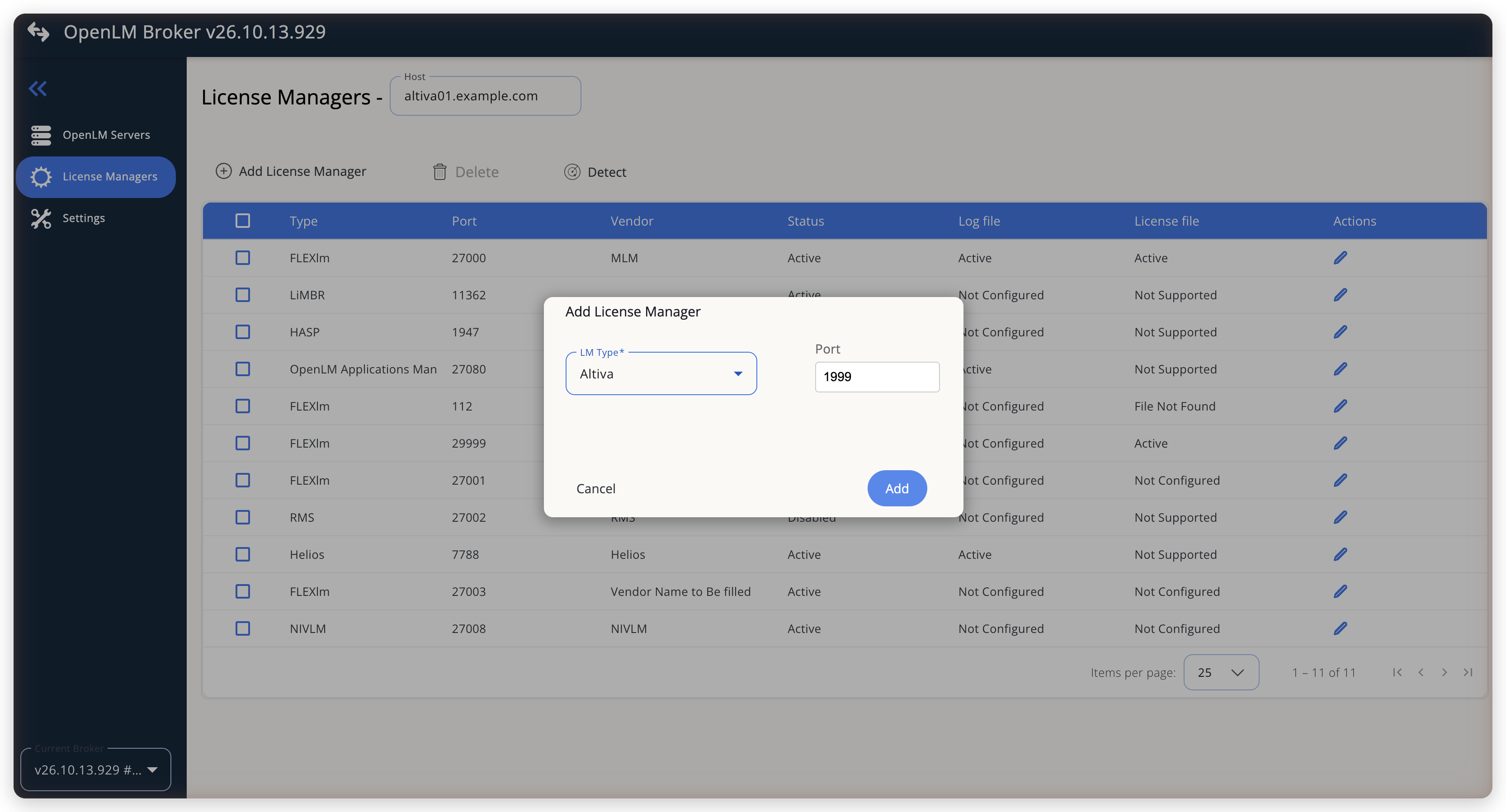 Add Altiva as a license manager
-
On the Commands tab, enter the ALS log folder in Executable path, for example
C:\ProgramData\Altiva Software\Altiva Licence Server\Logging\, or select the search icon next to the field to browse to it.Broker puts this folder in place of
{$path}in the Data Inquiry command. The command line shows the folder after you save.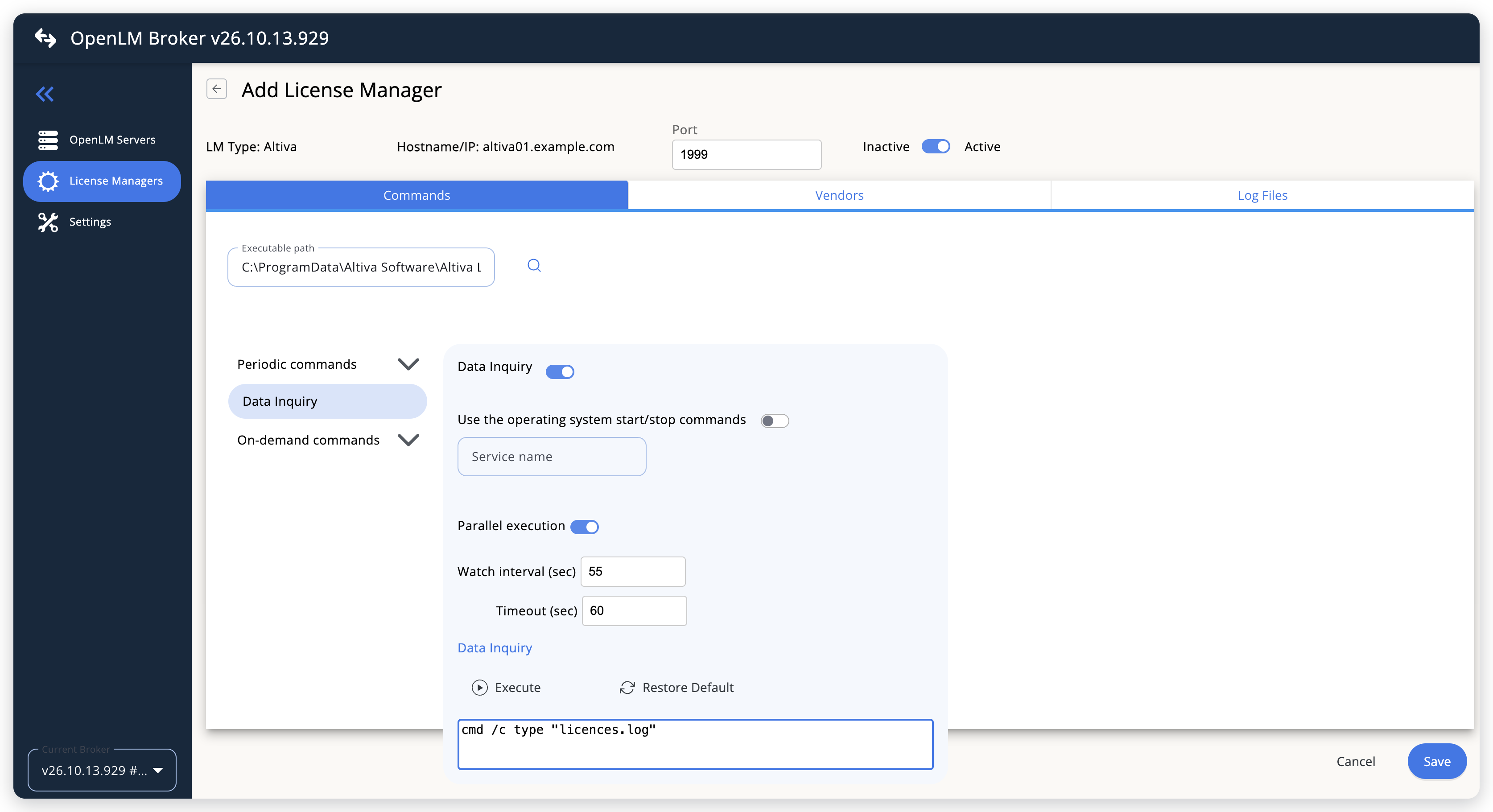 The Executable path and the default Data Inquiry
-
Under Periodic commands, keep Data Inquiry on, with its default command line.
Broker runs the command every 55 seconds (Watch interval (sec)), and stops a run that takes longer than 60 seconds (Timeout (sec)). Leave Use the operating system start/stop commands off.
-
On the Vendors tab, select Add Vendor, enter the vendor name that you want OpenLM to show, for example
Altiva Software, and select Continue.Broker reports the vendor of the log file for both files, so add the vendor before the log file.
-
On the Log Files tab, select Add Log File, and fill in the dialog:
- Log Type: access.log, which Broker selects for you.
- Log Name: a name for the log, for example
ALS access log. - Log Path: the full path of
access.log, for exampleC:\ProgramData\Altiva Software\Altiva Licence Server\Logging\access.log. Select the search icon next to the field to browse to it. - Vendor: the vendor that you added on the Vendors tab.
Leave the Advanced settings at their defaults.
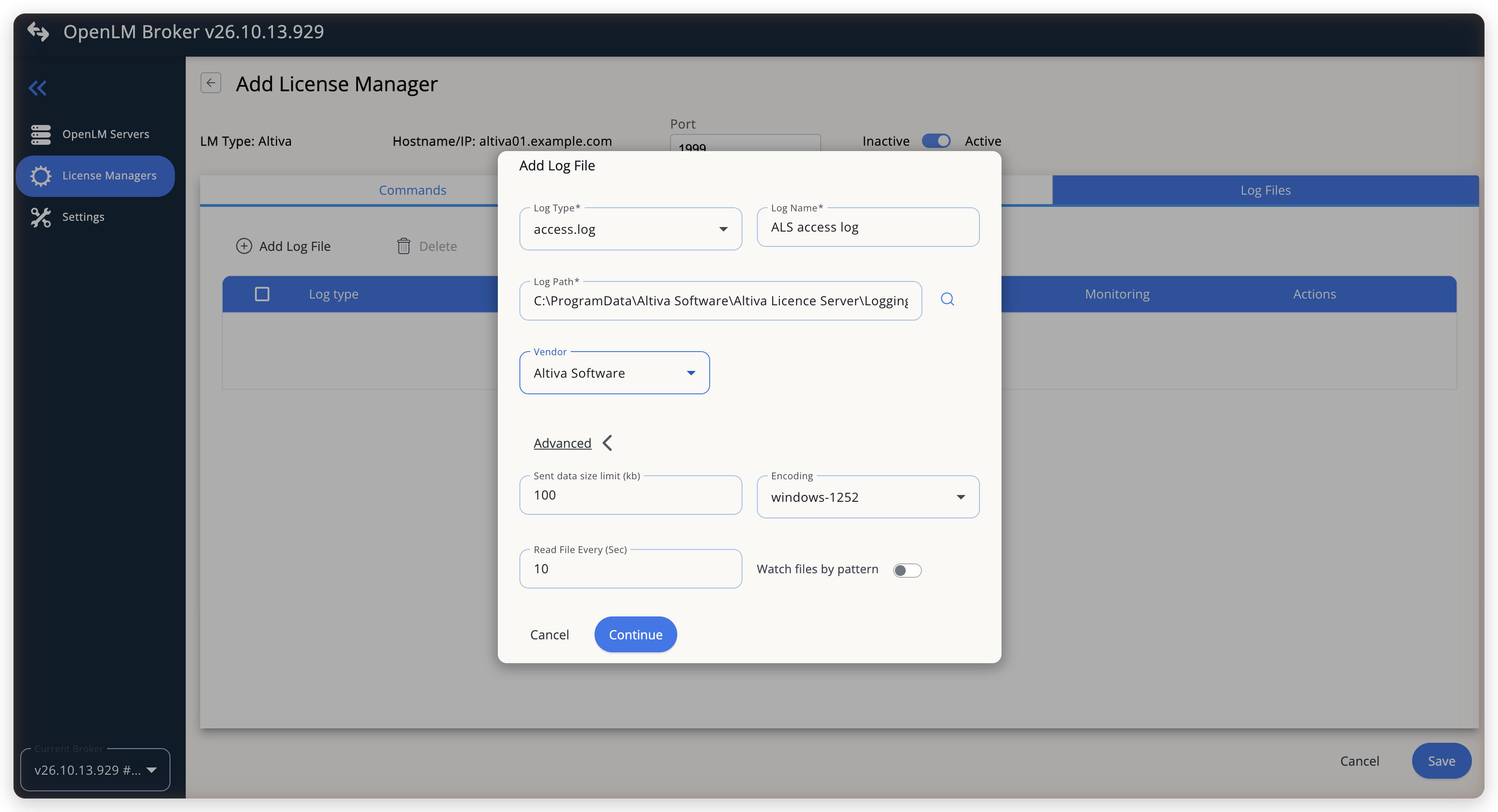 Point Broker at the ALS access logWarning
Add the log file even if you need only the license totals. Broker reads the start times of the licenses in use from it, and the data inquiry fails without it while any license is checked out.
-
Select Continue, then select Save.
OpenLM SLM configuration
Automatic configuration through EasyAdmin
If the preceding steps are complete, Broker runs the Data Inquiry command and reports Altiva to OpenLM SLM. Approve the license server in EasyAdmin:
-
Open EasyAdmin (
http://<Server IP>:5015) and go to Start → Widgets → License Manager - Servers. -
Select the There are N servers pending approval link at the top of the widget.
The Administration - License Manager Servers window opens, with the pending entries at the top of the list.
-
Find the entry whose Host Name and Port match the license manager in Broker, and select the edit icon at the end of its row.
Broker reports the LM type name with the OpenLM Generic protocol, and OpenLM SLM knows Altiva, so the Type of the entry is Altiva.
-
Optionally rename the connection in Display name, confirm the Host Name and Port, and select APPROVE.
Manual configuration through EasyAdmin
If automatic configuration fails:
-
Go to Start → Administration → License Manager Servers.
-
Select Add LM.
-
In Display name, enter a name for the connection, for example
Altiva. -
From Type, select Altiva.
Use Broker turns on.
-
In the row under Host Name, Port, and Time Zone, enter the host name and the port of the license manager in Broker, and select a time zone.
-
Select SAVE.
Verify your configuration
-
Open EasyAdmin in your browser.
-
Go to Start → Widgets → License Manager - Servers.
-
Confirm that the Altiva license server shows the Status Up to date.
-
Go to Start → Widgets → Feature Usage Status and confirm that each ALS product appears, with its total in Quantity and the licenses in use in Used. Compare them with
licences.logon the ALS server. -
Go to Start → Reports → License Activity, select Include Current Activity, and select Apply.
Each check-out appears with its username and workstation.
Troubleshooting
If Altiva never appears as pending in EasyAdmin, confirm that the Broker reports to OpenLM SLM: other license managers on the same Broker update in EasyAdmin.
If the license server shows no products, reopen the Altiva license manager from the License Managers list in the Broker UI, go to the Commands tab, select Data Inquiry, and select Execute. A successful run returns the license server XML, with a feature for each product in licences.log. Otherwise, compare the result and the Broker log with these cases:
Command execution failed, followed by the command and the error fromtype. Executable path does not point at the folder that holdslicences.log. Set it to the ALSLoggingfolder. Broker adds the closing backslash if you leave it out.Command result transformation failed. Broker cannot read the output. The license manager has noaccess.loglog file while a license is checked out, or a row oflicences.loghas an Expires value that is not a date such as30-Jun-27.
If licenses in use show no start time, they were checked out before Broker started or restarted. See Known limitations.
If check-outs arrive under a feature name that differs from the product in licences.log, the product name contains a digit. See Known limitations.
The Broker log is in the logs folder of the Broker installation, and the Altiva license manager writes to port-<port>-Altiva.log, for example port-1999-Altiva.log.
Known limitations
- Broker does not report borrowed licenses or license allocations, and does not upload usage history. Usage in OpenLM starts when you configure the license manager.
- Broker takes the username from the name that ALS writes next to the client IP address. With
COMPUTER_NAME_ENABLED = 1inAls.cfg, ALS writes the computer name of the client there, so OpenLM shows computer names as usernames. - Broker keeps the start times of open sessions in memory. Licenses checked out before Broker started, or before it last restarted, appear in OpenLM without a start time.
- Broker counts the rows of
licences.logby product name. Copies of different versions of a product count toward 1 feature, which carries the version of the first row. - Broker cuts the REQUEST value of
access.logbefore the first digit, because that column joins the product name and the version. A product whose name contains a digit gets its check-outs, check-ins, and denials under the part of the name before that digit, so they do not match itslicences.logrow. - Broker does not check whether the ALS service is running. OpenLM shows the license server as up while Broker can read
licences.log. - Detect does not find ALS. Add the license manager by hand.
- Broker reads the ALS files on the machine where it runs. Install a Broker on each ALS server that you want to monitor.
The documentation team might draft this page using a large language model. A technical writer reviews every page and verifies it against the product before publishing it. A human makes the final decision.