CADMATIC
Follow these steps to monitor CADMATIC licenses with OpenLM. CADMATIC License Server is a Windows service that serves the licenses of CADMATIC products, such as CADMATIC Hull, to the computers on your network. It also publishes a web page that lists the licenses in use and the licenses still free. OpenLM Broker requests that page on a schedule and reports the licenses, their totals, and the users who hold them to OpenLM SLM.
Requirements
Before starting, make sure you have:
- OpenLM SLM installed on a machine in your organization, or a Software License Management Cloud (SLMC) account.
- OpenLM Broker v26.7.8.1247 or higher, installed on a Windows or Linux machine that reaches the license server over HTTP, and reporting to OpenLM SLM. Earlier Broker versions do not list CADMATIC as a license manager type. Use v26.9.16.1403 or higher, so that a user who holds several licenses arrives in OpenLM as 1 user, each session carries its workstation, and no sessions are lost when the 2 tables on the page disagree.
- CADMATIC License Server 2.0, which runs as the Windows service CADMATIC License Server 2.0. Broker reads the layout of the version 2.0 web page.
- The HTTP TCP/IP port of the license server, which serves its web interface. The default is
2998. The License TCP/IP port,2999by default, serves license requests, and Broker does not use it. - A web interface that opens without a username and password. Broker does not sign in to it.
Monitoring capabilities
The current monitoring capabilities for CADMATIC through OpenLM Broker are:
| LM Type in the Broker | Commands | Logs | Quantity | Expiration date | Denied | Borrowing | Allocations | Report resolution |
|---|---|---|---|---|---|---|---|---|
| CADMATIC | Yes | No | Yes | Yes | No | No | No | Seconds |
From the Available Licenses table of the web page, Broker reports each application as a feature:
- Feature name: the Application column, for example
Hull Structure. - Total: the Perpetual + Term column.
- In use: the total minus the Free column. When the Reserved Licenses table has rows for the application and their number differs, Broker reports the number of rows. See How OpenLM interfaces with CADMATIC.
- Version: the Versions column without the part in parentheses, so
26(+1)becomes26. - Expiration date: the License expiration date at the top of the page. Broker reports the same date for every application.
- Vendor:
CADMATIC, unless you add a vendor on the Vendors tab in Broker.
From the Reserved Licenses table, Broker reports each row as a session that holds 1 license:
- Username: the User column. When CADMATIC adds a counter to the name, such as
jsmith (+1), Broker removes it, so all the rows of 1 user arrive as that user. - Workstation: the Host column.
- Start time: the Login Time column, to the second.
Broker versions before v26.9.16.1403 keep the counter in the username and report no workstation. Broker ignores the Version column of this table. The page holds no denied requests, borrowed licenses, or license allocations, so they are not available for CADMATIC.
How OpenLM interfaces with CADMATIC
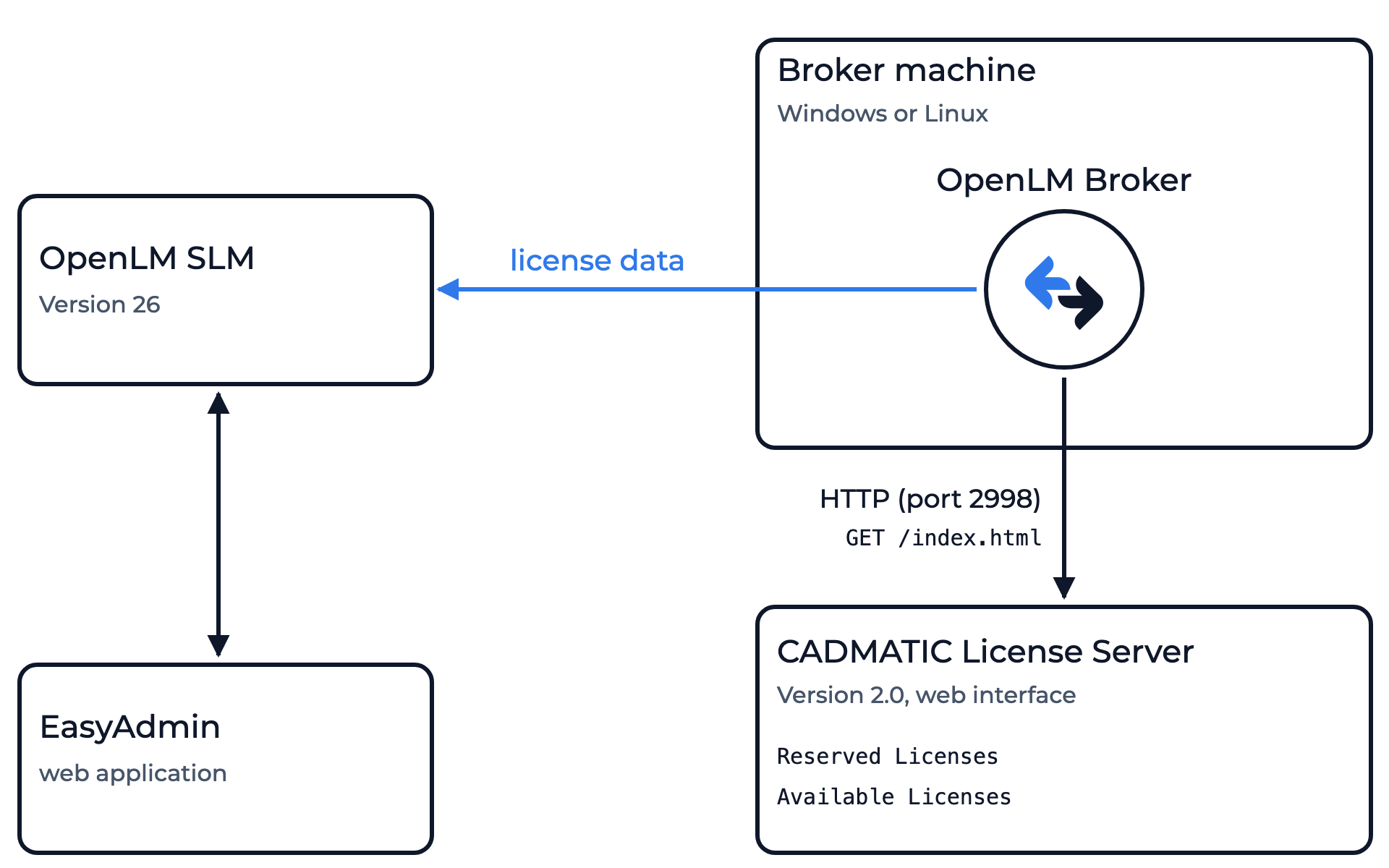 How OpenLM collects CADMATIC usage
Broker requests the web page of the license server over HTTP and sends the license data to OpenLM SLM. The integration works like this:
-
Commands: A new CADMATIC license manager gets 2 commands with the same web address:
http://{$host}:{$port}/index.htmlIn the Broker UI, each command line shows the Host from the License Managers page and the port of the license manager in place of
{$host}and{$port}. Data Inquiry, under Periodic commands, runs every 55 seconds by default. It sends an HTTPGETrequest to the address and reads the page that comes back. Status, under On-demand commands, holds the same address and does not run on a schedule. -
Page: Broker reads the license expiration date and 2 tables. In this example,
jsmithholds 2 Hull GUI licenses and 1 Hull Structure license:License expiration date : 31.12.2026Reserved Licenses (3)Host Application Version User Login TimeWS-1001 Hull GUI 2025T2R1 (26) jsmith Tue Oct 27 08:12:31 2026WS-1001 Hull Structure 2025T2R1 (26) jsmith Tue Oct 27 08:12:40 2026WS-1001 Hull GUI 2025T2R1 (26) jsmith (+1) Tue Oct 27 09:47:05 2026Available LicensesApplication Free Perpetual + Term VersionsHull GUI 8 10 26(+1)Hull Structure 4 5 26Broker reports Hull GUI with a total of 10 and 2 licenses in use, both held by
jsmithonWS-1001. -
Sessions: Broker reports the licenses that are reserved when the data inquiry runs, each with its Login Time as the start time. A license that is checked out and returned between 2 data inquiries does not reach OpenLM.
-
In-use count: In Broker v26.9.16.1403 and higher, when the number of rows for an application in Reserved Licenses differs from its total minus Free, Broker reports the number of rows as the licenses in use. The 2 tables can differ for a moment when a license is checked out or returned while the license server builds the page. An application with no rows in Reserved Licenses keeps the count from Available Licenses.
-
Time zone: Broker reads Login Time in the time zone of the Broker machine and converts it to UTC.
-
Log files: None. Broker reads no CADMATIC log file, so the Log Files tab stays empty.
Prepare the CADMATIC License Server
Broker reads the same page that a web browser shows at the data inquiry address. Before you configure Broker, check that the page opens from the machine where Broker runs:
-
Find the HTTP TCP/IP port of the license server.
You set it on the TCP/IP Ports page when you installed CADMATIC License Server. The default is
2998. -
On the Broker machine, open a web browser and go to
http://<license server>:<port>/index.html, for examplehttp://cadmatic01.example.com:2998/index.html.The page shows the Reserved Licenses and Available Licenses tables.
-
If the page does not open, check that the firewalls on the license server and on the route between the 2 machines let the Broker machine reach the HTTP TCP/IP port.
CADMATIC License Server needs both of its ports free and unblocked:
2999for license requests and2998for the web interface, by default. -
If the browser asks for a username and password, Broker can't read the page. See Known limitations.
For more about the web interface, see License server's web interface in the CADMATIC documentation.
OpenLM Broker configuration
Install OpenLM Broker and confirm that it reports to OpenLM SLM before starting these steps. Broker can run on the license server machine or on another machine that reaches the web interface.
-
Open a browser on the Broker machine and go to the Broker web UI at http://localhost:5090/.
-
On the License Managers page, check Host.
OpenLM lists the license server under this host name, and Broker builds the address of the web page from it when you add the license manager. The field holds the host for every license manager on the page, not for CADMATIC alone.
- Broker on the license server machine: if the field is empty, enter the host name of the machine and select the save icon next to the field.
- Broker on another machine: if the field is empty, enter the host name of the license server and select the save icon. If it names another machine, leave it as it is, and enter the license server's host name in the commands in step 6 instead.
-
Go to License Managers → Add License Manager.
-
From LM Type, select CADMATIC.
-
In Port, enter the HTTP TCP/IP port of the license server,
2998by default, and select Add.Broker requests the web page on this port, so don't enter the License TCP/IP port,
2999. If another license manager on this Broker already uses the port, Broker showsPort already exists.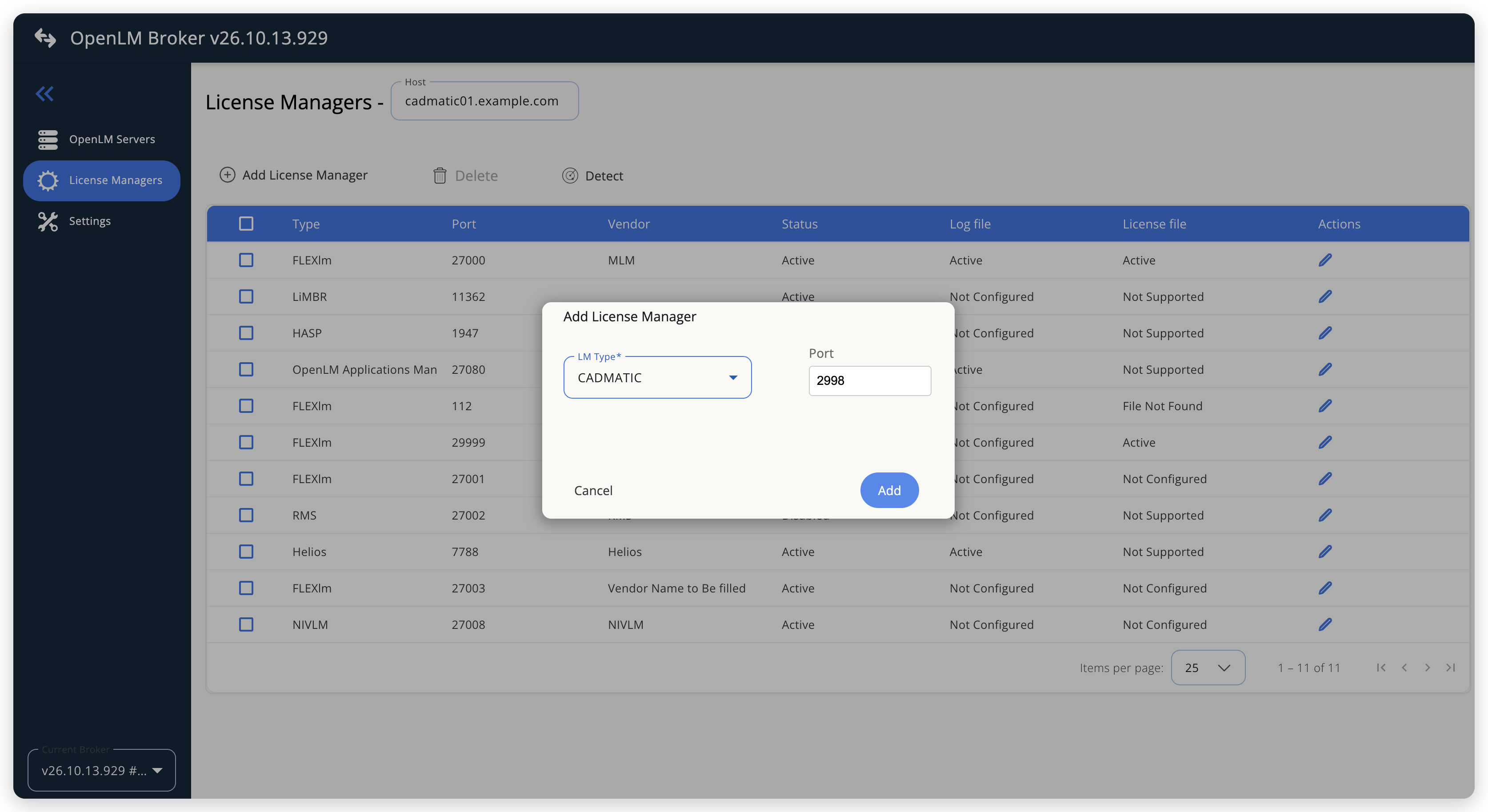 Add CADMATIC as a license manager
-
On the Commands tab, under Periodic commands, select Data Inquiry, and check the command line in the large text box.
It reads
http://<Host>:<port>/index.html, with the Host from step 2 and the port from step 5. If Host names a machine other than the license server, replace the host name in the command line with the license server's host name, for examplehttp://cadmatic01.example.com:2998/index.html. Make the same change to Status, under On-demand commands.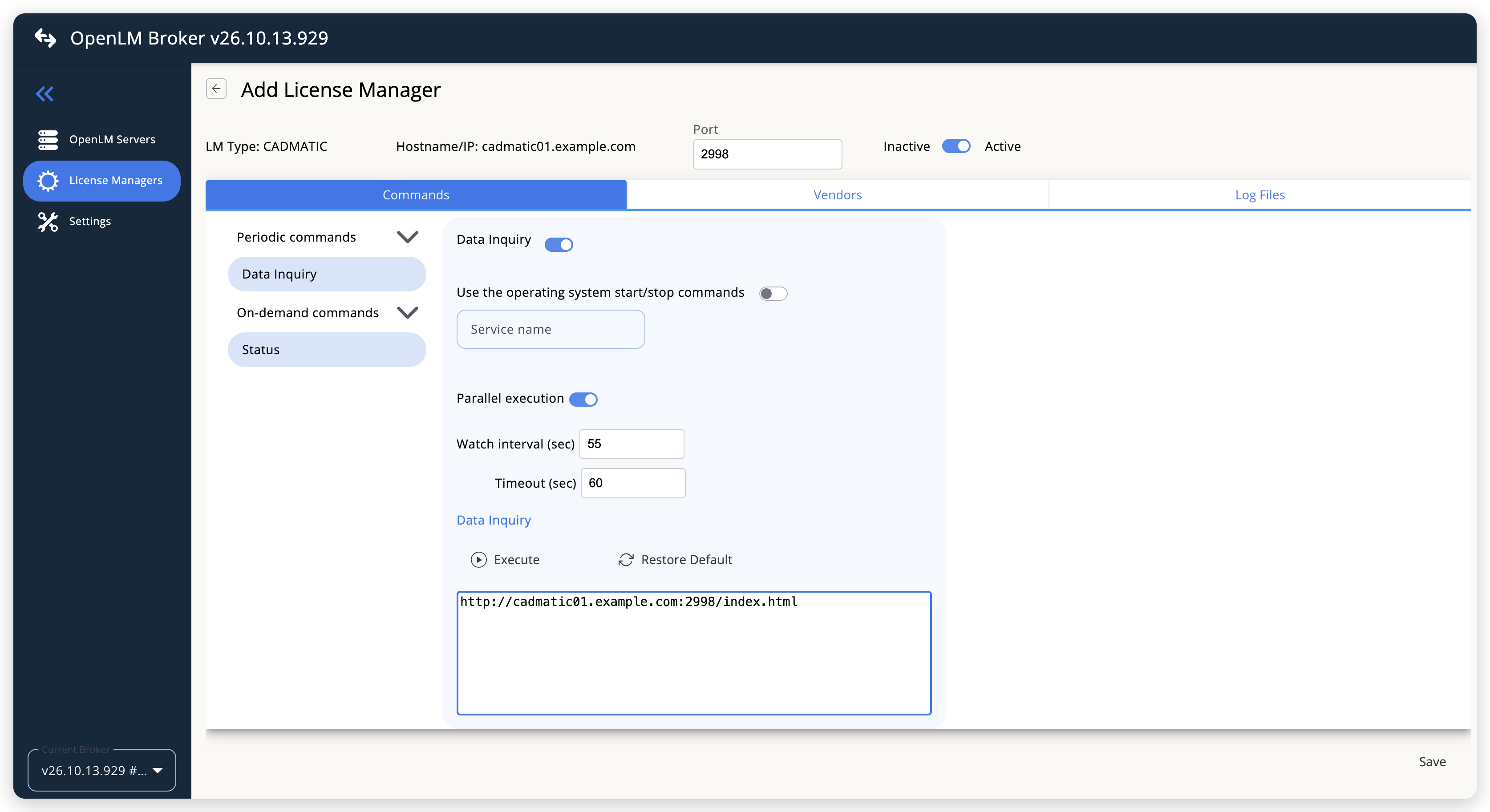 The Data Inquiry command requests the web page of the license server
-
Leave Watch interval (sec) at 55 seconds, or set the polling interval that you want. Timeout (sec), 60 seconds by default, limits how long Broker waits for the license server to answer.
-
Leave the Vendors and Log Files tabs empty. Add a vendor only if you want OpenLM to show a vendor name other than
CADMATIC. -
Select Save.
OpenLM SLM configuration
Automatic configuration through EasyAdmin
If the preceding steps are complete, Broker runs the data inquiry every 55 seconds, by default, and reports CADMATIC to OpenLM SLM. Approve the license server in EasyAdmin:
-
Open EasyAdmin (
http://<Server IP>:5015) and go to Start → Widgets → License Manager - Servers. -
Select the There are N servers pending approval link at the top of the widget.
The Administration - License Manager Servers window opens, with the pending entries at the top of the list.
-
Find the pending CADMATIC entry, with the host name and the port that you configured in Broker, and select the edit icon at the end of its row.
Broker reports CADMATIC with the OpenLM Generic protocol, so its Type is OpenLM Generic.
-
Optionally rename the connection in Display name, confirm the Host Name and Port, and select APPROVE.
Manual configuration through EasyAdmin
If automatic configuration fails:
-
Go to Start → Administration → License Manager Servers.
-
Select Add LM.
-
In Display name, enter a name for the connection, for example
CADMATIC. -
From Type, select OpenLM Generic.
Use Broker turns on.
-
In the row under Host Name, Port, and Time Zone, enter the host name and the port exactly as configured in Broker for CADMATIC, and select a time zone.
-
Select SAVE.
Verify your configuration
- Open EasyAdmin in your browser.
- Go to Start → Widgets → License Manager - Servers.
- Confirm that the CADMATIC license server shows the Status Up to date.
- Go to Start → Widgets → Feature Usage Status and confirm that each application from the Available Licenses table shows its total in Quantity and the licenses in use in Used.
- Go to Start → Reports → License Activity, select Include Current Activity, and select Apply. Confirm that each row of Reserved Licenses appears with its username and workstation.
Troubleshooting
If CADMATIC never appears as pending in EasyAdmin, confirm that the Broker reports to OpenLM SLM: other license managers on the same Broker update in EasyAdmin.
If the license server is approved but shows no applications or no usage, test the data inquiry in the Broker UI. Open the CADMATIC license manager, go to the Commands tab, select Data Inquiry, and select Execute. A successful test returns the license server XML, with a FEATURE element for each application and a USER element for each session. Broker refuses Execute on a license manager that you have never saved, and answers Need to save first in order to execute command.
If the test fails or returns no FEATURE elements, open the address from the command line, for example http://cadmatic01.example.com:2998/index.html, in a web browser on the Broker machine:
- The page does not open: Broker can't reach the license server either. Check the host name and the port in the command line, check that the port is the HTTP TCP/IP port and not
2999, and check the firewalls between the 2 machines. - The browser asks for a username and password: Broker can't sign in to the web interface. See Known limitations.
If the page lists users for an application that shows no usage in OpenLM, check that the application appears in Available Licenses with the same name. Broker skips a row of Reserved Licenses whose application is missing from Available Licenses.
If OpenLM shows 1 person as several users, such as jsmith, jsmith (+1), and jsmith (+2), upgrade Broker to v26.9.16.1403 or higher.
If session start times in OpenLM are off by whole hours, compare the time zone of the Broker machine with the time zone of the license server. Broker reads Login Time in the time zone of the Broker machine.
The Broker log holds the detail, in the logs folder of the Broker installation. The periodic data inquiry writes to port-<port>-CADMATIC.log, for example port-2998-CADMATIC.log. These messages show the cause:
HTTP request failed, in Broker v26.9.16.1403 and higher: Broker can't reach the address in the command line. The message names the address.No available licenses parsed from CADMATIC response: the page that Broker received has no Available Licenses rows in the layout that Broker reads.Reserved session references unknown feature: a row of Reserved Licenses names an application that Available Licenses does not list.
Broker logs at ERROR level by default, so the last 2 messages, which Broker logs at WARN level, appear only after you go to Settings → Broker Log Level, set Broker service to WARN, and select Save.
Known limitations
- Broker does not report denied requests, borrowed licenses, or license allocations.
- Broker sees only the licenses that are reserved when the data inquiry runs, so it can miss a license that is checked out and returned within the watch interval.
- Broker does not sign in to the web interface. If the page asks for a username and password, Broker can't read the license data.
- The page shows 1 expiration date for the whole license server, so Broker reports that date for every application.
- Broker removes only a counter with a plus sign, such as
(+1), from a username. A name that ends in a number in parentheses without a plus sign, such asjsmith (1), stays as it is. - Broker expects the table layout of the CADMATIC License Server 2.0 web page. Rows in another layout don't reach OpenLM.
The documentation team might draft this page using a large language model. A technical writer reviews every page and verifies it against the product before publishing it. A human makes the final decision.