GNS
Follow these steps to monitor the network licenses of a GNS license server with OpenLM. The GNS license server comes from GNS mbH (Gesellschaft für numerische Simulation). It serves network licenses for GNS programs, such as Animator and Generator, and for CDH programs, such as CDH/SPOT and CDH/VAO. OpenLM Broker takes the program names from your license file, runs the GNS status tool licstat.exe once for each program, and reports the license total, the expiration date, and the users who hold a license to OpenLM SLM.
OpenLM tested this integration with CDH/SPOT. Broker queries only the programs that the license file names, so check your own license file as described in Check the license server.
Requirements
Before starting, make sure you have:
- OpenLM SLM installed on a machine in your organization, or a Software License Management Cloud (SLMC) account.
- OpenLM Broker v26.1.20.946 or higher on Windows, reporting to OpenLM SLM. Earlier Broker versions that list GNS as a license manager type report every license total as 0.
- The GNS license server running, with the licenses that you want to monitor.
- The status tool
licstat.exeon the Broker machine. The license server installer lists it as its own component, License Server status tool. - The license file of the license server on the Broker machine. A default installation of license server v3.14e4 keeps it in
C:\Program Files (x86)\GNS mbH\LicenseServer_v3.14e4, for example asspotlicense.datfor CDH/SPOT.
Install Broker on the license server machine, which holds both licstat.exe and the license file. The vendor's installation guide states that licstat.exe runs on any Windows machine, on the license server or on a client. A Broker on another machine needs the tool and a copy of the license file on that machine.
licstat.exe asks the license server on the Host of the Broker's License Managers page. A Broker on another machine needs Host set to the name of the license server machine, and that field applies to every license manager on the Broker.
Monitoring capabilities
The current monitoring capabilities for GNS through OpenLM Broker are:
| LM Type in the Broker | Commands | Logs | Quantity | Expiration date | Denied | Borrowing | Allocations | Report resolution |
|---|---|---|---|---|---|---|---|---|
| GNS | Yes | No | Yes | Yes | No | No | No | Seconds |
For each program that the license file names, Broker reports:
- Feature name: the program name from the license file, for example
CDH-SPOT. - License total: the number of licenses that the license server holds for the program.
- Expiration date: the date on which the license of the program expires.
- Licenses in use: 1 for each user that holds a license of the program.
- Vendor:
GNS, or the vendor that you add on the Vendors tab.
For each license in use, Broker reports the username and the workstation that holds the license. Broker reports no start time, so OpenLM starts a session when Broker first reports the user.
Denied requests, borrowed licenses, and license allocations are not available.
How OpenLM interfaces with GNS
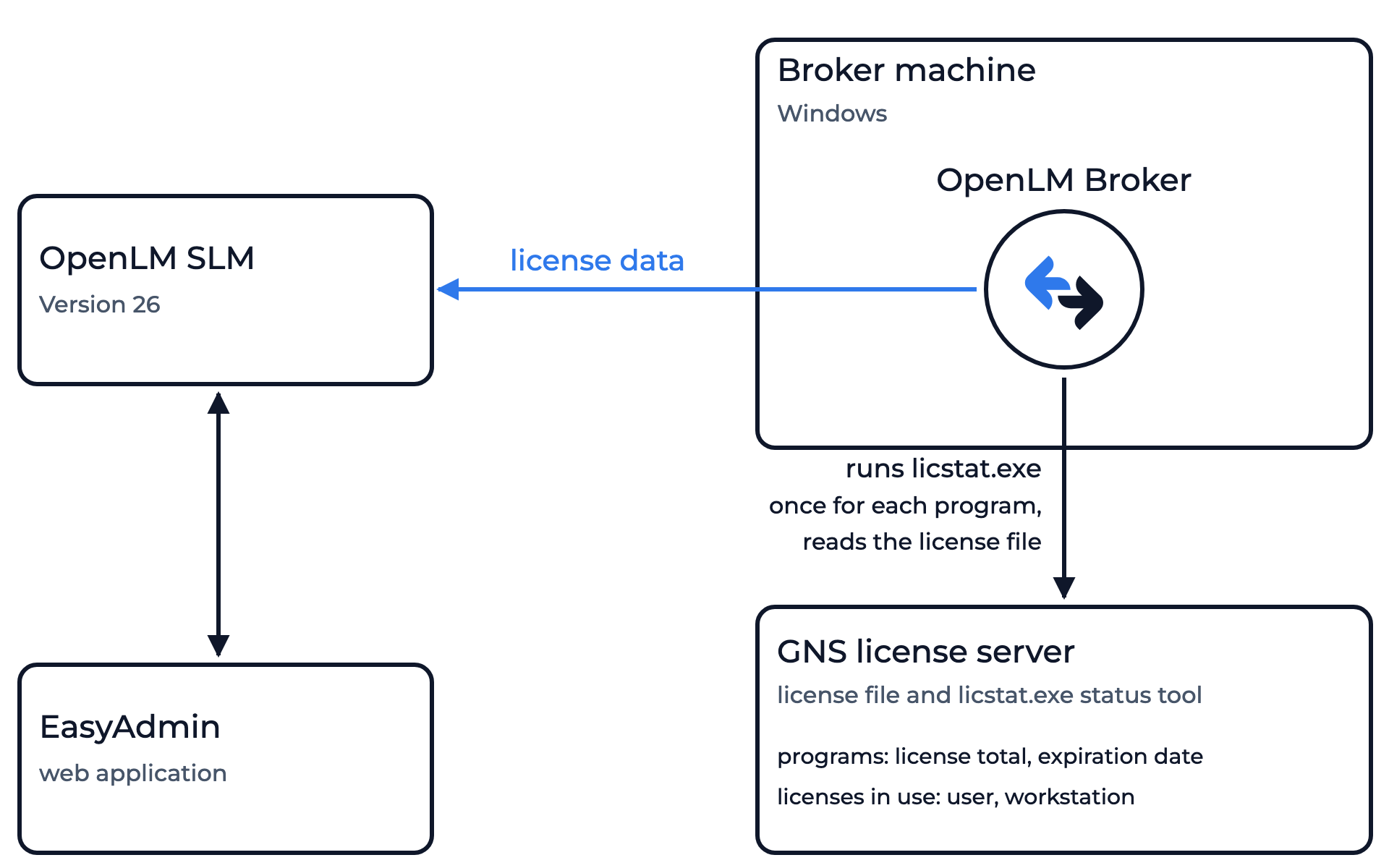 How OpenLM collects GNS usage
Every 55 seconds, by default, Broker reads the license file, runs licstat.exe once for each program that the file names, and sends the result to OpenLM SLM. The report holds what the license server listed at the moment of the query.
Broker reads the license file again on every query, so a renewed license file at the same path counts from the next query.
Broker reads no log file of the GNS license server.
Check the license server
Broker reports what licstat.exe returns for the programs of your license file, so run the tool by hand first:
-
Open the license file in a text editor and find the program name, for example
CDH-SPOT.If the file holds a license code only, with no program name, Broker has nothing to query.
-
On the Broker machine, open a command prompt in the folder that holds
licstat.exe. -
Run
licstat.exewith the program name and the host name of the license server.licstat.exe CDH-SPOT gns01.example.comUse the program name as your license file writes it, and the host name of your license server machine.
-
Confirm that the tool shows the number of licenses, the expiration date, and the users who hold a license.
If the tool reports that it cannot connect to the license server, check that the license server service runs, for example
spotserverfor CDH/SPOT. If the tool connects only when you add the option-pwith the port of the license server, note the port. You add the same option in Broker. -
Note the folder that holds
licstat.exe, the full path of the license file, and the port of the license server if it has a fixed one.You enter them in Broker. For CDH/SPOT, the file
spotport.datin the license server folder sets a fixed port.
OpenLM Broker configuration
Install OpenLM Broker and confirm that it reports to OpenLM SLM before starting these steps.
-
Open a browser on the Broker machine and go to the Broker web UI at http://localhost:5090/.
-
On the License Managers page, check that Host shows the host name of the license server machine.
Broker passes this name to
licstat.exe, and OpenLM lists the license server under it. The field holds the host for every license manager on the page, not for GNS alone. If the field is empty or names another machine, enter the host name and select the save icon next to the field. Set Host before you add the license manager, because Broker writes the host name into the command when you add GNS. -
Go to License Managers → Add License Manager.
-
From LM Type, select GNS.
-
In Port, enter the port of the license server, for example
60000, and select Add.Broker and OpenLM identify the license manager by the host name and this port. If the license server has no fixed port, enter a number that no other license manager on this Broker uses.
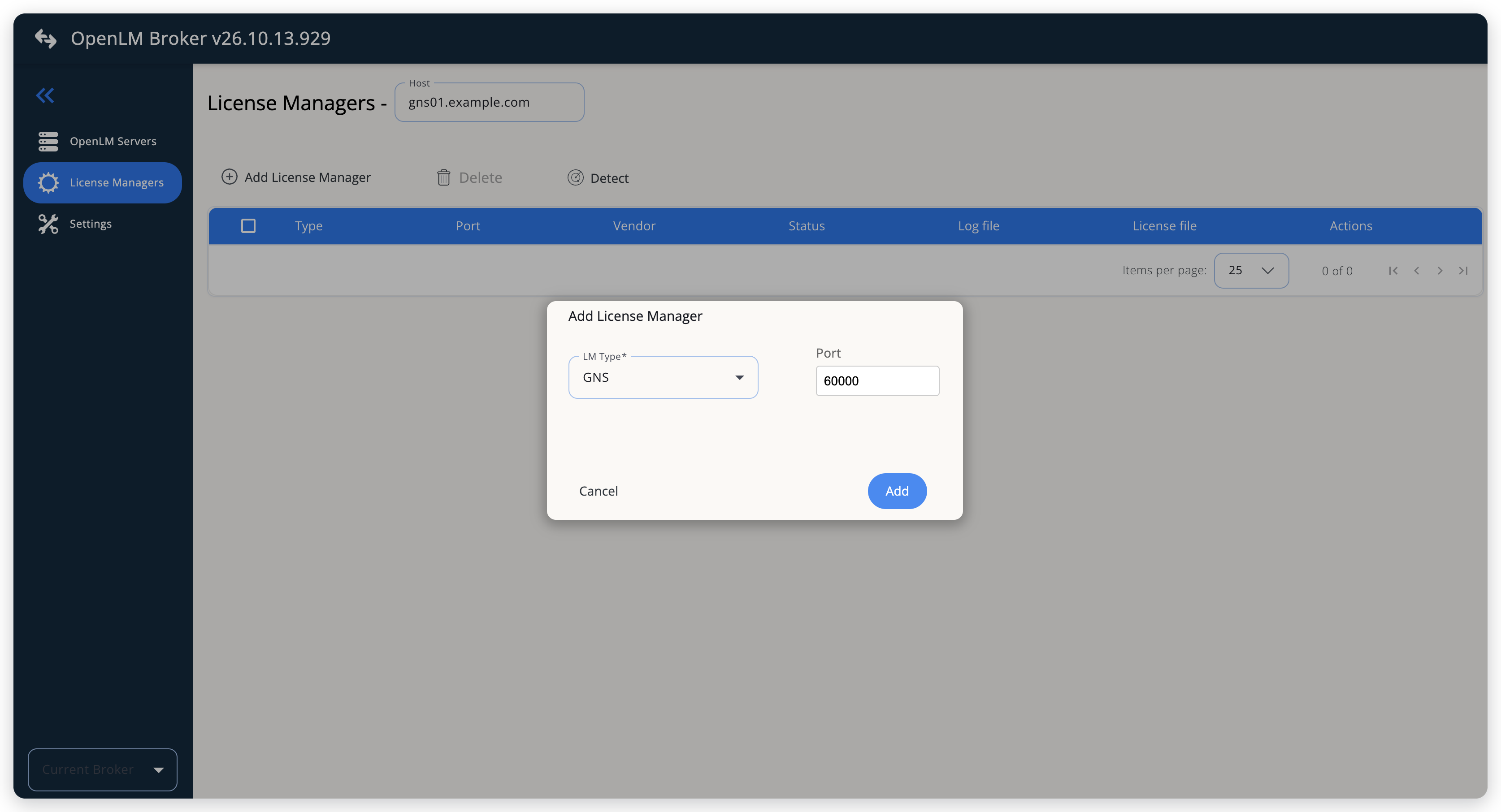 Add GNS as a license manager
-
On the Settings tab, add the license file:
- Select Set license file path manually.
- Select Add license file path.
- In License file path, enter the full path of the license file, for example
C:\Program Files (x86)\GNS mbH\LicenseServer_v3.14e4\spotlicense.dat, or select the search icon to browse to it. - Select Continue.
Add 1 license file path only. Broker reads the first file in the list and ignores the others. To monitor the programs of another license file, add another GNS license manager with its own port.
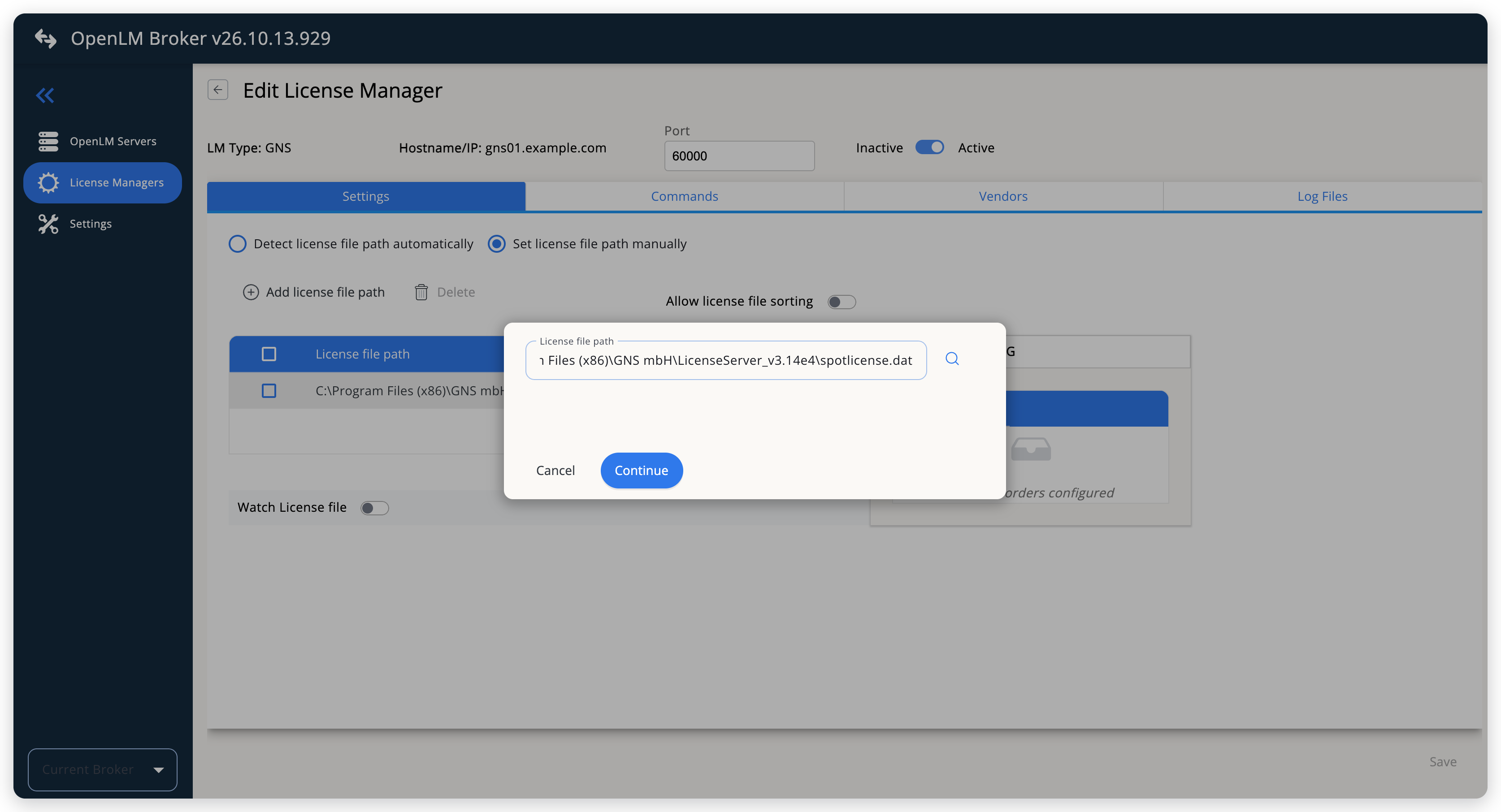 Point Broker at the license file
-
On the Commands tab, in Executable path, enter the folder that holds
licstat.exe, for exampleC:\Program Files (x86)\GNS mbH\LicenseServer_v3.14e4.Broker puts this path in front of
licstat.exewhen you save. -
Check Data Inquiry under Periodic commands.
The command names
licstat.exe, the placeholder@feature@, and the host name. Broker replaces@feature@with each program name of the license file, so leave the command as it is. Watch interval (sec) is55. Leave Use the operating system start/stop commands off: Broker fills no Service name for GNS.If
licstat.execonnected only with the-poption when you ran it by hand, add a space,-p, and the port number to the end of the command, for example-p 60000.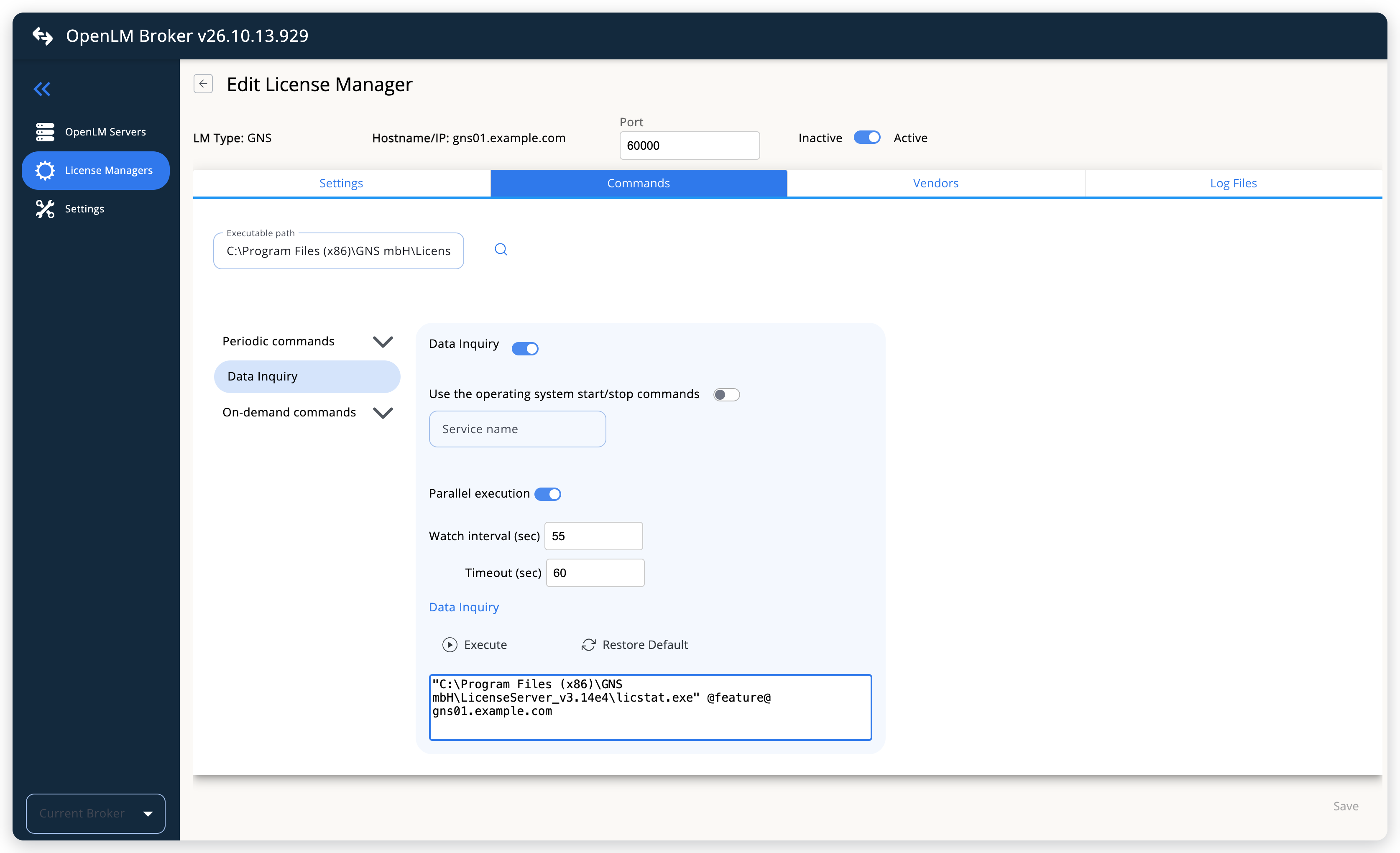 The periodic Data Inquiry that runs licstat.exe
-
(Optional) On the Vendors tab, select Add Vendor, enter the vendor name that you want OpenLM to show, for example
CDH, and select Continue.Without a vendor, OpenLM shows
GNS. -
Select Save.
-
(Optional) To test the configuration, open the GNS entry again, select the Commands tab, and select Execute.
The Execution Result dialog shows the report that Broker builds, with 1
FEATUREelement per program and 1USERelement per license in use.
OpenLM SLM configuration
Automatic configuration through EasyAdmin
If the preceding steps are complete, Broker runs licstat.exe every 55 seconds, by default, and reports GNS to OpenLM SLM. Approve the license server in EasyAdmin:
-
Open EasyAdmin (
http://<Server IP>:5015) and go to Start → Widgets → License Manager - Servers. -
Select the There are N servers pending approval link at the top of the widget.
The Administration - License Manager Servers window opens, with the pending entries at the top of the list.
-
Find the pending GNS entry, with the host name and the port as configured in Broker, and select the edit icon at the end of its row.
The entry has the Status Pending and the Display Name
<port>@<host>. OpenLM SLM has no plugin for the GNS type, so its Type is OpenLM Generic, the protocol that Broker reports it with. The edit icon appears when you hover over the row.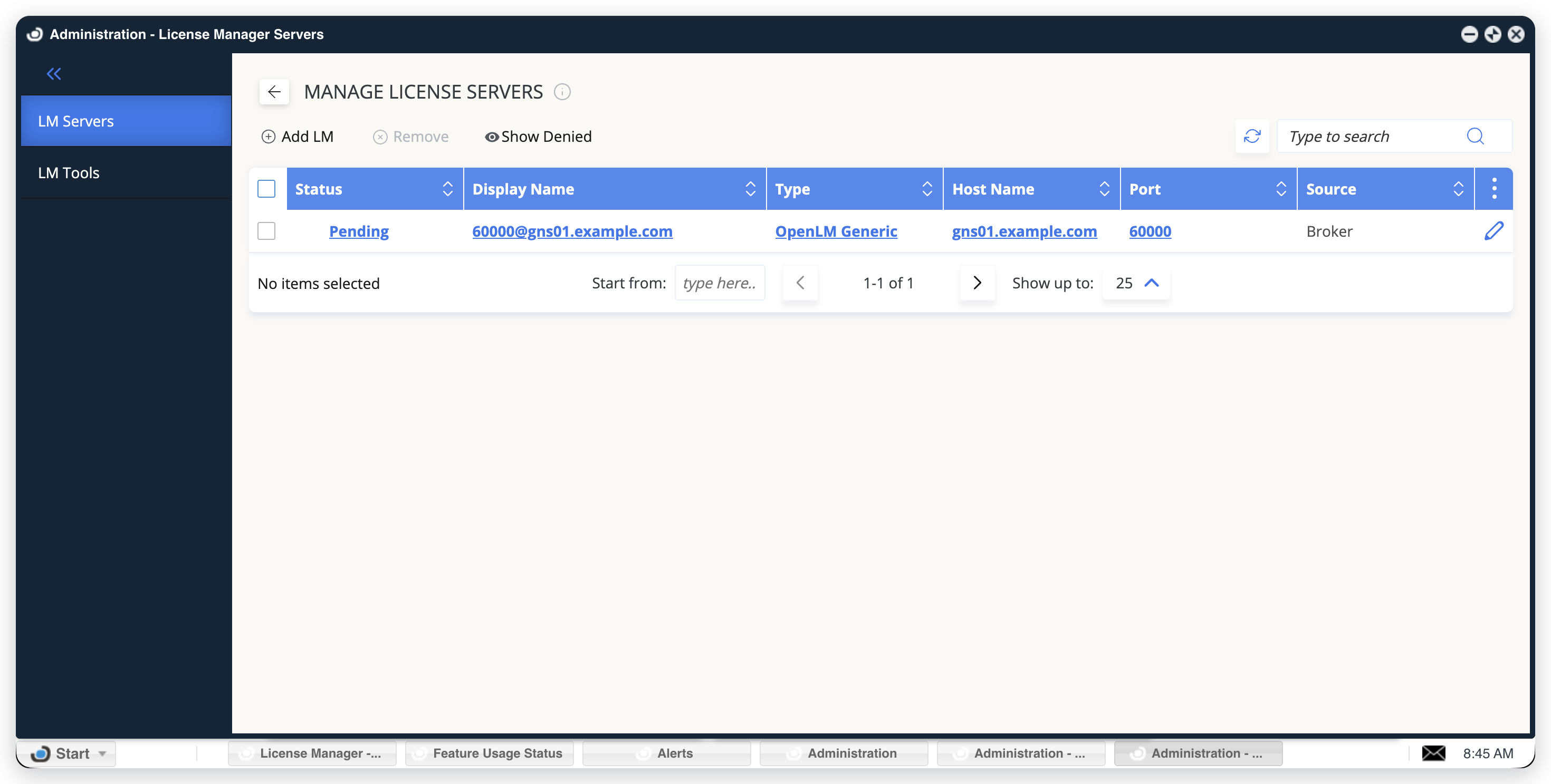
-
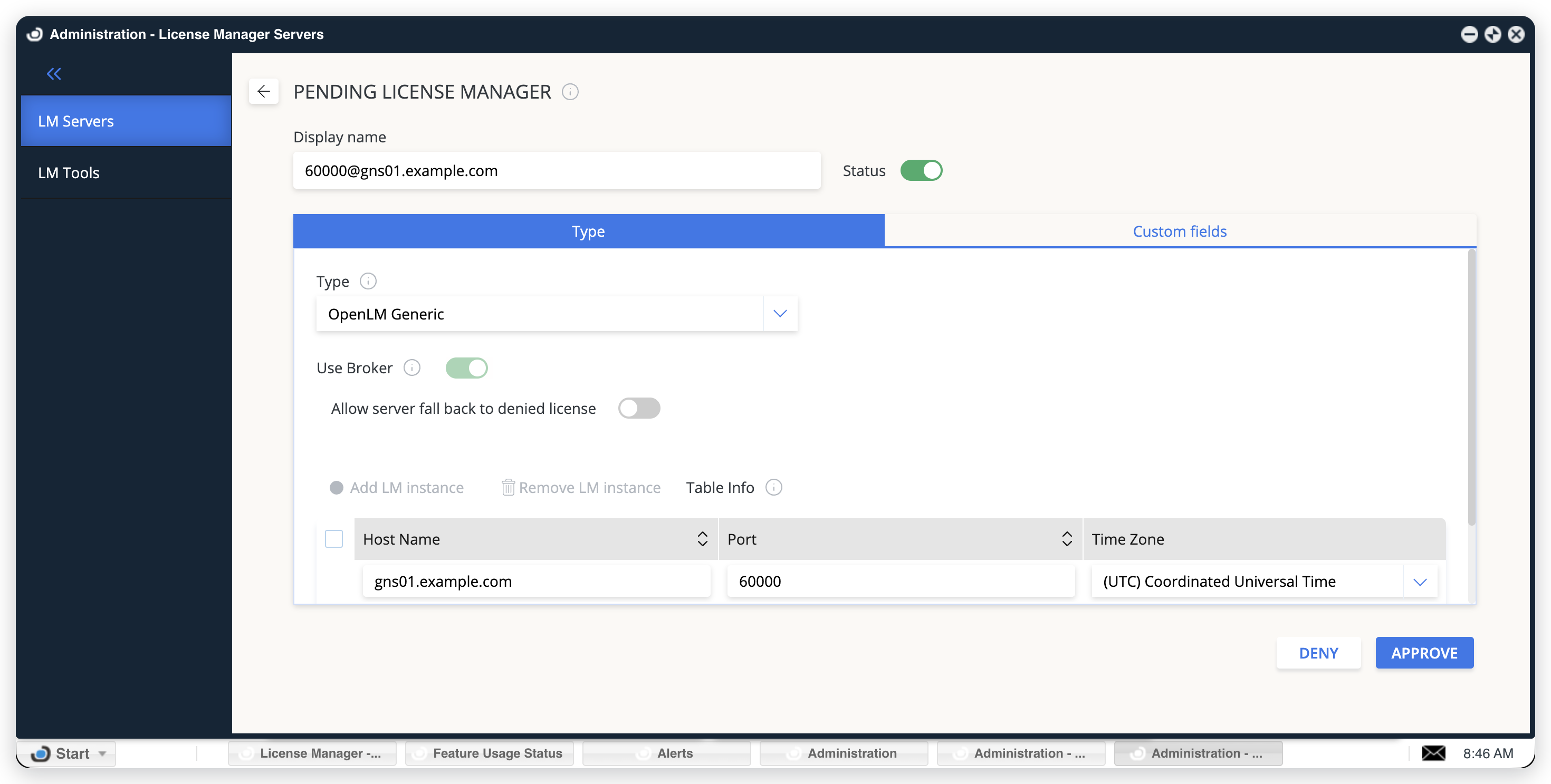
Optionally rename the connection in Display name, confirm the Host Name and Port, and select APPROVE.
Manual configuration through EasyAdmin
If automatic configuration fails:
-
Go to Start → Administration → License Manager Servers.
-
Select Add LM.
-
In Display name, enter a name for the connection, for example
GNS. -
From Type, select OpenLM Generic.
Use Broker turns on.
-
In the row under Host Name, Port, and Time Zone, enter the host name and the port exactly as configured in Broker for GNS, and select a time zone.
-
Select SAVE.
Verify your configuration
-
Open EasyAdmin in your browser.
-
Go to Start → Widgets → License Manager - Servers.
-
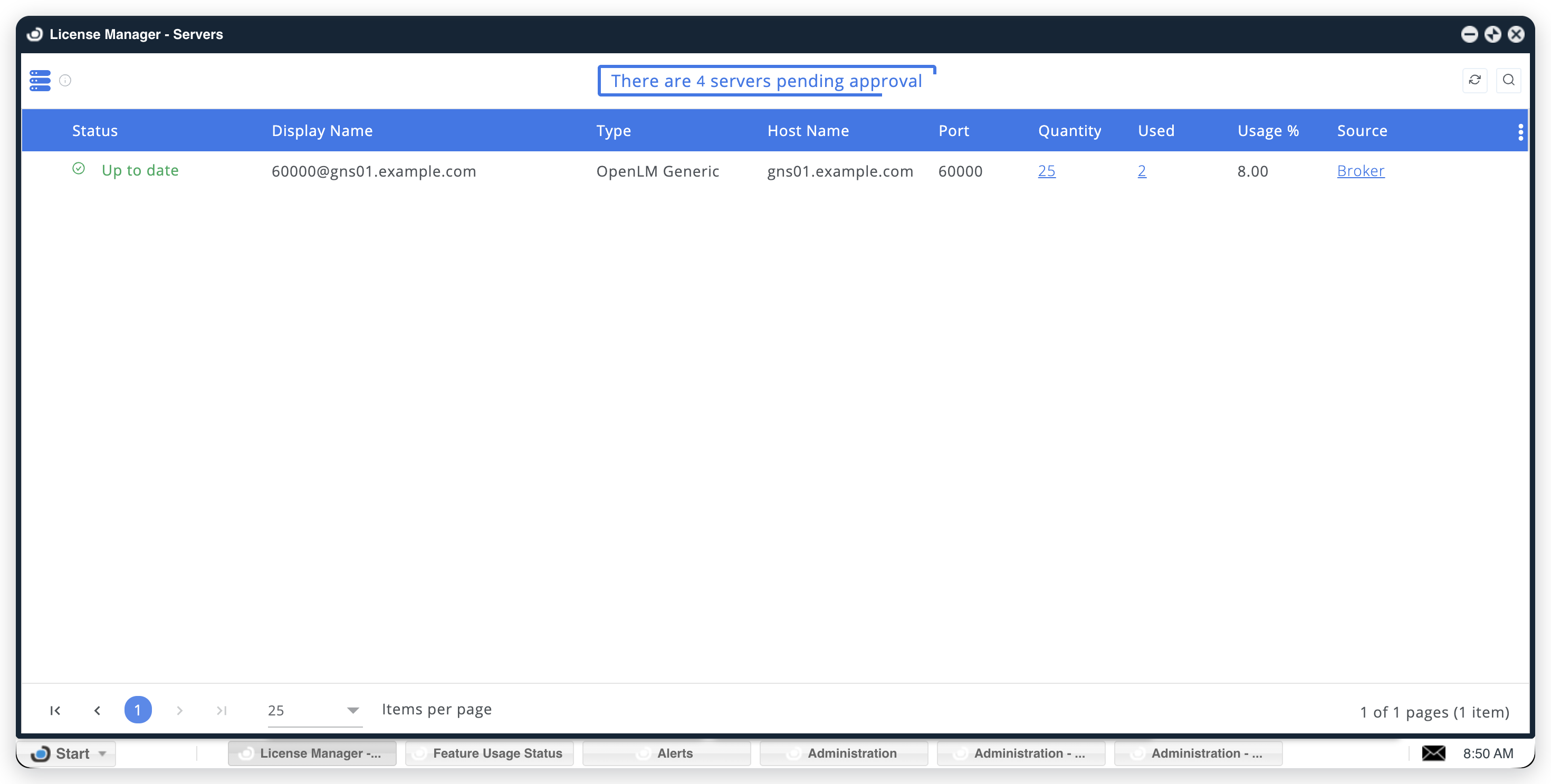
Find the GNS license server and confirm that its Status is Up to date.
Immediately after the approval, the status is Waiting for data from Broker. Quantity holds the license totals of all programs together, and Used the number of licenses in use.
-
In the row of the GNS license server, select the number in Quantity.
The Licenses window opens with 1 row for each program, with Vendor
GNS, the license total in Total, and the number of licenses in use in Used.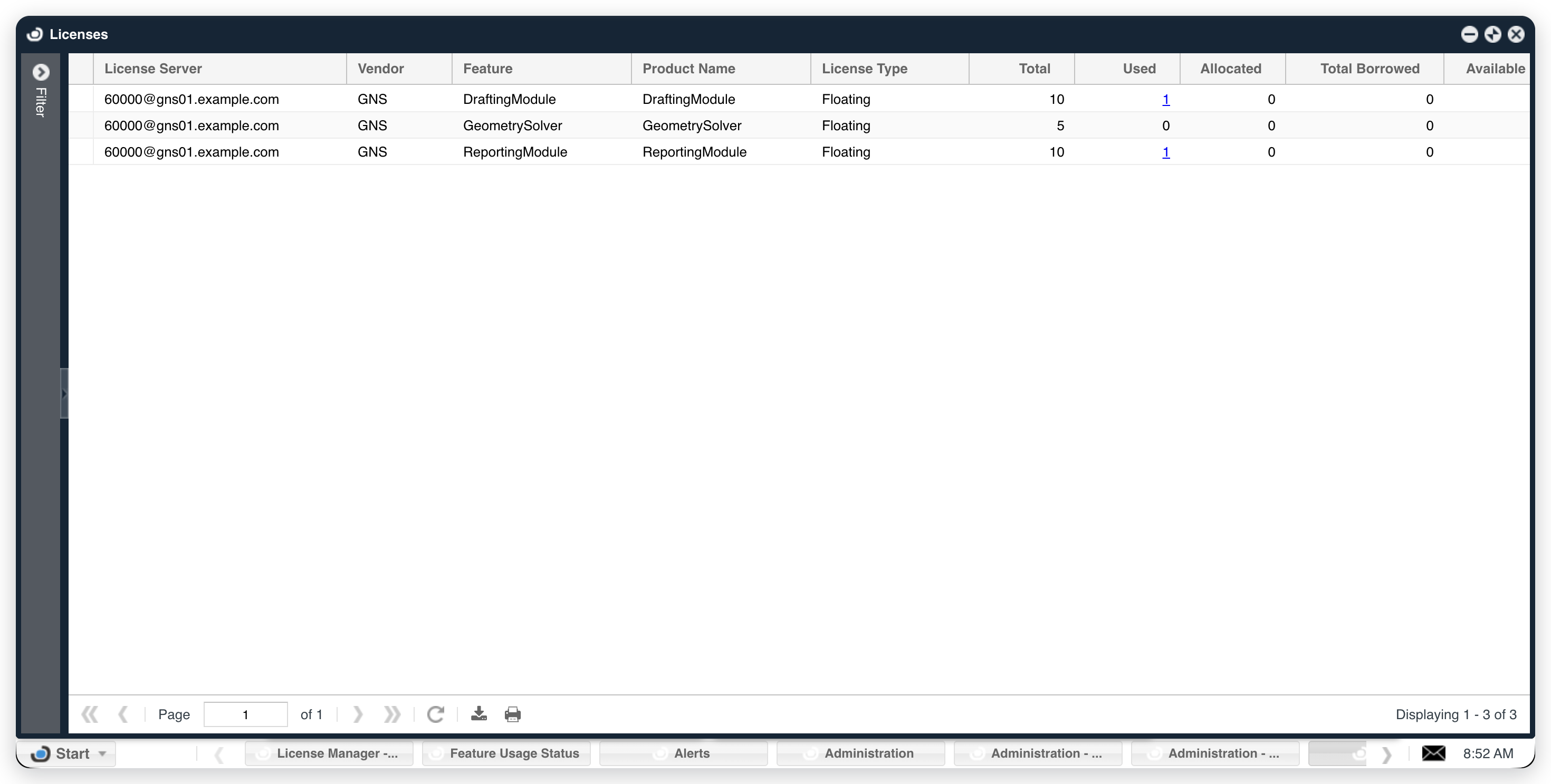
-
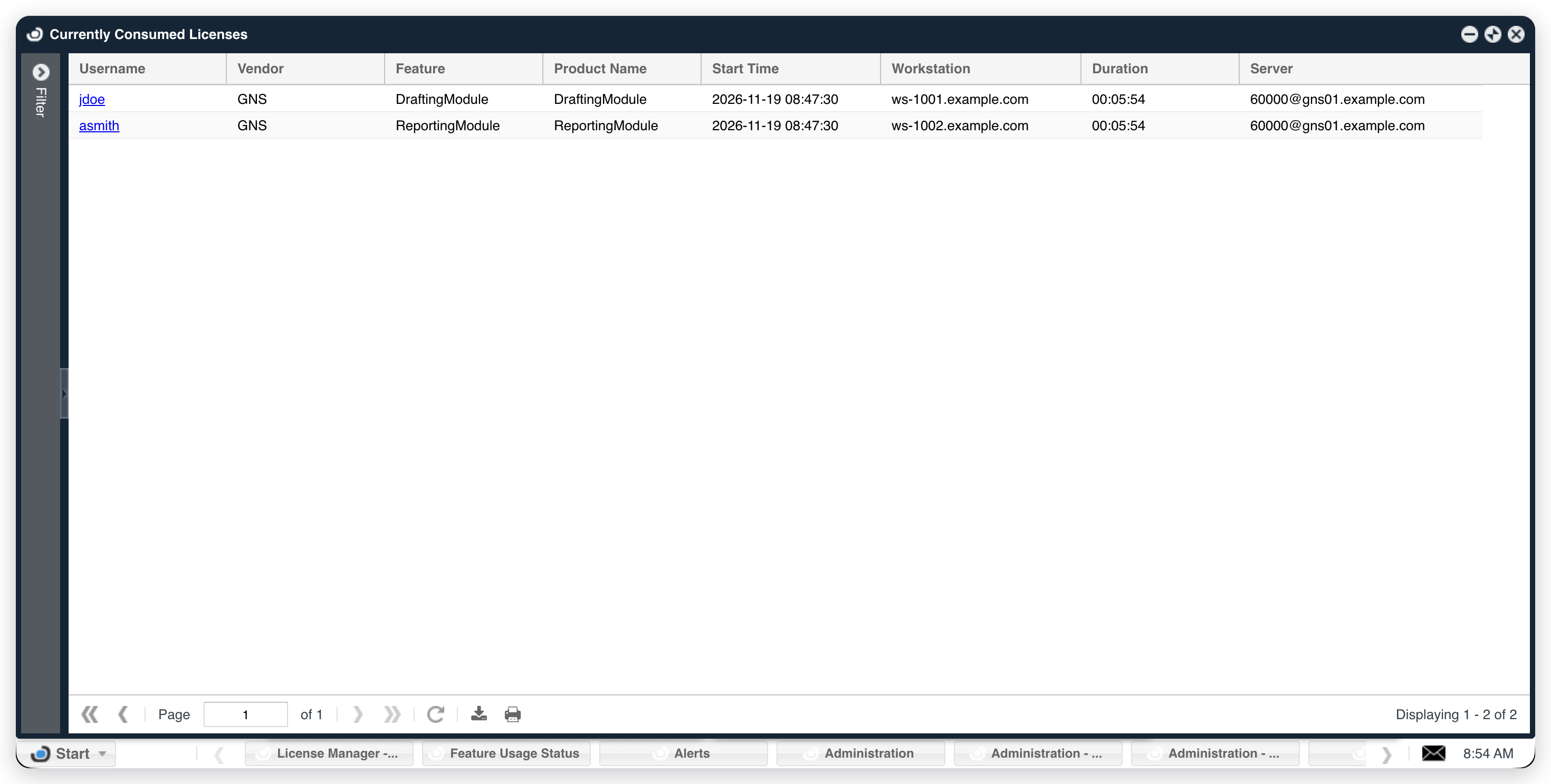
Select a program's number in Used to confirm that sessions arrived.
The Currently Consumed Licenses window opens. Each license in use appears with its username and workstation. Start Time is the time when OpenLM first received the session.
The Feature Usage Status widget lists only the features that you add through its filter, so the GNS programs do not appear there by themselves.
Troubleshooting
The Broker log holds the detail for each of these problems, in the logs folder of the Broker installation.
If GNS never appears as pending in EasyAdmin, confirm that the Broker reports to OpenLM SLM: other license managers on the same Broker update in EasyAdmin.
If the Execution Result in the Broker UI shows GNS license file not configured, Broker found no license file. On the Settings tab, confirm that Set license file path manually is selected, that the list holds the path of the license file, and that the file exists at that path.
If the license server shows no programs, Broker read the license file but found no program name in it, so it had nothing to ask licstat.exe. Confirm that the path on the Settings tab leads to the license file that names your program, such as CDH-SPOT, and that this file is the first one in the list.
If every program shows a total of 0, Broker cannot run licstat.exe, or cannot read its answer, and it reports no error for that. Check these causes:
- The Broker version: Broker versions earlier than v26.1.20.946 report every total as 0. Upgrade Broker.
- The Executable path: on the Commands tab, Executable path must be the folder that holds
licstat.exe. - The command: if someone edited the Data Inquiry command, select Restore Default on the Commands tab, then select Save. Broker recognizes the placeholder only as
@feature@, in lowercase. - The license server: run
licstat.exeby hand, as described in Check the license server. If the tool cannot connect, Broker has nothing to report.
If the expiration date is missing, check the language of Windows on the Broker machine. When it is not English, such as Japanese, Broker reports the license totals and the users, but no expiration dates. See Known limitations.
Known limitations
- Broker does not report denied requests, borrowed licenses, or license allocations. It reads no log file of the license server, such as
spot_error.log, so usage in OpenLM starts when you configure the license manager. - Broker reports the licenses that are in use at the moment of each query, every 55 seconds by default. A session that starts and ends between 2 queries is not reported.
- Each user that the license server lists for a program counts as 1 license in use.
- Broker reports no start time. A session in OpenLM starts when Broker first reports the user, not when the user took the license.
- Broker reads 1 license file for each GNS license manager. Add a GNS license manager, with its own port, for each license file.
- A program name that contains a space is not supported. Broker reports such a program with a total of 0.
- When the Broker machine runs Windows in a language other than English, Broker reports no expiration dates.
- When
licstat.exedoes not run or returns no license data for a program, Broker reports the program with a total of 0 and no error. - Broker asks 1 license server host, the Host of the License Managers page. A redundant set of 3 license servers is not queried as a set, and Host is the same for every license manager on the Broker.
- The Data Inquiry command names
licstat.exe, the Windows status tool. OpenLM tested GNS with Broker on Windows. - OpenLM tested this integration with the license file and the
licstat.exeoutput of CDH/SPOT on license server v3.14e4. If your GNS license server answers differently, contact OpenLM Support.
The documentation team might draft this page using a large language model. A technical writer reviews every page and verifies it against the product before publishing it. A human makes the final decision.