Green Hills
OpenLM can monitor the usage of Green Hills licenses.
There are two options for querying the license server:
- Quick method: OpenLM Server queries the license server remotely.
- Robust method: OpenLM Broker queries the server locally and sends the data to OpenLM Server. This method adds robustness against communication failure, bypasses networking and security limitations, and may activate log file parsing in the future.
Monitor Green Hills with OpenLM Server only
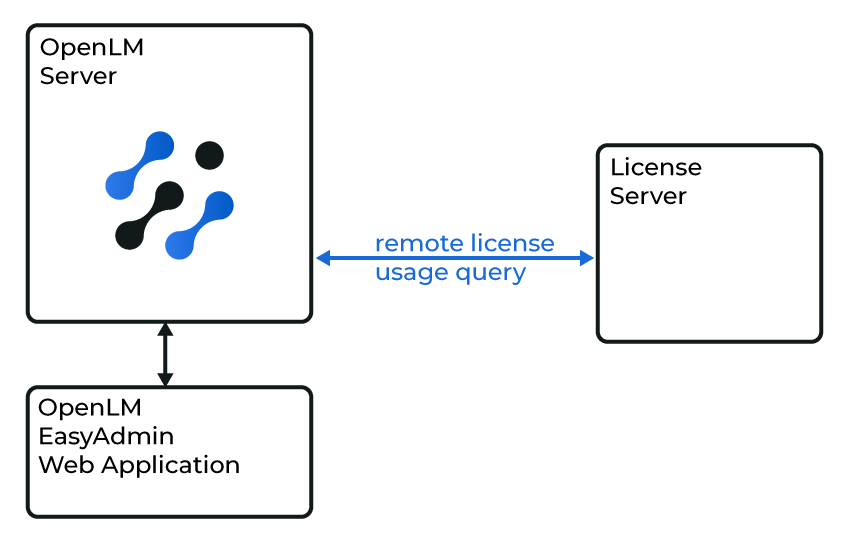
Configure OpenLM Server
-
Install OpenLM Server.
-
Open EasyAdmin → Start → Administration → License Manager Servers.
-
Select Add LM.
-
Enter a descriptive Display name.
-
From Type, select Green Hills.
-
Toggle settings:
- Use Broker = Off
- Enable Triad Configuration = Off
-
Enter the license server details (Hostname/IP, Port, Time zone).
-
Example:
GH_license_server,2009,Pacific Time. -
To find the server name and port, run this command as administrator on the Green Hills server:
<full path>\lic_find_licenses.exe -w -l <host name>
-
-
Select Save.
-
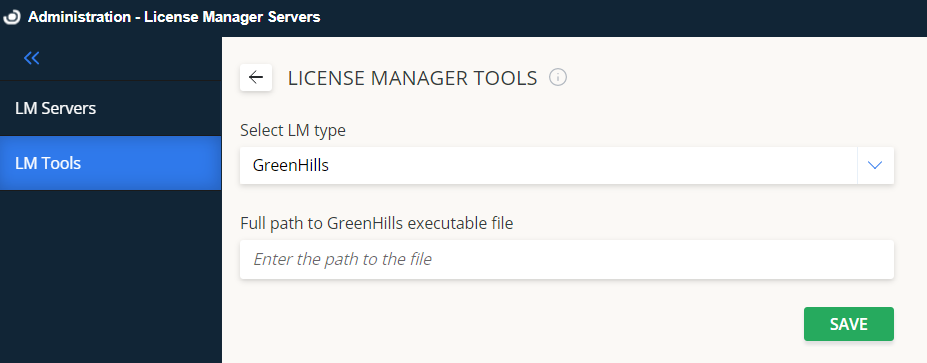
In LM Tools, select Green Hills from the drop-down and enter the full path to the Green Hills executable.
-
Select Save again.
Verify server activity
- In the LM Servers screen, select Test.
- A successful text response confirms an active connection to the Green Hills license server.
Monitor Green Hills with OpenLM Server + Broker
Using the Broker is optional but recommended. It adds buffering, stability, and network/security flexibility.
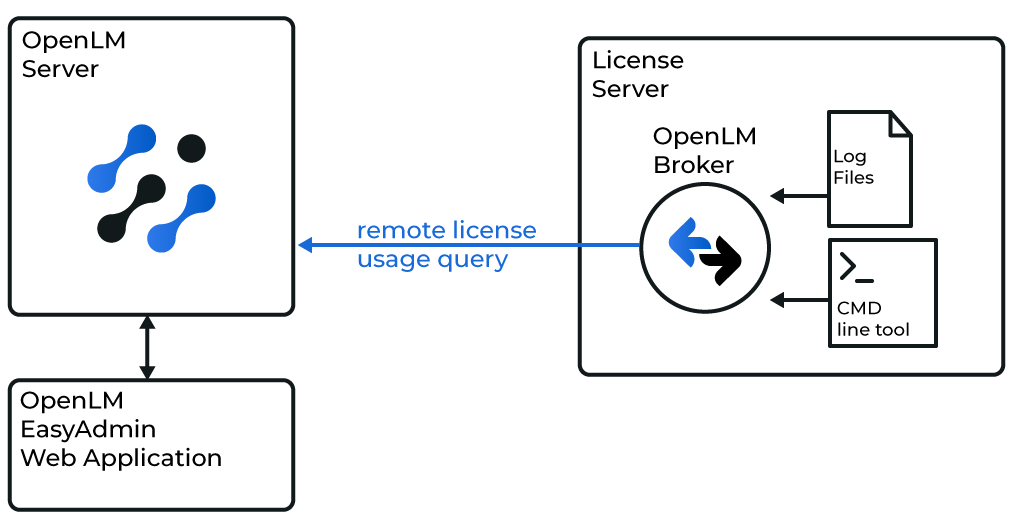
Install Broker
- Download and install the latest OpenLM Broker.
Configure OpenLM Server
- Same steps as the direct method, but set Use Broker = On.
Configure Broker
-
Access your OpenLM Broker instance.
-
Select Add Port.
-
Enter the license server Port (for example,
2009). -
Enter the OpenLM Server hostname and Port (default:
5015). -
Set the vendor name to GHS.
-
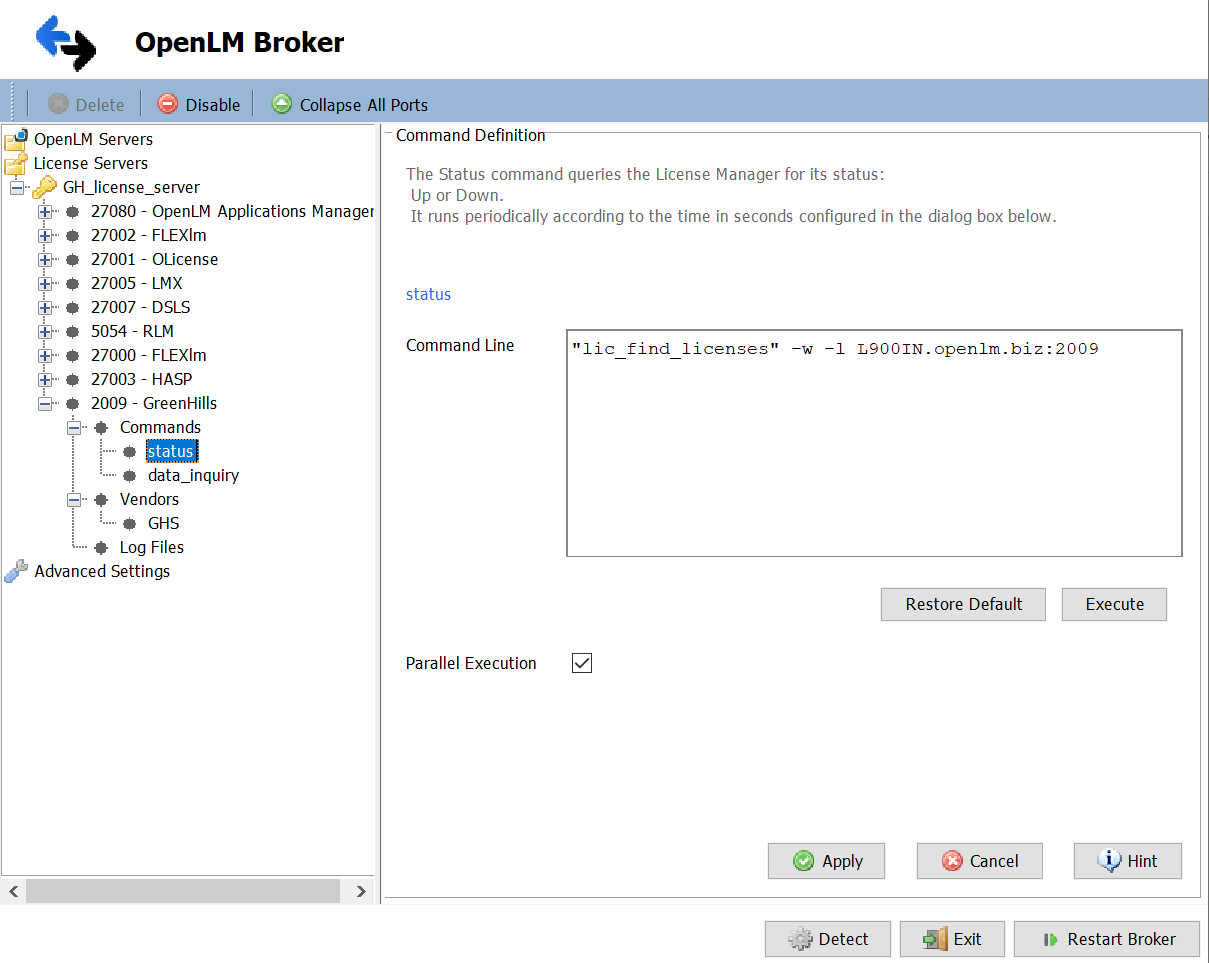
Verify the full paths for the
statusanddata_inquirycommands. -
Select Execute to confirm functionality.
Alternative: Configure Broker with web UI
- Open a browser → go to http://localhost:5090/.
- Navigate to License Managers → Add License Manager.
- Select Green Hills from the drop-down and enter any port (for example,
888). Select Add. - Go to Vendors → Add Vendor → enter Green Hills. Select Confirm.
- Go to Log Files → Add Log File.
- Browse or enter the path manually.
- Assign it to the Green Hills vendor.
- Select Save.
Verify configuration
- Open EasyAdmin in a browser.
- Go to Start → Widgets → License Servers.
- Approve the pending Green Hills license manager.
- A green circle indicates an active connection.