Guardant
Follow these steps to monitor Guardant network licenses with OpenLM. Guardant Control Center includes the Guardant network license manager, which serves the licenses of a Guardant network key to the computers on your network. OpenLM Broker signs in to Guardant Control Center, reads the license total of each feature and the sessions that are open, and reports them to OpenLM SLM.
Requirements
Before starting, make sure you have:
- OpenLM SLM installed on a machine in your organization, or a Software License Management Cloud (SLMC) account.
- OpenLM Broker v26.7.8.1011 or higher, installed on the machine that runs Guardant Control Center and reporting to OpenLM SLM. Earlier Broker versions do not list Guardant as a license manager type.
- Guardant Control Center running on that machine, with the network licenses that you want to monitor. Its license manager answers over HTTP on port 3189.
- The administrator password of Guardant Control Center, if it was changed from the default
admin.
Broker connects to the Host of its License Managers page on the port that you enter. A Broker on another machine needs Host set to the name of the Guardant machine, and that field applies to every license manager on the Broker.
Monitoring capabilities
The current monitoring capabilities for Guardant through OpenLM Broker are:
| LM Type in the Broker | Commands | Logs | Quantity | Expiration date | Denied | Borrowing | Allocations | Report resolution |
|---|---|---|---|---|---|---|---|---|
| Guardant | Yes | No | Yes | No | No | No | No | Seconds |
For each feature, Broker reports:
- Feature name: the name of the feature in Guardant Control Center, with its product name next to it.
- License total: the maximum number of network licenses of the feature in Guardant Control Center. A feature whose maximum is 0 is reported without a total.
- Licenses in use: 1 for each open session of the feature.
- Vendor:
Guardant, or the vendor that you add on the Vendors tab.
For each open session, Broker reports the username and the fully qualified name of the workstation that holds the license, and the start time of the session.
Denied requests, expiration dates, borrowed licenses, and license allocations are not available, and the reserved and detached licenses of a feature are not shown.
How OpenLM interfaces with Guardant
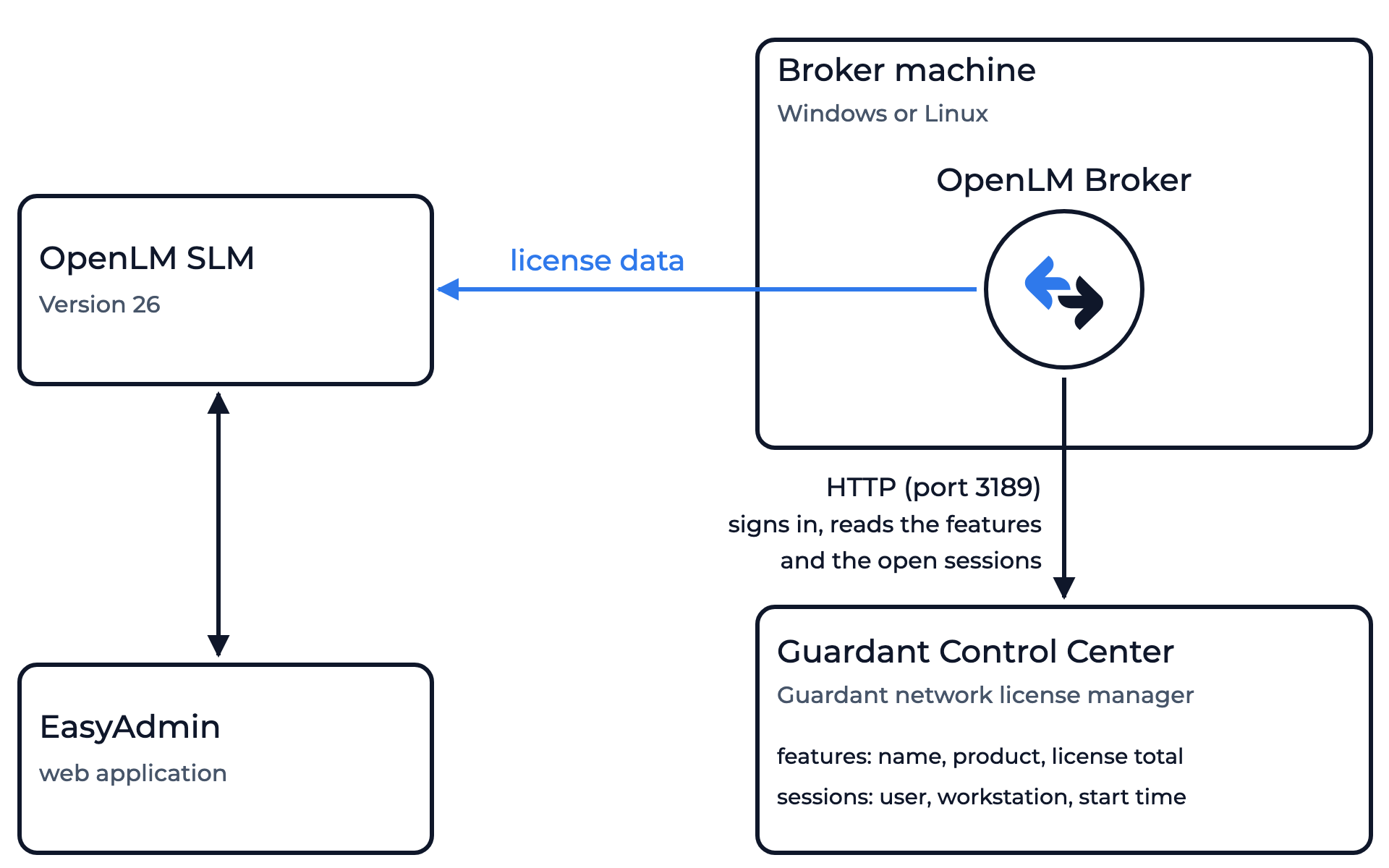 How OpenLM collects Guardant usage
Every 55 seconds, by default, Broker signs in to Guardant Control Center with the administrator password, reads the features with their license totals and the sessions that are open, and sends the result to OpenLM SLM. Each open session counts as 1 license in use of its feature, and the report holds what Guardant Control Center listed at the moment of the query.
Broker reads no log file and no license file for Guardant.
Check Guardant Control Center
Broker needs a running Guardant Control Center on the machine where Broker runs:
-
On the Guardant machine, open
http://localhost:3189in a browser.Guardant Control Center answers on this address when its network license manager runs.
-
Note the administrator password.
The default is
admin. If it was changed, you enter the new password in Broker.
OpenLM Broker configuration
Install OpenLM Broker on the Guardant machine and confirm that it reports to OpenLM SLM before starting these steps.
-
Open a browser on the Guardant machine and go to the Broker web UI at http://localhost:5090/.
-
On the License Managers page, check Host.
Broker sends its requests to this host, and OpenLM lists the license server under this name. The field holds the host for every license manager on the page, not for Guardant alone. If the field is empty, enter the host name of the Guardant machine and select the save icon next to the field.
-
Go to License Managers → Add License Manager.
-
From LM Type, select Guardant.
-
In Port, enter
3189, the port of the Guardant network license manager, and select Add.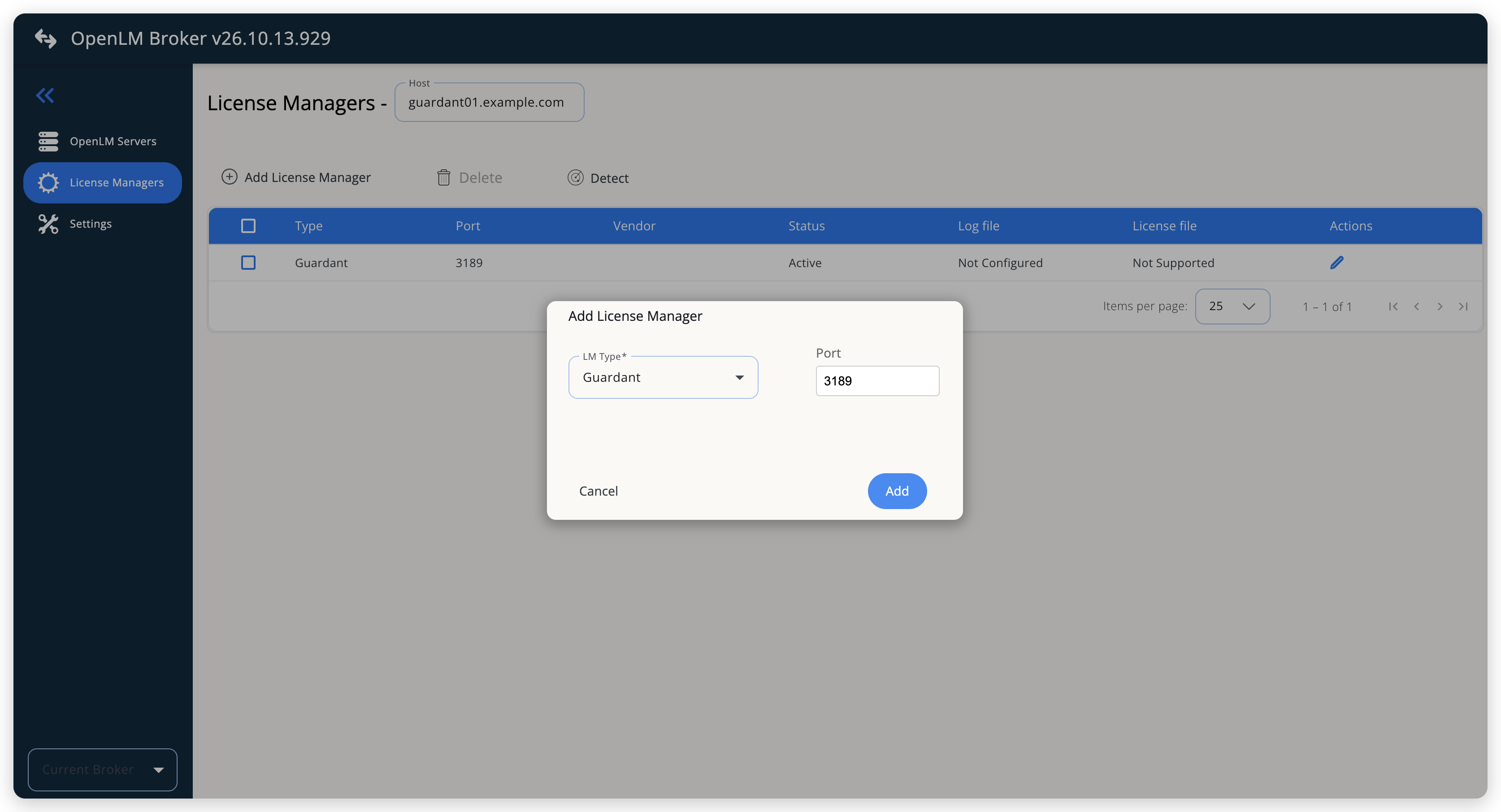 Add Guardant as a license manager
-
On the Commands tab, check Data Inquiry under Periodic commands.
Broker shows the address that it queries,
http://<host>:3189, built from Host and the port. Watch interval (sec) is55and Timeout (sec) is60. Leave Use the operating system start/stop commands off: Broker fills no Service name for Guardant.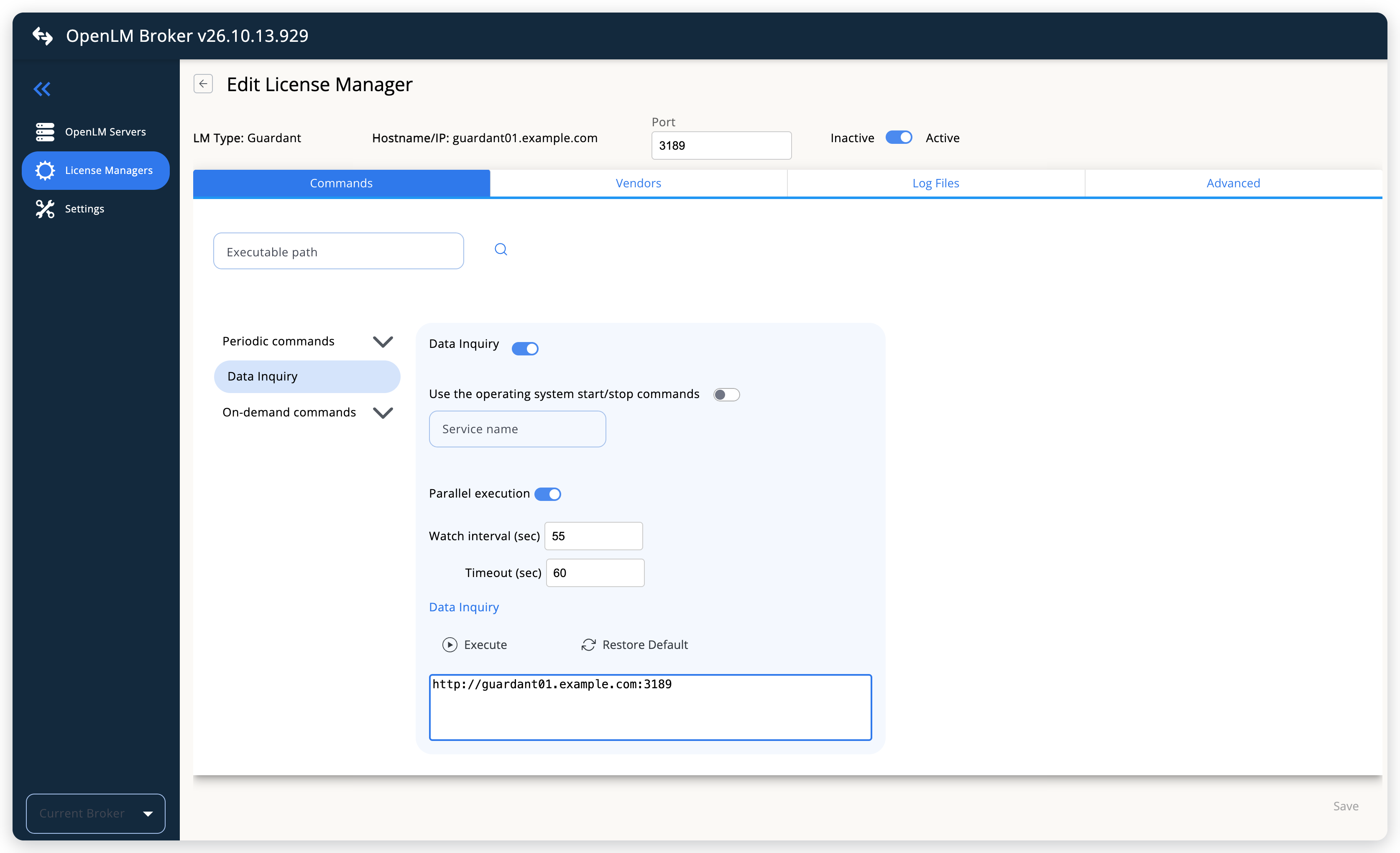 The periodic Data Inquiry that Broker sends to Guardant Control Center
-
(Optional) On the Vendors tab, select Add Vendor, enter the vendor name that you want OpenLM to show, and select Continue.
Without a vendor, OpenLM shows
Guardant. -
If the administrator password of Guardant Control Center is not
admin, open the Advanced tab, select the edit icon of thepasswordoption, enter the password in Value, and select Continue.Broker stores the password encrypted. Value shows the characters that you type.
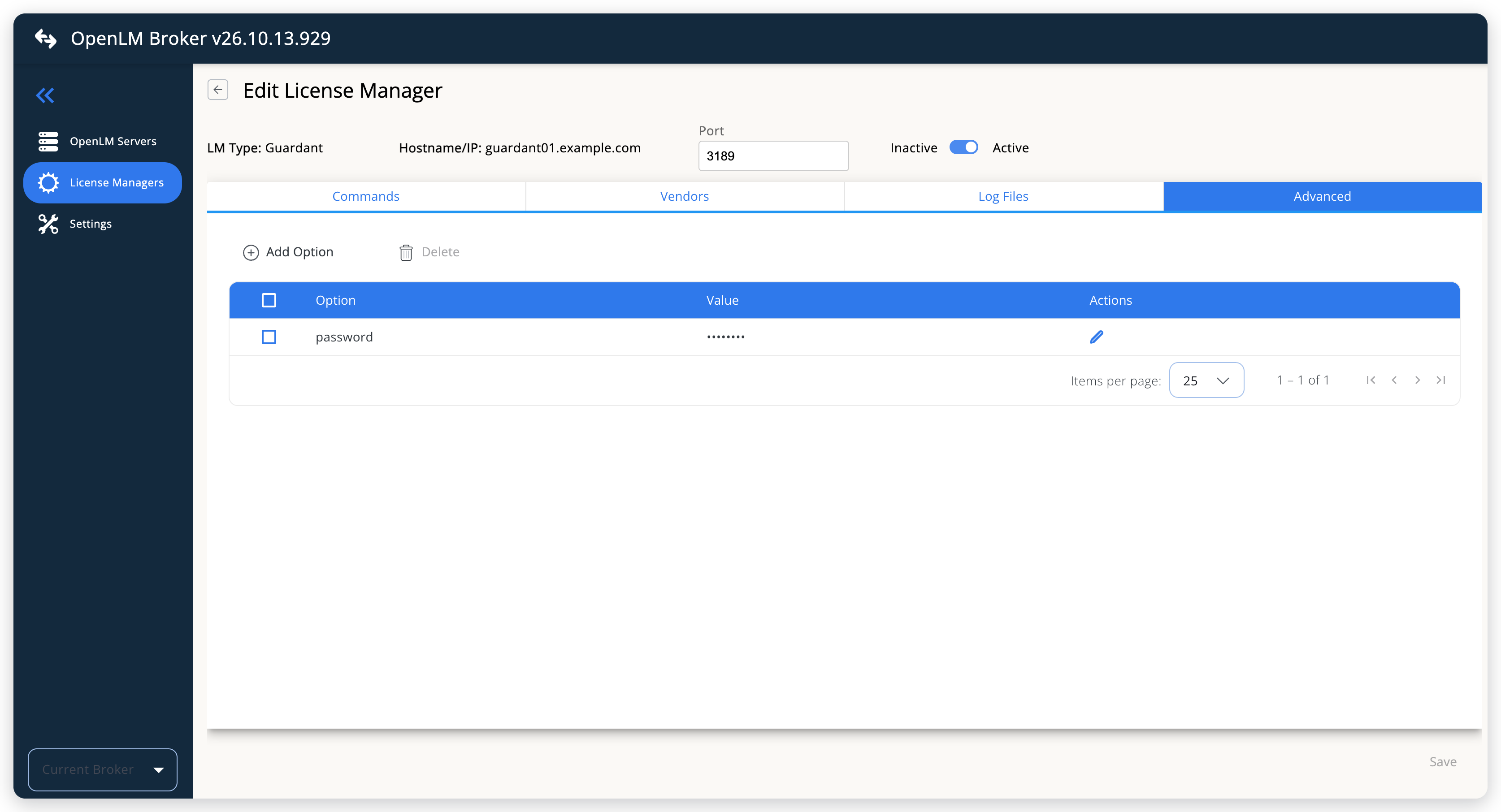 The password option on the Advanced tab
-
Select Save.
-
(Optional) To test the connection, open the Guardant entry again, select the Commands tab, and select Execute.
The Execution Result dialog shows the report that Broker builds, with 1
FEATUREelement per feature and 1USERelement per session. If Guardant Control Center refused the sign-in, the result showsGuardant login failed, with the HTTP status that it returned.
OpenLM SLM configuration
Automatic configuration through EasyAdmin
If the preceding steps are complete, Broker queries Guardant Control Center every 55 seconds, by default, and reports Guardant to OpenLM SLM. Approve the license server in EasyAdmin:
-
Open EasyAdmin (
http://<Server IP>:5015) and go to Start → Widgets → License Manager - Servers. -
Select the There are N servers pending approval link at the top of the widget.
The Administration - License Manager Servers window opens, with the pending entries at the top of the list.
-
Find the pending Guardant entry, with the host name and port 3189 as configured in Broker, and select the edit icon at the end of its row.
OpenLM SLM has no plugin for the Guardant type, so its Type is OpenLM Generic, the protocol that Broker reports it with.
-
Optionally rename the connection in Display name, confirm the Host Name and Port, and select APPROVE.
Manual configuration through EasyAdmin
If automatic configuration fails:
-
Go to Start → Administration → License Manager Servers.
-
Select Add LM.
-
In Display name, enter a name for the connection, for example
Guardant. -
From Type, select OpenLM Generic.
Use Broker turns on.
-
In the row under Host Name, Port, and Time Zone, enter the host name and port
3189exactly as configured in Broker for Guardant, and select a time zone. -
Select SAVE.
Verify your configuration
- Open EasyAdmin in your browser.
- Go to Start → Widgets → License Manager - Servers.
- Confirm that the Guardant license server shows the Status Up to date.
- Go to Start → Widgets → Feature Usage Status and confirm that each Guardant feature appears with its license total in Quantity and the number of licenses in use in Used.
- Go to Start → Reports → License Activity, select Include Current Activity, and select Apply. Confirm that each open session appears with its username and workstation.
Troubleshooting
If Guardant never appears as pending in EasyAdmin, confirm that the Broker reports to OpenLM SLM: other license managers on the same Broker update in EasyAdmin.
If the Execution Result in the Broker UI shows Guardant login failed, Guardant Control Center refused the password that Broker sent. The message names the sign-in address and the HTTP status that Guardant Control Center returned. Set the administrator password on the Advanced tab, as described in OpenLM Broker configuration, and save.
If the Execution Result shows no features, Broker reached Guardant Control Center, but it listed no features. Open http://localhost:3189 on the Guardant machine and confirm that the network license manager lists the licenses of your network key.
If the Execution Result shows a connection error, Broker cannot reach http://<host>:3189. Confirm that Host on the License Managers page names the Guardant machine, that Guardant Control Center runs there, and that nothing blocks port 3189 between the two.
The Broker log holds the detail, in the logs folder of the Broker installation.
Known limitations
- Broker does not report expiration dates, denied requests, borrowed licenses, or license allocations, and does not upload usage history. Usage in OpenLM starts when you configure the license manager.
- Broker reports the sessions that are open at the moment of each query, every 55 seconds by default. A session that starts and ends between 2 queries is not reported.
- Each open session counts as 1 license in use. A user with 2 sessions of the same feature counts twice.
- A feature whose license maximum is 0 in Guardant Control Center is reported without a license total.
- Broker connects to Guardant Control Center over HTTP, on port 3189, and the administrator password travels unencrypted on that connection. Keep the Broker on the Guardant machine or on a network that you trust.
- OpenLM tested this integration against a stand-in for Guardant Control Center. If a real Guardant Control Center answers differently, contact OpenLM Support.
The documentation team might draft this page using a large language model. A technical writer reviews every page and verifies it against the product before publishing it. A human makes the final decision.