Helios
Follow these steps to configure OpenLM to monitor license usage from the Helios license manager, which the vendor calls Mission Control Center. Helios does not expose an API, a web dashboard, or a command-line query tool, so OpenLM Broker monitors it exclusively by parsing the usage log that Helios writes.
Requirements
Before starting, make sure you have:
- OpenLM SLM installed on a machine in your organization.
- OpenLM Broker v26.7.8.1247 or higher installed on a machine that can read the Helios usage log, and reporting to OpenLM SLM. Earlier Broker versions do not list Helios as a license manager type.
- Helios usage logging turned on by the Helios vendor. The log is a tab-separated text file, typically 1 file per day (for example,
helios_20260520.log).
Monitoring capabilities
The current monitoring capabilities for Helios through OpenLM Broker are:
| Feature | Resolution | License totals | License usage | Denials reporting | Borrowed license reporting | Expiration date reporting | Multiple server redundancy |
|---|---|---|---|---|---|---|---|
| Support | Log file parsing | ❌ | ✔ | ❌ | ❌ | ❌ | ❌ |
Broker reports Helios usage per feature. Because the log does not contain license totals, Broker reports every Helios feature with an unlimited total. Broker reports the username as the full name from the log, falling back to the user ID when no full name is present, and the workstation as the machine name.
How OpenLM interfaces with Helios
- Commands: None. Helios has no HTTP/REST API, web dashboard, or CLI option for querying usage at runtime.
- Log file: Yes. Broker reads the Helios usage log configured on the Log Files tab and derives sessions from the
login,feature usage, andlogoutevents. - License file: None. Broker does not use a license file for data inquiry.
Helios log file format
Helios writes 1 log file per day. Lines that start with # are a header that documents the format. Every other line is 1 tab-separated event with these columns: event keyword, event date (DD-MM-YYYY), event time (HH:MM:SS:mmm), session ID (the same UUID on every event of 1 login session), user ID, full name, machine name, IP address, and event-specific extra fields. The feature usage event carries the feature name as its extra field.
Broker builds usage from the feature usage and logout Helios events and correlates them through the session ID. Other events in the log, such as open Helios, login Helios, license server synchronize, start processing 3D, and total number of available sq km, do not create usage.
open Helios	01-06-2026	08:26:07:446	45689dfa-4456-45d8-aab4-70c2b61fc73a	ril	Sam.Smith	WORKSTATION-PC01	10.0.4.184	Helios v3.2.0
login Helios	01-06-2026	08:26:45:128	45689dfa-4456-45d8-aab4-70c2b61fc73a	ril	Sam.Smith	WORKSTATION-PC01	10.0.4.184
feature usage	01-06-2026	08:57:35:923	45689dfa-4456-45d8-aab4-70c2b61fc73a	ril	Sam.Smith	WORKSTATION-PC01	10.0.4.184	Modelling
logout Helios	01-06-2026	09:01:27:235	45689dfa-4456-45d8-aab4-70c2b61fc73a	ril	Sam.Smith	WORKSTATION-PC01	10.0.4.184
- A
feature usageevent starts usage of the named feature (for example,Modelling) for the user and workstation on that line. Its timestamp is the usage start time. - A
logout Heliosevent closes every feature that the session had open. - Feature names in the log become the feature names shown in EasyAdmin. The username shown is the full name (
Sam.Smithin the example), falling back to the user ID when the full name is empty.
Every line must carry the session ID and the user and workstation fields. Log files produced by older Helios builds identify events only by chronological order, which makes usage from 2 workstations writing to the same log indistinguishable. If your log lines do not contain a session ID, ask the Helios vendor for the updated log format before configuring Broker.
OpenLM Broker configuration
Install OpenLM Broker and confirm that it reports to OpenLM SLM before starting these steps.
- Open a browser and go to the Broker web UI at http://localhost:5090/.
- Go to License Managers and select Add License Manager.
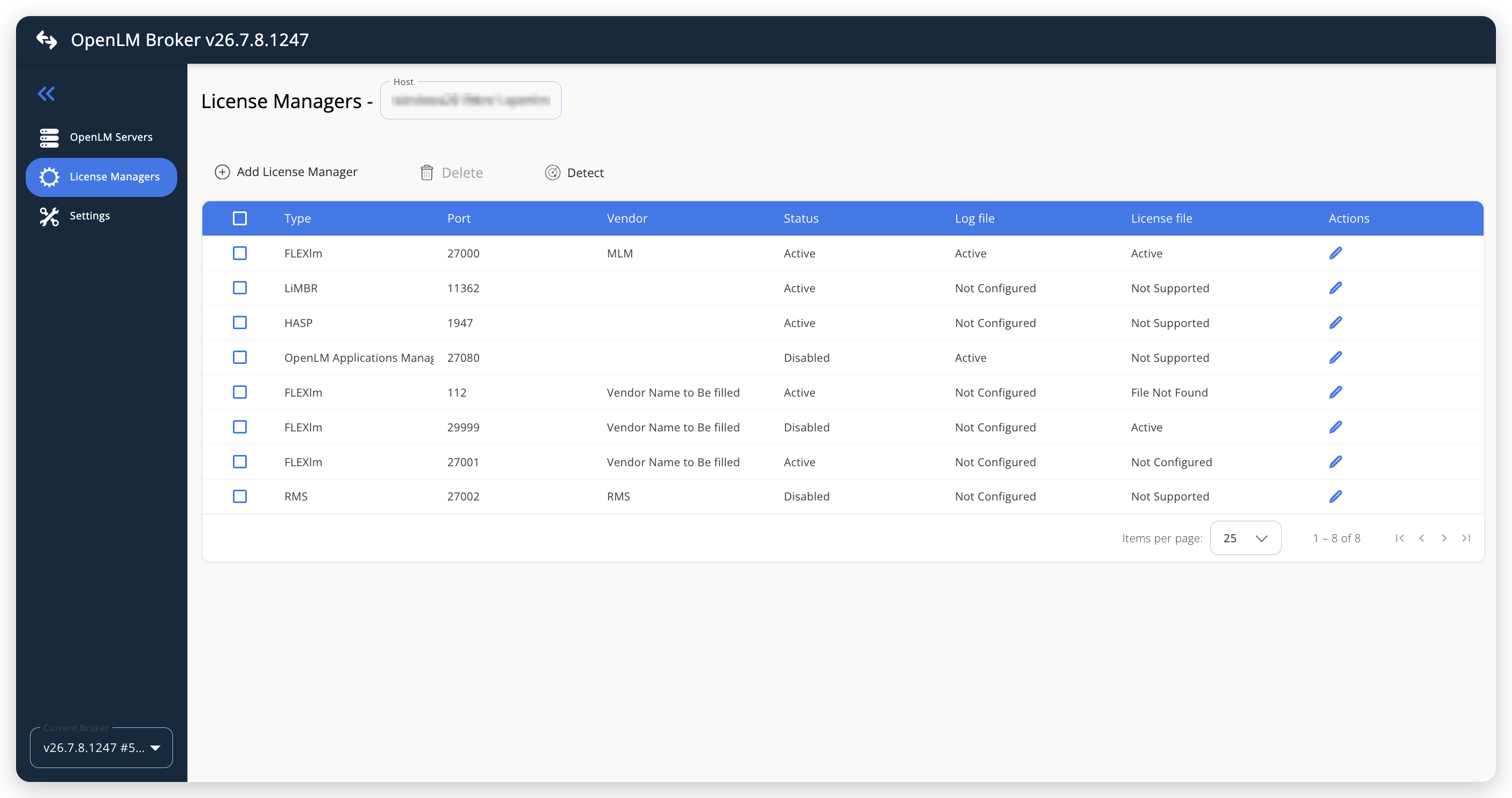 The License Managers page of the Broker web UI
- From LM Type, select Helios. Because Broker reads only the log file, replace the default port with any unused port number (for example,
7788), and select Add.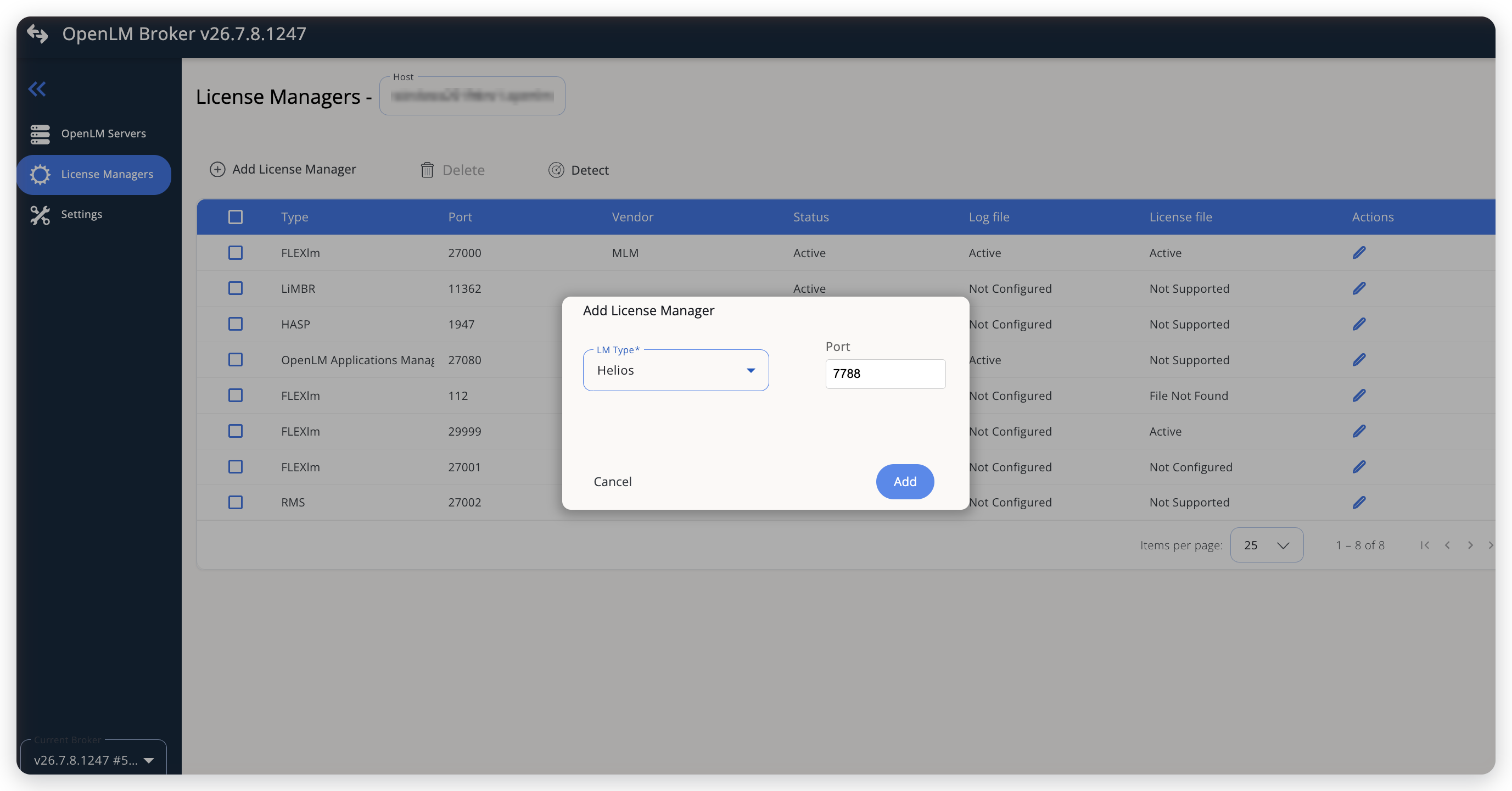 Adding the Helios license manager type on a free port
The Add License Manager page opens with the Commands, Vendors, and Log Files tabs. Leave the Commands tab empty: Helios has no executable to query.
- On the Vendors tab, select Add Vendor, enter
Helios, and select Continue.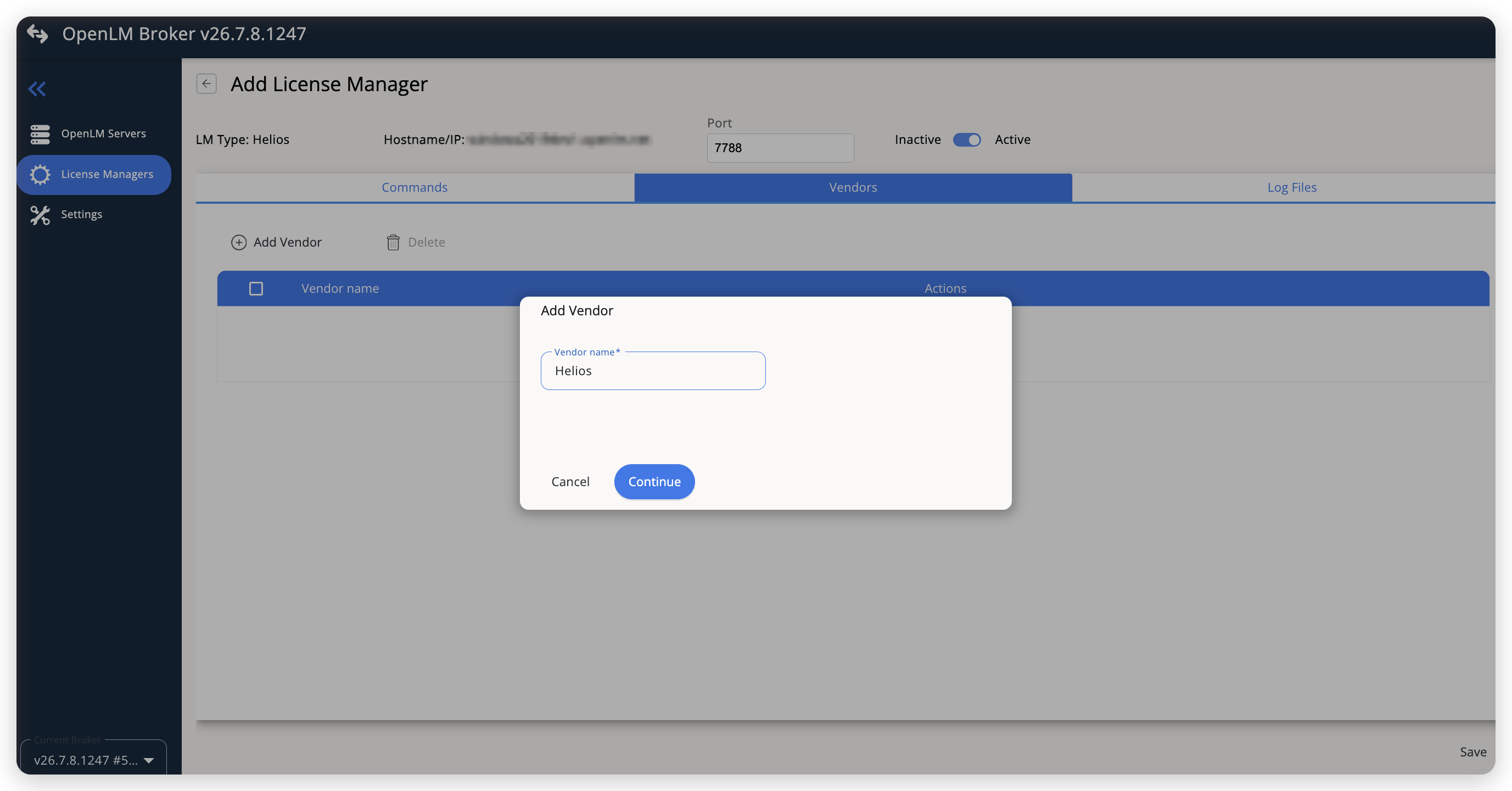 Adding the Helios vendor
- On the Log Files tab, select Add Log File:
- Log Type: Helios log (preselected).
- Log Name: a descriptive name, for example
Helios usage log. - Log Path: select the magnifier to browse the Broker machine for the current Helios log file, or type the full path (for example,
C:\Helios\Logs\new_log_helios_20260601.log). - Vendor: Helios.
Select Continue.
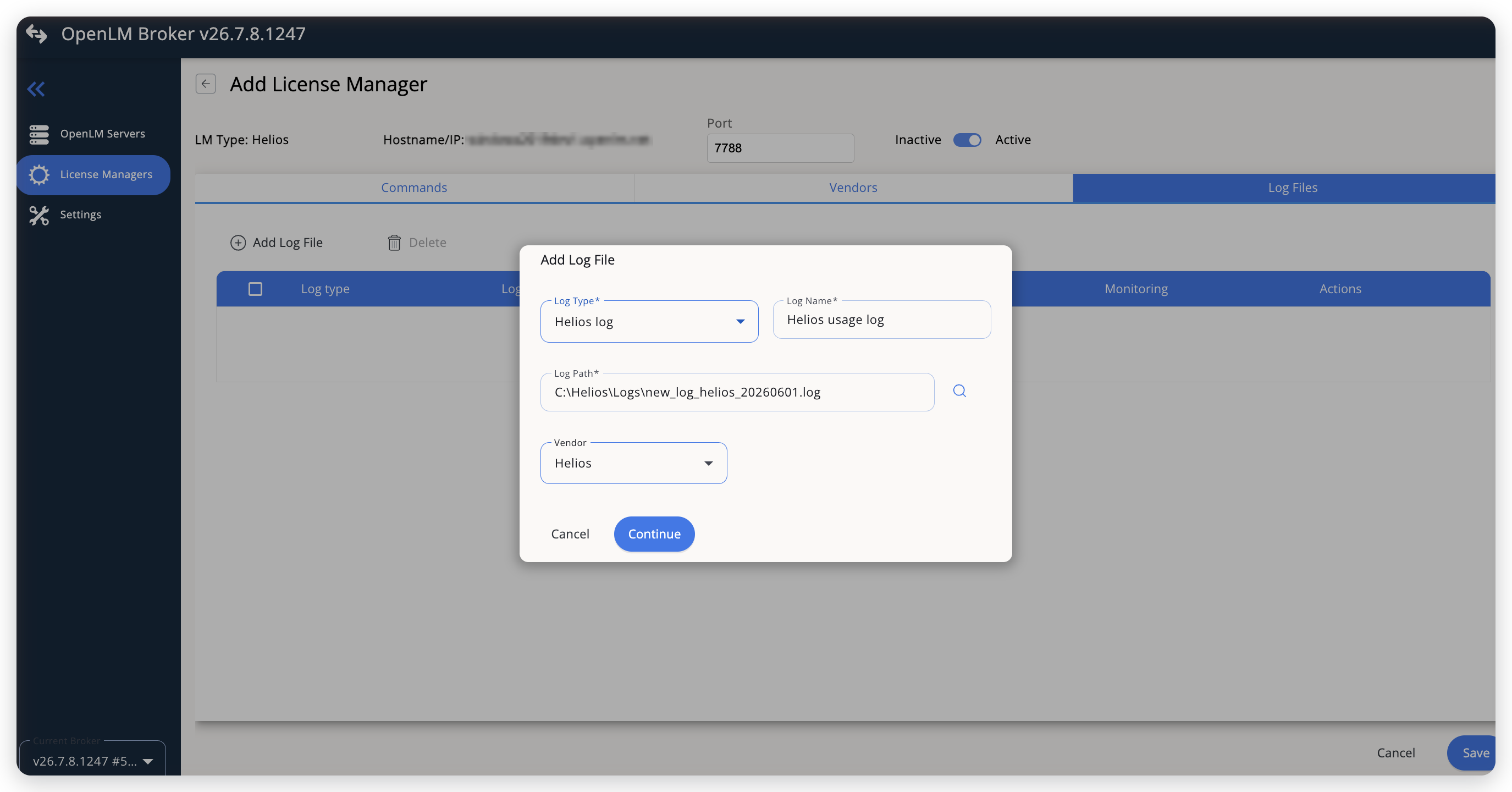 Configuring the Helios usage log
TipIf Helios writes a new log file every day, select Advanced in this dialog and turn on Watch files by pattern so that Broker follows the daily files without reconfiguration.
- Confirm that the log file appears on the Log Files tab with Monitoring turned on, then select Save.
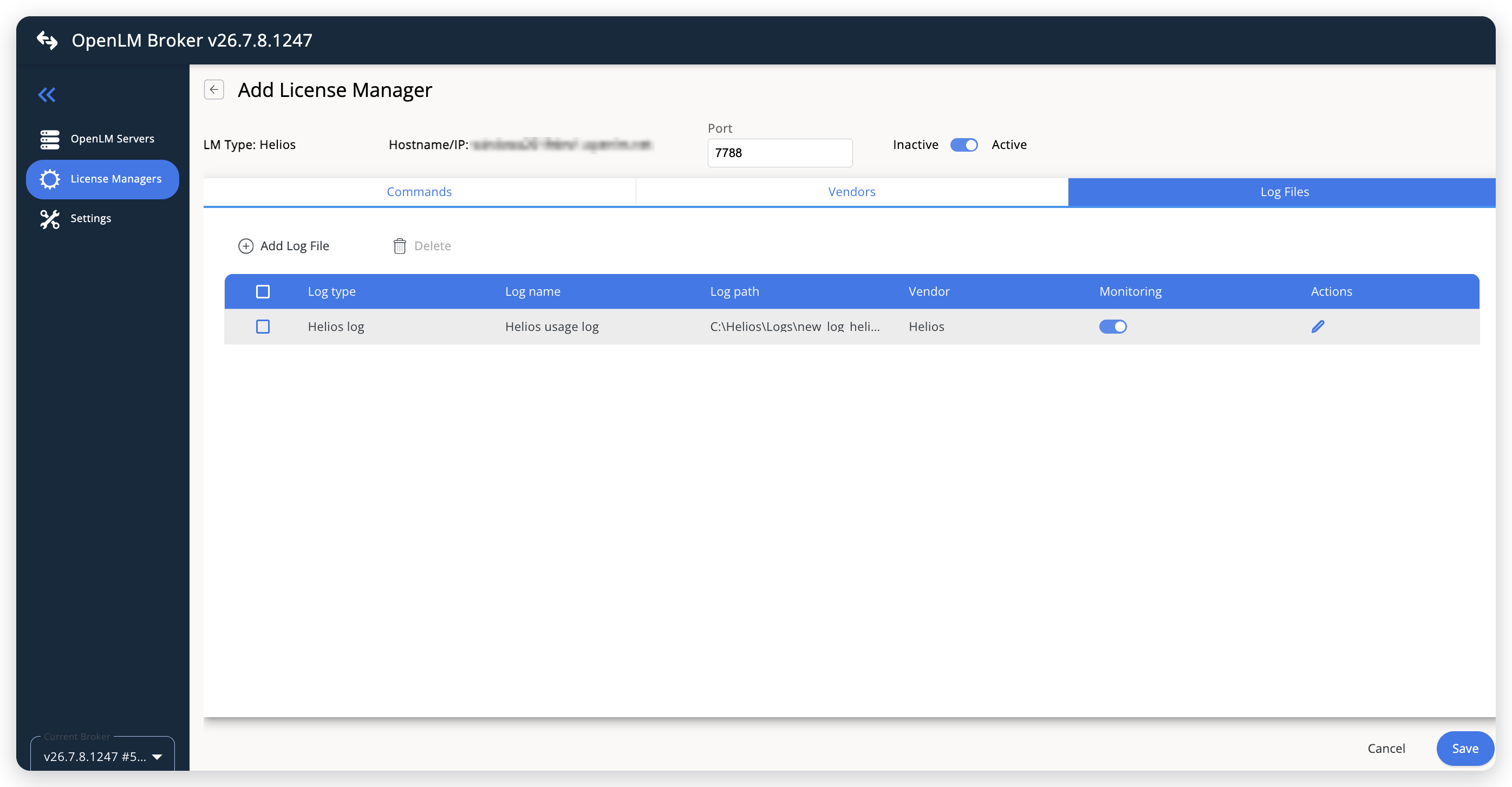 The Helios log listed with monitoring turned on
- Back on the License Managers page, confirm that the Helios entry shows Status and Log file as Active. License file shows Not Supported because Helios has no license file.
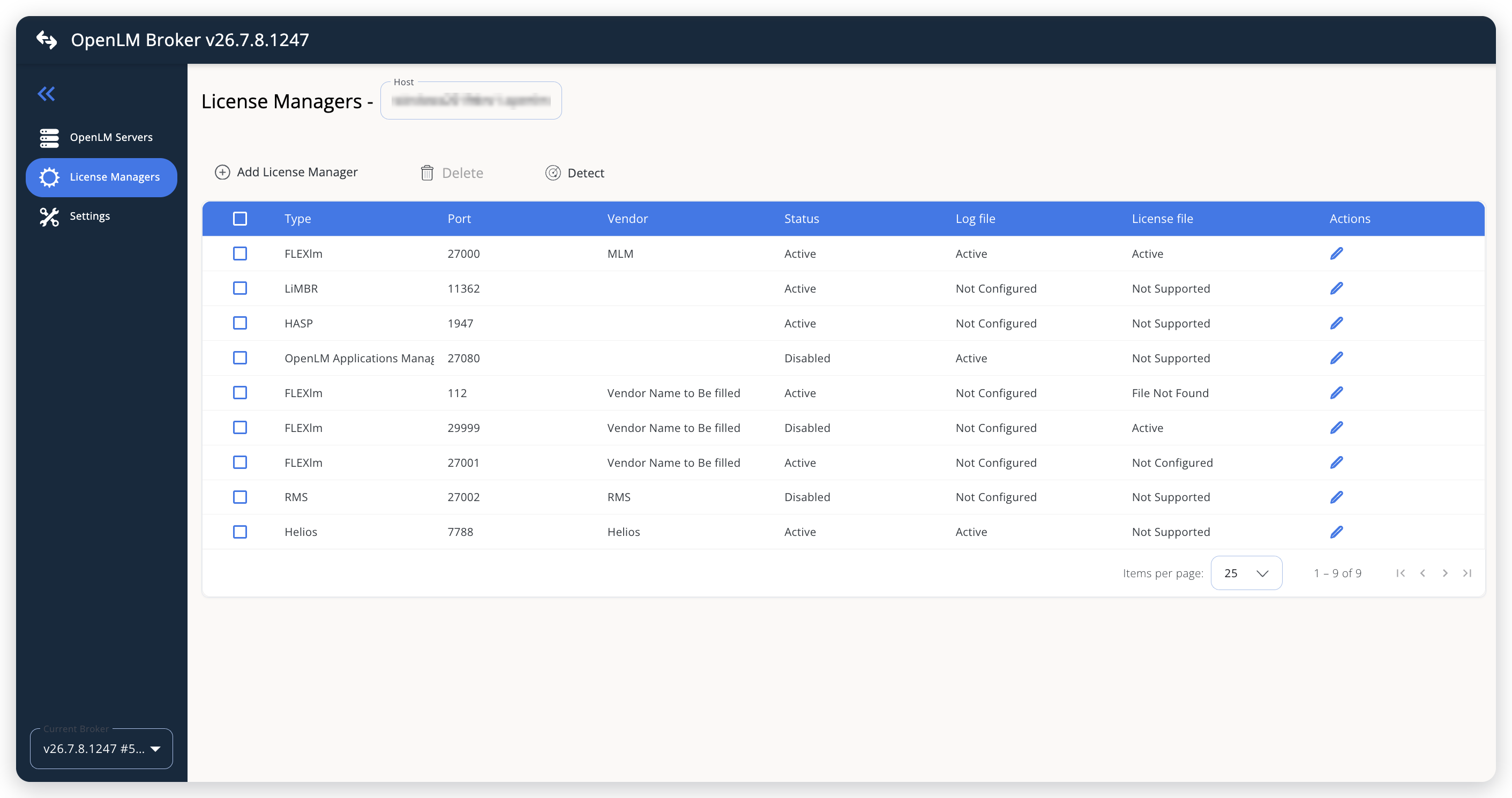 The saved Helios entry with an active log file
OpenLM SLM configuration
Automatic configuration through EasyAdmin
-
Open EasyAdmin (
http://<Server IP>:5015) and go to Start → Widgets → License Manager - Servers. -
Select the There are N servers pending approval link at the top of the widget.
The Administration - License Manager Servers window opens, with the pending entries at the top of the list.
-
Find the pending Helios entry, with the host name of the Broker machine and the port that you configured in Broker, and select the edit icon at the end of its row.
Broker reports Helios with the OpenLM Generic protocol, so its Type is OpenLM Generic.
-
Optionally rename the connection in Display name, confirm the Host Name and Port, and select APPROVE.
Manual configuration through EasyAdmin
If automatic configuration fails:
-
Go to Start → Administration → License Manager Servers.
-
Select Add LM.
-
In Display name, enter a name for the connection, for example
Helios. -
From Type, select OpenLM Generic.
Use Broker turns on.
-
In the row under Host Name, Port, and Time Zone, enter the host name of the Broker machine and the port configured in Broker, and select a time zone.
-
Select SAVE.
Verify your configuration
- Open EasyAdmin in your browser.
- Go to Start → Widgets → License Manager - Servers.
- Confirm that the Helios license server shows the Status Up to date.
- Go to Start → Widgets → Feature Usage Status. After a user works in Helios, each feature named in the log appears with Quantity shown as unlimited and Used equal to the number of open sessions for that feature.
- Go to Start → Reports → License Activity, select Include Current Activity, and select Apply. Confirm that each open session appears with its username and workstation.
Usage appears only after Helios writes a feature usage event to the log.
Known limitations
- License totals are not available in the Helios log, so EasyAdmin displays each feature with an unlimited total.
- License denials, borrowed licenses, and expiration dates are not reported.
- Broker reads only the events that Helios writes to the log. If you delete the log file or Helios rotates it to a path that Broker does not watch, open sessions are not closed until Broker next reads a matching
logout Heliosevent.
The documentation team might draft this page using a large language model. A technical writer reviews every page and verifies it against the product before publishing it. A human makes the final decision.