Juniper
Follow these steps to monitor the remote-access VPN licenses of a Juniper device with OpenLM. OpenLM Broker connects to the device over SSH, runs 2 Junos OS commands there, and reports to OpenLM SLM the licenses installed on the device and the VPN users who are connected to it. Each VPN connection of a user counts as 1 license in use of the feature remote-access-ipsec-vpn-client, unless you name another feature in Broker.
Requirements
Before starting, make sure you have:
- OpenLM SLM installed on a machine in your organization, or a Software License Management Cloud (SLMC) account.
- OpenLM Broker v22.2.7.1557 or higher, installed on a Windows or Linux machine that reaches the Juniper device over SSH, and reporting to OpenLM SLM. Broker runs the SSH client on that machine, not on the device. Broker v21.11.18.730 added Juniper, and v22.2.7.1557 added the settings on the Advanced tab that these steps use.
- On a Windows Broker machine,
plink.exe, the command-line SSH client of PuTTY. Download it alone, or with the PuTTY installer, from the PuTTY download page. - On a Linux Broker machine,
sshandsshpass. Installsshpasswith the package manager of your distribution, for examplesudo apt-get install sshpass. - An account on the Juniper device for Broker, with the
viewpermission. Prepare the Juniper device creates one. - The host name or IP address of the Juniper device.
Monitoring capabilities
The current monitoring capabilities for Juniper through OpenLM Broker are:
| LM Type in the Broker | Commands | Logs | Quantity | Expiration date | Denied | Borrowing | Allocations | Report resolution |
|---|---|---|---|---|---|---|---|---|
| Juniper | Yes | No | Yes | No | No | No | No | 55 seconds |
For each feature and each connected VPN user, Broker reports:
- Feature name: each feature in the
License usagetable ofshow system license, for exampleremote-access-ipsec-vpn-clientordynamic-vpn. - Total: the
Licenses installedcount of the feature. When the VPN feature has more connections than licenses, Broker raises its total to the number in use. - In use: for the VPN feature, the number of connections in the
show security ike active-peeroutput that have a username. Broker does not read theLicenses usedcolumn, so it reports every other feature with 0 in use. - Username: the
AAA usernameof the connection. - Workstation: the
Remote Addressof the connection, which is the IP address that the user connects from. The output holds no computer names. - Start time: none. The output holds no connection times.
- License type: Broker reports every feature as Floating.
- Vendor:
Juniper, unless you add a vendor on the Vendors tab. Broker then reports the first vendor on that tab.
Expiration dates, denied connections, borrowed licenses, and license allocations are not available. Known limitations lists the features that Broker skips.
How OpenLM interfaces with Juniper
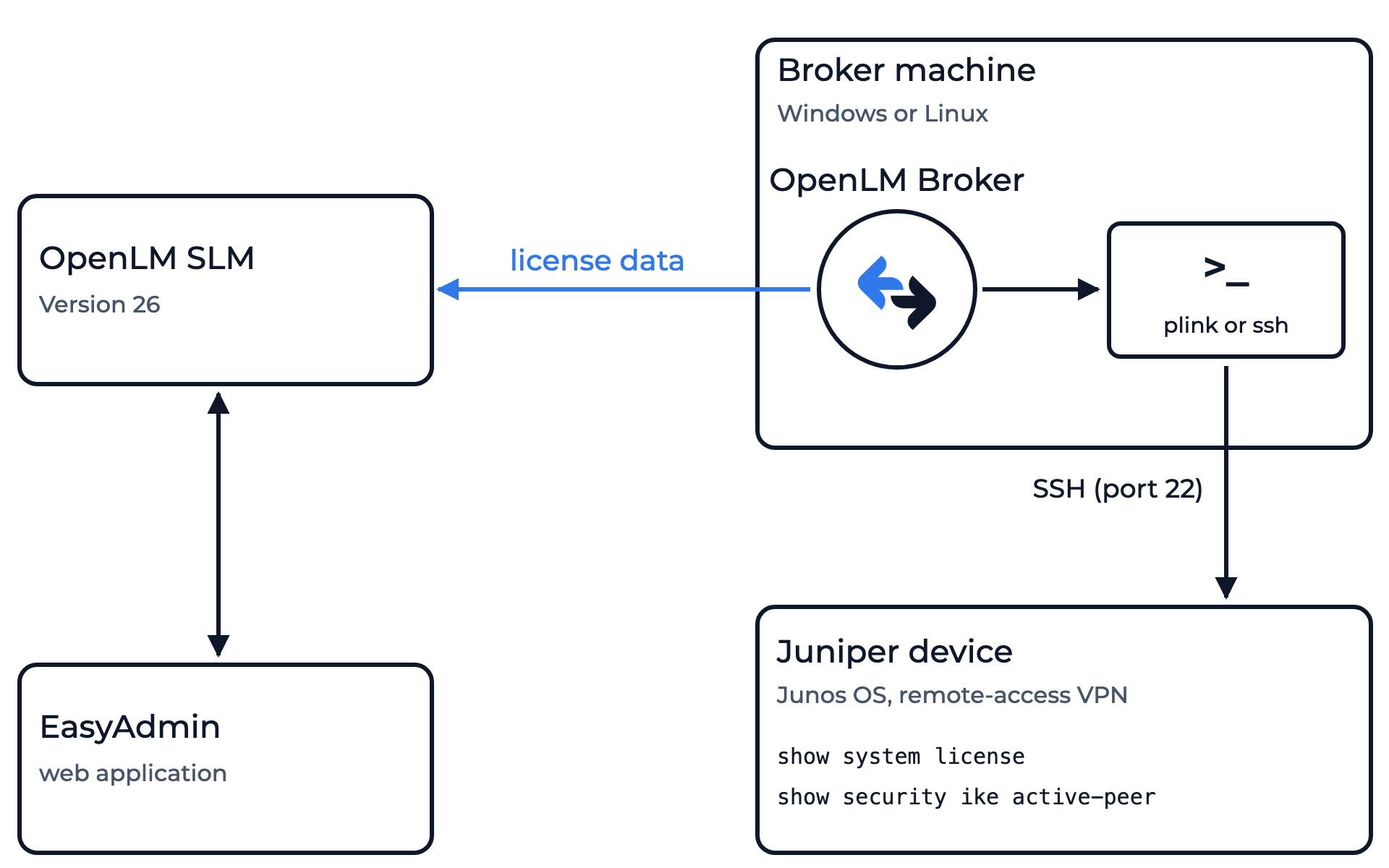 How OpenLM collects Juniper license usage
Broker runs on a Windows or Linux machine and sends the license data to OpenLM SLM. Its Data Inquiry command connects to the Juniper device over SSH and runs 2 Junos OS commands: show system license, which lists the licenses on the device, and show security ike active-peer, which lists the users who are connected to its IPsec VPN.
-
Commands: The license manager has 1 command, Data Inquiry, which runs every 55 seconds by default. Broker uses the command for the operating system of its machine. On Windows, the command runs
plink:plink -hostkey {$hostkey} -ssh -pw {$password} -batch {$user}@<Host> "show system license;show security ike active-peer"On Linux, the command runs
sshthroughsshpass:sshpass -p {$password} ssh -o StrictHostKeyChecking=no {$user}@<Host> show system license;show security ike active-peerWhen you add the license manager, Broker puts the Host of the License Managers page in place of
<Host>. Broker does not fill in{$user},{$password}, or{$hostkey}. You replace them, and the host, with the values of your device in OpenLM Broker configuration. -
Output: The output holds the license table of
show system license, the installed license keys, and then 1 row for each connection, as in this example:License usage:Licenses Licenses Licenses ExpiryFeature name used installed neededdynamic-vpn 0 2 0 permanentremote-access-ipsec-vpn-client 0 10 0 permanentLicenses installed:License identifier: JUNOS000000001License version: 4Valid for device: AB0000AA0000Features:remote-access-ipsec-vpn-client-10 - remote-access-ipsec-vpn-client 10 userspermanentRemote Address Port Peer IKE-ID AAA username Assigned IP198.51.100.7 500 198.51.100.7 not available 0.0.0.0203.0.113.10 51034 vpn.example.com jdoe 172.16.0.11203.0.113.25 49812 vpn.example.com asmith 172.16.0.12From this output, Broker reports
remote-access-ipsec-vpn-clientwith a total of 10 and 2 licenses in use, held byjdoeandasmith, anddynamic-vpnwith a total of 2 and none in use. It skips the connection from198.51.100.7, a site-to-site VPN peer that has no username (not available). -
Sessions: Each data inquiry reports every connection that it lists, and OpenLM SLM turns the consecutive reports into sessions. Broker groups the connections by username and remote address. 2 connections of one user from one address count as 1 session that holds 2 licenses, and connections of one user from 2 addresses count as 2 sessions.
-
Server status: Broker reports the license server as up whenever it reads the output, even when the output lists no feature.
-
Log files: None. Broker reads no log file for Juniper.
Prepare the Juniper device
Broker signs in to the device with an account of its own. Both commands need only the view permission, which the predefined read-only login class gives, so create the account in that class.
-
On the Juniper device, enter configuration mode and create the account, for example
openlm-broker, in theread-onlyclass:set system login user openlm-broker class read-only -
Set the password of the account:
set system login user openlm-broker authentication plain-text-passwordJunos OS asks for the password twice.
-
Commit the configuration:
commit
For the login classes and their permissions, see Login Classes Overview in the Junos OS documentation.
Check the connection from the Broker machine
Broker sees only what the SSH client prints, so run the command by hand on the Broker machine first. On Windows, this check also gives you the host key of the device, which the Windows command needs.
On Windows
-
Open a command prompt on the Broker machine.
-
Run
plinkwithout-hostkey, with the password of the account and the address of the device:"C:\Program Files\PuTTY\plink.exe" -ssh -pw <password> -batch openlm-broker@juniper01.example.com "show system license;show security ike active-peer"Use the path of your
plink.exe. Plink does not know the host key of the device yet, so it shows the key fingerprint and abandons the connection. -
Copy the fingerprint from the line after
key fingerprint is:, the part that starts withSHA256:. -
Run the command again with
-hostkeyand the fingerprint:"C:\Program Files\PuTTY\plink.exe" -hostkey SHA256:<fingerprint> -ssh -pw <password> -batch openlm-broker@juniper01.example.com "show system license;show security ike active-peer" -
Confirm that the output shows the
License usagetable and a row for each connected user, as in the example in How OpenLM interfaces with Juniper.
On Linux
-
On the Broker machine, connect to the device as
root, the account that runs the Broker service by default:sudo ssh openlm-broker@juniper01.example.com "show system license;show security ike active-peer"Keep the quotes in a terminal. Without them, the shell runs
show security ike active-peeron the Broker machine. -
When
sshshows the key fingerprint of the device and asks whether to continue, enteryes.sshsaves the key in the known hosts ofroot, and checks it on every later connection. -
Enter the password of the account.
-
Confirm that the output shows the
License usagetable and a row for each connected user.
OpenLM Broker configuration
Install OpenLM Broker on the Broker machine and confirm that it reports to OpenLM SLM before starting these steps.
-
Open a browser on the Broker machine and go to the Broker web UI at http://localhost:5090/.
-
On the License Managers page, check Host.
OpenLM lists the license server under this host name, and the field holds the host for every license manager on the page, not for Juniper alone. Broker also writes it into the Juniper command as the address to connect to, which you replace in a later step.
-
Go to License Managers → Add License Manager.
-
From LM Type, select Juniper.
-
In Port, enter
22, and select Add.Broker does not pass this port to the SSH client, and OpenLM identifies the license server by the host name and the port together. If another license manager on this Broker uses 22, Broker shows
Port already exists. Enter any free number instead.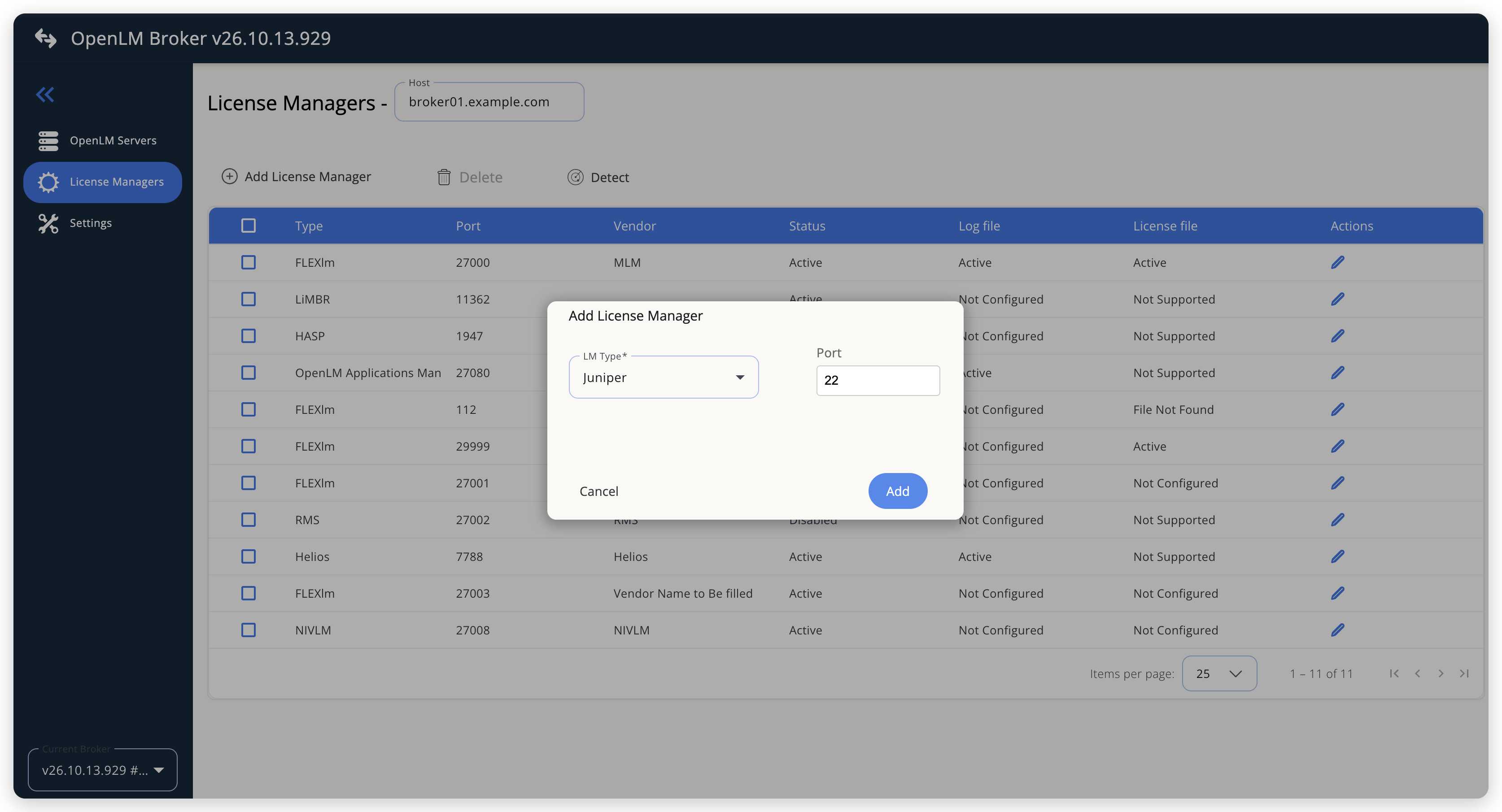 Add Juniper as a license manager
-
On the Commands tab, select Data Inquiry under Periodic commands.
Broker filled in the command for the operating system of its machine, with the Host of the License Managers page after the
@. It runs the command every 55 seconds (Watch interval (sec)), and stops a run that takes longer than 60 seconds (Timeout (sec)). Leave Use the operating system start/stop commands off.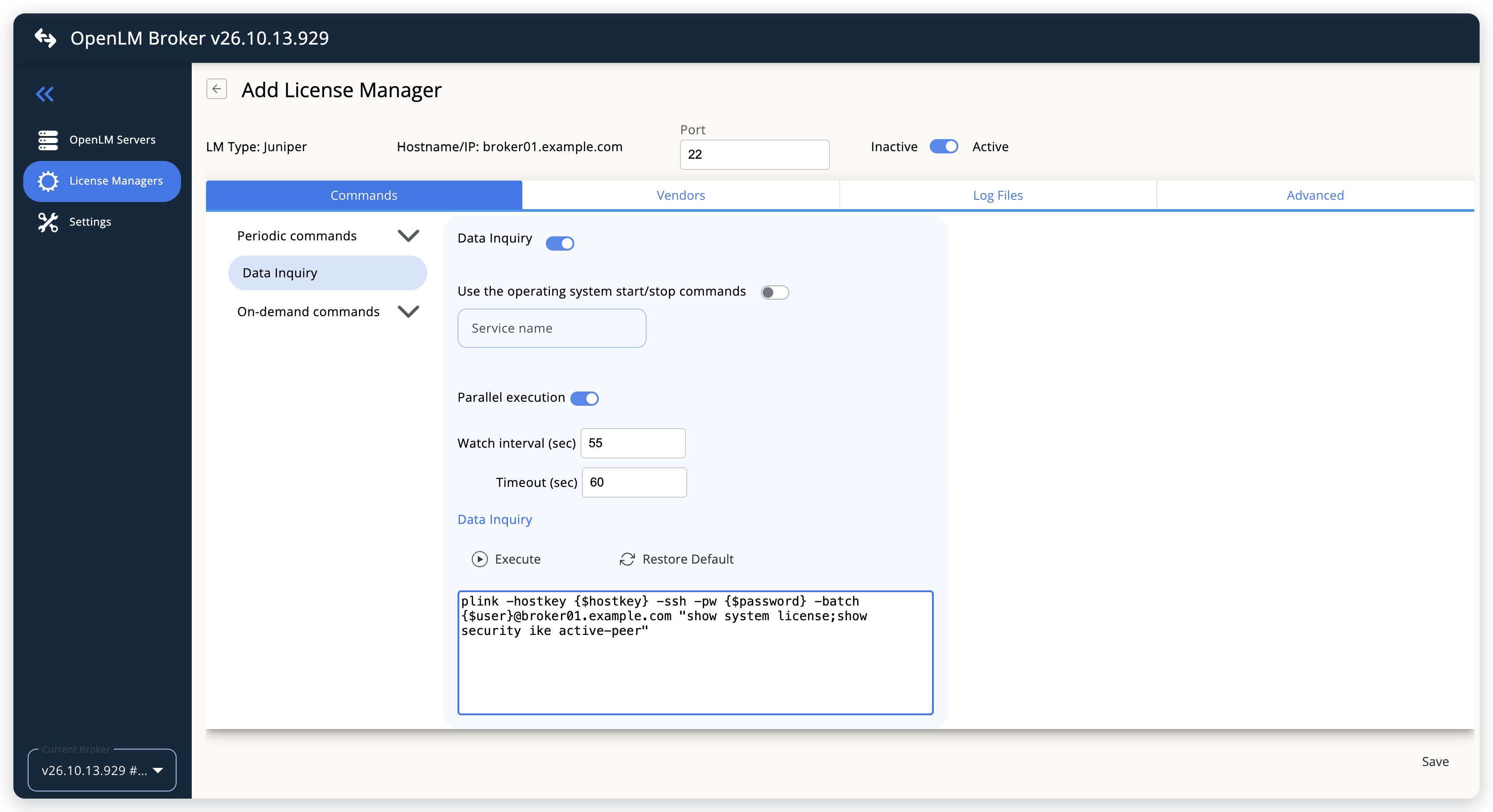 The Data Inquiry command as Broker fills it in
-
Replace the placeholders and the host in the command with the values of your device.
On Windows, replace
{$hostkey}with the fingerprint from Check the connection from the Broker machine,{$password}with the password of the account,{$user}with the account name, and the host after the@with the address of the device. Unless the folder ofplink.exeis on the system PATH, replaceplinkwith its full path in quotes:"C:\Program Files\PuTTY\plink.exe" -hostkey SHA256:<fingerprint> -ssh -pw <password> -batch openlm-broker@juniper01.example.com "show system license;show security ike active-peer"On Linux, replace
{$password},{$user}, and the host. Onceroothas the host key of the device, remove-o StrictHostKeyChecking=no, so thatsshrefuses a device whose key changed. Leave the 2 Junos commands without quotes: Broker runs the command without a shell, and the command fails with them.sshpass -p <password> ssh openlm-broker@juniper01.example.com show system license;show security ike active-peerBroker sends the command to OpenLM SLMBroker keeps the command, with the password in it, in plain text in its configuration, and sends it with every data report to OpenLM SLM. To keep the password out of the command, follow Keep the password out of the command.
-
On the Advanced tab, check the feature that Broker counts the connections against.
The option
consumable.licensenames it,remote-access-ipsec-vpn-clientby default. If your remote-access VPN licenses show under another feature name in theLicense usagetable, select the edit icon of the option, enter that name in Value, and select Continue. Broker keeps the option injuniper@<port>.propertiesin the Broker folder, for examplejuniper@22.properties.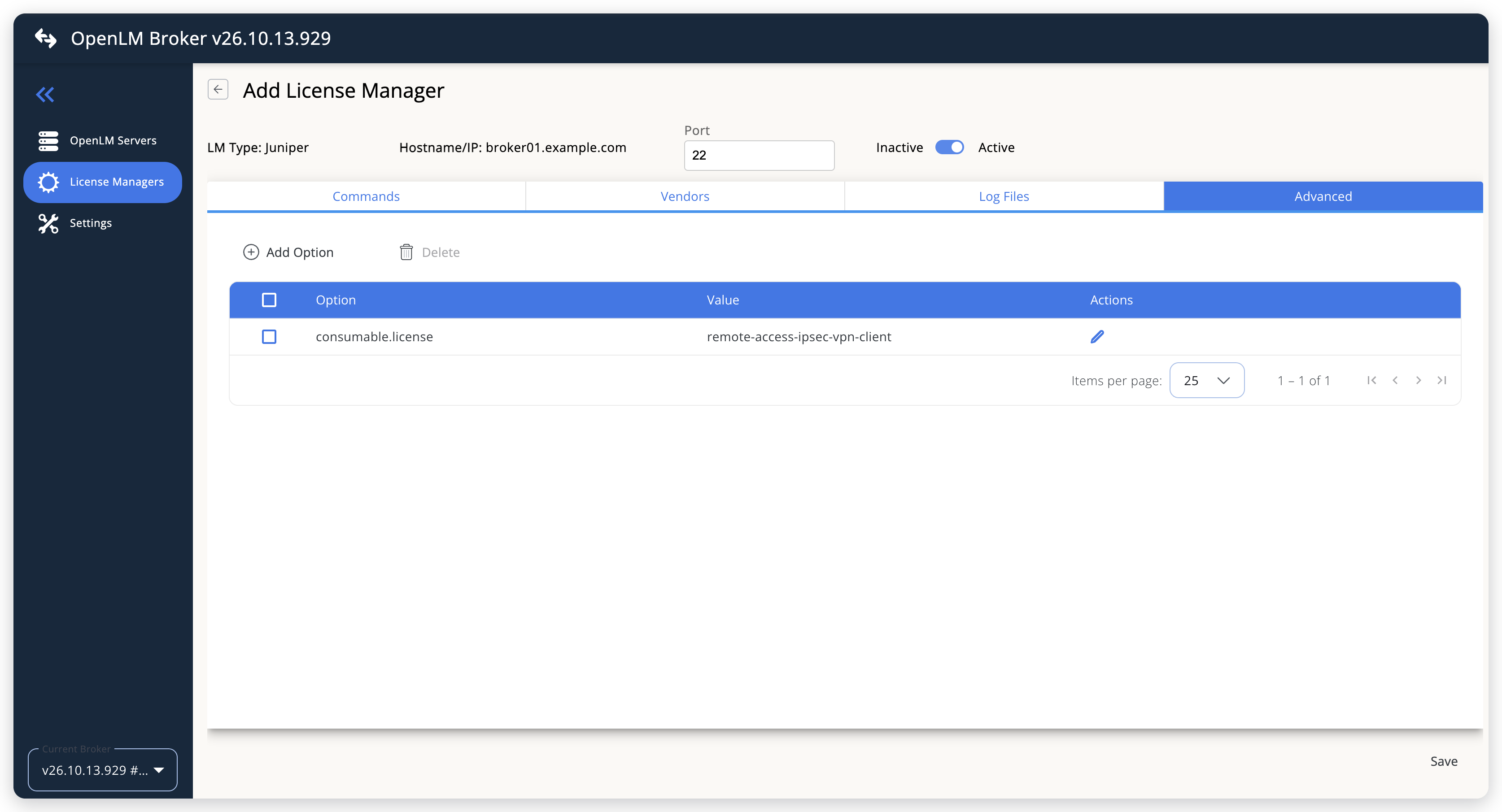 The feature that the connected VPN users count against
-
Leave the Vendors and Log Files tabs as they are, and select Save.
With no vendor on the Vendors tab, Broker reports the vendor as
Juniper.
Keep the password out of the command
To keep the password out of the command that Broker stores and sends, read the password from a file, or sign in with an SSH key. Broker runs as Local System on Windows, and as root on Linux by default, so that account must be able to read the file or the key.
-
Password file: Save the password on the first line of a text file that the account of the Broker service can read. On Windows, replace
-pw <password>with-pwfile <file>, for example-pwfile C:\ProgramData\OpenLM\juniper-pw.txt. On Linux, replace-p <password>with-f <file>, for example-f /root/juniper-pw.txt. -
SSH key: Create a key pair without a passphrase, because Broker cannot type one, and add the public key to the account on the device:
set system login user openlm-broker authentication ssh-ed25519 "<public key>"commitOn Windows, create the key with PuTTYgen, which comes with PuTTY, save the private key as a
.ppkfile, and replace-pw <password>with-i <file>. On Linux, create the key asrootwithssh-keygen, and removesshpass -p <password>from the command.sshthen signs in with the default key ofroot, such as/root/.ssh/id_ed25519.
For the options, see Using the command-line options in the PuTTY documentation, and User Accounts in the Junos OS documentation.
OpenLM SLM configuration
Automatic configuration through EasyAdmin
If the preceding steps are complete, Broker runs the Data Inquiry command and reports Juniper to OpenLM SLM. Approve the license server in EasyAdmin:
-
Open EasyAdmin (
http://<Server IP>:5015) and go to Start → Widgets → License Manager - Servers. -
Select the There are N servers pending approval link at the top of the widget.
The Administration - License Manager Servers window opens, with the pending entries at the top of the list.
-
Find the entry whose Host Name and Port match the license manager in Broker, and select the edit icon at the end of its row.
Broker reports the LM type name with the OpenLM Generic protocol, so the Type of the entry is Juniper.
-
Optionally rename the connection in Display name, confirm the Host Name and Port, and select APPROVE.
Manual configuration through EasyAdmin
If automatic configuration fails:
-
Go to Start → Administration → License Manager Servers.
-
Select Add LM.
-
In Display name, enter a name for the connection, for example
Juniper VPN. -
From Type, select Juniper.
Use Broker turns on.
-
In the row under Host Name, Port, and Time Zone, enter the host name and the port of the license manager in Broker, and select a time zone.
-
Select SAVE.
Verify your configuration
-
Open EasyAdmin in your browser.
-
Go to Start → Widgets → License Manager - Servers.
-
Confirm that the Juniper license server shows the Status Up to date.
-
Go to Start → Widgets → Feature Usage Status and confirm that Used for
remote-access-ipsec-vpn-clientmatches the number of connections that have a username in theshow security ike active-peeroutput. -
Go to Start → Reports → License Activity, select Include Current Activity, and select Apply.
Each connected user appears with the remote address in Workstation.
Troubleshooting
If Juniper never appears as pending in EasyAdmin, confirm that the Broker reports to OpenLM SLM: other license managers on the same Broker update in EasyAdmin.
If the license server is approved but shows no features or no usage, run the command by hand, as described in Check the connection from the Broker machine. Then compare the result and the Broker log with these cases:
Command could not be launched, followed by the command and the cause, in Broker v26.9.16.1403 or higher. Broker cannot startplinkorsshpass, and the end of the message gives the cause. On Windows, give the full path ofplink.exein the command. Earlier Broker versions logCommand execution failedwith the exit value-559038737instead.Command execution failed, followed by the command, its exit value, and its output. The SSH client ended with an error, and the end of the message holds what it printed.Command result transformation failed. Broker cannot read the output, for example because a feature has a single word other thanpermanentin Expiry, such asinvalidorexpired. See Known limitations.No feature to associate users too, followed by the configured name. TheLicense usagetable has no feature of that name, so Broker counts no users. Setconsumable.licenseon the Advanced tab to the name of your VPN feature.
The Broker log is in the logs folder of the Broker installation, and the Juniper license manager writes to port-<port>-Juniper.log, for example port-22-Juniper.log. Broker logs these messages at its default level, ERROR. A failed command appears in the log with the full command, password included.
Known limitations
These limits apply to Juniper monitoring:
- Broker does not report expiration dates, denied connections, borrowed licenses, or license allocations. It reads only the current output of the commands, so usage in OpenLM starts when you configure the license manager.
- Only the feature that
consumable.licensenames gets usage. Broker reports every other feature with its total and 0 in use, whatever itsLicenses usedcount. - A feature that has a date in Expiry, such as
2027-03-30 01:00:00 UTC, is missing from OpenLM, and so is a feature whose name has spaces. - A feature that has a single word other than
permanentin Expiry, such asinvalidorexpired, stops Broker from reading the output. OpenLM then receives no license data from the device while the device lists that feature. - Connections without a username, such as site-to-site VPN peers, do not count.
- The workstation is the IP address that the connection comes from, not a computer name.
- The output holds no connection times, and Broker reports a connection only when a data inquiry lists it. A connection that opens and closes between 2 data inquiries, 55 seconds apart by default, is not reported.
- When the VPN feature has more connections than licenses, Broker raises its total to the number in use, so the total in OpenLM can be higher than the number of licenses on the device.
- Each Juniper license manager reads 1 device. To monitor several devices, add a Juniper license manager for each, with its own port number and the address of that device in its command.
The documentation team might draft this page using a large language model. A technical writer reviews every page and verifies it against the product before publishing it. A human makes the final decision.