LimeLM (TurboFloat Server)
Follow these steps to monitor LimeLM floating licenses with OpenLM. LimeLM is the software licensing system of wyDay, which publishers add to their applications. With a floating license, the application takes a lease from TurboFloat Server, the LimeLM floating license server, which hands out leases from a pool of a set size. OpenLM Broker reads the TurboFloat Server log on the server and reports each lease, and its release or expiry, to OpenLM SLM.
Broker monitors a TurboFloat Server that runs on a computer in your network, because it reads the server's log file on that computer. It can't monitor a TurboFloat Server instance that runs on wyDay's infrastructure.
Requirements
Before starting, make sure you have:
- OpenLM SLM installed on a machine in your organization, or a Software License Management Cloud (SLMC) account.
- OpenLM Broker v26.4.9.1134 or higher, installed on the TurboFloat Server machine and reporting to OpenLM SLM. Earlier Broker versions do not list LimeLM as a license manager type.
- A TurboFloat Server that runs on a computer in your network and serves the floating licenses of your application.
- Access to the TurboFloat Server machine, to change the log level in the server configuration and restart the server.
Monitoring capabilities
The current monitoring capabilities for LimeLM through OpenLM Broker are:
| LM Type in the Broker | Commands | Logs | Quantity | Expiration date | Denied | Borrowing | Allocations | Report resolution |
|---|---|---|---|---|---|---|---|---|
| LimeLM | No | Yes | Yes | No | No | No | No | Seconds |
For each lease, Broker reports:
- Feature name:
LimeLM, for every lease. The lease lines do not name the application, so all leases of a TurboFloat Server count against this one feature. - Username: the first value in the parentheses of the lease line, for example
jdoein(jdoe, 1, IP=::ffff:192.0.2.15, PID=4812). - Workstation: the IP address of the client computer in the lease line, without the
::ffff:prefix, for example192.0.2.15. The lease lines hold no computer names. - Start and end time: the time of the line that assigns the lease and of the line that records its release or expiry, to the second.
- License type: Broker reports every lease as Floating.
- Vendor: the vendor that you select for the log file.
- Quantity: the total number of leases, from the
Used / Total leasescount in the latest lease line, for example10inUsed / Total leases: 3 / 10.
Broker reads only the lease lines, so expiration dates, denials, borrowed licenses, and license allocations are not available.
How OpenLM interfaces with LimeLM
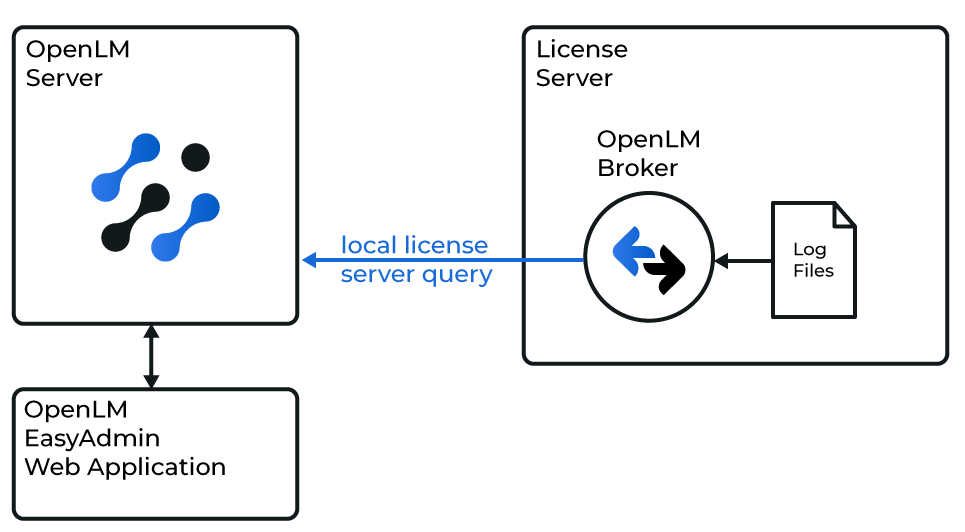 How OpenLM collects LimeLM usage
Broker runs on the TurboFloat Server machine, reads the TurboFloat Server log there, and sends the license data to OpenLM SLM.
-
Log file: TurboFloat Server writes its log to the file that the
<log>element of its configuration names, for exampletfs-log.txt. At thenotificationlog level, the log records each lease that the server creates, extends, removes, or lets expire. Broker reads 4 kinds of line:2026-10-20, 08:14:37 <notification>: New lease assigned (jdoe, 1, IP=::ffff:192.0.2.15, PID=4812). Expires: 2026-10-20 08:44:37 (in UTC). Used / Total leases: 3 / 102026-10-20, 08:44:21 <notification>: Extended existing lease (jdoe, 1, IP=::ffff:192.0.2.15). New expiration time: 2026-10-20 09:14:21 (in UTC).2026-10-20, 11:47:05 <notification>: Lease was released by client (jdoe, 1, IP=::ffff:192.0.2.15, PID=4812). Used / Total leases: 2 / 102026-10-20, 12:02:51 <notification>: Lease has expired (asmith, 1, IP=::ffff:192.0.2.27, PID=7340). Used / Total leases: 1 / 10A
New lease assignedline opens a session. ALease was released by clientline closes it, and so does aLease has expiredline, which the server writes when a lease runs out without being extended, for example after the application ended without releasing it. Broker takes the license total from each of these lines. AnExtended existing leaseline leaves the session open. Broker ignores every other line, such asNew connection from IP. -
Sessions: Broker matches each release or expiry to its lease by the username and the IP address. A lease that the application did not release stays in use in OpenLM until the server records its expiry, as it does on the server.
-
Broker start: Each time Broker starts, it reads the log from the beginning to find the leases that are open and the license total, without reporting those lines. From then on, it reports each new lease line. Broker does not upload earlier usage history.
-
Commands: None run on a schedule. Broker does not connect to TurboFloat Server, so the port that you enter in Broker only identifies the license server in OpenLM.
Prepare the TurboFloat Server log
TurboFloat Server records leases in its log only at the notification level, so set that level before you configure Broker.
-
On the TurboFloat Server machine, open the server configuration file,
TurboFloatServer-config.xml, in a text editor.TurboFloat Server reads the file from the folder that holds
TurboFloatServer.exe, unless the server was installed or started with the-configoption, which names another file. Publishers can rebrand TurboFloat Server and renameTurboFloatServer.exe, so the server can have another name on your machine. -
In the
<log>element, setleveltonotification:<log file="tfs-log.txt" level="notification"/>The
warninganderrorlevels record problems only, andnonewrites no log. Onlynotificationrecords when leases are created, removed, and expired. -
Note the log path in the
fileattribute.A relative path, such as
tfs-log.txt, is relative to the folder that holds the TurboFloat Server executable. The folder of the log must exist. -
Save the file, and restart TurboFloat Server.
TurboFloat Server reads its configuration only when it starts. On Windows, it runs as the service
TurboFloatServer-<version ID>, for exampleTurboFloatServer-100. Restart it from a command prompt that you run as administrator:sc stop TurboFloatServer-100sc start TurboFloatServer-100On Linux, restart it through the init script that runs it.
-
After an application has taken a license, open the log and search for
New lease assigned.If no line matches, the level is not
notificationyet, or no application has taken a lease since the server restarted. -
Note the port in the
<bind>element, for example13in<bind port="13"/>.The applications connect to TurboFloat Server on this port. Broker does not connect to it, but OpenLM identifies the license server by it.
For every setting of the configuration file, see TurboFloat Server in the LimeLM help.
OpenLM Broker configuration
Install OpenLM Broker on the TurboFloat Server machine and confirm that it reports to OpenLM SLM before starting these steps.
-
Open a browser on the TurboFloat Server machine and go to the Broker web UI at http://localhost:5090/.
-
On the License Managers page, check Host.
OpenLM lists the license server under this host name, and the field holds the host for every license manager on the page, not for LimeLM alone. If the field is empty, enter the host name of the TurboFloat Server machine and select the save icon next to the field.
-
Go to License Managers → Add License Manager.
-
From LM Type, select LimeLM.
-
In Port, enter the port from the
<bind>element of the TurboFloat Server configuration, and select Add.Broker does not connect to this port, so any port that no other license manager on this Broker uses works.
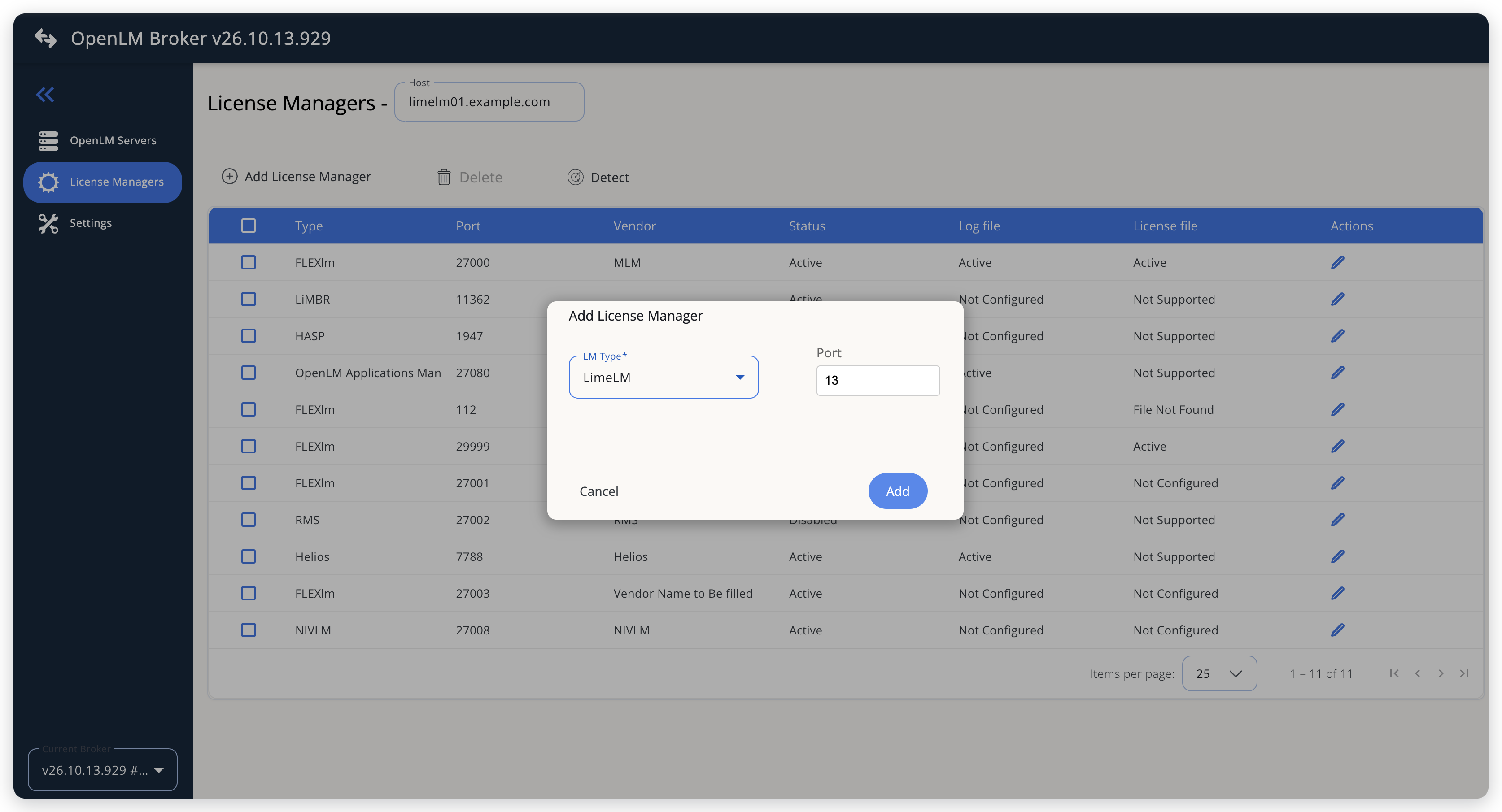 Add LimeLM as a license manager
-
On the Commands tab, leave every field empty.
Broker runs no commands for LimeLM, and Use the operating system start/stop commands is off.
-
On the Vendors tab, select Add Vendor, enter the vendor name that you want OpenLM to show, for example
LimeLM, and select Continue.The new vendor appears in the list after you switch to another tab and back. Without a vendor, OpenLM shows the vendor as
Vendor Name to Be filled. -
On the Log Files tab, select Add Log File, and fill in the dialog:
- Log Type: TurboFloat Log, the only type for LimeLM.
- Log Name: a name for the log, for example
TurboFloat Server log. - Log Path: the full path of the log file from the
fileattribute, for exampleC:\TurboFloatServer\tfs-log.txt. Select the search icon next to the field to browse to it. - Vendor: the vendor that you added on the Vendors tab.
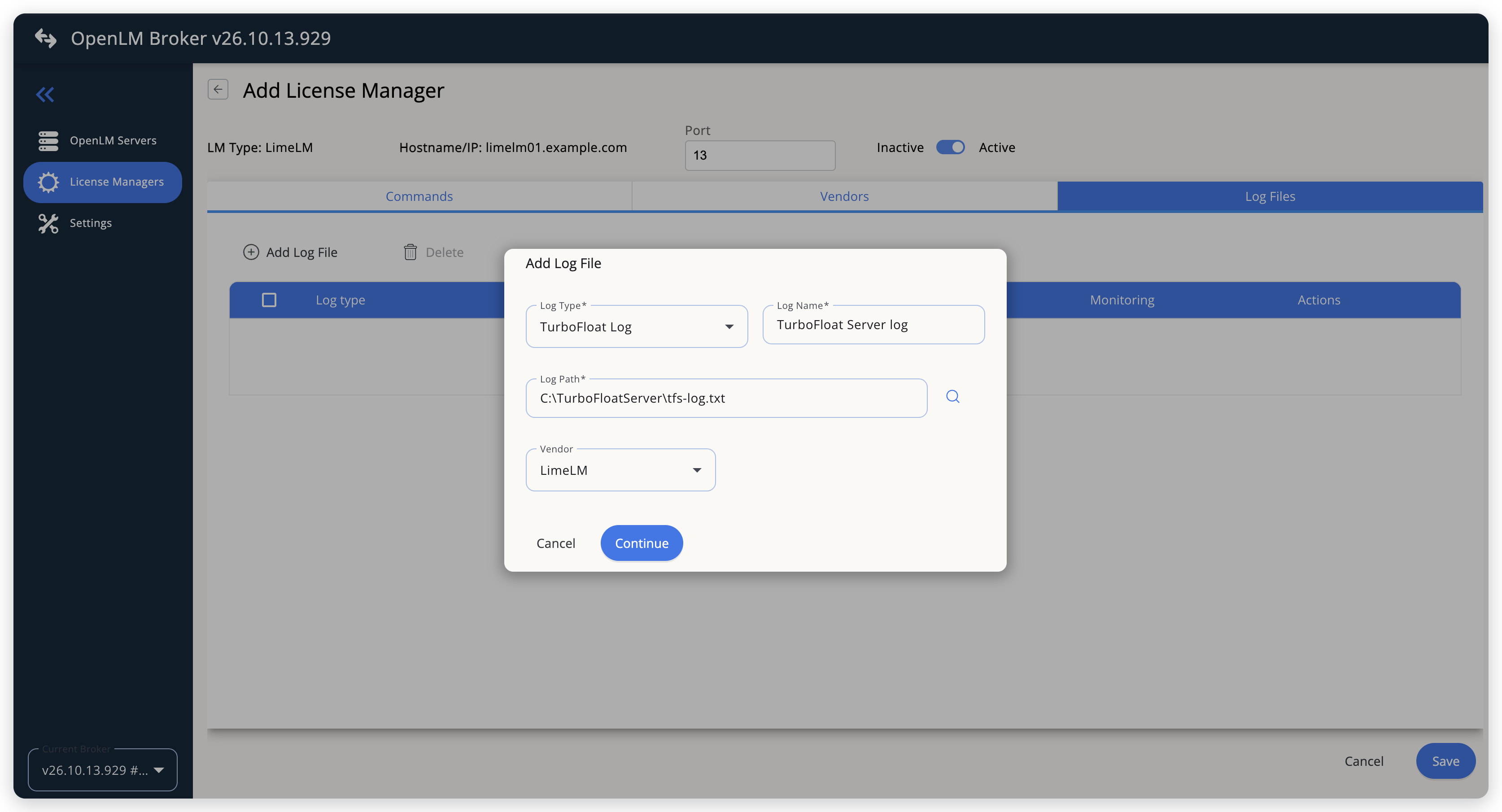 Point Broker at the TurboFloat Server log
-
Select Continue, then select Save.
OpenLM SLM configuration
Automatic configuration through EasyAdmin
If the preceding steps are complete, Broker reads the log every 10 seconds, by default, and reports LimeLM to OpenLM SLM. Approve the license server in EasyAdmin:
-
Open EasyAdmin (
http://<Server IP>:5015) and go to Start → Widgets → License Manager - Servers. -
Select the There are N servers pending approval link at the top of the widget.
The Administration - License Manager Servers window opens, with the pending entries at the top of the list.
-
Find the pending LimeLM entry, with the host name and the port that you configured in Broker, and select the edit icon at the end of its row.
Broker reports LimeLM with the OpenLM Generic protocol, so its Type is OpenLM Generic.
-
Optionally rename the connection in Display name, confirm the Host Name and Port, and select APPROVE.
Manual configuration through EasyAdmin
If automatic configuration fails:
-
Go to Start → Administration → License Manager Servers.
-
Select Add LM.
-
In Display name, enter a name for the connection, for example
LimeLM. -
From Type, select OpenLM Generic.
Use Broker turns on.
-
In the row under Host Name, Port, and Time Zone, enter the host name and the port exactly as configured in Broker for LimeLM, and select a time zone.
-
Select SAVE.
Verify your configuration
- Open EasyAdmin in your browser.
- Go to Start → Widgets → License Manager - Servers.
- Confirm that the LimeLM license server shows the Status Up to date.
- Go to Start → Widgets → Feature Usage Status and confirm that LimeLM shows the total number of leases in Quantity and the number of leases in use in Used.
- Go to Start → Reports → License Activity, select Include Current Activity, and select Apply. Confirm that each lease appears with its username and the IP address of the computer as the workstation.
Troubleshooting
If LimeLM never appears as pending in EasyAdmin, confirm that the Broker reports to OpenLM SLM: other license managers on the same Broker update in EasyAdmin.
If the license server is approved but shows no LimeLM feature or no usage, check these points:
- The
levelof the<log>element isnotification, and TurboFloat Server was restarted after the change. - Log Path points at the file in the
fileattribute of the<log>element. A relative path in that attribute is relative to the folder of the TurboFloat Server executable. - The log holds
New lease assignedlines. If it does not, no application has taken a lease since the server started to log at thenotificationlevel.
If OpenLM shows fewer leases in use than the Used / Total leases count in the log, one user holds several leases on one computer, which Broker counts as one session, or the server assigned leases before it logged at the notification level. See Known limitations.
The Broker log holds the detail, in the logs folder of the Broker installation.
Known limitations
- Broker does not report expiration dates, denied requests, borrowed licenses, or license allocations, and does not upload usage history. Usage in OpenLM starts when you configure the license manager.
- Every lease is reported under the feature
LimeLM, whatever the application. When you monitor several TurboFloat Servers, tell their usage apart by license server. - Broker matches leases by username and IP address. Leases that one user holds on one computer at the same time count as one session, and the first release or expiry among them ends it.
- The workstation is the IP address of the client computer, not its name.
- Leases that the server assigned before it logged at the
notificationlevel are missing from OpenLM. - Broker does not check whether TurboFloat Server is running. OpenLM shows the license server as up while Broker reports it.
The documentation team might draft this page using a large language model. A technical writer reviews every page and verifies it against the product before publishing it. A human makes the final decision.