LS-DYNA
You must have OpenLM Broker installed and reporting to OpenLM SLM before starting this configuration.
General
LS-DYNA is a finite element simulation tool developed by Livermore Software Technology Corporation (LSTC). LS-DYNA includes peripheral tools such as LS-OPT, LS_PREPOST, LS_TASC, and THUMS. Together they cover a wide range of physics simulation topics, from fluid dynamics to car safety.
LS-DYNA uses a proprietary license manager to control deployment of network licenses. Use OpenLM to view license utilization, analyze usage statistics and patterns, and manage idle licenses.
OpenLM supports multiple license managers such as Flexera FlexNet Publisher (FlexLM) and Sentinel RMS. This document explains how to configure OpenLM to monitor LS-DYNA licenses.
There are two ways to query the LS-DYNA license server:
- Query the license server directly from OpenLM SLM.
- Query the license server locally using OpenLM Broker and forward the information to OpenLM SLM.
OpenLM SLM direct method
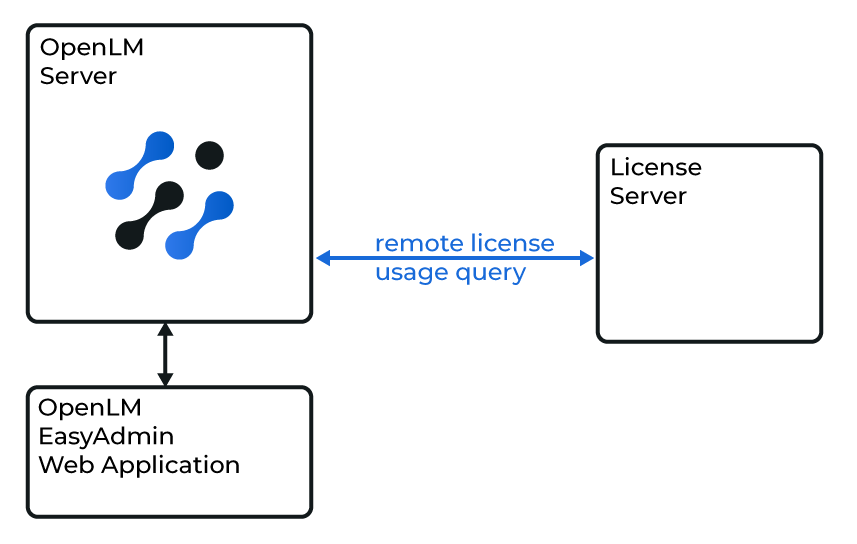
OpenLM SLM interfacing directly with LS-DYNA license manager.
Activating OpenLM SLM to interface with LS-DYNA
To configure OpenLM SLM:
-
In EasyAdmin, go to Start → Administration → License Manager Servers.
-
Select the LM Tools tab and select LSDYNA.
-
Copy the
lstc_qrun.exeandlstc_qkill.exefiles to a folder on the OpenLM SLM machine, for example:C:\Program Files\OpenLM\OpenLM Server\LM\ -
Enter the paths to these files in EasyAdmin.
-
Select Save.
-
Restart the OpenLM Server service in Windows Services.

Configuring LS-DYNA tools in EasyAdmin.
Adding a new LS-DYNA server
- In EasyAdmin, go to Start → Administration → License Manager Servers → LM Servers tab.
- Select Add License Manager.
- From the Type drop-down menu, select LSDYNA.
- Enter a descriptive name in the Display Name field (for example, LS-DYNA license server).
- Set the Time zone to match the license server location.
- Enter the Hostname and Port (for example,
lsdyna_license_serverand31010). - Leave Is Triad Configuration unchecked. Multiple server redundancy is not supported for LS-DYNA.
- Leave Use Broker unchecked.
- Select Save.
- Restart the OpenLM Server service in Windows Services.

Adding LS-DYNA server in EasyAdmin.
Your OpenLM SLM is now able to monitor LS-DYNA licenses.
Monitoring with Broker

How Broker interfaces with OpenLM SLM.
Install and configure OpenLM Broker on the LS-DYNA license server machine. Broker queries the license server locally and forwards data to OpenLM SLM. It also provides buffered communication to overcome network failures and security restrictions.
OpenLM Broker configuration
- Download and install the latest OpenLM Broker version from the Downloads page.
- In Broker, select the license manager node. Select Add Port if Auto-Detect did not detect LS-DYNA.
- Configure Broker to monitor the LS-DYNA license server (for example,
lsdyna_license_server) on port31010. - In the Commands node, enter the full path to
lstc_qrun.exe. - Select Apply.

Configuring commands for LS-DYNA in Broker.
- Go to the Vendors node and enter the vendor name.
- Select Restart Broker.
- You can also use the Broker web UI for configuration.

LS-DYNA configuration in Broker web UI.
Verifying configuration
To verify the LS-DYNA configuration:
- Open EasyAdmin in your browser.
- Select the link under Pending Approval and approve LS-DYNA.
- Confirm that the license manager appears in the list.
A green circle node indicates an active connection.

Approving LS-DYNA in EasyAdmin.

LS-DYNA server approved in EasyAdmin.

LS-DYNA license manager active connection indicator.
Troubleshooting
Why does LS-DYNA show a red or Unknown status?
OpenLM decides whether the LS-DYNA server is up from the output of lstc_qrun -s <port>@<host>. The Broker marks the server as up when the output contains Running Programs, and OpenLM SLM accepts Running Programs or No programs running. Until the output matches, the server stays red in the Broker or Unknown in EasyAdmin, and OpenLM doesn't record usage.
- On the license server, run
lstc_qrun -s 31010@<license server>and check that the output contains one of those phrases. - In the Broker Commands node, check that the paths lead to the
lstc_qrun.exeandlstc_qkill.exefiles that came with LS-DYNA. - Check that the Broker writes a log for the LS-DYNA port. In the Broker
logsfolder, look for a file whose name starts withport-31010-. If there's none, the Broker isn't monitoring that port: check the port of the LS-DYNA license manager in the Broker. - Select Apply, then Restart Broker, and allow a few minutes for the status to update.
If the status still doesn't turn green, collect full logs from OpenLM SLM and the Broker and send them to OpenLM Support.
The documentation team might draft this page using a large language model. A technical writer reviews every page and verifies it against the product before publishing it. A human makes the final decision.