MSC Licensing Helium and Beryllium
Follow these steps to monitor MSC Licensing Helium or MSC Licensing Beryllium with OpenLM, including the MSC One tokens that MSC products draw from a shared pool. Both versions run the MSC License Server, a FlexNet license server with the vendor daemon MSC. OpenLM Broker monitors it with the FLEXlm license manager type and reports it to OpenLM SLM, which reads it as any FlexLM license server. Broker has no separate license manager type for MSC.
Requirements
Before starting, make sure you have:
- OpenLM SLM, with access to EasyAdmin.
- OpenLM Broker installed on the MSC license server machine and reporting to OpenLM SLM. Broker reads the license file and the debug log from the disk of that machine.
- The port of the MSC License Server. The MSC installer suggests
27500by default. - The path of the MSC license file,
license.dat. The license file can be anywhere on the license server. MSC recommends the installation folder of MSC Licensing, for exampleC:\Program Files\MSC.Software\MSC Licensing\Helium\license.datorC:\Program Files\MSC.Software\MSC Licensing\Beryllium\license.dat. - (Optional) The path of the FlexNet debug log, if you want OpenLM to report denials. MSC Licensing keeps its log files in the folder that you chose for them during installation. The defaults are
C:\MSC.Software\MSC Licensing\Helium\LOGandC:\MSC.Software\MSC Licensing\Beryllium\LOGon Windows, and/msc/MSC.Software/MSC Licensing/LOGon Linux.
Monitoring capabilities
Broker collects 3 kinds of data on the MSC license server machine and sends them to OpenLM SLM:
- Usage: Broker runs
lmutil lmstatagainst the license server, and reports each feature with its totals and the sessions that hold it. - License file: With Watch License file turned on, Broker sends the license file. OpenLM reads the features, their quantities and expiration dates, and the MSC One token pools from it.
- Denials: From the FlexNet debug log, Broker reports the license requests that the license server denied.
MSC One licenses are token-based. In the license file, a pool feature holds the tokens, and each MSC product draws its own count of tokens from the pool while it runs. OpenLM treats a feature named MSCONE or CAMPUS as a token pool, and reports MSC One usage both for the pool and for each product, as described in MSC One token pools.
How OpenLM interfaces with MSC Licensing
 How OpenLM collects MSC Licensing data
Broker runs on the MSC license server machine and sends the license data to OpenLM SLM. For MSC Licensing, it runs lmutil and reads 2 files:
-
Commands: The periodic commands Status and Data Inquiry query the license server with
lmutil. Data Inquiry collects the usage:"<Executable path>lmutil" lmstat -a -c <port>@<Host> -i -
License file: Broker reads
license.datwhile Watch License file is on. -
Debug log: Broker reads the FlexNet debug log with the FlexLM Debug Log File log type. The log folder of MSC Licensing also holds the files of the MSC Usage Reporting Tool, such as
mscusage_<date>.ddu, which are not the debug log.
MSC One token pools
OpenLM needs the license file to report MSC One usage for each product. The pool and the products that draw from it appear in 3 places:
-
License file: Each product of a pool carries a
GROUP:entry with the name of the pool and aBLV:entry with the number of tokens that it draws. OpenLM records the product as part of the pool, with that number of tokens. For example:FEATURE MSCONE MSC 2026.1231 31-dec-2026 60 ...FEATURE ADAMS_View MSC 2026.1231 31-dec-2026 1 ... VENDOR_STRING="GROUP:MSCONE,1 BLV:5" ... -
lmstatoutput: A session on the pool names the product after the pool, for exampleMSCONE:ADAMS_View, and shows the number of tokens that it holds. OpenLM counts those tokens on the pool and on the product. For example:Users of MSCONE: (Total of 60 licenses issued; Total of 5 licenses in use)"MSCONE" v2026.1231, vendor: MSC, expiry: 31-dec-2026floating licensejdoe WS-1001 WS-1001 MSCONE:ADAMS_View (v2026.0101) (msclic01.example.com/27500 101), start Mon 10/19 9:15, 5 licenses -
Debug log: The same session appears with the product in square brackets, and OpenLM records the event for the pool and for the product. For example:
9:15:02 (MSC) OUT: "MSCONE" jdoe@WS-1001 [MSCONE:ADAMS_View] (5 licenses)
Without the license file, OpenLM doesn't know which feature is the pool, and reports the tokens of each session on the pool feature only.
OpenLM Broker configuration
Install OpenLM Broker on the MSC license server machine and confirm that it reports to OpenLM SLM before starting these steps.
-
Open a browser on the MSC license server machine and go to the Broker web UI at http://localhost:5090/.
-
Go to License Managers → Add License Manager.
-
From LM Type, select FLEXlm.
-
In Port, enter the port of the MSC License Server, for example
27500, and select Add. -
On the Settings tab, check that the list shows the path of the MSC license file.
If it doesn't, select Set license file path manually and Add license file path. Enter the path of
license.datin License file path, and select Continue. -
Turn on Watch License file, which is off when you add a license manager.
Broker then sends the license file to OpenLM SLM, which needs it to report MSC One usage for each product.
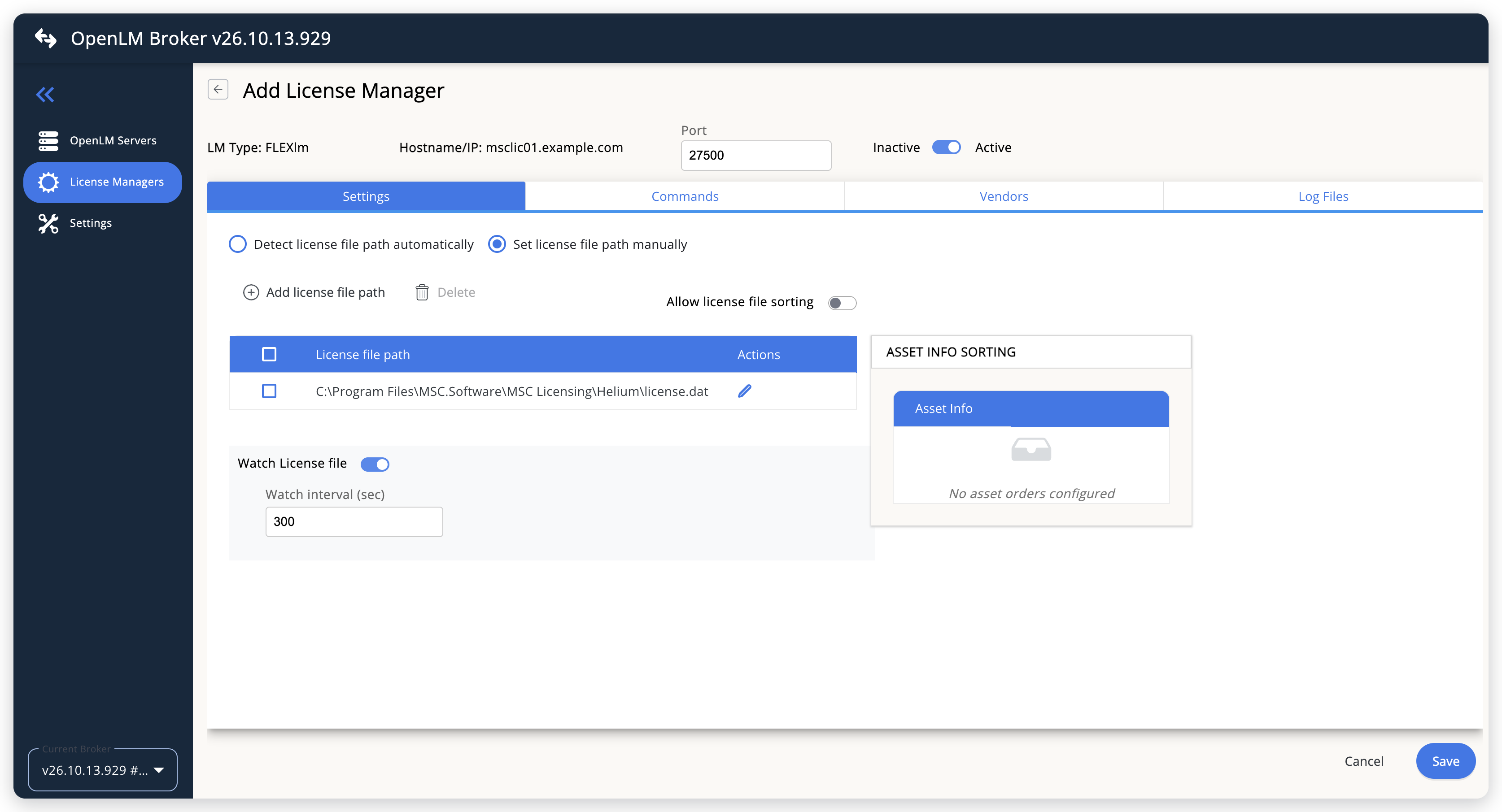 Point Broker at the MSC license file
-
(Optional) On the Commands tab, set Executable path to the installation folder of MSC Licensing, for example
C:\Program Files\MSC.Software\MSC Licensing\Helium.By default, Executable path is the
tools64folder of the Broker installation, and Broker runs its own copy oflmutil. With the installation folder of MSC Licensing, Broker runs thelmutilof MSC Licensing instead. -
On the Vendors tab, select Add Vendor, enter
MSCin Vendor name, and select Continue. -
(Optional) To report denials, open the Log Files tab and select Add Log File. Keep FlexLM Debug Log File in Log Type and MSC in Vendor. Enter the path of the FlexNet debug log in Log Path, for example
C:\MSC.Software\MSC Licensing\Helium\LOG\lmgrd.log, and select Continue.Enter the path of the FlexNet debug log, not of a file of the MSC Usage Reporting Tool from the same folder.
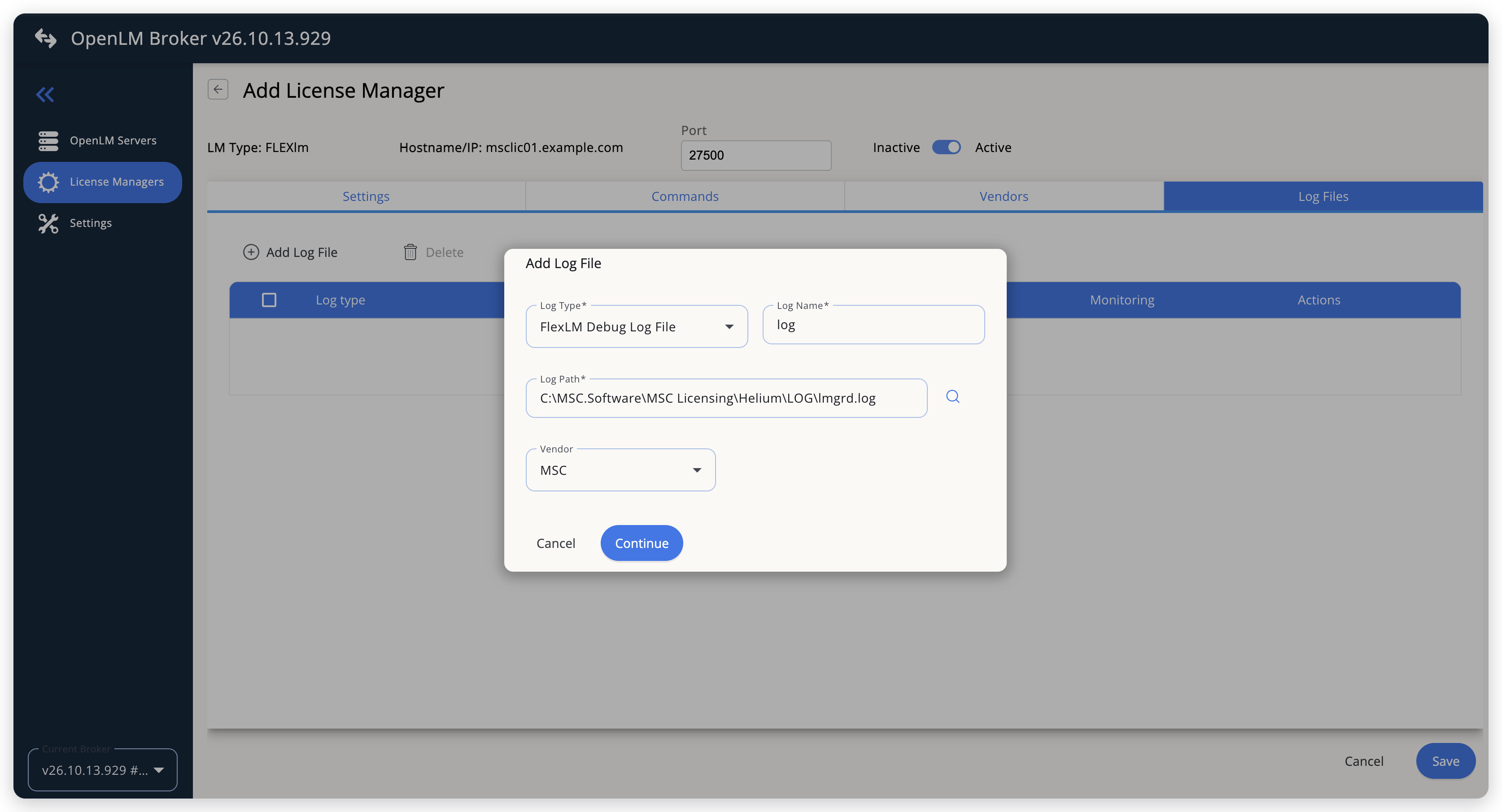 Add the FlexNet debug log of MSC Licensing
-
Select Save.
OpenLM SLM configuration
Automatic configuration through EasyAdmin
If the preceding steps are complete, Broker reports the MSC License Server to OpenLM SLM with the type FLEXlm. Approve it in EasyAdmin, then turn on Read License File:
-
Open EasyAdmin (
http://<Server IP>:5015) and go to Start → Widgets → License Manager - Servers. -
Select the There are N servers pending approval link at the top of the widget.
The Administration - License Manager Servers window opens, with the pending entries at the top of the list.
-
Find the pending entry with the host name and the port of the MSC License Server, as you configured them in Broker, and select the edit icon at the end of its row.
-
Keep the Type FLEXlm, optionally rename the connection in Display name, confirm the Host Name and Port, and select APPROVE.
-
Go to Start → Administration → License Manager Servers, select the edit icon at the end of the MSC license server's row, turn on Read License File, and select SAVE.
Manual configuration through EasyAdmin
If automatic configuration fails:
- Go to Start → Administration → License Manager Servers.
- Select Add LM.
- In Display name, enter a name for the connection, for example
MSC Licensing. - From Type, select FLEXlm.
- Turn on Use Broker and Read License File.
- In the row under Host Name, Port, and Time Zone, enter the host name and the port exactly as configured in Broker, and select a time zone.
- Select SAVE.
Verify your configuration
- Open EasyAdmin in your browser.
- Go to Start → Widgets → License Manager - Servers.
- Confirm that the MSC license server shows the Type FLEXlm and the Status Up to date.
- Go to Start → Operational → Currently Consumed Licenses, and confirm that the sessions of your MSC products appear.
Troubleshooting
If MSC One tokens appear only on the pool feature, such as MSCONE, and not on the products that draw them, OpenLM doesn't read the license file. Check both settings:
- In the Broker web UI, Watch License file is on, and the Settings tab lists the path of the MSC license file.
- In EasyAdmin, Read License File is on for the license server, as described in OpenLM SLM configuration.
If features of the license file are missing in EasyAdmin, or their quantities don't change, check the version of OpenLM SLM. OpenLM SLM v26.9.11.1058 fixed MSC license files whose products belong to a pool but have no MSCONE or CAMPUS feature. After you update, select Reset in the Read License File column of the license server in License Manager - Servers, so that OpenLM reads the license file again.
If no denials appear, check that the Log Files tab of the license manager lists the FlexNet debug log with the FlexLM Debug Log File log type and the vendor MSC.
The documentation team might draft this page using a large language model. A technical writer reviews every page and verifies it against the product before publishing it. A human makes the final decision.