NI VLM
Follow these steps to monitor NI Volume License Manager (NI VLM) with OpenLM, including the licenses that NI VLM disconnects for computers that are isolated from your network. NI VLM runs a FlexNet license server, so OpenLM Broker queries it with lmutil, as it does a FLEXlm license server. With the NIVLM license manager type, Broker also runs nivlmcmd.exe, the command-line tool of NI VLM, to export the disconnected licenses, and reports each one to OpenLM SLM as a borrowed license. In EasyAdmin, you then see which computer holds each disconnected license and when it expires.
Requirements
Before starting, make sure you have:
- OpenLM SLM, with access to EasyAdmin.
- OpenLM Broker v26.7.8.1247 or higher, installed on the NI VLM server machine and reporting to OpenLM SLM. Earlier Broker releases do not list NIVLM as a license manager type. Broker must run on that machine, because it runs
nivlmcmd.exelocally. - NI Volume License Manager 2025 Q4 or higher. NI added the
disconnected-usageexport tonivlmcmd.exein that version. nivlmcmd.exein the NI VLM installation folder, by defaultC:\Program Files (x86)\National Instruments\Volume License Manager\nivlmcmd.exe.- A Broker service that runs with administrator rights on the NI VLM server.
nivlmcmd.exedoes not run without them. - The Main Licensing Port of NI VLM. The default is
27000. To check it, open NI VLM and go to Tools → Preferences → General.
Monitoring capabilities
With the NIVLM type, Broker sends OpenLM SLM the same lmstat report of the license server as the FLEXlm type, with 2 changes:
- Disconnected licenses: Broker adds each license from the
nivlmcmd.exeexport to its feature, as a borrowed license. It raises both the issued total and the in-use count of the feature by the number of disconnected licenses that it adds. - Reservations: Broker removes every reservation line from the report, and subtracts the reserved licenses from the licenses in use. In the
lmstatreport of NI VLM, disconnected licenses appear among the reservations for host groups, and the report does not show which reservations are disconnected.
For each disconnected license, Broker reports:
- Feature name: the
PackageNamevalue of the export, for exampleLabVIEW_Pro_PKG. - Username and Workstation: the computer name in
ClientName. From NI VLM 2026 Q3, NI disconnects only computer-based licenses. - Start time: the
CreationDateTimeUTCvalue, when NI VLM created the disconnected license. - Linger time: the time from
CreationDateTimeUTCtoExpirationDateTimeUTC, the expiration of the disconnected license.
How OpenLM interfaces with NI VLM
 How OpenLM collects NI VLM license usage
Broker runs on the NI VLM server machine and sends the license data to OpenLM SLM. For NI VLM, it runs 2 command-line tools and reads no log file.
-
Commands: The Data Inquiry command holds 2 commands, separated by a semicolon, and runs every 55 seconds by default:
"<Executable path>lmutil" lmstat -a -c <port>@<Host> -i;"<Executable path>nivlmcmd.exe" disconnected-usage {$destination_path}Broker runs
lmutilfirst andnivlmcmd.exesecond, on every run. A failure of one does not stop the other. -
Export:
nivlmcmd.exewrites the licenses that are disconnected at that moment to a CSV file named after the date and time, such asnivlm-disconnected-usage-2026-10-23_09-15-42.csv. Broker replaces{$destination_path}with thenivlmfolder of the Broker installation, reads the newest file there, and deletes all but the 2 newest files. A file has 1 row per disconnected license:LicenseName,PackageName,ClientName,IsUser,HostIdLockedTo,CreationDateTimeUTC,ExpirationDateTimeUTC,ReconnectDateTimeUTC,ReconnectReasonLabVIEW Professional Development System,LabVIEW_Pro_PKG,WS-1001,False,0A1B2C3D4E5F,2026-10-01 08:30:00,2027-01-31 22:59:59,,Broker reads
PackageName,ClientName,CreationDateTimeUTC, andExpirationDateTimeUTC, and ignores the other columns. -
Report: Broker adds each row to the
Users of <PackageName>:block of thelmstatoutput, in the form of a borrowed license, with the linger time in seconds:WS-1001 WS-1001 WS-1001 (nivlm01.example.com/27000 1), start Thu 10/1 08:30 (linger: 10592999)Broker adds a row only when the
lmstatoutput has a block for itsPackageName, and drops the other rows. -
Sessions: Each data inquiry reports the licenses that are disconnected now. When the NI VLM administrator reconnects a computer, its licenses leave the export, so the next report no longer holds them.
-
Log files: None. The NIVLM type defines no log file type of its own, and the Log Files tab offers only Other.
Check NI VLM
Broker reports only what nivlmcmd.exe exports, so run the export by hand on the NI VLM server first.
-
Close NI Volume License Manager in every session on the server, including disconnected Remote Desktop sessions of other users.
nivlmcmd.exedoes not run while the NI VLM user interface is open. -
Open Command Prompt as administrator, and run the export to a folder that exists, for example
C:\Temp:"C:\Program Files (x86)\National Instruments\Volume License Manager\nivlmcmd.exe" disconnected-usage C:\TempThe tool answers
Report exported successfully to, followed by the path of the new CSV file. -
Open the CSV file, and confirm that it lists the disconnected licenses that you expect, with 1 row per license.
OpenLM Broker configuration
Install OpenLM Broker on the NI VLM server machine and confirm that it reports to OpenLM SLM before starting these steps.
-
Open a browser on the NI VLM server machine and go to the Broker web UI at http://localhost:5090/.
-
On the License Managers page, set Host to the host name of the NI VLM server machine, and select the save icon next to the field.
Set Host before you add the license manager, because Broker writes the host name into the
lmutilcommand when you add it. -
If Broker already monitors this NI VLM server as FLEXlm, note the settings of that license manager, such as the license file path, and delete it from the License Managers list.
Broker refuses a port that another license manager on this Broker already uses, even a disabled one, and the NIVLM type queries the same port.
-
Go to License Managers → Add License Manager.
-
From LM Type, select NIVLM, not FLEXlm.
-
In Port, enter the Main Licensing Port of NI VLM, for example
27000, and select Add.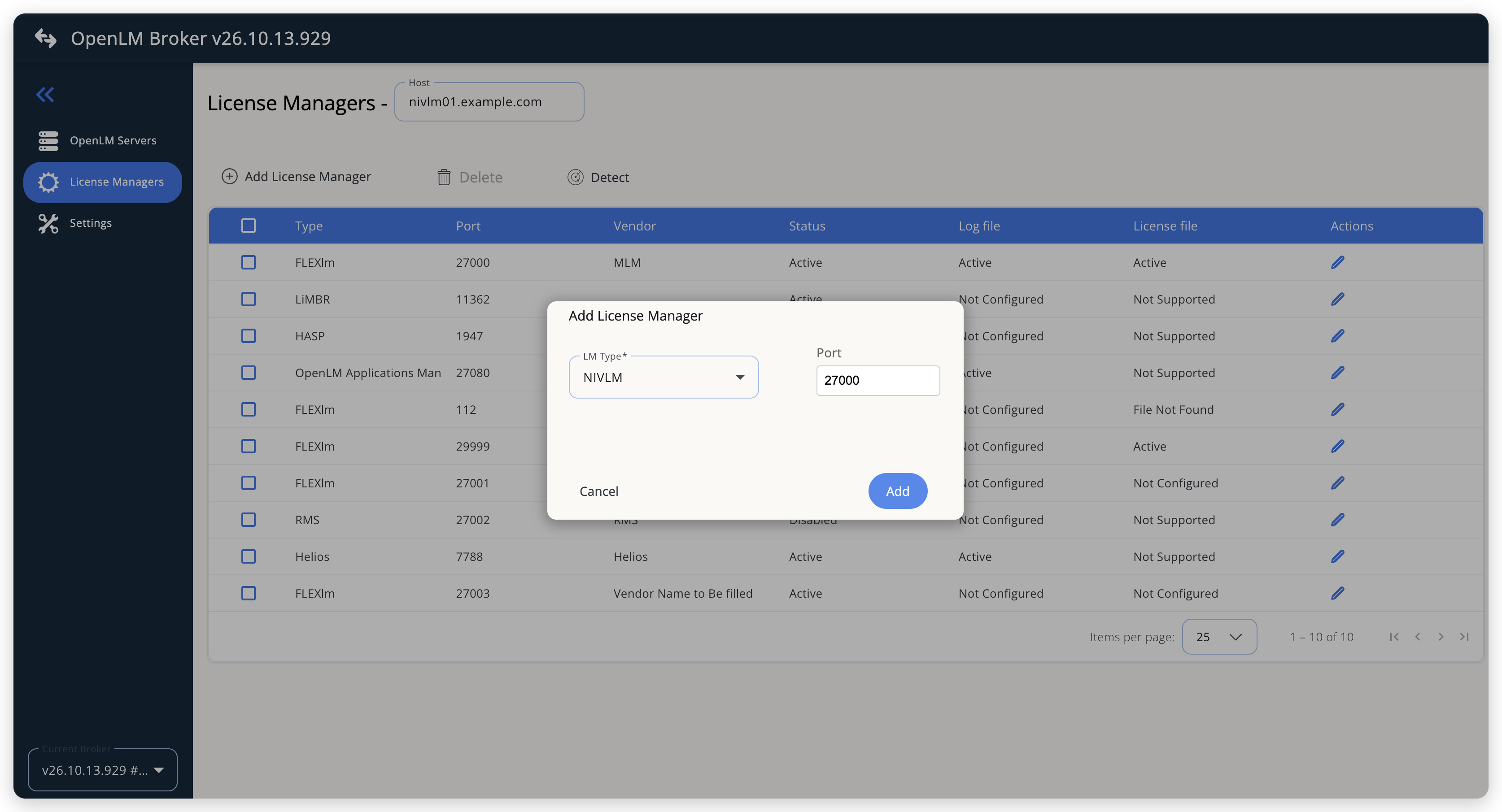 Add NI VLM as a license manager
-
On the Commands tab, select Data Inquiry, and change the path of
nivlmcmd.exein the command.Broker fills in both commands with the Executable path, the
tools64folder of the Broker installation.lmutilruns from that folder, butnivlmcmd.exeis in the NI VLM installation folder. Replace the path in front ofnivlmcmd.exewith that folder, and leave the rest of the command as it is:"C:\Program Files\OpenLM\OpenLM Broker\tools64\lmutil" lmstat -a -c 27000@nivlm01.example.com -i;"C:\Program Files (x86)\National Instruments\Volume License Manager\nivlmcmd.exe" disconnected-usage {$destination_path}Keep
{$destination_path}. Broker reads the export only from thenivlmfolder of the Broker installation, and replaces{$destination_path}with that folder when the command runs. Broker runs the command every 55 seconds (Watch interval (sec)).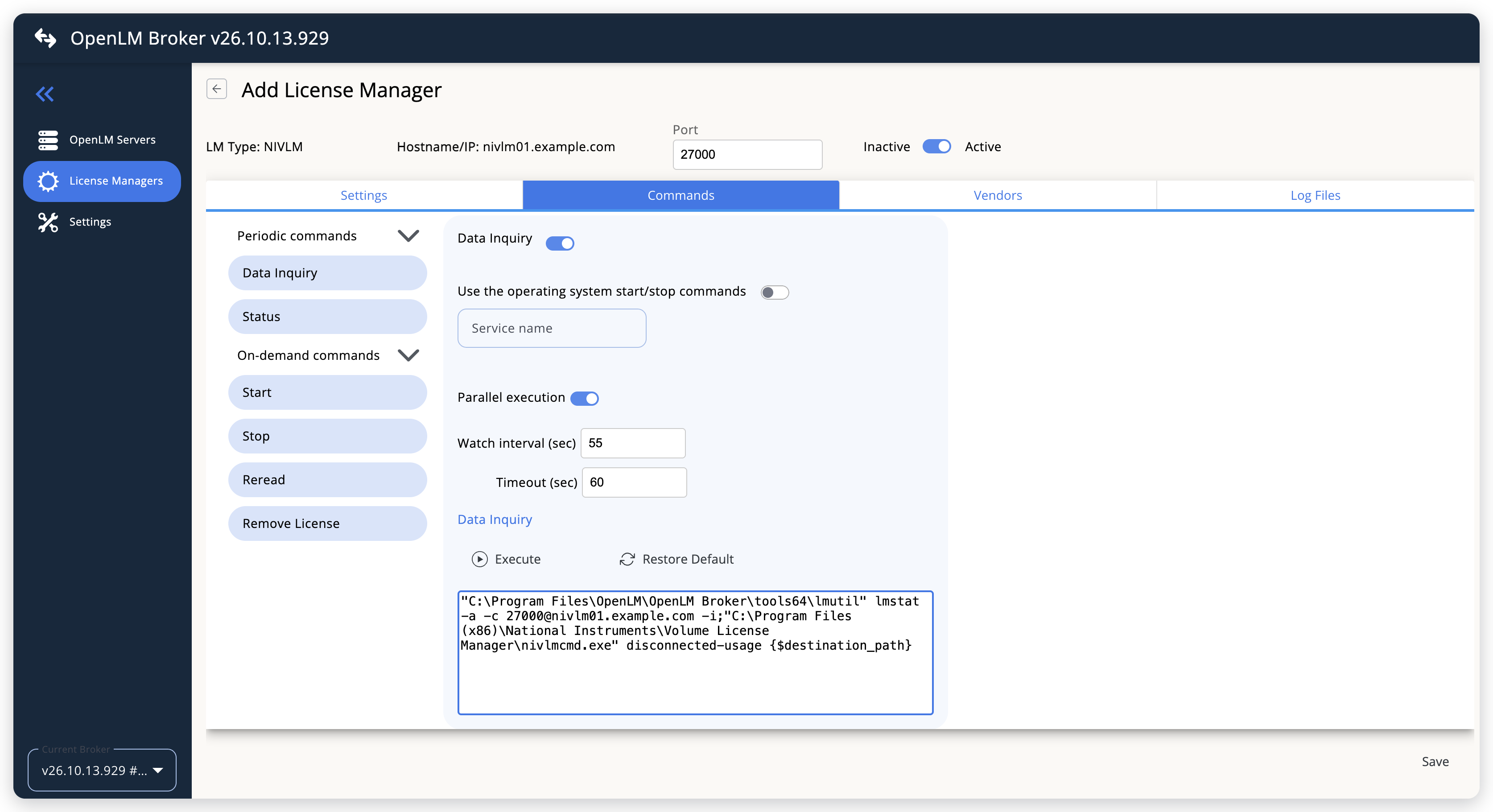 Point the Data Inquiry command at nivlmcmd.exe
When you change Executable path later, or select Restore Default, Broker puts back the default command. Change the path of
nivlmcmd.exeagain afterwards. -
Leave the Vendors and Log Files tabs as they are, and select Save.
The Vendors tab lists a vendor named NIVLM, which Broker adds for this type.
OpenLM SLM configuration
Approve the license server with the FLEXlm type. The report of the NIVLM type is lmstat output with the disconnected licenses added, and OpenLM SLM reads it as FLEXlm output.
-
Open EasyAdmin (
http://<Server IP>:5015) and go to Start → Widgets → License Manager - Servers. -
Select the There are N servers pending approval link at the top of the widget.
The Administration - License Manager Servers window opens, with the pending entries at the top of the list.
-
Find the pending entry with the host name and the port of the NI VLM server, as you configured them in Broker, and select the edit icon at the end of its row.
-
Set the Type to FLEXlm, optionally rename the connection in Display name, confirm the Host Name and Port, and select APPROVE.
Verify your configuration
- Open EasyAdmin in your browser.
- Go to Start → Widgets → License Manager - Servers.
- Confirm that the NI VLM license server appears with the type FLEXlm and the status Up to date, and that Borrowed includes the disconnected licenses.
- Go to Start → Operational → Currently Consumed Licenses, and confirm that each disconnected license appears with a check mark in Borrowed, the computer name in Username and Workstation, and its expiration in Linger Due.
Troubleshooting
Broker writes the messages of this license manager to port-<port>-NIVLM.log, for example port-27000-NIVLM.log, in the logs folder of the Broker installation. The messages in this section are ERROR messages, so they appear at the default log level. Compare the log with these cases:
NiVLM nivlmcmd sub-command failed, followed by the reason. Broker cannot runnivlmcmd.exe. Check the path ofnivlmcmd.exein the Data Inquiry command, as described in OpenLM Broker configuration.NiVLM nivlmcmd produced no CSV content in, followed by the folder. Thenivlmfolder holds no export. Run the export by hand, as described in Check NI VLM. If the tool answersError 17001: NI Volume License Manager is already running., the NI VLM user interface is open in a session on the server. Close it in every session. If the export works by hand but not from Broker, check that the Broker service runs with administrator rights. Without them,nivlmcmd.exeanswersPlease run the application as an administrator.NiVLM lmutil sub-command produced no output. Broker cannot query the license server. Check the port and Host of the license manager.
If a disconnected license is in the export but not in OpenLM, compare its PackageName with the features of the license server. Broker adds a row only to a feature that the lmstat output lists with the same name, and drops the other rows without an ERROR message.
Known limitations
These limits apply to NI VLM monitoring with the NIVLM type:
- Broker exports only the licenses that are disconnected at the time of the data inquiry. OpenLM gets no history of the licenses that NI VLM disconnected before you configured the license manager.
- Broker removes every reservation line from the
lmstatreport, including reservations that are not disconnected licenses. OpenLM shows no reservations for this license server. - Each disconnected license arrives with the computer name as both the username and the workstation.
- A disconnected license that never expires,
Permanentin the export, has no linger time. Broker adds it without one, so it is not marked as borrowed. - When
nivlmcmd.exefails, Broker reads the newest export that is already in thenivlmfolder. OpenLM then keeps showing the disconnected licenses of that export until an export succeeds. - The NIVLM type has no FlexLM Debug Log File log type, the log from which the FLEXlm type reads denials.
- The default Data Inquiry command looks for
nivlmcmd.exein the Broker tools folder. Change its path by hand, as described in OpenLM Broker configuration. - Detect on the License Managers page does not add NIVLM license managers. Add the license manager by hand.
The documentation team might draft this page using a large language model. A technical writer reviews every page and verifies it against the product before publishing it. A human makes the final decision.