OGI License Manager
Follow these steps to monitor the floating licenses of Shearwater Reveal with OpenLM. Reveal takes its floating licenses from the OGI license server, ogi_license_server.exe, which runs on the machine that the license key is issued for and listens on port 14821 by default. OpenLM Broker runs license_stats.py, the status script in the Reveal installation, and reports each feature to OpenLM SLM with its total, the licenses in use, and the users who hold them. From the license key file, Broker adds the totals and the expiration date.
Requirements
Before starting, make sure you have:
- OpenLM SLM installed on a machine in your organization, or a Software License Management Cloud (SLMC) account.
- OpenLM Broker v26.7.8.1247 or higher, installed on the machine that runs the OGI license server and reporting to OpenLM SLM. Broker v26.1.20.946 is the first release that lists OGI as a license manager type. Broker v26.4.30.958 fixed sessions that closed with the same start and end time, and v26.7.8.1247 reports unlimited licenses as unlimited instead of as a count such as 999999. Install Broker on the license server machine, because that machine holds the Reveal installation with
license_stats.pyand the license key file that the server reads. - The OGI license server running with its license key. The Reveal manual describes 2 ways to start it: by hand from the Reveal installation, or as the
revealicsystemd service. - Python 3 on the license server machine, available to the Broker service as
python3. Broker runslicense_stats.pywithpython3on Linux and withpythonon Windows. Reveal itself requires Python 3.6 or higher. - The
src/binfolder of the Reveal installation, which holdslicense_stats.py, for example/apps/reveal-time-6.2-XXXX-XX-XX/src/bin/. - The path of the license key file that the license server reads.
Monitoring capabilities
The current monitoring capabilities for OGI through OpenLM Broker are:
| LM Type in the Broker | Commands | Logs | Quantity | Expiration date | Denied | Borrowing | Allocations | Report resolution |
|---|---|---|---|---|---|---|---|---|
| OGI | Yes | No | Yes | Yes | No | No | No | 55 seconds |
For each FEATURE block in the license_stats.py output, Broker reports:
- Feature name: the name after
FEATURE, for exampleadvanced_land. - Version: the
versionvalue, for example20251231. When the block has noversionline, Broker takes the version from the license key file. - Total: the
countvalue. When the license key file lists the feature with acountof 1 or more, that count replaces the count in the output. A count that starts with999, such as999999, arrives as unlimited. - In use: the
# outvalue. - Username: the name before the
@in eachtokenline. Each token counts as 1 license. - Workstation: the host name in the
tokenline, without the display number after the colon. - Start time: none. The output holds no check-out times, so OpenLM SLM starts a session when a data inquiry first lists its token.
- Expiration date: the
valid_untildate of the license key file, for each feature that the file lists. Without the license key file, Broker reports no expiration dates. - License type: Broker reports every license as Floating.
- Vendor:
OGI, unless you add a vendor on the Vendors tab. Broker then reports the first vendor on that tab.
Broker reads no denied requests and no borrowed licenses from the license_stats.py output. Denials, borrowed licenses, and license allocations are not available.
How OpenLM interfaces with OGI
 How OpenLM collects OGI license usage
Broker runs on the license server machine and sends the license data to OpenLM SLM. Broker does not connect to the OGI license server itself. Its Data Inquiry command runs license_stats.py, which asks the license server for its licenses and the tokens that are checked out.
-
Commands: The license manager has 1 command, Data Inquiry, which runs
license_stats.pyevery 55 seconds by default. Broker builds the call from the Executable path, the port, and the Host of the license manager:python3 "<Executable path>license_stats.py" -l <port>@<Host>On Windows, the call starts with
python. The output holds 1 block per feature, with atokenline for each license that is checked out, for example:2.0FEATURE advanced_landversion = 20251231count = 999999# out = 2token = Hk3pQ9xZ (jdoe@ws014.example.com:3::-4831207765519023416) #ref = 1token = Tm8vR2cL (asmith@ws022.example.com:11::-5172390046118827731) #ref = 1FEATURE modelbuildingversion = 20251231count = 40# out = 1token = Hk3pQ9xZ (jdoe@ws014.example.com:3::-4831207765519023416) #ref = 1Broker reads the
FEATURE,version,count,# out, andtokenlines of each block, and ignores the other lines. -
License file: Broker reads the license key file again on every data inquiry, so a renewed key at the same path counts from the next run. Broker reads the file as JSON and uses 2 of its entries,
featuresandvalid_until, as in this excerpt:{"features" : {"advanced_land" : { "count" : 999999, "version" : 20251231 },"modelbuilding" : { "count" : 40, "version" : 20251231 }},"valid_until" : "12.31.2025"} -
Sessions: Each data inquiry reports every token in the output, and OpenLM SLM turns the consecutive reports into sessions.
-
Server status: Broker reports the server status as
okwhenever it reads the output, even when the output lists no feature. -
Log files: None. OGI has no log file types in Broker.
Check the license server
Broker sees only what license_stats.py prints, so run the script by hand on the license server machine first.
-
Open a terminal on the license server machine and run
license_stats.pywith the port and the host name of the license server:python3 /apps/reveal-time-6.2-XXXX-XX-XX/src/bin/license_stats.py -l 14821@ogi01.example.comUse the
src/binfolder of your Reveal installation, the port of your license server, and the host name of the license server machine. -
Confirm that the output lists a
FEATUREblock for each feature of your license, withversion,count, and# outlines, and atokenline for each license in use.If the script reports an error or lists no
FEATUREblock, check that the license server runs. Usesudo systemctl status revealicwhen it runs as therevealicservice, orps -ef | grep ogiwhen you started it by hand. -
Note the path of the license key file. The license server reads the file that ends its command line, after
ogi_license_server.exeor in theExecStartline ofrevealic.service.
OpenLM Broker configuration
Install OpenLM Broker on the license server machine and confirm that it reports to OpenLM SLM before starting these steps.
-
Open a browser on the license server machine and go to the Broker web UI at http://localhost:5090/.
-
On the License Managers page, set Host to the host name of the license server machine, and select the save icon next to the field.
Broker passes this name to
license_stats.py, and OpenLM lists the license server under it. Set Host before you add the license manager, because Broker writes the host name into the command when you add OGI. -
Go to License Managers → Add License Manager.
-
From LM Type, select OGI.
-
In Port, enter the port of the license server, and select Add.
The port is
14821unless Shearwater issued your license key for another port, and theportentry of the license key file holds it. Broker passes the port tolicense_stats.py, and OpenLM identifies the license server by the host name and the port together. Broker refuses a port that another license manager on this Broker already uses.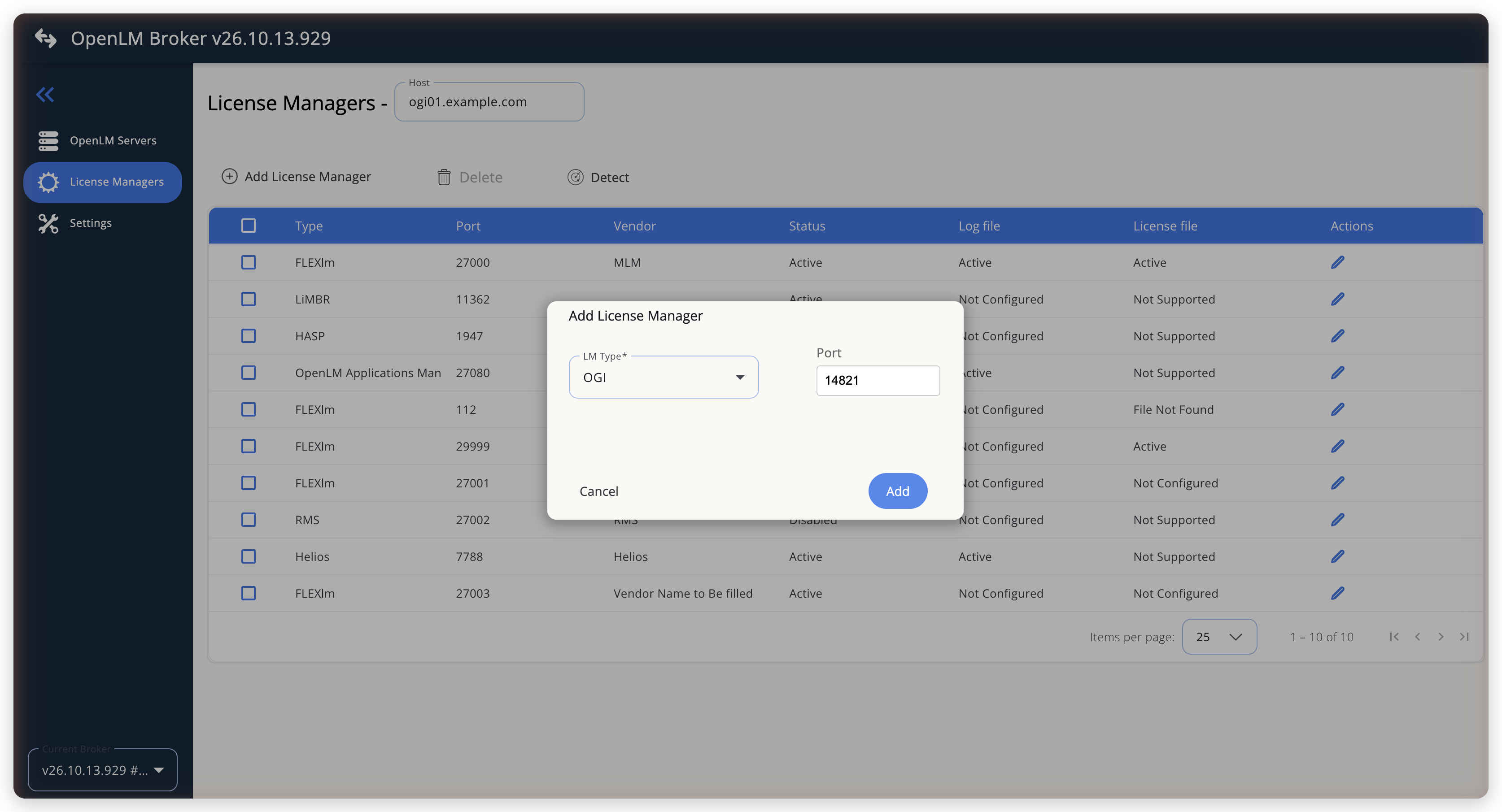 Add OGI as a license manager
-
On the Settings tab, add the license key file:
- Select Set license file path manually.
- Select Add license file path.
- In License file path, enter the full path of the license key file, for example
/tmp/license-skywalker-12-12-2012-al-am, or select the browse button to find it. - Select Continue.
Add 1 license file path only. Broker reads 1 file for OGI, and finds no file when the list holds more than 1 path. Without the file, Broker still reports the features and the licenses in use, with the totals of the output and no expiration dates.
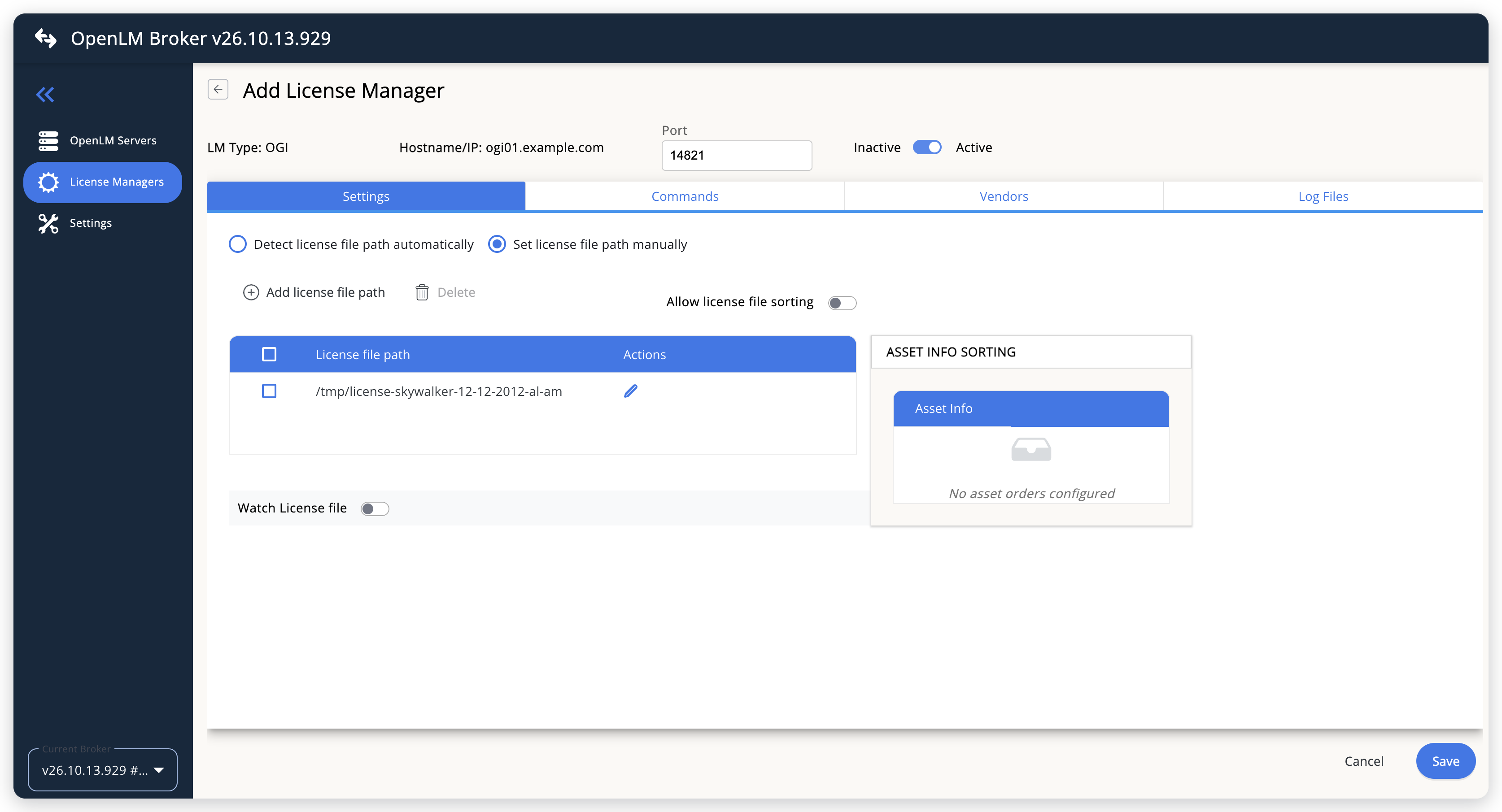 Point Broker at the license key file
-
On the Commands tab, in Executable path, enter the
src/binfolder of the Reveal installation, for example/apps/reveal-time-6.2-XXXX-XX-XX/src/bin/.Broker puts this path in front of
license_stats.py, and adds the path separator when the path does not end with one. -
Select Data Inquiry and check the command.
Broker fills it in as
python3 "license_stats.py" -l 14821@<Host>, with your port and Host, and adds Executable path to it when you save. On Windows, the command starts withpython, as in the screenshot. Broker runs the command every 55 seconds (Watch interval (sec)), and stops a run that takes longer than 60 seconds (Timeout (sec)). Leave the command as it is.If you need to edit the command, for example to give the full path of
python3, edit it last. When you change Executable path or Port and save, Broker rebuilds the command from its default.Leave Use the operating system start/stop commands off.
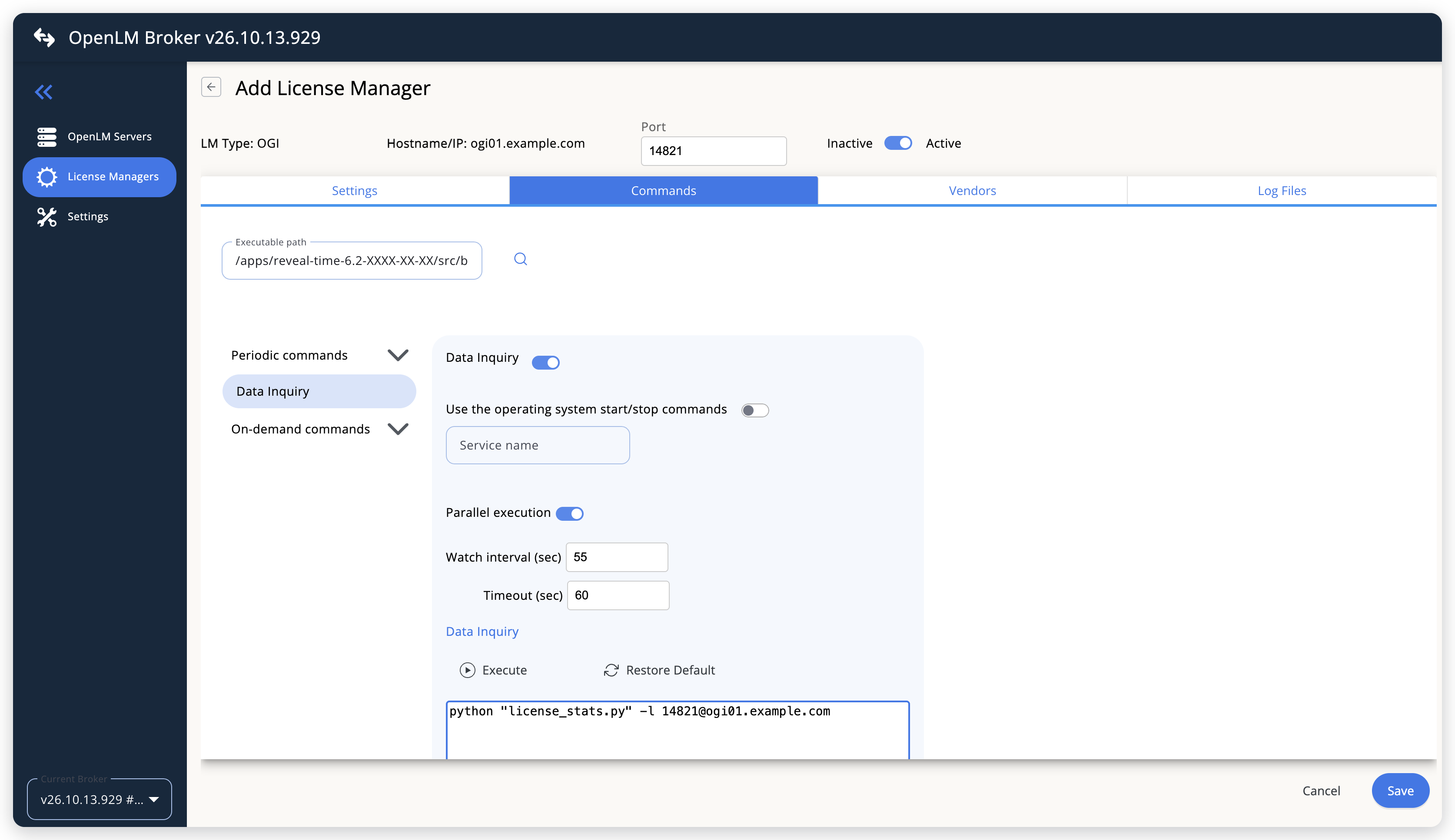 Point Broker at license_stats.py
-
Leave the Vendors and Log Files tabs as they are, and select Save.
With no vendor on the Vendors tab, Broker reports the vendor as
OGI. Add a vendor only to report another name, such asShearwater, the maker of Reveal. OGI reads no log file.
OpenLM SLM configuration
Automatic configuration through EasyAdmin
If the preceding steps are complete, Broker runs the Data Inquiry command and reports the OGI license server to OpenLM SLM. Approve the license server in EasyAdmin:
-
Open EasyAdmin (
http://<Server IP>:5015) and go to Start → Widgets → License Manager - Servers. -
Select the There are N servers pending approval link at the top of the widget.
The Administration - License Manager Servers window opens, with the pending entries at the top of the list.
-
Find the pending OGI entry, with the host name of the license server machine and its port, as you configured them in Broker, and select the edit icon at the end of its row.
Broker reports OGI with the OpenLM Generic protocol, so its Type is OpenLM Generic.
-
Optionally rename the connection in Display name, confirm the Host Name and Port, and select APPROVE.
Manual configuration through EasyAdmin
If automatic configuration fails:
-
Go to Start → Administration → License Manager Servers.
-
Select Add LM.
-
In Display name, enter a name for the connection, for example
OGI license server. -
From Type, select OpenLM Generic.
Use Broker turns on.
-
In the row under Host Name, Port, and Time Zone, enter the host name and the port exactly as configured in Broker for OGI, and select a time zone.
-
Select SAVE.
Verify your configuration
- Open EasyAdmin in your browser.
- Go to Start → Widgets → License Manager - Servers.
- Confirm that the OGI license server shows the Status Up to date.
- Go to Start → Widgets → Feature Usage Status and confirm that each feature, such as
advanced_landandmodelbuilding, shows the licenses in use in Used. - Go to Start → Reports → License Activity, select Include Current Activity, and select Apply. Confirm that each token appears with the username and the workstation from its
tokenline.
Troubleshooting
If OGI never appears as pending in EasyAdmin, confirm that the Broker reports to OpenLM SLM: other license managers on the same Broker update in EasyAdmin.
If the license server is approved but shows no features, or not the totals and dates that you expect, run license_stats.py by hand, as described in Check the license server. Then compare the result and the Broker log with these cases:
- The Broker log shows that the Data Inquiry command failed. Broker cannot run the script. Check Executable path on the Commands tab: the folder must hold
license_stats.py. Check also thatpython3runs for the account of the Broker service. - The command asks another host. You changed Host after you added OGI, and the command still holds the earlier name. Open OGI from the License Managers list, select Data Inquiry on the Commands tab, select Restore Default, and select Save.
License file not found, followed by a path. Broker cannot open the license key file, so the features arrive with the totals of the output and no expiration dates. Check that the Settings tab uses Set license file path manually with 1 path, and that the Broker service can read the file.Error parsing license file, followed by the path. The file is not a JSON license key file. Broker reports the features without the totals and dates of the file.No features found in license file, followed by the path. The file holds nofeaturesentry. Broker uses the totals and versions of the output, and reports no expiration dates.Failed to parse valid_until, followed by the value. Thevalid_untilentry is not in theMM.dd.yyyyform, such as12.31.2025, so the features arrive without an expiration date.
The Broker log is in the logs folder of the Broker installation, and the OGI license manager writes to port-<port>-OGI.log, for example port-14821-OGI.log. Broker logs at ERROR level by default. The messages License file not found, No features found in license file, and Failed to parse valid_until are WARN messages, so they appear only after you go to Settings → Broker Log Level, set Broker service to WARN, and select Save.
Known limitations
These limits apply to OGI monitoring:
- Broker does not report denied requests, borrowed licenses, or license allocations. It reads only the current output of
license_stats.py, so usage in OpenLM starts when you configure the license manager. - The output holds no check-out times. OpenLM starts a session when a data inquiry first lists its token, so a start time shows when Broker first saw the token, not when the user checked out the license. A session shorter than the watch interval of 55 seconds can be missed.
- Each token counts as 1 license, whatever its
#refvalue. - Broker treats every count that starts with
999as unlimited, so a real count such as 999 seats also arrives as unlimited. - Broker reports only the features that the output lists. The license key file gives 1 expiration date,
valid_until, to every feature that it lists, and a feature that the file does not list keeps the total of the output and has no expiration date. - When Reveal runs on one machine and shows its display on another, over SSH, the token holds both host names without a separator, for example
jdoe@app01.example.comws014.example.com:100. Broker reports the second name, the display machine, as the workstation only when the first name ends in.bizor.com.br. With any other domain, the workstation is both names joined. A display onlocalhostarrives as the workstationlocalhost. - The Data Inquiry command asks the Host of the License Managers page, which all license managers on the Broker share. To monitor several OGI license servers, install a Broker on each license server machine.
- Detect on the License Managers page does not find OGI. Add the license manager by hand.
The documentation team might draft this page using a large language model. A technical writer reviews every page and verifies it against the product before publishing it. A human makes the final decision.