OpenText AutoPass License Server
Follow these steps to monitor licenses served by OpenText AutoPass License Server (APLS) with OpenLM. APLS, formerly a Micro Focus product, serves concurrent licenses for OpenText software such as Dimensions RM and UFT One. OpenLM Broker reads license totals, the licenses in use, and rejected license requests from the APLS REST API on a schedule and reports them to OpenLM SLM. You give Broker an APLS user to sign in with and the list of products to monitor.
This page covers OpenText products licensed by OpenText AutoPass License Server (APLS). For OpenText Desktop Viewer, formerly Spicer Imagenation, which uses the ImgLM license manager, see OpenText (Spicer).
Requirements
Before starting, make sure you have:
- OpenLM SLM v25.x or higher installed on a machine in your organization, or a Software License Management Cloud (SLMC) account.
- OpenLM Broker v26.10.13.929 or higher, installed on a machine that reaches APLS over HTTPS, and reporting to OpenLM SLM. Earlier Broker versions do not list AutoPass as a license manager type.
- An APLS username and password for Broker. A view-only user is enough, because Broker only reads usage.
- The product definition identifier of each product you want to monitor. See Find the product identifiers.
Broker supports the OpenText (formerly Micro Focus) AutoPass License Server.
Monitoring capabilities
The current monitoring capabilities for OpenText AutoPass License Server through OpenLM Broker are:
| LM Type in the Broker | Commands | Logs | Quantity | Expiration date | Denied | Borrowing | Allocations | Report resolution |
|---|---|---|---|---|---|---|---|---|
| AutoPass | Yes (REST API) | No | Yes | No | Yes (APLS 24.3 or higher) | Yes | No | Seconds |
On every data inquiry, Broker reports:
- Feature name: the feature description from APLS. A feature with no description is reported by its feature ID and version, for example
7001:1. - Version: the feature version.
- Product: the product code and version from the product identifier, for example
UFT 14.50for10027_1.0_UFT_14.50. - Total: the total capacity of the feature from the APLS license summary.
- In use: the capacity checked out in the APLS In Use report. When APLS reports capacity in use without checkout records, Broker reports that capacity.
- Username: the username of each checkout, without a domain prefix such as
CORP\. - Workstation: the host name of each client, or its IP address when APLS has no host name.
- Start time: the start of each checkout, converted to UTC.
- Borrowed: Commuter and Remote Commuter checkouts, reported as borrowed licenses.
- Denials: license requests that APLS rejected since the previous data inquiry, with the rejection reason that APLS gives. APLS has this report from version 24.3.
- Vendor: Broker reports
OpenTextunless you add a different vendor on the Vendors tab.
License expiration dates and license allocations are not available for OpenText AutoPass License Server.
How OpenLM interfaces with AutoPass
When you configure an AutoPass port, Broker fills in only the settings in this list. The remaining license manager settings stay empty:
-
Commands:
data_inquiryonly, which the Broker UI shows as Data Inquiry. Its default command line is the base address of the APLS REST API, not a program:https://{$host}:{$port}/autopassIn the Broker UI, the command line already shows the Host from the License Managers page and the port of the license manager in place of
{$host}and{$port}. On every run, Broker sends these requests to that address:POST /services/v10.5/feature/usage/summary, once for each product you list, for the features of the product and their totals.GET /services/v10.3/feature/usage/raw?reportType=0, for each feature in use, for its checkouts (the In Use report).GET /services/v24.3/feature/usage/raw?reportType=3, for each feature, for the requests rejected since the previous run (the Rejected report). APLS versions earlier than 24.3 do not have this report. Broker then stops asking for it until the Broker service restarts.
Every request carries the APLS username and password with HTTP Basic authentication. AutoPass has no status command, so Broker reports the license server as active whenever the requests succeed.
-
Advanced options:
username,password, andproducts, on the Advanced tab of the license manager. Broker stores the password encrypted and shows it masked. -
License file: None.
-
Log file: None. The Log Files tab stays empty.
-
Polling: The data inquiry runs every 55 seconds by default. Checkouts that start and end between 2 runs do not reach OpenLM. Denials do, because Broker reads every rejected request since the previous run.
Prepare the AutoPass License Server
Broker needs 3 things from APLS: a user to sign in with, the identifiers of the products to monitor, and a certificate that the Broker machine trusts.
Choose an APLS user
Broker signs in to APLS with a username and password from the license manager's Advanced tab. A view-only user is enough, because Broker never changes anything in APLS. APLS comes with a view-only user named aplsUser. If your APLS administrators changed its password or set up a separate read-only user for monitoring, use that one.
Find the product identifiers
Broker cannot list the products installed on APLS, so you list the products to monitor. Each product is identified by its product definition (PD) identifier, in the form pdfid_pdfVersion_productCode_productVersion. It is the name of the product's PD file without the .pd extension, for example 10027_1.0_UFT_14.50.
Your APLS administrator can tell you the identifier of each product. Broker monitors only the products that you list, so add every product whose licenses you want to see in OpenLM.
Check the certificate
APLS serves its REST API over HTTPS, on port 5814 by default. Broker validates the APLS certificate like any HTTPS client, so the Broker machine must trust that certificate or the certificate authority that issued it.
If APLS uses a certificate that the Broker machine does not trust yet, trust it the same way as a certificate of OpenLM SLM, as described in Set up SSL for OpenLM Broker, and restart Broker.
OpenLM Broker configuration
Install OpenLM Broker and confirm that it reports to OpenLM SLM before starting these steps.
-
Open a browser and go to the Broker web UI at http://localhost:5090/ on the Broker machine.
-
On the License Managers page, check Host.
OpenLM lists the license server under this host name, and the field holds the host for every license manager on the page, not for APLS alone.
- If the field is empty, enter the APLS host name and select the save icon next to the field.
- If it names a different machine, leave it as it is, and enter the APLS address in the data inquiry in step 7 instead.
-
Go to License Managers → Add License Manager.
-
From LM Type, select AutoPass.
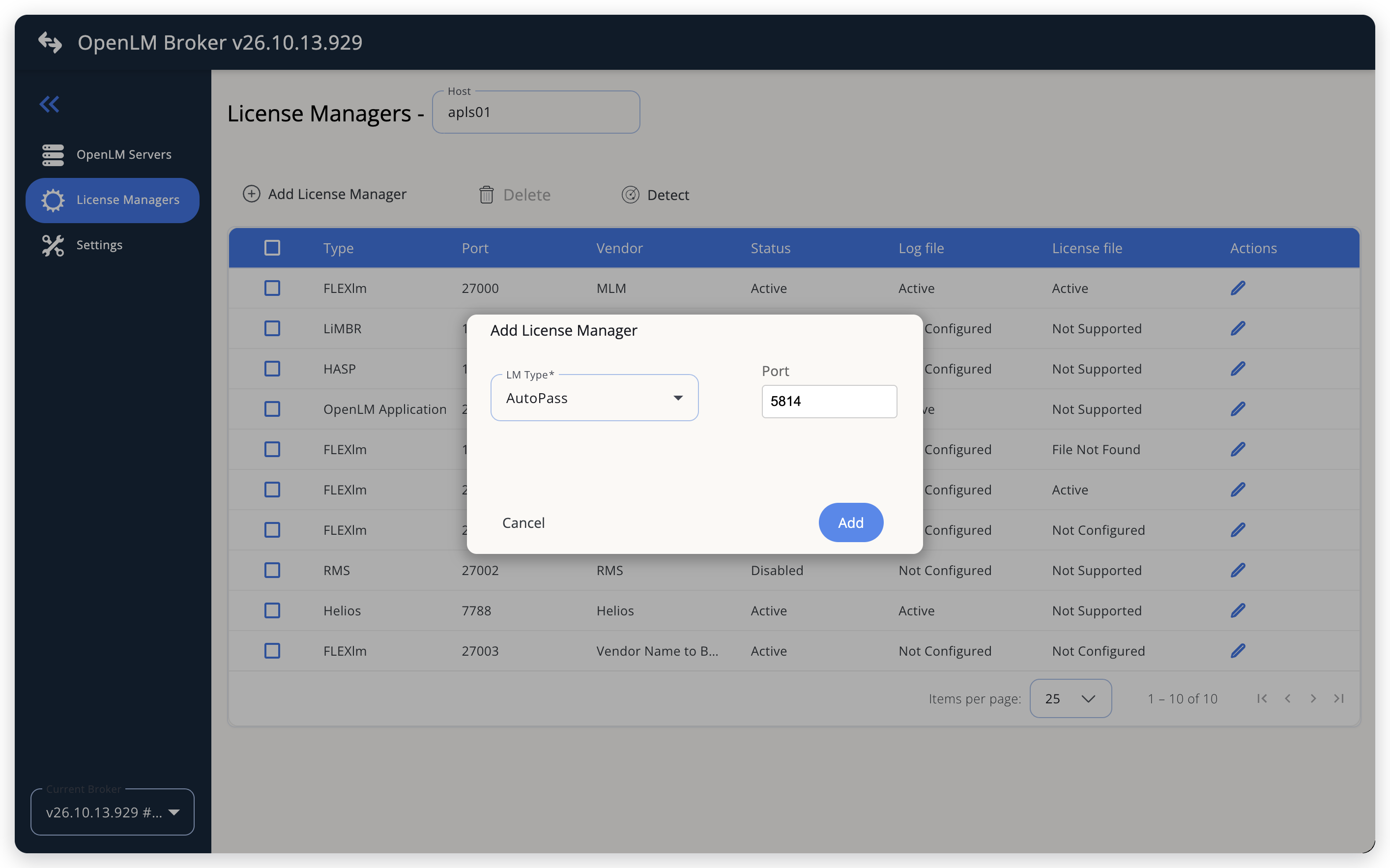 Add OpenText AutoPass License Server as a license manager
-
Enter the APLS port,
5814unless your administrators changed it, and select Add. -
On the Advanced tab, set the 3 options. For each option, select its edit icon, enter the value, and select Continue:
username: the APLS username, for exampleaplsUser.password: the password of that user.products: the identifiers of the products to monitor, separated by commas, for example10027_1.0_UFT_14.50,10000_1.0_DimensionsRM_25.4.
If the list disappears after you select Continue, select another tab and then Advanced again.
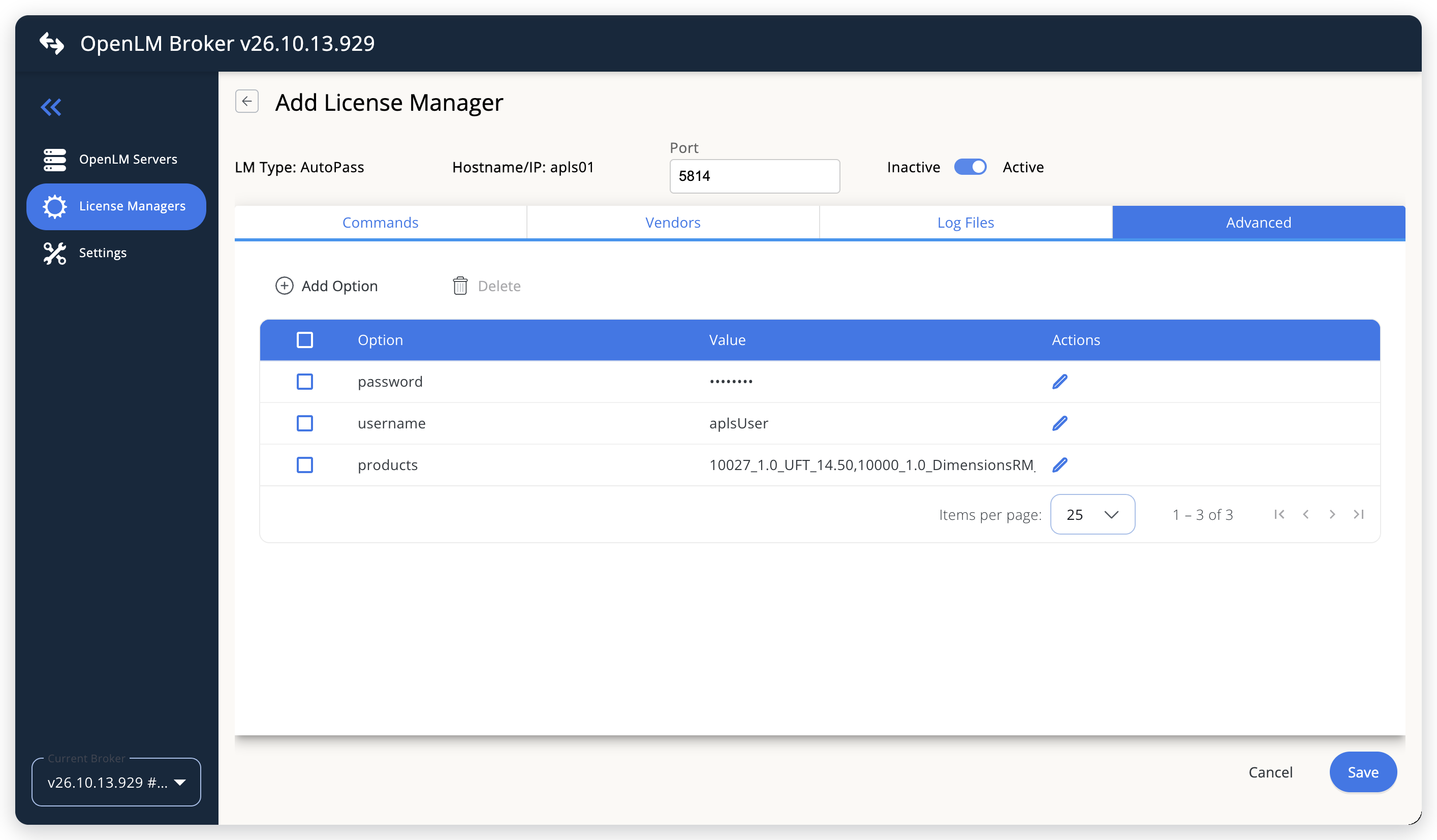 The APLS user and the products to monitor, on the Advanced tab
-
On the Commands tab, select the Data Inquiry command, and check its command line in the large text box.
- Host set to the APLS machine in step 2: keep the default command line.
- APLS on another host: replace
{$host}:{$port}with the APLS host name and port, for examplehttps://apls01:5814/autopass.
Keep
/autopassat the end of the address, and do not add anything after it. Broker adds the paths of the APLS reports itself.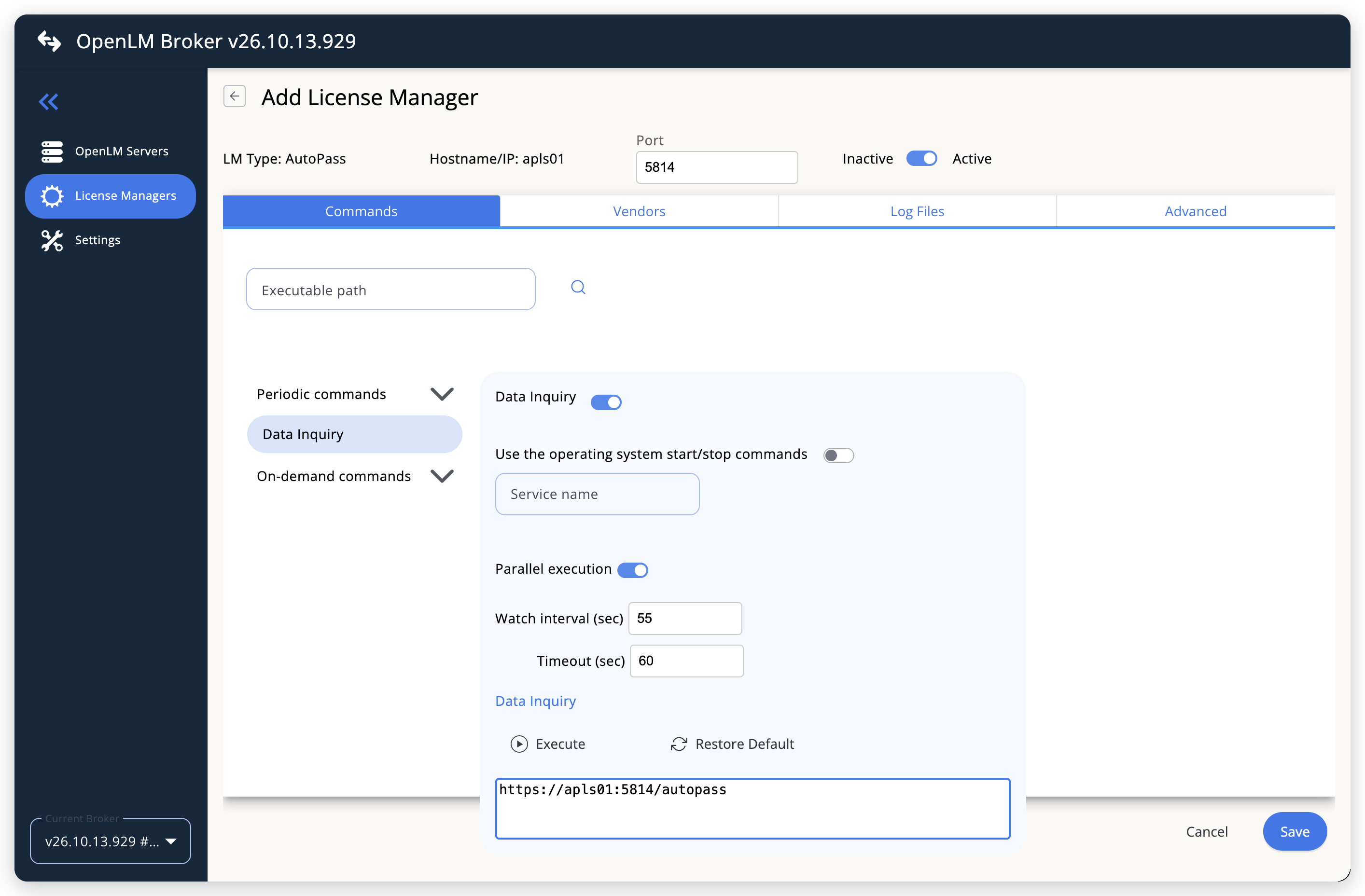 The default Data Inquiry, with Host and the APLS port filled in
-
Leave Watch interval (sec) at 55 seconds, or set the polling interval you want. Timeout (sec), 60 seconds by default, limits how long Broker waits for each APLS answer.
-
Leave the Vendors and Log Files tabs empty. Add a vendor only if you want OpenLM to show a vendor name other than
OpenText. -
Select Save.
-
Reopen the AutoPass license manager from the License Managers list, go to the Commands tab, and select Execute to test the data inquiry.
A successful test returns the license server XML, with a feature for each licensed feature of the products you listed and a user entry for each checkout. If the test fails, the
server_statusof theSERVERline holds the reason. See Troubleshooting. Broker refuses Execute on a license manager that you have never saved, and answersNeed to save first in order to execute command.
OpenLM SLM configuration
Automatic configuration through EasyAdmin
If the preceding steps are complete, Broker sends APLS data to OpenLM SLM on the next periodic data inquiry. Execute only tests the command inside the Broker UI and sends nothing to OpenLM SLM. Approve the license server in EasyAdmin:
-
Open EasyAdmin (
http://<Server IP>:5015) and go to Start → Widgets → License Manager - Servers. -
Select the There are N servers pending approval link at the top of the widget.
The Administration - License Manager Servers window opens, with the pending entries at the top of the list.
-
Find the pending AutoPass entry, with the host name and the port you configured in Broker, and select the edit icon at the end of its row.
Broker reports APLS with the OpenLM Generic protocol, so its Type is OpenLM Generic.
-
Optionally rename the connection in Display name, confirm the Host Name and Port, and select APPROVE.
Manual configuration through EasyAdmin
If automatic configuration fails:
-
Go to Start → Administration → License Manager Servers.
-
Select Add LM.
-
In Display name, enter a name for the connection, for example
OpenText AutoPass. -
From Type, select OpenLM Generic.
Use Broker turns on.
-
In the row under Host Name, Port, and Time Zone, enter the host name and the port exactly as configured in Broker for APLS, and select a time zone.
-
Select SAVE.
Verify your configuration
- Open EasyAdmin in your browser.
- Go to Start → Widgets → License Manager - Servers.
- Confirm that the APLS license server shows the Status Up to date.
- Go to Start → Widgets → Feature Usage Status and confirm that the features of the products you listed appear with their totals in Quantity and the number of licenses in use in Used. Compare the numbers with the License Usage pane of APLS.
- Go to Start → Reports → License Activity, select Include Current Activity, and select Apply. Confirm that each checkout appears with its username and workstation.
- On APLS 24.3 or higher, go to Start → Reports → Denials after a license request has been rejected, to confirm that denials arrive.
Troubleshooting
If APLS never appears as pending in EasyAdmin, confirm that the Broker reports to OpenLM SLM: other license managers on the same Broker update in EasyAdmin.
If the Broker reports and APLS appears with no features, go back to the Commands tab in the Broker UI and select Execute. Broker writes the reason for a failed data inquiry into the server_status of the SERVER line. Compare it with this list:
No products configured for the AutoPass port <port>— theproductsoption on the Advanced tab is empty. Enter the identifiers of the products to monitor.APLS returned no licensed features for product <identifier>, orAPLS error <code>: <message>such asProduct Definition is not found— APLS does not know that identifier, or has no license installed for it. Check the identifier with your APLS administrator, including its version parts.- A status that ends with
401andCheck username and password in the AutoPass port settings— APLS rejected the username or password. Correct theusernameandpasswordoptions on the Advanced tab. - A certificate error, such as
PKIX path building failedorunable to find valid certification path— the Broker machine does not trust the APLS certificate. Trust it as described in Set up SSL for OpenLM Broker, and restart Broker. Connection refused, or a timeout — nothing answers on that host and port. Check the host and port in the data inquiry, and that a firewall does not block the port between the Broker machine and APLS.- A status that ends with
404— the command line does not point at the APLS REST API. Make sure it ends with/autopass, for examplehttps://apls01:5814/autopass.
If features arrive but denials never do, check the APLS version. APLS versions earlier than 24.3 have no Rejected report, and the Broker log then shows APLS has no denial report, it is older than 24.3.
The Broker log holds the detail, in the logs folder of the Broker installation. A manual Execute writes to broker-service.log, and the periodic data inquiry writes to port-<port>-AutoPass.log.
Known limitations
- Broker cannot discover the products installed on APLS. It monitors only the products listed in the
productsoption, so add a product there when you install a new one on APLS. - Broker does not report license expiration dates or license allocations, and does not upload usage history. Usage in OpenLM starts when you configure the license manager.
- Denials are available only on APLS 24.3 or higher.
- Broker reads the current In Use report, not a log, so it sees only the checkouts that are open when the data inquiry runs. Broker can miss a checkout shorter than the watch interval.
- Multiple server redundancy is not available. Leave Is Triad Configuration unchecked in EasyAdmin.
The documentation team might draft this page using a large language model. A technical writer reviews every page and verifies it against the product before publishing it. A human makes the final decision.