RE:Vision Effects
Follow these steps to monitor RE:Vision Effects floating licenses with OpenLM. RE:Vision Effects plug-ins, such as ReelSmart Motion Blur, take their floating licenses from the RE:Vision Effects floating license server, rvlserver, which runs on a machine of your choice and listens on port 9412. OpenLM Broker runs rvlstatus, the status tool that the server installer puts on that machine, and reports each license to OpenLM SLM with its number of seats and the clients that hold one.
Requirements
Before starting, make sure you have:
- OpenLM SLM installed on a machine in your organization, or a Software License Management Cloud (SLMC) account.
- OpenLM Broker v22.2.7.1557 or later, installed on the machine that runs the RE:Vision Effects floating license server, on Windows or Linux, and reporting to OpenLM SLM. Broker v22.2.7.1557 is the first release that lists REVision Effects as a license manager type. Install Broker on the license server machine, because that is where the server installer puts
rvlstatus. - The RE:Vision Effects floating license server installed, running, and holding its license file. The vendor's Setting up your site for floating licenses page covers the installation, and the server manual that the installer puts on the machine covers the command-line tools.
- The folder of
rvlstatus. The Windows installer puts it inC:\Program Files (x86)\REVisionEffects\bin\, or inC:\Program Files\REVisionEffects\bin\on 32-bit Windows, and the Linux installer puts it in/sbin/. If you installed the server in another folder on Windows, use thebinsubfolder of that folder.
Monitoring capabilities
The current monitoring capabilities for RE:Vision Effects through OpenLM Broker are:
| LM Type in the Broker | Commands | Logs | Quantity | Expiration date | Denied | Borrowing | Allocations | Report resolution |
|---|---|---|---|---|---|---|---|---|
| REVision Effects | Yes | No | Yes | No | No | No | No | 55 seconds |
For each License # block in the rvlstatus output, Broker reports:
- Feature name: the
Product(s)value, followed by theProduct typevalue in parentheses, for examplereelsmartmotionblur(FULL)andreelsmartmotionblur(RENDER). A FULL license and a RENDER license of the same product arrive as 2 features. - Version: the
Versionvalue without its leadingV, for example6.0. - Total: the number of users in the
Typeline, for example 24 forNETWORK: 24 user(s). - In use: the number of client lines under
Current clients, 1 license per client. - Username: the name in the third column of the client line, after the system ID and the IP address of the client.
- Workstation: the IP address in the client line.
- Start time: the date and time at the end of the client line, read in the time zone of the Broker machine.
- License type: Broker reports every license as Floating.
- Expiration: Broker reports every license as permanent.
- Vendor:
RE:Vision Effects, unless you add a vendor on the Vendors tab. Broker then reports the first vendor on that tab.
The rvlstatus output holds no denied requests, Broker reads no expiration dates from it, and Broker does not upload usage history. Expiration dates, denials, borrowed licenses, and license allocations are not available.
How OpenLM interfaces with RE:Vision Effects
 How OpenLM collects RE:Vision Effects usage
Broker runs on the license server machine and sends the license data to OpenLM SLM. Broker does not connect to rvlserver itself. Its Data Inquiry command runs rvlstatus, which asks the license server for its licenses and their clients.
-
Commands: The license manager has 1 command, Data Inquiry, which runs
rvlstatusevery 55 seconds by default. Broker builds the call from the Executable path of the license manager:"<Executable path>rvlstatus"The Host and the port of the license manager are not part of the call. OpenLM lists the license server under them. The output of
rvlstatusis 1 block per license, for example:RE:Vision Effects Floating License Status 2.3Network license server for this machine is: localhostLicense #1Type: NETWORK: 20 user(s) Server: localhostProduct(s): reelsmartmotionblurVersion: V6.0Host system: multihostSystem id: 0050569a1b2cExpiry date: CURRENT: Expires: neverProduct type: FULLLicense key: <REDACTED>Is it valid?: VALIDCurrent clients: 2: 0050569d3e4f 10.0.12.34 render01 1: Wed May 26 15:12:31 2021: 0050569e5f60 10.0.12.35 render02 1: Wed May 26 15:22:54 2021Broker reads the
Type,Product(s),Version,Expiry date,Product type, andCurrent clientslines of each block, and then as many client lines asCurrent clientsannounces. It ignores the other lines. -
Sessions: Each data inquiry reports every client that holds a license, with the start time from its client line, and OpenLM SLM turns the consecutive reports into sessions.
-
Server status: Broker reports the server status as
okwhenever thervlstatuscall succeeds, even when the output lists no license. -
Log files: None. REVision Effects has no log file types in Broker.
Check the license server
Broker sees only what rvlstatus prints, so run it by hand on the license server machine first.
-
Open a command prompt on the license server machine and run
rvlstatus.On Windows, run
"C:\Program Files (x86)\REVisionEffects\bin\rvlstatus", orRVLShowStatus.batfromC:\Program Files (x86)\REVisionEffects\FloatingLicenseServer. On Linux, run/sbin/rvlstatus. -
Confirm that the output starts with
RE:Vision Effects Floating License Status, names the server in theNetwork license server for this machine isline, and lists each license as aLicense #block withType: NETWORK:andExpiry date: CURRENT: Expires: never.If the output lists no license, check that the license file is in place and that the server is running. The vendor's How do I install my floating license file? page names the license folder for each operating system and the scripts that stop and start the server:
RVLKillServer.batandRVLStartServer.baton Windows, run as administrator, and/sbin/rvlserver &on Linux, run as root. -
Note the
Product(s)andProduct typevalues of each license. Together they form the feature names that you see in EasyAdmin.
OpenLM Broker configuration
Install OpenLM Broker on the license server machine and confirm that it reports to OpenLM SLM before starting these steps.
-
Open a browser on the license server machine and go to the Broker web UI at http://localhost:5090/.
-
On the License Managers page, set Host to the host name of the license server machine, and select the save icon next to the field.
OpenLM lists the license server under this name. Broker does not pass it to
rvlstatus. -
Go to License Managers → Add License Manager.
-
From LM Type, select REVision Effects.
-
In Port, enter
9412, and select Add.Broker does not pass the port to
rvlstatuseither. Together with Host, the port identifies the license server in OpenLM, so enter9412, the port ofrvlserver. Broker refuses a port that another license manager on this Broker already uses.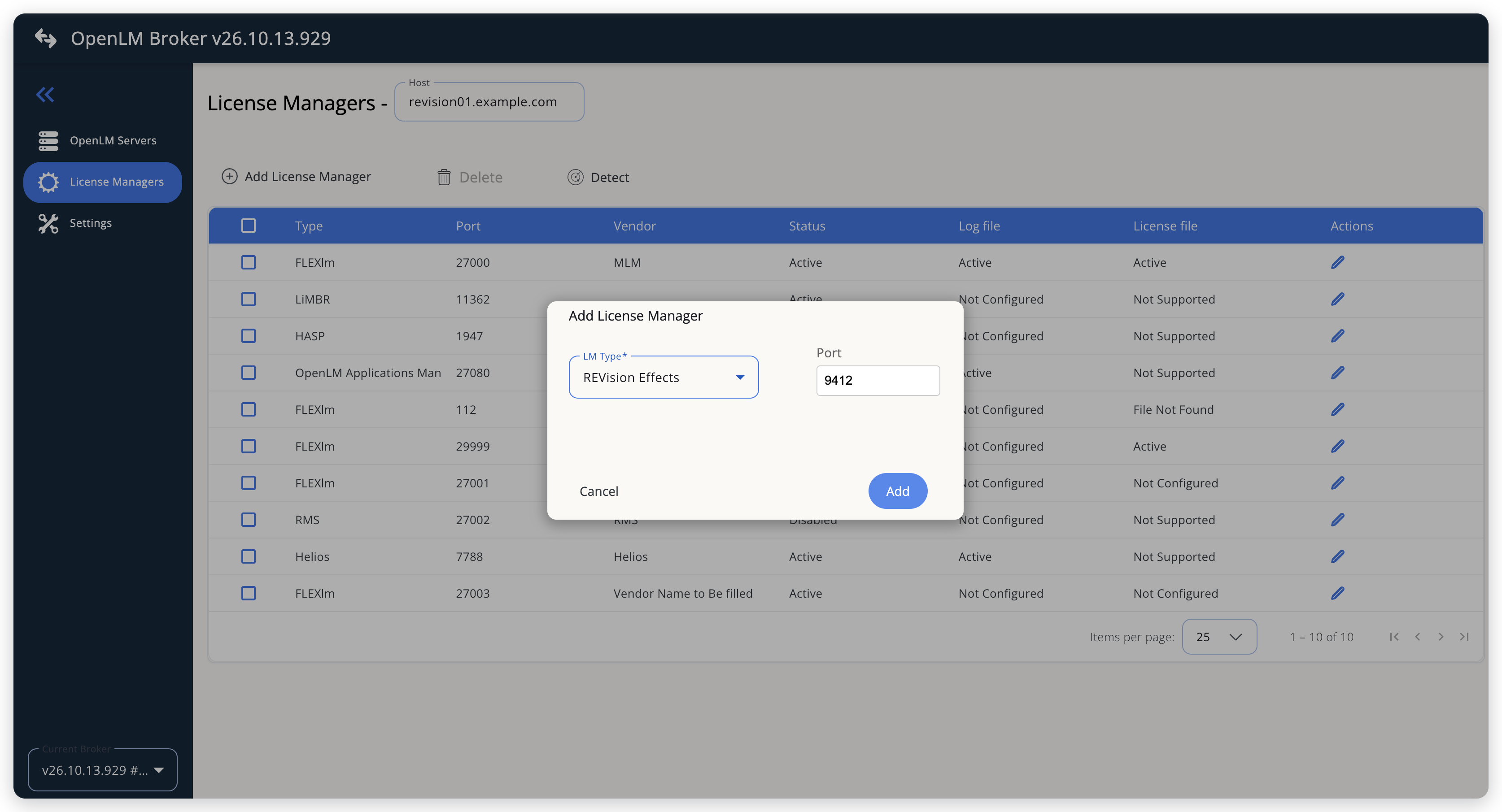 Add RE:Vision Effects as a license manager
-
On the Commands tab, in Executable path, enter the folder of
rvlstatus, for exampleC:\Program Files (x86)\REVisionEffects\bin\on Windows or/sbin/on Linux.Broker puts this path in front of
rvlstatus, and adds the path separator when the path does not end with one. -
Select Data Inquiry and check the command.
Broker fills it in as
"rvlstatus", runs it every 55 seconds (Watch interval (sec)), and stops a run that takes longer than 60 seconds (Timeout (sec)). Leave the command as it is.Leave Use the operating system start/stop commands off. Broker has no service name for REVision Effects, so it cannot start or stop
rvlserver.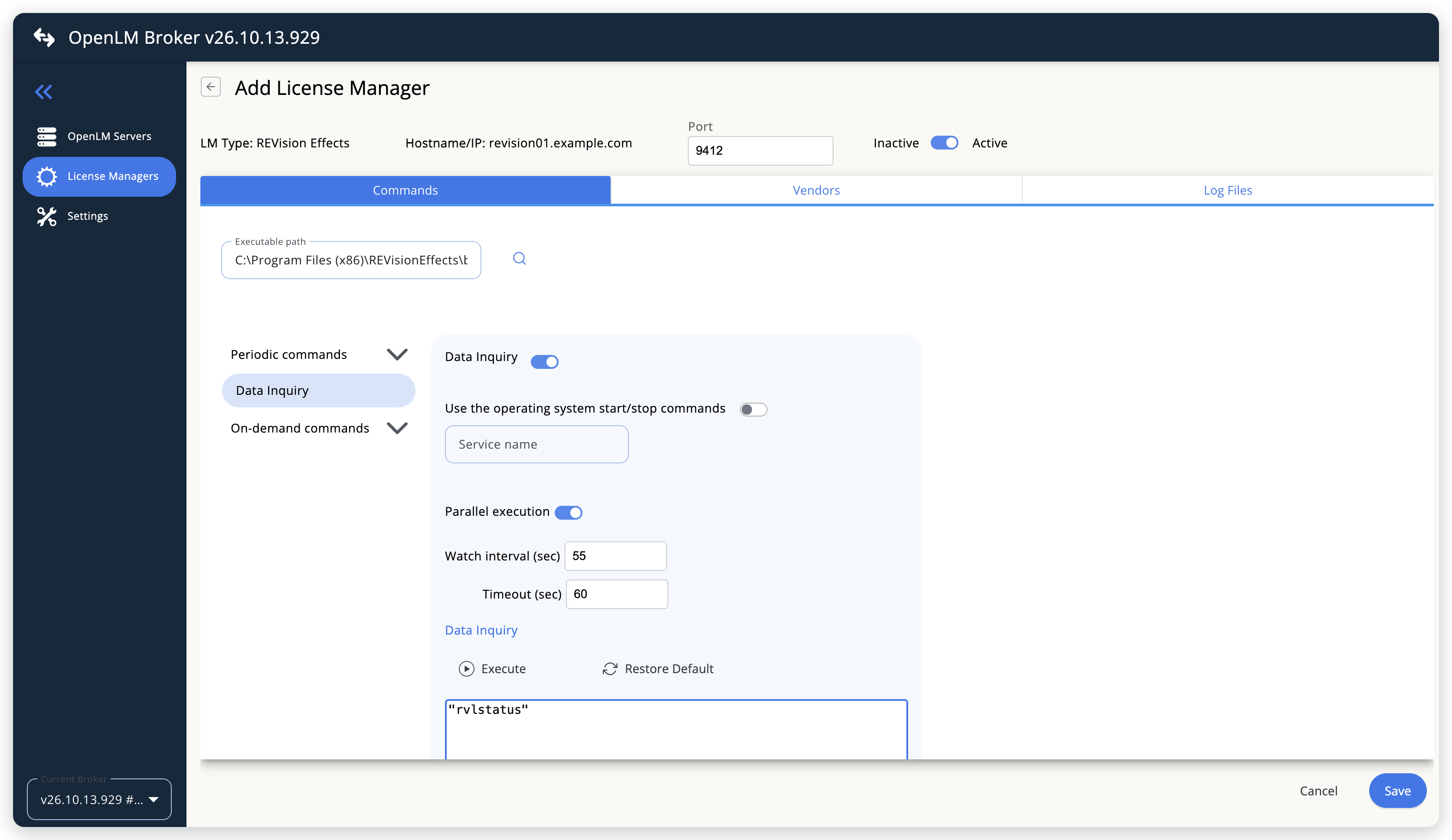 Point Broker at rvlstatus
-
Leave the Vendors and Log Files tabs as they are, and select Save.
With no vendor on the Vendors tab, Broker reports the vendor as
RE:Vision Effects. Add a vendor only to report another name. REVision Effects reads no log file.
OpenLM SLM configuration
Automatic configuration through EasyAdmin
If the preceding steps are complete, Broker runs the Data Inquiry command and reports RE:Vision Effects to OpenLM SLM. Approve the license server in EasyAdmin:
-
Open EasyAdmin (
http://<Server IP>:5015) and go to Start → Widgets → License Manager - Servers. -
Select the There are N servers pending approval link at the top of the widget.
The Administration - License Manager Servers window opens, with the pending entries at the top of the list.
-
Find the pending RE:Vision Effects entry, with the host name of the license server machine and port
9412, as you configured them in Broker, and select the edit icon at the end of its row.Broker reports the LM type REVision Effects, which OpenLM SLM knows, so its Type is REVision Effects, not OpenLM Generic.
-
Optionally rename the connection in Display name, confirm the Host Name and Port, and select APPROVE.
Manual configuration through EasyAdmin
If automatic configuration fails:
-
Go to Start → Administration → License Manager Servers.
-
Select Add LM.
-
In Display name, enter a name for the connection, for example
RE:Vision Effects license server. -
From Type, select REVision Effects.
Use Broker turns on.
-
In the row under Host Name, Port, and Time Zone, enter the host name and the port exactly as configured in Broker for RE:Vision Effects, and select a time zone.
-
Select SAVE.
Verify your configuration
- Open EasyAdmin in your browser.
- Go to Start → Widgets → License Manager - Servers.
- Confirm that the RE:Vision Effects license server shows the Status Up to date.
- Go to Start → Widgets → Feature Usage Status and confirm that each product and product type appears as a feature, such as
reelsmartmotionblur(FULL)andreelsmartmotionblur(RENDER), with the user count of the license in Quantity. - Go to Start → Reports → License Activity, select Include Current Activity, and select Apply. Confirm that each client appears with the name and the IP address from its client line.
Troubleshooting
If RE:Vision Effects never appears as pending in EasyAdmin, confirm that the Broker reports to OpenLM SLM: other license managers on the same Broker update in EasyAdmin.
If the license server is approved but shows no features, or not the features that you expect, run rvlstatus by hand on the license server machine, as described in Check the license server, and compare the result and the Broker log with these cases:
- The Broker log shows that the Data Inquiry command failed. Broker cannot run
"<Executable path>rvlstatus". Check Executable path on the Commands tab: the folder must holdrvlstatus. Unknown license type. Please contact OpenLM development to integrate, followed by theTypevalue. The license is not aNETWORKlicense. Broker reports the feature without a license type and without a total, and the log also showsLicense type is required. Send thervlstatusoutput to OpenLM Support to extend the integration.Multiple product names. Please contact OpenLM development to integrate, followed by theProduct(s)value. The line lists several products, separated by commas or spaces, and Broker names the feature after the whole line. When the products are listed on separate lines instead, Broker takes the first line only, without a message in the log.License has expiration. Please contact OpenLM development to handle, followed by theExpiry datevalue. The license expires. Broker reports it as permanent all the same, so OpenLM shows no expiration date for it.Failed to parse user session, followed by a client line. The line has another layout than: <system ID> <IP address> <name> <number>: <date>, and Broker does not report that client.
The Broker log holds the output of every rvlstatus call, in the logs folder of the Broker installation.
Known limitations
- Broker supports
NETWORKlicenses only. A license of another type arrives without a license type and without a total. - A license that covers several products arrives as 1 feature, named after the whole
Product(s)line, or after its first line when the products are listed on separate lines. - Broker reports every license as permanent, including a license with an expiry date, so OpenLM shows no expiration date for RE:Vision Effects licenses.
- The vendor describes the client lines of
rvlstatusas the client machines that use the licenses. Broker reports the IP address of a client line as the workstation and the name next to it as the username. - Start times come from the client lines and are read in the time zone of the Broker machine. Sessions shorter than the watch interval of 55 seconds can be missed.
- Broker does not report expiration dates, denied requests, borrowed licenses, or license allocations, and does not upload usage history. Usage in OpenLM starts when you configure the license manager.
- Broker runs
rvlstatuson its own machine, so it reports the license server configured for that machine. Install a Broker on each license server machine. - Detect on the License Managers page does not find RE:Vision Effects. Add the license manager by hand.
- Multiple server redundancy is not available. Leave Is Triad Configuration unchecked in EasyAdmin.
The documentation team might draft this page using a large language model. A technical writer reviews every page and verifies it against the product before publishing it. A human makes the final decision.